
项目实战15.1—企业级堡垒机 jumpserver一步一步搭建
本文收录在Linux运维企业架构实战系列
环境准备
- 系统:CentOS 7
- IP:192.168.10.101
- 关闭selinux 和防火墙
# CentOS 7

$ setenforce 0  # 可以设置配置文件永久关闭

$ systemctl stop iptables.service

$ systemctl stop firewalld.service

# CentOS6

$ setenforce 0

$ service iptables stop
一、准备 Python3 和 Python 虚拟环境
1、安装依赖包
[root@centos7-1 opt]# yum -y install wget sqlite-devel xz gcc automake zlib-devel openssl-devel epel-release git
2、编译安装
[root@centos7-1 opt]# wget https://www.python.org/ftp/python/3.6.1/Python-3.6.1.tar.xz
[root@centos7-1 opt]# tar xvf Python-3.6.1.tar.xz && cd Python-3.6.1
[root@centos7-1 opt]# ./configure && make && make install
3、建立 Python 虚拟环境
因为 CentOS 6/7 自带的是 Python2,而 Yum 等工具依赖原来的 Python,为了不扰乱原来的环境我们来使用 Python 虚拟环境
[root@centos7-1 opt]# cd /opt
[root@centos7-1 opt]# python3 -m venv py3
[root@centos7-1 opt]# source /opt/py3/bin/activate
注:看到下面的提示符代表成功,以后运行 Jumpserver 都要先运行以上 source 命令,以下所有命令均在该虚拟环境中运行
(py3) [root@centos7-1 opt]#
二、安装 Jumpserver 1.0.0
1、下载或 Clone 项目
项目提交较多 git clone 时较大,你可以选择去 Github 项目页面直接下载zip包。
(py3) [root@centos7-1 opt]# cd /opt/
(py3) [root@centos7-1 opt]# git clone --depth=1 https://github.com/jumpserver/jumpserver.git && cd jumpserver && git checkout master
2、安装依赖 RPM 包
(py3) [root@centos7-1 jumpserver]# cd /opt/jumpserver/requirements
(py3) [root@centos7-1 jumpserver]# yum -y install $(cat rpm_requirements.txt) # 如果没有任何报错请继续
3、安装 Python 库依赖
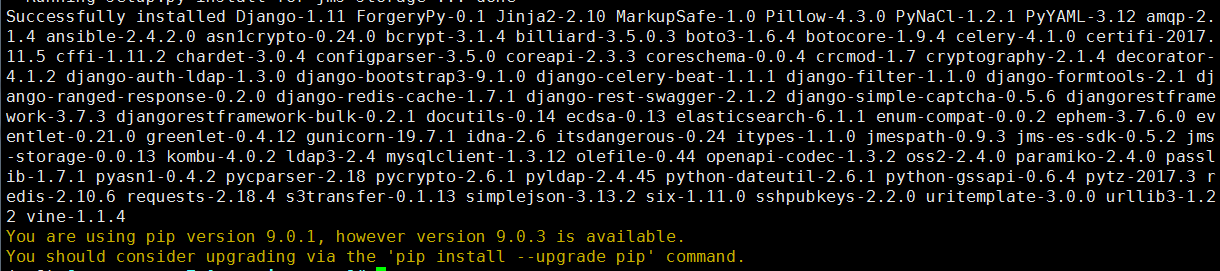
(py3) [root@centos7-1 requirements]# pip install -r requirements.txt # 不要指定-i参数,因为镜像上可能没有最新的包,如果没有任何报错请继续
成功如下图:
4、安装 Redis, Jumpserver 使用 Redis 做 cache 和 celery broke
(py3) [root@centos7-1 requirements]# yum -y install redis
(py3) [root@centos7-1 requirements]# systemctl start redis
5、安装 MySQL
本教程使用 Mysql 作为数据库,如果不使用 Mysql 可以跳过相关 Mysql 安装和配置
(1)# centos7
(py3) [root@centos7-1 requirements]# yum -y install mariadb mariadb-devel mariadb-server # centos7下安装的是mariadb
(py3) [root@centos7-1 requirements]# systemctl start mariadb.service
(2)# centos6
$ yum -y install mysql mysql-devel mysql-server
$ service mysqld start
6、创建数据库 Jumpserver 并授权
(py3) [root@centos7-1 requirements]# mysql
MariaDB [(none)]> create database jumpserver default charset 'utf8';
Query OK, 1 row affected (0.00 sec)
MariaDB [(none)]> grant all on jumpserver.* to 'jumpserver'@'127.0.0.1' identified by 'along';
Query OK, 0 rows affected (0.00 sec)
7、修改 Jumpserver 配置文件
(py3) [root@centos7-1 requirements]# cd /opt/jumpserver
(py3) [root@centos7-1 jumpserver]# cp config_example.yml config.py
(py3) [root@centos7-1 jumpserver]# vim config.py # 我们计划修改 DevelopmentConfig中的配置,因为默认jumpserver是使用该配置,它继承自Config
"""

    jumpserver.config

    ~~~~~~~~~~~~~~~~~

    Jumpserver project setting file

    :copyright: (c) 2014-2017 by Jumpserver Team

    :license: GPL v2, see LICENSE for more details.

"""

import os

BASE_DIR = os.path.dirname(os.path.abspath(__file__))

class Config:

    # Use it to encrypt or decrypt data

    # Jumpserver 使用 SECRET_KEY 进行加密,请务必修改以下设置

    # SECRET_KEY = os.environ.get('SECRET_KEY') or '2vym+ky!997d5kkcc64mnz06y1mmui3lut#(^wd=%s_qj$1%x'

    SECRET_KEY = '2vym+ky!997d5kkcc64mnz06y1mmui3lut#(^wd=%s_qj$1%x' '请随意输入随机字符串(推荐字符大于等于 50位)'

    # Django security setting, if your disable debug model, you should setting that

    ALLOWED_HOSTS = ['*']

    # DEBUG 模式 True为开启 False为关闭,默认开启,生产环境推荐关闭

    # 注意:如果设置了DEBUG = False,访问8080端口页面会显示不正常,需要搭建 nginx 代理才可以正常访问

    DEBUG = False

    # 日志级别,默认为DEBUG,可调整为INFO, WARNING, ERROR, CRITICAL,默认INFO

    LOG_LEVEL = 'WARNING'

    LOG_DIR = os.path.join(BASE_DIR, 'logs')

    # 使用的数据库配置,支持sqlite3, mysql, postgres等,默认使用sqlite3

    # See https://docs.djangoproject.com/en/1.10/ref/settings/#databases

    # 默认使用SQLite3,如果使用其他数据库请注释下面两行

    # DB_ENGINE = 'sqlite3'

    # DB_NAME = os.path.join(BASE_DIR, 'data', 'db.sqlite3')

    # 如果需要使用mysql或postgres,请取消下面的注释并输入正确的信息,本例使用mysql做演示(mariadb也是mysql)

    DB_ENGINE = 'mysql'

    DB_HOST = '127.0.0.1'

    DB_PORT = 3306

    DB_USER = 'jumpserver'

    DB_PASSWORD = '123456'

    DB_NAME = 'jumpserver'

    # Django 监听的ip和端口,生产环境推荐把0.0.0.0修改成127.0.0.1,这里的意思是允许x.x.x.x访问,127.0.0.1表示仅允许自身访问

    # ./manage.py runserver 127.0.0.1:8080

    HTTP_BIND_HOST = '127.0.0.1'

    HTTP_LISTEN_PORT = 8080

    # Redis 相关设置

    REDIS_HOST = '127.0.0.1'

    REDIS_PORT =  6379

    REDIS_PASSWORD = ''

    REDIS_DB_CELERY = 3

    REDIS_DB_CACHE =  4

    def __init__(self):

        pass

    def __getattr__(self, item):

        return None

class DevelopmentConfig(Config):

    pass

class TestConfig(Config):

    pass

class ProductionConfig(Config):

    pass

# Default using Config settings, you can write if/else for different env

config = DevelopmentConfig()
注意: 配置文件是 Python 格式,不要用 TAB,而要用空格
8、生成数据库表结构和初始化数据
(py3) [root@centos7-1 jumpserver]# cd /opt/jumpserver/utils
(py3) [root@centos7-1 utils]# bash make_migrations.sh
成功如下图:

9、运行 Jumpserver
(1)老版本启动方法
(py3) [root@centos7-1 utils]# cd /opt/jumpserver
(py3) [root@centos7-1 jumpserver]# python run_server.py all
(2)新版本启动方法
(py3) [root@centos7-1 jumpserver]# ./jms start all # 后台运行使用-d 如:参数./jms start all -d
# 新版本更新了运行脚本,使用方式./jms start|stop|status|restart all 后台运行请添加 -d 参数
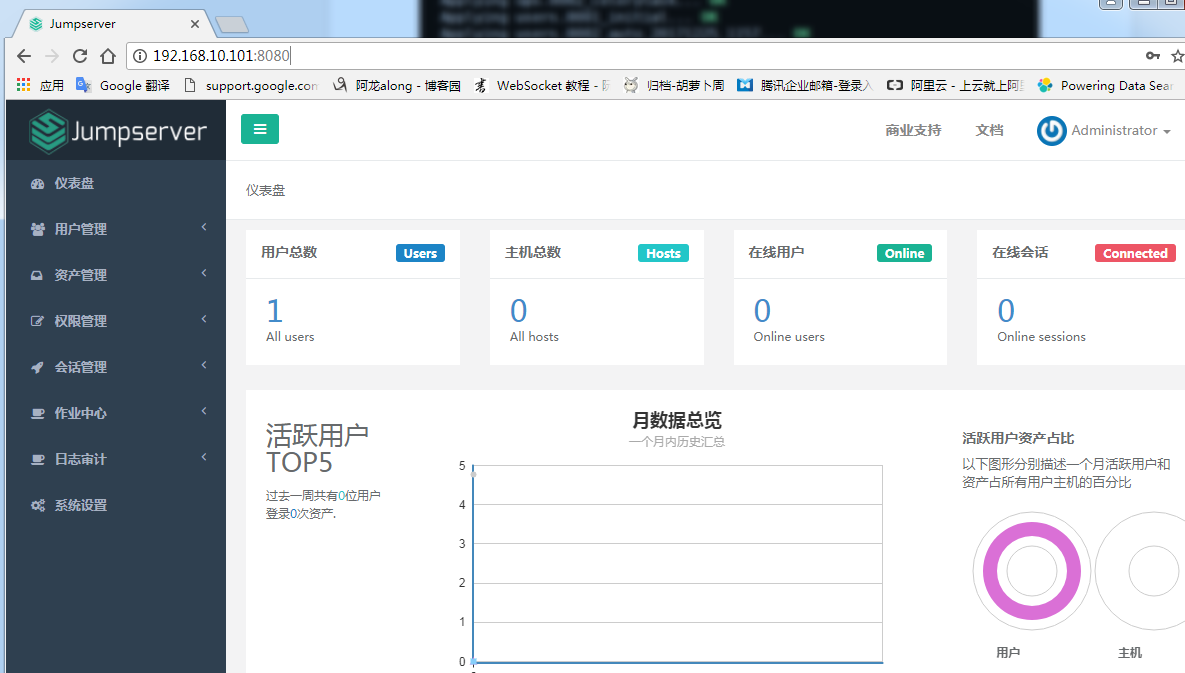
10、浏览器访问http://192.168.10.101:8080/
注意:
① 第一次运行时可能报错,(这里只是 Jumpserver, 没有 Web Terminal,所以访问 Web Terminal 会报错)
② 终止程序,再次执行,就可以登录了
(py3) [root@centos7-1 jumpserver]# ./jms start all
账号: admin 密码: admin
③ 登录成功
三、安装 SSH Server 和 WebSocket Server: Coco
1、下载或 Clone 项目
新开一个终端,连接测试机,别忘了 source /opt/py3/bin/activate
[root@centos7-1 ~]# source /opt/py3/bin/activate
(py3) [root@centos7-1 ~]# cd /opt/
(py3) [root@centos7-1 opt]# git clone https://github.com/jumpserver/coco.git && cd coco && git checkout master
2、安装依赖
(py3) [root@centos7-1 coco]# cd /opt/coco/requirements
(py3) [root@centos7-1 requirements]# yum -y install $(cat rpm_requirements.txt)
(py3) [root@centos7-1 requirements]# pip install -r requirements.txt
成功如下图:

3、查看配置文件并运行
(1)运行
(py3) [root@centos7-1 requirements]# cd /opt/coco
(py3) [root@centos7-1 coco]# cp conf_example.py conf.py
注意: 配置文件是 Python 格式,不要用 TAB,而要用空格
#!/usr/bin/env python3

# -*- coding: utf-8 -*-

#

import os

BASE_DIR = os.path.dirname(__file__)

class Config:

    """

    Coco config file, coco also load config from server update setting below

    """

    # 项目名称, 会用来向Jumpserver注册, 识别而已, 不能重复

    # NAME = "localhost"

    NAME = "coco"

    # Jumpserver项目的url, api请求注册会使用, 如果Jumpserver没有运行在127.0.0.1:8080,请修改此处

    # CORE_HOST = os.environ.get("CORE_HOST") or 'http://127.0.0.1:8080'

    CORE_HOST = 'http://127.0.0.1:8080'

    # 启动时绑定的ip, 默认 0.0.0.0

    # BIND_HOST = '0.0.0.0'

    # 监听的SSH端口号, 默认2222

    # SSHD_PORT = 2222

    # 监听的HTTP/WS端口号,默认5000

    # HTTPD_PORT = 5000

    # 项目使用的ACCESS KEY, 默认会注册,并保存到 ACCESS_KEY_STORE中,

    # 如果有需求, 可以写到配置文件中, 格式 access_key_id:access_key_secret

    # ACCESS_KEY = None

    # ACCESS KEY 保存的地址, 默认注册后会保存到该文件中

    # ACCESS_KEY_STORE = os.path.join(BASE_DIR, 'keys', '.access_key')

    # 加密密钥

    # SECRET_KEY = None

    # 设置日志级别 ['DEBUG', 'INFO', 'WARN', 'ERROR', 'FATAL', 'CRITICAL']

    # LOG_LEVEL = 'INFO'

    LOG_LEVEL = 'WARN'

    # 日志存放的目录

    # LOG_DIR = os.path.join(BASE_DIR, 'logs')

    # Session录像存放目录

    # SESSION_DIR = os.path.join(BASE_DIR, 'sessions')

    # 资产显示排序方式, ['ip', 'hostname']

    # ASSET_LIST_SORT_BY = 'ip'

    # 登录是否支持密码认证

    # PASSWORD_AUTH = True

    # 登录是否支持秘钥认证

    # PUBLIC_KEY_AUTH = True

    # SSH白名单

    # ALLOW_SSH_USER = 'all'  # ['test', 'test2']

    # SSH黑名单, 如果用户同时在白名单和黑名单,黑名单优先生效

    # BLOCK_SSH_USER = []

    # 和Jumpserver 保持心跳时间间隔

    # HEARTBEAT_INTERVAL = 5

    # Admin的名字,出问题会提示给用户

    # ADMINS = ''

    COMMAND_STORAGE = {

        "TYPE": "server"

    }

    REPLAY_STORAGE = {

        "TYPE": "server"

    }

    # SSH连接超时时间 (default 15 seconds)

    # SSH_TIMEOUT = 15

    # 语言 = en

    LANGUAGE_CODE = 'zh'

config = Config()
(py3) [root@centos7-1 coco]# ./cocod start # 后台运行使用 -d 参数./cocod start -d
# 新版本更新了运行脚本,使用方式./cocod start|stop|status|restart 后台运行请添加 -d 参数
(2)这时需要去 Jumpserver 管理后台-会话管理-终端管理(http://192.168.10.101:8080/terminal/terminal/)接受 Coco 的注册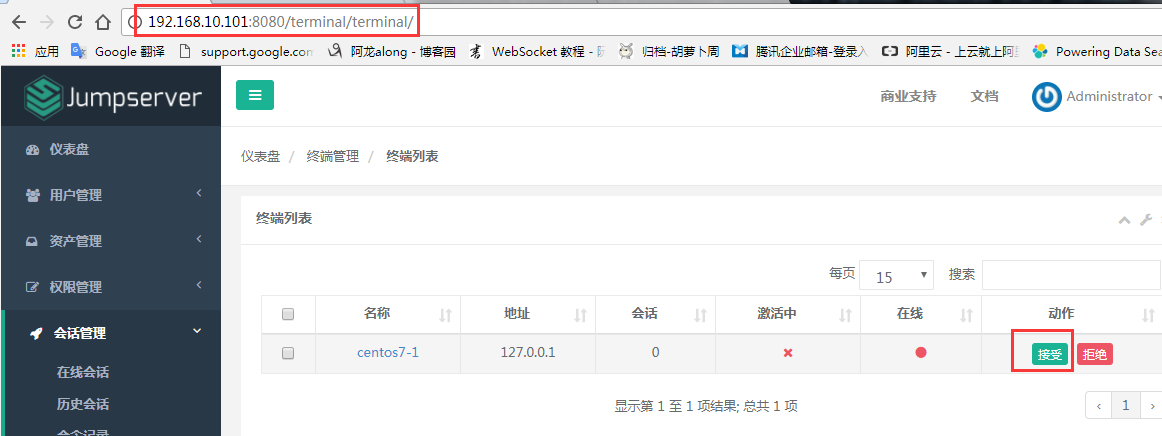
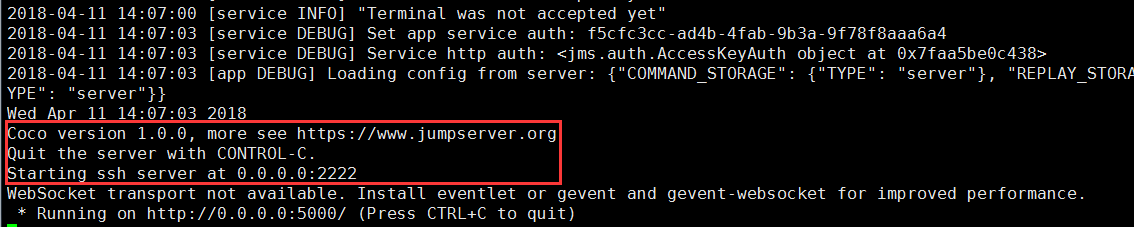
(3)命令行终端显示连接成功
4、测试连接
(1)linux 连接
[root@centos7-1 ~]# ssh -p2222 admin@192.168.10.101 #新开一个终端去连接密码: admin
(2)如果是用在 Windows 下,Xshell Terminal 登录语法如下
$ssh admin@192.168.244.144 2222
密码: admin
如果能登陆代表部署成功
(3)登录成功如下图:

四、安装 Web Terminal 前端: Luna
1、下载 Luna
Luna 已改为纯前端,需要 Nginx 来运行访问
访问(https://github.com/jumpserver/luna/releases)下载对应版本的 release 包,直接解压,不需要编译
[root@centos7-1 ~]# cd /opt/
[root@centos7-1 opt]# wget https://github.com/jumpserver/luna/releases/download/v1.0.0/luna.tar.gz
2、解压 Luna
[root@centos7-1 opt]# tar xvf luna.tar.gz
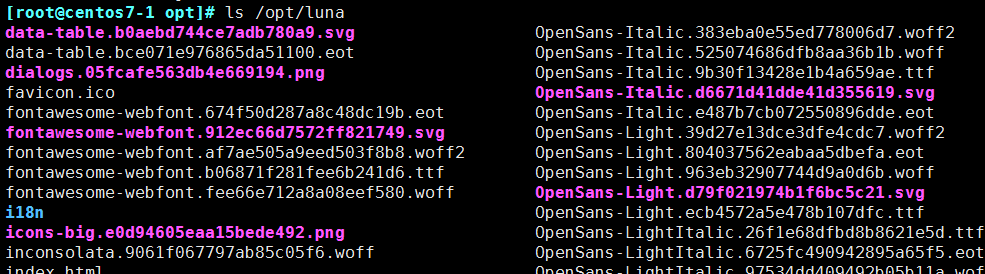
[root@centos7-1 opt]# ls /opt/luna
五、安装 Windows 支持组件(如果不需要管理 windows 资产,可以直接跳过这一步)
因为手动安装 guacamole 组件比较复杂,这里提供打包好的 docker 使用, 启动 guacamole
1、Docker安装 (仅针对CentOS7,CentOS6,安装Docker相对比较复杂)
① 安装依赖

[root@centos7-1 ~]# yum remove docker-latest-logrotate  docker-logrotate  docker-selinux dockdocker-engine

[root@centos7-1 ~]# yum install -y yum-utils  device-mapper-persistent-data   lvm2

② 安装docker
添加docker官方源
[root@centos7-1 ~]# yum-config-manager --add-repo https://download.docker.com/linux/centos/docker-ce.repo
[root@centos7-1 ~]# yum makecache fast
[root@centos7-1 ~]# yum install docker-ce

③ 国内部分用户可能无法连接docker官网提供的源,这里提供阿里云的镜像节点供测试使用
[root@centos7-1 ~]# yum-config-manager --add-repo http://mirrors.aliyun.com/docker-ce/linux/centos/docker-ce.repo
[root@centos7-1 ~]# rpm --import http://mirrors.aliyun.com/docker-ce/linux/centos/gpg
[root@centos7-1 ~]# yum makecache fast
[root@centos7-1 ~]# yum -y install docker-ce

④ 启动docker
[root@centos7-1 ~]# systemctl start docker
[root@centos7-1 ~]# systemctl status docker
2、启动 Guacamole
① 这里所需要注意的是 guacamole 暴露出来的端口是 8081,若与主机上其他端口冲突请自定义
修改 JUMPSERVER_SERVER 环境变量的配置,填上 Jumpserver 的内网地址
# 注意:这里一定要改写一下本机的IP地址, 否则会出错, 带宽有限, 下载时间可能有点长,可以喝杯咖啡,撩撩对面的妹子
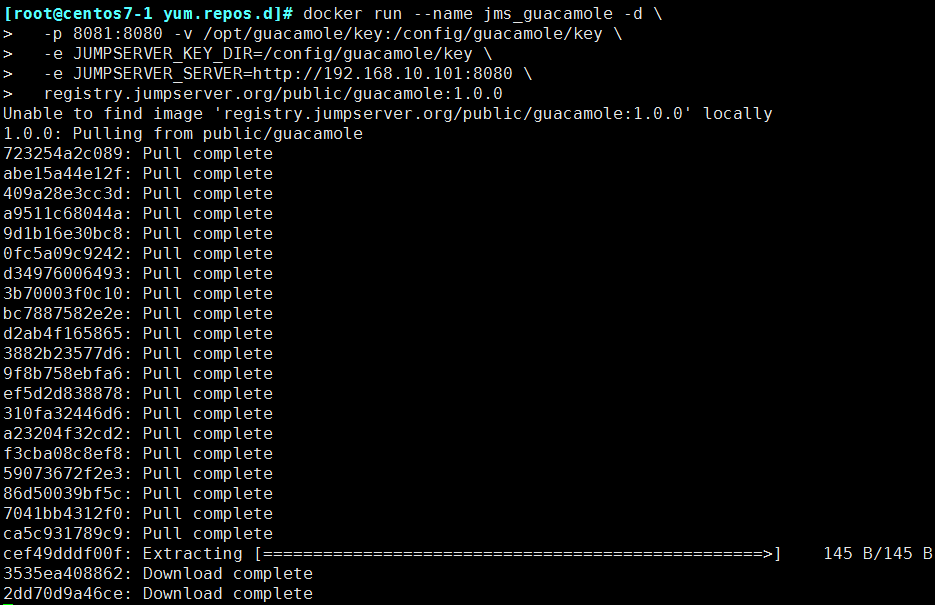
docker run --name jms_guacamole -d \

  -p 8081:8080 -v /opt/guacamole/key:/config/guacamole/key \

  -e JUMPSERVER_KEY_DIR=/config/guacamole/key \

  -e JUMPSERVER_SERVER=http://<填写本机的IP地址>:8080 \

  registry.jumpserver.org/public/guacamole:1.0.0
② 执行过程截图
3、在jumpserver 接受注册
启动成功后去 Jumpserver 会话管理-终端管理(http://192.168.10.101:8080/terminal/terminal/)接受[Gua]开头的一个注册,如果页面显示不正常可以等部署完成后再处理 
六、配置 Nginx 整合各组件
1、安装 Nginx 根据喜好选择安装方式和版本
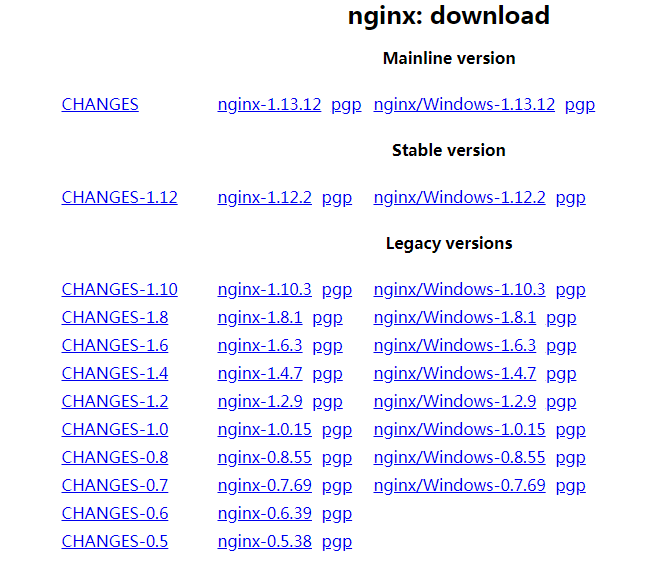
nginx 官网https://nginx.org/en/download.html
(1)安装前准备
① 下载版本包,我以nginx-1.12.2为例
[root@centos7-1 nginx]# wget -c https://nginx.org/download/nginx-1.12.2.tar.gz
[root@centos7-1 nginx]# tar -xvf nginx-1.12.2.tar.gz
② 下载依赖包
[root@centos7-1 nginx]# yum install gc gcc gcc-c++ pcre-devel zlib-devel openssl-devel
③ 创建nginx用户、组
[root@centos7-1 nginx-1.12.2]# groupadd nginx
[root@centos7-1 nginx-1.12.2]# useradd -s /sbin/nologin -g nginx -M nginx
(2)编译安装
[root@centos7-1 nginx-1.12.2]# ./configure --user=nginx --group=nginx --prefix=/mnt/nginx --with-http_stub_status_module --with-http_ssl_module --with-http_gzip_static_module
[root@centos7-1 nginx-1.12.2]# make && make install
[root@centos7-1 nginx-1.12.2]# cd /mnt/nginx/ # 完成

注释:#指定运行权限的用户
--user=nginx
#指定运行的权限用户组
--group=nginx
#指定安装路径
--prefix=/usr/local/nginx
#支持nginx状态查询
--with-http_stub_status_module
#开启ssl支持
--with-http_ssl_module
#开启GZIP功能
--with-http_gzip_static_module
(3)使systemctl 控制nginx 服务
[root@centos7-1 nginx]# vim /usr/lib/systemd/system/nginx.service
[Unit]

Description=nginx - high performance web server

Documentation=http://nginx.org/en/docs/

After=network.target remote-fs.target nss-lookup.target

[Service]

Type=forking

PIDFile=/mnt/nginx/logs/nginx.pid

ExecStartPre=/mnt/nginx/sbin/nginx -t -c /mnt/nginx/conf/nginx.conf

ExecStart=/mnt/nginx/sbin/nginx -c /mnt/nginx/conf/nginx.conf

ExecReload=/bin/kill -s HUP $MAINPID

ExecStop=/bin/kill -s QUIT $MAINPID

PrivateTmp=true

[Install]

WantedBy=multi-user.target
2、准备配置文件
[root@centos7-1 ~]# vim /mnt/nginx/conf/nginx.conf 清除已有的server段
server {

    listen 80;

    proxy_set_header X-Real-IP $remote_addr;

    proxy_set_header Host $host;

    proxy_set_header X-Forwarded-For $proxy_add_x_forwarded_for;

    location /luna/ {

        try_files $uri / /index.html;

        alias /opt/luna/;

    }

    location /media/ {

        add_header Content-Encoding gzip;

        root /opt/jumpserver/data/;

    }

    location /static/ {

        root /opt/jumpserver/data/;

    }

    location /socket.io/ {

        proxy_pass       http://localhost:5000/socket.io/;

        proxy_buffering off;

        proxy_http_version 1.1;

        proxy_set_header Upgrade $http_upgrade;

        proxy_set_header Connection "upgrade";

    }

    location /guacamole/ {

        proxy_pass       http://localhost:8081/;

        proxy_buffering off;

        proxy_http_version 1.1;

        proxy_set_header X-Forwarded-For $proxy_add_x_forwarded_for;

        proxy_set_header Upgrade $http_upgrade;

        proxy_set_header Connection $http_connection;

        access_log off;

    }

    location / {

        proxy_pass http://localhost:8080;

    }

}
3、运行 Nginx
[root@centos7-1 ~]# /mnt/nginx/sbin/nginx -t # 检查配置文件
[root@centos7-1 ~]# service nginx start
4、访问 http://192.168.10.101

转自https://www.cnblogs.com/along21/
项目实战15.1—企业级堡垒机 jumpserver一步一步搭建的更多相关文章
- 项目实战15.2—企业级堡垒机 jumpserver快速入门
必备条件 硬件条件 ① 一台安装好 Jumpserver 系统的可用主机(堡垒机) ② 一台或多台可用的 Linux.Windows资产设备(被管理的资产) 服务条件 (1)coco服务 ① 鉴于心态 ...
- 项目实战15—企业级堡垒机 jumpserver
本文收录在Linux运维企业架构实战系列 环境准备 系统:CentOS 7 IP:192.168.10.101 关闭selinux 和防火墙 # CentOS $ setenforce # 可以设置配 ...
- 企业级堡垒机 jumpserver
环境准备 系统:CentOS 7 IP:192.168.10.101 关闭selinux 和防火墙 # CentOS $ setenforce # 可以设置配置文件永久关闭 $ systemctl s ...
- CentOS7 开源跳板机(堡垒机) Jumpserver
开源跳板机(堡垒机)Jumpserver 环境 CentOS 7 x64 关闭 selinux firewalld jumpserver: 172.24.0.14 testserve ...
- Centos下堡垒机Jumpserver V3.0环境部署完整记录(2)-配置篇
前面已经介绍了Jumpserver V3.0的安装,基于这篇安装文档,下面说下Jumpserver安装后的的功能使用: 一.jumpserver的启动 Jumpserver的启动和重启 [root@t ...
- 开源堡垒机jumpserver
开源堡垒机jumpserver 开源堡垒机jumpserver的安装 开源堡垒机jumpserver的配置和使用
- 开源堡垒机jumpserver的安装
开源跳板机jumpserver安装 简介 Jumpserver 是全球首款完全开源的堡垒机, 使用GNU GPL v2.0 开源协议, 是符合4A 的专业运维审计系统 Jumpserver 使用Pyt ...
- 堡垒机jumpserver测试记录--使用
快速入门 截图就不放了,官网都有,这里只是就遇到的一些问题做下记录 必备条件 一台安装好 Jumpserver 系统的可用主机(堡垒机) 一台或多台可用的 Linux.Windows资产设备(被管理的 ...
- Centos下堡垒机Jumpserver V3.0环境部署完整记录(1)-安装篇
由于来源身份不明.越权操作.密码泄露.数据被窃.违规操作等因素都可能会使运营的业务系统面临严重威胁,一旦发生事故,如果不能快速定位事故原因,运维人员往往就会背黑锅.几种常见的运维人员背黑锅场景:1)由 ...
随机推荐
- python右键Edit with IDLE
在windows下试用python,Py文件的右键菜单有个Edit with IDLE,虽然这个ide不是那么功能强大,但是胜在方便.对于脚本语言的一般使用来说是足够了.但是有时候,这个菜单就消失了, ...
- Siverlight5 3D 中文环境搭建
一.测试环境 vs2010旗舰版 win7 64位旗舰版 二.必备工具 1.vs2010 旗舰版 2.vs2010 sp1 补丁 3.silverlight5 tools 也可以去silverligh ...
- WSGI学习系列eventlet.wsgi
WSGI是Web Service Gateway Interface的缩写. WSGI标准在PEP(Python Enhancement Proposal)中定义并被许多框架实现,其中包括现广泛使用的 ...
- ACdream 1430——SETI——————【后缀数组,不重叠重复子串个数】
SETI Time Limit: 4000/2000MS (Java/Others) Memory Limit: 128000/64000KB (Java/Others) Submit Statist ...
- 工作经验(JNI篇)
我的工作是C++开发,主要是做底层的,由于要做跨平台的原因,常会做成JNI给Java调用,下面是工作时总结的经验希望有用 JNI只能使用C语言的方式编译,所以,要使用C++的话,要用 extern & ...
- C++ 宏定义的简单使用
1.定义常量 #define ARRMAX 50 int arr[ARRMAX]; (这种做法不如直接用const来直接定义常量.) 2.代替模板函数或者内联函数,将函数定义成宏.执行效率很快 #de ...
- sql & sqlalchemy join多个表
# 连接两个数据表的用法: FROM Member INNER JOIN MemberSort ON Member.MemberSort=MemberSort.MemberSort # 语法格式可以概 ...
- Python自学之路——自定义简单装饰器
看了微信公众号推送的一道面试题,发现了闭包的问题,学习时间短,从来没有遇到过这种问题,研究一下. Python函数作用域 global:全局作用域 local:函数内部作用域 enclosing:函数 ...
- UVA Live Archive 4490 Help Bubu(状压dp)
难点在于状态设计,从左向右一本书一本书的考虑,每本书的决策有两种拿走或者留下, 对于拿走后的书,之后要放回,但是决策过程中不知道到往哪里放, 虽然前面的书的种类确定,可能是往后面放更优,而后面的书的类 ...
- Android(java)学习笔记95:Android运行时异常"Binary XML file line # : Error inflating class"
在原生Android下编译APK,编译没有问题,但是在运行的时候经常出现如标题所描述的异常:"Binary XML file line # : Error inflating class&q ...