
史上最全的selenium三大等待介绍
一.强制等待
1.设置完等待后不管有没有找到元素,都会执行等待,等待结束后才会执行下一步
2.实例
driver = webdriver.Chrome()

driver.get("https://www.baidu.com")

time.sleep(3)  # 设置强制等待

driver.quit()
二.隐性等待
1.设置全局等待,对每个查询的元素都生效,在等待时间内找到了该元素则执行下一步,未找到报错。
2.实例
driver = webdriver.Chrome()

driver.get("https://www.baidu.com")

driver.implicitly_wait(10)  # 设置隐性等待

driver.quit()
三.显性等待
1.WebDriverWait类
1)导入webdriverwait类
from selenium.webdriver.support.wait import WebDriverWait
2)实例化WebDriverWait
wait = WebDriverWait(driver, 10, 2) # 10为等待时间,2为在10s内每过2s去判断一次
selenium提供了WebdriverWait类用于针对指定的元素设置等待,其中内含until和until_not两个方法判断
3)until(self, method, message: str = "") 函数
methon:为判断条件,若返回true,则判断成功,返回false,判断失败,打印message信息
message:为判断失败时打印的信息,可写可不写。
driver = webdriver.Chrome()

driver.get("https://www.baidu.com")

wait = WebDriverWait(driver, 10, 2)  # 设置显性等待

wait.until("判断条件", "返回false时打印的信息")

driver.quit()
4)until_not(self, method, message: str = "") 函数
until_not效果与until相反,返回false时判断成功,返回true时判断失败
driver = webdriver.Chrome()

driver.get("https://www.baidu.com")

wait = WebDriverWait(driver, 10, 2)  # 设置显性等待

wait.until_not("判断条件", "返回true时打印的信息")

driver.quit()
5)判断条件通常与expected_conditions连用,内部封装了判断方法。expected_conditions的具体用法,我们接着往下看。
2.expected_conditions
下面介绍expected_conditions模块下所有的函数用法
1)title_is:精准匹配页面标题,匹配成功返回true,失败返回false
from selenium import webdriver

from selenium.webdriver.common.by import By

from selenium.webdriver.support.wait import WebDriverWait

from selenium.webdriver.support.expected_conditions import *

option = webdriver.ChromeOptions()

option.add_argument("--headless")  # 设置无窗口模式

driver = webdriver.Chrome(options=option)
driver.get("https://www.baidu.com")
wait = WebDriverWait(driver, 10, 2) # 设置显性等待
wait.until(title_is("百度一下,你就知道")) # 精准匹配标题
driver.quit()
2)title_contains:模糊匹配标题,匹配成功返回true,失败返回false
from selenium import webdriver

from selenium.webdriver.common.by import By

from selenium.webdriver.support.wait import WebDriverWait

from selenium.webdriver.support.expected_conditions import *

option = webdriver.ChromeOptions()

option.add_argument("--headless")  # 设置无窗口模式

driver = webdriver.Chrome(options=option)

driver.get("https://www.baidu.com")

wait = WebDriverWait(driver, 10, 2)  # 设置显性等待

wait.until(title_contains("百度"))  # 模糊匹配标题

driver.quit()
3)presence_of_element_located:判断定位的元素是否存在(可见和隐藏元素),存在返回true,否则返回false
from selenium import webdriver

from selenium.webdriver.common.by import By

from selenium.webdriver.support.wait import WebDriverWait

from selenium.webdriver.support.expected_conditions import *

option = webdriver.ChromeOptions()

option.add_argument("--headless")  # 设置无窗口模式

driver = webdriver.Chrome(options=option)

driver.get("https://www.baidu.com")

wait = WebDriverWait(driver, 10, 2)  # 设置显性等待

wait.until(presence_of_element_located((By.ID, "kw")), "不存在")  # 判断元素是否存在,可见和隐藏元素都可判断

driver.quit()
4)url_contains:判断页面url地址是否包含预期结果,满足预期返回true,不满足返回false
from selenium import webdriver

from selenium.webdriver.common.by import By

from selenium.webdriver.support.wait import WebDriverWait

from selenium.webdriver.support.expected_conditions import *

option = webdriver.ChromeOptions()

option.add_argument("--headless")  # 设置无窗口模式

driver = webdriver.Chrome(options=option)

driver.get("https://www.baidu.com")

wait = WebDriverWait(driver, 10, 2)  # 设置显性等待

wait.until(url_contains("baidu1"), "不包含")  # 检测当前页面url地址是否包含预期结果

driver.quit()
5)url_matches:判断当前页面地址是否包含预期结果,内填写正则表达式,满足预期返回true,不满足返回false
from selenium import webdriver

from selenium.webdriver.common.by import By

from selenium.webdriver.support.wait import WebDriverWait

from selenium.webdriver.support.expected_conditions import *

option = webdriver.ChromeOptions()

option.add_argument("--headless")  # 设置无窗口模式

driver = webdriver.Chrome(options=option)

driver.get("https://www.baidu.com")

wait = WebDriverWait(driver, 10, 2)  # 设置显性等待

wait.until(url_matches("baidu"), "不包含")  # 检测当前页面url地址是否包含预期结果,内填写正则表达式

driver.quit()
6)url_to_be:精准判断url,若相同返回true,不同返回false
from selenium import webdriver

from selenium.webdriver.common.by import By

from selenium.webdriver.support.wait import WebDriverWait

from selenium.webdriver.support.expected_conditions import *

option = webdriver.ChromeOptions()

option.add_argument("--headless")  # 设置无窗口模式

driver = webdriver.Chrome(options=option)

driver.get("https://www.baidu.com")

wait = WebDriverWait(driver, 10, 2)  # 设置显性等待

wait.until(url_to_be("https://www.baidu.com/"), "不存在")  # 精准判断url

driver.quit()
7)url_changes:精准判断url,若相同返回false,不同返回true
from selenium import webdriver

from selenium.webdriver.common.by import By

from selenium.webdriver.support.wait import WebDriverWait

from selenium.webdriver.support.expected_conditions import *

option = webdriver.ChromeOptions()

option.add_argument("--headless")  # 设置无窗口模式

driver = webdriver.Chrome(options=option)

driver.get("https://www.baidu.com")

wait = WebDriverWait(driver, 10, 2)  # 设置显性等待

wait.until(url_changes("https://www.baidu.c"), "相等")  # 精准匹配url不相等

driver.quit()
8)visibility_of_element_located:判断定位的元素是否存在,只能判断可见元素,存在返回true,不存在返回false
from selenium import webdriver

from selenium.webdriver.common.by import By

from selenium.webdriver.support.wait import WebDriverWait

from selenium.webdriver.support.expected_conditions import *

option = webdriver.ChromeOptions()

option.add_argument("--headless")  # 设置无窗口模式

driver = webdriver.Chrome(options=option)

driver.get("https://www.baidu.com")

wait = WebDriverWait(driver, 10, 2)  # 设置显性等待

wait.until(visibility_of_element_located((By.ID, "kw")), "不存在")  # 判断元素是否存在,只适用于可见元素

driver.quit()
9)visibility_of:判断元素是否存在,只能判断可见元素
from selenium import webdriver

from selenium.webdriver.common.by import By

from selenium.webdriver.support.wait import WebDriverWait

from selenium.webdriver.support.expected_conditions import *

option = webdriver.ChromeOptions()

option.add_argument("--headless")  # 设置无窗口模式

driver = webdriver.Chrome(options=option)

driver.get("https://www.baidu.com")

wait = WebDriverWait(driver, 10, 2)  # 设置显性等待

element_id = driver.find_element(by=By.ID, value="kw")

wait.until(visibility_of(element_id), "不存在")  # 判断元素是否存在,只适用于可见元素

driver.quit()
此方法与visibility_of_element_located判断结果相同,只是传递参数不同,visibility_of传元素,visibility_of_element_located传元组
10)presence_of_all_elements_located:判断页面至少有一个定位的元素存在(可见和隐藏元素都会判断)
wait.until(presence_of_all_elements_located((By.TAG_NAME, "span")), "没有一个存在") # 判断页面至少有一个定位的元素存在(可见和隐藏元素都会判断)
11)visibility_of_any_elements_located:判断页面至少有一个定位的元素存在,且为可见元素
wait.until(visibility_of_any_elements_located((By.TAG_NAME, "span")), "没有一个存在") # 判断页面至少有一个定位的元素存在,且为可见元素
12)visibility_of_all_elements_located:判断定位的元素全部可见
wait.until(visibility_of_all_elements_located((By.TAG_NAME, "span")), "不可见") # 判断定位的元素全部可见
13)text_to_be_present_in_element:模糊匹配文本值
wait.until(text_to_be_present_in_element((By.XPATH, "//span[contains(text(),'123')]"), "124"), "匹配不成功") # 模糊匹配元素文本值
14)text_to_be_present_in_element_value:模糊匹配定位元素的value值
wait.until(text_to_be_present_in_element_value((By.XPATH, "//input[@id='su']"), "百度一下"), "匹配错误") # 模糊匹配元素value值
15)text_to_be_present_in_element_attribute:模糊匹配定位元素指定属性的属性值
wait.until(text_to_be_present_in_element_attribute((By.XPATH, "//input[@id='kw']"), "name", "w"), "匹配错误") # 模糊匹配定位元素指定属性的属性值
16)frame_to_be_available_and_switch_to_it:判断frame是否可以切换(switch_to.frame())
wait.until(frame_to_be_available_and_switch_to_it((By.XPATH, "elenment")), "不可切换") # 判断frame是否可以切换
17)invisibility_of_element_located:判断定位的元素是否不可见或者不存在,不可见返回true,反之返回false
wait.until(invisibility_of_element_located((By.TAG_NAME, "span")), "错误") # 判断元素是否不可见/不存在,不可见返回true
18)invisibility_of_element:判断元素是否不可见或者不存在,不可见返回true,反之返回false
span=driver.find_element(By.TAG_NAME, "span")

wait.until(invisibility_of_element(span), "错误")  # 判断元素是否不可见或者不存在,不可见返回true,反之返回false
与invisibility_of_element_located用法相同,只是传递参数不同,一个传元素,一个传元组
19)element_to_be_clickable:判断定位的元素是否可点击
wait.until(element_to_be_clickable((By.ID, "su")), "错误") # 判断定位的元素是否可点击
20)staleness_of:判断元素是否存在,存在若在等待的时间内被移除,则返回true
span = driver.find_element(By.ID, "su")

wait.until(staleness_of(span), "错误")  # 判断元素是否存在,存在若在等待的时间内被移除,则返回true
这里注意的是传递的参数是元素
21)element_to_be_selected:判断元素是否被选中
id=driver.find_element(by=By.XPATH, value="//option[contains(text(),'2')]")

wait.until(element_to_be_selected(id),"失败")  # 判断可见元素是否选中
这里注意的是传递的参数是元素
22)element_located_to_be_selected:判断定位的元素是否被选中,选中返回true,未选中返回false
wait.until(element_located_to_be_selected((By.XPATH, "//option[contains(text(),'1')]")),"失败") # 判断定位的元素是否被选中
与element_to_be_selected用法相同,不同的是传递的是元组
23)element_selection_state_to_be:判断元素选中的状态是否符合预期
id=driver.find_element(by=By.XPATH, value="//option[contains(text(),'2')]")

wait.until(element_selection_state_to_be(id,False),"选中了")  # 判断元素是否被选中,并给出预期结果
24)element_located_selection_state_to_be:判断元素选中的状态是否符合预期
wait.until(element_located_selection_state_to_be((By.ID,"su"),True),"错误") # 判断定位的元素是否被选中,并给出预期结果
与element_selection_state_to_be用法相同,不同的是传递的元组
25)number_of_windows_to_be:判断当前打开的窗口是否符合预期
wait.until(number_of_windows_to_be(1),"不是一个") # 期望当前打开的窗口数为几个
26)new_window_is_opened:判断是否新打开了一个窗口
hand = driver.window_handles  # 获取当前所有窗口的柄句

print(len(hand))

driver.find_element(by=By.XPATH, value="//a[contains(text(),'新闻')]").click()

wait.until(new_window_is_opened(hand))  # 判断是否打开了一个新窗口
27)alert_is_present:判断页面是否有alert
wait.until(alert_is_present(),"没有alert") # 判断页面是否有alert
28)element_attribute_to_include:判断定位的元素是否存在预期的属性值
这个我们就不做多余的介绍了,因为本身封装的就有问题,我们先来看下封装的原代码
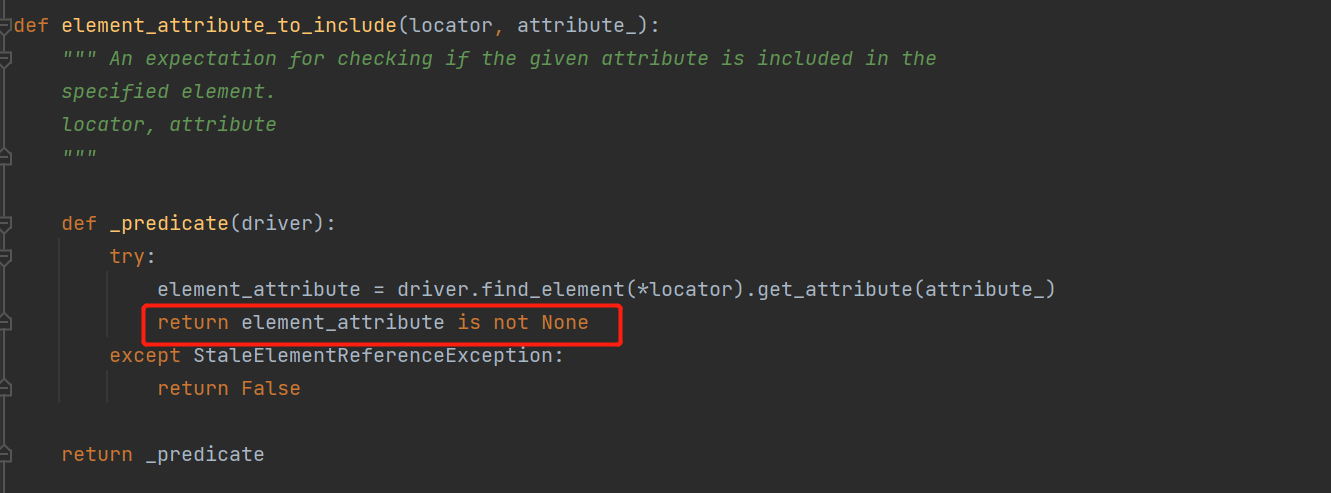
通过get_attribute(attribute_)获取属性值,若为none则返回false,否则返回不为none,其实这点是存在问题的
因为get_attribute(attribute_)当属性不存在时是什么都不会返回的,更不会返回none。
29)any_of:判断多个条件满足一个为true的话就返回true,相当于or逻辑
wait.until(any_of(alert_is_present(), element_attribute_to_include((By.TAG_NAME, "a"), "name")), "没有一个符合要求的") # 多个判断条件有一个返回true,则返回True,or逻辑
30)all_of:判断多个条件必须都满足为true的话才返回true,相当于and逻辑
wait.until(all_of(alert_is_present(), element_attribute_to_include((By.TAG_NAME, "a"), "name"))) # 多个判断条件必须都满足,True,and逻辑
31)none_of:判断多个条件都返回false时,才能判断成功返回true
wait.until(none_of(alert_is_present(), element_attribute_to_include((By.TAG_NAME, "a"), "name"))) # 判断多个条件都返回flase时返回true,有一个返回true时则返回false
文章来源:https://www.cnblogs.com/lihongtaoya/ ,请不要转载
史上最全的selenium三大等待介绍的更多相关文章
- 史上最全!Selenium元素定位的30种方式
Selenium对网页的控制是基于各种前端元素的,在使用过程中,对于元素的定位是基础,只有准去抓取到对应元素才能进行后续的自动化控制,我在这里将对各种元素定位方式进行总结归纳一下. 这里将统一使用百度 ...
- Istio技术与实践06:史上最全!Istio安装参数介绍
一. CertManage Istio-1.0版本新加入的组件,利用ACME为Istio签发证书 Key Default Value Description certmanager.enabled T ...
- nacos 实战(史上最全)
文章很长,而且持续更新,建议收藏起来,慢慢读! 高并发 发烧友社群:疯狂创客圈(总入口) 奉上以下珍贵的学习资源: 疯狂创客圈 经典图书 : 极致经典 + 社群大片好评 < Java 高并发 三 ...
- Java基础面试题(史上最全、持续更新、吐血推荐)
文章很长,建议收藏起来,慢慢读! 疯狂创客圈为小伙伴奉上以下珍贵的学习资源: 疯狂创客圈 经典图书 : <Netty Zookeeper Redis 高并发实战> 面试必备 + 大厂必备 ...
- Linux面试题(史上最全、持续更新、吐血推荐)
文章很长,建议收藏起来,慢慢读! 疯狂创客圈为小伙伴奉上以下珍贵的学习资源: 疯狂创客圈 经典图书 : <Netty Zookeeper Redis 高并发实战> 面试必备 + 大厂必备 ...
- 史上最全Windows版本搭建安装React Native环境配置
史上最全Windows版本搭建安装React Native环境配置 配置过React Native 环境的都知道,在Windows React Native环境配置有很多坑要跳,为了帮助新手快速无误的 ...
- 【Tips】史上最全H1B问题合辑——保持H1B身份终级篇
[Tips]史上最全H1B问题合辑——保持H1B身份终级篇 2015-04-10留学小助手留学小助手 留学小助手 微信号 liuxue_xiaozhushou 功能介绍 提供最真实全面的留学干货,帮您 ...
- 开源框架】Android之史上最全最简单最有用的第三方开源库收集整理,有助于快速开发
[原][开源框架]Android之史上最全最简单最有用的第三方开源库收集整理,有助于快速开发,欢迎各位... 时间 2015-01-05 10:08:18 我是程序猿,我为自己代言 原文 http: ...
- 史上最全的 Java 新手问题汇总
史上最全的 Java 新手问题汇总 Java是目前最流行的编程语言之一——它可以用来编写Windows程序或者是Web应用,移动应用,网络程序,消费电子产品,机顶盒设备,它无处不在. 有超过30亿 ...
随机推荐
- 2022 07 13 第一小组 田龙跃 Java再学习笔记
1.类名命名规则: 只能由数字字母,下划线,美元符号组成(不能以数字开头,尽量不要用下划线开头) 2.注释(养成多写注释的好习惯) 单行注释 // ctrl+/ 多行注释 // ctrl+shirt+ ...
- 005_面试题 Java_传递方式
面试题: 问:java是值传递还是引用传递? 答:java只有值传递,基本类型传递的是具体的数,引用类型传递的是具体的地址
- # 8 快速入门 dubbo
8 快速入门 dubbo 所需资料 注册中心 Zookeeper 安装 zookeeper 官方推荐使用 zookeeper 注册中心: 注册中心负责服务地址的注册与查找,相当于目录服务: 服务提供者 ...
- 《吐血整理》进阶系列教程-拿捏Fiddler抓包教程(12)-Fiddler设置IOS手机抓包,你知多少???
1.简介 Fiddler不但能截获各种浏览器发出的 HTTP 请求,也可以截获各种智能手机发出的HTTP/ HTTPS 请求. Fiddler 能捕获Android 和 Windows Phone 等 ...
- Spring源码 14 IOC refresh方法9
参考源 https://www.bilibili.com/video/BV1tR4y1F75R?spm_id_from=333.337.search-card.all.click https://ww ...
- shiro登录过程
工作流程: 浏览器将用户名.密码.是否记住登录等信息发送给登录controller , new UsernamePasswordToken()获取token,将用户名.加密后的密码.rememberM ...
- 记一次twikoo引发的站点重大事故
今天我测试私人博客的时候发现twikoo评论发生了错误,显示评论失败:0,我怀疑是我设置的twikoo安全域名有问题,所以我看了整个lssues,找到了我的解决方法! 1.关于配置安全域名后评论消失的 ...
- 快速搭建 SpringCloud Alibaba Nacos 配置中心!
Spring Cloud Alibaba 是阿里巴巴提供的一站式微服务开发解决方案,目前已被 Spring Cloud 官方收录.而 Nacos 作为 Spring Cloud Alibaba 的核心 ...
- C# 数组 深拷贝 和 数组传参
前言 C#中引用类型无法使用const,因此传参的时候使用引用类型,一定要注意是否会改变其值.下面介绍几种 数组的 深拷贝方法. 前提 下面的测试代码有一些前提, sw为Stopwatch nForT ...
- Linux虚拟机启动报错operating system not found解决步骤
此报错为硬盘上的启动代码丢失 实验准备步骤 1) 准备: dd if=/dev/zero of=/dev/nvme0n1 bs=446 count=1 2) 系统启动报错截图 修复步骤如下 第一步:选 ...