
REMOVE A WINDOWS SERVICE
You can easily remove a Windows service from the Windows registry using a simple command prompt command called SC.
SC is the command line utility which interacts with the Windows Service Controller and can be used to manage services on either a remote or local Windows machine.
You will need to find the name of the service you would like to remove before you can issue the SC command to remove it. You can either use the Windows Service console or the sc query command to find the name of a service.
Click the Start menu and type in Services and click the WindowsServices console in the list. Find your service by name and double click it to see the Properties window. The service name can be seen at the top of the form. The below example shows the Skype Updaterservice.
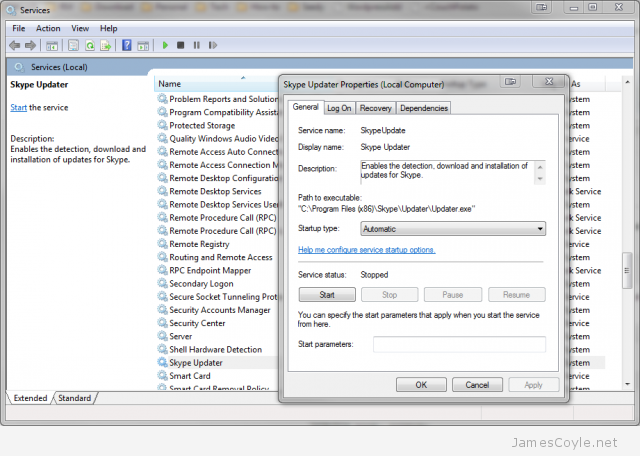
To use the sc query command to find your service name, open up a command prompt and type the below command.
sc query
Find the SERVICE_NAME attribute of your required service.
Once you have the service name, you will need to stop the service before you can delete it. Issue the sc stop command followed by the service name. The below example show how to stop the SkypeUpdate service.
sc stop SkypeUpdate
Finally, you can issue the sc delete command to remove the service.
sc remove SkypeUpdate
原文地址: http://www.jamescoyle.net/tag/windows
REMOVE A WINDOWS SERVICE的更多相关文章
- node.js应用生成windows service的plugin——winser
from:http://xiaomijsj.blog.163.com/blog/static/89685520135854036206/ 针对项目中windows server machine 不断重 ...
- 使用Python写Windows Service服务程序
1.背景 如果你想用Python开发Windows程序,并让其开机启动等,就必须写成windows的服务程序Windows Service,用Python来做这个事情必须要借助第三方模块pywin32 ...
- 使用ASP.NET实现Windows Service定时执行任务
转载http://blog.csdn.net/yanghua_kobe/article/details/6937816 我们怎样才能在服务器上使用asp.net定时执行任务而不需要安装windows ...
- A basic Windows service in C++ (CppWindowsService)
A basic Windows service in C++ (CppWindowsService) This code sample demonstrates creating a basic Wi ...
- 让自己的C++程序(非服务程序)运行为一个windows service
因为项目的一些变化和原因,需要把数据处理的一个后台程序创建为一个windows服务,运行以下命令能创建成功: sc create "MyApp Service Name" binP ...
- Mysql安装错误:Install/Remove of the Service Denied!解决办法
Mysql安装错误:Install/Remove of the Service Denied!解决办法 在windos 的cmd下安装mysql 在mysql的bin目录下面执行: mysqld -- ...
- python实现windows Service服务程序
python实现windows Service服务程序 win32serviceutil.ServiceFramework是封装得很好的Windows服务框架,本文通过继承它来实现. 通过SvcDoR ...
- Windows 7 下将 Tomcat Java 程序设置为 Windows Service
方法: Windows key + r -> Run dialog cmd -> console cd apache-tomcat-[version]/bin service.bat in ...
- C#创建、安装、卸载、调试Windows Service(Windows 服务)的简单教程
前言:Microsoft Windows 服务能够创建在它们自己的 Windows 会话中可长时间运行的可执行应用程序.这些服务可以在计算机启动时自动启动,可以暂停和重新启动而且不显示任何用户界面.这 ...
随机推荐
- 2016/3/27 PHP中include和require的区别详解
1.概要 require()语句的性能与include()相类似,都是包括并运行指定文件.不同之处在于:对include()语句来说,在执行文件时每次都要进行读取和评估:而对于require()来说, ...
- 哨兵和docker容器
1,redis哨兵的配置 redis-6379配置文件内容如下 cat redis-6379.conf port 6379 daemonize yes logfile "6379.log&q ...
- 将最大主机/ DNS名称字符长度从63增加到255
https://mp.weixin.qq.com/s/WcjaAgAOvEhjtP2nXx5Fhw Zabbix 4.0.0alpha8发行说明 运维帮 昨天 Zabbix团队很高兴地宣布Zabbix ...
- Swift学习笔记十四:构造(Initialization)
类和结构体在实例创建时,必须为全部存储型属性设置合适的初始值. 存储型属性的值不能处于一个未知的状态. 你能够在构造器中为存储型属性赋初值,也能够在定义属性时为其设置默认值.下面章节 ...
- (6)servlet-创建一个servlet类
1,在项目的src目录下,右键[New]-[Servlet] 2,在弹出窗口中填写信息 Package:所在包名 Name:servlet的类名 Which method stubs would yo ...
- Buildroot構建指南--Overview【转】
本文转载自:http://www.unixlinux.online/unixlinux/linuxjc/gylinux/201703/65218.html Buildroot構建指南--Overvie ...
- 什么是以太坊私钥储存(Keystore)文件
进入keystore管理以太坊私钥的障碍很大,主要是因为以太坊客户端在直接的命令行或图形界面下隐藏了大部分的密码复杂性. 例如,用geth: $ geth account new Your new a ...
- 网页动画插件---Super Scrollorama , TweenMax 和skrollr
SuperScrollorama 是一个用来实现超酷的滚动动画效果的 jQuery 插件. 实现的效果有:文字褪色,飞,旋转,缩放,斯马什,针脚,滑动,隐退,反弹,颜色,扔,移动,视差. 地址:htt ...
- (unix domain socket)使用udp发送>=128K的消息会报ENOBUFS的错误
一个困扰我两天的问题, Google和Baidu没有找到解决方法! 此文为记录这个问题,并给出原因和解决方法. 1.Unix domain socket简介 unix域协议并不是一个实际的协议族,而是 ...
- 【WebRTC音频预处理单元APM的整体编译及使用 - android】
前言 在写[单独编译使用WebRTC的音频处理模块 - android]一文之前,就一直想直接把WebRTC的音频处理引擎VoE整个儿编译出来供自己的项目使用,但限于技术拙劣.时间紧迫,所以没能成功. ...