
jquery 圆形进度条
最近手里面的项目需要完成这个对设备性能的检测显示功能,需要使用到圆形进度条这样的效果,网上找了一圈,有很多相当的插件,找到:circliful 插件,看了他的使用说明比较的方便,于是就下载了它并将自己想要的效果添加了进去;

上面的效果,需要圆心中间的数字动态展示,并且在颜色值在小于50的时候为绿色,大于50的时候为红色;
第一步: 页面布局
 <!DOCTYPE html PUBLIC "-//W3C//DTD XHTML 1.0 Transitional//EN" "http://www.w3.org/TR/xhtml1/DTD/xhtml1-transitional.dtd">

 <html xmlns="http://www.w3.org/1999/xhtml">

 <head>

 <meta http-equiv="Content-Type" content="text/html; charset=utf-8" />

 <title>圆形进度条</title>

 <link rel="icon" href="images/50.gif" type="image/gif" />

 <script src="js/jquery.min.js"></script>

 <script src="js/jquery.circliful.js"></script>

 <style>

     body{ margin:0; padding:0; font-size:14px; line-height:24px; color:#8b8b8b; font-family:Microsoft YaHei, Arial, Helvetica, sans-serif;}

     .you{ margin-left:36px; float:left; height:auto; width:55%; min-width:500px}

     .yous{ box-shadow:0px 0px 5px  #ddd; background:#FFF;}

     .youz{ background:url(./images/tbg.png) repeat-x; height:39px; line-height:39px; font-size:14px; color:#323436; text-indent:20px}

     .rrlh{ height:180px; margin-top:20px}

     .txz{ position: absolute; left: 50%; top: 50%; margin-left: -30px; margin-top: -30px; line-height: 30px;}

     .cpu{ width:50%; height:170px; float:left; text-align:center; position:relative}

 </style>

 </head>

 <div class="you">

     <div class="yous">

         <div class="youz">运行状态</div>

         <div class="rrlh">

             <!-- cpu使用率 -->

             <div class="cpu">

                 <div class="txz"><span style="font-size: 40px;" id="cpuText">0</span><br /> CPU使用率</div>

                 <div id="myStat2" style="display: inline-block" data-width="10" data-fontsize="28" ></div>

             </div>

             <!-- 内存使用率 -->

             <div class="cpu">

                 <div class="txz"><span style="font-size: 40px;" id="ncText">0</span><br /> 内存使用率</div>

                 <div id="myStat3" style="display: inline-block" data-width="10" data-fontsize="28" ></div>

             </div>

         </div>

     </div>

 </div>

 </html>
第二步: 修改 jquery.circliful.js
 (function( $ ) {

     $.fn.circliful = function(options) {

         var settings = $.extend({

             // These are the defaults.

             foregroundColor: "#556b2f",

             backgroundColor: "#eee",

             fillColor: false,

             width: 15,

             dimension: 200,

             size: 15,

             percent: 50,

             endPercent: 100,

             showValue: "showValue", //新增 动态数值变化值显示标签ID

             animationStep: 1.0

         }, options );

          return this.each(function() {

                 var dimension = '';

                 var text = '';

                 var info = '';

                 var width = '';

                 var size = 0;

                 var percent = 0;

                 var endPercent = 100;

                 var fgcolor = '';

                 var bgcolor = '';

                 var icon = '';

                 var animationstep = 0.0;

                 var showValue = '';

                 $(this).addClass('circliful');

                 showValue = settings.showValue; //赋值

                 if($(this).data('dimension') != undefined) {

                     dimension = $(this).data('dimension');

                 } else {

                     dimension = settings.dimension;

                 }

                 if($(this).data('width') != undefined) {

                     width = $(this).data('width');

                 } else {

                     width = settings.width;

                 }

                 if($(this).data('fontsize') != undefined) {

                     size = $(this).data('fontsize');

                 } else {

                     size = settings.size;

                 }

                 if($(this).data('percent') != undefined) {

                     percent = $(this).data('percent') / 100;

                     endPercent = $(this).data('percent');

                 } else {

                     percent = settings.percent / 100;

                     endPercent = settings.endPercent;

                 }

                 if($(this).data('fgcolor') != undefined) {

                     fgcolor = $(this).data('fgcolor');

                 } else {

                     fgcolor = settings.foregroundColor;

                 }

                 if($(this).data('bgcolor') != undefined) {

                     bgcolor = $(this).data('bgcolor');

                 } else {

                     bgcolor = settings.backgroundColor;

                 }

                 if($(this).data('animation-step') != undefined) {

                     animationstep = parseFloat($(this).data('animation-step'));

                 } else {

                     animationstep = settings.animationStep;

                 }

                 if($(this).data('text') != undefined) {

                     text = $(this).data('text');

                     if($(this).data('icon') != undefined) {

                         icon = '<i class="fa ' + $(this).data('icon') + '"></i>';

                     }

                      if($(this).data('type') != undefined) {

                         type = $(this).data('type');

                         if(type == 'half') {

                             $(this).append('<span class="circle-text-half">' +  icon  + text + '</span>');

                             $(this).find('.circle-text-half').css({'line-height': (dimension / 1.45) + 'px', 'font-size' : size + 'px' });

                         } else {

                             $(this).append('<span class="circle-text">' + icon + text + '</span>');

                             //设置文字样式

                             $(this).find('.circle-text').css(

                                 {'line-height': dimension + 'px', 'font-size' : size + 'px'}

                             );

                         }

                     } else {

                         $(this).append('<span class="circle-text">' + icon + text + '</span>');

                         $(this).find('.circle-text').css(

                             {'line-height': dimension + 'px', 'font-size' : size + 'px' }

                         );

                     }

                 } else if($(this).data('icon') != undefined) {

                 }

                 if($(this).data('info') != undefined) {

                     info = $(this).data('info');

                     if($(this).data('type') != undefined) {

                         type = $(this).data('type');

                         if(type == 'half') {

                             $(this).append('<span class="circle-info-half">' + info + '</span>');

                             $(this).find('.circle-info-half').css({'line-height': (dimension * 0.9) + 'px', });

                         } else {

                             $(this).append('<span class="circle-info">' + info + '</span>');

                             $(this).find('.circle-info').css({'line-height': (dimension * 1.25) + 'px', });

                         }

                     } else {

                         $(this).append('<span class="circle-info">' + info + '</span>');

                         $(this).find('.circle-info').css({'line-height': (dimension * 1.25) + 'px', });

                     }

                 }

                 $(this).width(dimension + 'px');

               var canvas = $('<canvas></canvas>').attr({ width: dimension, height: dimension }).appendTo($(this)).get(0);

               var context = canvas.getContext('2d');

               var x = canvas.width / 2;

               var y = canvas.height / 2;

               var degrees = percent * 360.0;

               var radians = degrees * (Math.PI / 180);

               var radius = canvas.width / 2.5;

               var startAngle = 2.3 * Math.PI;

               var endAngle = 0;

               var counterClockwise = false;

               var curPerc = animationstep === 0.0 ? endPercent : 0.0;

               var curStep = Math.max(animationstep, 0.0);

               var circ = Math.PI * 2;

               var quart = Math.PI / 2;

               var type = '';

               var fill = false;

               if($(this).data('type') != undefined) {

                     type = $(this).data('type');

                     if(type == 'half') {

                         var startAngle = 2.0 * Math.PI;

                         var endAngle = 3.13;

                         var circ = Math.PI * 1.0;

                         var quart = Math.PI / 0.996;

                     }

                 }

                 if($(this).data('fill') != undefined) {

                     fill = $(this).data('fill');

                 } else {

                     fill = settings.fillColor;

                 }

               //animate foreground circle

               function animate(current) {

                 /**

                  * [修改] 设置圆心动态数据变化值

                  * showValue 为显示动态值的html标签的ID

                  * 这里 parseInt(current*100) 取整数,他的最大值为 endPercent的值

                  **/

                 $("#"+showValue).html(parseInt(current*100));

                 /**

                  * [修改] 判断值是否超过圆形的一半,并修改圆形颜色              *

                  **/

                 if(current <.5){

                     fgcolor = '#14b997';

                 }else{

                     fgcolor = '#f75656';

                 }

                 context.clearRect(0, 0, canvas.width, canvas.height);

                 context.beginPath();

                 context.arc(x, y, radius, endAngle, startAngle, false);

                 context.lineWidth = width - 1;

                 // line color

                 context.strokeStyle = bgcolor;

                 context.stroke();

                 if(fill) {

                     context.fillStyle = fill;

                     context.fill();

                 }

                 context.beginPath();

                 context.arc(x, y, radius, -(quart), ((circ) * current) - quart, false);

                 context.lineWidth = width;

                 // line color

                 context.strokeStyle = fgcolor;

                 context.stroke();

                 if (curPerc < endPercent) {

                        curPerc += curStep;

                      requestAnimationFrame(function () {

                         /**

                          * [修改] 降低圆形进度条速度

                          **/

                         setTimeout(function(){

                             animate(Math.min(curPerc, endPercent) / 100);

                         }, 40);

                      });

                 }

              }

              animate(curPerc / 100);

         });

     };

 }( jQuery ));
第三步: 调用
 $(document).ready(function(){

         var cupCount = 10,

             ncCount = 80;

         var myStat2Color = cupCount > 50 ? '#f75656' : '#14b997';

         var myStat3Color = ncCount > 50 ? '#f75656' : '#14b997';

         $('#myStat2').circliful({

             dimension: 170,

             endPercent: cupCount,

             showValue: "cpuText",

             foregroundColor: myStat2Color,//556b2f

             backgroundColor: "#eee",

         });

         $('#myStat3').circliful({

             dimension: 170,

             endPercent: ncCount,

             showValue: "ncText",

             foregroundColor: myStat3Color,

             backgroundColor: "#eee",

         });

     });
注: 插件下载 https://github.com/pguso/jquery-plugin-circliful 按需修改,如果不妥或者其他,联系:594710017。
插件参数说明
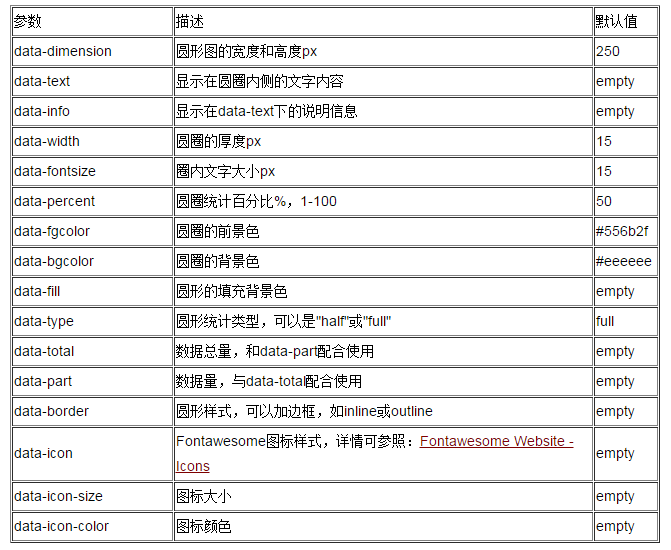
转自:http://my.oschina.net/comfiger/blog/362281
jquery 圆形进度条的更多相关文章
- 简单实用的纯CSS百分比圆形进度条插件
percircle是一款简单实用的纯CSS百分比圆形进度条插件.你不需要做任何设置,只需要按该圆形进度条插件提供的标准HTML结构来编写代码,就可以生成一个漂亮的百分比圆形进度条. 首先要做的就是引入 ...
- 利用css3动画和border来实现圆形进度条
最近在学习前端的一些知识,发现border的功能十分强大啊! 首先来看看demo 就是这么一个圆形的进度条,在文本框中输入0-100的数值下面的进度条相应的转到多少 这个主要是利用border,旋转和 ...
- Highcharts 测量图;Highcharts 圆形进度条式测量图;Highcharts 时钟;Highcharts 双轴车速表;Highcharts 音量表(VU Meter)
Highcharts 测量图 配置 chart.type 配置 配置 chart 的 type 为 'gauge' .chart.type 描述了图表类型.默认值为 "line". ...
- android 自定义控件——(四)圆形进度条
----------------------------------↓↓圆形进度条(源代码下有属性解释)↓↓---------------------------------------------- ...
- WPF 实现圆形进度条
项目中用到圆形进度条,首先就想到使用 ProgressBar 扩展一个,在园子里找到迷途的小榔头给出的思路和部分代码,自己加以实现. 进度小于60显示红色,大于60则显示绿色.效果如下: 基本思路: ...
- JQuery入门——进度条
越来越觉得常规javascript已经跟不上节奏了,打算学点进阶的,从JQuery学起. JQuery是一个Javascript库,可以从JQuery.com下载,放到本地,用 <script ...
- html5 svg 圆形进度条
html5 svg 圆形进度条 <!DOCTYPE html> <html lang="en"> <head> <meta charset ...
- canvas圆形进度条
通过定义一个canvas标签, new方法传进ID值,和旋转角度值,即可生成圆形进度条 <!DOCTYPE html> <html lang="en"> & ...
- iOS之UI--Quartz2D的入门应用--重绘下载圆形进度条
*:first-child { margin-top: 0 !important; } body > *:last-child { margin-bottom: 0 !important; } ...
随机推荐
- centos配置虚拟主机virtualhost,让服务器支持多网站多域名(转)
如何让centos(redhat)配置虚拟主机,让服务器支持多个网站,针对Apache,只需要你修改apache配置文件/etc/httpd/conf/httpd.conf即可. 里面有个exampl ...
- 【Eclipse提高开发速度-插件篇】安装多语言Propertys编辑工具
安装的的时候能够通过 Help>Eclipse Marketplace的 搜索方式安装 或者 Help>Install New Software Name:Propertys URL:ht ...
- STM32F4: GENERATING A SINE WAVE
http://amarkham.com/?p=49
- Send custom commands to Mass Storage device
http://stackoverflow.com/questions/14363152/send-custom-commands-to-mass-storage-device I have devel ...
- Quartz实现动态定时任务
一. 说明 由于最近工作要实现定时任务的执行,而且要求定时周期是不固定的,所以就用到了quartz来实现这个功能: spring3.1以下的版本必须使用quartz1.x系列,3.1以上的版本才支持q ...
- Fast dev didn't succeed, trying another location
Android 调试时,出现快盘加载失败问题.调试输出如下: Fast dev didn't succeed, trying another location 解决办法: 将项目属性->Andr ...
- 深入浅出VC++串口编程之基于Win32 API
1.API描述 在WIN32 API中,串口使用文件方式进行访问,其操作的API基本上与文件操作的API一致. 打开串口 Win32 中用于打开串口的API 函数为CreateFile,其原型为: H ...
- HDU 2604 Queuing 矩阵高速幂
Queuing Time Limit: 10000/5000 MS (Java/Others) Memory Limit: 32768/32768 K (Java/Others) Total S ...
- 用最简单的例子理解对象为Null模式(Null Object Pattern)
所谓的"对象为Null模式",就是要求开发者考虑对象为Null的情况,并设计出在这种情况下的应对方法. 拿"用最简单的例子理解策略模式(Strategy Pattern) ...
- 【spring cloud】【IDEA】【maven】spring cloud多模块在idea上使用maven插件打包报错:程序包XXX不存在
>>>>spring cloud 多模块 >>>>在idea上使用maven插件打包,欲打包成jar包后 进行部署 >>>> 报 ...