
android studio 2.0 GPU Debugger使用说明
GPU Debugger
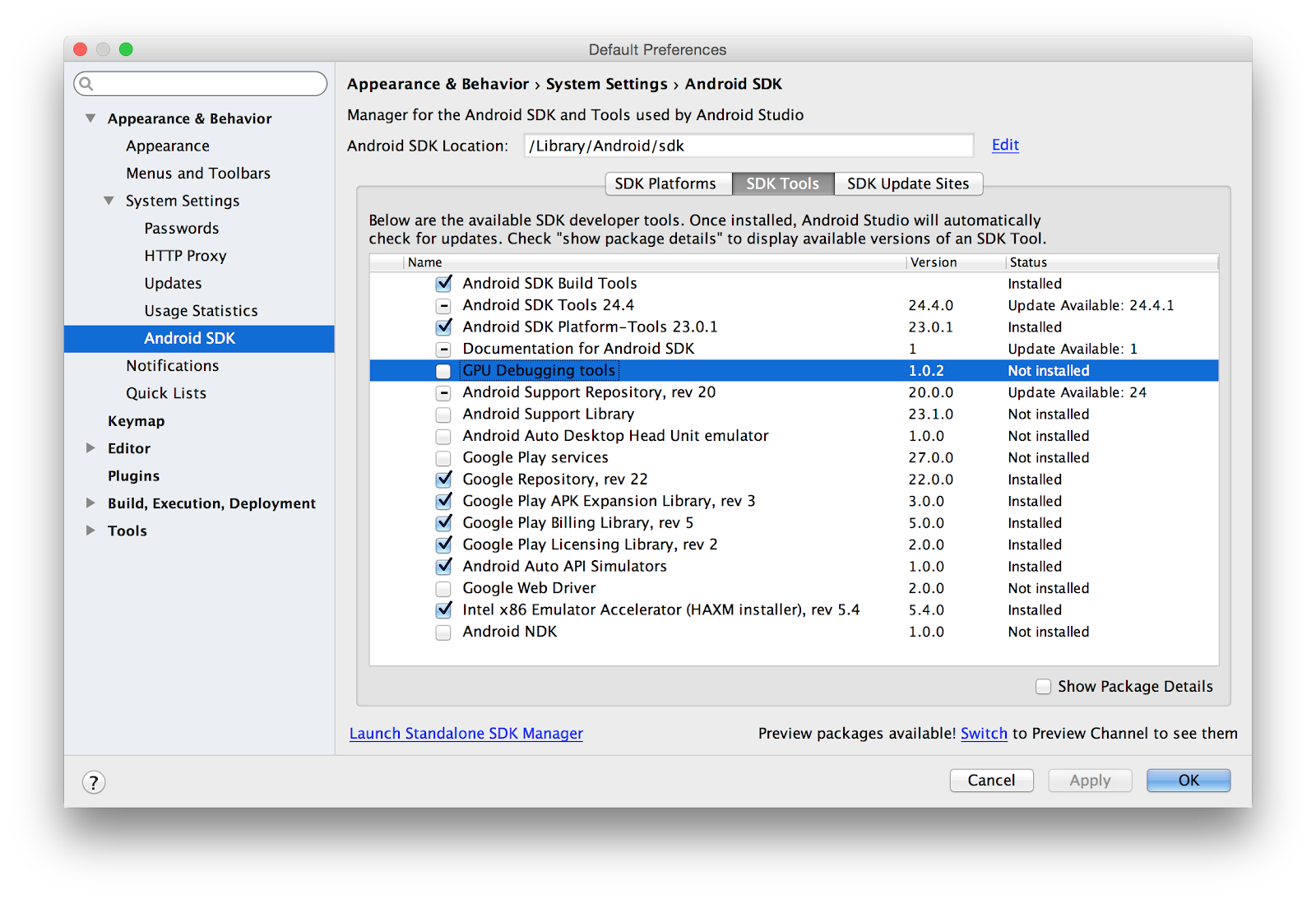
GPU Debugging ToolsThe GPU debugging tools are an experimental feature intended to help inspect GPU state and understand what caused a specific rendering outcome. Installing the GPU Debugging ToolsThe GPU Debugging Tools are not installed by default; you’ll need to add it before you can use it. You can find them in the SDK tools section of your SDK manager: Adding the trace library to your applicationIn order to use the profiler, you need to load the trace library in your application. The correct way to load the library depends on whether your code is C++ or Java. The library can be loaded via either method in a hybrid app. Regardless of which way you load the library, you first need to copy it into your project so that it can be loaded. The trace library will be located inside your SDK installation. You can find your SDK installation path location listed at the top of your SDK Manager. The libraries will be located in <sdkDir>/extras/android/gapid/android/<abi>/libgapii.so. You need to copy the relevant abi folders into your project’s jniLibs directory. This will be at <projectDir>/app/src/main/jniLibs. If it doesn’t already exist, you should create it. Like the SDK manager folder, jniLibs should contain one folder per ABI that you plan to support. If you don’t know which ABIs you plan to support, you can copy all of the folders. Your final project directory structure should look like <projectDir>/app/src/main/jniLibs/<abi>/libgappii.so. Loading the trace library in native codeTo load the trace library in native code, create a .cpp file containing this snippet:
Loading the trace library in Java codeTo load the trace library into Java code, insert this snippet into your main class:
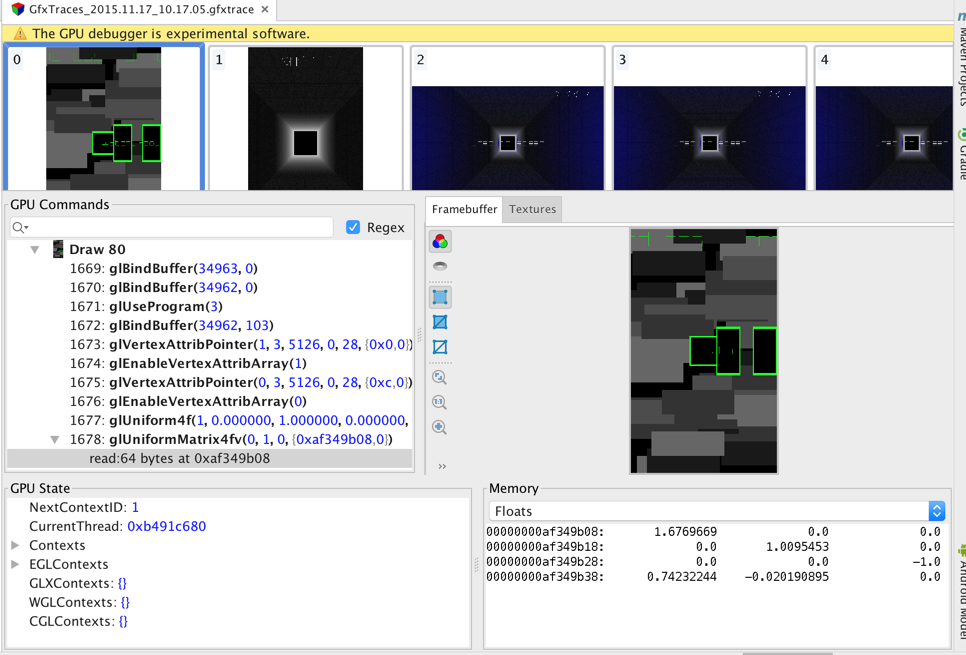
Running a traceNote that once you add the trace library, your application will block on startup until it can connect to the Android Studio trace receiver. This will render your application useless outside of debugging contexts, so be sure to remove the trace library from your application when you’re done with the profiler. To start a trace, deploy and run your app as normal. It should load with a blank screen while it waits for the trace receiver; to enable the receiver, go to the CPU/GPU tab of the Android Monitor. Click the red trace button on the left side of the GPU subtab: Once you begin tracing, your application should unblock and proceed as normal. As you interact with it, all GPU data will be captured by the trace. When you’re done capturing data, click the trace button again to stop the trace. As soon as the trace has finished being written to the file, it will be opened ready for inspection. Reading trace resultsTraces will be logged to a new captures folder inside your project. When you open a trace, the top bar of the UI will show the full sequence of logged frames. You can select an individual frame via either the top bar or the GPU commands panel; once you select a frame, the center right framebuffer window will update to show that frame’s contents. If you expand the frame on the lefthand GPU commands window, you’ll see the individual draw commands and GL calls that were used. If you click on a draw command, the framebuffer preview will be updated to reflect the contents as of that draw call. As applicable, the memory window in the lower right will also be updated to show relevant memory state at the time of the call. At any point, you can use the GPU State window or the Textures tab to explore relevant GPU state at the time of your selected frame or draw calls. If you run into issues, please help us improve the 2.0 release by logging bugs in our public Issues Tracker. You can create an issue via this link or by clicking on Help → Submit Feedback directly in Android Studio. |


android studio 2.0 GPU Debugger使用说明的更多相关文章
- Android Studio 3.0 下载 使用新功能介绍
谷歌2017发布会更新了挺多内容的,而且也发布了AndroidStudio3.0预览版,一些功能先睹为快.(英语一般,有些翻译不太好) 下载地址 https://developer.android.g ...
- Android Studio 2.0 正式版公布啦 (首次中文翻译)
Android Studio 2.0 公布了,添加了一些新特性: 1. 更加完好的 Instant Run 2. 更快的 Android Emulator 3.GPU Debugger Preview ...
- Android Studio 2.0 稳定版新特性介绍
Android Studio 2.0 最终迎来了稳定版本号,喜大普奔. 以下这篇文章是2.0新特性的一些简介. 假设想看具体内容请看这里<Android Studio有用指南> 文章转自这 ...
- 当一回Android Studio 2.0的小白鼠
上个星期就放出了Android studio出2.0的消息,看了一下what's new 简直抓到了那个蛋疼的编译速度痛点.在网上稍微搜索了一下后发现基本都是介绍视频.一番挣扎后(因为被这IDE坑过几 ...
- Android Studio 3.0 新特性
最新Android Studio版本是Android Studio 3.0,本文提供了所有新功能和更改的摘要. 所有这些功能都可以在最新的金丝雀版本中发布,但beta测试版本可能尚未提供. 核心IDE ...
- Android Studio 2.0使用指南
一.下载界面.[无激活码 无序列码 无毒请放心使用][需将JAVA程序升级到1.8] 网址:http://www.android-studio.org/index.php/download/andro ...
- Android Studio 1.0.2项目实战——从一个APP的开发过程认识Android Studio
Android Studio 1.0.1刚刚发布不久,谷歌紧接着发布了Android Studio 1.0.2版本,和1.0.0一样,是一个Bug修复版本.在上一篇Android Studio 1.0 ...
- Android Studio 1.0.1 + Genymotion安卓模拟器打造高效安卓开发环境
我们开发安卓大多是使用Eclipse和安卓SDK中自带的安卓模拟器.当然,Google早就推出了自己的安卓开发环境——Android studio,在不久前,Google发布了Android Stud ...
- [Android] 环境配置之正式版Android Studio 1.0
昨天看见 Android Studio 1.0 正式版本发布了:心里挺高兴的. 算是忠实用户了吧,从去年开发者大会一开始出现 AS 后就开始使用了:也是从那时开始就基本没有用过 Eclipse 了:一 ...
随机推荐
- ASM:《X86汇编语言-从实模式到保护模式》第16章:Intel处理器的分页机制和动态页面分配
第16章讲的是分页机制和动态页面分配的问题,说实话这个一开始接触是会把人绕晕的,但是这个的确太重要了,有了分页机制内存管理就变得很简单,而且能直接实现平坦模式. ★PART1:Intel X86基础分 ...
- .deb包的安装方法
deb是Debian linux的安装格式,跟redhat的rpm非常相似,最基本的安装命令是: dpkg -i file.deb dpkg是Debian Package的简写,是为Debian专门开 ...
- squid介绍及其简单配置
squid的简单介绍 squid的概念 squid是一种用来缓存Internet数据的软件.接受来自人们需要下载的目标(object)的请求并适当的处理这些请求.也就是说,如果一个人想下载一web界面 ...
- hive 表分区操作
hive的数据查询一般会扫描整个表,当表数据太大时,就会消耗些时间,有时候我们只需要对部分数据感兴趣,所以hive引入了分区的概念 hive的表分区区别于一般的分布式分区(hash分区,范围分区 ...
- Jmeter连接Mysql
1.下载连接mysql数据库jar包,地址:http://files.cnblogs.com/files/xiaoxitest/mysql-connector-java-5.1.28.zip(因不支持 ...
- 数据库事务(Database Transaction)概述
事务概念 事务可以用很多很多不同的方式去定义.事务是数据库操作执行的一个逻辑工作单元,是用户定义的一个数据库操作序列,这些操作要么全做要么全不做,是一个不可分割的工作单位.例如, 在关系数据库中, 一 ...
- 带callback的future实现
jdk暂时不支持,所以只有自己实现带callback的future. 完成后callback的 final TaskPromise promise = new DefaultTaskPromise() ...
- ios 模拟器内部网络连接问题
今日,一运行程序,打印出来头疼的的日志 "Error Domain=kCFErrorDomainCFNetwork Code=-1001 "The request timed ou ...
- 数据库错误:check the manual that corresponds to your MySQL server version for the right sy
检查对应到您的MySQL服务器版本附近使用正确的语法手册 数据库插入的时候出现上述问题,总结了两方面原因: 1.语法错误,这是百度之得到的大部分结果,但是没有解决我的问题 2.仔细观察我的sql语句, ...
- 使用代理和block写一个alertView
代理: MyAlertView.h: @property (nonatomic,assign)id delegate; @protocol MyAlertViewDelegate <NSObje ...