
Flutter 拖拽控件Draggable看这一篇就够了

注意:无特殊说明,Flutter版本及Dart版本如下:
- Flutter版本: 1.12.13+hotfix.5
- Dart版本: 2.7.0
Draggable系列组件可以让我们拖动组件。
Draggable
Draggable组件有2个必须填写的参数,child参数是子控件,feedback参数是拖动时跟随移动的组件,用法如下:
Draggable(

  child: Container(

    height: 100,

    width: 100,

    alignment: Alignment.center,

    decoration: BoxDecoration(

      color: Colors.red,

      borderRadius: BorderRadius.circular(10)

    ),

    child: Text('孟',style: TextStyle(color: Colors.white,fontSize: 18),),

  ),

  feedback: Container(

    height: 100,

    width: 100,

    alignment: Alignment.center,

    decoration: BoxDecoration(

        color: Colors.blue,

        borderRadius: BorderRadius.circular(10)

    ),

    child: Text('孟',style: TextStyle(color: Colors.white,fontSize: 18),),

  ),

)
效果如下:

蓝色的组件是feedback,如果想在拖动的时候子组件显示其他样式可以使用childWhenDragging参数,用法如下:
Draggable(

  childWhenDragging: Container(

    height: 100,

    width: 100,

    alignment: Alignment.center,

    decoration: BoxDecoration(

        color: Colors.grey, borderRadius: BorderRadius.circular(10)),

    child: Text(

      '孟',

      style: TextStyle(color: Colors.white, fontSize: 18),

    ),

  ),

  ...

)
效果如下:
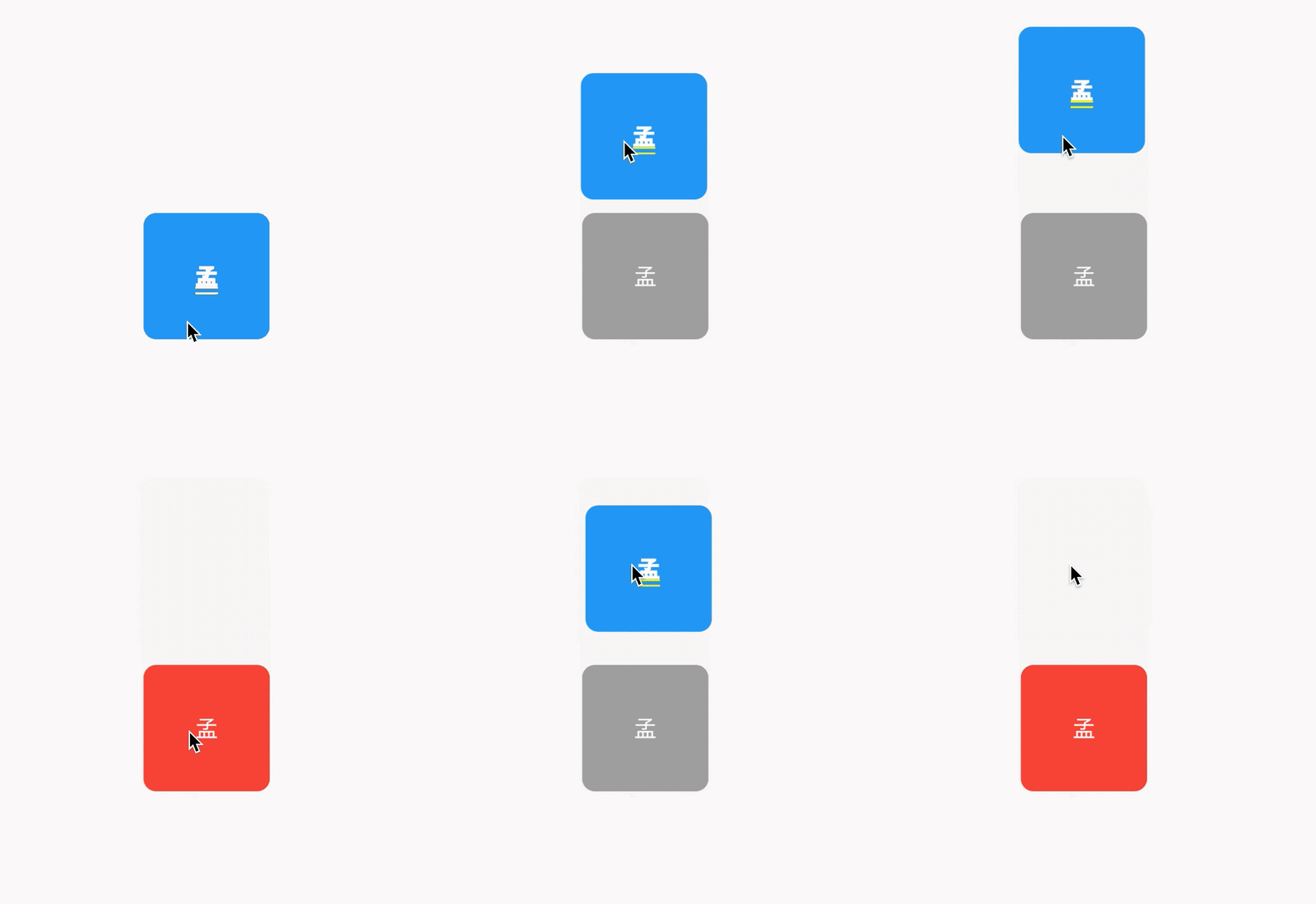
我们还可以控制拖动的方向,比如只允许垂直方向移动,代码如下:
Draggable(

  axis: Axis.vertical,

  ...

)
Draggable组件为我们提供了4中拖动过程中的回调事件,用法如下:
Draggable(

  onDragStarted: (){

    print('onDragStarted');

  },

  onDragEnd: (DraggableDetails details){

    print('onDragEnd:$details');

  },

  onDraggableCanceled: (Velocity velocity, Offset offset){

    print('onDraggableCanceled velocity:$velocity,offset:$offset');

  },

  onDragCompleted: (){

    print('onDragCompleted');

  },

  ...

)
说明如下:
- onDragStarted:开始拖动时回调。
- onDragEnd:拖动结束时回调。
- onDraggableCanceled:未拖动到DragTarget控件上时回调。
- onDragCompleted:拖动到DragTarget控件上时回调。
Draggable有一个data参数,这个参数是和DragTarget配合使用的,当用户将控件拖动到DragTarget时此数据会传递给DragTarget。
DragTarget
DragTarget就像他的名字一样,指定一个目的地,Draggable组件可以拖动到此控件,用法如下:
DragTarget(

  builder: (BuildContext context, List<dynamic> candidateData,

      List<dynamic> rejectedData) {

      ...

  }

)
当onWillAccept返回true时, candidateData参数的数据是Draggable的data数据。
当onWillAccept返回false时, rejectedData参数的数据是Draggable的data数据,
DragTarget有3个回调,说明如下:
- onWillAccept:拖到该控件上时调用,需要返回true或者false,返回true,松手后会回调onAccept,否则回调onLeave。
- onAccept:onWillAccept返回true时,用户松手后调用。
- onLeave:onWillAccept返回false时,用户松手后调用。
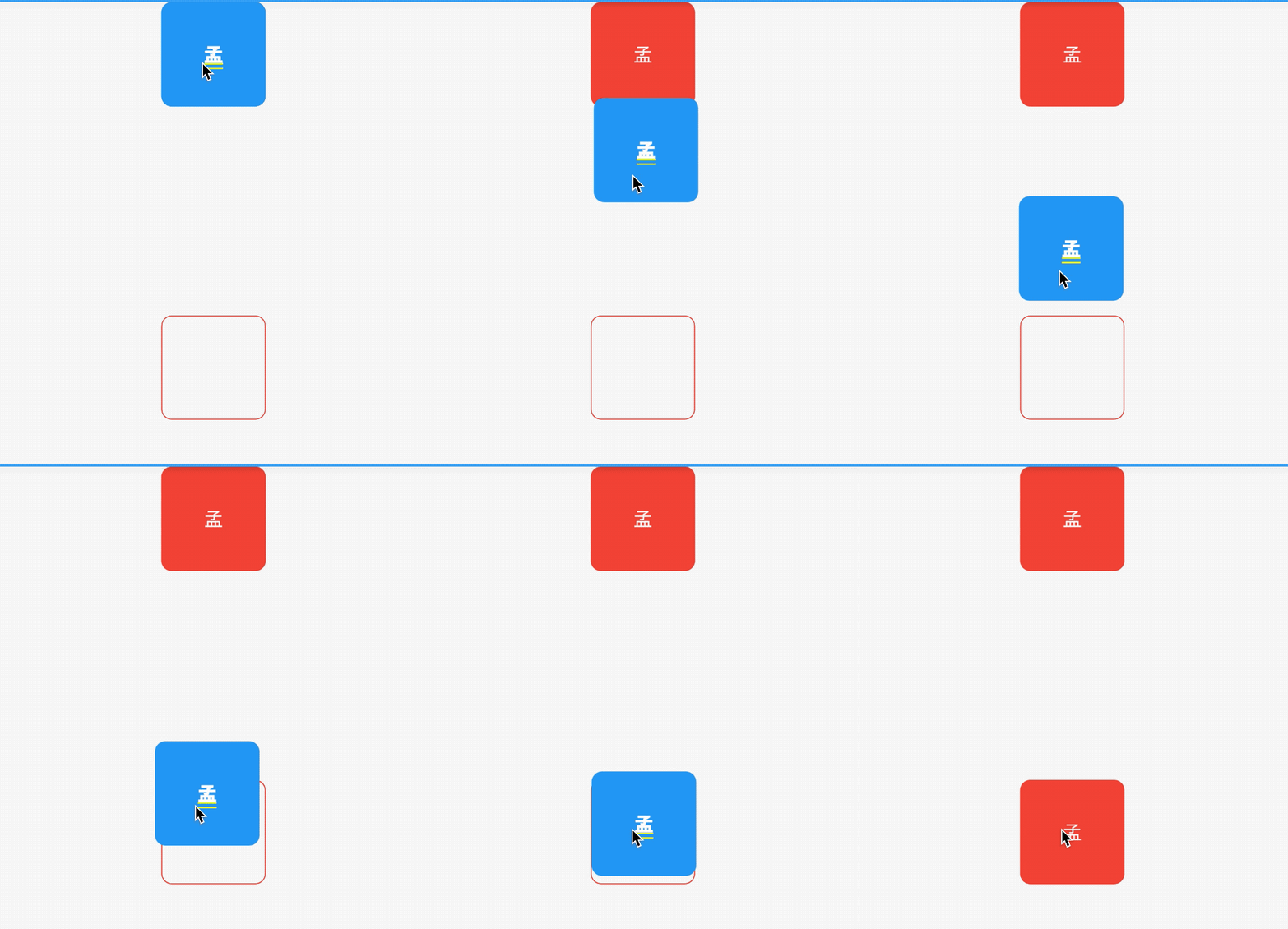
用法如下:
var _dragData;

@override

Widget build(BuildContext context) {

  return Center(

    child: Column(

      children: <Widget>[

        _buildDraggable(),

        SizedBox(

          height: 200,

        ),

        DragTarget<Color>(

          builder: (BuildContext context, List<Color> candidateData,

              List<dynamic> rejectedData) {

            print('candidateData:$candidateData,rejectedData:$rejectedData');

            return _dragData == null

                ? Container(

                    height: 100,

                    width: 100,

                    alignment: Alignment.center,

                    decoration: BoxDecoration(

                        borderRadius: BorderRadius.circular(10),

                        border: Border.all(color: Colors.red)),

                  )

                : Container(

                    height: 100,

                    width: 100,

                    alignment: Alignment.center,

                    decoration: BoxDecoration(

                        color: Colors.red,

                        borderRadius: BorderRadius.circular(10)),

                    child: Text(

                      '孟',

                      style: TextStyle(color: Colors.white, fontSize: 18),

                    ),

                  );

          },

          onWillAccept: (Color color) {

            print('onWillAccept:$color');

            return true;

          },

          onAccept: (Color color) {

            setState(() {

              _dragData = color;

            });

            print('onAccept:$color');

          },

          onLeave: (Color color) {

            print('onLeave:$color');

          },

        ),

      ],

    ),

  );

}

_buildDraggable() {

  return Draggable(

    data: Color(0x000000FF),

    child: Container(

      height: 100,

      width: 100,

      alignment: Alignment.center,

      decoration: BoxDecoration(

          color: Colors.red, borderRadius: BorderRadius.circular(10)),

      child: Text(

        '孟',

        style: TextStyle(color: Colors.white, fontSize: 18),

      ),

    ),

    feedback: Container(

      height: 100,

      width: 100,

      alignment: Alignment.center,

      decoration: BoxDecoration(

          color: Colors.blue, borderRadius: BorderRadius.circular(10)),

      child: DefaultTextStyle.merge(

        style: TextStyle(color: Colors.white, fontSize: 18),

        child: Text(

          '孟',

        ),

      ),

    ),

  );

}
效果如下:
LongPressDraggable
LongPressDraggable继承自Draggable,因此用法和Draggable完全一样,唯一的区别就是LongPressDraggable触发拖动的方式是长按,而Draggable触发拖动的方式是按下。
今天的文章对大家是否有帮助?如果有,请在文章底部留言和点赞,以表示对我的支持,你们的留言、点赞和转发关注是我持续更新的动力!
我创建了一个关于Flutter的微信交流群,欢迎您的加入,让我们一起学习,一起进步,开始我们的故事,生活不止眼前的苟且,还有诗和《远方》。
微信:mqd_zzy
当然我也非常希望您关注我个人的公众号,里面有各种福利等着大家哦。

Flutter 拖拽控件Draggable看这一篇就够了的更多相关文章
- Flutter 拖拽控件Draggable
Flutter提供了强大的拖拽控件,可以灵活定制,并且非常简单.下面作一个拖拽的案例. Draggable Widget Draggable控件负责就是拖拽,父层使用了Draggable,它的子元素就 ...
- flutter Draggable Widget拖拽控件
Draggable Widget Draggable控件负责就是拖拽,父层使用了Draggable,它的子元素就是可以拖动的,子元素可以实容器,可以是图片.用起来非常的灵活. 参数说明: data: ...
- 【C#/WPF】GridSplitter 分割布局,拖拽控件分隔栏以改变控件尺寸
需求:界面由多部分控件组成,想要拖拽控件之间的分隔栏以改变尺寸. MainWindow.xaml: <Grid> <Grid.ColumnDefinitions> <Co ...
- Unity编辑器 - DragAndDrop拖拽控件
Unity编辑器 - DragAndDrop拖拽控件 Unity编辑器的拖拽(DragAndDrop)在网上能找到的资料少,自己稍微研究了一下,写了个相对完整的案例,效果如下 代码: object d ...
- ios-将代码创建的视图控件放入拖拽控件的下面
如图所示 图片是拖拽上去的imageView,橘黄色控件是在代码中创建的添加上去的,此时黄色view在imageView 上方 调用方法bringSubviewToFront:试图将imageView ...
- H5实现多图片预览上传,可点击可拖拽控件介绍
版权声明:欢迎转载,请注明出处:http://blog.csdn.net/weixin_36380516 在做图片上传时发现一个蛮好用的控件,支持多张图片同时上传,可以点击选择图片,也可以将图片拖拽到 ...
- 拖拽控件java版
Button vv = new Button("vvvv"); DragSource.getDefaultDragSource().createDefaultDragGestur ...
- 开发winform程序,在拖拽控件大小时,VS会卡死
你可以看看你最近有没有装什么新的软件,比如说:有道词典就会与VS有冲突,导致卡死,可以把进程关闭.
- Flutter 拖拽排序组件 ReorderableListView
注意:无特殊说明,Flutter版本及Dart版本如下: Flutter版本: 1.12.13+hotfix.5 Dart版本: 2.7.0 ReorderableListView是通过长按拖动某一项 ...
随机推荐
- iOS有关通讯录操作
一.首先获取用户通讯录授权信息. 在AppDelegate中导入#import <AddressBook/AddressBook.h>框架,在下列方法中获取授权信息. - (BOOL)ap ...
- es6变量和函数的提升、暂时性死区?
es6变量和函数的提升.暂时性死区?
- 深入探讨Java中的异常与错误处理
Java中的异常处理机制已经比较成熟,我们的Java程序到处充满了异常的可能,如果对这些异常不做预先的处理,那么将来程序崩溃就无从调试,很难找到异常所在的位置.本文将探讨一下Java中异常与错误的处理 ...
- highcharts 柱状图在柱子顶部显示y轴数据
var plotOptions={ column:{ //borderColor: "#CCCC66",//边框 shadow: true, //阴影 dataLabels:{ / ...
- Linux Ubuntu 默认root密码
Ubuntu 默认root密码是随机的,每次开机都会有一个新的root密码 第一步: 输入命令:sudo passwd
- windows 不能在本地计算机启动apache2。有关更多信息,查阅系统事件日志。如果这是非Microsoft服务,请与服务厂商联系,并参考特定服务错误代码1
今天使用apache的时候又无法启动了,之前也遇到过,这次重点说这一次的情况,其他情况可以查看博主apache相关的其他博文:网上关于apache服务端的设置的很多,但是都不适合我的情况: 一般使用a ...
- Web前端性能
6.1前端性能示例 性能测试工具: Apache Benchmark(ab)得到的响应时间仅为从请求发出开始到接收到HTML的最后一个字节所消耗的全部时间.ab命令行如下: ab -c [并发用户数] ...
- <JZOJ5910>duliu
愤怒 考场想到正解 然后觉得我的“正解”和正解差不多 一样的效果 被忽略的与正解的不同也想到了 然而 我懒得再写 于是快乐10分 气坏了 #include<cstdio> #include ...
- maven创建Java项目命令
1.maven创建普通Java项目的命令 mvn archetype:create -DgroupId=packageName -DartifactId=projectName 2.maven创建Ja ...
- 高效JS简化版
详:.doc (颜色标注)2章17条 2018.6.24 星期日 1:24 第 1 章 让自己习惯 JavaScript 第 1 条:了解你使用的 JavaScript 版本 ES5 引入了另一种版本 ...