
【electron+vue3+ts实战便笺exe】一、搭建框架配置
不要让自己的上限成为你的底线
前言
诈尸更新系列,为了跟上脚步,尝试了vue3,在学习vue3的时候顺便学习一手electron和ts,本教程将分别发布,源码会在最后的文章发布。因为还在开发中,目前也是为了防止有些遇到坑不会及时忘掉,所以先整理一部分出来
将分2部分发出教程,因为配置的东西个人感觉有点多并且跟开发内容相关的东西并不是很多,因此单独发出,见谅,第二篇这两天发出,长文警告!。
开发思路:
页面:
- 列表页
index.vue头部、搜索、内容部分,只能有一个列表页存在 - 设置页
setting.vue设置内容和软件信息,和列表页一样只能有一个存在 - 编辑页
editor.vueicons功能和背景颜色功能,可以多个编辑页同时存在
- 列表页
动效:
- 打开动效,有一个放大、透明度的过渡,放不了动图这里暂时不演示了。
- 标题过渡效果
- 切换
index和setting时头部不变,内容过渡
数据储存:数据的创建和更新都在编辑页
editor.vue进行,这个过程中在储存进nedb之后才通信列表页index.vue更新内容,考虑到性能问题,这里使用了防抖防止连续性的更新而导致卡顿(不过貌似没有这个必要。。也算是一个小功能吧,然后可以设置这个更新速度)错误采集:采集在使用中的错误并弹窗提示
编辑显示:
document暴露execCommand方法,该方法允许运行命令来操纵可编辑内容区域的元素。
在开发的时候还遇到过好多坑,这些都是在electron环境中才有,比如
@input触发2次,加上v-model触发3次。包括创建一个新的electron框架也是这样,别人电脑上不会出现这个问题,猜测是electron缓存问题- vue3碰到
空属性报错时无限报错,在普通浏览器(edge和chrome)是正常一次 - 组件无法正常渲染不报错,只在控制台报异常
- 打包后由于
electron的缓存导致打开需要10秒左右,清除c盘软件缓存后正常
其他的不记得了。。
这里暂时不提供vue3和electron介绍,有需要的可以先看看社区其他的有关文章或者后期再详细专门提供。软件命名为i-notes。
vue3中文教程
https://vue3js.cn/docs/zh/guide/migration/introduction.html
electron教程
https://www.electronjs.org/
typescript教程
https://www.typescriptlang.org/
electron-vue里面的包环境太低了,所以是手动配置electron+vue3(虽然说是手动。。其实就两个步骤)
目录结构
electron-vue-notes

├── public

│   ├── css

│   ├── font

│   └── index.html

├── src

│   ├── assets

│   │   └── empty-content.svg

│   ├── components

│   │   ├── message

│   │   ├── rightClick

│   │   ├── editor.vue

│   │   ├── header.vue

│   │   ├── input.vue

│   │   ├── messageBox.vue

│   │   ├── switch.vue

│   │   └── tick.vue

│   ├── config

│   │   ├── browser.options.ts

│   │   ├── classNames.options.ts

│   │   ├── editorIcons.options.ts

│   │   ├── index.ts

│   │   └── shortcuts.keys.ts

│   ├── inotedb

│   │   └── index.ts

│   ├── less

│   │   └── index.less

│   ├── router

│   │   └── index.ts

│   ├── script

│   │   └── deleteBuild.js

│   ├── store

│   │   ├── exeConfig.state.ts

│   │   └── index.ts

│   ├── utils

│   │   ├── errorLog.ts

│   │   └── index.ts

│   ├── views

│   │   ├── editor.vue

│   │   ├── index.vue

│   │   ├── main.vue

│   │   └── setting.vue

│   ├── App.vue

│   ├── background.ts

│   ├── main.ts

│   └── shims-vue.d.ts

├── .browserslistrc

├── .eslintrc.js

├── .prettierrc.js

├── babel.config.js

├── inoteError.log

├── LICENSE

├── package-lock.json

├── package.json

├── README.md

├── tsconfig.json

├── vue.config.js

└── yarn.lock
使用脚手架搭建vue3环境
没有脚手架的可以先安装脚手架
npm install -g @vue/cli
创建vue3项目
vue create electron-vue-notes

# 后续

? Please pick a preset: (Use arrow keys)

  Default ([Vue 2] babel, eslint)

  Default (Vue 3 Preview) ([Vue 3] babel, eslint)

> Manually select features

# 手动选择配置

# 后续所有配置

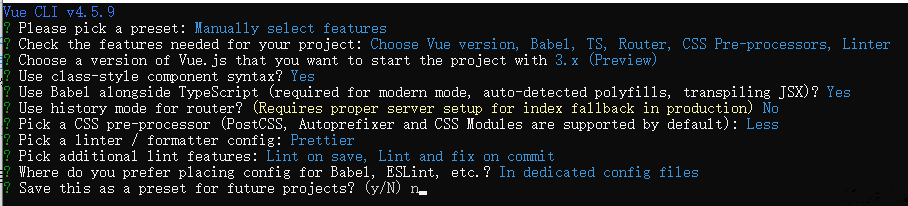
? Please pick a preset: Manually select features

? Check the features needed for your project: Choose Vue version, Babel, TS, Router, CSS Pre-processors, Linter

? Choose a version of Vue.js that you want to start the project with 3.x (Preview)

? Use class-style component syntax? Yes

? Use Babel alongside TypeScript (required for modern mode, auto-detected polyfills, transpiling JSX)? Yes

? Use history mode for router? (Requires proper server setup for index fallback in production) No

? Pick a CSS pre-processor (PostCSS, Autoprefixer and CSS Modules are supported by default): Less

? Pick a linter / formatter config: Prettier

? Pick additional lint features: Lint on save, Lint and fix on commit

? Where do you prefer placing config for Babel, ESLint, etc.? In dedicated config files

? Save this as a preset for future projects? (y/N) n
创建完之后的目录是这样的
electron-vue-notes

├── public

│   ├── favicon.ico

│   └── index.html

├── src

│   ├── assets

│   │   └── logo.png

│   ├── components

│   │   └── HelloWorld.vue

│   ├── router

│   │   └── index.ts

│   ├── views

│   │   ├── About.vue

│   │   └── Home.vue

│   ├── App.vue

│   ├── main.ts

│   └── shims-vue.d.ts

├── .browserslistrc

├── .eslintrc.js

├── babel.config.js

├── package.json

├── README.md

├── tsconfig.json

└── yarn.lock
安装electron的依赖
# yarn

yarn add vue-cli-plugin-electron-builder electron

# npm 或 cnpm

npm i vue-cli-plugin-electron-builder electron
安装完之后完善一些配置,比如别名、eslint、prettier等等基础配置,还有一些颜色、icons等等具体可以看下面
项目的一些基础配置
eslint
使用eslint主要是规范代码风格,不推荐tslint是因为tslint已经不更新了,tslint也推荐使用eslint
安装eslint
npm i eslint -g
进入项目之后初始化eslint
eslint --init

# 后续配置

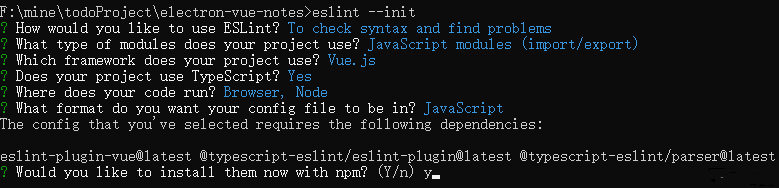
? How would you like to use ESLint? To check syntax and find problems

? What type of modules does your project use? JavaScript modules (import/export)

? Which framework does your project use? Vue.js

? Does your project use TypeScript? Yes

? Where does your code run? Browser, Node

? What format do you want your config file to be in? JavaScript

The config that you've selected requires the following dependencies:

eslint-plugin-vue@latest @typescript-eslint/eslint-plugin@latest @typescript-eslint/parser@latest

? Would you like to install them now with npm? (Y/n) y
修改eslint配置,·.eslintrc.js,规则rules可以根据自己的喜欢配置
https://eslint.org/docs/user-guide/configuring
module.exports = {

  root: true,

  env: {

    node: true

  },

  extends: [

    'plugin:vue/vue3-essential',

    'eslint:recommended',

    'plugin:prettier/recommended',

    'plugin:@typescript-eslint/eslint-recommended',

    '@vue/typescript/recommended',

    '@vue/prettier',

    '@vue/prettier/@typescript-eslint'

  ],

  parserOptions: {

    ecmaVersion: 2020

  },

  rules: {

    quotes: [1, 'single'],

    semi: 1,

    '@typescript-eslint/camelcase': 0,

    '@typescript-eslint/no-explicit-any': 0,

    'no-irregular-whitespace': 2,

    'no-case-declarations': 0,

    'no-undef': 0,

    'eol-last': 1,

    'block-scoped-var': 2,

    'comma-dangle': [2, 'never'],

    'no-dupe-keys': 2,

    'no-empty': 1,

    'no-extra-semi': 2,

    'no-multiple-empty-lines': [1, { max: 1, maxEOF: 1 }],

    'no-trailing-spaces': 1,

    'semi-spacing': [2, { before: false, after: true }],

    'no-unreachable': 1,

    'space-infix-ops': 1,

    'spaced-comment': 1,

    'no-var': 2,

    'no-multi-spaces': 2,

    'comma-spacing': 1

  }

};
prettier
在根目录增加.prettierrc.js配置,根据自己的喜好进行配置,单行多少个字符、单引号、分号、逗号结尾等等
module.exports = {

  printWidth: 120,

  singleQuote: true,

  semi: true,

  trailingComma: 'none'

};
tsconfig.json
如果这里没有配置识别@/路径的话,在项目中使用会报错
"paths": {

  "@/*": [

    "src/*"

  ]

}
package.json
"author": "heiyehk",

"description": "I便笺个人开发者heiyehk独立开发,在Windows中更方便的记录文字。",

"main": "background.js",

"scripts": {

  "lint": "vue-cli-service lint",

  "electron:build": "vue-cli-service electron:build",

  "electron:serve": "vue-cli-service electron:serve"

}
配置入口文件background.ts
因为需要做一些打开和关闭的动效,因此我们需要配置electron为frame无边框和透明transparent的属性
/* eslint-disable @typescript-eslint/no-empty-function */

'use strict';

import { app, protocol, BrowserWindow, globalShortcut } from 'electron';

import {

  createProtocol

  // installVueDevtools

} from 'vue-cli-plugin-electron-builder/lib';

const isDevelopment = process.env.NODE_ENV !== 'production';

let win: BrowserWindow | null;

protocol.registerSchemesAsPrivileged([

  {

    scheme: 'app',

    privileges: {

      secure: true,

      standard: true

    }

  }

]);

function createWindow() {

  win = new BrowserWindow({

    frame: false, // 无边框

    hasShadow: false,

    transparent: true, // 透明

    width: 950,

    height: 600,

    webPreferences: {

      enableRemoteModule: true,

      nodeIntegration: true

    }

  });

  if (process.env.WEBPACK_DEV_SERVER_URL) {

    win.loadURL(process.env.WEBPACK_DEV_SERVER_URL);

    if (!process.env.IS_TEST) win.webContents.openDevTools();

  } else {

    createProtocol('app');

    win.loadURL('http://localhost:8080');

  }

  win.on('closed', () => {

    win = null;

  });

}

app.on('window-all-closed', () => {

  if (process.platform !== 'darwin') {

    app.quit();

  }

});

app.on('activate', () => {

  if (win === null) {

    createWindow();

  }

});

app.on('ready', async () => {

  // 这里注释掉是因为会安装tools插件,需要屏蔽掉,有能力的话可以打开注释

  // if (isDevelopment && !process.env.IS_TEST) {

  //   try {

  //     await installVueDevtools();

  //   } catch (e) {

  //     console.error('Vue Devtools failed to install:', e.toString());

  //   }

  // }

  createWindow();

});

if (isDevelopment) {

  if (process.platform === 'win32') {

    process.on('message', data => {

      if (data === 'graceful-exit') {

        app.quit();

      }

    });

  } else {

    process.on('SIGTERM', () => {

      app.quit();

    });

  }

}
启动
yarn electron:serve
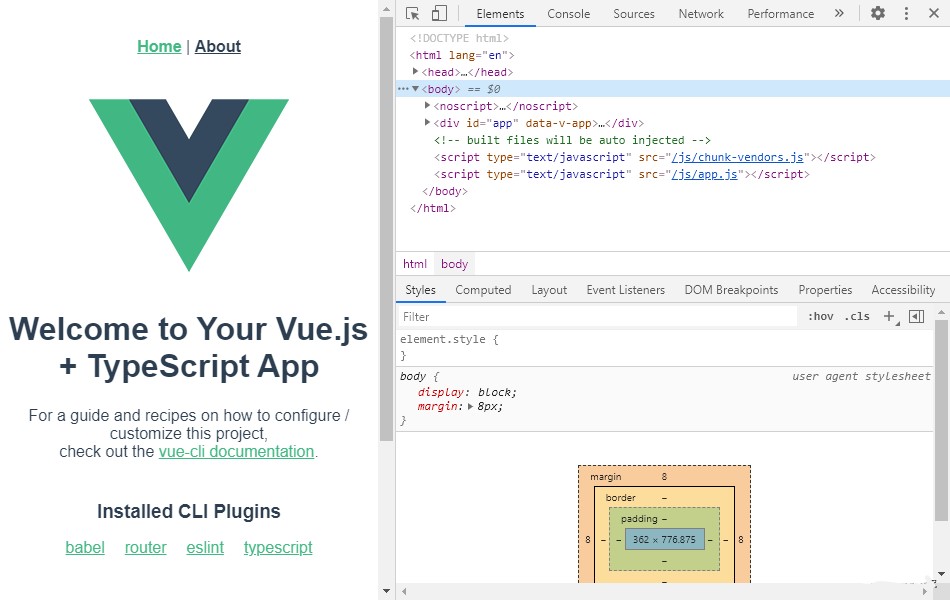
到这里配置就算是成功搭建好这个窗口了,但是还有一些其他细节需要进行配置,比如electron打包配置,模块化的配置等等
常规配置
这里配置一些常用的开发内容和一些轮子代码
reset.csss
html{font-family:'Microsoft YaHei UI','Microsoft YaHei',sans-serif;-ms-text-size-adjust:100%;-webkit-text-size-adjust:100%}address,applet,article,aside,audio,blockquote,body,canvas,caption,dd,details,div,dl,dt,embed,figcaption,figure,footer,h1,h2,h3,h4,h5,h6,header,html,iframe,li,mark,menu,nav,object,ol,output,p,pre,progress,ruby,section,summary,table,tbody,td,tfoot,th,thead,time,tr,ul,video{margin:0;padding:0;border:0;vertical-align:baseline}article,aside,details,figcaption,figure,footer,header,main,menu,nav,section,summary{display:block}audio,canvas,progress,video{display:inline-block}audio:not([controls]){display:none;height:0}[hidden],template{display:none}a{background-color:transparent;text-decoration:none}a:active,a:hover{outline:0}abbr[title]{border-bottom:1px dotted}b,strong{font-weight:700}dfn{font-style:italic}h1{font-size:2em;margin:.67em 0}mark{background:#ff0;color:#000}small{font-size:80%}sub,sup{font-size:75%;line-height:0;position:relative;vertical-align:baseline}sup{top:-.5em}sub{bottom:-.25em}img{border:0}svg:not(:root){overflow:hidden}figure{margin:1em 40px}hr{-moz-box-sizing:content-box;box-sizing:content-box;height:0}pre{overflow:auto}code,kbd,pre,samp{font-family:monospace,monospace;font-size:1em}button,input,optgroup,select,textarea{color:inherit;font:inherit;margin:0;outline:0;line-height:normal}button{overflow:visible}button,select{text-transform:none}button,html input[type=button],input[type=reset],input[type=submit]{-webkit-appearance:button;cursor:pointer}button[disabled],html input[disabled]{cursor:default}button::-moz-focus-inner,input::-moz-focus-inner{border:0;padding:0}input{line-height:normal}input[type=checkbox],input[type=radio]{box-sizing:border-box;padding:0}input[type=number]::-webkit-inner-spin-button,input[type=number]::-webkit-outer-spin-button{height:auto}input[type=search]{-webkit-appearance:textfield;-moz-box-sizing:content-box;-webkit-box-sizing:content-box;box-sizing:content-box}input[type=search]::-webkit-search-cancel-button,input[type=search]::-webkit-search-decoration{-webkit-appearance:none}fieldset{border:1px solid silver;margin:0 2px;padding:.35em .625em .75em}legend{border:0;padding:0}textarea{overflow:auto}optgroup{font-weight:700}table{border-collapse:collapse;border-spacing:0}td,th{padding:0}::-ms-clear,::-ms-reveal{display:none}input:-webkit-autofill{-webkit-animation:autofill-fix 1s infinite!important;-webkit-text-fill-color:#666;-webkit-transition:background-color 50000s ease-in-out 0s!important;transition:background-color 50000s ease-in-out 0s!important;background-color:transparent!important;background-image:none!important;-webkit-box-shadow:0 0 0 1000px transparent inset!important}[role=button],a,area,button,input:not([type=range]),label,select,summary,textarea{-ms-touch-action:manipulation;touch-action:manipulation}input[type=number],input[type=password],input[type=text],textarea{-webkit-appearance:none}
common.css
/* 空元素显示的内容 */

.empty-content:empty::before {

  /* content: attr(placeholder); */

  content: '记笔记...';

  font-size: 14px;

  color: #666;

  line-height: 21px;

}

/* 隐藏滚动条 */

::-webkit-scrollbar {

  width: 0;

  height: 0;

}

/* 设置ol显示格式 */

.module-editor ol {

  counter-reset:sectioncounter;

}

.module-editor ol li {

  list-style: none;

  position: relative;

}

.module-editor ol li::before {

  content: counter(sectioncounter) '.';

  counter-increment:sectioncounter;

  margin-right: 10px;

}

/* 使用自定义伪类会导致光标偏移向下 */

/* .module-editor ul {

  position: relative;

}

.module-editor ul li {

  list-style-type: none;

  word-break: break-all;

}

.module-editor ul li::before {

  content: '';

  width: 5px;

  height: 5px;

  background-color: #000;

  margin-right: 6px;

  display: inline-block;

  border-radius: 100%;

  transform: translateY(-2px);

  margin-left: 1px;

} */

.module-editor ul li {

  word-break: break-all;

  list-style: disc inside;

}

/* 常用flex布局 */

.flex {

  display: flex;

}

.flex-center {

  display: flex;

  justify-content: center;

  align-items: center;

}

.flex-left {

  display: flex;

  justify-content: center;

  align-items: flex-start;

}

.flex-right {

  display: flex;

  justify-content: center;

  align-items: flex-end;

}

.flex-items {

  display: flex;

  align-items: center;

}

.flex-between {

  display: flex;

  justify-content: space-between;

  align-items: center;

}

.flex1 {

  flex: 1;

}

/* ellips */

.hidden {

  overflow: hidden;

  white-space: nowrap;

  text-overflow: ellipsis;

}

html,

body,

.app,

.transition,

.bg-white {

  width: 100%;

  height: 100%;

  box-sizing: border-box;

  position: relative;

  overflow: hidden;

  background-color: rgba(0, 0, 0, 0);

  outline: none;

}

.bg-white {

  background-color: #fff;

}

/* 软件阴影 */

.app {

  box-shadow: 0 0 4px rgb(185, 185, 185);

}

body {

  padding: 4px;

  user-select: none;

  outline: none;

}

@keyframes fadein {

  0% {

    transform: scale(0.8);

    opacity: 0;

  }

  100% {

    transform: scale(1);

    opacity: 1;

  }

}

@keyframes fadeout {

  0% {

    transform: scale(1);

    opacity: 1;

  }

  100% {

    transform: scale(0.9);

    opacity: 0;

  }

}

/* 进入和退出动效 */

.app-show {

  animation: fadein 0.4s forwards;

  transform: scale(1) !important;

}

.app-hide {

  animation: fadeout 0.2s forwards;

  transform: scale(0.9);

}

/* 颜色 */

.yellow-content {

  transition: background-color 0.4s;

  background-color: #fff7d1 !important;

}

.green-content {

  transition: background-color 0.4s;

  background-color: #e4f9e0 !important;

}

.pink-content {

  transition: background-color 0.4s;

  background-color: #ffe4f1 !important;

}

.purple-content {

  transition: background-color 0.4s;

  background-color: #f2e6ff !important;

}

.blue-content {

  transition: background-color 0.4s;

  background-color: #e2f1ff !important;

}

.gray-content {

  transition: background-color 0.4s;

  background-color: #f3f2f1 !important;

}

.black-content {

  transition: background-color 0.4s;

  background-color: #696969 !important;

  color: #fff;

}

.black-content * {

  color: #fff;

}
config
这个对应项目中的config文件夹
config

├── browser.options.ts # 窗口的配置

├── classNames.options.ts # 样式名的配置,背景样式都通过这个文件渲染

├── editorIcons.options.ts # 编辑页面的一些editor图标

├── index.ts # 导出

└── shortcuts.keys.ts # 禁用的一些快捷键,electron是基于chromium浏览器,所以也存在一些浏览器快捷键比如F5
browser.options
这个文件的主要作用就是配置主窗口和编辑窗口区分开发正式的配置,宽高等等,以及要显示的主页面
/**

 * 软件数据和配置

 * C:\Users\{用户名}\AppData\Roaming

 * 共享

 * C:\ProgramData\Intel\ShaderCache\i-notes{xx}

 * 快捷方式

 * C:\Users\{用户名}\AppData\Roaming\Microsoft\Windows\Recent

 * 电脑自动创建缓存

 * C:\Windows\Prefetch\I-NOTES.EXE{xx}

 */

/** */

const globalEnv = process.env.NODE_ENV;

const devWid = globalEnv === 'development' ? 950 : 0;

const devHei = globalEnv === 'development' ? 600 : 0;

// 底部icon: 40*40

const editorWindowOptions = {

  width: devWid || 290,

  height: devHei || 350,

  minWidth: 250

};

/**

 * BrowserWindow的配置项

 * @param type 单独给编辑窗口的配置

 */

const browserWindowOption = (type?: 'editor'): Electron.BrowserWindowConstructorOptions => {

  const commonOptions = {

    minHeight: 48,

    frame: false,

    hasShadow: true,

    transparent: true,

    webPreferences: {

      enableRemoteModule: true,

      nodeIntegration: true

    }

  };

  if (!type) {

    return {

      width: devWid || 350,

      height: devHei || 600,

      minWidth: 320,

      ...commonOptions

    };

  }

  return {

    ...editorWindowOptions,

    ...commonOptions

  };

};

/**

 * 开发环境: http://localhost:8080

 * 正式环境: file://${__dirname}/index.html

 */

const winURL = globalEnv === 'development' ? 'http://localhost:8080' : `file://${__dirname}/index.html`;

export { browserWindowOption, winURL };
classNames.options
如果想要更多的颜色直接添加即可
/**

 * - `yellow-content` 黄色

 * - `green-content` 绿色

 * - `pink-content` 粉色

 * - `purple-content` 紫色

 * - `blue-content` 蓝色

 * - `gray-content` 灰色

 * - `black-content` 黑色

 */

const classNames = [

  // {

  //   color: 'white-content',

  //   title: '白色'

  // },

  {

    className: 'yellow-content',

    title: '黄色'

  },

  {

    className: 'green-content',

    title: '绿色'

  },

  {

    className: 'pink-content',

    title: '粉色'

  },

  {

    className: 'purple-content',

    title: '紫色'

  },

  {

    className: 'blue-content',

    title: '蓝色'

  },

  {

    className: 'gray-content',

    title: '灰色'

  },

  {

    className: 'black-content',

    title: '黑色'

  }

];

export default classNames;
editorIcons.options
/**

 * - `bold` 加粗

 * - `italic` 斜体

 * - `underline` 下划线

 * - `strikethrough` 删除线

 * - `insertUnorderedList` 无序列表

 * - `insertOrderedList` 有序列表

 * - `image` 图片

 */

const editorIcons = [

  {

    name: 'bold',

    title: '加粗',

    icon: 'icon-editor-bold'

  },

  {

    name: 'italic',

    title: '斜体',

    icon: 'icon-italic'

  },

  {

    name: 'underline',

    title: '下划线',

    icon: 'icon-underline'

  },

  {

    name: 'strikethrough',

    title: '删除线',

    icon: 'icon-strikethrough'

  },

  {

    name: 'insertUnorderedList',

    title: '无序列表',

    icon: 'icon-ul'

  },

  {

    name: 'insertOrderedList',

    title: '有序列表',

    icon: 'icon-ol'

    // },

    // {

    //   name: 'image',

    //   title: '图片',

    //   icon: 'icon-image'

  }

];

export default editorIcons;
shortcuts.keys
/**

 * - F11 禁用全屏放大

 * - CTRL+R 禁用刷新

 * - CTRL+SHIFT+R 禁用刷新

 */

const devShortcuts = ['F11', 'Ctrl+R', 'Ctrl+SHIFT+R']; // 这里主要是在开发中需要用到,但是正式环境需要屏蔽的快捷键

const shortcuts = ['Ctrl+N', 'SHIFT+F10', 'Ctrl+SHIFT+I']; // 这里是直接屏蔽掉的快捷键

const exportKeys = process.env.NODE_ENV === 'development' ? shortcuts : [...devShortcuts, ...shortcuts];

export default exportKeys;
index
导出
import classNames from './classNames.options';

import editorIcons from './editorIcons.options';

import { browserWindowOption, winURL } from './browser.options';

import shortcutsKeys from './shortcuts.keys';

export { classNames, editorIcons, browserWindowOption, winURL, shortcutsKeys };
调整background.ts
配置完config之后需要再调整一下background.ts
// 修改createWindow方法

function createWindow() {

  win = new BrowserWindow(browserWindowOption());

  if (process.env.WEBPACK_DEV_SERVER_URL) {

    win.loadURL(process.env.WEBPACK_DEV_SERVER_URL);

    if (!process.env.IS_TEST) win.webContents.openDevTools();

  } else {

    createProtocol('app');

    win.loadURL(winURL);

  }

  win.on('closed', () => {

    win = null;

  });

}

...

app.on('ready', async () => {

  ...

  // 快捷键禁用

  for (const key of shortcutsKeys) {

    globalShortcut.register(key, () => {});

  }

  createWindow();

});
vue.config.js
创建vue.config.js文件
/* eslint-disable @typescript-eslint/no-var-requires */

const path = require('path');

module.exports = {

  productionSourceMap: false,

  configureWebpack: config => {

    if (process.env.NODE_ENV !== 'development') {/

    // 清除开发中debug和console.log等等

      config.optimization.minimizer[0].options.terserOptions.warnings = false;

      config.optimization.minimizer[0].options.terserOptions.compress = {

        warnings: false,

        drop_console: true,

        drop_debugger: true,

        pure_funcs: ['console.log']

      };

    }

  },

  pluginOptions: {

    // 这里是electronbuild的配置信息

    electronBuilder: {

      // 这里是在浏览器中使用node环境,需要为true

      nodeIntegration: true,

      builderOptions: {

        productName: 'I便笺',

        appId: 'com.inote.heiyehk',

        copyright: 'heiyehk',

        compression: 'store', // "store" | "normal"| "maximum" 打包压缩情况(store 相对较快),store 39749kb, maximum 39186kb

        // directories: {

        //   output: 'build' // 输出文件夹

        // },

        win: {

          // icon: 'xxx/icon.ico',

          target: ['nsis', 'zip']

        },

        mac: {

          target: { target: 'dir', arch: 'arm64' }

        },

        nsis: {

          oneClick: false, // 一键安装

          // guid: 'xxxx', // 注册表名字,不推荐修改

          perMachine: true, // 是否开启安装时权限限制(此电脑或当前用户)

          allowElevation: true, // 允许请求提升。 如果为false,则用户必须使用提升的权限重新启动安装程序。

          allowToChangeInstallationDirectory: true, // 允许修改安装目录

          // installerIcon: './build/icons/aaa.ico', // 安装图标

          // uninstallerIcon: './build/icons/bbb.ico', // 卸载图标

          // installerHeaderIcon: './build/icons/aaa.ico', // 安装时头部图标

          createDesktopShortcut: true, // 创建桌面图标

          createStartMenuShortcut: true, // 创建开始菜单图标

          shortcutName: 'i便笺' // 图标名称

        }

      }

    },

    'style-resources-loader': {

      preProcessor: 'less',

      patterns: [path.resolve(__dirname, 'src/less/index.less')] // 引入全局样式变量

    }

  }

};
使用全局less变量
这里需要使用全局less变量,安装style-resources-loader,安装完之后会默认在vue.config.js中配置,只需要修改一下路径即可
vue add style-resources-loader
index.less配置
@primary-color: #027aff;

@success-color: #19be6b;

@warning-color: #ff9900;

@error-color: #ed4014;

@white-color: #ffffff;

@gray-color: #efefef;

@text-color: #000000;

@text-sub-color: #00000073;

@border-color: #d9d9d9;

@disabled-color: #c5c8ce;

@background-color: #f3f3f3;

@background-sub-color: #eeeeee;

@shadown-color: #cccccc;

// 头部iconsize

@headerIconFontSize: 22px;

// 头部高度、底部功能按钮和icon的宽高大小是一致的

@iconSize: 40px;

.icon {

  width: @iconSize;

  height: @iconSize;

  min-width: @iconSize;

  min-height: @iconSize;

  outline: none;

  border: none;

  background-color: transparent;

  padding: 0;

  position: relative;

  &::before {

    content: '';

    position: absolute;

    width: 100%;

    height: 100%;

    top: 0;

    left: 0;

    z-index: 0;

  }

  a {

    color: initial;

    width: 100%;

    height: 100%;

    outline: none;

    position: relative;

    z-index: 1;

  }

  .iconfont {

    width: 22px;

    position: relative;

  }

  &:hover {

    &::before {

      background-color: rgba(0, 0, 0, 0.1);

    }

  }

}
【electron+vue3+ts实战便笺exe】一、搭建框架配置的更多相关文章
- 【electron+vue3+ts实战便笺exe】二、electron+vue3开发内容
不要让自己的上限成为你的底线 本来以为有万字的..没想到才堪堪近6000字.为了水文的嫌疑,只挑了重点的地方讲,比如component内的组件就挑了右键弹窗去说明,建议在看本文的时候边查看项目,有不懂 ...
- 【Vue3+Express实战】项目开发环境搭建
大家好,我是半夏,一个刚刚开始写文的沙雕程序员.如果喜欢我的文章,可以关注 点赞 加我微信:frontendpicker,一起学习交流前端,成为更优秀的工程师-关注公众号:搞前端的半夏,了解更多前端知 ...
- Go+gRPC-Gateway(V2) 微服务实战,小程序登录鉴权服务(六):客户端基础库 TS 实战
小程序登录鉴权服务,客户端底层 SDK,登录鉴权.业务请求.鉴权重试模块 Typescript 实战. 系列 云原生 API 网关,gRPC-Gateway V2 初探 Go + gRPC-Gatew ...
- vite创建vue3+ts项目流程
vite+vue3+typescript搭建项目过程 vite和vue3.0都出来一段时间了,尝试一下搭vite+vue3+ts的项目 相关资料网址 vue3.0官网:https://v3.vue ...
- 使用Vite快速构建Vue3+ts+pinia脚手架
一.前言 vue3的快速更新,很多IT发展快的地区在22开始都已经提上日程,小编所在的青岛好像最近才有点风波.vue3的人才在青岛还是比较稀缺的哈,纯属小编自己的看法,可能小编是个井底之蛙!! vue ...
- iOS开发——实战OC篇&环境搭建之Xib(玩转UINavigationController与UITabBarController)
iOS开发——实战OC篇&环境搭建之Xib(玩转UINavigationController与UITabBarController) 前面我们介绍了StoryBoard这个新技术,和纯技术 ...
- iOS开发——实战OC篇&环境搭建之纯代码(玩转UINavigationController与UITabBarController)
iOS开发——实战OC篇&环境搭建之纯代码(玩转UINavigationController与UITabBarController) 这里我们就直接上实例: 一:新建一个项目singleV ...
- SpringCloud实战之初级入门(三)— spring cloud config搭建git配置中心
目录 1.环境介绍 2.配置中心 2.1 创建工程 2.2 修改配置文件 2.3 在github中加入配置文件 2.3 修改启动文件 3. 访问配置中心 1.环境介绍 上一篇文章中,我们介绍了如何利用 ...
- 基于CAS的单点登录实战(2)-- 搭建cas的php客户端
在这之前已经搭好了CAS服务端 基于CAS的单点登录实战(1)-- 搭建cas服务器 PHP-Client php-Client是官方支持的,去官网下个最新版就好了.phpCAS 接入很简单,解压放到 ...
随机推荐
- Codeforces Round #670 (Div. 2) D. Three Sequences 题解(差分+思维+构造)
题目链接 题目大意 给你一个长为n的数组a,要你构造一个非严格单调上升的数组b和一个非严格单调下降的数组c,使得\(b_i+c_i=a_i\) 要你使这两个数组b,c中最大的元素最小,还有q次修改(q ...
- Java集合【6】-- Collection和Collections的区别
刚开始学java的时候,分不清Collection和Collections,其实这两个东西是完全不一样的东西. Collection是一个接口,是java集合中的顶级接口之一,衍生出了java集合的庞 ...
- 生成微博授权url接口
1.创建apps/oauth模块进行oauth认证 '''2.1 在apps文件夹下新建应用: oauth''' cd syl/apps python ../manage.py startapp oa ...
- 利用Postman和Chrome的开发者功能探究项目
利用Postman和Chrome的开发者功能探究项目 controller层研究 前两天忙着写开题报告,没有来得及做项目,今天继续研究一下这个项目. 上次研究到后端的DAO层,研究了一下后端和数据库交 ...
- V-指令,细节补充
v-for遍历对象的时候 v-for=" (item) in person" 这里item是person对象里面的value值 而v-for=" (item,key) i ...
- Android自带图标库
Java Usage example: myMenuItem.setIcon(android.R.drawable.ic_menu_save); Resource Usage example: and ...
- IDEA社区版(Community)和付费版(UItimate)的区别
比对类型 Ultimate(终极版,付费) Community(社区版,免费) 语言支持 Java Java Groovy Groovy Kotlin Kotlin Scala(通过插件) Scala ...
- SpringCloud 源码系列(3)—— 注册中心 Eureka(下)
十一.Eureka Server 集群 在实际的生产环境中,可能有几十个或者几百个的微服务实例,Eureka Server 承担了非常高的负载,而且为了保证注册中心高可用,一般都要部署成集群的,下面就 ...
- PyQt专题结题感言
专栏:Python基础教程目录 专栏:使用PyQt开发图形界面Python应用 专栏:PyQt入门学习 老猿Python博文目录 老猿学5G博文目录 今天写完PyQt专题显示部件的最后一篇文章,长长的 ...
- 2020武汉dotNET俱乐部分享交流圆满结束
经过长达2个多月的准备,终于在12月5日圆满的举行了武汉首届dotNET俱乐部线下分享交流活动.我们一共精心准备了3个目前比较热门的主题,分别如下: Jason分享的<ABP开发框架的扩展应用& ...