
VM Workstation 虚拟机下如何安装VMtools
不同版本Linux原理类似,这里以Debian为例。
1 根据提示点击Install Tools,CDROM中出现VmwareTools的安装包,在你的主文件夹下新建一个文件夹(随便叫什么都行,我新建了一个软件文件夹),复制进去,再右击解压缩。(我在虚拟机中右键不好用,鼠标还没移动到"解压缩到此处"就自动点击第一个新建文件夹了,我右击之后按上下箭头,然后按回车搞定的)
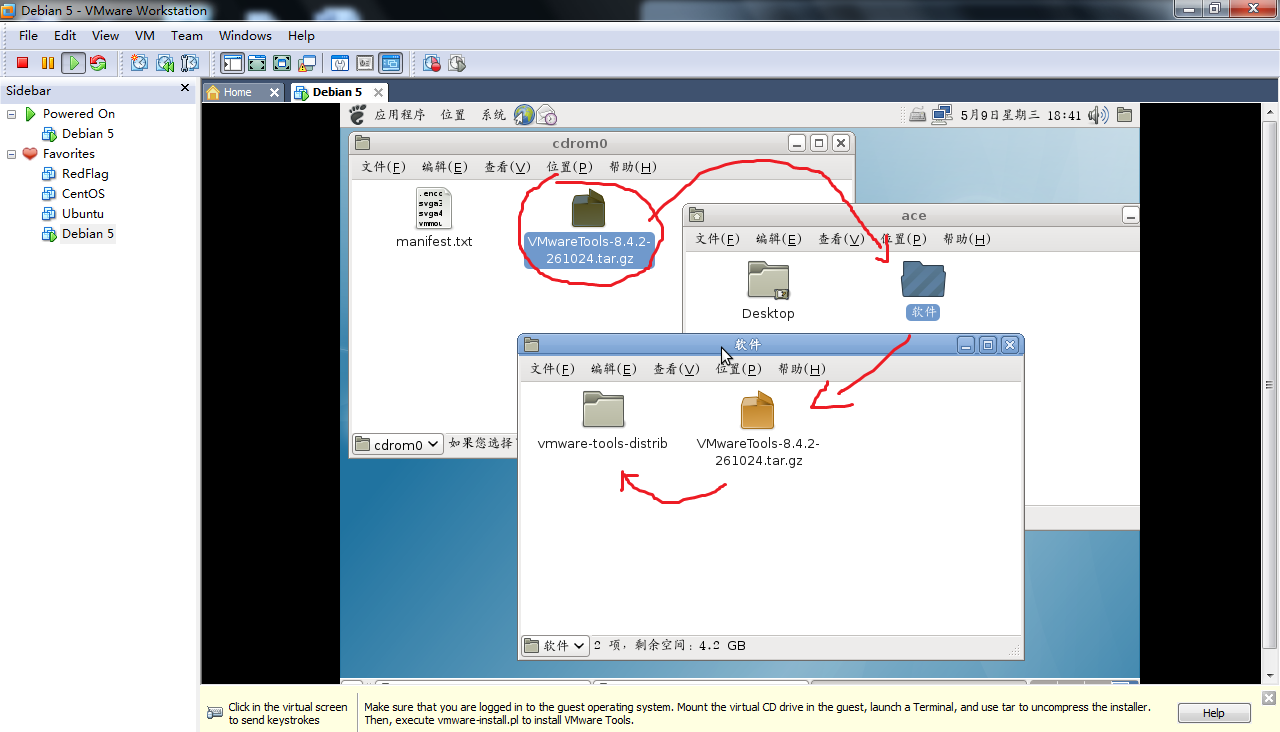
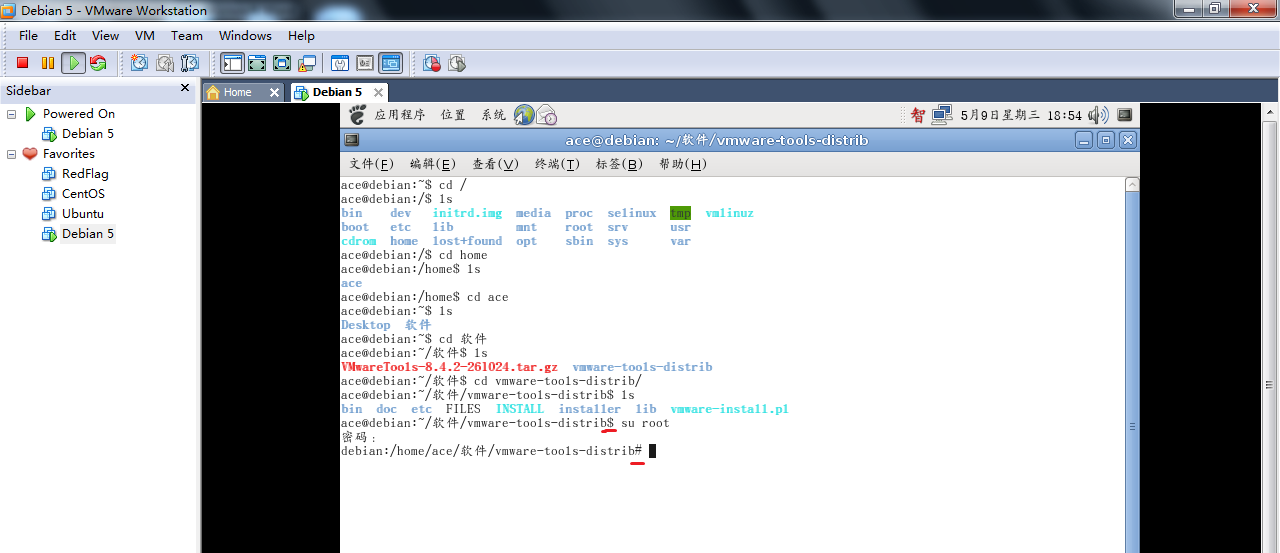
2 打开一个终端,我们要定位到刚才解压的目录下(命令很像DOS)
cd /:指进入根目录
ls:指列出该目录下所有文件
cd home:再进入home目录
ls:再列举home目录下所有文件
……
进入了vmware-tools-distrib目录(注意,很长的路径你不需要完全打出来,你敲代码的时候,按cd vm,然后按Tab可以自动补全)

3 马上要安装软件了,先获取root权限。
输入su root,回车
输入root账户的密码,再回车
发现命令前面的$变成了#,表示已经是root权限
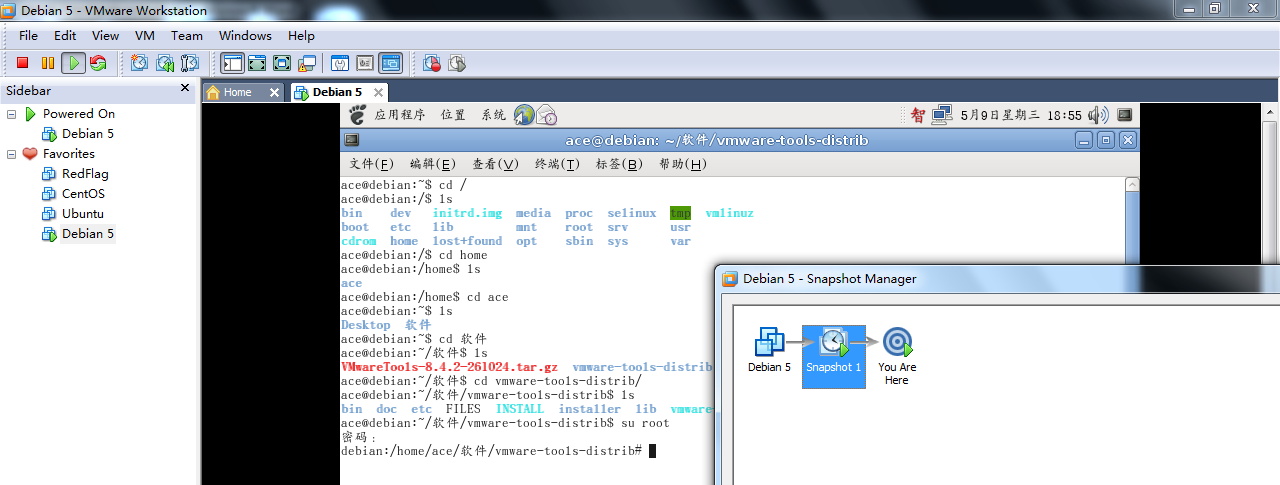
4为了保险起见,现在做一个快照好了,因为待会儿如果VM Tools安装失败了,直接回到这里再试,就不用重复前面的操作了。
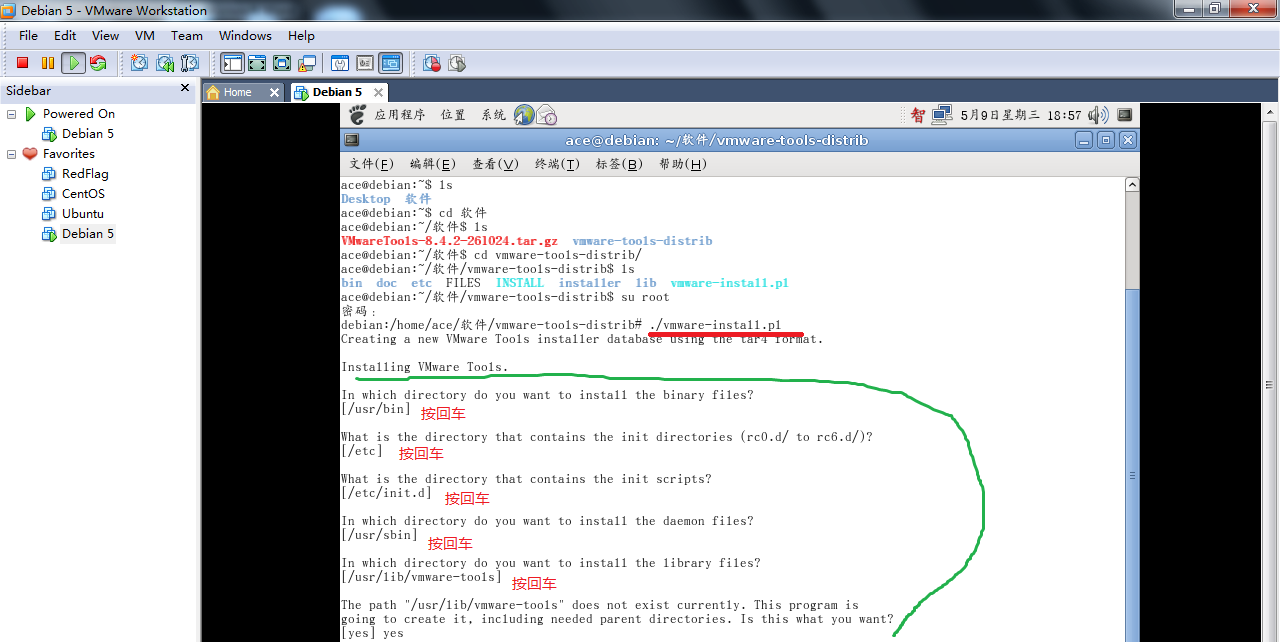
5 开始正式安装
输入./vmware-install.pl(注意同样不需要一个字母一个字母敲,敲到./vm的时候按Tab就可以自动补全了)
接下来会弹出一系列问题(In which directory……?),不管他提示什么问题,直接按回车就可以了(就跟Windows安装软件的猛点下一步一样如果提示Is it what you want?[yes]你就输入yes之后回车,反正不是回车就是yes+回车)
6 安装完成之后需要重启。从下图可以发现已经支持拖拽了。
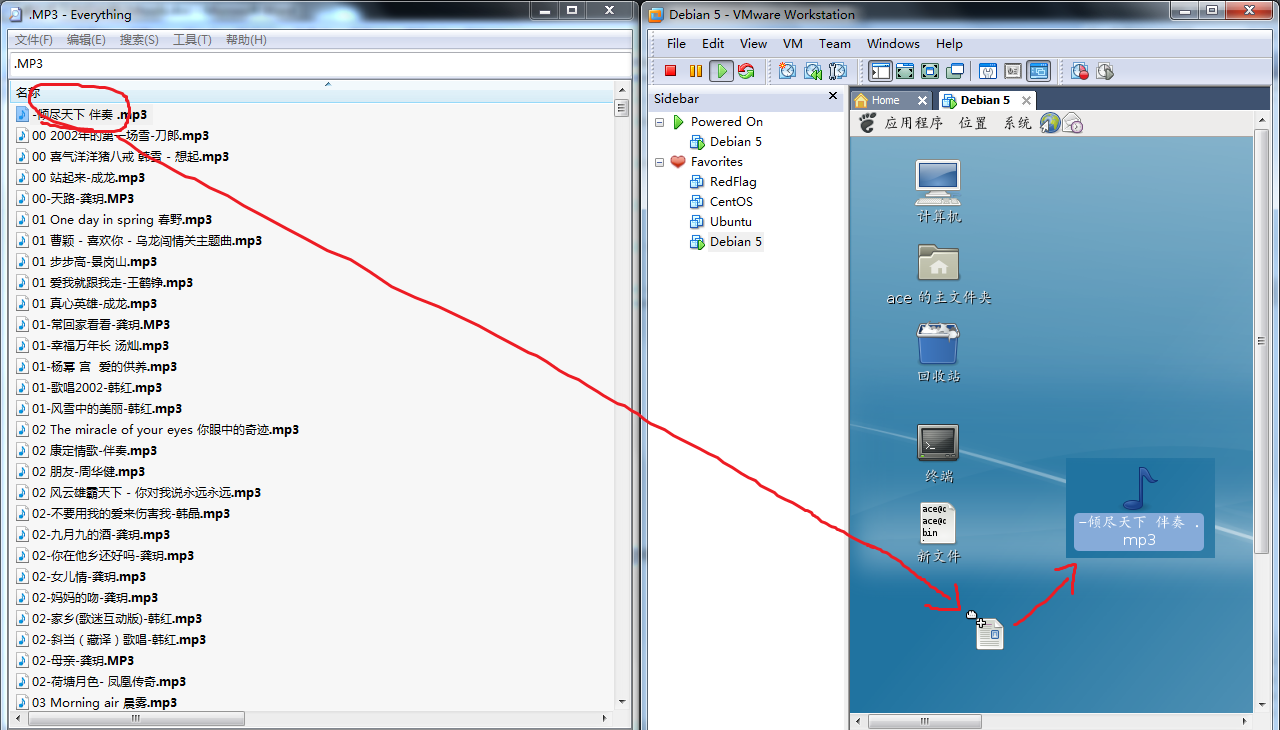
注意,有些系统默认没有安装GCC之类的编译器,所以安装VMTools过程中会报错,笔者在安装CentOS的时候就碰到了这个问题。
Searching for GCC...
The path "" is not valid path to the gcc binary.
Searching for a valid kernel header path...
The path "" is not valid.
解决办法是在终端中输入如下命令,将编译环境一次装好(需要联网下载这些包,有好几十兆,网速差的得等好久了,或者又牵扯到软件源,需要改变一下软件源才能快点下载):
yum install gcc gcc-c++ automake make
最后附上在Debian上完整的安装过程代码。
ace@debian:~$ cd /
ace@debian:/$ ls
bin dev initrd.img media proc selinux tmp vmlinuz
boot etc lib mnt root srv usr
cdrom home lost+found opt sbin sys var
ace@debian:/$ cd home
ace@debian:/home$ ls
ace
ace@debian:/home$ cd ace
ace@debian:~$ ls
Desktop 软件
ace@debian:~$ cd 软件
ace@debian:~/软件$ ls
VMwareTools-8.4.2-261024.tar.gz vmware-tools-distrib
ace@debian:~/软件$ cd vmware-tools-distrib/
ace@debian:~/软件/vmware-tools-distrib$ ls
bin doc etc FILES INSTALL installer lib vmware-install.pl
ace@debian:~/软件/vmware-tools-distrib$ su root
密码:
debian:/home/ace/软件/vmware-tools-distrib# ./vmware-install.pl
Creating a new VMware Tools installer database using the tar4 format.
Installing VMware Tools.
In which directory do you want to install the binary files?
[/usr/bin]
What is the directory that contains the init directories (rc0.d/ to rc6.d/)?
[/etc]
What is the directory that contains the init scripts?
[/etc/init.d]
In which directory do you want to install the daemon files?
[/usr/sbin]
In which directory do you want to install the library files?
[/usr/lib/vmware-tools]
The path "/usr/lib/vmware-tools" does not exist currently. This program is
going to create it, including needed parent directories. Is this what you want?
[yes] yes
In which directory do you want to install the documentation files?
[/usr/share/doc/vmware-tools]
The path "/usr/share/doc/vmware-tools" does not exist currently. This program
is going to create it, including needed parent directories. Is this what you
want? [yes] yes
The installation of VMware Tools 8.4.2 build-261024 for Linux completed
successfully. You can decide to remove this software from your system at any
time by invoking the following command: "/usr/bin/vmware-uninstall-tools.pl".
Before running VMware Tools for the first time, you need to configure it by
invoking the following command: "/usr/bin/vmware-config-tools.pl". Do you want
this program to invoke the command for you now? [yes] yes
Initializing...
Stopping VMware Tools services in the virtual machine:
Guest operating system daemon: done
Virtual Printing daemon: done
Unmounting HGFS shares: done
Guest filesystem driver: done
Found a compatible pre-built module for vmmemctl. Installing it...
Found a compatible pre-built module for vmhgfs. Installing it...
Found a compatible pre-built module for vmxnet. Installing it...
Found a compatible pre-built module for vmblock. Installing it...
Found a compatible pre-built module for vmci. Installing it...
Found a compatible pre-built module for vsock. Installing it...
Found a compatible pre-built module for vmxnet3. Installing it...
Found a compatible pre-built module for pvscsi. Installing it...
Detected X.org version 7.3.2.
Host resolution detected as "1280 x 800".
Please choose one of the following display sizes that X will start with:
[1] "320x200"
[2] "320x240"
[3] "400x300"
[4] "512x384"
[5] "640x400"
[6] "640x480"
[7] "720x480"
[8] "800x480"
[9] "854x480"
[10] "720x576"
[11] "800x600"
[12]< "1024x768"
Please enter a number between 1 and 12:
[12] 12
X.Org X Server 1.4.2
Release Date: 11 June 2008
X Protocol Version 11, Revision 0
Build Operating System: Linux Debian (xorg-server 2:1.4.2-10)
Current Operating System: Linux debian 2.6.26-1-686 #1 SMP Sat Jan 10 18:29:31 UTC 2009 i686
Build Date: 09 January 2009 02:57:16AM
Before reporting problems, check http://wiki.x.org
to make sure that you have the latest version.
Module Loader present
Markers: (--) probed, (**) from config file, (==) default setting,
(++) from command line, (!!) notice, (II) informational,
(WW) warning, (EE) error, (NI) not implemented, (??) unknown.
(++) Log file: "/tmp/vmware-config0/XF86ConfigLog.3656", Time: Wed May 9 19:00:18 2012
(++) Using config file: "/tmp/vmware-config0/XF86Config.3656"
(II) Module "ramdac" already built-in
X is running fine with the new config file.
FreeFontPath: FPE "/usr/share/fonts/X11/misc" refcount is 2, should be 1; fixing.
Creating a new initrd boot image for the kernel.
update-initramfs: Generating /boot/initrd.img-2.6.26-1-686
Checking acpi hot plug done
Starting VMware Tools services in the virtual machine:
Switching to guest configuration: done
Paravirtual SCSI module: done
Guest filesystem driver: done
Mounting HGFS shares: failed
Guest memory manager: done
Guest vmxnet fast network device: done
VM communication interface: done
VM communication interface socket family: done
Blocking file system: done
Guest operating system daemon: done
Virtual Printing daemon: done
The configuration of VMware Tools 8.4.2 build-261024 for Linux for this running
kernel completed successfully.
You must restart your X session before any mouse or graphics changes take
effect.
You can now run VMware Tools by invoking "/usr/bin/vmware-toolbox-cmd" from the
command line or by invoking "/usr/bin/vmware-toolbox" from the command line
during an X server session.
To enable advanced X features (e.g., guest resolution fit, drag and drop, and
file and text copy/paste), you will need to do one (or more) of the following:
1. Manually start /usr/bin/vmware-user
2. Log out and log back into your desktop session; and,
3. Restart your X session.
To use the vmxnet driver, restart networking using the following commands:
/etc/init.d/networking stop
rmmod pcnet32
rmmod vmxnet
modprobe vmxnet
/etc/init.d/networking start
Enjoy,
--the VMware team
Found VMware Tools CDROM mounted at /media/cdrom0. Ejecting device /dev/hdc ...
VM Workstation 虚拟机下如何安装VMtools的更多相关文章
- VM Workstation 虚拟机安装Ghost XP教程
1 工具和软件准备 VM Workstation虚拟机软件(必须) http://pan.baidu.com/share/link?shareid=304385&uk=637999033 ...
- Linux系统centOS7在虚拟机下的安装及XShell软件的配置
前面的话 本文将详细介绍Linux系统centOS7在虚拟机下的安装 准备工作 [系统下载] 在安装centOS7之前,首先在官网下载合适的版本 然后,选择一个链接下载即可 [虚拟机配置] 接下来,需 ...
- ubuntu在虚拟机下的安装 ~~~ Hadoop的安装及配置 ~~~ Hdfs中eclipse的安装
前言 Hadoop是基于Java语言开发的,具有很好跨平台的特性.Hadoop的所要求系统环境适用于Windows,Linux,Mac系统,我们推荐选择使用Linux或Mac系统.而Linux系统则 ...
- VM虚拟机下centos安装。
centOS 7安装步骤: 1.选择新建虚拟机,稍后安装,linux选centos7 64位 2.位置改到存放虚拟机的文件夹 3.把硬盘空间改到40g,内存分到4g,1处理器2个核心 4 更改cd/d ...
- 在虚拟机Linux中安装VMTools遇到的问题-小结
总结: 遇到的问题:No support for locale: zh_CN.utf8 可能的解决方法:1.sudo dpkg-reconfigure locale (重新配置?) 2.上一步失败,提 ...
- 虚拟机下linux安装mysql,apache和php
由于腿伤了,卧床在家折腾下linux,尝试用虚拟机装mysql,apche和php.中间各种波折,装了好几天,觉得有些经验还是要记录下来,让自己别忘了:) 按照下面这篇文章的方法,基本可以顺利安装成功 ...
- .NET Core项目部署到Linux(Centos7)(四)VMware Workstation虚拟机Centos 7安装
目录 1.前言 2.环境和软件的准备 3.创建.NET Core API项目 4.VMware Workstation虚拟机及Centos 7安装 5.Centos 7安装.NET Core环境 6. ...
- 虚拟机Linux_Mint中安装vmtools增强工具
一开始用VmwarePro安装Linux系统时,系统的整体界面会缩在屏幕中间的一小块区域内.如图: 看的会非常吃力.为了更好的解决这个问题,就需要安装Vmtools增强工具.安装步骤如下: 1. ...
- VMware虚拟机下如何安装一个64位的win7系统
原文地址:http://www.xitongcheng.com/jiaocheng/win7_article_21001.html VMware虚拟机软件可以在一台电脑上运行多个操作系统,一些网友想在 ...
随机推荐
- json常识
转载网址:http://developer.51cto.com/art/201704/536386.htm 我们先来看一个JS中常见的JS对象序列化成JSON字符串的问题. 请问:以下JS对象通过 ...
- 6.12---esultMap查询所有
- 后台管理进程GameMaster
初步准备在后台加一个进程,用来控制进程中的各种数据,修改,查看,删除玩家数据类似于后端的gm控制平台
- Python数据科学安装Numby,pandas,scipy,matpotlib等(IPython安装pandas)
Python数据科学安装Numby,pandas,scipy,matpotlib等(IPython安装pandas) 如果还没有本地安装Python.IPython.notebook等请移步 上篇Py ...
- Android 百度地图 android.view.InflateException: Binary XML file line Error inflating class com.baidu.mapapi.map.MapView
android.view.InflateException: Binary XML file line Error inflating class com.baidu.mapapi.map.MapVi ...
- python加载不了cookirlib模块的问题
Python 3 改成 http.cookiejar了,所以import cookielib只要改成import http.cookiejar,就可以了.
- 【Python-2.7】大小写转换函数
字母大小写是编程过程中经常遇到的问题,如下函数可以灵活的进行大小写转换: title():把单词首字母转换为大写: upper():把每个字母转换为大写: lower():把每个字母转换为小写. 示例 ...
- 【译】x86程序员手册27-7.6任务链
7.6 Task Linking 任务链 The back-link field of the TSS and the NT (nested task) bit of the flag word to ...
- jsp学习笔记 - 内置对象 pageContext
1.pageContext几乎可以操作所有的页面内置对象 pageContext.getRequest(); 得到的对象只是属于ServletRequest类,httpServletReques ...
- 设置bootstrap modal模态框的宽度和宽度
(1)修改宽度可以通过修改modal中的modal-dialog这个div宽度实现 <div class="modal-dialog" style="width:6 ...