
iOS开发——项目篇—高仿百思不得姐
01
一、包装为导航控制器
UINavigationController *nav = [[UINavigationController alloc] initWithRootViewController:vc];
二、自定义tabbar,布局子控件,添加加号按钮
/**

 * 布局子控件

 */

- (void)layoutSubviews

{

    [super layoutSubviews];

    // 设置发布按钮的位置

    self.publishButton.center = CGPointMake(self.frame.size.width * 0.5, self.frame.size.height * 0.5);

    // 按钮索引

    int index = ;

    // 按钮的尺寸

    CGFloat tabBarButtonW = self.frame.size.width / ;

    CGFloat tabBarButtonH = self.frame.size.height;

    CGFloat tabBarButtonY = ;

    // 设置4个TabBarButton的frame

    for (UIView *tabBarButton in self.subviews) {

//        if (![tabBarButton isKindOfClass:NSClassFromString(@"UITabBarButton")]) continue;

        if (![NSStringFromClass(tabBarButton.class) isEqualToString:@"UITabBarButton"]) continue;

        // 计算按钮的X值

        CGFloat tabBarButtonX = index * tabBarButtonW;

        if (index >= ) { // 给后面2个button增加一个宽度的X值

            tabBarButtonX += tabBarButtonW;

        }

        // 设置按钮的frame

        tabBarButton.frame = CGRectMake(tabBarButtonX, tabBarButtonY, tabBarButtonW, tabBarButtonH);

        // 增加索引

        index++;

    }

}
三、设置导航控制器的UIBarButtonItem,封装到UIBarButtonItem的分类
+ (instancetype)itemWithImage:(NSString *)image highImage:(NSString *)highImage target:(id)target action:(SEL)action

{

    UIButton *button = [UIButton buttonWithType:UIButtonTypeCustom];

    [button setBackgroundImage:[UIImage imageNamed:image] forState:UIControlStateNormal];

    [button setBackgroundImage:[UIImage imageNamed:highImage] forState:UIControlStateHighlighted];

    [button sizeToFit];

    [button addTarget:target action:action forControlEvents:UIControlEventTouchUpInside];

    return [[self alloc] initWithCustomView:button];

}
那么设置UIBarButtonItem时
    // 导航栏右边的内容

    UIBarButtonItem *moonItem = [UIBarButtonItem itemWithImage:@"mine-moon-icon" highImage:@"mine-moon-icon-click" target:self action:@selector(moonClick)];

    UIBarButtonItem *settingItem = [UIBarButtonItem itemWithImage:@"mine-setting-icon" highImage:@"mine-setting-icon-click" target:self action:@selector(settingClick)];

    self.navigationItem.rightBarButtonItems = @[settingItem, moonItem];
四、隐藏tabbar
    CHGSettingViewController *setting = [[CHGSettingViewController alloc] init];

    setting.hidesBottomBarWhenPushed = YES; // 当push这个控制器时,会自动隐藏底部的工具条

    [self.navigationController pushViewController:setting animated:YES];
五、自定义导航控制器,拦截pushViewController:animated方法统一修改push的控制器的返回键
- (void)viewDidLoad {

    [super viewDidLoad];

    self.interactivePopGestureRecognizer.delegate = self;

}

/**

 * 拦截所有push进来的子控制器

 * @param viewController 每一次push进来的子控制器

 */

- (void)pushViewController:(UIViewController *)viewController animated:(BOOL)animated

{

//    if (不是第一个push进来的子控制器) {

    if (self.childViewControllers.count >= ) {

        // 左上角的返回

        UIButton *backButton = [UIButton buttonWithType:UIButtonTypeCustom];

        [backButton setTitle:@"返回" forState:UIControlStateNormal];

        [backButton setTitleColor:[UIColor blackColor] forState:UIControlStateNormal];

        [backButton setTitleColor:[UIColor redColor] forState:UIControlStateHighlighted];

        [backButton setImage:[UIImage imageNamed:@"navigationButtonReturn"] forState:UIControlStateNormal];

        [backButton setImage:[UIImage imageNamed:@"navigationButtonReturnClick"] forState:UIControlStateHighlighted];

//        button.size = CGSizeMake(70, 30);

        // 让按钮内部的所有内容左对齐  按钮独特的一个属性  这样可以可以做到调整按钮大小 并且内容左对齐

//        button.contentHorizontalAlignment = UIControlContentHorizontalAlignmentLeft;

        // 自动计算按钮大小

        [backButton sizeToFit];

        [backButton addTarget:self action:@selector(back) forControlEvents:UIControlEventTouchUpInside];

        backButton.contentEdgeInsets = UIEdgeInsetsMake(, -, , );

        viewController.navigationItem.leftBarButtonItem = [[UIBarButtonItem alloc] initWithCustomView:backButton];

        viewController.hidesBottomBarWhenPushed = YES; // 隐藏底部的工具条

    }

    // super的push方法一定要写到最后面

    // 一旦调用super的pushViewController方法,就会创建子控制器viewController的view

    // 也就会调用viewController的viewDidLoad方法

    [super pushViewController:viewController animated:animated];

}

- (void)back

{

    [self popViewControllerAnimated:YES];

}

#pragma mark - <UIGestureRecognizerDelegate>

/**

 * 每当用户触发[返回手势]时都会调用一次这个方法

 * 返回值:返回YES,手势有效; 返回NO,手势失效

 */

- (BOOL)gestureRecognizerShouldBegin:(UIGestureRecognizer *)gestureRecognizer

{

    // 如果当前显示的是第一个子控制器,就应该禁止掉[返回手势]

//    if (self.childViewControllers.count == 1) return NO;

//    return YES;

    return self.childViewControllers.count > ;

}
02
补充知识
## 零、颜色须知
- 1> 每一种颜色都是由N个颜色通道组成
- 2> 常见的颜色通道
- 1) A:alpha 透明度
- 2) R:red 红色
- 3) G:green 绿色
- 4) B:blue 蓝色
- 3> 常见颜色
* 白色:全部通道满值
* 黑色:全部通道都是0(透明度除外)
* 灰色:RGB通道的值一样
## 一、32bit颜色
1> 颜色组成
- 1) 由ARGB四个颜色通道组成
- 2) 每一个颜色通道都占据8bit
- 3) 每一个颜色通道的取值范围是[0, 255] [0x00, 0xff] [0b00000000, 0b11111111]
2> 颜色的表示格式
- 1) 16进制格式(HEX格式)
* 绿色 #ff00ff00
* 黄色 #ffffff00
* 白色 #ffffffff
* 黑色 #ff000000
2) ARGB格式
* 绿色 255,0,255,0
* 黄色 255,255,255,0
* 白色 255,255,255,255
* 黑色 255,0,0,0
## 二、24bit颜色
1> 颜色组成
- 1) 由RGB三个颜色通道组成
- 2) 每一个颜色通道都占据8bit
- 3) 每一个颜色通道的取值范围是[0, 255] [0x00, 0xff] [0b00000000, 0b11111111]
2> 颜色的表示格式
- 1) 16进制格式(HEX格式)
* 绿色 #00ff00
* 黄色 #ffff00
* 白色 #ffffff
* 黑色 #000000
- 2) RGB格式
* 绿色 0,255,0
* 黄色 255,255,0
* 白色 255,255,255
* 黑色 0,0,0
## 三、12bit颜色
1> 颜色组成
- 1) 由RGB三个颜色通道组成
- 2) 每一个颜色通道都占据4bit
- 3) 每一个颜色通道的取值范围是[0, 15] [0x0, 0xf] [0b0000, 0b1111]
2> 颜色的表示格式
- 1) 16进制格式(HEX格式)
* 绿色 #0f0
* 黄色 #ff0
* 白色 #fff
* 黑色 #000
- 2) RGB格式
* 绿色 15
* 黄色 15,15,0
* 白色 15,15,15
* 黑色 0,0,0
## 其它
- 红色的表示方式
- \#ffff0000
- \#ff0000
- \#f00
一、三种设置圆角的方法
    self.loginButton.layer.cornerRadius = ;

    self.loginButton.layer.masksToBounds = YES;

    self.loginButton.layer.cornerRadius = ;

    self.loginButton.clipsToBounds = YES;
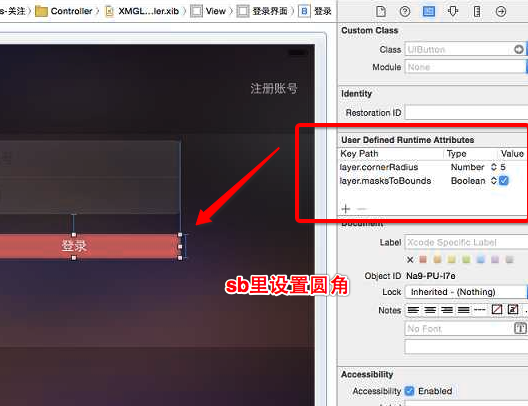
第三种方法:
    //    [self.loginButton setValue:@5 forKeyPath:@"layer.cornerRadius"];

    //    [self.loginButton setValue:@YES forKeyPath:@"layer.masksToBounds"];
在sb中利用KVC设置上面这两个值
二、修改状态栏样式
// iOS7之前修改状态栏样式
[UIApplication sharedApplication].statusBarStyle;
// iOS7开始由控制器来修改状态栏样式
/**
* 让状态栏样式为白色
*/
- (UIStatusBarStyle)preferredStatusBarStyle
{
return UIStatusBarStyleLightContent;
}
三、富文本用法
富文本用法1 - 不可变的属性文字
    NSMutableDictionary *attrs = [NSMutableDictionary dictionary];

    attrs[NSForegroundColorAttributeName] = [UIColor grayColor];

    attrs[NSUnderlineStyleAttributeName] = @;

    attrs[NSUnderlineColorAttributeName] = [UIColor redColor];

    self.attributedPlaceholder = [[NSAttributedString alloc] initWithString:self.placeholder attributes:attrs];
富文本用法2 - 可变的属性文字
NSMutableAttributedString *string = [[NSMutableAttributedString alloc] initWithString:self.placeholder];

    [string addAttribute:NSForegroundColorAttributeName value:[UIColor redColor] range:NSMakeRange(, )];

    [string addAttribute:NSForegroundColorAttributeName value:[UIColor greenColor] range:NSMakeRange(, )];

    [string addAttribute:NSFontAttributeName value:[UIFont boldSystemFontOfSize:] range:NSMakeRange(, )];

    self.attributedPlaceholder = string;
富文本用法3 - 图文混排
    NSMutableAttributedString *string = [[NSMutableAttributedString alloc] init];

    // 第二段:图片

    NSTextAttachment *attachment = [[NSTextAttachment alloc] init];

    attachment.image = [UIImage imageNamed:@"login_close_icon"];

    attachment.bounds = CGRectMake(, , , );

    NSAttributedString *subtring2 = [NSAttributedString attributedStringWithAttachment:attachment];

    [string appendAttributedString:subtring2];

    // 第一段:placeholder

    NSAttributedString *substring1 = [[NSAttributedString alloc] initWithString:self.placeholder];

    [string appendAttributedString:substring1];

    // 第三段:哈哈

    NSAttributedString *substring3 = [[NSAttributedString alloc] initWithString:@"哈哈"];

    [string appendAttributedString:substring3];

    self.attributedPlaceholder = string;
四、textField的设置
文本框的属性设置
    // 文本框的光标颜色

    self.tintColor = [UIColor whiteColor];

    // 文字颜色

    self.textColor = [UIColor whiteColor];

    // 设置带有属性的占位文字(富文本)

    self.attributedPlaceholder = [[NSAttributedString alloc] initWithString:self.placeholder attributes:@{NSForegroundColorAttributeName : [UIColor grayColor]}];
占位文字位置设置方法一
    // 占位文字画在哪个位置

    CGPoint point;

    point.x = ;

    point.y = (self.height - self.font.lineHeight) * 0.5;

    // 文字属性

    NSMutableDictionary *attrs = [NSMutableDictionary dictionary];

    attrs[NSForegroundColorAttributeName] = [UIColor redColor];

    attrs[NSFontAttributeName] = self.font;

    [self.placeholder drawAtPoint:point withAttributes:attrs];
占位文字位置设置方法二
   // 占位文字画在哪个矩形框里面

    CGRect placeholderRect = self.bounds;

    placeholderRect.origin.y = (self.height - self.font.lineHeight) * 0.5;

    // 文字属性

    NSMutableDictionary *attrs = [NSMutableDictionary dictionary];

    attrs[NSForegroundColorAttributeName] = [UIColor redColor];

    attrs[NSFontAttributeName] = self.font;

    [self.placeholder drawInRect:placeholderRect withAttributes:attrs];
五、运行时(Runtime)
1.什么是运行时(Runtime)?
* 运行时是苹果提供的纯C语言的开发库(运行时是一种非常牛逼、开发中经常用到的底层技术)
2.运行时的作用?
* 能获得某个类的所有成员变量
* 能获得某个类的所有属性
* 能获得某个类的所有方法
* 交换方法实现
* 能动态添加一个成员变量
* 能动态添加一个属性
* 能动态添加一个方法
3、获得一个类的所有属性的方法(以UITextField为例)
    // 成员变量的数量

    unsigned int outCount = ;

    // 获得所有的成员变量

    Ivar *ivars = class_copyIvarList([UITextField class], &outCount);

    // 遍历所有的成员变量

    for (int i = ; i<outCount; i++) {

        // 取出i位置对应的成员变量

        Ivar ivar = ivars[i];

        // 获得成员变量的名字

        NSLog(@"%s", ivar_getName(ivar));

    }

    // 如果函数名中包含了copy\new\retain\create等字眼,那么这个函数返回的数据就需要手动释放

    free(ivars);
作用:
当你不确定这个类中有哪些属性,可以查看,而且利用kvc可以给一些隐藏起来的私有成员变量赋值
// 设置占位文字颜色

[self setValue:[UIColor grayColor] forKeyPath:@"placeholderLabel.textColor"];
六、监听textfield的编辑状态
方法一:
    // 通过addTarget:-》监听文本框的开始和结束编辑

    [self addTarget:self action:@selector(beginEditing) forControlEvents:UIControlEventEditingDidBegin];

    [self addTarget:self action:@selector(endEditing) forControlEvents:UIControlEventEditingDidEnd];
方法二:
设置自己为代理
// 这种做法不推荐,因为delegate属性很容易被外界覆盖

self.delegate = self;

#pragma mark - <UITextFieldDelegate>

- (void)textFieldDidBeginEditing:(UITextField *)textField

{

    [self setValue:[UIColor whiteColor] forKeyPath:@"placeholderLabel.textColor"];

}

- (void)textFieldDidEndEditing:(UITextField *)textField

{

    [self setValue:[UIColor grayColor] forKeyPath:@"placeholderLabel.textColor"];

}
方法三:
通过通知->监听文本框的开始和结束编辑
[[NSNotificationCenter defaultCenter] addObserver:self selector:@selector(beginEditing) name:UITextFieldTextDidBeginEditingNotification object:self];

    [[NSNotificationCenter defaultCenter] addObserver:self selector:@selector(endEditing) name:UITextFieldTextDidEndEditingNotification object:self];

- (void)dealloc

{

    [[NSNotificationCenter defaultCenter] removeObserver:self];

}
方法四
巧用
becomeFirstResponder
resignFirstResponder
#define CHGPlaceholderColorKey @"placeholderLabel.textColor"

// 默认的占位文字颜色

#define CHGPlaceholderDefaultColor [UIColor grayColor]

// 聚焦的占位文字颜色

#define CHGPlaceholderFocusColor [UIColor whiteColor]

// 弹出当前文本框对应的键盘时调用

- (BOOL)becomeFirstResponder

{

    [self setValue:CHGPlaceholderFocusColor forKeyPath:CHGPlaceholderColorKey];

    return [super becomeFirstResponder];

}

// 隐藏当前文本框对应的键盘时调用

- (BOOL)resignFirstResponder

{

    [self setValue:CHGPlaceholderDefaultColor forKeyPath:CHGPlaceholderColorKey];

    return [super resignFirstResponder];

}
03
精华的推荐标签界面的处理
- 显示推荐标签数据
-请求细节处理
-圆角图片
-封装圆角头像
-全局常量、变量(const、extern、static)
一、设置分割线
1、去除系统自带的,在xib中自定义高度为1的view作为分割线(改变透明度调节)(比较麻烦 这里不用)
2、在系统设置完cell的frame后,再手动修改cell的frame(重写setframe方法)
// 去掉系统自带的分割线

self.tableView.separatorStyle = UITableViewCellSeparatorStyleNone;

/**

 * 重写这个方法的目的:拦截cell的frame设置

 */

- (void)setFrame:(CGRect)frame

{

    frame.size.height -= ;

//    frame.origin.x = 5;

//    frame.size.width -= 2 * frame.origin.x;

    [super setFrame:frame];

}
注意:重写setframe setbounds可以避免外界修改控件的尺寸,从而达到保留你设置的尺寸的目的(如果重写形变方法 也可以在次修改属性)
设置分割线方法二错误示例

二、请求数据
1、如果对数据的结构不清楚,建议将数据写在plist文件里看
// 将服务器的数据写成plist。方便查看数据结构

[responseObject writeToFile:@"/Users/chg/Desktop/tag.plist" atomically:YES];
2、管理者最好用属性保存,便于管理task
3、各种请求失败时最好做判断处理
        // 如果是取消了任务,就不算请求失败,就直接返回

        if (error.code == NSURLErrorCancelled) return;

        if (error.code == NSURLErrorTimedOut) {

            // 关闭弹框

            [SVProgressHUD showErrorWithStatus:@"加载标签数据超时,请稍后再试!"];

        } else {

            // 关闭弹框

            [SVProgressHUD showErrorWithStatus:@"加载标签数据失败"];

        }
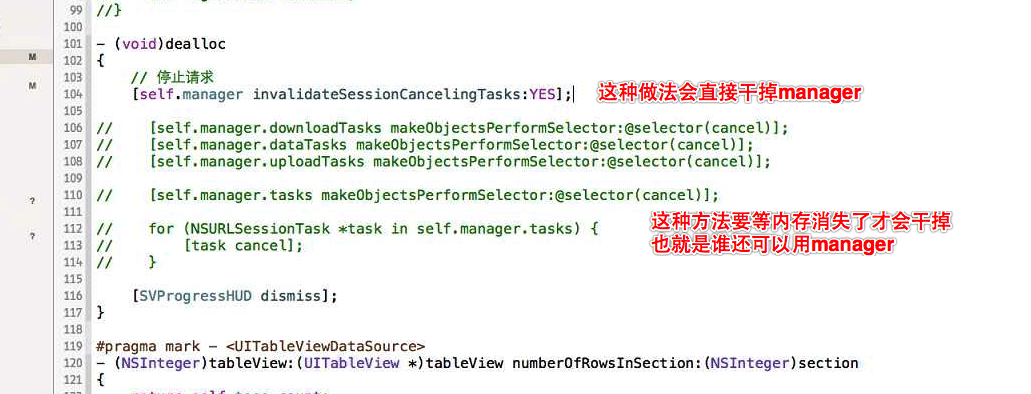
4、控制器消亡时停止请求
- (void)dealloc

{

    // 停止请求

    [self.manager invalidateSessionCancelingTasks:YES];

//    [self.manager.downloadTasks makeObjectsPerformSelector:@selector(cancel)];

//    [self.manager.dataTasks makeObjectsPerformSelector:@selector(cancel)];

//    [self.manager.uploadTasks makeObjectsPerformSelector:@selector(cancel)];

//    [self.manager.tasks makeObjectsPerformSelector:@selector(cancel)];

//    for (NSURLSessionTask *task in self.manager.tasks) {

//        [task cancel];

//    }

    [SVProgressHUD dismiss];

}
三、项目期间遇到的问题
1、debug中的宏不能全部小写
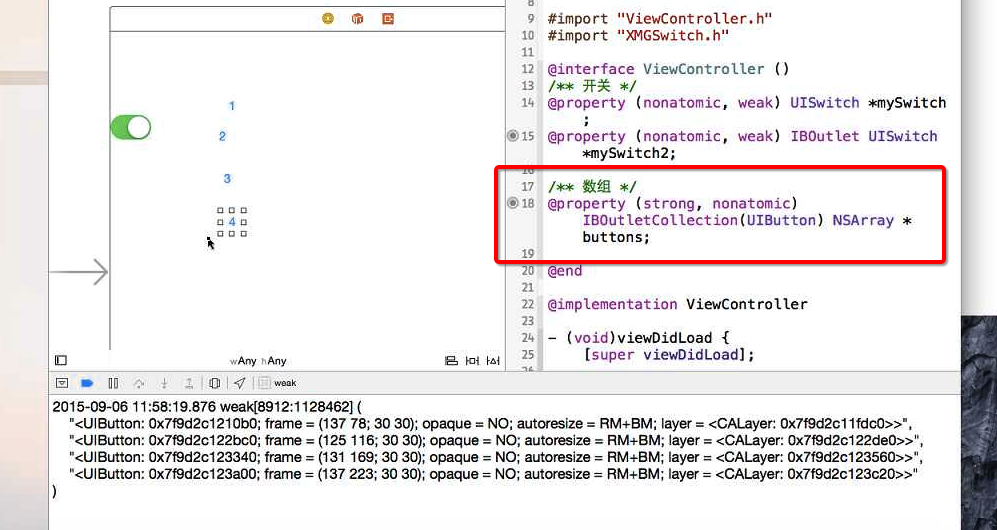
2、sb中,IBOutlet内部会有一个隐藏强引用,系统会在恰当的时候释放

IBOutlet数组中的顺序和连线顺序有关
3、AFN框架中如何防止控制器被强引用

四、cell里头像设置为圆角图片
1、使用图层直接设置(会出现卡顿现象 不推荐)
- (void)awakeFromNib

{

    // 如果使用过于频繁,可能会导致拖拽起来的感觉比较卡

//    self.imageListView.layer.cornerRadius = self.imageListView.width * 0.5;

//    self.imageListView.layer.masksToBounds = YES;

}
2、使用SDWebImage框架,先裁剪,再设置图片,封装到UIImage分类
- (instancetype)circleImage

{

    // 开启图形上下文

    UIGraphicsBeginImageContext(self.size);

    // 获得上下文

    CGContextRef ctx = UIGraphicsGetCurrentContext();

    // 矩形框

    CGRect rect = CGRectMake(, , self.size.width, self.size.height);

    // 添加一个圆

    CGContextAddEllipseInRect(ctx, rect);

    // 裁剪(裁剪成刚才添加的图形形状)

    CGContextClip(ctx);

    // 往圆上面画一张图片

    [self drawInRect:rect];

    // 获得上下文中的图片

    UIImage *image = UIGraphicsGetImageFromCurrentImageContext();

    // 关闭图形上下文

    UIGraphicsEndImageContext();

    return image;

}

+ (instancetype)circleImageNamed:(NSString *)name

{

    return [[self imageNamed:name] circleImage];

}
3、根据项目需求更改,封装到UIImageVIew分类,从而达到只改一处整个项目所有头像一起改变风格(圆形 方形)
- (void)setHeader:(NSString *)url

{

    [self setCircleHeader:url];

}

// 方形

- (void)setRectHeader:(NSString *)url

{

    [self sd_setImageWithURL:[NSURL URLWithString:url] placeholderImage:[UIImage imageNamed:@"defaultUserIcon"]];

}

// 圆形

- (void)setCircleHeader:(NSString *)url

{

    XMGWeakSelf;

    UIImage *placeholder = [[UIImage imageNamed:@"defaultUserIcon"] circleImage];

    [self sd_setImageWithURL:[NSURL URLWithString:url] placeholderImage:placeholder completed:

     ^(UIImage *image, NSError *error, SDImageCacheType cacheType, NSURL *imageURL) {

       // 如果图片下载失败,就不做任何处理,按照默认的做法:会显示占位图片

       if (image == nil) return;

       weakSelf.image = [image circleImage];

   }];

}
那么在项目中下载设置头像时
    // 设置头像

    [self.imageListView setHeader:tagModel.image_list];
五、代码风格(写法)问题,宏与全局变量的选择
1、cell的循环利用标识 设置为全局常量 或者 宏
2、请求路径 相同的路径抽取到PCH中
3、以上两处,需要注意宏与全局变量、常量被(const、extern、static)修饰的三种方式
1)宏不允许改动,数据是固定的(优点:安全),但是宏可以替换,每一个用到宏的地方都是临时开辟的存储空间(缺点:浪费内存)
2)全局变量的数据允许改动(缺点:不安全),但是全局变量只开辟一块存储空间(优点:优化内存)
3)根据分析折中选择,可以在全局变量前添加const修饰(改为常量,不允许改动)
4)const: 只修饰右边的内容,被修饰的内容都是常量,都是不能再修改的
5)extern:可以引用全局变量(也可以引用函数):其他文件中可以利用extern引用一个全局变量,并且变量可再修改
6)static:
被static修饰全局变量\常量 为静态变量,仅限于当前文件使用,也就是说作用域被改变了
被static修饰局部变量只会占用一块内存,在整个程序运行过程都不会销毁,只会初始化一次,也就是说声明周期被改变了
04
一、“我的”界面
1、界面分析:分组样式的tableView,在tableview的footView上添加多个按钮
// 设置为分组样式:

[self setupChildVc:[[CHGMeViewController alloc] initWithStyle:UITableViewStyleGrouped] title:@"我" image:@"tabBar_me_icon" selectedImage:@"tabBar_me_click_icon"];

// 设置footer

self.tableView.tableFooterView = [[CHGMeFooter alloc] init];
2、调整tableView位置,设置tableView的内边距可以让cell和footView一起往上移(tableView.contentInset)
    self.tableView.sectionHeaderHeight = ;

    self.tableView.sectionFooterHeight = XMGCommonMargin;

    // 设置内边距(-25代表:所有内容往上移动25)

    self.tableView.contentInset = UIEdgeInsetsMake(XMGCommonMargin - , , , );
3、自定义cell 在initWithStyle:reuseIdentifier中自定义cell文字颜色,背景图片等等是谁的事就交给谁去做,MVC的基本思想:
- (instancetype)initWithStyle:(UITableViewCellStyle)style reuseIdentifier:(NSString *)reuseIdentifier

{

    if (self = [super initWithStyle:style reuseIdentifier:reuseIdentifier]) {

        // 设置右边的标识为箭头

        self.accessoryType = UITableViewCellAccessoryDisclosureIndicator;

        // 设置textlabel为深灰色

        self.textLabel.textColor = [UIColor darkGrayColor];

        // 设置背景图片

        self.backgroundView = [[UIImageView alloc] initWithImage:[UIImage imageNamed:@"mainCellBackground"]];

    }

    return self;

}
4、重写latoutSubviews 微调cell控件的frame(cell的lable、imageView)
- (void)layoutSubviews

{

    [super layoutSubviews];

    if (self.imageView.image == nil) return;

    // 调整imageView

    self.imageView.y = CHGCommonMargin * 0.5;

    self.imageView.height = self.contentView.height -  * self.imageView.y;

    self.imageView.width = self.imageView.height;

    // 调整Label

//    self.textLabel.x = self.imageView.x + self.imageView.width + XMGCommonMargin;

    self.textLabel.x = CGRectGetMaxX(self.imageView.frame) + CHGCommonMargin;

    // CGRectGetMaxX(self.imageView.frame) == self.imageView.x + self.imageView.width

    // CGRectGetMinX(self.imageView.frame) == self.imageView.x

    // CGRectGetMidX(self.imageView.frame) == self.imageView.x + self.imageView.width * 0.5

    // CGRectGetMidX(self.imageView.frame) == self.imageView.centerX

}
5、自定义footView,在initWithFrame:方法中请求数据,布局footView的子控件,添加按钮,添加点击监听
。。。

[button addTarget:self action:@selector(buttonClick:) forControlEvents:UIControlEventTouchUpInside];

        [self addSubview:button];

        // 设置模型数据

        button.square = squares[i];

。。。
6、自定义方块button,布局button子控件,设置数据,设置按钮背景图片时注意按钮状态,(使用UIButton+WebCache框架)
@implementation CHGSquareButton

- (instancetype)initWithFrame:(CGRect)frame

{

    if (self = [super initWithFrame:frame]) {

        self.titleLabel.textAlignment = NSTextAlignmentCenter;

        self.titleLabel.font = [UIFont systemFontOfSize:];

        [self setTitleColor:[UIColor blackColor] forState:UIControlStateNormal];

        [self setBackgroundImage:[UIImage imageNamed:@"mainCellBackground"] forState:UIControlStateNormal];

    }

    return self;

}

- (void)layoutSubviews

{

    [super layoutSubviews];

    self.imageView.width = self.width * 0.5;

    self.imageView.height = self.imageView.width;

    self.imageView.y = self.height * 0.1;

    self.imageView.centerX = self.width * 0.5;

    self.titleLabel.width = self.width;

    self.titleLabel.y = CGRectGetMaxY(self.imageView.frame);

    self.titleLabel.x = ;

    self.titleLabel.height = self.height - self.titleLabel.y;

}

- (void)setSquare:(XMGSquare *)square

{

    _square = square;

    // 数据

    [self setTitle:square.name forState:UIControlStateNormal];

    // 设置按钮的image

    [self sd_setImageWithURL:[NSURL URLWithString:square.icon] forState:UIControlStateNormal];

}

@end
7、设置footView高度,再次将footView设置为tableView的footView(或者设置contensize最大y为foot的高度)
如不再次设置会导致footView高度为0 那么按钮已经超出footView的边框范围 按钮不能响应点击事件
// 设置footer的高度(方法一)

self.height = CGRectGetMaxY(button.frame);

// 设置footer的高度(方法二)

NSUInteger rowsCount = count / colsCount;

if (count % colsCount) { // 不能整除,行数+1

    rowsCount++;

}

// 用下面的数学公式也能快速计算出行数

// NSUInteger rowsCount = (count + colsCount - 1) / colsCount;

self.height = rowsCount * buttonH;
有了高度后 就可以重新设置tableFooterView(或者设置contensize最大y为foot的高度)
UITableView *tableView = (UITableView *)self.superview;

// tableView.tableFooterView = self;

tableView.contentSize = CGSizeMake(, CGRectGetMaxY(self.frame));
拓展知识:
1个控件不能响应点击事件,原因可能有:
1> userInteractionEnabled = NO;
2> enabled = NO;
3> 父控件的userInteractionEnabled = NO;
4> 父控件的enabled = NO;
5> 控件已经超出父控件的边框范围(此处按钮不能点击的原因)
8、设置方块按钮之间的分割线
1)自定义添加宽高为1的view
2)设置frame,往左减一,往上减一

3)按钮背景图片本身就带有分割线
9、设置点击按钮时的URL(3种方法)
1)遍历footView所有子控件 根据index赋值
    // 计算被点击按钮在子控件数组的位置

//    NSUInteger index = [self.subviews indexOfObject:button];

//    XMGSquare *square = self.squares[index];
2)给button绑定tag,设置数据
// XMGSquare *square = self.squares[button.tag];
3)一一绑定,在button模型添加数据模型属性,每一个按钮对应一个对象数据
// 设置模型数据

        button.square = squares[i];
10、http开头的需要跳转到网页界面(百思有些URL是内部处理的,无法访问 所以在这里做个处理)
拿到当前选中的控制器 进行跳转
    if ([button.square.url hasPrefix:@"http"]) {

        CHGWebViewController *webVc = [[CHGWebViewController alloc] init];

        // 取出当前选中的导航控制器

        UITabBarController *rootVc = (UITabBarController *)self.window.rootViewController;

        UINavigationController *nav = (UINavigationController *)rootVc.selectedViewController;

        [nav pushViewController:webVc animated:YES];

//        [UIApplication sharedApplication].keyWindow;

//        [[rootVc.childViewControllers lastObject] pushViewController:webVc animated:YES];

//        CHGLog(@"%@", rootVc.selectedViewController);

    }
11、网页界面
实现代理来监听当前页面是否能返回或前进
// 根据url加载网页

    [self.webView loadRequest:[NSURLRequest requestWithURL:[NSURL URLWithString:self.square.url]]];

#pragma mark - <UIWebViewDelegate>

- (void)webViewDidFinishLoad:(UIWebView *)webView

{

    self.backItem.enabled = webView.canGoBack;

    self.forwardItem.enabled = webView.canGoForward;

}
12、设置界面(清除缓存)
1)计算文件大小 (多种方法)
获得文件夹路径
遍历文件夹 计算每一个文件的大小 累加所有文件大小
// 手机上的磁盘缓存 == 从网络上下载的数据 + 写入的数据
// 手机上的磁盘缓存的数据类型 == 图片 + 多媒体文件
方法一
- (void)getSize

{

    // 总大小

    NSInteger size = ;

    // 文件路径

//    NSString *caches = [NSSearchPathForDirectoriesInDomains(NSCachesDirectory, NSUserDomainMask, YES) firstObject];

//    NSString *file = [caches stringByAppendingPathComponent:@"default"];

    NSString *file = @"/Users/chg/Desktop";

    // 文件管理者

    NSFileManager *mgr = [NSFileManager defaultManager];

    // 获得文件夹中的所有内容

    NSDirectoryEnumerator *enumerator = [mgr enumeratorAtPath:file];

    for (NSString *subpath in enumerator) {

        // 获得全路径

        NSString *fullSubpath = [file stringByAppendingPathComponent:subpath];

        // 获得文件属性

        NSDictionary *attrs = [mgr attributesOfItemAtPath:fullSubpath error:nil];

//        size += [attrs[NSFileSize] integerValue];

        size += attrs.fileSize;

    }

    CHGLog(@"%@ %f", file, size / 1000.0 / 1000.0);

}
方法二
- (void)getSize2

{

    // 总大小

    NSInteger size = ;

    // 文件路径

    NSString *caches = [NSSearchPathForDirectoriesInDomains(NSCachesDirectory, NSUserDomainMask, YES) firstObject];

    NSString *file = [caches stringByAppendingPathComponent:@"default"];

    // 文件管理者

    NSFileManager *mgr = [NSFileManager defaultManager];

    // 获得文件夹中的所有内容

    //    NSArray *contents = [mgr contentsOfDirectoryAtPath:file error:nil];

    NSArray *subpaths = [mgr subpathsAtPath:file];

    for (NSString *subpath in subpaths) {

        // 获得全路径

        NSString *fullSubpath = [file stringByAppendingPathComponent:subpath];

        // 获得文件属性

        NSDictionary *attrs = [mgr attributesOfItemAtPath:fullSubpath error:nil];

//        size += [attrs[NSFileSize] integerValue];

        size += attrs.fileSize;

    }

    CHGLog(@"%@ %f", file, size / 1000.0 / 1000.0);

}
封装NSString分类 传入文件(夹)路径快速获取该文件(夹)大小
.h文件
#import <Foundation/Foundation.h>

@interface NSString (CHGExtension)

// 计算文件(夹)大小

- (NSInteger)fileSize;

@end
.m
#import "NSString+CHGExtension.h"

@implementation NSString (CHGExtension)

// 判断一个路径是文件夹 or 文件

//    [[mgr attributesOfItemAtPath:self error:nil].fileType isEqualToString:NSFileTypeDirectory];

- (NSInteger)fileSize

{

    // 文件管理者

    NSFileManager *mgr = [NSFileManager defaultManager];

    // 是否为文件夹

    BOOL isDirectory = NO;

    // 这个路径是否存在

    BOOL exists = [mgr fileExistsAtPath:self isDirectory:&isDirectory];

    // 路径不存在

    if (exists == NO) return ;

    if (isDirectory) { // 文件夹

        // 总大小

        NSInteger size = ;

        // 获得文件夹中的所有内容

        NSDirectoryEnumerator *enumerator = [mgr enumeratorAtPath:self];

        for (NSString *subpath in enumerator) {

            // 获得全路径

            NSString *fullSubpath = [self stringByAppendingPathComponent:subpath];

            // 获得文件属性

            size += [mgr attributesOfItemAtPath:fullSubpath error:nil].fileSize;

        }

        return size;

    } else { // 文件

        return [mgr attributesOfItemAtPath:self error:nil].fileSize;

    }

}

@end
2)实现数据源方法,自定义cell,添加菊花标识等等,添加cell的对象方法,选中cell时调用该方法,实现子线程计算大小、清除缓存(直接干掉缓存文件夹)主线程更新UI
(注意:此处计算文件时禁止cell的点击事件,清除文件时也不允许用户交互,缓存清除完之后干掉菊花等细节)
// 禁止点击事件

        self.userInteractionEnabled = NO;

        // 右边显示圈圈

        UIActivityIndicatorView *loadingView = [[UIActivityIndicatorView alloc] initWithActivityIndicatorStyle:UIActivityIndicatorViewStyleGray];

        [loadingView startAnimating];

        self.accessoryView = loadingView;

        // 计算大小

        [[[NSOperationQueue alloc] init] addOperationWithBlock:^{

            // 计算缓存大小

            NSInteger size = CHGCacheFile.fileSize;

            CGFloat unit = 1000.0;

            NSString *sizeText = nil;

            if (size >= unit * unit * unit) { // >= 1GB

                sizeText = [NSString stringWithFormat:@"%.1fGB", size / unit / unit / unit];

            } else if (size >= unit * unit) { // >= 1MB

                sizeText = [NSString stringWithFormat:@"%.1fMB", size / unit / unit];

            } else if (size >= unit) { // >= 1KB

                sizeText = [NSString stringWithFormat:@"%.1fKB", size / unit];

            } else { // >= 0B

                sizeText = [NSString stringWithFormat:@"%zdB", size];

            }

            NSString *text = [NSString stringWithFormat:@"%@(%@)", CHGDefaultText, sizeText];

            // 回到主线程

            [[NSOperationQueue mainQueue] addOperationWithBlock:^{

                self.textLabel.text = text;

                self.accessoryType = UITableViewCellAccessoryDisclosureIndicator;

                self.accessoryView = nil;

                // 允许点击事件

                self.userInteractionEnabled = YES;

            }];

        }];

// 清除缓存

- (void)clearCache

{

    [SVProgressHUD showWithStatus:@"正在清除缓存" maskType:SVProgressHUDMaskTypeBlack];

    [[[NSOperationQueue alloc] init] addOperationWithBlock:^{

        [[NSFileManager defaultManager] removeItemAtPath:XMGCacheFile error:nil];

        [[NSOperationQueue mainQueue] addOperationWithBlock:^{

            [SVProgressHUD showSuccessWithStatus:@"清除成功"];

            self.textLabel.text = XMGDefaultText;

            // 禁止点击事件

            self.userInteractionEnabled = NO;

        }];

    }];

}
3)在代理方法中,选中cell时,取消cell的选中状态,调用cell清除缓存(clearCache)的方法
#pragma mark - <代理>

- (void)tableView:(UITableView *)tableView didSelectRowAtIndexPath:(NSIndexPath *)indexPath

{

    // 取消选中

    [tableView deselectRowAtIndexPath:indexPath animated:YES];

    // 清除缓存

    CHGClearCacheCell *cell = (CHGClearCacheCell *)[tableView cellForRowAtIndexPath:indexPath];

    [cell clearCache];

}
4)扩展多组多行的情况(循环利用)
如果清除缓存的cell(独特、唯一)和其他的cell都不太一样,那么注册两种标识分别区分cell类型 防止循环利用
[self.tableView registerClass:[CHGClearCacheCell class] forCellReuseIdentifier:CHGClearCacheCellId];

    [self.tableView registerClass:[UITableViewCell class] forCellReuseIdentifier:CHGOtherCellId];
5)新特新处理:当菊花离开屏幕时系统会自动停止动画(ios9),再给cell添加一个对象方法,用于判断当前是菊花还是箭头,如果是菊花,继续转,不是就return
- (void)updateStatus

{

    if (self.accessoryView == nil) return;

    // 让圈圈继续旋转

    UIActivityIndicatorView *loadingView = (UIActivityIndicatorView *)self.accessoryView;

    [loadingView startAnimating];

}
13、运行时
1)获取成员变量的类型

应用场景:
字典转模型时判断类型
2)获取属性


3)获取方法交换等等 (具体可以参考曹理鹏博客 )

项目的代码我已经上传到 https://github.com/chglog 欢迎下载
下载后运行可能会报错,你可以先将我的cocoapods清除,重新集成框架,就可以运行了
iOS开发——项目篇—高仿百思不得姐的更多相关文章
- iOS开发——项目篇—高仿百思不得姐 05——发布界面、发表文字界面、重识 bounds、frame、scrollView
加号界面(发布模块) 一.点击加号modal出发布模块,创建控件,布局控件1)使用xib加载view,如果在viewDidLoad创建控件并设置frame 那么self.view 的宽高 拿到的是xi ...
- iOS开发:一个高仿美团的团购ipad客户端的设计和实现(功能:根据拼音进行检索并展示数据,离线缓存团购数据,浏览记录与收藏记录的批量删除等)
大致花了一个月时间,利用各种空闲时间,将这个客户端实现了,在这里主要是想记录下,设计的大体思路以及实现过程中遇到的坑...... 这个项目的github地址:https://github.com/wz ...
- iOS开发拓展篇——如何把项目托管到GitHub
iOS开发拓展篇——如何把项目托管到GitHub 说明:本文主要介绍如何把一个OC项目托管到Github,重操作轻理论. 第一步:先注册一个Github的账号,这是必须的 注册地址:Github官网注 ...
- iOS开发UI篇—CAlayer(创建图层)
iOS开发UI篇—CAlayer(创建图层) 一.添加一个图层 添加图层的步骤: 1.创建layer 2.设置layer的属性(设置了颜色,bounds才能显示出来) 3.将layer添加到界面上(控 ...
- iOS开发网络篇—简单介绍ASI框架的使用
iOS开发网络篇—简单介绍ASI框架的使用 说明:本文主要介绍网络编程中常用框架ASI的简单使用. 一.ASI简单介绍 ASI:全称是ASIHTTPRequest,外号“HTTP终结者”,功能十分强大 ...
- iOS开发数据库篇—SQLite简单介绍
iOS开发数据库篇—SQLite简单介绍 一.离线缓存 在项目开发中,通常都需要对数据进行离线缓存的处理,如新闻数据的离线缓存等. 说明:离线缓存一般都是把数据保存到项目的沙盒中.有以下几种方式 (1 ...
- iOS开发UI篇—iOS开发中三种简单的动画设置
iOS开发UI篇—iOS开发中三种简单的动画设置 [在ios开发中,动画是廉价的] 一.首尾式动画 代码示例: // beginAnimations表示此后的代码要“参与到”动画中 [UIView b ...
- iOS开发UI篇—模仿ipad版QQ空间登录界面
iOS开发UI篇—模仿ipad版QQ空间登录界面 一.实现和步骤 1.一般ipad项目在命名的时候可以加一个HD,标明为高清版 2.设置项目的文件结构,分为home和login两个部分 3.登陆界面的 ...
- 【转】 iOS开发数据库篇—SQLite简单介绍
开始学SQLite啦, 原文: http://www.cnblogs.com/wendingding/p/3868893.html iOS开发数据库篇—SQLite简单介绍 一.离线缓存 在项目开发中 ...
随机推荐
- Raspberry Pi 3 --- identify the version of linux kernal file
open it
- 如何修改Linux主机名
Linux 下什么都比较麻烦,就连修改主机名也不例外.我们就下文说一下具体方法. Linux 安装好后,其默认的主机名是 localhost.修改 Linux 主机名需要3步. 使用 hostname ...
- 安装beautifulsoup4
python scripts下 pip install beautifulsoup4
- 使用RawSocket进行网络抓包
aw socket,即原始套接字,可以接收本机网卡上的数据帧或者数据包,对与监听网络的流量和分析是很有作用的,一共可以有3种方式创建这种socket. 中文名 原始套接字 外文名 RAW SOCKET ...
- Java/JavaWeb中读取资源文件
1.一般工程中使用I/O类指定文件的绝对路径读取 FileInputStream fis = new FileInputStream("src/main/resources/zsm.prop ...
- 安卓、swiper标准的文字滚动
溢出滚动基本原理还是relative,absolute. 核心高度 swiper-wrapper 和gun-swiper-slide 的自适应高度成为关键 <style> .gun-s ...
- Django笔记-字符编码相关问题整理
1.添加中文注释后编译出错,提示:Non-ASCII 解决方法: 在Python脚本文件的第一行或第二行添加一句: #coding:gbk或#coding:utf-8或##-*- cod ...
- 谷歌浏览器 查看源码里的a:hover CSS样式 还有火狐的查看方式
谷歌浏览器查看hover css样式 直接实例: 选中a标签 然后右侧面板 出现 箭头 点击 出现Toggle Element state提示 下面再hover前打勾 直接就可以显示效果了 浏览器查看 ...
- 巧用array_map()和array_reduce()替代foreach循环
1.array_reduce( $arr , callable $callback ) 使用回调函数迭代地将数组简化为单一的值. 其中$arr 为输入数组,$callback($result , $v ...
- JavaScript正则表达式方法总结
str.match(reg) 1.reg没有全局标志g,match将只执行一次匹配.匹配成功返回一个数组,arr = [$0,$1,$2,...,index,str],匹配失败返回null. arr中 ...