
Adding AirDrop File Sharing Feature to Your iOS Apps
http://www.appcoda.com/ios7-airdrop-programming-tutorial/
Adding AirDrop File Sharing Feature to Your iOS Apps
AirDrop is Apple’s answer to file and data sharing. Before the debut of iOS 7, users need to rely on 3rd-party apps such as Bump to share files between iOS devices. In iOS 7, Apple introduced a new feature called AirDrop to all iPhone 5 models, the fourth-generation iPad, the iPad mini, and fifth-generation iPod touch models. With AirDrop, you can easily share data with other nearby iOS devices. In brief, the feature allows you to share photos, videos, contacts, URLs, Passbook passes, app listings on the App Store, media listings on iTunes Store, location in Maps, etc.
As a developer, wouldn’t be great to incorporate the AirDrop feature in your app? So your users can easily share photos, text file or any types of document easily with nearby devices. The UIActivityViewController class bundled in the iOS 7 SDK makes it simple for developers to integrate AirDrop feature in their apps. The class shields you from the underlying details of file sharing. What you just need is tell the class the objects you want to share and it handles the rest. In this tutorial, we’ll demonstrate the usage of UIActivityViewController and see how you can use it to share images / documents by using AirDrop.

Let’s get started.
AirDrop Overview
Before we step into the implementation, let’s have a quick look at AirDrop. It’s very simple to use AirDrop. Simply bring up Control Center and tap AirDrop to enable it. You can either select “Contact Only” or “Everyone” depending on whom you want to share the data with. If you choose the Contact Only option, your device will only discovered by people listed in your contacts. Obviously, your device can be discovered by anyone for the Everyone option.
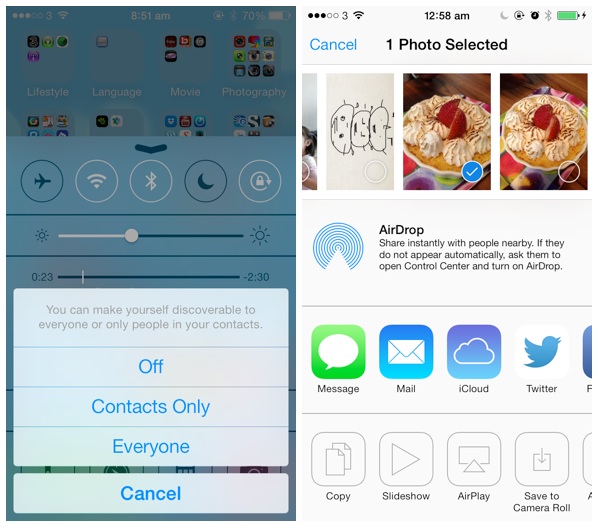
AirDrop uses Bluetooth to scan for nearby devices. When a connection is established via Bluetooth, it’ll create an ad-hoc Wi-Fi network to link the two devices together, allowing for faster data transmission. It doesn’t mean you need to connect the devices to a Wi-Fi network in order to use AirDrop. Your WiFi simply needs to be on for the data transfer.
Say you want to share a photo in the Photos app from one iPhone to another. Assuming you’ve enabled AirDrop on both devices, to share the photos with another device, tap the Share button (the one with an arrow pointing up) at the lower-left of the screen.
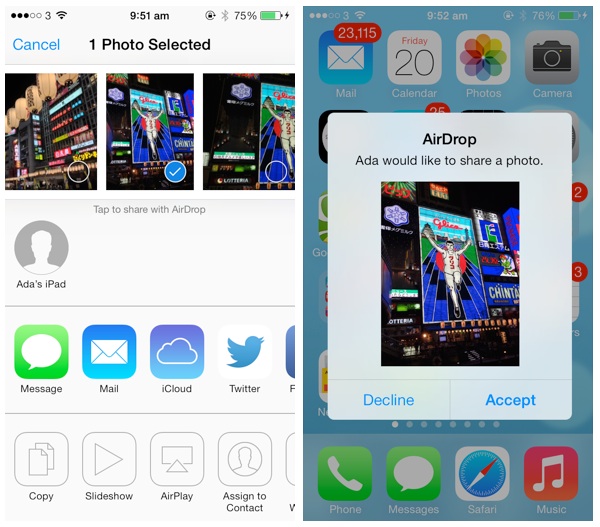
In the AirDrop area, you should see the name of the devices that are eligible for sharing. AirDrop is not available when the screen is turned off. So make sure the device on the receiving side is switched on. You can then select the device to share the photo. On the other device, you’ll see a preview of the photo and a confirmation request. The recipient can accept or decline to receive the image. If you choose the accept option, the photo is then transferred and automatically saved in the camera roll.
AirDrop doesn’t just work with the Photos app. You can also find the share option in most of the built-in apps such as Contacts, iTunes, App Store, Safari, to name a few. If you’re new to AirDrop, you should now have a better idea.
Let’s move on and see how we can incorporate AirDrop feature in your app to share various types of data.
A Quick Look at UIActivityViewController
You may think it’ll take a lot of efforts to implement the AirDrop feature. Conversely, you just need a few lines of code to add AirDrop support. The UIActivityViewController class available in iOS 7 SDK makes it super easy to integrate the feature. The AirDrop has been built into the class.
The UIActivityViewController class is a standard view controller that provides several standard services, such as copying items to the clipboard, sharing content to social media sites, sending items via Messages, etc. In iOS 7 SDK, the class comes with the AirDrop feature built-in.
Say, you have an array of objects to share using AirDrop. All you need to do is to initiate a UIActivityViewController with the array of objects and present it on screen:
|
1
2 |
UIActivityViewController *controller = [[UIActivityViewController alloc] initWithActivityItems:objectsToShare applicationActivities:nil];
[self presentViewController:controller animated:YES completion:nil]; |
With just two lines of code, you can bring up the activity view with AirDrop option. Whenever there is a nearby device detected, the activity controller automatically shows the device and handles the data transfer if you choose to.
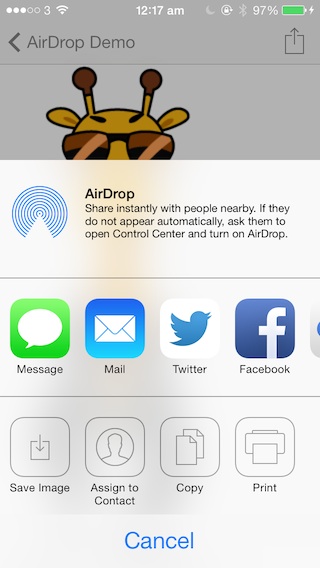
Optionally, you can exclude certain types of activities. Say, you can just display the AirDrop activity by excluding all other activities. Use the following code:
|
1
2 3 4 5 6 7 8 9 10 11 12 |
UIActivityViewController *controller = [[UIActivityViewController alloc] initWithActivityItems:objectsToShare applicationActivities:nil];
NSArray *excludedActivities = @[UIActivityTypePostToTwitter, UIActivityTypePostToFacebook, UIActivityTypePostToWeibo, UIActivityTypeMessage, UIActivityTypeMail, UIActivityTypePrint, UIActivityTypeCopyToPasteboard, UIActivityTypeAssignToContact, UIActivityTypeSaveToCameraRoll, UIActivityTypeAddToReadingList, UIActivityTypePostToFlickr, UIActivityTypePostToVimeo, UIActivityTypePostToTencentWeibo]; controller.excludedActivityTypes = excludedActivities; [self presentViewController:controller animated:YES completion:nil]; |
The activity view controller now only shows the AirDrop option:
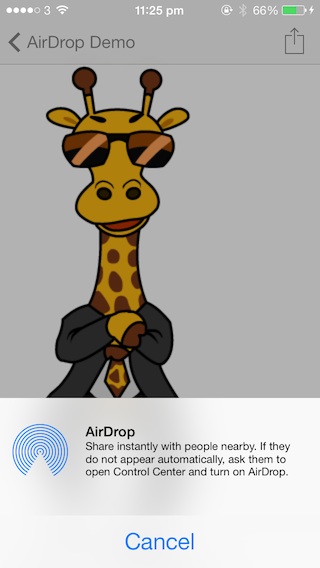
You can use UIActivityViewController to share different types of data including NSString, UIImage and NSURL. Not only you can use NSURL to share a link, it allows developers to transfer any types of files by using file URL.
On the receiving side, when the other device receives the data, it’ll automatically open an app based on the data type. Say, if an UIImage is transferred, the received image will be displayed in Photos app. When you transfer a PDF file, the other device will open it in Safari. If you just share a NSString object, the data will be presented in Notes app.
A Glance at the AirDrop Demo App
To give you a better idea about UIActivityViewController and AirDrop, we’ll build a AirDrop demo app. The app is very simple. When it is first launched, you’ll see a table view listing a few files including an image file, a PDF file and a text file. You can tap the file and view the content. In the content view, there is an action button on the top-right corner of screen. Tapping it will bring up the AirDrop option and you can share the image or document with nearby device.
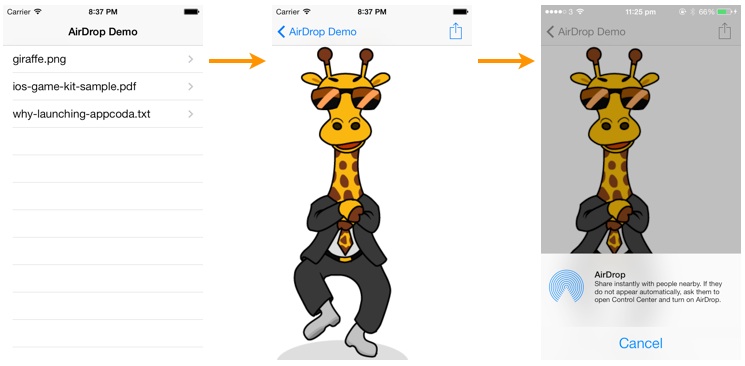
You’re encouraged to build the demo app from scratch. But to save your time, you can download this project template to start with. When you open Xcode project, you should find the following Storyboard:
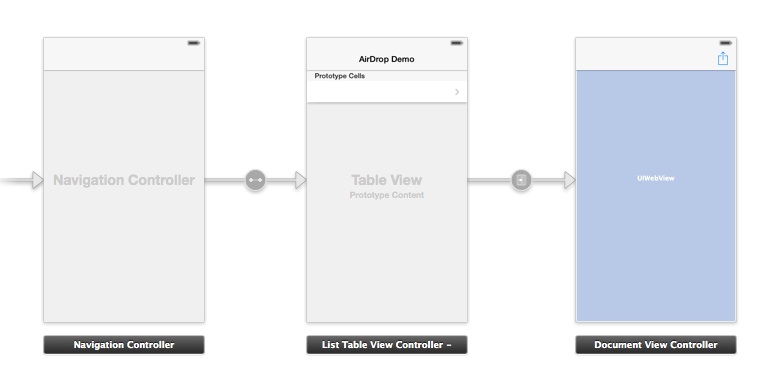
I have already implemented the ListTableViewController and DocumentViewController for you. If you compile and run the app, you’ll be presented with a list of files. When you tap any of the file, the image or document content will be displayed. But the share button is not yet implemented and that is what we’re going to talk about.
Adding AirDrop Feature
In the project template, the ListTableViewController is used to displayed the list of files in a table view, while the DocumentViewController presents the document content via a web view. The action button in the document view is associated with the share: method of the DocumentViewController class. Edit the method with the following code:
|
1
2 3 4 5 6 7 8 9 10 11 12 13 14 15 16 17 18 19 20 |
- (IBAction)share:(id)sender {
NSURL *url = [self fileToURL:self.documentName]; NSArray *objectsToShare = @[url]; UIActivityViewController *controller = [[UIActivityViewController alloc] initWithActivityItems:objectsToShare applicationActivities:nil]; } |
If you’re not forgetful, the above code should be very familiar to you as we’ve discussed it at the very beginning. The above code simply creates a UIActivityViewController, excludes all activities except AirDrop and presents the controller as a modal view. The tricky part is how you define the objects to share. Here we turn the file to share into a NSURL object and pass the file URL as an array to AirDrop.
The first two lines of code are responsible for the file URL conversion. The documentName property stores the current file (e.g. ios-game-kit-sample.pdf) displaying in document view. We simply call up the fileToURL: method with the document name and it returns the corresponding file URL. The fileToURL: method is bundled in the project template and here is the code:
|
1
2 3 4 5 6 7 |
The code is very straightforward. For example, the ios-game-kit-sample.pdf will be transformed to file:///Users/simon/Library/Application%20Support/iPhone%20Simulator/7.0.3/Applications/A5321493-318A-4A3B-8B37-E56B8B4405FC/AirDropDemo.app/ios-game-kit-sample.pdf. The file URL varies depending on the device you’re running. But the URL should begin with the “file://” protocol. With the file URL object, we create the corresponding array and pass it to UIActivityViewController for AirDrop sharing.
Build and Run the AirDrop Demo
You’re done. That’s what you need to implement AirDrop sharing. Compile and run the app on a real iPhone. Yes, you need a real device to test AirDrop sharing. The sharing feature won’t work on the Simulator.
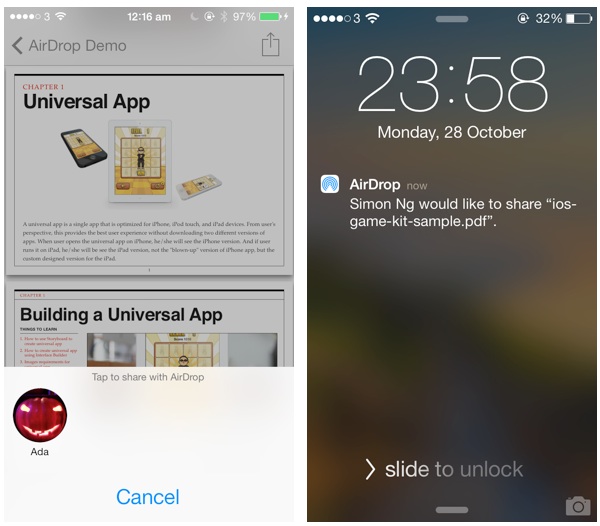
Uniform Type Identifiers (UTIs)
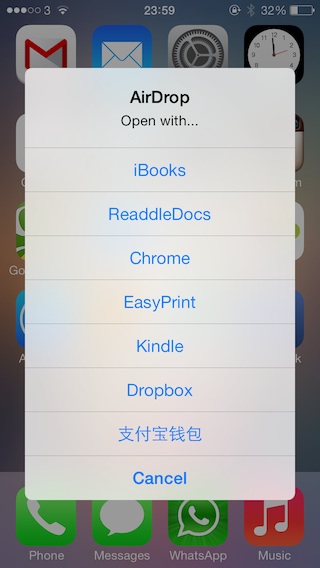
When you share an image to another iOS device, the receiving side automatically opens Photos app and loads the image. If you transfer a PDF file, the receiving device may prompt you to pick an app for opening the file or open it directly in iBooks. How can iOS know which app to use for the type of data?
UTIs (short for Uniform Type Identifiers) is Apple’s answer to identify data handled within the system. In brief, a uniform type identifier is a unique identifier for a particular type of data or file. For instance, com.adobe.pdf represents a PDF document and public.png represents a PNG image. You can find the full list of registered UTIs here. Application that is capable of opening a specific type of file has registered to handle that UTI with the iOS. So whenever that type of file is opened, iOS hands off that file to the specific app.
The system allows multiple apps to register the same UTI. In this case, iOS will prompt user with the list of capable apps for opening the file. For example, when you share a PDF document, you may experience the following screen in the receiving device:
Wrap Up
AirDrop is a very cool feature introduced in iOS 7. It offers a great way to share data between devices. Best of all, the built-in UIActivityViewController has made it easy for developers to add AirDrop support in their apps. As you can see from the demo app, it just needs a few lines of code to implement the feature. I highly recommend you to put this sharing feature in your app.
For your complete reference, you can download the full source code of the Xcode project from here.
As always, leave us comment and share your thought about the tutorial. We love to hear your feedback.
Adding AirDrop File Sharing Feature to Your iOS Apps的更多相关文章
- RH253读书笔记(5)-Lab 5 Network File Sharing Services
Lab 5 Network File Sharing Services Goal: Share file or printer resources with FTP, NFS and Samba Se ...
- Another option for file sharing(转)
原文地址 https://security.googleblog.com/2017/02/another-option-for-file-sharing.html Another option fo ...
- Delphi 10.3.1 Secure File Sharing解决应用间文件共享
Delphi 10.3.1 为Android项目提供了Secure File Sharing选择项,默认是False.这一项是设置什么呢? 原来,Android 7及以后的版本,为了加强OS的安全性, ...
- HDU 3269 P2P File Sharing System(模拟)(2009 Asia Ningbo Regional Contest)
Problem Description Peer-to-peer(P2P) computing technology has been widely used on the Internet to e ...
- Differences Between Xcode Project Templates for iOS Apps
Differences Between Xcode Project Templates for iOS Apps When you create a new iOS app project in Xc ...
- Start Developing iOS Apps Today
view types - view常见类型
- 《Start Developing iOS Apps Today》摘抄
原文:<Start Developing iOS Apps Today> Review the Source Code 入口函数main.m #import <UIKit/UIKit ...
- ComponentOne Xuni助力Xamarin开发者突破百万,快速开发Android、IOS Apps
在微软Build 2015上,随着VS 2015的预览版发布,Xamrine免费版已经作为VS 2015跨平台移动解决方案的核心.与此同时,Xamarin官方也宣布其用户量达到百万之多.2011年7月 ...
- Table View Programming Guide for iOS---(一)---About Table Views in iOS Apps
About Table Views in iOS Apps Table views are versatile user interface objects frequently found in i ...
随机推荐
- SQLLite 学习笔记
1.SQLLite 简介 2.命令行使用 3.常用GUI管理工具
- 【转】关于Block Formatting Context--BFC和IE的hasLayout
转自穆乙 http://www.cnblogs.com/pigtail/ 一.BFC是什么? BFC(Block Formatting Context)直译为“块级格式化范围”. 是 W3C CSS ...
- ASP.NET MVC IOC 之AutoFac攻略
一.为什么使用AutoFac? 之前介绍了Unity和Ninject两个IOC容器,但是发现园子里用AutoFac的貌似更为普遍,于是捯饬了两天,发现这个东东确实是个高大上的IOC容器~ Autofa ...
- Linux命令(21)查看文件的行数
在 linux 系统中没有在 windows 系统中那么方便的点点鼠标就可以操作文件了,对文件的各种操作都必须使用各种命令来完成.比如有时候我们需要在不查看文件内容的情况下需要知道该文件有多少行.这个 ...
- sudo执行脚本找不到环境变量
sudo执行脚本找不到变量 问题 当普通用户下,设置并export一个变量,然后利用sudo执行echo命令,能得到变量的值,但是如果把echo命令写入脚本,然后再sudo执行脚本,就找不到变量,未能 ...
- 导入Eclipse工程 到 Android Studio
一.从Eclipse导入工程到Android Studio 根据官方的介绍,Android Studio可以兼容Eclipse的现有工程,但需要做一些操作: 首先升级ADT到最新版本,目前为版本号为2 ...
- ThinkPHP 3.2.3 Pager分页
不是很喜欢TP的分页类,因为生成的分页url感觉有点不好理解,例如访问路径xxxx/home/show.html,在模板输出分页后,例如产生了页码,页码链接的路径会变成xxxx/home/show/p ...
- Python第十二章正则表达式
1.今天学习的f=open("d:\testcase.xml","r")会报错 需要改成f=open("d:\\testcase.xml", ...
- java日期比较,日期计算
版权声明:本文为楼主原创文章,未经楼主允许不得转载,如要转载请注明来源. 都是常用的日期之间的比较方法,供以后参考. 热身:获取当前时间 SimpleDateFormat df = new Simpl ...
- ubuntu12.04 修改 主机名(hostname)
1. sudo vim /etc/hostname -> hostname2. sudo vim /etc/hosts -> 127.0.1.1 hostnam ...