
使用 Windows10 自定义交互消息通知
消息通知是最常用的应用功能之一了,但是由于平台的差异,IOS Android 以及 Windows 都有其特殊性,Android开发者在国内常常都是使用三方的一些推送服务,或者是使用自建的服务器为应用提供推送服务,方式多种多样这里就不多阐述了,对比在国内可以使用的两个推送系统 IOS 和 Windows 对比来说,经历了 WindowsPhone 7 / 7.5 /8 / 8.1 /10 五代系统的迭代以后相比 IOS 系统的推送消息的种类来说更加丰富且更加人性化,今天给大家介绍一下如何在 Windows 10 推送消息中显示图片并且实现消息快速回复。
由于 Windows 10 Universal 应用架构这个功能可以实现一次开发可以实现在手机和平板上统统兼容。
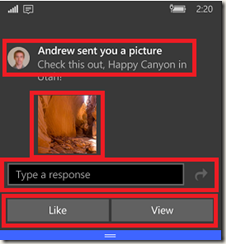
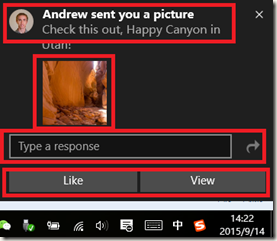
由上图看到左侧是 Windows10 UWP 应用在Windows Phone上收到消息通知的样子,右侧的图片是应用在 Windows 10 收到推送消息时的样子。
都是由4个部分组成的:
消息主题:消息发送者照片 + 消息主题与消息文字内容。
消息图片:如果消息发送者消息中包含图片可以在消息预览中直接将图片显示出来。
消息快速回复:如果是即时消息,消息的接收者可以在不启动应用的情况下直接在 吐司消息 或 通知中心中直接回复消息。
消息快速反馈/行动(这个不知道怎么翻译更确切):这里是可以让用户通过按钮的形式对消息进行一个标记或者是一个简短的回复,例如图片中的点赞或打开应用查看详情。
接下来我分享以下这个Toast消息的的XML结构来简单分析以下:
<?xml version="1.0"?>
<toast launch="action=viewConversation conversationId=384928">
<visual>
<binding template="ToastGeneric">
<text>Andrew sent you a picture</text>
<text>Check this out, Happy Canyon in Utah!</text>
<image src="http://blogs.msdn.com/cfs-filesystemfile.ashx/__key/communityserver-blogs-components-weblogfiles/00-00-01-71-81-permanent/2727.happycanyon1_5B00_1_5D00_.jpg"/>
<image src="ms-appdata:///local/Andrew.jpg" placement="appLogoOverride" hint-crop="circle"/>
</binding>
</visual>
<actions>
<input id="tbReply" type="text" placeHolderContent="Type a response"/>
<action content="Reply" arguments="action=reply&conversationId=384928" activationType="background" imageUri="Assets/Reply.png" hint-inputId="tbReply"/>
<action content="Like" arguments="action=like&conversationId=384928" activationType="background"/>
<action content="View" arguments="action=viewImage&imageUrl=http%3A%2F%2Fblogs.msdn.com%2Fcfs-filesystemfile.ashx%2F__key%2Fcommunityserver-blogs-components-weblogfiles%2F00-00-01-71-81-permanent%2F2727.happycanyon1_5B00_1_5D00_.jpg"/>
</actions>
</toast>
通过代码我们可以清晰的看到这条消息主要分为两部分
visual binding 部分中主要用来描述消息标题和消息文字内容,其中还包括了两张图片分别是用户头像和消息图片,通过两个 image 标签可以理解到实际上消息内容是一个网络图片,而发送者的头像则是一张应用的本地图片(通过ms-appdata:///local可以看出来)。
其次Action结点下的内容就是一个输入框和三个按钮了,很明显在 content属性中标明了他们的作用,并且请大家注意一下argument属性标明的内容会传入应用用来标记通知或者会话的ID,activationType是用来标记这个按钮触发事件以后,的代码执行位置,Background是一个后台任务(这样就意味着应用可以不启动就可以执行一些操作)。
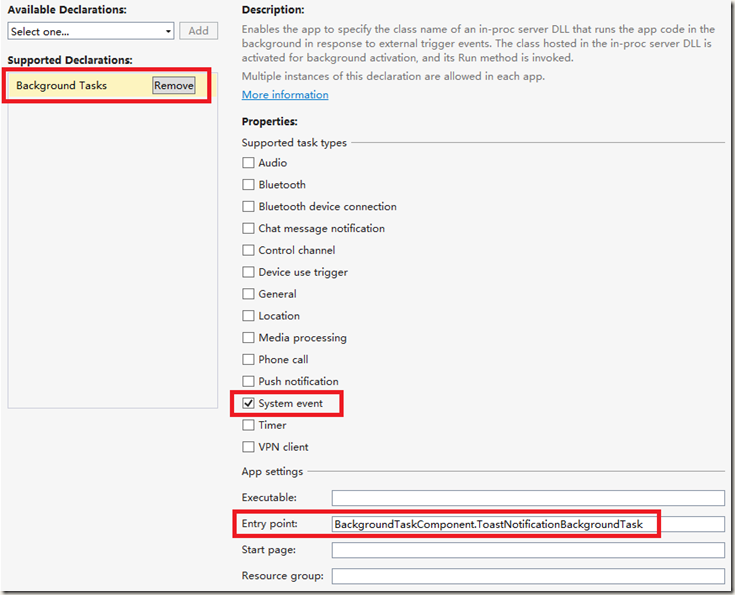
接着我们来看一下这个应用的声明文件(package.appxmanifest)中声明了这个应用支持 background tasks 并且task类型是一个 System event
<Extensions>

        <Extension Category="windows.backgroundTasks" EntryPoint="BackgroundTaskComponent.ToastNotificationBackgroundTask">

          <BackgroundTasks>

            <Task Type="systemEvent" />

          </BackgroundTasks>

        </Extension>

      </Extensions>
接着我们看看如何在后台任务中处理这个消息通知。首先通过 details.Argument来获取到之前在XML中设置的消息参数,通过swith case按钮的conten属性中的内容来进行逻辑判断从而执行不同的应用程序逻辑。
public async void Run(IBackgroundTaskInstance taskInstance)

        {

            // Get a deferral since we're executing async code

            var deferral = taskInstance.GetDeferral();

            try

            {

                // If it's a toast notification action

                if (taskInstance.TriggerDetails is ToastNotificationActionTriggerDetail)

                {

                    // Get the toast activation details

                    var details = taskInstance.TriggerDetails as ToastNotificationActionTriggerDetail;

                    // Deserialize the arguments received from the toast activation

                    QueryString args = QueryString.Parse(details.Argument);

                    // Depending on what action was taken...

                    switch (args["action"])

                    {

                        // User clicked the reply button (doing a quick reply)

                        case "reply":

                            await HandleReply(details, args);

                            break;

                        // User clicked the like button

                        case "like":

                            await HandleLike(details, args);

                            break;

                        default:

                            throw new NotImplementedException();

                    }

                }

                // Otherwise handle other background activations

                else

                    throw new NotImplementedException();

            }

            finally

            {

                // And finally release the deferral since we're done

                deferral.Complete();

            }

        }
在实现代码中可以再次获取更详细的参数获得消息会话ID以及用户在快速回复对话框中输入的内容从而与服务器进行交互。
private async Task HandleReply(ToastNotificationActionTriggerDetail details, QueryString args)

        {

            // Get the conversation the toast is about

            int conversationId = int.Parse(args["conversationId"]);

            // Get the message that the user typed in the toast

            string message = (string)details.UserInput["tbReply"];

            // In a real app, this would be making a web request, sending the new message

            await Task.Delay(TimeSpan.FromSeconds(2.3));

            // In a real app, you most likely should NOT notify your user that the request completed (only notify them if there's an error)

            SendToast("Your message has been sent! Your message: " + message);

        }

        private async Task HandleLike(ToastNotificationActionTriggerDetail details, QueryString args)

        {

            // Get the conversation the toast is about

            int conversationId = int.Parse(args["conversationId"]);

            // In a real app, this would be making a web request, sending the like command

            await Task.Delay(TimeSpan.FromSeconds(1.1));

            // In a real app, you most likely should NOT notify your user that the request completed (only notify them if there's an error)

            SendToast("Your like has been sent!");

        }
当然也不要忘记在应用启动的时候注册这个BackgroundTask,这部分代码可以放在应用 Onlaunched 和 OnActivated事件中。
private void RegisterBackgroundTask()

        {

            const string taskName = "ToastBackgroundTask";

            // If background task is already registered, do nothing

            if (BackgroundTaskRegistration.AllTasks.Any(i => i.Value.Name.Equals(taskName)))

                return;

            // Otherwise create the background task

            var builder = new BackgroundTaskBuilder()

            {

                Name = taskName,

                TaskEntryPoint = typeof(ToastNotificationBackgroundTask).FullName

            };

            // And set the toast action trigger

            builder.SetTrigger(new ToastNotificationActionTrigger());

            // And register the task

            builder.Register();

        }
另外刚才除了后台执行代码的两个按钮还有查看消息和查看图片按钮的执行逻辑,这里应该是放在Launched 和 Activated方法中的首先要判断应用的 IActivatedEventArgs类型是否ToastNotificationActivatedEventArgs如果是尝试模仿后台任务中查找按钮参数的方法找到会话ID和照片连接并导航到应用的正确页面去。
private async Task OnLaunchedOrActivated(IActivatedEventArgs e)

        {

            // Initialize things like registering background task before the app is loaded

            await InitializeApp();

#if DEBUG

            if (System.Diagnostics.Debugger.IsAttached)

            {

                this.DebugSettings.EnableFrameRateCounter = true;

            }

#endif

            Frame rootFrame = Window.Current.Content as Frame;

            // Do not repeat app initialization when the Window already has content,

            // just ensure that the window is active

            if (rootFrame == null)

            {

                // Create a Frame to act as the navigation context and navigate to the first page

                rootFrame = new Frame();

                rootFrame.NavigationFailed += OnNavigationFailed;

                if (e.PreviousExecutionState == ApplicationExecutionState.Terminated)

                {

                    // TODO: Load state from previously suspended application

                }

                // Place the frame in the current Window

                Window.Current.Content = rootFrame;

            }

            // Handle toast activation

            if (e is ToastNotificationActivatedEventArgs)

            {

                var toastActivationArgs = e as ToastNotificationActivatedEventArgs;

                // If empty args, no specific action (just launch the app)

                if (toastActivationArgs.Argument.Length == )

                {

                    if (rootFrame.Content == null)

                        rootFrame.Navigate(typeof(MainPage));

                }

                // Otherwise an action is provided

                else

                {

                    // Parse the query string

                    QueryString args = QueryString.Parse(toastActivationArgs.Argument);

                    // See what action is being requested

                    switch (args["action"])

                    {

                        // Open the image

                        case "viewImage":

                            // The URL retrieved from the toast args

                            string imageUrl = args["imageUrl"];

                            // If we're already viewing that image, do nothing

                            if (rootFrame.Content is ImagePage && (rootFrame.Content as ImagePage).ImageUrl.Equals(imageUrl))

                                break;

                            // Otherwise navigate to view it

                            rootFrame.Navigate(typeof(ImagePage), imageUrl);

                            break;

                        // Open the conversation

                        case "viewConversation":

                            // The conversation ID retrieved from the toast args

                            int conversationId = int.Parse(args["conversationId"]);

                            // If we're already viewing that conversation, do nothing

                            if (rootFrame.Content is ConversationPage && (rootFrame.Content as ConversationPage).ConversationId == conversationId)

                                break;

                            // Otherwise navigate to view it

                            rootFrame.Navigate(typeof(ConversationPage), conversationId);

                            break;

                        default:

                            throw new NotImplementedException();

                    }

                    // If we're loading the app for the first time, place the main page on the back stack

                    // so that user can go back after they've been navigated to the specific page

                    if (rootFrame.BackStack.Count == )

                        rootFrame.BackStack.Add(new PageStackEntry(typeof(MainPage), null, null));

                }

            }

            // Handle launch activation

            else if (e is LaunchActivatedEventArgs)

            {

                var launchActivationArgs = e as LaunchActivatedEventArgs;

                // If launched with arguments (not a normal primary tile/applist launch)

                if (launchActivationArgs.Arguments.Length > )

                {

                    // TODO: Handle arguments for cases like launching from secondary Tile, so we navigate to the correct page

                    throw new NotImplementedException();

                }

                // Otherwise if launched normally

                else

                {

                    // If we're currently not on a page, navigate to the main page

                    if (rootFrame.Content == null)

                        rootFrame.Navigate(typeof(MainPage));

                }

            }

            else

            {

                // TODO: Handle other types of activation

                throw new NotImplementedException();

            }

            // Ensure the current window is active

            Window.Current.Activate();

        }
好了这样你的应用就可以处理 Windows10 可交互性的自定义消息通知了。
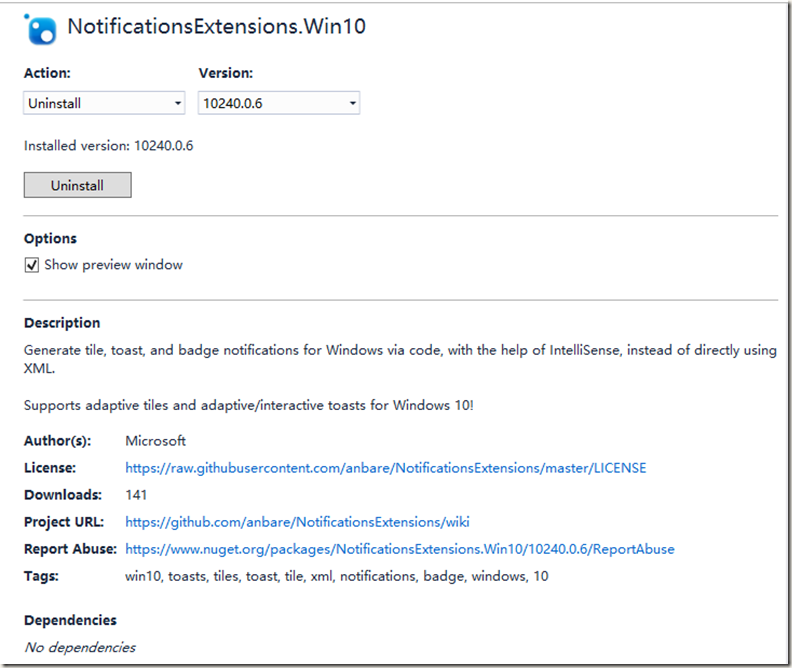
并且为了测试方便你可以在应用中使用 NotificationsExtensions.Win10 这个扩展类库进行测试,在nuget上可以直接下载到。
https://www.nuget.org/packages/NotificationsExtensions.Win10/
测试代码如下:
private void ButtonSendToast_Click(object sender, RoutedEventArgs e)

        {

            // In a real app, these would be initialized with actual data

            string title = "Andrew sent you a picture";

            string content = "Check this out, Happy Canyon in Utah!";

            string image = "http://blogs.msdn.com/cfs-filesystemfile.ashx/__key/communityserver-blogs-components-weblogfiles/00-00-01-71-81-permanent/2727.happycanyon1_5B00_1_5D00_.jpg";

            string logo = "ms-appdata:///local/Andrew.jpg";

            int conversationId = ;

            // Construct the visuals of the toast

            ToastVisual visual = new ToastVisual()

            {

                TitleText = new ToastText()

                {

                    Text = title

                },

                BodyTextLine1 = new ToastText()

                {

                    Text = content

                },

                InlineImages =

                {

                    new ToastImage()

                    {

                        Source = new ToastImageSource(image)

                    }

                },

                AppLogoOverride = new ToastAppLogo()

                {

                    Source = new ToastImageSource(logo),

                    Crop = ToastImageCrop.Circle

                }

            };

            // Construct the actions for the toast (inputs and buttons)

            ToastActionsCustom actions = new ToastActionsCustom()

            {

                Inputs =

                {

                    new ToastTextBox("tbReply")

                    {

                        PlaceholderContent = "Type a response"

                    }

                },

                Buttons =

                {

                    new ToastButton("Reply", new QueryString()

                    {

                        { "action", "reply" },

                        { "conversationId", conversationId.ToString() }

                    }.ToString())

                    {

                        ActivationType = ToastActivationType.Background,

                        ImageUri = "Assets/Reply.png",

                        // Reference the text box's ID in order to

                        // place this button next to the text box

                        TextBoxId = "tbReply"

                    },

                    new ToastButton("Like", new QueryString()

                    {

                        { "action", "like" },

                        { "conversationId", conversationId.ToString() }

                    }.ToString())

                    {

                        ActivationType = ToastActivationType.Background

                    },

                    new ToastButton("View", new QueryString()

                    {

                        { "action", "viewImage" },

                        { "imageUrl", image }

                    }.ToString())

                }

            };

            // Now we can construct the final toast content

            ToastContent toastContent = new ToastContent()

            {

                Visual = visual,

                Actions = actions,

                // Arguments when the user taps body of toast

                Launch = new QueryString()

                {

                    { "action", "viewConversation" },

                    { "conversationId", conversationId.ToString() }

                }.ToString()

            };

            // And create the toast notification

            ToastNotification notification = new ToastNotification(toastContent.GetXml());

            // And then send the toast

            ToastNotificationManager.CreateToastNotifier().Show(notification);

        }
有即时消息需求的应用是非常适合这个功能的,行动起来快试试把这个功能加到应用中吧。
参考资料:
Adaptive Tile Templates - Schema and Documentation
What's new with live tiles in Windows 10
What's new/different with toast notifications and action center in Windows 10
Quickstart: Sending a local toast notification and handling activations from it (Windows 10)
Adaptive and interactive toast notifications for Windows 10
希望上的总结可以帮助到大家, 同时欢迎大家在这里和我沟通交流或者在新浪微博上 @王博_Nick
使用 Windows10 自定义交互消息通知的更多相关文章
- 自定义WM_NOTIFY消息
自定义WM_NOTIFY消息 习惯了用自定义用户消息进行各种状态的通知,特别是子窗口与父窗口之间的交互.但ON_MESSAGE没有控件ID的限制,如果有多个子窗口发送同一个消息给父窗口时,父窗口就不知 ...
- 一个I/O线程可以并发处理N个客户端连接和读写操作 I/O复用模型 基于Buf操作NIO可以读取任意位置的数据 Channel中读取数据到Buffer中或将数据 Buffer 中写入到 Channel 事件驱动消息通知观察者模式
Tomcat那些事儿 https://mp.weixin.qq.com/s?__biz=MzI3MTEwODc5Ng==&mid=2650860016&idx=2&sn=549 ...
- Android中的消息通知(NotificationManager和Notification)
下面来谈谈notification,这个notification一般用在电话,短 信,邮件,闹钟铃声,在手机的状态栏上就会出现一个小图标,提示用户处理这个通知,这时手从上方滑动状态栏就可以展开并处理这 ...
- Android消息通知(notification)和PendingIntent传值
通知栏的自定义布局:转:http://blog.csdn.net/vipzjyno1/article/details/25248021 拓展 实现自定义的通知栏效果: 这里要用到RemoteViews ...
- HTML 5的消息通知机制
译文来源:http://www.ido321.com/1130.html 原文:HTML 5 Notification 译文:HTML 5 的消息通知机制 译者:dwqs HTML 5 已经被应用到W ...
- 微信小程序客服消息开发实战:实时在手机上接收小程序客服消息通知,以及在手机上回复
在微信小程序开发中,可以非常方便的集成客服功能,只需要一行代码便可以将用户引导至客服会话界面.这行代码就是: <button open-type="contact" bind ...
- Redis自学笔记:4.4进阶-消息通知
4.4消息通知 4.4.1任务队列 传递任务的队列.与任务队列进行交互的实体有两类,一类是生产者,一类是消费者. 生产者将需要处理的任务放入任务队列中,二消费者不断从任务队列中读入任务 信息并执行. ...
- [UWP]实现一个轻量级的应用内消息通知控件
在UWP应用开发中,我们常常有向用户发送一些提示性消息的需求.这种时候我们一般会选择MessageDialog.ContentDialog或者ToastNotification来完成功能. 但是,我们 ...
- jenkins 构建后发送钉钉消息通知(插件)
钉钉,越来越多的公司采用,那么我们在持续集成中,也可以直接选择钉钉插件的,在之前的博客中 ,对发送的钉钉消息进行了定制,那样的话会开启一个新的任务, 其实今天呢,我们可以直接安装一个插件就可以发送了, ...
随机推荐
- RabbitMQ(三) -- Publish/Subscribe
RabbitMQ(三) -- Publish/Subscribe `rabbitmq`支持一对多的模式,一般称为发布/订阅.也就是说,生产者产生一条消息后,`rabbitmq`会把该消息分发给所有的消 ...
- 2014-3-11 星期二 晴 [卓有成效 master 摸索计划方案]
今日总结: [汇编]:StudyNew+ReView-->[中]上机,还行,学点新知识 [英语]:Study-->[中]发现这个要变得好啦 [----]:lib [----]:lib--& ...
- [BTS] BizTalk With EF
System.TypeInitializationException: The type initializer for 'System.Data.Entity.Internal.AppConfig' ...
- C++ 关联容器
<C++ Primer 4th>读书笔记 关联容器和顺序容器的本质差别在于:关联容器通过键(key)存储和读取元素,而顺序容器则通过元素在容器中的位置顺序存储和访问元素. 关联容器(Ass ...
- duilib进阶教程 -- 响应windows原生消息和自定义消息(13)
一.windows原生消息 同样,入门教程只是给出了响应windows原生消息的方法,并没给出例子,这里以自适应屏幕分辨率为例.迅雷播放器虽然可以在启动的时候自动调整窗口大小,但是当屏幕分辨率实时改变 ...
- MySQL完整性语言
文章为作者原创,未经许可,禁止转载. -Sun Yat-sen University 冯兴伟 实验3:完整性语言 完整性语言实验包含3个实验项目,其中2个必修项目,1个选修项目.该实验的各个实验 ...
- 如何在安装程序中判断操作系统是否是64位 inno
[Setup]; 开启64位模式ArchitecturesInstallIn64BitMode=x64 [Run] ;根据是否是64位进行不同的操作Filename: "..."; ...
- Python 内置彩蛋
The Zen of Python, by Tim Peters Beautiful is better than ugly.Explicit is better than implicit.Simp ...
- AYUI4.X即将发布
AYUI里程碑故事: AYUI 1.x系列: 面向源码的方式开发,客户只有源码才能开发,客户端对接ayui,很不方便,相比上个版本,提供了一些元老控件,文件夹结构比较零散 AYUI 2.x系列: ...
- Android 在xml中配置 float 和 integer 值
一.float的配置方法 andriod 默认不支持float型的设置,在values 下的新建floats.xml 文件,在内部添加如下代码: <resources> <item ...