
PyQt5 结合 matplotlib 时,如何显示其 NavigationToolbar
本文目的:展示 PyQt5 结合 matplotlib 时,如何显示其 NavigationToolbar。
本人搜遍所有网络无果,没办法,查看PyQt5源代码,最终才搞明白。。。特此留记。
〇、PyQt4 与 PyQt5 导入 NavigationToolbar 时的区别(去掉两个agg)
# PyQt4 版本(网传)

#from matplotlib.backends.backend_qt4agg import NavigationToolbar2QTAgg as NavigationToolbar

# PyQt5 版本

from matplotlib.backends.backend_qt5 import NavigationToolbar2QT as NavigationToolbar
一、隐藏 matplotlib 工具条

import sys

from PyQt5 import QtWidgets

from matplotlib.backends.backend_qt5agg import FigureCanvasQTAgg as FigureCanvas

from matplotlib.backends.backend_qt5 import NavigationToolbar2QT as NavigationToolbar

import matplotlib.pyplot as plt

import random

class Window(QtWidgets.QDialog):

    def __init__(self, parent=None):

        super().__init__(parent)

        self.figure = plt.figure()

        self.axes = self.figure.add_subplot(111)

        # We want the axes cleared every time plot() is called

        self.axes.hold(False)

        self.canvas = FigureCanvas(self.figure)

        self.toolbar = NavigationToolbar(self.canvas, self)

        self.toolbar.hide()

        # Just some button

        self.button1 = QtWidgets.QPushButton('Plot')

        self.button1.clicked.connect(self.plot)

        self.button2 = QtWidgets.QPushButton('Zoom')

        self.button2.clicked.connect(self.zoom)

        self.button3 = QtWidgets.QPushButton('Pan')

        self.button3.clicked.connect(self.pan)

        self.button4 = QtWidgets.QPushButton('Home')

        self.button4.clicked.connect(self.home)

        # set the layout

        layout = QtWidgets.QVBoxLayout()

        layout.addWidget(self.toolbar)

        layout.addWidget(self.canvas)

        btnlayout = QtWidgets.QHBoxLayout()

        btnlayout.addWidget(self.button1)

        btnlayout.addWidget(self.button2)

        btnlayout.addWidget(self.button3)

        btnlayout.addWidget(self.button4)

        qw = QtWidgets.QWidget(self)

        qw.setLayout(btnlayout)

        layout.addWidget(qw)

        self.setLayout(layout)

    def home(self):

        self.toolbar.home()

    def zoom(self):

        self.toolbar.zoom()

    def pan(self):

        self.toolbar.pan()

    def plot(self):

        ''' plot some random stuff '''

        data = [random.random() for i in range(25)]

        self.axes.plot(data, '*-')

        self.canvas.draw()

if __name__ == '__main__':

    app = QtWidgets.QApplication(sys.argv)

    main = Window()

    main.setWindowTitle('Simple QTpy and MatplotLib example with Zoom/Pan')

    main.show()

    sys.exit(app.exec_())
二、显示 matplotlib 工具条
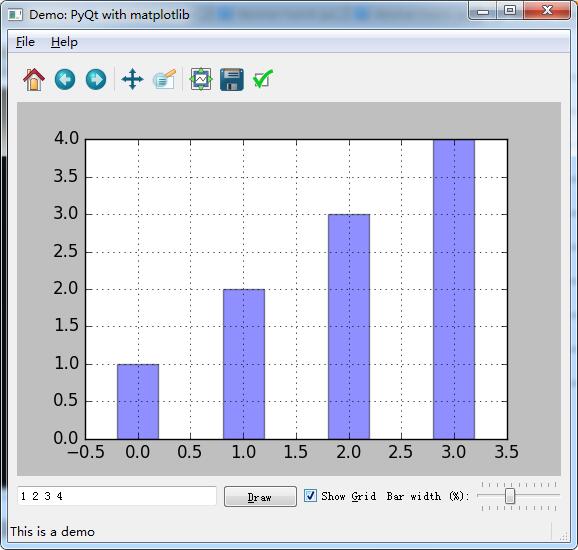
import sys, os, random

from PyQt5.QtCore import *

from PyQt5.QtGui import *

from PyQt5.QtWidgets import *

import matplotlib

matplotlib.use('Qt5Agg')

from matplotlib.backends.backend_qt5agg import FigureCanvasQTAgg as FigureCanvas

from matplotlib.backends.backend_qt5 import NavigationToolbar2QT as NavigationToolbar

from matplotlib.figure import Figure

class AppForm(QMainWindow):

    def __init__(self, parent=None):

        QMainWindow.__init__(self, parent)

        self.setWindowTitle('Demo: PyQt with matplotlib')

        self.create_menu()

        self.create_main_frame()

        self.create_status_bar()

        self.textbox.setText('1 2 3 4')

        self.on_draw()

    def save_plot(self):

        file_choices = "PNG (*.png)|*.png"

        path = QFileDialog.getSaveFileName(self,

                        'Save file', '',

                        file_choices)

        if path:

            self.canvas.print_figure(path, dpi=self.dpi)

            self.statusBar().showMessage('Saved to %s' % path, 2000)

    def on_about(self):

        msg = """ A demo of using PyQt with matplotlib:

         * Use the matplotlib navigation bar

         * Add values to the text box and press Enter (or click "Draw")

         * Show or hide the grid

         * Drag the slider to modify the width of the bars

         * Save the plot to a file using the File menu

         * Click on a bar to receive an informative message

        """

        QMessageBox.about(self, "About the demo", msg.strip())

    def on_pick(self, event):

        # The event received here is of the type

        # matplotlib.backend_bases.PickEvent

        #

        # It carries lots of information, of which we're using

        # only a small amount here.

        #

        box_points = event.artist.get_bbox().get_points()

        msg = "You've clicked on a bar with coords:\n %s" % box_points

        QMessageBox.information(self, "Click!", msg)

    def on_draw(self):

        """ Redraws the figure

        """

        #str = unicode(self.textbox.text())

        self.data = list(map(int, self.textbox.text().split()))

        x = range(len(self.data))

        # clear the axes and redraw the plot anew

        #

        self.axes.clear()

        self.axes.grid(self.grid_cb.isChecked())

        self.axes.bar(

            left=x,

            height=self.data,

            width=self.slider.value() / 100.0,

            align='center',

            alpha=0.44,

            picker=5)

        self.canvas.draw()

    def create_main_frame(self):

        self.main_frame = QWidget()

        # Create the mpl Figure and FigCanvas objects.

        # 5x4 inches, 100 dots-per-inch

        #

        self.dpi = 100

        self.fig = Figure((5.0, 4.0), dpi=self.dpi)

        self.canvas = FigureCanvas(self.fig)

        self.canvas.setParent(self.main_frame)

        # Since we have only one plot, we can use add_axes

        # instead of add_subplot, but then the subplot

        # configuration tool in the navigation toolbar wouldn't

        # work.

        #

        self.axes = self.fig.add_subplot(111)

        # Bind the 'pick' event for clicking on one of the bars

        #

        self.canvas.mpl_connect('pick_event', self.on_pick)

        # Create the navigation toolbar, tied to the canvas

        #

        self.mpl_toolbar = NavigationToolbar(self.canvas, self.main_frame)

        # Other GUI controls

        #

        self.textbox = QLineEdit()

        self.textbox.setMinimumWidth(200)

        self.textbox.editingFinished.connect(self.on_draw)

        self.draw_button = QPushButton("&Draw")

        self.draw_button.clicked.connect(self.on_draw)

        self.grid_cb = QCheckBox("Show &Grid")

        self.grid_cb.setChecked(False)

        self.grid_cb.stateChanged.connect(self.on_draw) #int

        slider_label = QLabel('Bar width (%):')

        self.slider = QSlider(Qt.Horizontal)

        self.slider.setRange(1, 100)

        self.slider.setValue(20)

        self.slider.setTracking(True)

        self.slider.setTickPosition(QSlider.TicksBothSides)

        self.slider.valueChanged.connect(self.on_draw)#int

        #

        # Layout with box sizers

        #

        hbox = QHBoxLayout()

        for w in [  self.textbox, self.draw_button, self.grid_cb,

                    slider_label, self.slider]:

            hbox.addWidget(w)

            hbox.setAlignment(w, Qt.AlignVCenter)

        vbox = QVBoxLayout()

        vbox.addWidget(self.mpl_toolbar)

        vbox.addWidget(self.canvas)

        vbox.addLayout(hbox)

        self.main_frame.setLayout(vbox)

        self.setCentralWidget(self.main_frame)

    def create_status_bar(self):

        self.status_text = QLabel("This is a demo")

        self.statusBar().addWidget(self.status_text, 1)

    def create_menu(self):

        self.file_menu = self.menuBar().addMenu("&File")

        load_file_action = self.create_action("&Save plot",

            shortcut="Ctrl+S", slot=self.save_plot,

            tip="Save the plot")

        quit_action = self.create_action("&Quit", slot=self.close,

            shortcut="Ctrl+Q", tip="Close the application")

        self.add_actions(self.file_menu,

            (load_file_action, None, quit_action))

        self.help_menu = self.menuBar().addMenu("&Help")

        about_action = self.create_action("&About",

            shortcut='F1', slot=self.on_about,

            tip='About the demo')

        self.add_actions(self.help_menu, (about_action,))

    def add_actions(self, target, actions):

        for action in actions:

            if action is None:

                target.addSeparator()

            else:

                target.addAction(action)

    def create_action(  self, text, slot=None, shortcut=None,

                        icon=None, tip=None, checkable=False,

                        signal="triggered()"):

        action = QAction(text, self)

        if icon is not None:

            action.setIcon(QIcon(":/%s.png" % icon))

        if shortcut is not None:

            action.setShortcut(shortcut)

        if tip is not None:

            action.setToolTip(tip)

            action.setStatusTip(tip)

        if slot is not None:

            action.triggered.connect(slot)

        if checkable:

            action.setCheckable(True)

        return action

def main():

    app = QApplication(sys.argv)

    form = AppForm()

    form.show()

    app.exec_()

if __name__ == "__main__":

    main()
PyQt5 结合 matplotlib 时,如何显示其 NavigationToolbar的更多相关文章
- 引用项目外dll时不显示注释的解决方案
在引用项目外的dll时,显示类库中的注释可按以下步骤: 方法或变量用summary添加注释,如: /// <summary>发送post请求 /// < ...
- HTML input="file" 浏览时只显示指定文件类型 xls、xlsx、csv
html input="file" 浏览时只显示指定文件类型 xls.xlsx.csv <input id="fileSelect" type=" ...
- NTKO控件在阅读PDF时,显示DEMO的问题
NTKO控件在阅读PDF时,显示DEMO的问题, 原因是加载了以前的DEMO版本的控件.解决办法是: 在命令行中执行命令: regsvr32 /u NtkoOleDocAll.DLL 卸载老版本的控件 ...
- Visio 2007中进行数据库建模时如何显示字段类型以及概念名称
关于在VISIO中进行数据库建模时如何显示字段类型,以及注释的 1 如何显示字段类型: 在visio菜单上--->点击数据库--->选项--->文档 打开后选择表这项,在上 ...
- easyUI draggable插件使用不当,导致拖动div内部文本框无法输入;设置echarts数据为空时就显示空白,不要动画和文字
先上一个Demo <!DOCTYPE HTML PUBLIC "-//W3C//DTD HTML 4.01 Transitional//EN" "http://ww ...
- windows7打印时,显示脱机,提示“服务器打印后台处理程序服务没有运行”。
1. 问题 windows7打印时,显示脱机,提示“服务器打印后台处理程序服务没有运行”. 2. 解决方法. 将下面的文字保存为bat文件执行,其中\\192.168.40.110\Lenovo M7 ...
- <input type="file" />浏览时只显示指定文件类型
<input type="file" />浏览时只显示指定文件类型 <input type="file" accept="appli ...
- Code First 中使用 ForeignKey指定外键时总是显示未引用
Code First 中使用 ForeignKey指定外键时总是显示未引用 原因是:开发环境是在.NET 4.0 修改项目,改为.net 4.5
- 用Natvis定制C++对象在Visual Studio调试时如何显示
博客搬到了fresky.github.io - Dawei XU,请各位看官挪步.最新的一篇是:用Natvis定制C++对象在Visual Studio调试时如何显示.
随机推荐
- CentOS7中安装VMwareTools
本例中为在Linux(以CentOS 7为例)安装VMware Tools. 1.首先启动CentOS 7,在VMware中点击上方“VM”,点击“Install VMware Tools...”(如 ...
- LCTF wp简单复现
1.T4lk 1s ch34p,sh0w m3 the sh31l 代码如下: <?php $SECRET = `../read_secret`; $SANDBOX = "../dat ...
- [19/04/20-星期六] Java的动态性_字节码操作(Javassist类库(jar包),assist:帮助、援助)
一.概念 [基本] /** * */ package cn.sxt.jvm; import javassist.ClassPool; import javassist.CtClass; import ...
- 【jQuery】动画小练习
1.jQuery部分代码如下 <script type="text/javascript"> $(function(){ var page = 1; var i = 4 ...
- keras学习笔记2
1.keras的sequential模型需要知道输入数据的shape,因此,sequential的第一层需要接受一个关于输入数据shape的参数,后面的各个层则可以自动的推导出中间数据的shape,因 ...
- OpenGL之位图的绘制和gluOrtho2D等函数详解
位图绘制 先来段代码吧: #include <iostream> #include <gl/glut.h> using namespace std; #pragma comme ...
- ThinkPhp表单令牌和字段映射
开启表单令牌: 先在配置文件目录下定义tags.php 在里面添加 return array( 'view_filter' =>array('Behavior\TokenBuildBehavio ...
- flink Window的Timestamps/Watermarks和allowedLateness的区别
Watermartks是通过additional的时间戳来控制窗口激活的时间,allowedLateness来控制窗口的销毁时间. 注: 因为此特性包括官方文档在1.3-1.5版本均未做改变,所以 ...
- 使用DBNEWID Utility 修改oracle数据库的 db name 和 dbid
使用DBNEWID Utility 工具可以同时修改数据库名.DBID,也可以只修改其中一项 官方参考: https://docs.oracle.com/cd/E11882_01/server.112 ...
- thinkpad T61 Fn功能键的完整说明及有关问题解决
FN键的作用Fn 键是一个组合键,它自己本身没有用,需要和其他功能键组合起来以迅速改变操作特征,它可以组合的键在键盘上都用蓝色标注,具体作用为: Fn+F2:锁定计算机显示器.要再次打开计算机显示器, ...