
Android 自定义数字加减器
该自定义View主要是实现一款效果不错的数字加减器的功能的,但是也可以自定义选择器的外观颜色等。
1、自定义View的布局(add_sub_view.xml)
 <?xml version="1.0" encoding="utf-8"?>

 <LinearLayout xmlns:android="http://schemas.android.com/apk/res/android"

               android:layout_width="match_parent"

               android:layout_height="match_parent"

               android:background="@android:color/white"

               android:orientation="horizontal">

     <Button

         android:id="@+id/bt01"

         android:layout_width="32dp"

         android:layout_height="32dp"

         android:scaleType="fitCenter"

         android:textSize="18sp"/>

     <TextView

         android:id="@+id/et01"

         android:layout_width="32dp"

         android:layout_height="32dp"

         android:enabled="false"

         android:layout_gravity="center"

         android:gravity="center"

         android:textColor="#000000"

         android:textSize="16sp">

     </TextView>

     <Button

         android:id="@+id/bt02"

         android:layout_width="32dp"

         android:layout_height="32dp"

         android:scaleType="fitCenter"

         android:textSize="18sp"/>

 </LinearLayout>
2、定义该View的一些属性(attrs.xml)
 <?xml version="1.0" encoding="utf-8"?>

 <resources>

     <declare-styleable name="AddAndSubView">

         <attr name="textColor" format="color"/>

         <attr name="initValue" format="integer"/>

         <attr name="maxValue" format="integer"/>

         <attr name="minValue" format="integer"/>

         <attr name="textSize" format="dimension"/>

         <attr name="textFrameBackground" format="reference|color"/>

         <attr name="addBackground" format="reference|color"/>

         <attr name="subBackground" format="reference|color"/>

         <attr name="textFrameWidth" format="dimension"/>

         <attr name="addWidth" format="dimension"/>

         <attr name="subWidth" format="dimension"/>

         <attr name="addText" format="string"/>

         <attr name="subText" format="string"/>

     </declare-styleable>

 </resources>
3、定义该View的Java类(AddAndSubView.java)
 package com.ileevey.addsub;

 import android.content.Context;

 import android.content.res.Resources;

 import android.content.res.TypedArray;

 import android.graphics.drawable.ColorDrawable;

 import android.graphics.drawable.Drawable;

 import android.util.AttributeSet;

 import android.view.LayoutInflater;

 import android.view.View;

 import android.widget.Button;

 import android.widget.LinearLayout;

 import android.widget.TextView;

 public class AddAndSubView extends LinearLayout{

     /** 显示文本 */

     private TextView mTextView;

     /** 增加按钮 */

     private Button btAdd;

     /** 减少按钮 */

     private Button btReduce;

     /** 显示文本的长宽 */

     private int textFrameWidth;

     /** 显示文本及button中文字的颜色 */

     private int textColor;

     /** 初始值 */

     private int initValue;

     /** 最大值 */

     private int maxValue;

     /** 最小值 */

     private int minValue;

     /** 显示文本及button中文字的大小 */

     private int textSize;

     /** 显示文本的背景 */

     private Drawable textFrameBackground;

     /** 增加按钮的背景 */

     private Drawable addBackground;

     /** 减少按钮的背景 */

     private Drawable subBackground;

     /** 增加按钮的大小 */

     private int addWidth;

     /** 减少按钮的大小 */

     private int subWidth;

     /** 增加按钮中的文本 */

     private String addText;

     /** 减少按钮中的文本 */

     private String subText;

     public AddAndSubView(Context context, AttributeSet attrs) {

         super(context, attrs);

         initWidget(context);

         TypedArray a = context.obtainStyledAttributes(attrs, R.styleable.AddAndSubView);

         textColor = a.getColor(R.styleable.AddAndSubView_textColor, getResources().getColor(android.R.color.black));

         textSize = a.getDimensionPixelSize(R.styleable.AddAndSubView_textSize, 16);

         textFrameBackground =  a.getDrawable(R.styleable.AddAndSubView_textFrameBackground);

         textFrameWidth = a.getDimensionPixelSize(R.styleable.AddAndSubView_textFrameWidth, 48);

         addBackground = a.getDrawable(R.styleable.AddAndSubView_addBackground);

         subBackground = a.getDrawable(R.styleable.AddAndSubView_subBackground);

         initValue = a.getInt(R.styleable.AddAndSubView_initValue, 0);

         maxValue = a.getInt(R.styleable.AddAndSubView_maxValue, 1000000000);

         minValue = a.getInt(R.styleable.AddAndSubView_minValue, -1000000000);

         addWidth = a.getDimensionPixelSize(R.styleable.AddAndSubView_addWidth, 48);

         subWidth = a.getDimensionPixelSize(R.styleable.AddAndSubView_subWidth, 48);

         addText = a.getString(R.styleable.AddAndSubView_addText);

         subText = a.getString(R.styleable.AddAndSubView_subText);

         setAddBackground(addBackground);

         setAddText(addText);

         setAddWidth(addWidth);

         setInitValue(initValue);

         setMaxValue(maxValue);

         setMinValue(minValue);

         setSubBackground(subBackground);

         setSubText(subText);

         setSubWidth(subWidth);

         setTextColor(textColor);

         setTextFrameBackground(textFrameBackground);

         setTextFrameWidth(textFrameWidth);

         setTextSize(textSize);

         a.recycle();

     }

     protected void onFinishInflate() {

         super.onFinishInflate();

         addListener();

     }

     public void initWidget(Context context){

         LayoutInflater.from(context).inflate(R.layout.add_sub_view, this);

         mTextView = (TextView)findViewById(R.id.et01);

         btAdd = (Button)findViewById(R.id.bt01);

         btReduce = (Button)findViewById(R.id.bt02);

     }

     public void addListener(){

         btAdd.setOnClickListener(new OnClickListener() {

             public void onClick(View v) {

                 int num = Integer.valueOf(mTextView.getText().toString());

                 num++;

                 if (num >= maxValue+1)

                     return;

                 mTextView.setText(Integer.toString(num));

             }

         });

         btReduce.setOnClickListener(new OnClickListener() {

             @Override

             public void onClick(View v) {

                 int num = Integer.valueOf(mTextView.getText().toString());

                 num--;

                 if (num <= minValue-1)

                     return;

                 mTextView.setText(Integer.toString(num));

             }

         });

     }

     public int getTextFrameWidth() {

         return textFrameWidth;

     }

     public void setTextFrameWidth(int textFrameWidth) {

         this.textFrameWidth = textFrameWidth;

         mTextView.setWidth(textFrameWidth);

         mTextView.setHeight(textFrameWidth);

     }

     public int getTextColor() {

         return textColor;

     }

     public void setTextColor(int textColor) {

         this.textColor = textColor;

         mTextView.setTextColor(textColor);

         btAdd.setTextColor(textColor);

         btReduce.setTextColor(textColor);

     }

     public int getInitValue() {

         return initValue;

     }

     public void setInitValue(int initValue) {

         this.initValue = initValue;

         mTextView.setText(String.valueOf(initValue));

     }

     public int getMaxValue() {

         return maxValue;

     }

     public void setMaxValue(int maxValue) {

         this.maxValue = maxValue;

     }

     public int getMinValue() {

         return minValue;

     }

     public void setMinValue(int minValue) {

         this.minValue = minValue;

     }

     public int getTextSize() {

         return textSize;

     }

     public void setTextSize(int textSize) {

         this.textSize = textSize;

         mTextView.setTextSize(textSize);

     }

     public Drawable getTextFrameBackground() {

         return textFrameBackground;

     }

     public void setTextFrameBackground(Drawable textFrameBackground) {

         this.textFrameBackground = textFrameBackground;

         mTextView.setBackgroundDrawable(textFrameBackground);

     }

     public Drawable getAddBackground() {

         return addBackground;

     }

     public void setAddBackground(Drawable addBackground) {

         this.addBackground = addBackground;

         Resources res = getResources();

         int color = res.getColor(android.R.color.darker_gray);

         Drawable drawable = new ColorDrawable(color);

         btAdd.setBackgroundDrawable(addBackground==null?drawable:addBackground);

     }

     public Drawable getSubBackground() {

         return subBackground;

     }

     public void setSubBackground(Drawable subBackground) {

         this.subBackground = subBackground;

         Resources res = getResources();

         int color = res.getColor(android.R.color.darker_gray);

         Drawable drawable = new ColorDrawable(color);

         btReduce.setBackgroundDrawable(subBackground==null?drawable:subBackground);

     }

     public int getAddWidth() {

         return addWidth;

     }

     public void setAddWidth(int addWidth) {

         this.addWidth = addWidth;

         btAdd.setWidth(addWidth);

         btAdd.setHeight(addWidth);

     }

     public int getSubWidth() {

         return subWidth;

     }

     public void setSubWidth(int subWidth) {

         this.subWidth = subWidth;

         btReduce.setWidth(subWidth);

         btReduce.setHeight(subWidth);

     }

     public String getAddText() {

         return addText;

     }

     public void setAddText(String addText) {

         this.addText = addText;

         btAdd.setText(addText);

     }

     public String getSubText() {

         return subText;

     }

     public void setSubText(String subText) {

         this.subText = subText;

         btReduce.setText(subText);

     }

 }
4、在显示视图中添加该自定义View
 <?xml version="1.0" encoding="utf-8"?>

 <LinearLayout xmlns:android="http://schemas.android.com/apk/res/android"

               xmlns:asv="http://schemas.android.com/apk/res-auto"

               android:layout_width="match_parent"

               android:layout_height="match_parent"

               android:background="@android:color/white"

               android:orientation="vertical">

     <TextView

         android:layout_width="wrap_content"

         android:layout_height="wrap_content"

         android:layout_margin="16dp"

         android:text="数字通过按键可以加减: "

         android:textSize="20sp">

     </TextView>

     <com.ileevey.addsub.AddAndSubView

         android:id="@+id/meter"

         android:layout_width="wrap_content"

         android:layout_height="wrap_content"

         android:layout_gravity="center"

         asv:addBackground="@drawable/selector_add"

         asv:initValue="0"

         asv:maxValue="10"

         asv:minValue="-10"

         asv:subBackground="@drawable/selector_sub"/>

 </LinearLayout>
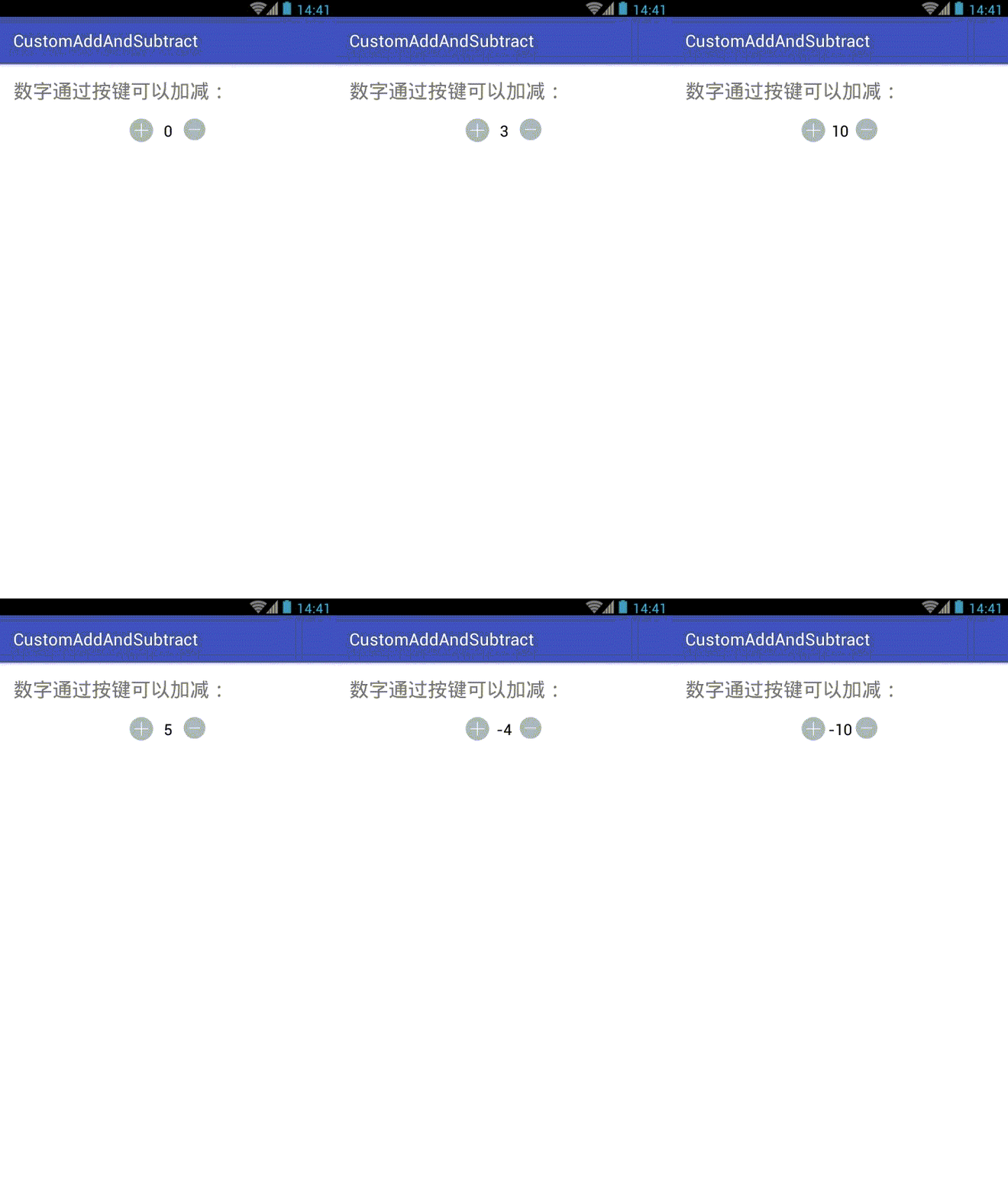
效果如下图:
Android 自定义数字加减器的更多相关文章
- 我的Android进阶之旅------>Android自定义View实现带数字的进度条(NumberProgressBar)
今天在Github上面看到一个来自于 daimajia所写的关于Android自定义View实现带数字的进度条(NumberProgressBar)的精彩案例,在这里分享给大家一起来学习学习!同时感谢 ...
- Android自定义View4——统计图View
1.介绍 周末在逛慕课网的时候,看到了一张学习计划报告图,详细记录了自己一周的学习情况,天天都是0节课啊!正好在学习Android自定义View,于是就想着自己去写了一个,这里先给出一张慕课网的图,和 ...
- (转)[原] Android 自定义View 密码框 例子
遵从准则 暴露您view中所有影响可见外观的属性或者行为. 通过XML添加和设置样式 通过元素的属性来控制其外观和行为,支持和重要事件交流的事件监听器 详细步骤见:Android 自定义View步骤 ...
- Android 自定义View合集
自定义控件学习 https://github.com/GcsSloop/AndroidNote/tree/master/CustomView 小良自定义控件合集 https://github.com/ ...
- [原] Android 自定义View 密码框 例子
遵从准则 暴露您view中所有影响可见外观的属性或者行为. 通过XML添加和设置样式 通过元素的属性来控制其外观和行为,支持和重要事件交流的事件监听器 详细步骤见:Android 自定义View步骤 ...
- Android自定义View
转载请标明出处:http://blog.csdn.net/lmj623565791/article/details/24252901 很多的Android入门程序猿来说对于Android自定义View ...
- 带你体验Android自定义圆形刻度罗盘 仪表盘 实现指针动态改变
带你体验Android自定义圆形刻度罗盘 仪表盘 实现指针动态改变 转 https://blog.csdn.net/qq_30993595/article/details/78915115 近期有 ...
- android 自定义动画
android自定义动画注意是继承Animation,重写里面的initialize和applyTransformation,在initialize方法做一些初始化的工作,在applyTransfor ...
- Android自定义View 画弧形,文字,并增加动画效果
一个简单的Android自定义View的demo,画弧形,文字,开启一个多线程更新ui界面,在子线程更新ui是不允许的,但是View提供了方法,让我们来了解下吧. 1.封装一个抽象的View类 B ...
随机推荐
- crontab定时任务管理
定时任务 添加与编辑任务crontab -e0 */1 * * * command0 */2 * * * command 查询任务是否加了:crontab -l #查看当前用户crontab -l ...
- mongoDB学习第一天之增删改查
mongoDB 是 no-sql 的一种数据库. 创建数据库: use dbName #数据库中如果存在 dbName ,切换到此数据库:如果不存在此数据库,则创建 dbName 数据库!(tip:当 ...
- python中join函数的用法
这个函数可以对字符串按照某种方式进行拼接,比如你要在三个字母中间都添加一个特定字符,就可以用这个函数实现 result = '*'.join(['A','B','C']) print(result) ...
- org.hibernate.HibernateException: Could not obtain transaction-synchronized Session for current thread
spring与hibernate整合报错 org.hibernate.HibernateException: Could not obtain transaction-synchronized Ses ...
- 洛谷——P1194 买礼物
P1194 买礼物 题目描述 又到了一年一度的明明生日了,明明想要买B样东西,巧的是,这B样东西价格都是A元. 但是,商店老板说最近有促销活动,也就是: 如果你买了第I样东西,再买第J样,那么就可以只 ...
- [BZOJ 3326] 数数
Link: BZOJ 3326 传送门 Solution: 明显是一道数位$dp$的题目,就是递推式复杂了点 先要求出一个数$\bar{n}$向添加一位后的$\bar{np}$的转化关系 令$res[ ...
- [NOIp2016提高组]蚯蚓
题目大意: 给你n个不同长度蚯蚓,每秒从里面取出最长的砍下u/v变成两只,又把剩下的加长q. 问你在m之前的t,2t,3t...的时间上,砍的蚯蚓长度, 以及m秒后剩下所有的蚯蚓长度. 思路: 很容易 ...
- mysql 创建存储过程及测试sql
--存储过程 CREATE PROCEDURE proc_batch_id( out batch_id bigint ) begin insert into generate_sync_batch ( ...
- 【JSP JSTL】<c:if>多个判断条件 + <c:foreach>满足条件跳出循环
有一个需求,将所拥有的权限存放于session中,现在JSP页面判断这些如果在所有权限中有某一个或者某几个,就显示相对应的页面内容 举一个例子,实现以上的逻辑,<c:if>多个判断条件 + ...
- python升级导致yum命令无法使用的解决办法?
yum是依赖特定的python版本的,不同的linux系统需要的python版本不同. 查看yum的启动脚本:which is yum 头一行指定使用的python版本,这个必须是系统需要的,而不要使 ...