
【Android】6.1 Toast(信息提示框)
分类:C#、Android、VS2015;
创建日期:2016-02-08
一、简介
Toast用于向用户显示一些帮助或者提示信息。前面我们已经多次用到它,这里只是系统地将其总结一下,并演示它的各种基本用法。
二、示例-- Demo01Toast
1、运行截图
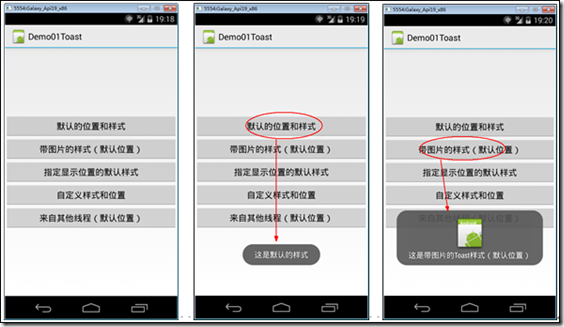
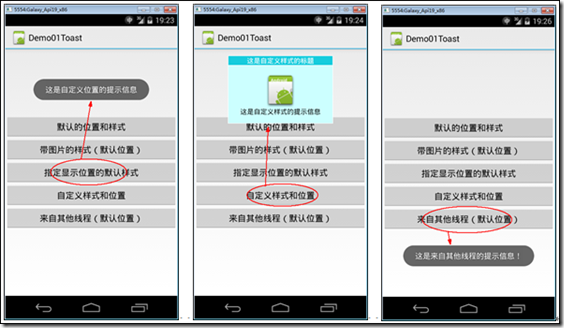
2、添加Demo01_CustomToast.axml文件
在layout文件夹下添加该文件。
<?xml version="1.0" encoding="utf-8"?>

<LinearLayout xmlns:android="http://schemas.android.com/apk/res/android"

    android:orientation="vertical"

    android:layout_width="wrap_content"

    android:layout_height="wrap_content"

    android:background="#ffffffff"

    android:id="@+id/custom">

    <TextView

        android:layout_height="wrap_content"

        android:layout_margin="1dip"

        android:textColor="#ffffffff"

        android:layout_width="match_parent"

        android:gravity="center"

        android:background="#16ccdd"

        android:id="@+id/title" />

    <LinearLayout

        android:orientation="vertical"

        android:layout_width="wrap_content"

        android:layout_height="wrap_content"

        android:background="#ccffff"

        android:layout_marginLeft="1dip"

        android:layout_marginRight="1dip"

        android:layout_marginBottom="1dip"

        android:padding="15dip"

        android:id="@+id/customToastContent">

        <ImageView

            android:layout_width="wrap_content"

            android:layout_height="wrap_content"

            android:layout_gravity="center"

            android:id="@+id/picture" />

        <TextView

            android:layout_width="wrap_content"

            android:layout_height="wrap_content"

            android:paddingLeft="10dip"

            android:paddingRight="10dip"

            android:gravity="center"

            android:textColor="#ff000000"

            android:id="@+id/prompt" />

    </LinearLayout>

</LinearLayout>
3、添加Demo01_Toast.axml文件
在layout文件夹下添加该文件。
<?xml version="1.0" encoding="utf-8"?>

<LinearLayout xmlns:android="http://schemas.android.com/apk/res/android"

    android:orientation="vertical"

    android:layout_width="fill_parent"

    android:layout_height="fill_parent"

    android:gravity="center">

    <Button

        android:id="@+id/btnDefault"

        android:layout_width="fill_parent"

        android:layout_height="wrap_content"

        android:text="默认的位置和样式" />

    <Button

        android:id="@+id/btnPhoto"

        android:layout_width="fill_parent"

        android:layout_height="wrap_content"

        android:text="带图片的样式(默认位置)" />

    <Button

        android:id="@+id/btnPosition"

        android:layout_width="fill_parent"

        android:layout_height="wrap_content"

        android:text="指定显示位置的默认样式" />

    <Button

        android:id="@+id/btnCustom"

        android:layout_width="fill_parent"

        android:layout_height="wrap_content"

        android:text="自定义样式和位置" />

    <Button

        android:id="@+id/btnThread"

        android:layout_width="fill_parent"

        android:layout_height="wrap_content"

        android:text="来自其他线程(默认位置)" />

</LinearLayout>
4、添加Demo01Toast.cs
在SrcActivity文件夹下添加该文件。
using System;

using Android.App;

using Android.OS;

using Android.Views;

using Android.Widget;

namespace ch06demos.SrcActivity

{

    [Activity(Label = "Demo01Toast")]

    public class Demo01Toast : Activity

    {

        protected override void OnCreate(Bundle savedInstanceState)

        {

            base.OnCreate(savedInstanceState);

            SetContentView(Resource.Layout.Demo01_Toast);

            var btnDefault = FindViewById<Button>(Resource.Id.btnDefault);

            var btnPhoto = FindViewById<Button>(Resource.Id.btnPhoto);

            var btnPosition = FindViewById<Button>(Resource.Id.btnPosition);

            var btnCustom = FindViewById<Button>(Resource.Id.btnCustom);

            var btnThread = FindViewById<Button>(Resource.Id.btnThread);

            btnDefault.Click += Button_Click;

            btnPhoto.Click += Button_Click;

            btnPosition.Click += Button_Click;

            btnCustom.Click += Button_Click;

            btnThread.Click += Button_Click;

        }

        private void Button_Click(object sender, EventArgs e)

        {

            Button btn = sender as Button;

            switch (btn.Id)

            {

                case Resource.Id.btnDefault:

                    Toast.MakeText(this, "这是默认的样式", ToastLength.Short).Show();

                    break;

                case Resource.Id.btnPhoto:

                    {

                        var toast = Toast.MakeText(this, "这是带图片的Toast样式(默认位置)", ToastLength.Short);

                        LinearLayout toastView = (LinearLayout)toast.View;

                        ImageView imageCodeProject = new ImageView(this);

                        imageCodeProject.SetImageResource(Resource.Drawable.Icon);

                        toastView.AddView(imageCodeProject, );

                        toast.Show();

                    }

                    break;

                case Resource.Id.btnPosition:

                    {

                        var toast = Toast.MakeText(this, "这是自定义位置的提示信息", ToastLength.Long);

                        //从中心位置向上偏移300

                        toast.SetGravity(GravityFlags.Center, , -);

                        toast.Show();

                    }

                    break;

                case Resource.Id.btnCustom:

                    {

                        var toast = new Toast(this);

                        toast.View = GetCustomView("这是自定义样式的标题",

                            "这是自定义样式的提示信息", Resource.Drawable.Icon);

                        //从中心位置向上偏移300

                        toast.SetGravity(GravityFlags.Center, , -);

                        toast.Duration = ToastLength.Long;

                        toast.Show();

                    }

                    break;

                case Resource.Id.btnThread:

                    //建议的办法:

                    RunOnUiThread(() =>

                    {

                        Toast.MakeText(this, "这是来自其他线程的提示信息!", ToastLength.Long).Show();

                    });

                    //也可以用下面的办法实现(用Handler实现后台线程与UI线程的交互):

                    //var h = new Handler();

                    //h.Post(() =>

                    //{

                    //    Toast.MakeText(this, "这是来自其他线程的提示信息!", ToastLength.Long).Show();

                    //});

                    break;

            }

        }

        /// <summary>

        /// 获取用Toast显示的自定义视图

        /// </summary>

        /// <param name="title">标题</param>

        /// <param name="prompt">提示信息</param>

        /// <param name="pictureId">图片资源的ID</param>

        /// <returns>自定义的视图</returns>

        private View GetCustomView(string title, string prompt, int pictureId)

        {

            //用指定的XML资源文件填充视图的层次结构

            View customView = this.LayoutInflater.Inflate(

                Resource.Layout.Demo01_CustomToast,

                FindViewById<ViewGroup>(Resource.Id.custom));

            //设置标题

            var textViewTitle = customView.FindViewById<TextView>(Resource.Id.title);

            textViewTitle.Text = title;

            //设置显示的图像

            var picture = (ImageView)customView.FindViewById(Resource.Id.picture);

            picture.SetImageResource(pictureId);

            //设置显示的文本内容

            TextView textViewPromet = customView.FindViewById<TextView>(Resource.Id.prompt);

            textViewPromet.Text = prompt;

            return customView;

        }

    }

}
5、运行
按<F5>键调试运行。
【Android】6.1 Toast(信息提示框)的更多相关文章
- Android应用开发学习之Toast消息提示框
作者:刘昊昱 博客:http://blog.csdn.net/liuhaoyutz 本文我们来看Toast消息提示框的用法.使用Toast消息提示框一般有三个步骤: 1. 创建一个Toast对象.可 ...
- android标题栏上面弹出提示框(二) PopupWindow实现,带动画效果
需求:上次用TextView写了一个从标题栏下面弹出的提示框.android标题栏下面弹出提示框(一) TextView实现,带动画效果, 总在找事情做的产品经理又提出了奇葩的需求.之前在通知栏显示 ...
- android标题栏下面弹出提示框(一) TextView实现,带动画效果
产品经理用的是ios手机,于是android就走上了模仿的道路.做这个东西也走了一些弯路,写一篇博客放在这里,以后自己也可用参考,也方便别人学习. 弯路: 1.刚开始本来用PopupWindow去实现 ...
- Android第三方开源对话消息提示框:SweetAlertDialog(sweet-alert-dialog)
Android第三方开源对话消息提示框:SweetAlertDialog(sweet-alert-dialog) Android第三方开源对话消息提示框:SweetAlertDialog(sweet- ...
- 强大的响应式jQuery消息通知框和信息提示框插件
lobibox是一款功能很强大的jQuery消息通知框和信息提示框插件.这个插件分为两个部分:消息通知框和信息提示框.它能很好的结合Bootstrap使用. 信息提示框 lobibox的信息提示框能够 ...
- 学习EXTJS6(4)基本功能-信息提示框组件
1.使用组件,主要配置表现形式有二种(是否可以说参数) 用逗号分隔的传统参数列表方式: <script type="text/javascript"> Ext.onRe ...
- Flutter Toast消息提示框插件
Flutter Toast消息提示框插件 在开发flutter项目中,想必大家肯定会用到toast消息提示,说到这里, 大家肯定会想到https://pub.dev/ 插件库, 但是插件市场上有太多类 ...
- Android学习笔记 Toast屏幕提示组件的使用方法
activity_main.xml <LinearLayout xmlns:android="http://schemas.android.com/apk/res/android&qu ...
- ASP.NET div信息提示框显示几秒后隐藏
今天在旧系统中,用户要求,要把一个javascript alert的信息提示,改为Div tag来显示,它在显示时,仅显示几秒,然后隐藏,这样无需用户去点击alert信息框的确定或是关闭铵钮. 下面I ...
- Android检测WIFI连接、提示框延时消失
Android检测系统WIFI是否连接?如没有连接,显示提示框,提示进行设置,当点击设置进入系统WIFI界面后1秒钟,提示框自动消失. 代码: ? 1 2 3 4 5 6 7 8 9 10 11 12 ...
随机推荐
- Linux内核设计基础(四)之虚拟文件系统
先来看一下写文件函数write的运行过程: ret = write(fd, buf, len); write适用于各种文件系统.它首先运行sys_write(),而正是这个sys_write()进行实 ...
- HDU 4847 陕西邀请赛A(水)
HDU 4847 Wow! Such Doge! pid=4847" style="">题目链接 题意:给定文本,求有几个doge,不区分大写和小写 思路:水题.直 ...
- GPT磁盘win7激活工具
系统重装前是Win10,再次重装没有格式化磁盘.GPT分区模式安装的Win7,传统的Win7激活工具都是基于KMS的. 今天,GPT磁盘win7激活工具针对GPTwin7de激活! 01.未激活 02 ...
- free -m 内存
查看内存及交换swap分区大小及使用率 man free NAME free - Display amount of free and used memory in the system SYNOP ...
- Linux下动态共享库加载时的搜索路径详解
对动态库的实际应用还不太熟悉的读者可能曾经遇到过类似“error while loading shared libraries”这样的错误,这是典型的因为需要的动态库不在动态链接器ld.so的搜索路径 ...
- WPF基础学习第一天
格式 1.XAML格式: <Button x:Name="btnClick" Content="按钮" HorizontalAlignment=" ...
- Oracle自治事务实际用例
如下,新建两个存储过程: 在主自治事务中,我们插入一条记录,然后在自治事务中,查看表中行数,然后尝试插入三条记录,查看行数,最后rollback 查看行数,最后返回主事务,查看行数. 1.如下代码: ...
- Flyod 算法(两两之间的最短路径)
Flyod 算法(两两之间的最短路径)动态规划方法,通过相邻矩阵, 然后把最后的结果存在这么一个矩阵里面,(i,j), #include <iostream> #include <v ...
- RHEL7 -- 使用team替换bonding实现链路聚合网卡绑定
将网卡enp0s8.enp0s9进行链路绑定 安装teamd包 # yum install teamd 创建一个team链接 # nmcli con add con-name team0 type t ...
- AME_IExpense费用报表通过AME审批简单例子(案例)
2014-05-30 Created By BaoXinjian