
记录--uni-app实现京东canvas拍照识图功能
这里给大家分享我在网上总结出来的一些知识,希望对大家有所帮助
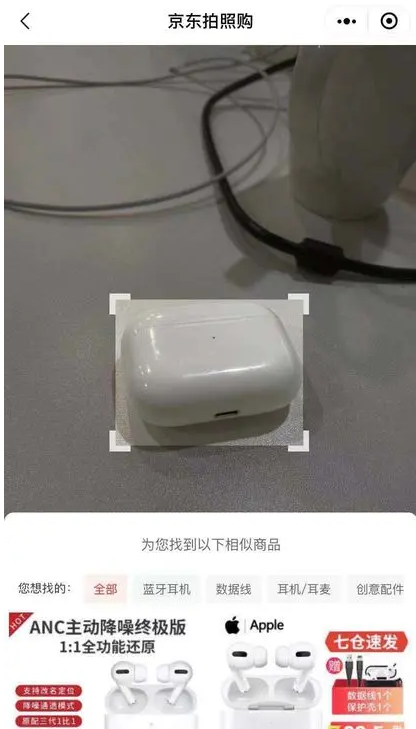
最近公司出了一个新的功能模块(如下图),大提上可以描述为实现拍照完上传图片,拖动四方框拍照完成上传功能,大体样子如下图。但是我找遍了 dcloud 插件市场,找到的插件都是移动背景图片来实现裁剪的,跟京东的功能是相反的,没办法只能自己来实现这么一个插件。
第一步
首先就需要实现一个四方框的功能了。从上图可知,四方框有一下几个特点
- 四个角粘连外框,随着框的大小和移动范围紧缚移动
- 四方框可随意四个方向拖动
- 方框外区域阴影不影响方框内
那么我们根据这个特性来实现下这个功能,对于 css 规范的话使用 bem 规范
<div class="clip__content">

  <div v-for="(item, index) in 4" :key="index" class="clip__edge"></div>

</div>
/more
$edge-border-width: 6rpx;

.clip {

  &__content {

    position: fixed;

    width: 400rpx;

    height: 400rpx;

    left: 0;

    top: 0;

    border: 1px solid red;

    z-index: 4;

    overflow: hidden;

    box-shadow: rgba(0, 0, 0, 0.5) 0 0 0 200vh;

  }

  &__edge {

    position: absolute;

    width: 34rpx;

    height: 34rpx;

    border: 10rpx solid red;

    pointer-events: auto;

    z-index: 2;

    &::before {

      content: "";

      position: absolute;

      z-index: 2;

      width: 40rpx;

      height: 40rpx;

      background-color: transparent;

    }

    &:nth-child(1) {

      left: $edge-border-width;

      top: $edge-border-width;

      border-bottom-width: 0 !important;

      border-right-width: 0 !important;

      &:before {

        top: -50%;

        left: -50%;

      }

    }

    &:nth-child(2) {

      right: $edge-border-width;

      top: $edge-border-width;

      border-bottom-width: 0 !important;

      border-left-width: 0 !important;

      &:before {

        top: -50%;

        left: 50%;

      }

    }

    &:nth-child(3) {

      left: $edge-border-width;

      bottom: $edge-border-width;

      border-top-width: 0 !important;

      border-right-width: 0 !important;

      &:before {

        bottom: -50%;

        left: -50%;

      }

    }

    &:nth-child(4) {

      right: $edge-border-width;

      bottom: $edge-border-width;

      border-top-width: 0 !important;

      border-left-width: 0 !important;

      &:before {

        bottom: -50%;

        left: 50%;

      }

    }

  }
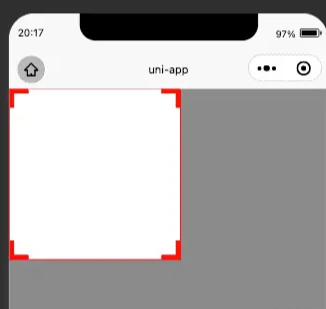
根据上面的 html 和 css 出来的样式大概如下图 外部的阴影效果我们用: box-shadow: rgba(0, 0, 0, 0.5) 0 0 0 200vh 来达成
第二步
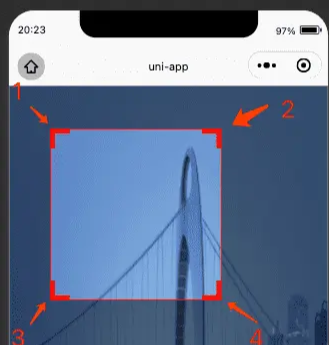
第二步的话就要实现移动功能了,这里是一个比较考验耐心的地方,因为涉及到多个方向的变化,需要不断地进行调试,在此之前需要先分析下四个角变化的特性,下面先看 4 个角的移动特性(以 H5 思维)
- 第一个角的移动会改变方框的 left,top,width,right4 个值
- 第二个角的移动会改变方框的 top,with,height3 个值
- 第三个角的移动会改变方框的 left, width,height3 个值
- 第四个角的移动会改变方框的 width,height2 个值
- 四个角的移动都不能小于 4 个角的宽高,四个角的移动都不能超过屏幕,相应的逻辑需要做一下限制
首先需要获取下屏幕宽度,区域高度(因为头部可能会有导航栏目占位,所以不拿屏幕高度),四方框初始宽高,
uni.getSystemInfo({

  success: res => {

    console.log(res)

    this.systemInfo = res

  }

})

uni

  .createSelectorQuery()

  .select('.clip__content')

  .fields({ size: true }, data => {

    this.width = data.width

    this.height = data.height

  })

  .exec()

uni

  .createSelectorQuery()

  .select('.clip')

  .fields({ size: true }, data => {

    this.screenHeight = data.height

  })

  .exec()
后续的话就可以进行四个角拖拽了,这里用到了 touchStart 和 touchMove,动态地为方框绑定样式
<div

  v-for="(item, index) in 4"

  class="clip__edge"

  @touchstart.stop.prevent="edgeTouchStart"

  @touchmove.stop.prevent="e => edgeTouchMove(e, index)"

  @touchend.stop.prevent="edgeTouchEnd"

></div>
接下来开始写逻辑
edgeTouchStart(e) {

  // 记录坐标xy初始位置

  this.clientX = e.changedTouches[0].clientX;

  this.clientY = e.changedTouches[0].clientY;

},

edgeTouchMove(e, index) {

  const currX = e.changedTouches[0].clientX;

  const currY = e.changedTouches[0].clientY;

  // 记录坐标差

  const moveX = currX - this.clientX;

  const moveY = currY - this.clientY;

  // 更新坐标位置

  this.clientX = currX;

  this.clientY = currY;

  const { width, height, left, top, screenHeight } = this;

  const { screenWidth } = this.systemInfo;

  // 初始化最大宽高

  let maxWidth = 0,

    maxHeight = 0,

    maxTop = top + moveY < 0 ? 0 : top + moveY,

    maxLeft = left + moveX < 0 ? 0 : left + moveX;

  // 四个角的宽高限制

  if (index % 2 === 0) {

    maxWidth = width - moveX > screenWidth ? screenWidth : width - moveX;

  } else {

    maxWidth = width + moveX > screenWidth ? screenWidth : width + moveX;

  }

  if (index < 2) {

    maxHeight =

      height - moveY > screenHeight ? screenHeight : height - moveY;

  } else {

    maxHeight =

      height + moveY > screenHeight ? screenHeight : height + moveY;

  }

  // 四个角的规则计算逻辑 四边方框暂定40 更详细的要用.createSelectorQuery()去拿

  if (index === 0) {

    if (width - moveX <= 40 || height - moveY <= 40) return;

    console.log(maxLeft);

    this.clipStyle = {

      width: maxWidth,

      height: maxHeight,

      left: maxLeft,

      top: maxTop,

    };

    this.width = maxWidth;

    this.height = maxHeight;

    this.top = maxTop;

    this.left = maxLeft;

    // 右上角

  } else if (index === 1) {

    if (width + moveX <= 40 || height - moveY <= 40) return;

    this.clipStyle = {

      width: maxWidth,

      height: maxHeight,

      left,

      top: maxTop,

    };

    this.width = maxWidth;

    this.height = maxHeight;

    this.top = maxTop;

  } else if (index === 2) {

    if (width - moveX <= 40 || height + moveY <= 40) return;

    this.clipStyle = {

      width: maxWidth,

      height: maxHeight,

      left: maxLeft,

      top,

    };

    this.width = maxWidth;

    this.height = maxHeight;

    this.left = maxLeft;

  } else if (index === 3) {

    if (width + moveX <= 40 || height + moveY <= 40) return;

    this.clipStyle = {

      width: maxWidth,

      height: maxHeight,

      left,

      top,

    };

    this.width = maxWidth;

    this.height = maxHeight;

  }

}
效果如下图
第三步
四个角拖拽逻辑完善之后,下一步目标就是做四方框的拖拽,这边需要对四方框的拖拽做一次限制
<div

  class="clip__content"

  :style="style"

  @touchstart.stop.prevent="clipTouchStart"

  @touchmove.stop.prevent="clipTouchMove"

>

  ...

</div>
clipTouchStart(e) {

  this.touchX = e.changedTouches[0].pageX;

  this.touchY = e.changedTouches[0].pageY;

},

clipTouchMove(e) {

  const { screenWidth } = this.systemInfo;

  const currX = e.changedTouches[0].pageX;

  const currY = e.changedTouches[0].pageY;

  const moveX = currX - this.touchX;

  const moveY = currY - this.touchY;

  this.touchX = currX;

  this.touchY = currY;

  // 边框限制逻辑

  if (this.left + moveX < 0) {

    this.left = 0;

  } else if (this.left + moveX > screenWidth - this.width) {

    this.left = screenWidth - this.width;

  } else {

    this.left = this.left + moveX;

  }

  if (this.top + moveY < 0) {

    this.top = 0;

  } else if (this.top + moveY > this.screenHeight - this.height) {

    this.top = this.screenHeight - this.height;

  } else {

    this.top = this.top + moveY;

  }

  this.clipStyle = {

    ...this.clipStyle,

    left: this.left,

    top: this.top,

  };

},
效果如下图:
第四步就是做我们的截图了,这里用到了 canvas
<div class="clip__content">

  ...

  <canvas class="clip-canvas" canvas-id="clip-canvas"></canvas>

</div>
逻辑的话目前这个例子是使用了网络的 url 图片 所以要进行 download,如果是不用网络图片,那么这一句可以删除换成其他的获取图片 api
initCanvas() {

  uni.showLoading({

    title: "加载中...",

  });

  uni

    .createSelectorQuery()

    .select(".clip__content")

    .fields(

      {

        size: true,

        scrollOffset: true,

        rect: true,

        context: true,

        computedStyle: ["transform", "translateX"],

        scrollOffset: true,

      },

      (data) => {

        uni.downloadFile({

          url: this.imageUrl,

          success: (res) => {

            this.canvasInstance = uni.createCanvasContext(

              "clip-canvas",

              this

            );

            this.canvasInstance.drawImage(

              res.tempFilePath,

              -data.left,

              -data.top,

              this.systemInfo.screenWidth,

              this.screenHeight,

              0,

              0

            );

            this.canvasInstance.draw(

              false,

              (() => {

                setTimeout(() => {

                  uni.canvasToTempFilePath(

                    {

                      x: 0,

                      y: 0,

                      width: data.width,

                      height: data.height,

                      dWidth: data.width,

                      dHeight: data.height,

                      fileType: "jpg",

                      canvasId: "clip-canvas",

                      success: (data) => {

                        uni.hideLoading();

                        this.url = data.tempFilePath;

                        // this.canvasInstance.save();

                      },

                    },

                    this

                  );

                }, 500);

              })()

            );

          },

        });

      }

    )

    .exec();

},
效果如图所示:
本文转载于:
https://juejin.cn/post/6971977095652048910
如果对您有所帮助,欢迎您点个关注,我会定时更新技术文档,大家一起讨论学习,一起进步。

记录--uni-app实现京东canvas拍照识图功能的更多相关文章
- 调用本地摄像头并通过canvas拍照
首先我们需要新建一个video标签,并且放到html里边 var video = document.createElement("video"); video.autoplay=& ...
- uni app中使用自定义图标库
项目中难免会用到自定义图标,那在uni app中应该怎么使用呢? 首先, 将图标目录放在static资源目录下: 在main.js中引入就可以全局使用了 import '@/static/icon-o ...
- HTML5拍照、摄像机功能实战
HTML5拍照.摄像机功能实战 苏格团队 作者:Tomey 开篇 最近在做一个chrome app的云相机应用,应用包括拍照.摄像.保存照片视频.上传文件等等核心功能,其中涉及到很多HTML5对媒体流 ...
- 安卓开发 利用百度识图api进行物体识别
前文 之前的随笔中,已经通过相机或相册获取到了我们想要的图片,接下来进行识图api的配置工作.我使用的是百度的api,利用python获取信息,并在MainActivity中进行调用来输出信息. 一. ...
- 用canvas绘制折线图
<!DOCTYPE html> <html lang="en"> <head> <meta charset="UTF-8&quo ...
- iOS设计 - 一款APP从设计稿到切图过程概述
这篇文章站在GUI设计师的角度概述了APP从项目启动到切片输出的过程,相当于工作流程的介绍.这里写的不是一种规范,只是一种工作方法,加上技术的更新是非常快的,大家在具体工作中,一定要灵活运用. 这里我 ...
- 使用Canvas绘制背景图
原文 http://www.imququ.com/post/use-canvas-as-background-image.html 最近iCloud Web的Beta版换了UI,整体风格变得和iOS ...
- 实战使用Axure设计App,使用WebStorm开发(5) – 实现页面功能
系列文章 实战使用Axure设计App,使用WebStorm开发(1) – 用Axure描述需求 实战使用Axure设计App,使用WebStorm开发(2) – 创建 Ionic 项目 实战使 ...
- OpenResy+Lua 利用百度识图 将图片地址解析成文字
LUA代码:(注:LUA里有一个调用百度识图的接口IP:123.125.115.189(stu.baidu.com),不知为什么我的虚拟机无法解析stu.baidu.com,所以我只能PING出IP来 ...
- 一款APP从设计稿到切图过程全方位揭秘 Mark
纯干货!一款APP从设计稿到切图过程全方位揭秘 @BAT_LCK:我本身是一名GUI设计师,所以我只站在GUI设计师的角度去把APP从项目启动到切片输出的过程写一写,相当于工作流程的介绍吧.公司不 ...
随机推荐
- Java方法重载浅谈
Java方法重载浅谈 目录: 方法重载的定义 方法重载的满足条件 方法重载的传递 基本类型 引入类型 方法重载的好处 方法重载的定义以及满足条件: 定义: 方法重载指同一类中定义多个方法之间的联系: ...
- 【JS】因两道Promise执行题让我产生自我怀疑,从零手写Promise加深原理理解
壹 ❀ 引 其实在去年七月份,博客所认识的一个朋友问了我一个关于Promise执行先后的问题,具体代码如下: const fn = (s) => ( new Promise((resolve, ...
- Git识别文件权限修改
刚打开IDE,工作区的代码状态全部变成修改未提交的状态了?这是这么回事?这是因为Git忽略文件权限或者拥有者改变导致的git状态变化.默认Git会记录文件的权限信息,如果文件的权限信息被修改,在Git ...
- Spring事务使用注意事项
Spring提供的事务使用起来很方便,一个@Transactional注解就搞定全部,但是如果不注意,也会踩坑 提到事务就应该想到至少以下几点: 1.在事务方法中加锁,可能会导致锁失效 无论是Java ...
- XML和JSON的比较
XML和JSON的比较 XML与JSON都可以用来描述或者存储数据,两者都有各自的优点,使用场景取决于需求. 描述 XML 可扩展标记语言Extensible Markup Language,是一种用 ...
- acm数学总结
1.给定两个质数,m, n, 大于n * m - n - m的数都可以被整数个n和m唯一组成. 相关习题:[Coins] (https://ac.nowcoder.com/acm/contest/34 ...
- 如何渲染最原始的yuv视频数据?
一.整体思路 我们在用纹理增加细节那篇文章中提到过,要将图片渲染在屏幕上,首先要拿到图片的像素数组数据,然后将像素数组数据通过纹理单元传递到片段着色器中,最后通过纹理采样函数将纹理中对应坐标的颜色值采 ...
- pyqt5学习示例
python代码编写pyqt5 主窗口的类型:有三种窗口 # 相关函数方法 setWindowTitle() # 设置主窗口的标题 resize() # 设置窗口的大小 statusBar() # 创 ...
- 基于javaweb的个人音乐网站
一 .需求 ① 前台用户: 用户注册和登录以及完善个人资料: 添加好友功能(用户之间可通过发送好友申请添加好友,被添加人可以同意或拒绝好友申请): 下载歌曲功能(当用户点击下载按钮时,就能下载相对应的 ...
- 【Azure App Service】同一个App Service下创建多个测试站点的方式
问题描述 在一个App Service中,部署多个应用,每个应用相互独立,类似与IIS中在根目录下创建多个子应用的情况. 问题解答 可以的.通过App Service Configuration页面, ...