
[UWP]不怎么实用的Shape指南:自定义Shape
1. 前言
这篇文章介绍了继承并自定义Shape的方法,不过,恐怕,事实上,100个xaml的程序员99个都不会用到。写出来是因为反正都学了,当作写个笔记。
通过这篇文章,你可以学到如下知识点:
- 自定义Shape。
- DeferRefresh模式。
- InvalidateArrange的应用。
2. 从Path派生
UWP中的Shape大部分都是密封类--除了Path。所以要自定义Shape只能从Path派生。Template10给出了这个例子:RingSegment 。
从这个类中可以看到,自定义Shape只需要简单地在每个自定义属性的属性值改变时或SizeChanged时调用private void UpdatePath()为Path.Data赋值就完成了,很简单吧。

RingSegment.StartAngle = 30;

RingSegment.EndAngle = 330;

RingSegment.Radius = 50;

RingSegment.InnerRadius = 30;
3. BeginUpdate、EndUpdate与DeferRefresh
这段代码会产生一个问题:每更改一个属性的值后都会调用UpdatePath(),那不就会重复调用四次?
事实上真的会,显然这个类的作者也考虑过这个问题,所以提供了public void BeginUpdate()和public void EndUpdate()函数。
/// <summary>

/// Suspends path updates until EndUpdate is called;

/// </summary>

public void BeginUpdate()

{

    _isUpdating = true;

}

/// <summary>

/// Resumes immediate path updates every time a component property value changes. Updates the path.

/// </summary>

public void EndUpdate()

{

    _isUpdating = false;

    UpdatePath();

}
使用这两个方法重新写上面那段代码,就是这样:
try

{

    RingSegment.BeginUpdate();

    RingSegment.StartAngle = 30;

    RingSegment.EndAngle = 330;

    RingSegment.Radius = 100;

    RingSegment.InnerRadius = 80;

}

finally

{

    RingSegment.EndUpdate();

}
这样就保证了只有在调用EndUpdate()时才执行UpdatePath(),而且只执行一次。
在WPF中,DeferRefresh是一种更成熟的方案。相信很多开发者在用DataGrid时多多少少有用过(主要是通过CollectionView或CollectionViewSource)。典型的实现方式可以参考DataSourceProvider。在UWPCommunityToolkit中也通过AdvancedCollectionView实现了这种方式。
在RingSegment中添加实现如下:
private int _deferLevel;

public virtual IDisposable DeferRefresh()

{

    ++_deferLevel;

    return new DeferHelper(this);

}

private void EndDefer()

{

    Debug.Assert(_deferLevel > 0);

    --_deferLevel;

    if (_deferLevel == 0)

    {

        UpdatePath();

    }

}

private class DeferHelper : IDisposable

{

    public DeferHelper(RingSegment source)

    {

        _source = source;

    }

    private RingSegment _source;

    public void Dispose()

    {

        GC.SuppressFinalize(this);

        if (_source != null)

        {

            _source.EndDefer();

            _source = null;

        }

    }

}
使用如下:
using (RingSegment.DeferRefresh())

{

    RingSegment.StartAngle = 30;

    RingSegment.EndAngle = 330;

    RingSegment.Radius = 100;

    RingSegment.InnerRadius = 80;

}
使用DeferRefresh模式有两个好处:
- 调用代码比较简单
- 通过
_deferLevel判断是否需要UpdatePath(),这样即使多次调用DeferRefresh()也只会执行一次UpdatePath()。譬如以下的调用方式:
using (RingSegment.DeferRefresh())

{

    RingSegment.StartAngle = 30;

    RingSegment.EndAngle = 330;

    RingSegment.Radius = 50;

    RingSegment.InnerRadius = 30;

    using (RingSegment.DeferRefresh())

    {

        RingSegment.Radius = 51;

        RingSegment.InnerRadius = 31;

    }

}
也许你会觉得一般人不会写得这么复杂,但在复杂的场景DeferRefresh模式是有存在意义的。假设现在要更新一个复杂的UI,这个UI由很多个代码模块驱动,但不清楚其它地方有没有对需要更新的UI调用过DeferRefresh(),而创建一个DeferHelper 的消耗比起更新一次复杂UI的消耗低太多,所以执行一次DeferRefresh()是个很合理的选择。
看到
++_deferLevel这句代码条件反射就会考虑到线程安全问题,但其实是过虑了。UWP要求操作UI的代码都只能在UI线程中执行,所以理论上来说所有UIElement及它的所有操作都是线程安全的。
4. InvalidateArrange
每次更改属性都要调用DeferRefresh显然不是一个聪明的做法,而且在XAML中也不可能做到。另一种延迟执行的机制是利用CoreDispatcher的public IAsyncAction RunAsync(CoreDispatcherPriority priority, DispatchedHandler agileCallback)函数异步地执行工作项。要详细解释RunAsync可能需要一整篇文章的篇幅,简单来说RunAsync的作用就是将工作项发送到一个队列,UI线程有空的时候会从这个队列获取工作项并执行。InvalidateArrange就是利用这种机制的典型例子。MSDN上对InvalidateArrange的解释是:
使 UIElement 的排列状态(布局)无效。失效后,UIElement 将以异步方式更新其布局。
将InvalidateArrange的逻辑简化后大概如下:
protected bool ArrangeDirty { get; set; }

public void InvalidateArrange()

{

    if (ArrangeDirty == true)

        return;

    ArrangeDirty = true;

    Dispatcher.RunAsync(Windows.UI.Core.CoreDispatcherPriority.Normal, () =>

    {

        ArrangeDirty = false;

        lock (this)

        {

            //Measure

            //Arrange

        }

    });

}
调用InvalidateArrange后将ArrangeDirty标记为True,然后异步执行Measure及Arrange代码进行布局。多次调用InvalidateArrange会检查ArrangeDirty的状态以免重复执行。利用InvalidateArrange,我们可以在RingSegment的自定义属性值改变事件中调用InvalidateArrange,异步地触发LayoutUpdated并在其中改变Path.Data。
修改后的代码如下:
private bool _realizeGeometryScheduled;

private Size _orginalSize;

private Direction _orginalDirection;

private void OnStartAngleChanged(double oldStartAngle, double newStartAngle)

{

    InvalidateGeometry();

}

private void OnEndAngleChanged(double oldEndAngle, double newEndAngle)

{

    InvalidateGeometry();

}

private void OnRadiusChanged(double oldRadius, double newRadius)

{

    this.Width = this.Height = 2 * Radius;

    InvalidateGeometry();

}

private void OnInnerRadiusChanged(double oldInnerRadius, double newInnerRadius)

{

    if (newInnerRadius < 0)

    {

        throw new ArgumentException("InnerRadius can't be a negative value.", "InnerRadius");

    }

    InvalidateGeometry();

}

private void OnCenterChanged(Point? oldCenter, Point? newCenter)

{

    InvalidateGeometry();

}

protected override Size ArrangeOverride(Size finalSize)

{

    if (_realizeGeometryScheduled == false && _orginalSize != finalSize)

    {

        _realizeGeometryScheduled = true;

        LayoutUpdated += OnTriangleLayoutUpdated;

        _orginalSize = finalSize;

    }

    base.ArrangeOverride(finalSize);

    return finalSize;

}

protected override Size MeasureOverride(Size availableSize)

{

     return new Size(base.StrokeThickness, base.StrokeThickness);

}

public void InvalidateGeometry()

{

    InvalidateArrange();

    if (_realizeGeometryScheduled == false )

    {

        _realizeGeometryScheduled = true;

        LayoutUpdated += OnTriangleLayoutUpdated;

    }

}

private void OnTriangleLayoutUpdated(object sender, object e)

{

    _realizeGeometryScheduled = false;

    LayoutUpdated -= OnTriangleLayoutUpdated;

    RealizeGeometry();

}

private void RealizeGeometry()

{

    //other code here

    Data = pathGeometry;

}
这些代码参考了ExpressionSDK的Silverlight版本。ExpressionSDK提供了一些Shape可以用作参考。(安装Blend后通常可以在这个位置找到它:C:\Program Files (x86)\Microsoft SDKs\Expression\Blend\Silverlight\v5.0\Libraries\Microsoft.Expression.Drawing.dll)由于比起WPF,Silverlight更接近UWP,所以Silverlight的很多代码及经验更有参考价值,遇到难题不妨找些Silverlight代码来作参考。

InvalidateArrange属于比较核心的API,文档中也充斥着“通常不建议“、”通常是不必要的”、“慎重地使用它”等字句,所以平时使用最好要谨慎。如果不是性能十分敏感的场合还是建议使用Template10的方式实现。
5. 使用TemplatedControl实现
除了从Path派生,自定义Shape的功能也可以用TemplatedControl实现,一般来说这种方式应该是最简单最通用的方式。下面的代码使用TemplatedControl实现了一个三角形:
[TemplatePart(Name = PathElementName,Type =typeof(Path))]

[StyleTypedProperty(Property = nameof(PathElementStyle), StyleTargetType =typeof(Path))]

public class TriangleControl : Control

    {

        private const string PathElementName = "PathElement";

        public TriangleControl()

        {

            this.DefaultStyleKey = typeof(TriangleControl);

            this.SizeChanged += OnTriangleControlSizeChanged;

        }

        /// <summary>

        ///     标识 Direction 依赖属性。

        /// </summary>

        public static readonly DependencyProperty DirectionProperty =

            DependencyProperty.Register("Direction", typeof(Direction), typeof(TriangleControl), new PropertyMetadata(Direction.Up, OnDirectionChanged));

        /// <summary>

        ///     获取或设置Direction的值

        /// </summary>

        public Direction Direction

        {

            get { return (Direction)GetValue(DirectionProperty); }

            set { SetValue(DirectionProperty, value); }

        }

        private static void OnDirectionChanged(DependencyObject obj, DependencyPropertyChangedEventArgs args)

        {

            var target = obj as TriangleControl;

            var oldValue = (Direction)args.OldValue;

            var newValue = (Direction)args.NewValue;

            if (oldValue != newValue)

                target.OnDirectionChanged(oldValue, newValue);

        }

        protected virtual void OnDirectionChanged(Direction oldValue, Direction newValue)

        {

            UpdateShape();

        }

        /// <summary>

        /// 获取或设置PathElementStyle的值

        /// </summary>

        public Style PathElementStyle

        {

            get { return (Style)GetValue(PathElementStyleProperty); }

            set { SetValue(PathElementStyleProperty, value); }

        }

        /// <summary>

        /// 标识 PathElementStyle 依赖属性。

        /// </summary>

        public static readonly DependencyProperty PathElementStyleProperty =

            DependencyProperty.Register("PathElementStyle", typeof(Style), typeof(TriangleControl), new PropertyMetadata(null));

        private Path _pathElement;

        public override void OnApplyTemplate()

        {

            base.OnApplyTemplate();

            _pathElement = GetTemplateChild("PathElement") as Path;

        }

        private void OnTriangleControlSizeChanged(object sender, SizeChangedEventArgs e)

        {

            UpdateShape();

        }

        private void UpdateShape()

        {

            var geometry = new PathGeometry();

            var figure = new PathFigure { IsClosed = true };

            geometry.Figures.Add(figure);

            switch (Direction)

            {

                case Direction.Left:

                    figure.StartPoint = new Point(ActualWidth, 0);

                    var segment = new LineSegment { Point = new Point(ActualWidth, ActualHeight) };

                    figure.Segments.Add(segment);

                    segment = new LineSegment { Point = new Point(0, ActualHeight / 2) };

                    figure.Segments.Add(segment);

                    break;

                case Direction.Up:

                    figure.StartPoint = new Point(0, ActualHeight);

                    segment = new LineSegment { Point = new Point(ActualWidth / 2, 0) };

                    figure.Segments.Add(segment);

                    segment = new LineSegment { Point = new Point(ActualWidth, ActualHeight) };

                    figure.Segments.Add(segment);

                    break;

                case Direction.Right:

                    figure.StartPoint = new Point(0, 0);

                    segment = new LineSegment { Point = new Point(ActualWidth, ActualHeight / 2) };

                    figure.Segments.Add(segment);

                    segment = new LineSegment { Point = new Point(0, ActualHeight) };

                    figure.Segments.Add(segment);

                    break;

                case Direction.Down:

                    figure.StartPoint = new Point(0, 0);

                    segment = new LineSegment { Point = new Point(ActualWidth, 0) };

                    figure.Segments.Add(segment);

                    segment = new LineSegment { Point = new Point(ActualWidth / 2, ActualHeight) };

                    figure.Segments.Add(segment);

                    break;

            }

            _pathElement.Data = geometry;

        }

    }
<Style TargetType="Path"

       x:Key="PathElementStyle">

    <Setter Property="Stroke"

            Value="RoyalBlue" />

    <Setter Property="StrokeThickness"

            Value="10" />

    <Setter Property="Stretch"

            Value="Fill" />

</Style>

<Style TargetType="local:TriangleControl">

    <Setter Property="PathElementStyle"

            Value="{StaticResource PathElementStyle}" />

    <Setter Property="Template">

        <Setter.Value>

            <ControlTemplate TargetType="local:TriangleControl">

                <Border Background="{TemplateBinding Background}"

                        BorderBrush="{TemplateBinding BorderBrush}"

                        BorderThickness="{TemplateBinding BorderThickness}">

                    <Path x:Name="PathElement"

                          Style="{TemplateBinding PathElementStyle}" />

                </Border>

            </ControlTemplate>

        </Setter.Value>

    </Setter>

</Style>
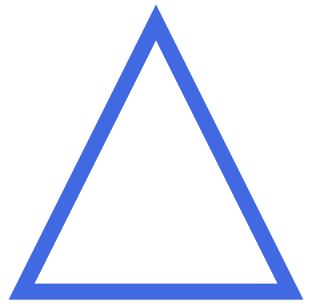
这种方式的好处是容易实现,而且兼容WPF和UWP。缺点是只能通过PathElementStyle修改Path的外观,毕竟它不是Shape,而且增加了VisualTree的层次,不适合于性能敏感的场合。
6. 结语
自定义Shape真的很少用到,网上也没有多少这方面的资料,如果你真的用到的话希望这篇文章对你有帮助。
其次,希望其它的知识点,例如DeferRefresh模式、InvalidateArrange的应用等也对你有帮助。
7. 参考
UIElement.InvalidateArrange Method
Template10.Controls.RingSegment
[UWP]不怎么实用的Shape指南:自定义Shape的更多相关文章
- Android自定义shape的使用
MainActivity如下: package cn.testshape; import android.os.Bundle; import android.app.Activity; /** * D ...
- android 自定义shape 带阴影边框效果
在drawable 里面 建立一个 xml 直接复制 看效果 自己调试就可以 <?xml version="1.0" encoding="utf-8"?& ...
- faster-rcnn错误信息 : tensorflow.python.framework.errors_impl.InvalidArgumentError: Assign requires shapes of both tensors to match. lhs shape= [21] rhs shape= [2]
faster-rcnn错误信息 : tensorflow.python.framework.errors_impl.InvalidArgumentError: Assign requires shap ...
- [UWP]实用的Shape指南
在UWP UI系统中,使用Shape是绘制2D图形最简单的方式,小到图标,大到图表都用到Shape的派生类,可以说有举足轻重的地位.幸运的是从Silverlight以来Shape基本没有什么大改动,简 ...
- 自定义shape文件
1.shape文件 btn_bg.xml文件内容 <?xml version="1.0" encoding="utf-8"?> <shape ...
- android shape(如自定义Button)
Shape 前言:有时候会去自己去画一些Button的样式来展现在UI当中,其中主要用到的就是Shape 先来看一段代码: <?xml version="1.0" encod ...
- Android 自定义shape圆形按钮
Shape的属性: solid 描述:内部填充 属性:android:color 填充颜色 size 描述:大小 属性: android:width 宽 android:height 高 gradie ...
- android中自定义shape
<shape> <!-- 实心 --> <solid android:color="#ff9d77"/> <!-- 渐变 --> & ...
- [UWP]为附加属性和依赖属性自定义代码段(兼容UWP和WPF)
1. 前言 之前介绍过依赖属性和附加属性的代码段,这两个代码段我用了很多年,一直都帮了我很多.不过这两个代码段我也多年没修改过,Resharper老是提示我生成的代码可以修改,它这么有诚意,这次就只好 ...
随机推荐
- Linux批量清理多个文件内容而不删除文件
清理单个文件,可以这样:echo > myLog.log 但是,如果我要清理一堆文件,比如在/logs目录下面的所有以.log结尾的文件的内容,而不删除文件,该如何操作呢? 我一开始的语句是这样 ...
- jQuery对象长度size
jQuery对象有两个方法获取其长度,一个是length属性,一个是调用size()方法,据说前者的效率比后者的高. 代码如下: var DQNRList=$("a[id^='DQNR']& ...
- 数位dp初步——数位dp的两种方式
数位dp:一类统计区间[L,R]内某种符合规定的数字个数的题目.特征是R的范围会很大,O(N)范围内无法完成. 一般而言,解决这类题目有两种方式,一种是递推,另一种是记忆化搜索. 递推: 1)利用dp ...
- Visual Studio 2015 Professional 破解
Visual Studio 2015 Professional 版本 破解序列号:HMGNV-WCYXV-X7G9W-YCX63-B98R2
- 关于JavaScript的模块化
为什么需要模块化 最近在学习网易微专业的<前端系统架构>课程,里面讲到了关于JavaScript的模块化问题.具体指的是当随着Web系统不断强大起来,需要在客户端进行的操作就多了起来(比如 ...
- [转]使用sklearn进行集成学习——实践
转:http://www.cnblogs.com/jasonfreak/p/5720137.html 目录 1 Random Forest和Gradient Tree Boosting参数详解2 如何 ...
- 博客搬到CSDN了
新博客地址: http://blog.csdn.net/enlangs
- JavaWeb总结(七)—JSTL标签库
一.JSTL标签库介绍 JSTL标签库的使用时为了弥补HTML标签的不足,规范自定义标签的使用而诞生的.使用JSTL标签的目的是不希望在JSP中出现Java逻辑代码. 二.JSTL标签库的分类 1.核 ...
- linux_cmd_list_0
一.文件 touch file # 创建空白文件 rm -rf 目录名 # 不提示删除非空目录(-r:递归删除 -f强制) dos2unix # windows文本转linux文本 unix2dos ...
- java 基础知识一 初识java
java 基础知识一初识java 1.java语言的特点 (1)简洁有效(2)可移植性(3)面向对象(4)解释型(5)适合分布式计算 2.java的源文件扩展名为.java 编译后的扩展名为.cla ...