
WPF利用Image实现图片按钮
之前有一篇文章也是采用了Image实现的图片按钮,不过时间太久远了,忘记了地址。好吧,这里我进行了进一步的改进,原来的文章中需要设置4张图片,分别为可用时,鼠标悬浮时,按钮按下时,按钮不可用时的图片,这里我只用了一张图片,利用C#的图片灰度处理自动获得不可用时的图片,利用图片的间距实现悬浮及按下效果。先上效果:(正常 悬浮 按下 不可用)
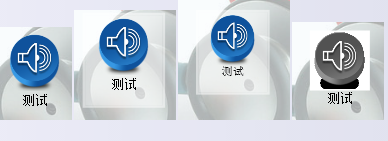
代码其实比较简单,唯一的难点就是把图片转换成ImageSource,在网上找了很久终于找到了一个,转换代码如下:
          ///<summary>

          ///设置正常及不可用时的背景图片

          ///</summary>

          ///<param name="i">背景图片</param>

         private void getBackImageSource(BitmapSource i)

         {

             if (i == null) {

                 EnablebackImage = null;

                 unEnablebackImage = null;

                 return;

             }

             FormatConvertedBitmap b = new FormatConvertedBitmap();

             b.BeginInit();

             b.Source = i;

             b.DestinationFormat = PixelFormats.Gray8;

             b.EndInit();

              FormatConvertedBitmap b1 = new FormatConvertedBitmap();

             b1.BeginInit();

             b1.Source = i;

             b1.EndInit();

             EnablebackImage = b1;

             unEnablebackImage = b;

         }
前端采用Image作为主体部分,利用Border模仿按钮的边框,TextBlock作为文本显示。注意:代码主体部分利用ViewBox保证控件大小变化时不发生变形。代码如下:
 <UserControl x:Class="BaseModel.ImageButton"

              xmlns="http://schemas.microsoft.com/winfx/2006/xaml/presentation"

              xmlns:x="http://schemas.microsoft.com/winfx/2006/xaml"

              xmlns:mc="http://schemas.openxmlformats.org/markup-compatibility/2006"

              xmlns:d="http://schemas.microsoft.com/expression/blend/2008"

              mc:Ignorable="d"

              d:DesignHeight="" d:DesignWidth="" Width="" Height="" MouseLeftButtonDown="UserControl_MouseLeftButtonDown" MouseLeftButtonUp="UserControl_MouseLeftButtonUp" MouseEnter="UserControl_MouseEnter" MouseLeave="UserControl_MouseLeave">

     <Viewbox>

     <Grid>

             <Border Name ="MainBorder" Width="" Height="" BorderBrush="White" BorderThickness="" Background="White" Opacity="0.5" Visibility="Hidden"/>

             <Image Name="btnImage" Width="" Height="" Stretch="Fill" Margin="9,2,9,24"/>

         <TextBlock Name="btnText" Text="" FontSize="" Width="" IsHitTestVisible="False" TextAlignment="Center" TextWrapping="Wrap" Margin="0,52,0,2"/>

     </Grid>

     </Viewbox>

 </UserControl>
后台主要实现了鼠标悬浮和按下时的效果,以及按钮是否可用切换时图片的选择,代码如下:
 using System;

 using System.Collections.Generic;

 using System.Linq;

 using System.Text;

 using System.Windows;

 using System.Windows.Controls;

 using System.Windows.Data;

 using System.Windows.Documents;

 using System.Windows.Input;

 using System.Windows.Media;

 using System.Windows.Media.Imaging;

 using System.Windows.Navigation;

 using System.Windows.Shapes;

 namespace BaseModel

 {

     /// <summary>

     /// ImageButton.xaml 的交互逻辑

     /// </summary>

     public partial class ImageButton : UserControl

     {

         #region 属性

         //按钮是否可用

         private bool isEnable = true;

         //按钮文本

         private string text = "";

         //按钮文本字体

         private FontFamily textFamily = new FontFamily("宋体");

         //按钮文本字体大小

         private double textSize = ;

         //按钮文本字体颜色

         private Brush textColor = Brushes.Black;

         //正在被按下状态

         private bool isClicking = false;

         //背景图片

         private BitmapSource backImage;

         //正常背景资源

         private ImageSource EnablebackImage;

         //不可用背景资源

         private ImageSource unEnablebackImage;

         //按下事件

         public event EventHandler click;

         /// <summary>

         /// 设置或获取控件可用状态

         /// </summary>

         [System.ComponentModel.Browsable(true), System.ComponentModel.Category("Appearance"),System.ComponentModel.Description("设置或获取控件可用状态")]

         public bool IsEnable {

             get {

                 return isEnable;

             }

             set {

                 this.btnText.IsEnabled = value;

                 this.btnImage.IsEnabled = value;

                 isEnable = value;

                 if (isEnable)

                 {

                     btnImage.Source = EnablebackImage;

                 }

                 else

                 {

                     btnImage.Source = unEnablebackImage;

                 }

             }

         }

         /// <summary>

         /// 设置或获取控件文本

         /// </summary>

         [System.ComponentModel.Browsable(true), System.ComponentModel.Category("Appearance"), System.ComponentModel.Description("设置或获取控件文本")]

         public string Text {

             get {

                 return text;

             }

             set {

                 this.btnText.Text = value;

                 text = value;

             }

         }

         /// <summary>

         /// 设置或获取控件文本字体

         /// </summary>

         [System.ComponentModel.Browsable(true), System.ComponentModel.Category("Appearance"), System.ComponentModel.Description("设置或获取控件文本字体")]

         public FontFamily TextFamily

         {

             get

             {

                 return textFamily;

             }

             set

             {

                 this.btnText.FontFamily = value;

                 textFamily = value;

             }

         }

         /// <summary>

         /// 设置或获取控件文本字体大小

         /// </summary>

         [System.ComponentModel.Browsable(true), System.ComponentModel.Category("Appearance"), System.ComponentModel.Description("设置或获取控件文本字体大小")]

         public double TextSize

         {

             get

             {

                 return textSize;

             }

             set

             {

                 this.btnText.FontSize = value;

                 textSize = value;

             }

         }

         /// <summary>

         /// 设置或获取控件文本字体颜色

         /// </summary>

          [System.ComponentModel.Browsable(true), System.ComponentModel.Category("Appearance"), System.ComponentModel.Description("设置或获取控件文本字体颜色")]

         public Brush TextColor

         {

             get

             {

                 return textColor;

             }

             set

             {

                 this.btnText.Foreground = value;

                 textColor = value;

             }

         }

         /// <summary>

         /// 设置或获取控件背景图片

         /// </summary>

          [System.ComponentModel.Browsable(true), System.ComponentModel.Category("Appearance"), System.ComponentModel.Description("设置或获取控件背景图片")]

          public BitmapSource BackImage

          {

              get

              {

                  return backImage;

              }

              set

              {

                  backImage = value;

                  getBackImageSource(value);

                  if (isEnable)

                  {

                      btnImage.Source = EnablebackImage;

                  }

                  else

                  {

                      btnImage.Source =unEnablebackImage;

                  }

              }

          }

         #endregion

         public ImageButton()

         {

             InitializeComponent();

         }

         #region 方法

          ///<summary>

          ///设置正常及不可用时的背景图片

          ///</summary>

          ///<param name="i">背景图片</param>

         private void getBackImageSource(BitmapSource i)

         {

             if (i == null) {

                 EnablebackImage = null;

                 unEnablebackImage = null;

                 return;

             }

             FormatConvertedBitmap b = new FormatConvertedBitmap();

             b.BeginInit();

             b.Source = i;

             b.DestinationFormat = PixelFormats.Gray8;

             b.EndInit();

              FormatConvertedBitmap b1 = new FormatConvertedBitmap();

             b1.BeginInit();

             b1.Source = i;

             b1.EndInit();

             EnablebackImage = b1;

             unEnablebackImage = b;

         }

         #endregion

         #region 事件

         private void UserControl_MouseLeftButtonDown(object sender, MouseButtonEventArgs e)

         {

             if (isEnable) {

                 isClicking = true;

                 btnImage.Margin = new Thickness(, , , );

             }

         }

         private void UserControl_MouseLeftButtonUp(object sender, MouseButtonEventArgs e)

         {

             if (isEnable) {

                 if (isClicking)

                 {

                     isClicking = false;

                     if (click != null)

                     {

                         click(this, null);

                     }

                     btnImage.Margin = new Thickness(, , , );

                 }

             }

         }

         private void UserControl_MouseEnter(object sender, MouseEventArgs e)

         {

             if (isEnable) {

                 btnImage.Margin = new Thickness(, , , );

             }

             MainBorder.Visibility = System.Windows.Visibility.Visible;

         }

         private void UserControl_MouseLeave(object sender, MouseEventArgs e)

         {

             if (isEnable)

             {

                 if (isClicking) {

                     isClicking = false;

                 }

                 btnImage.Margin = new Thickness(, , , );

             }

             MainBorder.Visibility = System.Windows.Visibility.Hidden;

         }

         #endregion

     }

 }
好了,有兴趣的同学可以研究一下,蛮简单的。
WPF利用Image实现图片按钮的更多相关文章
- WPF利用radiobutton制作菜单按钮
原文:WPF利用radiobutton制作菜单按钮 版权声明:欢迎转载.转载请注明出处,谢谢 https://blog.csdn.net/wzcool273509239/article/details ...
- WPF控件库:图片按钮的封装
需求:很多时候界面上的按钮都需要被贴上图片,一般来说: 1.按钮处于正常状态,按钮具有背景图A 2.鼠标移至按钮上方状态,按钮具有背景图B 3.鼠标点击按钮状态,按钮具有背景图C 4.按钮处于不可用状 ...
- c# wpf 利用截屏键实现截屏功能
原文:c# wpf 利用截屏键实现截屏功能 最近做一个wpf程序需要截图功能,查找资料费了一些曲折,跟大家分享一下. 先是找到了这样一份代码: static class Scr ...
- 利用bootstrap写图片轮播
利用bootstrap写图片轮播 缺点是轮播没有固定样式图片样式会改变外框的大小,所以要再设置 以及左右按钮的style也要从新设置 <div class="carousel slid ...
- 自己写一个图片按钮(XAML)
有时需要用三张图片(正常状态,鼠标移上,鼠标按下)来作为一个按钮的样式,虽然这种做法不好,应该用矢量的方式制作样式,但有的时候还是需要这样做的. 每次都修改按钮的样式来实现这个做法,既麻烦又会生成大段 ...
- 利用Selenium实现图片文件上传的两种方式介绍
在实现UI自动化测试过程中,有一类需求是实现图片上传,这种需求根据开发的实现方式,UI的实现方式也会不同. 一.直接利用Selenium实现 这种方式是最简单的一种实现方式,但是依赖于开发的实现. 当 ...
- WPF利用HelixToolKit后台导入3D模型
原文:WPF利用HelixToolKit后台导入3D模型 版权声明:本文为博主原创文章,未经博主允许不得转载. https://blog.csdn.net/m0_37591671/article/de ...
- 利用Photoshop修改图片以达到投稿要求
摘自:http://www.dxy.cn/bbs/thread/8602152#8602152 利用Photoshop修改图片以达到投稿要求 软件版本为Photoshop CS V8.0.1(中文版) ...
- [开源]基于WPF实现的Gif图片分割器,提取GIf图片中的每一帧
不知不觉又半个月没有更新博客了,今天终于抽出点时间,来分享一下前段时间的成果. 在网上,我们经常看到各种各样的图片,尤其是GIF图片的动态效果,让整个网站更加富有表现力!有时候,我们看到一些比较好看的 ...
随机推荐
- B树叶子节点split
一.B-Tree索引的分裂 1. 创建测试表 SQL> create table split_tab (id number, name varchar2(100)); 表已创建. SQL> ...
- ASP.NET MVC4中的Model验证 移除指定验证信息
MVC中通过Model在页面间传值使的程序开发变得更加的快捷,但是很多时候,我们在数据传递的时候为了确保数据的有效性,要对Model的相关属性做基本的数据验证. 不多说直接上个代码,Model的实体类 ...
- myeclipse实现Servlet实例(3) 通过继承HttpServlet接口实现
(1) 在软件公司 90%都是通过该方法开发. //在HttpServlet 中,设计者对post 提交和 get提交分别处理 //回忆 <form action="提交给?&qu ...
- pyqt lineedit右边显示按钮效果
from PyQt4 import QtGui, QtCore class ButtonLineEdit(QtGui.QLineEdit): buttonClicked = QtCore.pyqtSi ...
- python高级编程:缓存
# -*- coding: utf-8 -*-__author__ = 'Administrator'#缓存"""对于运行代价很高的函数和方法结果,可以进行缓存,只要:1 ...
- pyqt cvs保存
# -*- coding: utf-8 -*-__author__ = 'Administrator'import sys, csvfrom PyQt4 import QtGui, QtCore cl ...
- c语言编程之sglib库的简单使用
说实话自从大学毕业后已经很久没有用c语言写过程序了,一般都是使用c++,c++的stl和boost等,这些代码库大大简化了我们的编程复杂度.由于最近某种原因在次开始用c写程序.我是个比较懒的人,比较喜 ...
- VC++ CopyFile函数使用方法
BOOL CopyFile( LPCTSTR lpExistingFileName, // pointer to name of an existing file LPCTSTR lpNewFileN ...
- javascript 获取滚动条高度+常用js页面宽度与高度(转)
/******************** *获取窗口滚动条高度 ******************/ function getScrollTop() { var scrollTop=0; if(d ...
- Android-Context的IO功能
如何将应用数据保存到本地文件?如何从本地文件加载数据到应用中?我实现的步骤是: 应用(java数据)<--org.json-->JSONString<--Context.IO--&g ...