
Adding Form Fields to a MS Word Document
Configuring a Word
Merge in SmartSimple is a three-step process:
- Create the MS Word document that will be used as the template. This page describes the process to add form fields to your Word document.
- Upload the Word document to a SmartFolder.
(See Uploading
Word Merge Document to a SmartFolder for instructions.) - Create the Special
- MS Word Merge custom field that maps the SmartSimple fields you wish to merge to the Word template.
Your Word document will contain Form Fields which are linked to "Bookmarks." The SmartSimple Word Merge field will be configured to match the bookmarks up with SmartSimple variables in the third
step.
In this step, you will add the Form Fields and assign Bookmarks to each field in your Word document that is to be merged. The steps vary slightly in different versions of Word.
Note that SmartSimple's Word Merge feature works with all versions of MS Word. As opposed to using the user's version of Word to create the merged document, the merge is performed by SmartSimple's Word Merge engine using an programmatic object compatible with MS Word (all versions). Once the merge is launched, SmartSimple streams the resultant document back to the client’s browser where the extension of the streamed document (*.doc, *.docx, etc.) will trigger the launching of MS Word. If the user does not have MS Word on a Windows machine, the process will simply open whatever program is associated with the document's extension.
Take note of all the Bookmarks that you add to the Form Fields below. They will be used in step 3: creating
an MS Word Merge custom field.
Contents
[hide]
MS Word 2000-2003
- From the View Menu select Toolbars and enable the Forms Toolbar
- Click in your Word document wherever you wish to insert a Form Field.
- On the Forms Toolbar click on the first button to insert a Form Field into your document:
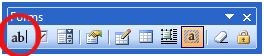
- Right-click on the Form Field and select Properties. Then provide a name for the field in the Bookmark section.
MS Word 2007
- Click on the Menu button and select Word Options
- In the Popular section, select Show Developer Tab in the Ribbon
- Click in your Word document wherever you wish to insert a Form Field.
- On the Developer Menu select the Legacy Tools icon which is in the Controls section:
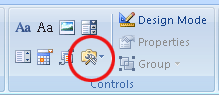
- On the Legacy Forms menu click the first icon to insert a Form Field.
- Right-click on the Form Field and select Properties. Then provide a name for the field in the Bookmark section.
MS Word 2010/2013
- Click in your Word document wherever you wish to insert a Form Field.
- Click on the Developer tab.
-
- If the "Developer" tab is not visible, click on File > Options > Customize Ribbon, and check off the "Developer" tab in the right hand frame.
-
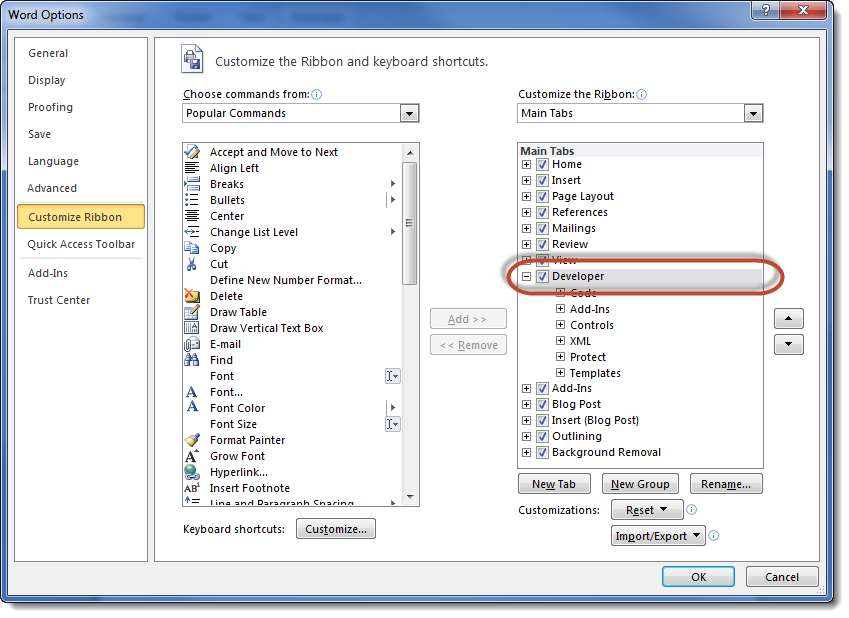
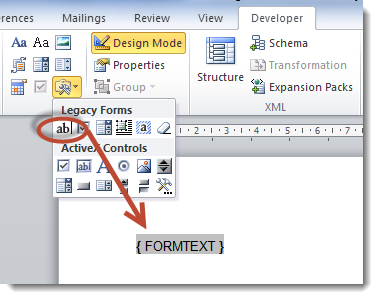
- On the Developer tab, click on the Legacy Tools button:
 .
. - Click on the Text Form Field button
Word 2010
Word 2013
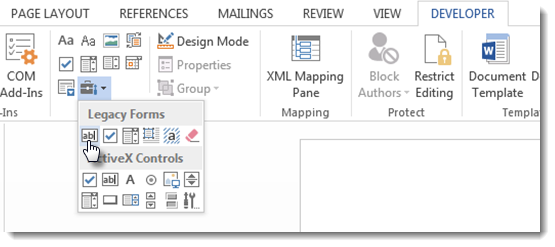
- A Text Form Field will be inserted at the cursor location.
- Right-click on the Form Field and select Properties. Then provide a name for the field in the Bookmark section.
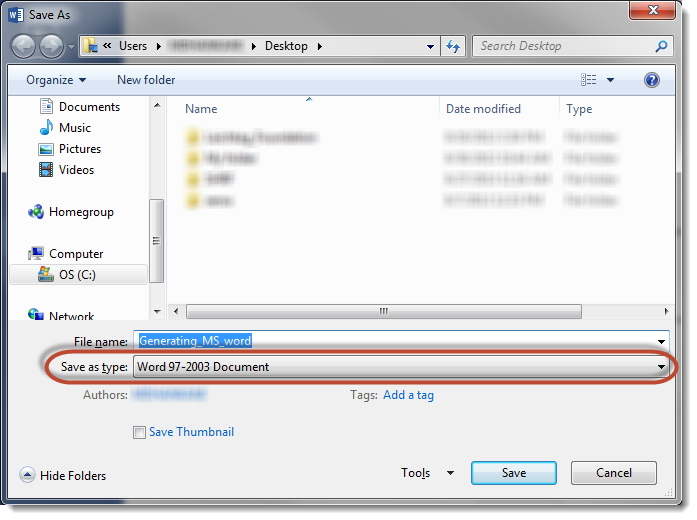
In Word 2013, the document must be saved as a "Word 97-2003 Document":
Preparing Template for List View Export
List View Export to a Word Merge field required the fields used be Word Merge instead of the old bookmarks which is described above. This method will also work for Word Merge fields used outside
of the list view.
To ensure the list view export functions, fields must be created using the following:
- In Word 2007 and higher, select Mailings from the ribbon menu.
- If you haven't already, click on Select Receipients then Use Existing List.
- When the Select Data Source dialog box appears, select a blank Excel document (or any existing Excel document you have accessible). This will enable the required buttons.
- Click on Insert Merge Field.

- Select the Address Fields radio button
- With the first field on the list selected, click on Insert. The selected field name will now appear within the document.
Ex. «Field_Name» - You can now close this dialog box.
- To rename the newly added Word Merge field, right-click on the field and select Edit Field
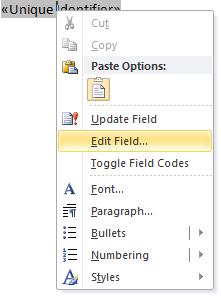
- You can now relabel the Field name with whichever name you wish to use.
- Copy and paste this field to other parts of your document and rename accordingly.
Note: If you do not rename the field, then the data merged within will be the same for all like-named fields.
See Also
To set up a Word merge:
- Step 1 - Create the MS Word document that will be used as the template.
- Step 2 - Upload
the Word document to a SmartFolder. - Step 3 - Create
a Special - MS Word Merge custom field.
Advanced Word Merge Features Include:
- Exporting
List View Results to Microsoft Word - Uploading
a MS Word Merge Document to a Custom Field - Including
Tables in a Word Merge Document - Using
ReportProperty with a Word Merge Document - Including
Check Boxes on an MS Word Merge Document - Including
XML on an MS Word Merge Document - Using
Conditional Logic on a MS Word Merge Document
Adding Form Fields to a MS Word Document的更多相关文章
- How to open MS word document from the SharePoint 2010 using Microsoft.Office.Interop.dll
or this you must change the identity of word component inC:\windows\System32\comexp.mscto be interac ...
- ASP.NET MVC3 Dynamically added form fields model binding
Adding new Item to a list of items, inline is a very nice feature you can provide to your user. Thi ...
- 【转】How to view word document in WPF application
How to view word document in WPF application (CSVSTOViewWordInWPF) Introduction The Sample demonstra ...
- How to Set Word Document Properties with C#
Word properties shows a brief description about one document. Through properties, we can learn gener ...
- Send an email with format which is stored in a word document
1. Add a dll reference: Microsoft.Office.Interop.Word.dll 2. Add the following usings using Word = M ...
- MS WORD 表格自动调整列宽,自动变漂亮,根据内容自动调整 .
在MS WORD中,当有大量的表格出现时,调整每个表格的的高和宽和大小将是一件非常累的事情,拖来拖去,非常耗时间,而且当WORD文档达到300页以上时,调整反应非常的慢,每次拖拉线后,需要等待一段时间 ...
- MS WORD 表格自己主动调整列宽,自己主动变美丽,依据内容自己主动调整
在MS WORD中,当有大量的表格出现时,调整每一个表格的的高和宽和大小将是一件很累的事情,拖来拖去,很耗时间,并且当WORD文档达到300页以上时,调整反应很的慢,每次拖拉线后,须要等待一段时间其才 ...
- Microsoft.Office.Interop.Word.Document.Open returns null on Windows Server 2008 R2
系统终于通过UAT,可以上线了.一遍测下来还行,可是为什么word转PDF就是不行呢?查了一下log,原来在wordApp.Documents.Open来打开生产的word文件的时候,返回一直是空.之 ...
- MS Word 目录排版
昨天整理一份把网页的内容复制粘贴到Word里的文件,碰到了这样一个问题: 网页上面也会有一级标题,二级标题,三级标题等.当我们在写博客的时候,也会去使用这些.这也就导致复制过来之后,直接生成的目录很乱 ...
随机推荐
- 关于js对象的基础使用方法-《javascript设计模式》读书笔记
一.利用对象收编变量 当我们决定实现某一项功能的时候最简单的其实就是写一个命名函数,然后调用来实现,就像这样: function checkName(){ //验证姓名 } function chec ...
- > 1366 - Incorrect string value: '\xE6\xB5\x8B\xE8\xAF\x95...' for column 'description' at row 1 字符串格式错误
mysql 执行insert时报错 > 1366 - Incorrect string value: '\xE6\xB5\x8B\xE8\xAF\x95...' for column 'desc ...
- base64编码-----------》struts2(token)利用BigInteger产生随机数
//struts2 源码 public static final Random RANDOM= new Random(); public static String generateGUID(){ r ...
- UTF-8 可变编码格式
转自:http://blog.csdn.net/swedenfeng/article/details/53467720 UTF-8 是一种可变编码格式,长度从一个字节到四个字节,可根据UTF-8字 ...
- Allegro Desgin Compare的用法与网表比较
转:Allegro Desgin Compare的用法与网表比较 Allegro中自带有Design Compare工具,利用它可以比较明了的看到线路的差异.当然也可以通过SKILL进行比较,不过我们 ...
- 看完这篇再不会 View 的动画框架,我跪搓衣板
引言 众所周知,一款没有动画的 app,就像没有灵魂的肉体,给用户的体验性很差.现在的 android 在动画效果方面早已空前的发展,1.View 动画框架 2.属性动画框架 3.Drawable 动 ...
- spring中xml配置和autowired混用
1.类的混用: 配置文件中的配置: <bean id="a" class="com.ab.cc.A" /> 类中的配置 @Autowired A a ...
- HDFS源码分析心跳汇报之数据块增量汇报
在<HDFS源码分析心跳汇报之BPServiceActor工作线程运行流程>一文中,我们详细了解了数据节点DataNode周期性发送心跳给名字节点NameNode的BPServiceAct ...
- Linux 文件系统IO性能优化
对于LINUX SA来说,服务器性能是需要我们特别关注的,包括CPU.IO.内存等等系统的优化变得至关重要,这里转载一篇非常不错的关于IO优化的文章,供大家参考和学习: 一.关于页面缓存的信息,可以用 ...
- C#连接Oracle的问题(不安装客户端)
win7环境,本地没有安装oracle或者客户端,现在需要程序里连接远程oracle DB: 如果采用System.Data.OracleClient肯定是不行的,这个要安装客户端的: 所以就尝试O ...