
iOS开发之微信聊天页面实现
在上篇博客(iOS开发之微信聊天工具栏的封装)中对微信聊天页面下方的工具栏进行了封装,本篇博客中就使用之前封装的工具栏来进行聊天页面的编写。在聊天页面中主要用到了TableView的知识,还有如何在俩天中显示我们发送的表情,具体请参考之前的博客:IOS开发之显示微博表情,在这儿就不做赘述啦。在聊天页面用到了三对,六种Cell,不过cell的复杂度要比之前的新浪微博(IOS开发之新浪围脖)简单的多。废话少说吧,还是先来几张效果图,在给出实现代码吧。
聊天界面的效果图如下:在下面的聊天界面中中用到了3类cell,一类是显示文字和表情的,一类是显示录音的,一类是显示图片的。当点击图片时会跳转到另一个Controller中来进行图片显示,在图片显示页面中添加了一个捏合的手势(关于手势,请参考:iOS开发之手势识别)。点击播放按钮,会播放录制的音频,cell的大学会根据内容的多少来调整,而cell中textView的高度是通过约束来设置的。
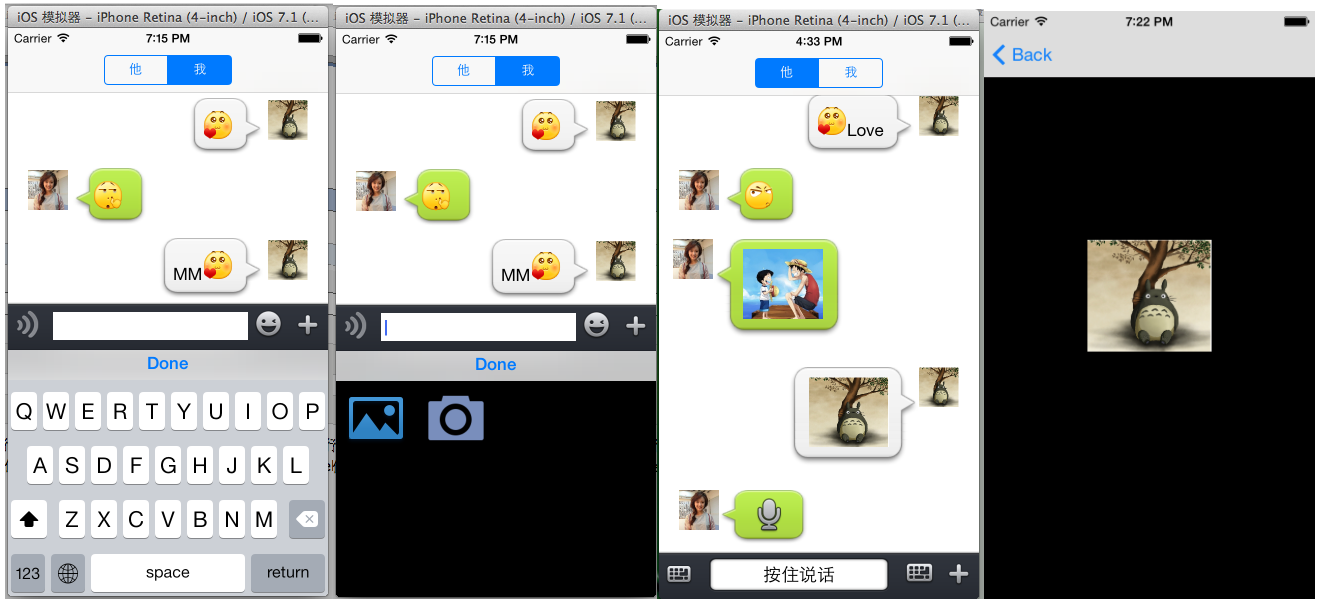
一,定义我们要用的cell,代码如下:
1,显示表情和text的cell,代码如下,需要根据NSMutableAttributedString求出bound,然后改变cell上的ImageView和TextView的宽度的约束值,动态的调整气泡的大小,具体代码如下:
 #import "TextCell.h"

 @interface TextCell()

 @property (strong, nonatomic) IBOutlet UIImageView *headImageView;

 @property (strong, nonatomic) IBOutlet UIImageView *chatBgImageView;

 @property (strong, nonatomic) IBOutlet UITextView *chatTextView;

 @property (strong, nonatomic) IBOutlet NSLayoutConstraint *chatBgImageWidthConstraint;

 @property (strong, nonatomic) IBOutlet NSLayoutConstraint *chatTextWidthConstaint;

 @property (strong, nonatomic) NSMutableAttributedString *attrString;

 @end

 @implementation TextCell

 -(void)setCellValue:(NSMutableAttributedString *)str

 {

     //移除约束

     [self removeConstraint:_chatBgImageWidthConstraint];

     [self removeConstraint:_chatTextWidthConstaint];

     self.attrString = str;

     NSLog(@"%@",self.attrString);

     //由text计算出text的宽高

       CGRect bound = [self.attrString boundingRectWithSize:CGSizeMake(, ) options:NSStringDrawingUsesLineFragmentOrigin context:nil];

     //根据text的宽高来重新设置新的约束

     //背景的宽

     NSString *widthImageString;

     NSArray *tempArray;

     widthImageString = [NSString stringWithFormat:@"H:[_chatBgImageView(%f)]", bound.size.width+];

     tempArray = [NSLayoutConstraint constraintsWithVisualFormat:widthImageString options: metrics: views:NSDictionaryOfVariableBindings(_chatBgImageView)];

     _chatBgImageWidthConstraint = tempArray[];

     [self addConstraint:self.chatBgImageWidthConstraint];

     widthImageString = [NSString stringWithFormat:@"H:[_chatTextView(%f)]", bound.size.width+];

     tempArray = [NSLayoutConstraint constraintsWithVisualFormat:widthImageString options: metrics: views:NSDictionaryOfVariableBindings(_chatTextView)];

     _chatBgImageWidthConstraint = tempArray[];

     [self addConstraint:self.chatBgImageWidthConstraint];

     //设置图片

     UIImage *image = [UIImage imageNamed:@"chatfrom_bg_normal.png"];

     image = [image resizableImageWithCapInsets:(UIEdgeInsetsMake(image.size.height * 0.6, image.size.width * 0.4, image.size.height * 0.3, image.size.width * 0.4))];

     //image = [image stretchableImageWithLeftCapWidth:image.size.width * 0.5 topCapHeight:image.size.height * 0.5];

     [self.chatBgImageView setImage:image];

     self.chatTextView.attributedText = str;

 }

 @end
2.显示图片的cell,通过block回调把图片传到Controller中,用于放大图片使用。
 #import "MyImageCell.h"

 @interface MyImageCell()

 @property (strong, nonatomic) IBOutlet UIImageView *bgImageView;

 @property (strong, nonatomic) IBOutlet UIButton *imageButton;

 @property (strong, nonatomic) ButtonImageBlock imageBlock;

 @property (strong, nonatomic) UIImage *buttonImage;

 @end

 @implementation MyImageCell

 -(void)setCellValue:(UIImage *)sendImage

 {

     self.buttonImage = sendImage;

     UIImage *image = [UIImage imageNamed:@"chatto_bg_normal.png"];

     image = [image resizableImageWithCapInsets:(UIEdgeInsetsMake(image.size.height * 0.6, image.size.width * 0.4, image.size.height * 0.3, image.size.width * 0.4))];

     [self.bgImageView setImage:image];

     [self.imageButton setImage:sendImage forState:UIControlStateNormal];

 }

 -(void)setButtonImageBlock:(ButtonImageBlock)block

 {

     self.imageBlock = block;

 }

 - (IBAction)tapImageButton:(id)sender {

     self.imageBlock(self.buttonImage);

 }

 @end
3.显示录音的cell,点击cell上的button,播放对应的录音,代码如下:
 #import "VoiceCellTableViewCell.h"

 @interface VoiceCellTableViewCell()

 @property (strong, nonatomic) NSURL *playURL;

 @property (strong, nonatomic) AVAudioPlayer *audioPlayer;

 @end

 @implementation VoiceCellTableViewCell

 -(void)setCellValue:(NSDictionary *)dic

 {

     _playURL = dic[@"body"][@"content"];

 }

 - (IBAction)tapVoiceButton:(id)sender {

     NSError *error = nil;

     AVAudioPlayer *player = [[AVAudioPlayer alloc]initWithContentsOfURL:_playURL error:&error];

     if (error) {

         NSLog(@"播放错误:%@",[error description]);

     }

     self.audioPlayer = player;

     [self.audioPlayer play];

 }

 @end
二,cell搞定后要实现我们的ChatController部分
1.ChatController.m中的延展和枚举代码如下:
 //枚举Cell类型

 typedef enum : NSUInteger {

     SendText,

     SendVoice,

     SendImage

 } MySendContentType;

 //枚举用户类型

 typedef enum : NSUInteger {

     MySelf,

     MyFriend

 } UserType;

 @interface ChatViewController ()

 //工具栏

 @property (nonatomic,strong) ToolView *toolView;

 //音量图片

 @property (strong, nonatomic) UIImageView *volumeImageView;

 //工具栏的高约束,用于当输入文字过多时改变工具栏的约束

 @property (strong, nonatomic) NSLayoutConstraint *tooViewConstraintHeight;

 //存放所有的cell中的内容

 @property (strong, nonatomic) NSMutableArray *dataSource;

 //storyBoard上的控件

 @property (strong, nonatomic) IBOutlet UITableView *myTableView;

 //用户类型

 @property (assign, nonatomic) UserType userType;

 //从相册获取图片

 @property (strong, nonatomic) UIImagePickerController *imagePiceker;

 @end
2.实现工具栏中的回调的代码如下,通过Block,工具栏和ViewController交互,具体ToolView的Block实现,请参考上一篇博客(iOS开发之微信聊天工具栏的封装),聊天工具栏使用代码如下:
 //实现工具栏的回调

 -(void)setToolViewBlock

 {

     __weak __block ChatViewController *copy_self = self;

     //通过block回调接收到toolView中的text

     [self.toolView setMyTextBlock:^(NSString *myText) {

         NSLog(@"%@",myText);

         [copy_self sendMessage:SendText Content:myText];

     }];

     //回调输入框的contentSize,改变工具栏的高度

     [self.toolView setContentSizeBlock:^(CGSize contentSize) {

          [copy_self updateHeight:contentSize];

     }];

     //获取录音声量,用于声音音量的提示

     [self.toolView setAudioVolumeBlock:^(CGFloat volume) {

         copy_self.volumeImageView.hidden = NO;

         int index = (int)(volume*)%+;

         [copy_self.volumeImageView setImage:[UIImage imageNamed:[NSString stringWithFormat:@"record_animate_%02d.png",index]]];

     }];

     //获取录音地址(用于录音播放方法)

     [self.toolView setAudioURLBlock:^(NSURL *audioURL) {

         copy_self.volumeImageView.hidden = YES;

         [copy_self sendMessage:SendVoice Content:audioURL];

     }];

     //录音取消(录音取消后,把音量图片进行隐藏)

     [self.toolView setCancelRecordBlock:^(int flag) {

         if (flag == ) {

             copy_self.volumeImageView.hidden = YES;

         }

     }];

     //扩展功能回调

     [self.toolView setExtendFunctionBlock:^(int buttonTag) {

         switch (buttonTag) {

             case :

                 //从相册获取

                 [copy_self presentViewController:copy_self.imagePiceker animated:YES completion:^{

                 }];

                 break;

             case :

                 //拍照

                 break;

             default:

                 break;

         }

     }];

 }
3.把聊天工具栏中返回的内容显示在tableView中,代码如下:
 //发送消息

 -(void)sendMessage:(MySendContentType) sendType Content:(id)content

 {

     //把收到的url封装成字典

     UserType userType = self.userType;

     NSMutableDictionary *tempDic = [[NSMutableDictionary alloc] initWithCapacity:];

     [tempDic setValue:@(userType) forKey:@"userType"];

     NSDictionary *bodyDic = @{@"type":@(sendType),

                               @"content":content};

     [tempDic setValue:bodyDic forKey:@"body"];

     [self.dataSource addObject:tempDic];

     //重载tableView

     [self.myTableView  reloadData];

     NSIndexPath *indexPath = [NSIndexPath indexPathForRow:self.dataSource.count- inSection:];

     [self.myTableView scrollToRowAtIndexPath:indexPath atScrollPosition:UITableViewScrollPositionBottom animated:YES];

 }
4.根据ToolView中回调接口,获取工具栏中textView的ContentSize,通过ContentSize来调整ToolView的高度约束,代码如下:
 //更新toolView的高度约束

 -(void)updateHeight:(CGSize)contentSize

 {

     float height = contentSize.height + ;

     if (height <= ) {

         [self.view removeConstraint:self.tooViewConstraintHeight];

         NSString *string = [NSString stringWithFormat:@"V:[_toolView(%f)]", height];

         NSArray * tooViewConstraintV = [NSLayoutConstraint constraintsWithVisualFormat:string options: metrics: views:NSDictionaryOfVariableBindings(_toolView)];

         self.tooViewConstraintHeight = tooViewConstraintV[];

         [self.view addConstraint:self.tooViewConstraintHeight];

     }

 }
5.从本地获取图片,并显示在相应的Cell上,代码如下:
 //获取图片后要做的方法

 -(void)imagePickerController:(UIImagePickerController *)picker didFinishPickingMediaWithInfo:(NSDictionary *)info

 {

     UIImage *pickerImage = info[UIImagePickerControllerEditedImage];

     //发送图片

     [self sendMessage:SendImage Content:pickerImage];

     [self dismissViewControllerAnimated:YES completion:^{}];

 }

 -(void)imagePickerControllerDidCancel:(UIImagePickerController *)picker

 {

     //在ImagePickerView中点击取消时回到原来的界面

     [self dismissViewControllerAnimated:YES completion:^{}];

 }
6.把NSString 转换成NSMutableAttributeString,用于显示表情,代码如下:
 //显示表情,用属性字符串显示表情

 -(NSMutableAttributedString *)showFace:(NSString *)str

 {

     //加载plist文件中的数据

     NSBundle *bundle = [NSBundle mainBundle];

     //寻找资源的路径

     NSString *path = [bundle pathForResource:@"emoticons" ofType:@"plist"];

     //获取plist中的数据

     NSArray *face = [[NSArray alloc] initWithContentsOfFile:path];

     //创建一个可变的属性字符串

     NSMutableAttributedString *attributeString = [[NSMutableAttributedString alloc] initWithString:str];

     UIFont *baseFont = [UIFont systemFontOfSize:];

     [attributeString addAttribute:NSFontAttributeName value:baseFont

                        range:NSMakeRange(, str.length)];

     //正则匹配要替换的文字的范围

     //正则表达式

     NSString * pattern = @"\\[[a-zA-Z0-9\\u4e00-\\u9fa5]+\\]";

     NSError *error = nil;

     NSRegularExpression * re = [NSRegularExpression regularExpressionWithPattern:pattern options:NSRegularExpressionCaseInsensitive error:&error];

     if (!re) {

         NSLog(@"%@", [error localizedDescription]);

     }

     //通过正则表达式来匹配字符串

     NSArray *resultArray = [re matchesInString:str options: range:NSMakeRange(, str.length)];

     //用来存放字典,字典中存储的是图片和图片对应的位置

     NSMutableArray *imageArray = [NSMutableArray arrayWithCapacity:resultArray.count];

     //根据匹配范围来用图片进行相应的替换

     for(NSTextCheckingResult *match in resultArray) {

         //获取数组元素中得到range

         NSRange range = [match range];

         //获取原字符串中对应的值

         NSString *subStr = [str substringWithRange:range];

         for (int i = ; i < face.count; i ++)

         {

             if ([face[i][@"chs"] isEqualToString:subStr])

             {

                 //face[i][@"gif"]就是我们要加载的图片

                 //新建文字附件来存放我们的图片

                 NSTextAttachment *textAttachment = [[NSTextAttachment alloc] init];

                 //给附件添加图片

                 textAttachment.image = [UIImage imageNamed:face[i][@"png"]];

                 //把附件转换成可变字符串,用于替换掉源字符串中的表情文字

                 NSAttributedString *imageStr = [NSAttributedString attributedStringWithAttachment:textAttachment];

                 //把图片和图片对应的位置存入字典中

                 NSMutableDictionary *imageDic = [NSMutableDictionary dictionaryWithCapacity:];

                 [imageDic setObject:imageStr forKey:@"image"];

                 [imageDic setObject:[NSValue valueWithRange:range] forKey:@"range"];

                 //把字典存入数组中

                 [imageArray addObject:imageDic];

             }

         }

     }

     //从后往前替换

     for (int i = imageArray.count -; i >= ; i--)

     {

         NSRange range;

         [imageArray[i][@"range"] getValue:&range];

         //进行替换

         [attributeString replaceCharactersInRange:range withAttributedString:imageArray[i][@"image"]];

     }

     return  attributeString;

 }
7.根据Cell显示内容来调整Cell的高度,代码如下:
 //调整cell的高度

 -(float)tableView:(UITableView *)tableView heightForRowAtIndexPath:(NSIndexPath *)indexPath

 {

     //根据文字计算cell的高度

     if ([self.dataSource[indexPath.row][@"body"][@"type"] isEqualToNumber:@(SendText)]) {

         NSMutableAttributedString *contentText = [self showFace:self.dataSource[indexPath.row][@"body"][@"content"]];

         CGRect textBound = [contentText boundingRectWithSize:CGSizeMake(, ) options:NSStringDrawingUsesLineFragmentOrigin context:nil];

         float height = textBound.size.height + ;

         return height;

     }

     if ([self.dataSource[indexPath.row][@"body"][@"type"] isEqualToNumber:@(SendVoice)])

     {

         return ;

     }

     if ([self.dataSource[indexPath.row][@"body"][@"type"] isEqualToNumber:@(SendImage)])

     {

         return ;

     }

     return ;

  }
8.根据cell内容和用户类型,来选择Cell,代码如下:
 //设置cell

 - (UITableViewCell *)tableView:(UITableView *)tableView cellForRowAtIndexPath:(NSIndexPath *)indexPath

 {

     //根据类型选cell

     MySendContentType contentType = [self.dataSource[indexPath.row][@"body"][@"type"] integerValue];

     if ([self.dataSource[indexPath.row][@"userType"]  isEqual: @(MyFriend)]) {

         switch (contentType) {

             case SendText:

             {

                 TextCell *cell = [tableView dequeueReusableCellWithIdentifier:@"textCell" forIndexPath:indexPath];

                 NSMutableAttributedString *contentText = [self showFace:self.dataSource[indexPath.row][@"body"][@"content"]];

                 [cell setCellValue:contentText];

                 return cell;

             }

                 break;

             case SendImage:

             {

                 heImageCell *cell = [tableView dequeueReusableCellWithIdentifier:@"heImageCell" forIndexPath:indexPath];

                 [cell setCellValue:self.dataSource[indexPath.row][@"body"][@"content"]];

                 __weak __block ChatViewController *copy_self = self;

                 //传出cell中的图片

                 [cell setButtonImageBlock:^(UIImage *image) {

                     [copy_self displaySendImage:image];

                 }];

                 return cell;

             }

                 break;

             case SendVoice:

             {

                 VoiceCellTableViewCell *cell = [tableView dequeueReusableCellWithIdentifier:@"heVoiceCell" forIndexPath:indexPath];

                 [cell setCellValue:self.dataSource[indexPath.row]];

                 return cell;

             }

                 break;

             default:

                 break;

         }

     }

     if ([self.dataSource[indexPath.row][@"userType"]  isEqual: @(MySelf)]) {

         switch (contentType) {

             case SendText:

             {

                 TextCell *cell = [tableView dequeueReusableCellWithIdentifier:@"myselfTextCell" forIndexPath:indexPath];

                 NSMutableAttributedString *contentText = [self showFace:self.dataSource[indexPath.row][@"body"][@"content"]];

                 [cell setCellValue:contentText];

                 return cell;

             }

             break;

             case SendImage:

             {

                 MyImageCell *cell = [tableView dequeueReusableCellWithIdentifier:@"myImageCell" forIndexPath:indexPath];

                 [cell setCellValue:self.dataSource[indexPath.row][@"body"][@"content"]];

                 __weak __block ChatViewController *copy_self = self;

                 //传出cell中的图片

                 [cell setButtonImageBlock:^(UIImage *image) {

                     [copy_self displaySendImage:image];

                 }];

                 return cell;

             }

                 break;

             case SendVoice:

             {

                 VoiceCellTableViewCell *cell = [tableView dequeueReusableCellWithIdentifier:@"myVoiceCell" forIndexPath:indexPath];

                 [cell setCellValue:self.dataSource[indexPath.row]];

                 return cell;

             }

                 break;

             default:

                 break;

         }

     }

     UITableViewCell *cell;

     return cell;

 }
9.点击发送的图片来放大图片代码如下:
 //发送图片的放大

 -(void) displaySendImage : (UIImage *)image

 {

     //把照片传到放大的controller中

     UIStoryboard *storyboard = [UIStoryboard storyboardWithName:@"Main" bundle:[NSBundle mainBundle]];

     ImageViewController *imageController = [storyboard instantiateViewControllerWithIdentifier:@"imageController"];

     [imageController setValue:image forKeyPath:@"image"];

    [self.navigationController pushViewController:imageController animated:YES];

 }
10.根据键盘的高度来调整ToolView的位置,代码如下:
 //键盘出来的时候调整tooView的位置

 -(void) keyChange:(NSNotification *) notify

 {

     NSDictionary *dic = notify.userInfo;

     CGRect endKey = [dic[@"UIKeyboardFrameEndUserInfoKey"] CGRectValue];

     //坐标系的转换

     CGRect endKeySwap = [self.view convertRect:endKey fromView:self.view.window];

     //运动时间

     [UIView animateWithDuration:[dic[UIKeyboardAnimationDurationUserInfoKey] floatValue] animations:^{

         [UIView setAnimationCurve:[dic[UIKeyboardAnimationCurveUserInfoKey] doubleValue]];

         CGRect frame = self.view.frame;

         frame.size.height = endKeySwap.origin.y;

         self.view.frame = frame;

         [self.view layoutIfNeeded];

     }];

 }
三,代码有点多,不过在关键的部分都加有注释,在图片显示View中通过捏合手势来调整图片的大小,代码如下:
 - (IBAction)tapPichGesture:(id)sender {

     UIPinchGestureRecognizer *gesture = sender;

     //手势改变时

     if (gesture.state == UIGestureRecognizerStateChanged)

     {

         //捏合手势中scale属性记录的缩放比例

         self.myImageView.transform = CGAffineTransformMakeScale(gesture.scale, gesture.scale);

     }

 }
上面的东西是在本地做的测试,没有加上XMPP即时通讯协议,以后的博客会通过服务器转发来进行聊天,并且会继续对微信进行完善,感兴趣的小伙伴继续关注吧。转载请注明出处。
Demo地址:https://github.com/lizelu/WeChat
iOS开发之微信聊天页面实现的更多相关文章
- iOS开发之微信聊天工具栏的封装
之前山寨了一个新浪微博(iOS开发之山寨版新浪微博小结),这几天就山寨个微信吧.之前已经把微信的视图结构简单的拖了一下(IOS开发之微信山寨版),今天就开始给微信加上具体的实现功能,那么就先从微信的聊 ...
- iOS开发之——从零开始完成页面切换形变动画
前言 某天我接到了UI发给我的两张图: 需求图.png 看到图的时候我一脸懵逼,显然我需要做一个页面切换的指示动画.老实说,从大三暑假开始做iOS开发也一年有余了,但是遇到复杂动画总是唯恐避之不及,只 ...
- IOS高访微信聊天对话界面(sizeWithFont:constrainedToSize和stretchableImageWithLeftCapWidth的使用)
大家好,百忙之中,抽出点空,写个微博,话说好久没写. 最近项目中有碰到写类似微信聊天界面上的效果,特整理了一下,写了一个小的Demo,希望给没头绪的同学们一个参考! 下载地址:http://files ...
- iOS开发集成微信支付
首先需要理清楚流程: 1.用户使用APP客户端,选择商品下单. 2.商户客户端(就是你做的APP)将用户的商品数据传给商户服务器,请求生成支付订单. 3.商户后台调用统一下单API向微信的服务器发送请 ...
- iOS开发-仿微信图片分享界面实现
分享功能目前几乎已成为很多app的标配了,其中微信,微博等app的图片分享界面设计的很棒,不仅能够展示缩略图,还可以预览删除.最近我在做一款社交分享app,其中就要实现图文分享功能,于是试着自行实现仿 ...
- IOS开发之微信山寨版
为了犒劳自己的学习内容,就山寨个微信的视图控制吧.拿着微信,仔细的看了一下,主要用到了TabBarController以及配置TabBarItem, NavigationController以及配置N ...
- IOS封装一个微信聊天的输入工具
1.实现微信的输入工具 实现了大部分功能,各模块实现的很清晰,有利于更好的二次开发(适合自己的需求),我自己总结出来的, 可以更快的让你实现输入工具,不需要扩展的也可以很方便的使用这个输入工具. 1) ...
- iOS开发Safari调试WebView页面
App混合开发现已是常态,不过作为app端开发人员,对H5页面的使用,可不能简单的局限于使用,一些简单的调试方法还是有必要了解的. 关于如何在使用webview过程中,如何对web内对内容进行调试,这 ...
- iOS开发之微信平台分享
在工程开始之前应该先准备在微信开放平台申请的appid,从微信平台下载sdk文件.下面开始步骤讲述 1.先将SDK导入工程目录 2.在info.plist文件设置相关信息,包括appid标识.白名单 ...
随机推荐
- SQLServer触发器创建、删除、修改、查看
一: 触发器是一种特殊的存储过程﹐它不能被显式地调用﹐而是在往表中插入记录﹑更新记录或者删除记录时被自动地激活.所以触发器可以用来实现对表实施复杂的完整性约束. 二: SQL Server为每个触发器 ...
- RDLC报表数据工具栏关闭后打开方法
显示方法为:Ctrl + Alt + D 快捷键 只做自己记录用
- 输入/输出系统的四种不同工作方式对CPU利用率比较
程序控制工作方式:输入/输出完全由CPU控制,整个I/O过程中CPU必须等待其完成,因此对CPU的能力限制很大,利用率较低 程序中断工作方式:CPU不再定期查询I/O系统状态,而是当需要I/O处理时再 ...
- 利用http缓存数据
通过一个简单的ajax请求来详解http的缓存技术 register.html <!DOCTYPE> <html> <head> <title>http ...
- Oracle入门
一.Oracle数据库简介 Oracle数据库的主要特点 :支持多用户.大事务量的事务处理:数据安全性和完整性控制:支持分布式数据处理:可移植性. Oracle数据库基于客户端/服务器技术:数据库服务 ...
- USACO翻译:USACO 2013 DEC Silver三题
USACO 2013 DEC SILVER 一.题目概览 中文题目名称 挤奶调度 农场航线 贝西洗牌 英文题目名称 msched vacation shuffle 可执行文件名 msched vaca ...
- WPF TextBox 搜索框 自定义
更多资源:http://denghejun.github.io <Style x:Key="SearchTextBoxStyle" BasedOn="{x:Null ...
- HTML+CSS中的一些小知识
今天分享一些HTML.CSS的小知识,希望能够对大家有所帮助! 1.解决网页乱码的问题:最重要的是要保证各个环节的字符编码一致! (1)编辑器的编辑环境的字符集(默认字符集):Crtl+U 常见的编码 ...
- CYQ.Data V5 分布式缓存MemCached应用开发介绍
前言 今天大伙还在热议关于.NET Core的东西,我只想说一句:在.NET 跨平台叫了这么多年间,其实人们期待的是一个知名的跨平台案例,而不是一堆能跨平台的消息. 好,回头说说框架: 在框架完成数据 ...
- Guava Supplier实例
今天想讲一下Guava Suppliers的几点用法.Guava Suppliers的主要功能是创建包裹的单例对象,通过get方法可以获取对象的值.每次获取的对象都为同一个对象,但你和单例模式有所区别 ...