
一百三十九:CMS系统之首页帖子列表布局
# 配置ueditor上传文件到七牛
UEDITOR_UPLOAD_TO_QINIU = True  # 设置为True是,视为开始把图片传到七牛储存,本地不储存
UEDITOR_QINIU_ACCESS_KEY = ''
UEDITOR_QINIU_SECRET_KEY = ''
UEDITOR_QINIU_BUCKET_NAME = ''  # 空间
UEDITOR_QINIU_DOMAIN = ''  # 域名

调整模型,加上与用创建户的映射关系
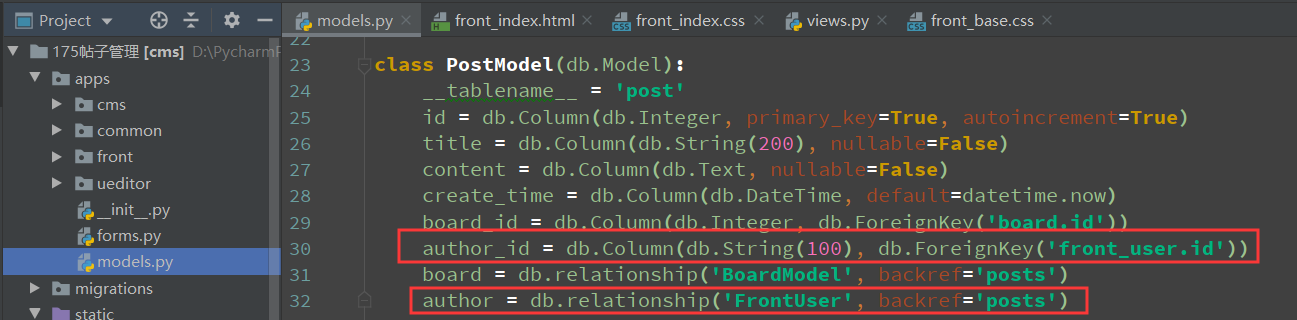
确认两件事,1、post表内的数据为空,2、关联表的字符集和排序规则一致
python manager.py db migrate
python manager.py db upgrade
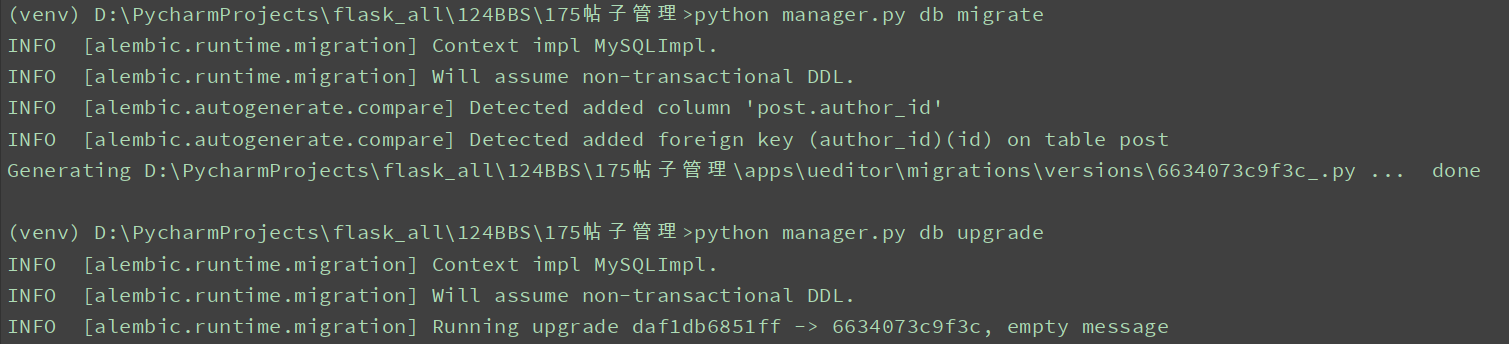
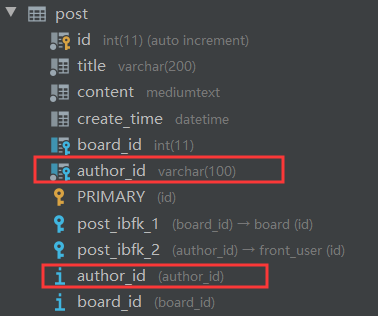
前端页面

{% extends 'front/front_base.html' %}
{% from "common/_macros.html" import static %}

{% block title %}
    首页
{% endblock %}

{% block head %}
    <link rel="stylesheet" href="{{ static('front/css/front_index.css') }}">
{% endblock %}

{% block body %}
    <div class="lg-container">

        <!-- 轮播图 -->
        <div id="carousel-example-generic" class="carousel slide index-banner" data-ride="carousel">
          <!-- 指示器,轮播图下方的圆圈,需与轮播图数量一致 -->
          <ol class="carousel-indicators">
            <li data-target="#carousel-example-generic" data-slide-to="0" class="active"></li>
            <li data-target="#carousel-example-generic" data-slide-to="1"></li>
            <li data-target="#carousel-example-generic" data-slide-to="2"></li>
            <li data-target="#carousel-example-generic" data-slide-to="3"></li>
          </ol>
          <!-- 轮播图 这里的图片是在百度复制的轮播图链接-->
          <div class="carousel-inner" role="listbox">
              {% for banner in banners %}
                {% if loop.first %}
                    <div class="item active">
                {% else %}
                    <div class="item">
                {% endif %}
                <a href="{{ banner.link_url }}"><img src="{{ banner.image_url }}" alt="{{ banner.name }}"></a>
                </div>
              {% endfor %}
          </div>
          <!-- 左右切换的控制按钮 -->
          <a class="left carousel-control" href="#carousel-example-generic" role="button" data-slide="prev">
            <span class="glyphicon glyphicon-chevron-left" aria-hidden="true"></span>
            <span class="sr-only">Previous</span>
          </a>
          <a class="right carousel-control" href="#carousel-example-generic" role="button" data-slide="next">
            <span class="glyphicon glyphicon-chevron-right" aria-hidden="true"></span>
            <span class="sr-only">Next</span>
          </a>
        </div>
        <div class="post-group">
            <ul class="post-group-head">
                <li><a href="#">最新</a></li>
                <li><a href="#">精华帖子</a></li>
                <li><a href="#">点赞最多</a></li>
                <li><a href="#">评论最多</a></li>
            </ul>
            <ul class="post-list-group">
                {% for post in posts %}
                    <li>
                        <div class="author-avatar-group">
                            <img src="{{ post.author.avatar or static('common/images/logo.png') }}" alt="">
                        </div>
                        <div class="posst-info-group">
                            <p class="post-title">{{ post.title }}</p>
                            <p class="post-info">
                                <span>作者: {{ post.author.name }}</span>
                                <span>发表时间: {{ post.create_time }}</span>
                                <span>评论: 0</span>
                                <span>阅读: 0</span>
                            </p>
                        </div>
                    </li>
                {% endfor %}
            </ul>
        </div>
    </div>
    <div class="sm-container">
        <div style="padding-bottom: 10px;">
            <a href="{{ url_for('front.apost') }}"class="btn btn-warning btn-block">发布帖子</a>
        </div>
        <div class="list-group">
          <a href="#" class="list-group-item active">所有板块</a>
            {% for board in boards %}
                <a href="#" class="list-group-item">{{ board.name }}</a>
            {% endfor %}
        </div>
    </div>
{% endblock %}
css
在base.css中清除所有浏览器自带的样式
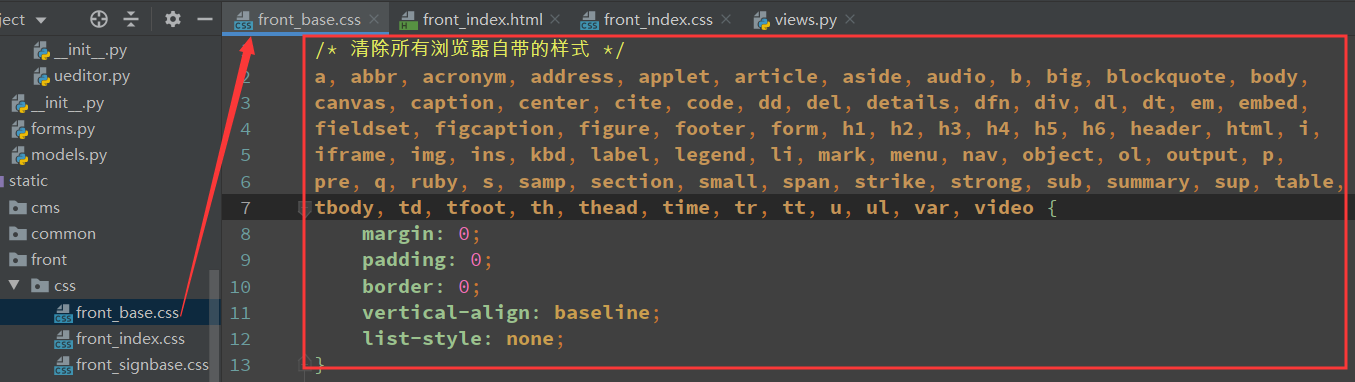
/* 清除所有浏览器自带的样式 */
a, abbr, acronym, address, applet, article, aside, audio, b, big, blockquote, body,
canvas, caption, center, cite, code, dd, del, details, dfn, div, dl, dt, em, embed,
fieldset, figcaption, figure, footer, form, h1, h2, h3, h4, h5, h6, header, html, i,
iframe, img, ins, kbd, label, legend, li, mark, menu, nav, object, ol, output, p,
pre, q, ruby, s, samp, section, small, span, strike, strong, sub, summary, sup, table,
tbody, td, tfoot, th, thead, time, tr, tt, u, ul, var, video {
    margin: 0;
    padding: 0;
    border: 0;
    vertical-align: baseline;
    list-style: none;
}
index.css
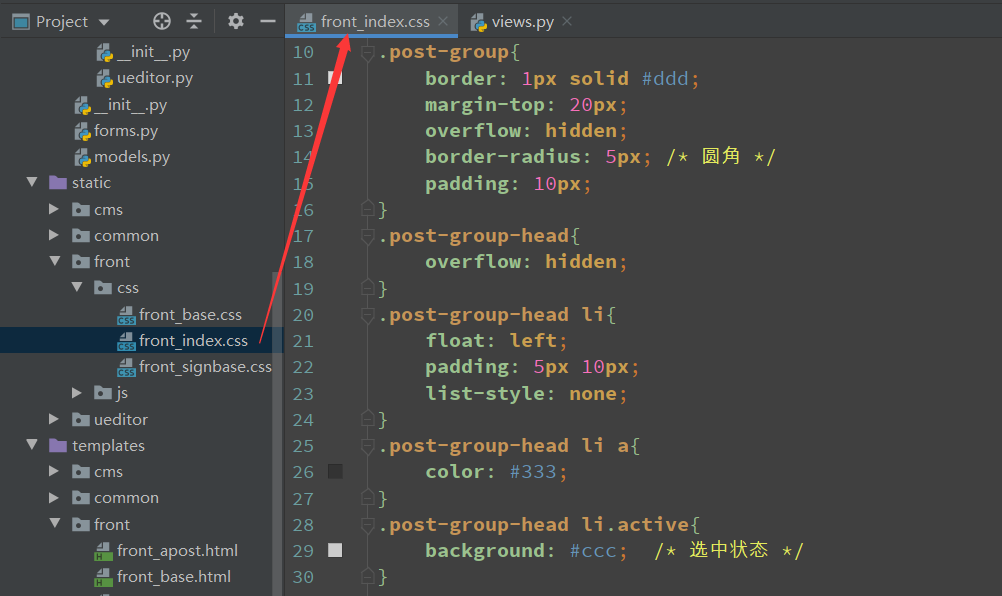
.index-banner{  /* 圆角,超出的隐藏 */
    border-radius: 10px;
    overflow: hidden;
    height: 200px; /*轮播图盒子高度*/
}
.index-banner img{ /* 轮播图盒子下的图片高度 */
    height: 200px;
}

.post-group{
    border: 1px solid #ddd;
    margin-top: 20px;
    overflow: hidden;
    border-radius: 5px; /* 圆角 */
    padding: 10px;
}
.post-group-head{
    overflow: hidden;
    list-style: none;
}

.post-group-head li{
    float: left;
    padding: 5px 10px;
}

.post-group-head li a{
    color:#333;
}

.post-group-head li.active{
    background: #ccc;  /* 选中状态 */
}

.post-list-group{
    margin-top: 20px;
}

.post-list-group li{
    overflow: hidden;
    padding-bottom: 20px;
}

.author-avatar-group{
    float: left;
}

.author-avatar-group img{
    width: 50px;
    height: 50px;
    border-radius: 50%;
}

.post-info-group{
    float: left;
    margin-left: 10px;
    border-bottom: 1px solid #e6e6e6;
    width: 85%;
    padding-bottom: 10px;
}

.post-info-group .post-info{
    margin-top: 10px;
    font-size: 12px;
    color: #8c8c8c;
}

.post-info span{
    margin-right: 10px;
}
在首页视图,加上返回帖子的数据

@bp.route('/')
def index():
    banners = BannerModel.query.order_by(BannerModel.priority.desc()).limit(4)  # 只取4条
    boards = BoardModel.query.all()
    posts = PostModel.query.all()
    context = {'banners': banners, 'boards': boards, 'posts': posts}
    return render_template('front/front_index.html', **context)
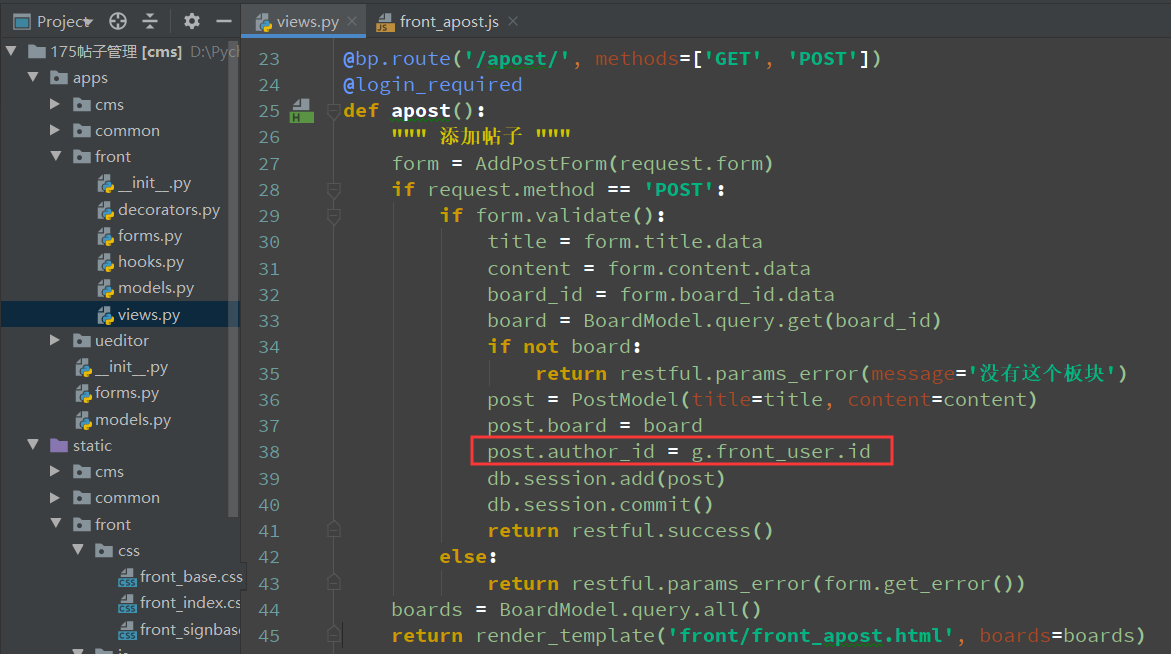
添加帖子的视图加上指定author_id
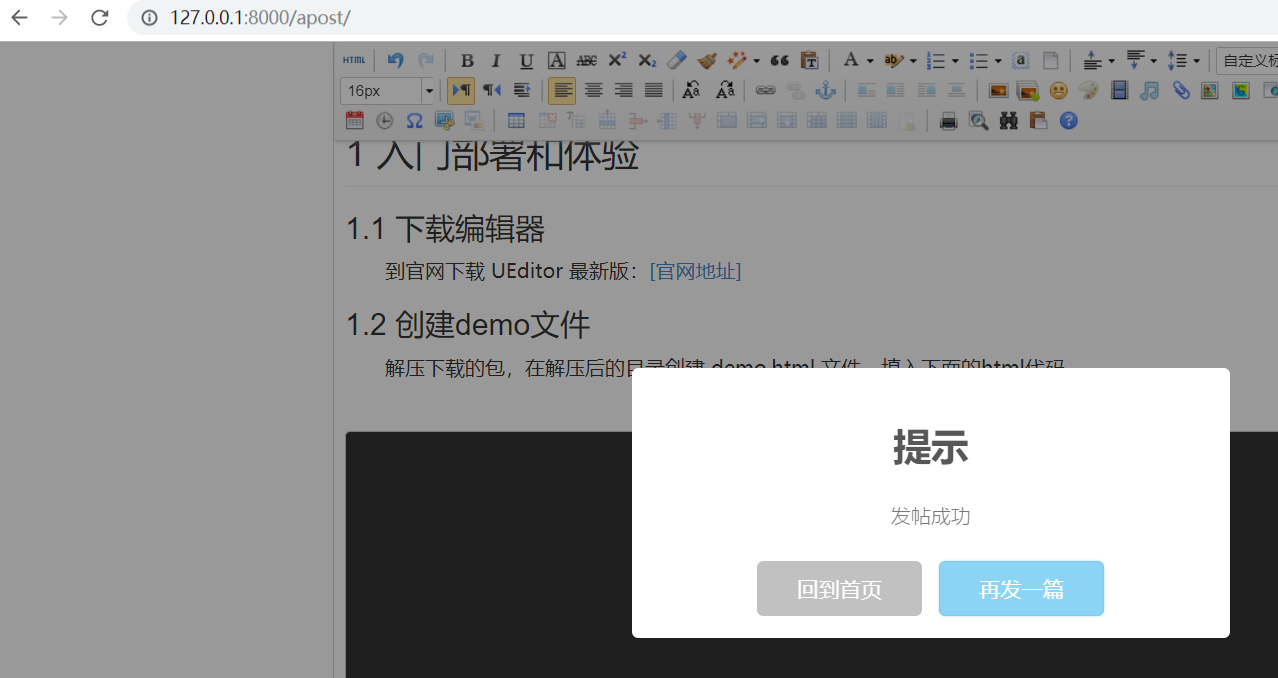
添加一篇帖子

添加一些测试数据
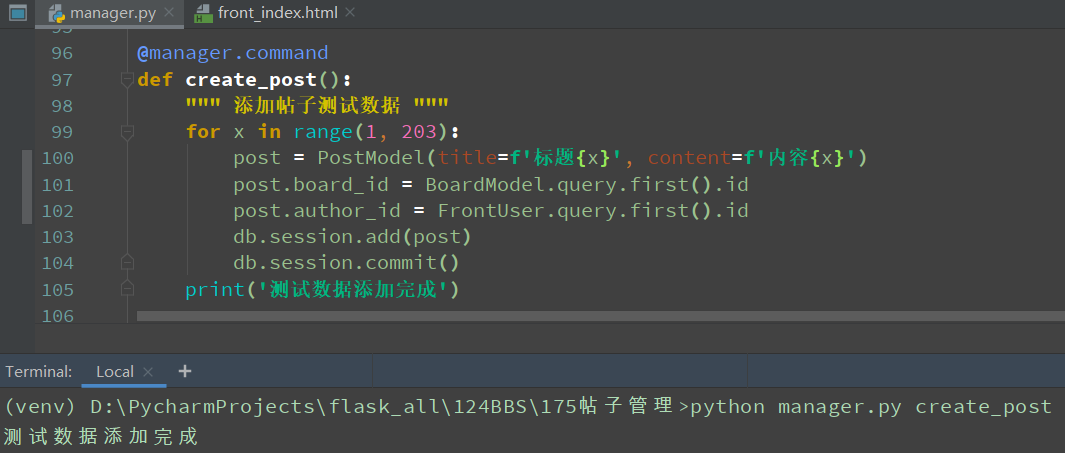
@manager.command
def create_post():
    """ 添加帖子测试数据 """
    for x in range(1, 203):
        post = PostModel(title=f'标题{x}', content=f'内容{x}')
        post.board_id = BoardModel.query.first().id
        post.author_id = FrontUser.query.first().id
        db.session.add(post)
        db.session.commit()
    print('测试数据添加完成')
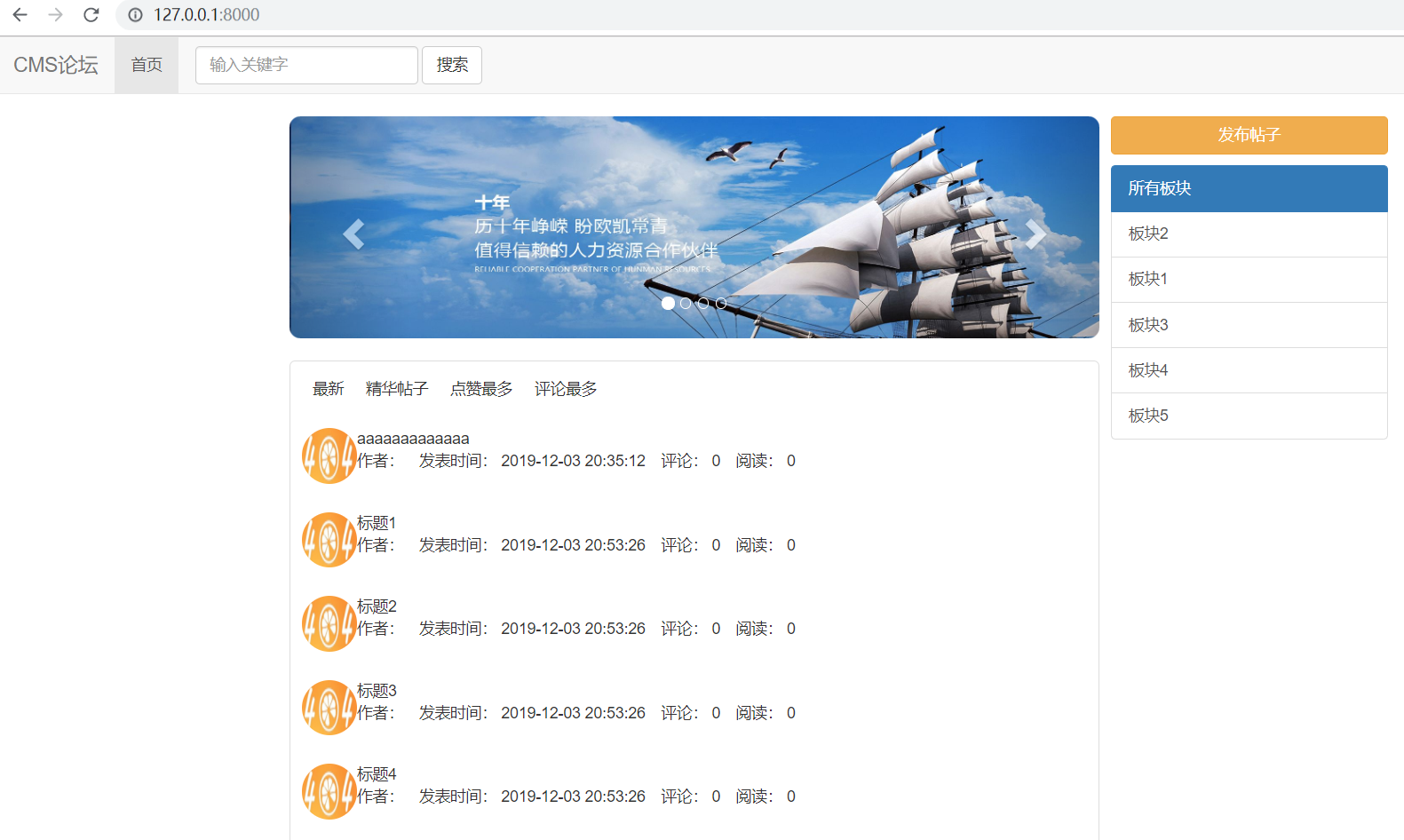
由于用户没有设置头像,所以这里的头像全都是取的logo
一百三十九:CMS系统之首页帖子列表布局的更多相关文章
- 一百三十七:CMS系统之发布帖子前台布局
把前面配置好的ueditor的文件复制到static下 把ueditor蓝图导入,注册 初始化ueditor //初始化ueditor$(function () { var ue = UE.getEd ...
- 一百三十:CMS系统之七牛js和python的SDK使用示例
1.安装: pip install qiniu 2.编写获取uptoken的接口 @app.route('/uptoken/')def uptoken(): access_key = '' secre ...
- Java开发笔记(一百三十九)JavaFX的输入框
循着Swing的旧例,JavaFX仍然提供了三种文本输入框,分别是单行输入框TextField.密码输入框PasswordField.多行输入框TextArea.这些输入框都由抽象类TextInput ...
- 一百三十三:CMS系统之版块管理一
把模型创建到公共的models里面 class BoardModel(db.Model): __tablename__ = 'board' id = db.Column(db.Integer, pri ...
- 一百二十:CMS系统之注册功能前后端逻辑
给提交按钮加一个id,方便写js js //发送ajax请求注册请求$(function () { $('#submit-btn').click(function (event) { event.pr ...
- 一百三十一:CMS系统之轮播图上传图片功能
将七牛js放到common下 把获取uptoken的接口放到common视图中 把初始化七牛放到banners.js中 //初始化七牛$(function () { qiniujs.setUp({ ' ...
- 测开之路一百三十九:会话管理之cookie写入、读取、和更新
机制:服务器端发送的小段文本信息存储在客户端硬盘 功能:记录用户偏好,请求.页面.站点间共享信息 特点:易丢失.安全隐患 添加cookie,需要用到make_respons.set_cookie @a ...
- Gradle 1.12用户指南翻译——第三十九章. IDEA 插件
本文由CSDN博客万一博主翻译,其他章节的翻译请参见: http://blog.csdn.net/column/details/gradle-translation.html 翻译项目请关注Githu ...
- WPF,Silverlight与XAML读书笔记第三十九 - 可视化效果之3D图形
原文:WPF,Silverlight与XAML读书笔记第三十九 - 可视化效果之3D图形 说明:本系列基本上是<WPF揭秘>的读书笔记.在结构安排与文章内容上参照<WPF揭秘> ...
随机推荐
- Luogu P1290 欧几里得的游戏/UVA10368 Euclid's Game
Luogu P1290 欧几里得的游戏/UVA10368 Euclid's Game 对于博弈论的题目没接触过多少,而这道又是比较经典的SG博弈,所以就只能自己来推关系-- 假设我们有两个数$m,n$ ...
- jupyter notebook在启动时kernel一直在busy , 无法print
转: https://blog.csdn.net/loovelj/article/details/82184223 一. 问题: 内核一直显示忙碌,连简单的print都不能执行了.然后看后台,最后说” ...
- certbot更新错误
自动更新老是提示这个错误. root@vultr:~/certbot# ./certbot-auto Upgrading certbot-auto 0.29.1 to 0.34.2... Couldn ...
- [NOI2005]月下柠檬树
题意 F.A.Qs Home Discuss ProblemSet Status Ranklist Contest 入门OJ ModifyUser autoint Logout 捐赠本站 Probl ...
- git 和 svn比较
SVN和Git 介绍,区别,优缺点,适用范围总结 原创 2016年01月29日 15:17:36 15774 介绍 SVN SVN是Subversion的简称,是一个开放源代码的版本控制系统, ...
- Django REST framework+Vue 打造生鲜电商项目(笔记六)
(部分代码来自https://www.cnblogs.com/derek1184405959/p/8836205.html) 九.个人中心功能开发 1.drf的api文档自动生成 (1) url #d ...
- Restful架构API编码规范
Restful API 目前比较成熟的一套互联网应用程序的API设计理论 一.协议 API与用户的通信协议,总是使用HTTPs协议. 二.域名 应该尽量将API部署在专用域名之下. https://a ...
- 34、[源码]-AOP原理-链式调用通知方法
34.[源码]-AOP原理-链式调用通知方法
- 【解题报告】CSP2019-S D1T1 格雷码
题目链接:https://www.luogu.org/problem/P5657 话说这道题怎么是道橙题啊. 基本思路 因为n位格雷码的前2n-1位就是n-1位格雷码前面加了一位‘0’,所以可以把它们 ...
- IDEA八条配置修改
IDEA版本:IntelliJ IDEA 2019.2.1 x64 八条配置修改: 自动编译开关 忽略大小写开关 智能导包开关 悬浮提示开关 取消单行显示tabs的操作 项目文件编码 滚轴修改字体大小 ...