
用canvas实现一个colorpicker
http://www.cnblogs.com/ufex/p/6382982.html
每个浏览器都有自己的特点,比如今天要做的colorpicker就是,一千个浏览器,一千个哈姆雷特,一千个colorpicker。今天canvas系列就用canvas做一个colorpicker。
**********************************************************************
效果图和demo
突然翻到了之前用js和dom写的一个colorpicker,比较挫,扔张图就好(old)
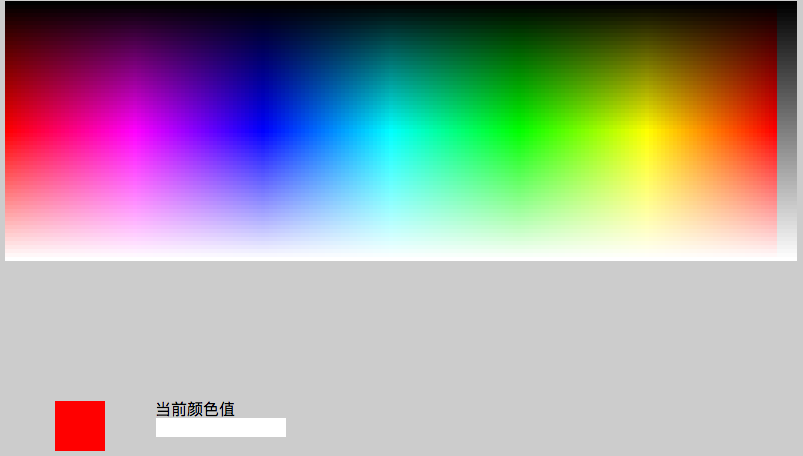
这个真的很挫,性能很差,因为每一个可选的颜色值都是一个dom,如果要实现256*256,那浏览器就爆了~~~~~
好,回到今天的demo(new)
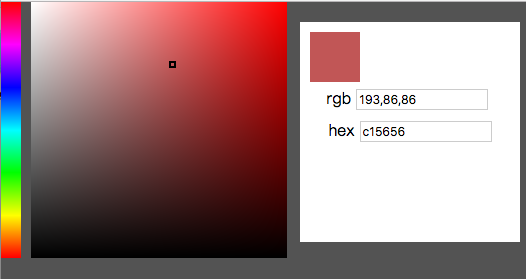
demo链接: https://win7killer.github.io/can_ps/src/demo/color_picker.html
没错,就是照着PS的颜色选择器的样子仿的。
**********************************************************************
实现
首先我们来看效果图分析怎么做:
1.左侧colorbar
 左侧提供一系列过渡色,不难看出,这个是“红黄绿青蓝紫”这六种颜色,然后加以过渡色处理来的。最后紫色还要过渡回到红色。
另外换成环状的可能更加好识别,如下图:
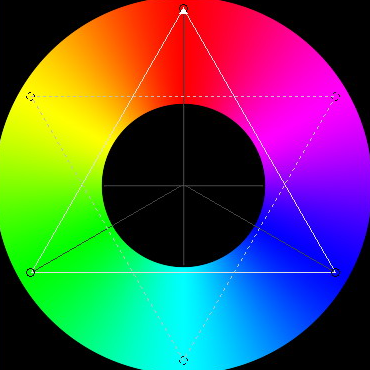
那么,我们就可以用canvas的过渡色来实现左侧这个区域,
代码如下:

 1 function colorBar() {

 2     var gradientBar = ctx.createLinearGradient(0, 0, 0, width);

 3     gradientBar.addColorStop(0, '#f00');

 4     gradientBar.addColorStop(1 / 6, '#f0f');

 5     gradientBar.addColorStop(2 / 6, '#00f');

 6     gradientBar.addColorStop(3 / 6, '#0ff');

 7     gradientBar.addColorStop(4 / 6, '#0f0');

 8     gradientBar.addColorStop(5 / 6, '#ff0');

 9     gradientBar.addColorStop(1, '#f00');

10

11     ctx.fillStyle = gradientBar;

12     ctx.fillRect(0, 0, 20, width);

13 }
这里涉及到canvas的fillStyle或者strokenStyle的填充对象,可以使用过渡色对象(自己瞎叫的名字),了解更多可以去w3cschool。
2.中间颜色区
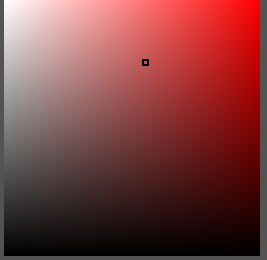
中间这块乍看很简单,再看有点蒙bi,三看才搞清楚怎么搞。
乍看:其实就是左侧选中的那个颜色(比如A),然后进行过渡处理,不还是过渡么。
再看:恩,颜色,然后黑色,白色,三种颜色三个角怎么过渡~~~~(如果有快捷的过渡实现方式请留言告知我,THX)。
三看:那么,拆借一下,比如红色到白色,然后加一层黑色到透明?是滴,就是这么个方案。(我自己之前弯路到了红色到黑色,白色到透明)
那么就是借助两次过渡色的填充,实现中间色块区域。
代码如下:
 1 function colorBox(color) {

 2     // 底色填充,也就是(举例红色)到白色

 3     var gradientBase = ctx.createLinearGradient(30, 0, width + 30, 0);

 4     gradientBase.addColorStop(1, color);

 5     gradientBase.addColorStop(0, 'rgba(255,255,255,1)');

 6     ctx.fillStyle = gradientBase;

 7     ctx.fillRect(30, 0, width, width);

 8

 9     // 第二次填充,黑色到透明

10     var my_gradient1 = ctx.createLinearGradient(0, 0, 0, width);

11     my_gradient1.addColorStop(0, 'rgba(0,0,0,0)');

12     my_gradient1.addColorStop(1, 'rgba(0,0,0,1)');

13     ctx.fillStyle = my_gradient1;

14     ctx.fillRect(30, 0, width, width);

15 }
需要注意,第一次填充,是从横向填充,这时候中间色块的左边已经不是canvas的原点,所以加了偏移量30px
第二次填充纵向,Y轴还是0。
这个在实际应用中要注意。
到这里,左侧canvas绘制的东西就差不多了。
3. 颜色选择事件处理
首先明确交互事件:
选择左侧colorbar(比如#ff0),中间base颜色要跟着变化,右上角也要是对应颜色(#ff0)【这个时候其实也可以得到选择的颜色,可以结束交互】;
选择中间区域的颜色,左侧不变,可以获取到对应的颜色值,结束交互。
最终就是在右侧的dom区域展示所选到的颜色。
canvas中没有dom对象,所以鼠标点击事件要靠鼠标的位置来确定是否进行相应处理。而且我们绘制的不是path对象,也无法使用inpath之类的方法来判断。
点击事件代码:
 1 can.addEventListener('click', function(e) {

 2     var ePos = {

 3         x: e.offsetX || e.layerX,

 4         y: e.offsetY || e.layerY

 5     }

 6     var rgbaStr = '#000';

 7     if (ePos.x >= 0 && ePos.x < 20 && ePos.y >= 0 && ePos.y < width) {

 8         // in

 9         rgbaStr = getRgbaAtPoint(ePos, 'bar');

10         colorBox('rgba(' + rgbaStr + ')');

11     } else if (ePos.x >= 30 && ePos.x < 30 + width && ePos.y >= 0 && ePos.y < width) {

12         rgbaStr = getRgbaAtPoint(ePos, 'box');

13     } else {

14         return;

15     }

16     outColor(rgbaStr.slice(0, 3).join());

17     cur.style.left = ePos.x + 'px';

18     cur.style.top = ePos.y + 'px';

19     cur.style.outlineColor = (rgbaStr[0] > 256 / 2 || rgbaStr[1] > 256 / 2 || rgbaStr[2] > 256 / 2) ? '#000' : '#fff';

20 });
其中,getRgbaAtPoint是最终的获取颜色值的方法,需要根据不同的鼠标位置传参来决定选取左侧还是右侧图像
获取颜色就比较简单了,就是拿到对应区域的imageData,然后从颜色数组中获取到对应位置的颜色值即可。
做过canvas像素处理的同学会比较明白,不明白的建议先去把getImageData方法看一看,了解一下
获取颜色代码:
 1 function getRgbaAtPoint(pos, area) {

 2     if (area == 'bar') {

 3         var imgData = ctx.getImageData(0, 0, 20, width);

 4     } else {

 5         var imgData = ctx.getImageData(0, 0, can.width, can.height);

 6     }

 7

 8     var data = imgData.data;

 9     var dataIndex = (pos.y * imgData.width + pos.x) * 4;

10     return [

11         data[dataIndex],

12         data[dataIndex + 1],

13         data[dataIndex + 2],

14         (data[dataIndex + 3] / 255).toFixed(2),

15     ];

16 }
这时候拿到的就是rgba颜色对应的值。
需要注意,最后一个数据时alpha通道,canvas的imageData里是0-255【没记错的话】,而不是我们平常用的0-1,所以要做转换。
颜色输出&转换:
拿到颜色后就可以输出到右侧了。
右侧只是用了rgb三通道,所以取数组前三位就好。
至于hex颜色,则用rgb来转换。
转换代码如下:
 1 function rgb2hex(rgb) {

 2     var aRgb = rgb instanceof Array ? rgb : (rgb.split(',') || [0, 0, 0]);

 3     var temp;

 4     return [

 5         (temp = Number(aRgb[0]).toString(16)).length == 1 ? ('0' + temp) : temp,

 6         (temp = Number(aRgb[1]).toString(16)).length == 1 ? ('0' + temp) : temp,

 7         (temp = Number(aRgb[2]).toString(16)).length == 1 ? ('0' + temp) : temp,

 8     ].join('');

 9 }

10

11 function hex2rgb(hex) {

12     if (hex.length == 3) {

13         hex = hex[0] + hex[0] + hex[1] + hex[1] + hex[2] + hex[2];

14     }

15     return [

16         parseInt(hex[0] + hex[1], 16),

17         parseInt(hex[2] + hex[3], 16),

18         parseInt(hex[4] + hex[5], 16),

19     ].join();

20 }
简单来说,就是10进制与16进制的转换。
有个点,就是rgb的三个值,分别对应的是hex的每两个值,比如rgb(255,0,255)对用到hex则分别是 “ff,00,ff”,综合起来就是“#ff00ff”,可以简写“#f0f”。
额外效果:
中间的颜色选择还有个效果,就是鼠标拖拽到哪里,就选中相应的颜色。
鼠标拖拽事件大家都不陌生,直接上代码,不废话
 1 can.addEventListener('mousedown', function(e) {

 2     var ePos = {

 3         x: e.layerX || e.offsetX,

 4         y: e.layerY || e.offsetY

 5     }

 6     if (ePos.x >= 30 && ePos.x < 30 + width && ePos.y >= 0 && ePos.y < width) {

 7         document.onmousemove = function(e) {

 8             var pos = {

 9                 x: e.clientX,

10                 y: e.clientY

11             }

12

13             pos.x = pos.x < 30 ? 30 : pos.x && (pos.x > (30 + width - 1) ? (30 + width - 1) : pos.x);

14             pos.y = pos.y < 0 ? 0 : pos.y && (pos.y > (width - 1) ? (width - 1) : pos.y);

15

16             rgbaStr = getRgbaAtPoint(pos, 'box');

17             cur.style.left = pos.x + 'px';

18             cur.style.top = pos.y + 'px';

19             cur.style.outlineColor = (rgbaStr[0] > 256 / 2 || rgbaStr[1] > 256 / 2 || rgbaStr[2] > 256 / 2) ? '#000' : '#fff';

20             outColor(rgbaStr.slice(0, 3).join());

21         };

22         document.onmouseup = function() {

23             // outColor(rgbaStr.slice(0, 3).join());

24             document.onmouseup = document.onmousemove = null;

25         }

26     }

27

28 });
这样,每段代码拼凑起来,就是整体的架子了,附上最终代码(比较长,折叠了):
**********************************************************************
写在最后:
最终写完效果在自己玩耍的过程中,发现浏览器对于canvas的过渡色实现有点问题。chrome很明显,FF稍微好一点。
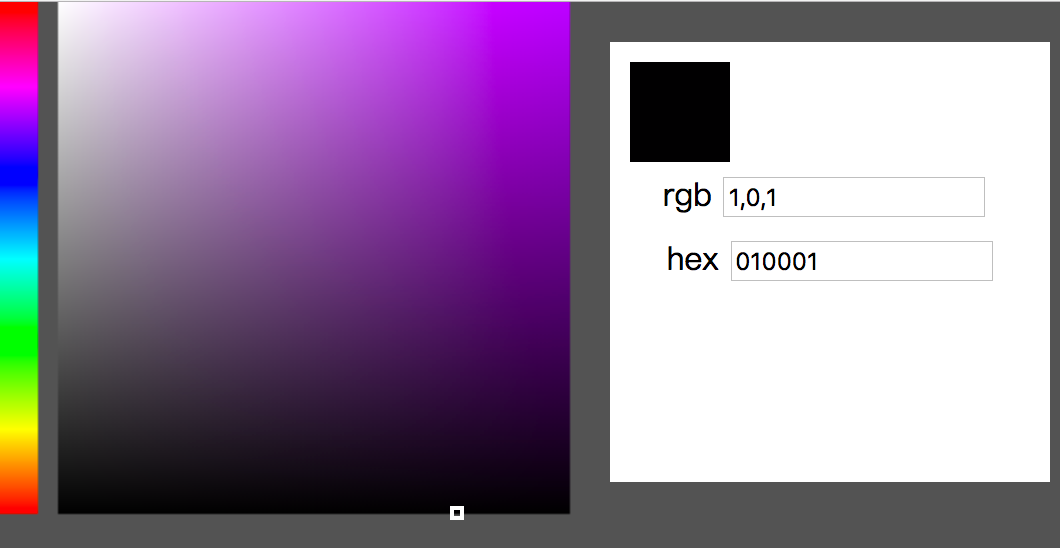
如图: 按道理来说,最下边选到的颜色应该都是rgb(0,0,0)才对,但是图上可见,有些地方并不是~~~
大多数还是000,某些点某个通道有可能会出现1。原因未知。
尝试了email给chrome邮箱,可能我英语比较差人家没看懂,也可能我问题没描述清楚,反正后来没有回复,之后的浏览器更新也没有处理。
相应的,css3的过渡色则没有一丁点问题。
<!DOCTYPE html>

<html lang="zh">

	<head>

		<meta charset="UTF-8">

		<meta name="viewport" content="width=device-width, initial-scale=1.0">

		<meta http-equiv="X-UA-Compatible" content="ie=edge">

		<title>Document</title>

		<style>

			body {

				background: #535353;

				padding: 0;

				margin: 0;

			}

			canvas {

				cursor: crosshair;

			}

			#cur {

				width: 3px;

				height: 3px;

				outline: 2px solid #535353;

				margin-left: -1px;

				margin-top: -1px;

				position: absolute;

			}

			.wrapper {

				position: relative;

			}

			#color_show {

				width: 50px;

				height: 50px;

				background: #f00;

			}

			.panel {

				width: 200px;

				height: 200px;

				position: fixed;

				top: 20px;

				right: 20px;

				background-color: #fff;

				padding: 10px;

				text-align: center;

				line-height: 2em;

			}

		</style>

	</head>

	<body>

		<div class="wrapper">

			<canvas id="canvas" width="600" height="600"></canvas>

			<em id="cur"></em>

			<div class="panel">

				<div id="color_show"></div>

				<label>

            rgb <input type="text"  class="color_input" value="" id="rgb_value">

        </label><br>

				<label>

            hex <input type="text"  class="color_input" value="" id="hex_value">

        </label>

			</div>

		</div>

		<script>

			(function() {

				var width = 256;

				var can = document.getElementById('canvas');

				var ctx = can.getContext('2d');

				var curColor = 'rgba(255,0,0,1)';

				var cur = document.getElementById('cur');

				var rgbValue = document.getElementById('rgb_value');

				var hexValue = document.getElementById('hex_value');

				var colorShow = document.getElementById('color_show');

				var aColorInput = document.getElementsByClassName('color_input');

				function colorBar() {

					var gradientBar = ctx.createLinearGradient(0, 0, 0, width);

					gradientBar.addColorStop(0, '#f00');

					gradientBar.addColorStop(1 / 6, '#f0f');

					gradientBar.addColorStop(2 / 6, '#00f');

					gradientBar.addColorStop(3 / 6, '#0ff');

					gradientBar.addColorStop(4 / 6, '#0f0');

					gradientBar.addColorStop(5 / 6, '#ff0');

					gradientBar.addColorStop(1, '#f00');

					ctx.fillStyle = gradientBar;

					ctx.fillRect(0, 0, 20, width);

				}

				function rgb2hex(rgb) {

					var aRgb = rgb instanceof Array ? rgb : (rgb.split(',') || [0, 0, 0]);

					var temp;

					return [

						(temp = Number(aRgb[0]).toString(16)).length == 1 ? ('0' + temp) : temp,

						(temp = Number(aRgb[1]).toString(16)).length == 1 ? ('0' + temp) : temp,

						(temp = Number(aRgb[2]).toString(16)).length == 1 ? ('0' + temp) : temp,

					].join('');

				}

				function hex2rgb(hex) {

					if(hex.length == 3) {

						hex = hex[0] + hex[0] + hex[1] + hex[1] + hex[2] + hex[2];

					}

					return [

						parseInt(hex[0] + hex[1], 16),

						parseInt(hex[2] + hex[3], 16),

						parseInt(hex[4] + hex[5], 16),

					].join();

				}

				function putCurDom(color) {

					if(/([0-9a-f]{3}|[0-9a-f]{6})/i.test(color)) {

						// hex

						color = hex2rgb(color);

					} else if(color instanceof Array) {

						color = color.join(',');

					} else if(/\d{1,3}(\,\d{1,3}){2}/i.test(color)) {

					} else {

						return;

					}

				}

				function colorBox(color) {

					// 底色填充,也就是(举例红色)到白色

					var gradientBase = ctx.createLinearGradient(30, 0, width + 30, 0);

					gradientBase.addColorStop(1, color);

					gradientBase.addColorStop(0, 'rgba(255,255,255,1)');

					ctx.fillStyle = gradientBase;

					ctx.fillRect(30, 0, width, width);

					// 第二次填充,黑色到透明

					var my_gradient1 = ctx.createLinearGradient(0, 0, 0, width);

					my_gradient1.addColorStop(0, 'rgba(0,0,0,0)');

					my_gradient1.addColorStop(1, 'rgba(0,0,0,1)');

					ctx.fillStyle = my_gradient1;

					ctx.fillRect(30, 0, width, width);

				}

				function init() {

					colorBar();

					colorBox(curColor);

					bind();

				}

				function bind() {

					can.addEventListener('click', function(e) {

						var ePos = {

							x: e.offsetX || e.layerX,

							y: e.offsetY || e.layerY

						}

						var rgbaStr = '#000';

						if(ePos.x >= 0 && ePos.x < 20 && ePos.y >= 0 && ePos.y < width) {

							// in

							rgbaStr = getRgbaAtPoint(ePos, 'bar');

							colorBox('rgba(' + rgbaStr + ')');

						} else if(ePos.x >= 30 && ePos.x < 30 + width && ePos.y >= 0 && ePos.y < width) {

							rgbaStr = getRgbaAtPoint(ePos, 'box');

						} else {

							return;

						}

						outColor(rgbaStr.slice(0, 3).join());

						cur.style.left = ePos.x + 'px';

						cur.style.top = ePos.y + 'px';

						cur.style.outlineColor = (rgbaStr[0] > 256 / 2 || rgbaStr[1] > 256 / 2 || rgbaStr[2] > 256 / 2) ? '#000' : '#fff';

					});

					can.addEventListener('mousedown', function(e) {

						var ePos = {

							x: e.layerX || e.offsetX,

							y: e.layerY || e.offsetY

						}

						if(ePos.x >= 30 && ePos.x < 30 + width && ePos.y >= 0 && ePos.y < width) {

							document.onmousemove = function(e) {

								var pos = {

									x: e.clientX,

									y: e.clientY

								}

								pos.x = pos.x < 30 ? 30 : pos.x && (pos.x > (30 + width - 1) ? (30 + width - 1) : pos.x);

								pos.y = pos.y < 0 ? 0 : pos.y && (pos.y > (width - 1) ? (width - 1) : pos.y);

								rgbaStr = getRgbaAtPoint(pos, 'box');

								cur.style.left = pos.x + 'px';

								cur.style.top = pos.y + 'px';

								cur.style.outlineColor = (rgbaStr[0] > 256 / 2 || rgbaStr[1] > 256 / 2 || rgbaStr[2] > 256 / 2) ? '#000' : '#fff';

								outColor(rgbaStr.slice(0, 3).join());

							};

							document.onmouseup = function() {

								// outColor(rgbaStr.slice(0, 3).join());

								document.onmouseup = document.onmousemove = null;

							}

						}

					});

				}

				function outColor(rgb) {

					rgbValue.value = rgb;

					hexValue.value = rgb2hex(rgb);

					colorShow.style.backgroundColor = 'rgb(' + rgb + ')';

				}

				function getRgbaAtPoint(pos, area) {

					if(area == 'bar') {

						var imgData = ctx.getImageData(0, 0, 20, width);

					} else {

						var imgData = ctx.getImageData(0, 0, can.width, can.height);

					}

					var data = imgData.data;

					var dataIndex = (pos.y * imgData.width + pos.x) * 4;

					return [

						data[dataIndex],

						data[dataIndex + 1],

						data[dataIndex + 2],

						(data[dataIndex + 3] / 255).toFixed(2),

					];

				}

				init();

			})()

		</script>

	</body>

</html>
用canvas实现一个colorpicker的更多相关文章
- 【canvas系列】用canvas实现一个colorpicker
每个浏览器都有自己的特点,比如今天要做的colorpicker就是,一千个浏览器,一千个哈姆雷特,一千个colorpicker.今天canvas系列就用canvas做一个colorpicker. ** ...
- 【canvas系列】用canvas实现一个colorpicker(类似PS的颜色选择器)
每个浏览器都有自己的特点,比如今天要做的colorpicker就是,一千个浏览器,一千个哈姆雷特,一千个colorpicker.今天canvas系列就用canvas做一个colorpicker. ** ...
- 深夜,用canvas画一个时钟
深夜,用canvas画一个时钟 查看demo 这几天准备阿里巴巴的笔试,可以说已经是心力交瘁,自从阿里和蘑菇街的内推被刷掉之后,开始越来越怀疑起自己的能力来,虽然这点打击应该是微不足道的.毕竟校招在刚 ...
- html5 canvas 实现一个简单的叮当猫头部
原文:html5 canvas 实现一个简单的叮当猫头部 html5的canvas是很强大的,今天也是温习了一下之前的基础知识,然后学着做了一个简单的小案例.虽然在这一块几乎空白,但还是乐于尝试... ...
- 使用canvas制作一个移动端画板
概述 使用canvas做一个画板,代码里涵盖了一些canvas绘图的基本思想,各种工具的类也可以分别提出来用 详细 代码下载:http://www.demodashi.com/demo/10503.h ...
- 10分钟,利用canvas画一个小的loading界面
首先利用定义下canvas得样式 <canvas width="1024" height="720" id="canvas" styl ...
- 用Canvas画一个刮刮乐
Canvas 通过 JavaScript 来绘制 2D图形.Canvas 是逐像素进行渲染的.开发者可以通过javascript脚本实现任意绘图.Canvas元素是HTML5的一部分,允许脚本语言动态 ...
- 用HTML5的canvas做一个时钟
对于H5来说,canvas可以说是它最有特色的一个地方了,有了它之后我们可以随意的在网页上画各种各样的图形,做一些小游戏啊什么的.canvas这个标签的用法,在网上也有特别多的教程了,这里就不作介绍了 ...
- 使用 Canvas 实现一个类似 Google 的可视化的页面错误反馈库
使用 Canvas 实现一个类似 Google 的可视化的页面错误反馈库 iframe 嵌套 iframe iframe 包含 复制的 HTML 页面 和支持可以拖拽的工具栏 鼠标经过上面,智能识别 ...
随机推荐
- 对于Nginx+PHP实现大文件上传时候需要修改的参数
post_max_size表示POST表单提交的最大大小upload_max_filesize 表示文件上传的最大大小. 通常post_max_size设置的值必须必upload_max_filesi ...
- Python自动化测试框架——数据驱动(从代码中读取)
今天小编要介绍的是数据驱动最简单和最常用的一种方法,由于只是介绍方法,代码操作后的美观程度略有缺陷,介意者可以自行改动 还是以163邮箱登录为例: 设计一个存放数据的类,这个类的参数是我们需要修改的数 ...
- Spring Cloud Stream在同一通道根据消息内容分发不同的消费逻辑
应用场景 有的时候,我们对于同一通道中的消息处理,会通过判断头信息或者消息内容来做一些差异化处理,比如:可能在消息头信息中带入消息版本号,然后通过if判断来执行不同的处理逻辑,其代码结构可能是这样的: ...
- Solr5.0.0 DIH之增量索引
定时索引相关知识 增量更新需要配置个sql(deltaImportQuery.deltaQuery) deltaImportQuery="select * where id='${dih.d ...
- HDU 4089 && UVa 1498 Activation 带环的概率DP
要在HDU上交的话,要用滚动数组优化一下空间. 这道题想了很久,也算是想明白了,就好好写一下吧. P1:激活游戏失败,再次尝试. P2:连接失服务器败,从队首排到队尾. P3:激活游戏成功,队首的人出 ...
- Head First HTML5 Programming笔记--chapter2 介绍Javascript和DOM
你已经了解了HTML标记(也称为结构),而且知道了CSS样式(也称为表示),剩下的就是Javascript(也称为行为). JavaScript的工作方式 1. 编写 你创建HTML标记和JavaSc ...
- 在后台编辑器Text和Visual切换时,部分代码丢失的解决方法
function fix_tiny_mce_before_init( $in ) { // You can actually debug this without actually needing A ...
- TOJ 2596: Music Notes
2596: Music Notes Time Limit(Common/Java):1000MS/10000MS Memory Limit:65536KByteTotal Submit: 3 ...
- 【drp 12】再识转发和重定向:SpringMVC无法跳转页面
最近再使用SpringMVC进行页面跳转的时候,不知道发生了什么,始终都无法正确跳转.后来问题解决了,发现是对于转发和重定向没有能很好的理解,以此写篇博客,权当做积累了! 声明:本博客的所有代码,均为 ...
- Dialog共通写法(两个button)
package jp.co.hyakujushibank.view import android.app.Dialogimport android.content.Contextimport andr ...