
3DTouch简单了解
3D Touch的三大模块
代码Demo:https://github.com/haozheMa/3DTouch
在我们的app中使用3D Touch功能,主要分为以下三个模块:
1、Home Screen Quick Actions
通过主屏幕的应用Icon,我们可以用3D Touch呼出一个菜单,进行快速定位应用功能模块相关功能的开发。如上面的日历。
2、peek and pop
这个功能是一套全新的用户交互机制,在使用3D Touch时,ViewController中会有如下三个交互阶段:
(1)提示用户这里有3D Touch的交互,会使交互控件周围模糊
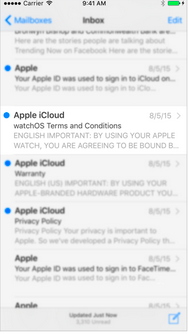
(2)继续深按,会出现预览视图
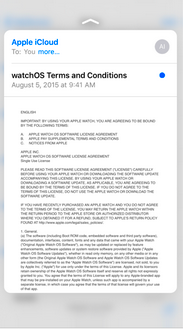
(3)通过视图上的交互控件进行进一步交互
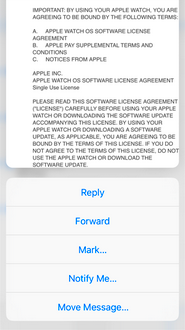
这个模块的设计可以在网址连接上进行网页的预览交互。
3.Force Properties
iOS9为我们提供了一个新的交互参数:力度。我们可以检测某一交互的力度值,来做相应的交互处理。例如,我们可以通过力度来控制快进的快慢,音量增加的快慢等。
Home Screen Quick Action使用与相关api详解
1、静态标签
静态标签是我们在项目的配置plist文件中配置的标签,在用户安装程序后就可以使用,并且排序会在动态标签的前面。
我们先来看静态标签的配置:
首先,在info.plist文件中添加如下键值(我在测试的时候,系统并没有提示,只能手打上去):

先添加了一个UIApplicationShortcutItems的数组,这个数组中添加的元素就是对应的静态标签,在每个标签中我们需要添加一些设置的键值:
必填项(下面两个键值是必须设置的):
UIApplicationShortcutItemType 这个键值设置一个快捷通道类型的字符串
UIApplicationShortcutItemTitle 这个键值设置标签的标题
选填项(下面这些键值不是必须设置的):
UIApplicationShortcutItemSubtitle 设置标签的副标题
UIApplicationShortcutItemIconType 设置标签Icon类型
UIApplicationShortcutItemIconFile 设置标签的Icon文件
UIApplicationShortcutItemUserInfo 设置信息字典(用于传值)
把截图中的内容配置一下,就可以运行程序,测试一下
2、动态标签
动态标签是我们在程序中,通过代码添加的,与之相关的类,主要有三个:
UIApplicationShortcutItem 创建3DTouch标签的类
UIMutableApplicationShortcutItem 创建可变的3DTouch标签的类
UIApplicationShortcutIcon 创建标签中图片Icon的类
首先介绍3DTouch的属性和方法
@interface UIApplicationShortcutItem : NSObject <NSCopying, NSMutableCopying>

//下面是两个初始化方法 通过设置type,title等属性来创建一个标签,这里的icon是UIApplicationShortcutIcon对象,我们后面再说

- (instancetype)initWithType:(NSString *)type localizedTitle:(NSString *)localizedTitle localizedSubtitle:(nullable NSString *)localizedSubtitle icon:(nullable UIApplicationShortcutIcon *)icon userInfo:(nullable NSDictionary *)userInfo NS_DESIGNATED_INITIALIZER;

- (instancetype)initWithType:(NSString *)type localizedTitle:(NSString *)localizedTitle;

//下面这是一些只读的属性,获取相应的属性值

@property (nonatomic, copy, readonly) NSString *type;

@property (nonatomic, copy, readonly) NSString *localizedTitle;

@property (nullable, nonatomic, copy, readonly) NSString *localizedSubtitle;

@property (nullable, nonatomic, copy, readonly) UIApplicationShortcutIcon *icon;

@property (nullable, nonatomic, copy, readonly) NSDictionary<NSString *, id <NSSecureCoding>> *userInfo;
//这个类继承于 UIApplicationShortcutItem,创建的标签可变

@interface UIMutableApplicationShortcutItem : UIApplicationShortcutItem

@property (nonatomic, copy) NSString *type;

@property (nonatomic, copy) NSString *localizedTitle;

@property (nullable, nonatomic, copy) NSString *localizedSubtitle;

@property (nullable, nonatomic, copy) UIApplicationShortcutIcon *icon;

@property (nullable, nonatomic, copy) NSDictionary<NSString *, id <NSSecureCoding>> *userInfo;

@end
//这个类创建标签中的icon

@interface UIApplicationShortcutIcon : NSObject <NSCopying>

//创建系统风格的icon

+ (instancetype)iconWithType:(UIApplicationShortcutIconType)type;

//创建自定义的图片icon

+ (instancetype)iconWithTemplateImageName:(NSString *)templateImageName;

@end
下边是实现的代码,可以写在RootVC中,也可以写在AppDlegate的
didFinishLaunchingWithOptions方法中(根据所查网络资料,写这两处都好使)
- (void)viewDidLoad {

    [super viewDidLoad];

    // Do any additional setup after loading the view, typically from a nib.

    //创建

    UIApplicationShortcutItem * item = [[UIApplicationShortcutItem alloc]initWithType:@"2" localizedTitle:@"按钮标签" localizedSubtitle:@"副标题" icon:[UIApplicationShortcutIcon iconWithType:UIApplicationShortcutIconTypePlay] userInfo:nil];

    添加

    [UIApplication sharedApplication].shortcutItems = @[item];

}
图标枚举类型
typedef NS_ENUM(NSInteger, UIApplicationShortcutIconType) {

    UIApplicationShortcutIconTypeCompose,//编辑的图标

    UIApplicationShortcutIconTypePlay,//播放图标

    UIApplicationShortcutIconTypePause,//暂停图标

    UIApplicationShortcutIconTypeAdd,//添加图标

    UIApplicationShortcutIconTypeLocation,//定位图标

    UIApplicationShortcutIconTypeSearch,//搜索图标

    UIApplicationShortcutIconTypeShare//分享图标

} NS_ENUM_AVAILABLE_IOS(9_0);
3、响应标签的行为
我们在AppDlegate中添加方法
- (void)application:(UIApplication *)application

performActionForShortcutItem:(UIApplicationShortcutItem *)shortcutItem

 completionHandler:(void(^)(BOOL succeeded))completionHandler{

}
使用的话可以类似这样
/** 处理shortcutItem */

- (void)application:(UIApplication *)application performActionForShortcutItem:(UIApplicationShortcutItem *)shortcutItem completionHandler:(void (^)(BOOL))completionHandler {

    switch (shortcutItem.type.integerValue) {

        case 1: { // 测试1

            [[NSNotificationCenter defaultCenter] postNotificationName:@"gotoTestVc" object:self userInfo:@{@"type":@"1"}];

        }

        case 2: { // 测试2

            [[NSNotificationCenter defaultCenter] postNotificationName:@"gotoTestVc" object:self userInfo:@{@"type":@"2"}];

        }   break;

        default:

            break;

    }

}
或者这样
- (void)application:(UIApplication *)application performActionForShortcutItem:(UIApplicationShortcutItem *)shortcutItem completionHandler:(void(^)(BOOL succeeded))completionHandler{

    //判断先前我们设置的唯一标识

    if([shortcutItem.type isEqualToString:@"-11.UITouchText.share"]){

        NSArray *arr = @[@"hello 3D Touch"];

        UIActivityViewController *vc = [[UIActivityViewController alloc]initWithActivityItems:arr applicationActivities:nil];

        //设置当前的VC 为rootVC

        [self.window.rootViewController presentViewController:vc animated:YES completion:^{

        }];

    }

}
几点注意:
1、快捷标签最多可以创建四个,包括静态的和动态的。
2、每个标签的题目和icon最多两行,多出的会用...省略
感觉差不多是这个样子吧。
参考 http://my.oschina.net/u/2340880/blog/511509(有在模拟器上测试的需求可以看原博主的内容)
peek and pop
实现peek和pop手势:
1、遵守协议 UIViewControllerPreviewingDelegate
2、注册 [self registerForPreviewingWithDelegate:self sourceView:self.view];
3、实现代理方法
具体代码:(与Home Screen Quick Action相互独立)
先写主页面的内容RootView
#import "ViewController.h"

#import "DetailViewController.h"

#define _ScreenWidth [UIScreen mainScreen].bounds.size.width

#define _ScreenHeight [UIScreen mainScreen].bounds.size.height

@interface ViewController ()<UITableViewDelegate,UITableViewDataSource,UIViewControllerPreviewingDelegate>

@property (strong,nonatomic) UITableView *tableView;

@property (copy, nonatomic) NSArray *items;

@property (assign, nonatomic) CGRect sourceRect; //用户手势点

@property (strong, nonatomic) NSIndexPath *indexPath; //用户手势点

@end

@implementation ViewController

/*

 实现peek和pop手势:

 1、遵守协议 UIViewControllerPreviewingDelegate

 2、注册    [self registerForPreviewingWithDelegate:self sourceView:self.view];

 3、实现代理方法

 */

- (void)viewDidLoad

{

    [super viewDidLoad];

    [self loadTableview];

    //注册Peek和Pop

    if (self.traitCollection.forceTouchCapability == UIForceTouchCapabilityAvailable)

    {

        /**

         *  这个判断的作用是检测当前设备是否支持 3D Touch

         */

        [self registerForPreviewingWithDelegate:self sourceView:self.view];

    }

}

//加载tableview

-(void)loadTableview

{

    self.tableView = [[UITableView alloc]initWithFrame:CGRectMake(0, 0, _ScreenWidth, _ScreenHeight) style:UITableViewStylePlain];

    self.tableView.rowHeight = 50;

    self.tableView.delegate= self;

    self.tableView.dataSource = self;

    [self.view addSubview:self.tableView];

}

-(NSArray *)items

{

    if (_items == nil)

    {

        _items = [[NSArray alloc]initWithObjects:@"第一条",@"第二条",@"第三条",@"第四条",@"第五条",@"第六条",nil];

    }

    return _items;

}

#pragma mark - tableViewDelage

-(NSInteger)tableView:(UITableView *)tableView numberOfRowsInSection:(NSInteger)section

{

    return self.items.count;

}

-(UITableViewCell *)tableView:(UITableView *)tableView cellForRowAtIndexPath:(NSIndexPath *)indexPath

{

    static NSString *cellID = @"cell";

    UITableViewCell *cell = [tableView dequeueReusableCellWithIdentifier:cellID];

    if (cell == nil)

    {

        cell = [[UITableViewCell alloc]initWithStyle:UITableViewCellStyleDefault reuseIdentifier:cellID];

    }

    cell.textLabel.text = self.items[indexPath.row];

    return cell;

}

-(void)tableView:(UITableView *)tableView didSelectRowAtIndexPath:(NSIndexPath *)indexPath

{

    NSLog(@"点击了/pop第%zdcell",indexPath.row+1);

}

#pragma mark - peek&& pop代理

/** peek手势  */

-(nullable UIViewController *)previewingContext:(id<UIViewControllerPreviewing>)previewingContext viewControllerForLocation:(CGPoint)location

{

    //获取用户手势点的Cell的下标,同时判断手势点是否超出tableview的响应范围

    if (![self getShouldShowRectAndIndexPathWithLocation:location]) return nil;

    previewingContext.sourceRect = self.sourceRect;

    NSIndexPath *index =  [_tableView indexPathForRowAtPoint:location];

    UITableViewCell *cell = [_tableView cellForRowAtIndexPath:index];

    if(cell != nil ){

        DetailViewController *detailViewController = [[DetailViewController alloc] init];

        detailViewController.text = [NSString stringWithFormat:@"点击了第%zd个cell,预览图层,再用力按调用pop手势的代理方法", index.row+1];

        return detailViewController;

    }

    return nil;

}

/** pop手势  */

- (void)previewingContext:(id <UIViewControllerPreviewing>)previewingContext commitViewController:(UIViewController *)viewControllerToCommit {

//    [self tableView:self.tableView didSelectRowAtIndexPath:self.indexPath];

    [self showViewController:viewControllerToCommit sender:self];

}

/** 获取用户手势点所在cell的下标。同时判断手势点是否超出tableView响应范围。*/

-(BOOL)getShouldShowRectAndIndexPathWithLocation:(CGPoint)location

{

    NSInteger row = (location.y - 20)/50;

    self.sourceRect = CGRectMake(0, row * 50 , _ScreenWidth, 50);

    self.indexPath = [NSIndexPath indexPathForItem:row inSection:0];

    // 如果row越界了,返回NO 不处理peek手势

    return row >= self.items.count ? NO : YES;

}

- (void)didReceiveMemoryWarning {

    [super didReceiveMemoryWarning];

    // Dispose of any resources that can be recreated.

}

@end
然后是预览的那个DetailVC
//

//  DetailViewController.h

//  3DTouchPreviewDemo

//

//  Created by apple on 16/4/14.

//  Copyright © 2016年 apple. All rights reserved.

//

#import <UIKit/UIKit.h>

@interface DetailViewController : UIViewController

@property (nonatomic, strong) NSString *text;

@end
//

//  DetailViewController.m

//  3DTouchPreviewDemo

//

//  Created by apple on 16/4/14.

//  Copyright © 2016年 apple. All rights reserved.

//

#import "DetailViewController.h"

@interface DetailViewController ()

@end

@implementation DetailViewController

- (void)viewDidLoad {

    [super viewDidLoad];

    UIView *bgView = [[UIView alloc]initWithFrame:CGRectMake(0, 0, self.view.frame.size.width, self.view.frame.size.height)];

    bgView.backgroundColor = [UIColor whiteColor];

    [self.view addSubview:bgView];

    UIButton *btn = [[UIButton alloc]initWithFrame:CGRectMake(20, 64, 50, 50)];

    btn.backgroundColor = [UIColor redColor];

    [btn setTitle:@"返回" forState:UIControlStateNormal];

    [btn setTitleColor:[UIColor whiteColor] forState:UIControlStateNormal];

    [btn addTarget:self action:@selector(getHome) forControlEvents:UIControlEventTouchUpInside];

    [bgView addSubview:btn];

    UITextView *textView = [[UITextView alloc] initWithFrame:CGRectMake(0, 120, self.view.frame.size.width, self.view.frame.size.height)];

    textView.font = [UIFont systemFontOfSize:24];

    textView.text = self.text;

    [bgView addSubview:textView];

}

-(void)getHome

{

    [self dismissViewControllerAnimated:YES completion:nil];

}

- (NSArray<id<UIPreviewActionItem>> *)previewActionItems {

    UIPreviewAction *itemShare = [UIPreviewAction actionWithTitle:@"分享" style:UIPreviewActionStyleDefault handler:^(UIPreviewAction * _Nonnull action, UIViewController * _Nonnull previewViewController) {

        UIAlertView *alertView = [[UIAlertView alloc] initWithTitle:@"分享" message:@"分享内容" delegate:nil cancelButtonTitle:@"确定" otherButtonTitles: nil];

        [alertView show];

    }];

    return @[itemShare];

}

@end
运行结果:

3DTouch简单了解的更多相关文章
- 3D-Touch Home Screen Quick Actions 使用
1. 3D-Touch简单介绍 3D-Touch是iPhone 6s推出的一种可以让你与手机进行互动的全新方式.这一次,iPhone 能够感应你按压屏幕的力度.除了轻点.轻扫.双指开合这些熟悉的 Mu ...
- iOS之3DTouch的使用---很简单,看我就够啦~~
3DTouch是苹果在iOS9之后新推出的功能,功能大致可以分成两种,一种是长按app的icon,会出现以下的界面,还有一种是在app内部的某个视图上使用,效果如下图. 详细的效果也可以参见微信.微信 ...
- 一个简单的3DTouch、Peek和Pop手势Demo,附github地址
参考文章:http://www.jianshu.com/p/74fe6cbc542b 下载链接:https://github.com/banchichen/3DTouch-PeekAndPopGest ...
- iOS开发 swift 3dTouch实现 附代码
iOS开发 swift 3dTouch实现 附代码 一.What? 从iphone6s开始,苹果手机加入了3d touch技术,最简单的理解就是可以读取用户的点击屏幕力度大小,根据力度大小给予不同的反 ...
- 【造轮子】打造一个简单的万能Excel读写工具
大家工作或者平时是不是经常遇到要读写一些简单格式的Excel? shit!~很蛋疼,因为之前吹牛,就搞了个这东西,还算是挺实用,和大家分享下. 厌烦了每次搞简单类型的Excel读写?不怕~来,喜欢流式 ...
- Fabio 安装和简单使用
Fabio(Go 语言):https://github.com/eBay/fabio Fabio 是一个快速.现代.zero-conf 负载均衡 HTTP(S) 路由器,用于部署 Consul 管理的 ...
- node.js学习(三)简单的node程序&&模块简单使用&&commonJS规范&&深入理解模块原理
一.一个简单的node程序 1.新建一个txt文件 2.修改后缀 修改之后会弹出这个,点击"是" 3.运行test.js 源文件 使用node.js运行之后的. 如果该路径下没有该 ...
- 哪种缓存效果高?开源一个简单的缓存组件j2cache
背景 现在的web系统已经越来越多的应用缓存技术,而且缓存技术确实是能实足的增强系统性能的.我在项目中也开始接触一些缓存的需求. 开始简单的就用jvm(java托管内存)来做缓存,这样对于单个应用服务 ...
- 在Openfire上弄一个简单的推送系统
推送系统 说是推送系统有点大,其实就是一个消息广播功能吧.作用其实也就是由服务端接收到消息然后推送到订阅的客户端. 思路 对于推送最关键的是服务端向客户端发送数据,客户端向服务端订阅自己想要的消息.这 ...
随机推荐
- sh语法入门学习
玩linux都知道sh脚本的方便,但如何编写sh脚本却是像我这样的新手和菜鸟的难题.能不能编写得出来是一回事,了不了解又是另一回事.抱着好好学习,天天向上的精神,大家有空就看看吧,没有坏处的.下面来抄 ...
- oracle中to_date详细用法示例(oracle日期格式转换)
这篇文章主要介绍了oracle中to_date详细用法示例,包括期和字符转换函数用法.字符串和时间互转.求某天是星期几.两个日期间的天数.月份差等用法 TO_DATE格式(以时间:2007-11-02 ...
- HDU5907 Find Q 数学
题目大意:求当前串中只含q的连续子串的个数 题目思路:水题,但要注意的是计算过程中可能超int范围; #include<iostream> #include<algorithm> ...
- AI 人工智能 探索 (九)
链接:http://pan.baidu.com/s/1c0AM3g0 密码:uccw 今天补充 创建物体 移动物体 ,当点击创建后 ,会出来一个 上图的 ui,他跟随 物体,当你把物体拖动到 指定的地 ...
- Codeforces 691B s-palindrome
水题. #pragma comment(linker, "/STACK:1024000000,1024000000") #include<cstdio> #includ ...
- double类型之四舍五入
题目: A - Tutor Time Limit:1000MS Memory Limit:65535KB 64bit IO Format:%I64d & %I64u Submi ...
- STM32片上Flash内存映射、页面大小、寄存器映射
STM32片上Flash内存映射.页面大小.寄存器映射 STM32有4种Flash module organization,分别是:low-density devices(32KB,1KB/page) ...
- 关于Stringbulider类
在使用String类构造一个字符串时,要给它分配足够的内存来保存字符串,但StringBuilder通常分配的内存会比需要的更多.开发人员可以选择显式指定StringBuilder要分配多少内存,但如 ...
- Dice Possibility
Dice Possibility 时间限制:10000ms 单点时限:1000ms 内存限制:256MB 描述 What is possibility of rolling N dice and th ...
- java日期格式大全 format SimpleDateFormat(转)
java日期格式大全 format SimpleDateFormat /** * 字符串转换为java.util.Date<br> * 支持格式为 yyyy.MM.dd G ...