
Harbor - 私有企业级 Docker 镜像仓库
GitHub 地址
容器镜像服务 Docker镜像的基本使用
Docker:企业级私有镜像仓库Harbor使用
Harbor 是基于 Docker Registry 的企业级镜像仓库,安装后的使用方法类似 Docker Hub,可以通过 web 页面操作。
1. 安装 Harbor
本文使用的 Linux 版本是 CentOS7,Harbor 版本是 v1.4.0。
前提条件
需要首先安装 Docker 及 Docker-compose。
安装 Harbor
国内离线安装版本的镜像 在这里。
Harbor 提供源码、离线安装、在线安装三种方式,这里使用最方便的在线安装。
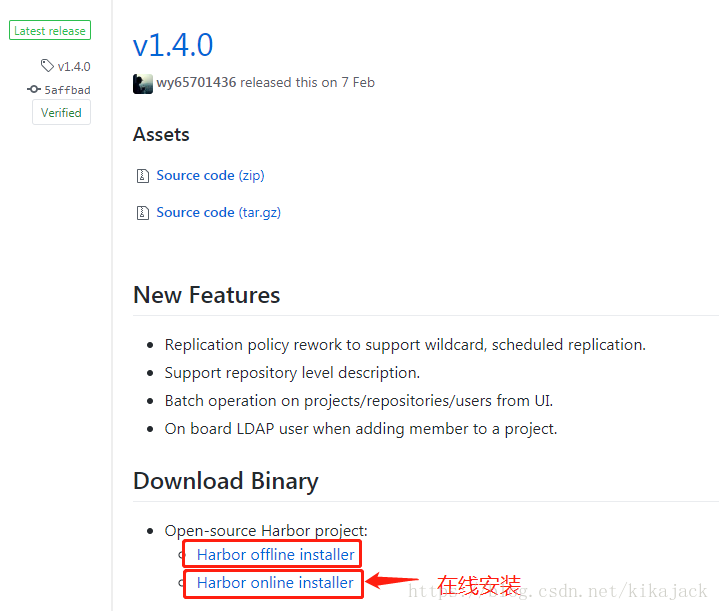
1. 下载 online 安装包并解压
wget https://storage.googleapis.com/harbor-releases/release-1.4.0/harbor-online-installer-v1.4.0.tgz

tar xvf harbor-online-installer-v1.4.0.tgz
2. 修改 harbor.cfg 文件
进入解压后的目录,将 harbor.cfg 文件中的 hostname 字段改为你的 IP 地址或域名。其他地方不需要改。
## Configuration file of Harbor

# hostname设置访问地址,可以使用ip、域名,不可以设置为127.0.0.1或localhost

hostname = 你的 IP

# 访问协议,默认是http,也可以设置https,如果设置https,则nginx ssl需要设置on

ui_url_protocol = http

# mysql数据库root用户默认密码root123,实际使用时修改下

db_password = root123

max_job_workers = 3

customize_crt = on

ssl_cert = /data/cert/server.crt

ssl_cert_key = /data/cert/server.key

secretkey_path = /data

admiral_url = NA

# 邮件设置,发送重置密码邮件时使用

email_identity =

email_server = smtp.mydomain.com

email_server_port = 25

email_username = sample_admin@mydomain.com

email_password = abc

email_from = admin <sample_admin@mydomain.com>

email_ssl = false

# 启动Harbor后,管理员UI登录的密码,默认是Harbor12345

harbor_admin_password = Harbor12345

# 认证方式,这里支持多种认证方式,如LADP、本次存储、数据库认证。默认是db_auth,mysql数据库认证

auth_mode = db_auth

# LDAP认证时配置项

#ldap_url = ldaps://ldap.mydomain.com

#ldap_searchdn = uid=searchuser,ou=people,dc=mydomain,dc=com

#ldap_search_pwd = password

#ldap_basedn = ou=people,dc=mydomain,dc=com

#ldap_filter = (objectClass=person)

#ldap_uid = uid

#ldap_scope = 3

#ldap_timeout = 5

# 是否开启自注册

self_registration = on

# Token有效时间,默认30分钟

token_expiration = 30

# 用户创建项目权限控制,默认是everyone(所有人),也可以设置为adminonly(只能管理员)

project_creation_restriction = everyone

verify_remote_cert = on
3. 执行 ./prepare 脚本
# ./prepare

Generated and saved secret to file: /data/secretkey

Generated configuration file: ./common/config/nginx/nginx.conf

Generated configuration file: ./common/config/adminserver/env

Generated configuration file: ./common/config/ui/env

Generated configuration file: ./common/config/registry/config.yml

Generated configuration file: ./common/config/db/env

Generated configuration file: ./common/config/jobservice/env

Generated configuration file: ./common/config/log/logrotate.conf

Generated configuration file: ./common/config/jobservice/app.conf

Generated configuration file: ./common/config/ui/app.conf

Generated certificate, key file: ./common/config/ui/private_key.pem, cert file: ./common/config/registry/root.crt

The configuration files are ready, please use docker-compose to start the service.
4. 启动 Harbor
在刚才解压后的目录下,有 docker-compose.yml 文件,可以通过 docker-compose 命令启动 Harbor:
docker-compose up启动成功后,下列容器会运行:
# docker container ls

CONTAINER ID        IMAGE                                  COMMAND                  CREATED             STATUS                             PORTS                                                              NAMES

9a1dd1432847        vmware/nginx-photon:v1.4.0             "nginx -g 'daemon of…"   45 seconds ago      Up 37 seconds                      0.0.0.0:80->80/tcp, 0.0.0.0:443->443/tcp, 0.0.0.0:4443->4443/tcp   nginx

57f4080b28ee        vmware/harbor-jobservice:v1.4.0        "/harbor/start.sh"       23 minutes ago      Up 8 seconds (health: starting)                                                                       harbor-jobservice

7148baf0d2df        vmware/harbor-ui:v1.4.0                "/harbor/start.sh"       23 minutes ago      Up 9 seconds (health: starting)                                                                       harbor-ui

1827ddef7d33        vmware/harbor-db:v1.4.0                "/usr/local/bin/dock…"   23 minutes ago      Up 17 seconds (health: starting)   3306/tcp                                                           harbor-db

706651472dac        vmware/registry-photon:v2.6.2-v1.4.0   "/entrypoint.sh serv…"   23 minutes ago      Up 23 minutes (healthy)            5000/tcp                                                           registry

523fb0cff04e        vmware/harbor-adminserver:v1.4.0       "/harbor/start.sh"       23 minutes ago      Up 9 seconds (health: starting)                                                                       harbor-adminserver

0689fc5a6199        vmware/harbor-log:v1.4.0               "/bin/sh -c /usr/loc…"   23 minutes ago      Up 23 minutes (healthy)            127.0.0.1:1514->10514/tcp                                          harbor-log
5. 问题定位
不管遇到啥问题,不要慌,看日志。Harbor 默认将日志写在主机的 /var/log/harbor 目录下,其中的多个日志文件分别对应 Harbor 的各个服务。
# ls /var/log/harbor

adminserver.log  jobservice.log  mysql.log  proxy.log  registry.log  ui.log
启动时显示正常,但访问 Harbor 页面时报 502 错误,数据库无法启动
解决方案:1.3 和 1.4 两个版本都有这个问题,只能退回到 1.2 及之前的版本,或等 1.4.1(这要看 MariaDB 何时更新)。
这是 ext3 文件系统的坑,参考 这个 Issue。官方说会在 1.4.1 版本中改正,但这要看 MariaDB 何时更新。可以用 cat /etc/fstab 命令查看文件系统类型:
# cat /etc/fstab

/dev/vda1            /                    ext3       noatime,acl,user_xattr 1 1

proc                 /proc                proc       defaults              0 0

sysfs                /sys                 sysfs      noauto                0 0

debugfs              /sys/kernel/debug    debugfs    noauto                0 0

devpts               /dev/pts             devpts     mode=0620,gid=5       0 0
查看容器运行状态时,发现有几个一直在启动 starting 状态,但是就是启动不了:
# docker container ls

CONTAINER ID        IMAGE                                  COMMAND                  CREATED             STATUS                             PORTS                                                              NAMES

bc4e98f292ae        vmware/nginx-photon:v1.4.0             "nginx -g 'daemon of…"   16 minutes ago      Up 16 minutes                      0.0.0.0:80->80/tcp, 0.0.0.0:443->443/tcp, 0.0.0.0:4443->4443/tcp   nginx

a65d298f0564        vmware/harbor-jobservice:v1.4.0        "/harbor/start.sh"       16 minutes ago      Up 16 seconds (health: starting)                                                                      harbor-jobservice

530a6e9879c3        vmware/harbor-ui:v1.4.0                "/harbor/start.sh"       16 minutes ago      Up 18 seconds (health: starting)                                                                      harbor-ui

444b0345e660        vmware/registry-photon:v2.6.2-v1.4.0   "/entrypoint.sh serv…"   16 minutes ago      Up 16 minutes (healthy)            5000/tcp                                                           registry

ef4ad43e9b78        vmware/harbor-adminserver:v1.4.0       "/harbor/start.sh"       16 minutes ago      Up 12 seconds (health: starting)                                                                      harbor-adminserver

e201790bc3a9        vmware/harbor-db:v1.4.0                "/usr/local/bin/dock…"   16 minutes ago      Up 11 seconds (health: starting)   3306/tcp                                                           harbor-db

93d763d3260c        vmware/harbor-log:v1.4.0               "/bin/sh -c /usr/loc…"   16 minutes ago      Up 16 minutes (healthy)            127.0.0.1:1514->10514/tcp                                          harbor-log
报错的 mysql.log 日志中的 Unknown/unsupported storage engine: InnoDB 意思很明确,数据库的 InnoDB 存储引擎不支持 Linux 的存储引擎(这里是 ext3 文件格式)。日志的完整内容如下:
# cat mysql.log

Apr 11 19:56:35 172.18.0.1 mysql[2587]: Initializing database

Apr 11 19:56:36 172.18.0.1 mysql[2587]: 2018-04-11 11:56:36 139946685007808 [ERROR] InnoDB: preallocating 12582912 bytes for file ./ibdata1 failed with error 22

Apr 11 19:56:36 172.18.0.1 mysql[2587]: 2018-04-11 11:56:36 139946685007808 [ERROR] InnoDB: Could not set the file size of './ibdata1'. Probably out of disk space

Apr 11 19:56:36 172.18.0.1 mysql[2587]: 2018-04-11 11:56:36 139946685007808 [ERROR] InnoDB: Database creation was aborted with error Generic error. You may need to delete the ibdata1 file before trying to start up again.

Apr 11 19:56:36 172.18.0.1 mysql[2587]: 2018-04-11 11:56:36 139946685007808 [ERROR] Plugin 'InnoDB' init function returned error.

Apr 11 19:56:36 172.18.0.1 mysql[2587]: 2018-04-11 11:56:36 139946685007808 [ERROR] Plugin 'InnoDB' registration as a STORAGE ENGINE failed.

Apr 11 19:56:36 172.18.0.1 mysql[2587]: 2018-04-11 11:56:36 139946685007808 [ERROR] Unknown/unsupported storage engine: InnoDB

Apr 11 19:56:36 172.18.0.1 mysql[2587]: 2018-04-11 11:56:36 139946685007808 [ERROR] Aborting

Apr 11 19:56:36 172.18.0.1 mysql[2587]:

Apr 11 19:56:36 172.18.0.1 mysql[2587]:

Apr 11 19:56:36 172.18.0.1 mysql[2587]: Installation of system tables failed!  Examine the logs in

Apr 11 19:56:36 172.18.0.1 mysql[2587]: /var/lib/mysql/ for more information.

Apr 11 19:56:36 172.18.0.1 mysql[2587]:

Apr 11 19:56:36 172.18.0.1 mysql[2587]: The problem could be conflicting information in an external

Apr 11 19:56:36 172.18.0.1 mysql[2587]: my.cnf files. You can ignore these by doing:

Apr 11 19:56:36 172.18.0.1 mysql[2587]:

Apr 11 19:56:36 172.18.0.1 mysql[2587]:     shell> /usr/bin/mysql_install_db --defaults-file=~/.my.cnf

Apr 11 19:56:36 172.18.0.1 mysql[2587]:

Apr 11 19:56:36 172.18.0.1 mysql[2587]: You can also try to start the mysqld daemon with:

Apr 11 19:56:36 172.18.0.1 mysql[2587]:

Apr 11 19:56:36 172.18.0.1 mysql[2587]:     shell> /usr/sbin/mysqld --skip-grant --general-log &

Apr 11 19:56:36 172.18.0.1 mysql[2587]:

Apr 11 19:56:36 172.18.0.1 mysql[2587]: and use the command line tool /usr/bin/mysql

Apr 11 19:56:36 172.18.0.1 mysql[2587]: to connect to the mysql database and look at the grant tables:

Apr 11 19:56:36 172.18.0.1 mysql[2587]:

Apr 11 19:56:36 172.18.0.1 mysql[2587]:     shell> /usr/bin/mysql -u root mysql

Apr 11 19:56:36 172.18.0.1 mysql[2587]:     mysql> show tables;

Apr 11 19:56:36 172.18.0.1 mysql[2587]:

Apr 11 19:56:36 172.18.0.1 mysql[2587]: Try 'mysqld --help' if you have problems with paths.  Using

Apr 11 19:56:36 172.18.0.1 mysql[2587]: --general-log gives you a log in /var/lib/mysql/ that may be helpful.

Apr 11 19:56:36 172.18.0.1 mysql[2587]:

Apr 11 19:56:36 172.18.0.1 mysql[2587]: The latest information about mysql_install_db is available at

Apr 11 19:56:36 172.18.0.1 mysql[2587]: https://mariadb.com/kb/en/installing-system-tables-mysql_install_db

Apr 11 19:56:36 172.18.0.1 mysql[2587]: MariaDB is hosted on launchpad; You can find the latest source and

Apr 11 19:56:36 172.18.0.1 mysql[2587]: email lists at http://launchpad.net/maria

Apr 11 19:56:36 172.18.0.1 mysql[2587]:

Apr 11 19:56:36 172.18.0.1 mysql[2587]: Please check all of the above before submitting a bug report

Apr 11 19:56:36 172.18.0.1 mysql[2587]: at http://mariadb.org/jira

Apr 11 19:56:36 172.18.0.1 mysql[2587]:

Apr 11 19:56:39 172.18.0.1 mysql[2587]: /usr/local/bin/docker-entrypoint.sh: running /docker-entrypoint-updatedb.d/upgrade.sh

Apr 11 19:56:39 172.18.0.1 mysql[2587]: Maria DB flag not found, the DB was created in mysql image, running upgrade...

Apr 11 19:56:39 172.18.0.1 mysql[2587]: Waiting for MySQL start...

...

Apr 11 19:57:09 172.18.0.1 mysql[2587]: Waiting for MySQL start...

Apr 11 19:57:10 172.18.0.1 mysql[2587]: MySQL failed to start.

Apr 11 19:57:11 172.18.0.1 mysql[2587]: /usr/local/bin/docker-entrypoint.sh: running /docker-entrypoint-updatedb.d/upgrade.sh

Apr 11 19:57:11 172.18.0.1 mysql[2587]: Maria DB flag not found, the DB was created in mysql image, running upgrade...

Apr 11 19:57:11 172.18.0.1 mysql[2587]: Waiting for MySQL start...

...
修改数据库的配置文件
安装 Harbor 后(不管是首次安装还是重装),如果宿主机的 /data/database 目录不存在,则 Harbor 会创建这个目录并初始化数据库的数据。如果 Harbor 发现 /data/database 目录存在,会直接使用,不再初始化。
Harbor 中的数据库密码的配置仅在数据库首次初始化时起作用。如果想修改数据库的密码,要先把 /data/database 目录整体删除(注意:数据库也删除了),否则无法启动 Harbor,即使重下镜像也无法解决。如果想在生产环境部署 Harbor,建议预先配置好各类环境参数,避免改动。
2. 使用 Harbor
Harbor 默认的管理员账户是 admin,密码是 Harbor12345,初次登陆后需要修改密码。
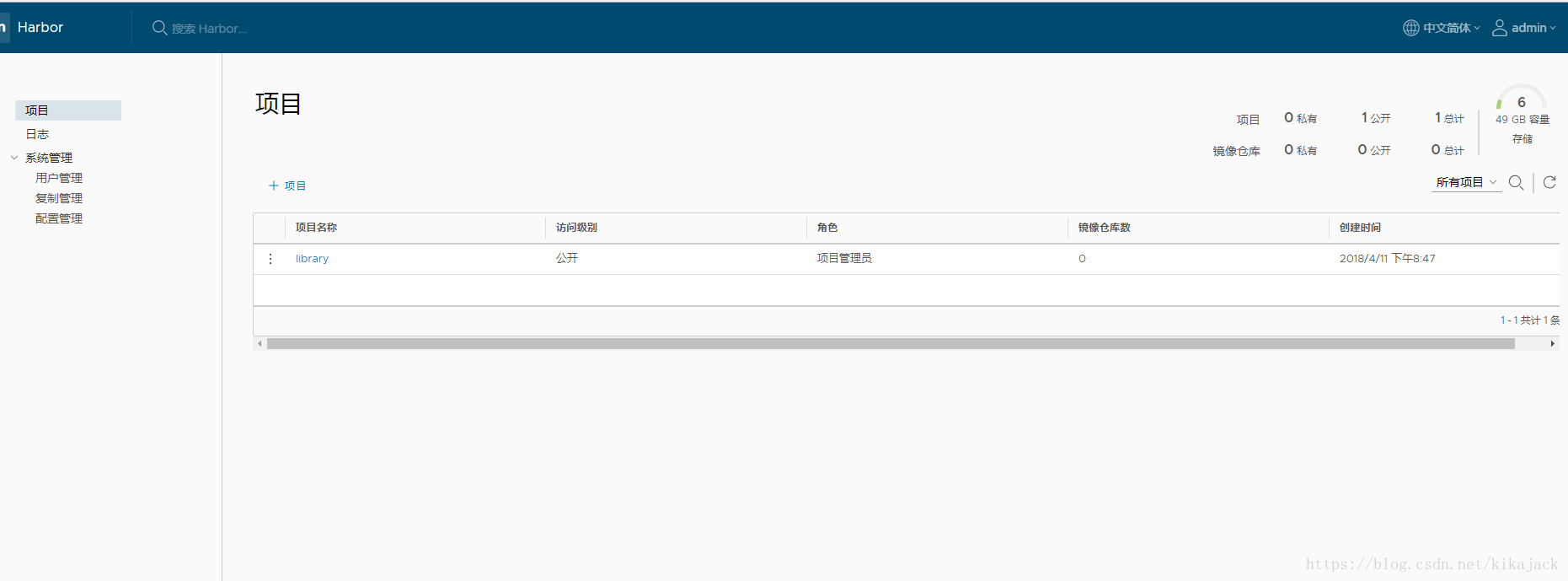
下载镜像、给镜像打标签、上传镜像可以参考 这篇文章。
登录 Harbor 跟登录 Docker Hub 类似,只是需要添加域名或 IP 地址。
2.1 镜像操作
登录 Harbor
# docker login -u admin -p Harbor12345 111.230.25.113:80

WARNING! Using --password via the CLI is insecure. Use --password-stdin.

Error response from daemon: Get https://111.230.25.113/v2/: dial tcp 111.230.25.113:443: getsockopt: connection refused
报错了,这是因为 Harbor 默认使用 HTTP,而 V2 及以上版本的 Docker Registry 默认必须使用 HTTPS,要想通过 HTTP 访问 Registry,必须要将 --insecure-registry 参数添加到 Docker 守护进程的配置文件 /etc/docker/daemon.json 并重启 Docker 服务。配置如下:
{

    "insecure-registries": ["111.230.25.113:80"]

}
再次登录,如果输错了密码会报错 unauthorized: authentication required:
# docker login 111.230.25.113:80

Username: admin

Password:

Login Succeeded
登录成功,可以在用户的家目录下的 ~/.docker/config.json 中确认:
# cat ~/.docker/config.json

{

    "auths": {

        "111.230.25.113:80": {

            "auth": "xxxxxxxxxxxxxxxxxxxxxxxxxxxxxxxx"

        }

    },

    "HttpHeaders": {

        "User-Agent": "Docker-Client/18.02.0-ce (linux)"

    }

}
下载镜像
# docker pull hello-world打 tag 并查看镜像,注意需要跟登录时的信息完全一致,包括端口号
# docker tag hello-world 111.230.25.113:80/library/hello-world

# docker image ls

REPOSITORY                           TAG                 IMAGE ID            CREATED             SIZE

hello-world                          latest              e38bc07ac18e        8 hours ago         1.85kB

111.230.25.113:80/library/hello-world   latest              e38bc07ac18e        8 hours ago         1.85kB
上传镜像
docker push 111.230.25.113:80/library/hello-world

The push refers to repository [111.230.25.113:80/library/hello-world]

2b8cbd0846c5: Pushed

latest: digest: sha256:d5c74e6f8efc7bdf42a5e22bd764400692cf82360d86b8c587a7584b03f51520 size: 524
2.2 用户及权限
管理员可以添加用户,设置权限。
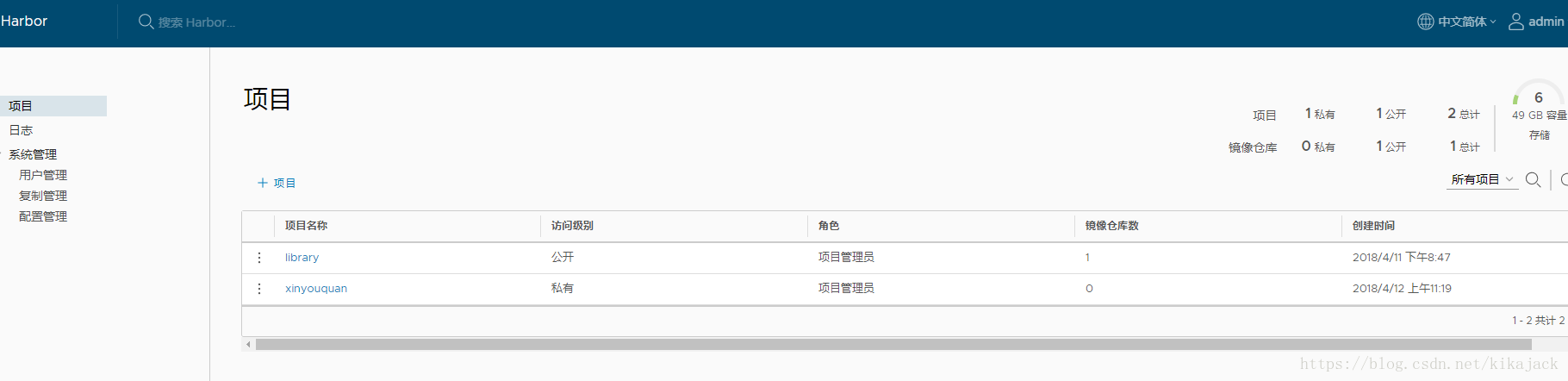
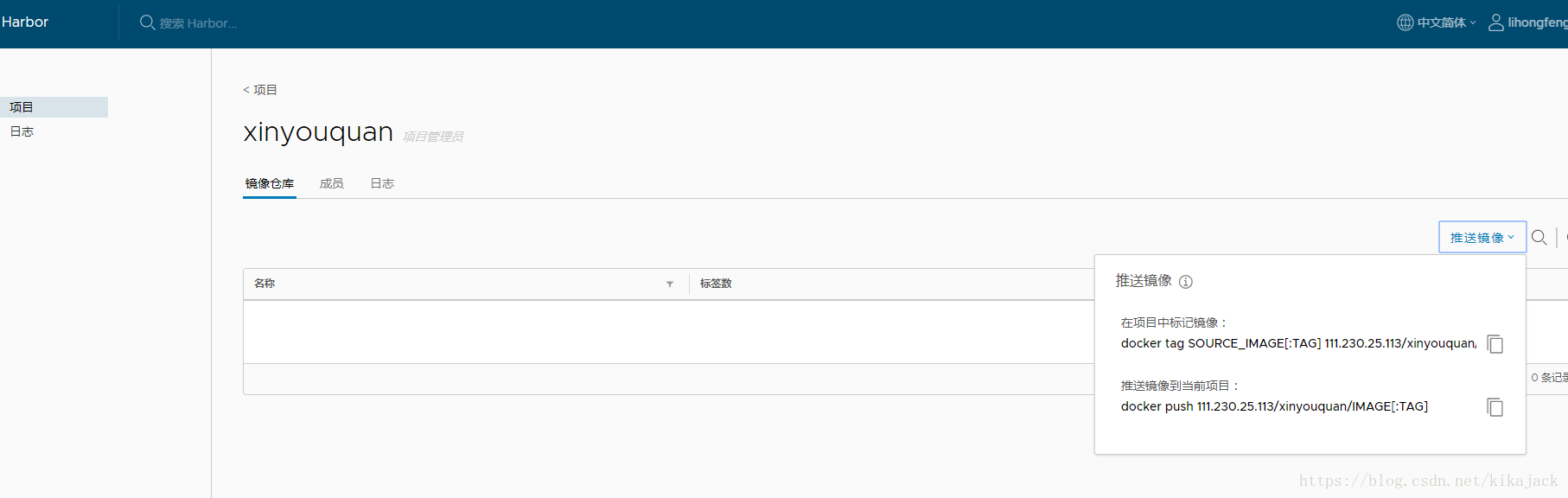
普通用户可以在授权范围内操作。项目创建者及项目的成员可以向私有项目上传镜像。
Harbor - 私有企业级 Docker 镜像仓库的更多相关文章
- 企业级Docker镜像仓库Harbor部署与使用
yum install docker 官网地址:https://docs.docker.com/compose/install/ 运行此命令以下载Docker Compose的当前稳定版本 1 sud ...
- Harbor搭建企业级docker仓库
一. Harbor简介 1.1 Harbor介绍 Harbor是一个用于存储和分发Docker镜像的企业级Registry服务器,通过添加一些企业必需的功能特性,例如安全.标识和管理等,扩展了开源Do ...
- Docker镜像仓库的搭建--> Harbor篇
简介 Harbor是VMware公司开源的一个企业级Docker Registry项目,项目地址:https://github.com/goharbor/harbor Harbor作为一个企业级私有R ...
- 搭建docker镜像仓库(二):使用harbor搭建本地镜像仓库
目录 一.系统环境 二.前言 三.Harbor 四.使用harbor搭建私有镜像仓库 4.1 环境介绍 4.2 k8smaster节点安装配置harbor 4.2.1 安装harbor离线包 4.2. ...
- docker 镜像仓库 Harbor 部署 以及 跨数据复制
docker 镜像仓库 Harbor 部署 跨数据复制 Harbor 是 Vmwar 公司开源的 企业级的 Docker Registry 管理项目 它主要 提供 Dcoker Registry 管理 ...
- 离线手动部署docker镜像仓库——harbor仓库(HTTPS)
实验环境: harbor服务器系统:CentOS Linux release 7.5.1804 (Core)harbor服务器IP:10.1.12.114harbor版本:v1.5.0docker版本 ...
- Docker镜像仓库Harbor之Swagger REST API整合配置
转载自:https://cloud.tencent.com/developer/article/1010618 1.Swagger 介绍 Swagger 是一个规范和完整的框架,用于生成.描述.调用和 ...
- 你必须知道的Docker镜像仓库的搭建
近期工作中发现用到的容器镜像越来越多(不多的时候没考虑过镜像仓库的问题),同一个容器镜像也存在多个版本,那么镜像仓库的搭建需求就涌现出来,本文就目前的几个常用镜像仓库的搭建进行介绍,我们可以根据需要选 ...
- 部署docker镜像仓库及高可用
下载地址: https://github.com/goharbor/harbor/releases 安装harbor服务器: 安装harbor root@harbor-vm1:/usr/loc ...
随机推荐
- 不用找了,基于 Redis 的分布式锁实战来了!
Java技术栈 www.javastack.cn 优秀的Java技术公众号 作者:菜蚜 my.oschina.net/wnjustdoit/blog/1606215 前言:在分布式环境中,我们经常使用 ...
- 在学习linux磁盘管理期间学习的逻辑卷管理笔记
LVM(逻辑分区)的创建顺序:物理分区-物理卷-卷组-逻辑卷-挂载. 物理卷(Physical Volume,PV):就是指硬盘分区,也可以是整个硬盘或已创建的软RAID,是LVM的基本存储设备. 卷 ...
- 十二、支持向量机(Support Vector Machines)
12.1 优化目标 参考视频: 12 - 1 - Optimization Objective (15 min).mkv 到目前为止,你已经见过一系列不同的学习算法.在监督学习中,许多学习算法的性能都 ...
- JS 总结之关于 this 应该知道的几个点
JS 中的 this 对每位前端工程师都不陌生,经常看到对象这里 this 那里 this,那什么是 this?答案就是上下文对象,即被调用函数所处的环境,也就是说,this 在函数内部指向了调用函数 ...
- 使用Kafka的一些简单介绍: 1集群 2原理 3 术语
目录 第一节 Kafka 集群 Kafka 集群搭建 Kafka 集群快速搭建 第二节 集群管理工具 集群管理工具 集群 Issues 第三节 使用命令操纵集群 第四节 Kafka 术语说明 第五节 ...
- C# 共享文件读取(转)
using System;using System.Runtime.InteropServices;using BOOL = System.Boolean;using DWORD = System.U ...
- JVM(19)之 Class文件常量池
开发十年,就只剩下这套架构体系了! >>> 在上一博文Class文件中,我们了解了Class文件的一些基础知识.他的整个内部结构就是一张很大的表,我们就是从这张表入手,一一分析每 ...
- JavaScript —— 关于for in 与 for of 的区别
for in是ES5标准,遍历key,遍历的是数组的索引(即键名): for of是ES6标准,遍历value,遍历的是数组元素值: Object.prototype.objCustom = func ...
- linux使用v 2ray
一.安装配置服务端程序 是时候使用 了,因为相对安全,使用方法很简单,使用root权限执行以下命令即可 $ sudo -i 一顿安装后如图 输入 命令可以查看链接,然后在客户端使用这个链接就能配置好了 ...
- 1142. Maximal Clique (25)
A clique is a subset of vertices of an undirected graph such that every two distinct vertices in the ...