
python之pyqt5-第一个pyqt5程序-图像压缩工具-小记
(如想转载,请联系博主或贴上本博地址)
此为学习pyqt5的第一个程序,图像压缩工具。
因为比较简单,下面直接贴上代码。
效果图如下:
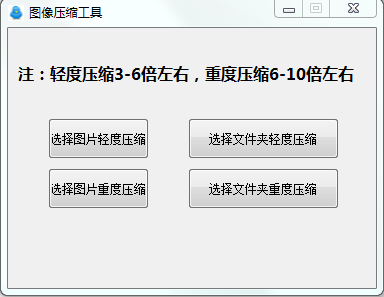
# -*- coding: utf-8 -*-

import sys

#import resource 图标资源可不要

from os import path

from PIL import Image

from glob import glob

from PyQt5 import QtWidgets

from PyQt5.QtGui import QIcon

from PyQt5 import QtCore,QtGui

from PyQt5.QtWidgets import QMessageBox

from PyQt5.QtWidgets import QMainWindow

from PyQt5.QtWidgets import QFileDialog

class Ui_Form(QMainWindow):

    def __init__(self):

        super(QtWidgets.QMainWindow,self).__init__()

        self.setupUi(self)

        self.retranslateUi(self)

    def setupUi(self, MainWindow):

        MainWindow.setObjectName("MainWindow")

        MainWindow.resize(368, 260)

        MainWindow.setFixedSize(368, 260)

        MainWindow.setWindowTitle('图像压缩工具')

        MainWindow.setWindowIcon(QIcon(':/1.png'))

        #label标签

        self.label = QtWidgets.QLabel(MainWindow)

        self.label.setGeometry(QtCore.QRect(10, 30, 341, 31))

        self.label.setObjectName("label")

        self.label.setText("注:轻度压缩3-6倍左右,重度压缩6-10倍左右")

        font = QtGui.QFont()

        font.setFamily('微软雅黑')

        font.setPointSize(12)

        font.setBold(True)

        font.setWeight(85)

        self.label.setFont(font)

        self.pushButton = QtWidgets.QPushButton(MainWindow)

        self.pushButton.setGeometry(QtCore.QRect(40, 140, 101, 41))

        self.pushButton.setCheckable(False)

        self.pushButton.setObjectName("pushButton")

        self.pushButton.setText("选择图片重度压缩")

        self.pushButton.clicked.connect(self.openfileZ)

        self.pushButton_2 = QtWidgets.QPushButton(MainWindow)

        self.pushButton_2.setGeometry(QtCore.QRect(180, 140, 151, 41))

        self.pushButton_2.setCheckable(False)

        self.pushButton_2.setText("选择文件夹重度压缩")

        self.pushButton_2.clicked.connect(self.opendicZ)

        self.pushButton_3 = QtWidgets.QPushButton(MainWindow)

        self.pushButton_3.setGeometry(QtCore.QRect(40, 90, 101, 41))

        self.pushButton_3.setObjectName("pushButton_3")

        self.pushButton_3.setText("选择图片轻度压缩")

        self.pushButton_3.clicked.connect(self.openfile)

        self.pushButton_4 = QtWidgets.QPushButton(MainWindow)

        self.pushButton_4.setGeometry(QtCore.QRect(180, 90, 151, 41))

        self.pushButton_4.setObjectName("pushButton_4")

        self.pushButton_4.setText("选择文件夹轻度压缩")

        self.pushButton_4.clicked.connect(self.opendic)

        self.label = QtWidgets.QLabel(MainWindow)

        self.label.setGeometry(QtCore.QRect(70, 140, 61, 21))

        self.label.setText("")

        self.label.setObjectName("label")

    def retranslateUi(self,MainWindow):

        _translate = QtCore.QCoreApplication.translate

        self.setWindowTitle(_translate("MainWindow", "图像压缩"))

    def openfile(self):

        filename ,filetype = QFileDialog.getOpenFileName(self,"选择文件","./","All Files (*);;Image Files (*.jpg)")

        if filename != '':

            path=filename.replace(r'/',r'\\')

            size = (1024,600)

            # 定义要调整成为的尺寸(PIL会自动根据原始图片的长宽比来缩放适应设置的尺寸)

            try:

                img = Image.open(path) # 打开图片文件

                if img.width>5:

                    img.thumbnail(size, Image.ANTIALIAS) # 使用抗锯齿模式生成缩略图(压缩图片)

                    f=os.path.splitext(path)

                    newname=f[0] + '-已压缩'

                    newname=newname+f[1]

                    img.save(newname, "JPEG") # 保存成与原文件名一致的文件,会自动覆盖源文件

                else:

                    print(file + "宽度小于1200px,无需处理,已忽略")

            except OSError:

                print(file + "文件错误,忽略")

            QMessageBox.information(self,"恭喜,成功了!", "已成功压缩图片到原有目录",QMessageBox.Yes | QMessageBox.No)

    def openfileZ(self):

        filename ,filetype = QFileDialog.getOpenFileName(self,"选择文件","./","All Files (*);;Image Files (*.jpg)")

        if filename != '':

            path=filename.replace(r'/',r'\\')

            size = (835,470)

            try:

                img = Image.open(path)

                if img.width>5:

                    img.thumbnail(size, Image.ANTIALIAS)

                    f=os.path.splitext(path)

                    newname=f[0] + '-已压缩'

                    newname=newname+f[1]

                    img.save(newname, "JPEG")

                else:

                    print(file + "宽度小于1200px,无需处理,已忽略")

            except OSError:

                print(file + "文件错误,忽略")

            QMessageBox.information(self,"恭喜,成功了!", "已成功压缩图片到原有目录",QMessageBox.Yes | QMessageBox.No)

    def opendic(self):

        dic = QFileDialog.getExistingDirectory(self,"选择文件夹", "./")

        if dic != '':

            path=dic.replace(r'/',r'\\')

            size = (1024, 600)

            files = glob( path + "**/*.JPG", recursive=True) + glob(path + "**/*.jpg", recursive=True)

            total = len(files)

            cur = 1

            for infile in files:

                try:

                    print("进度:" + str(cur) + "/" + str(total) + "   " + infile)

                    img = Image.open(infile)

                    if img.width>5:

                        img.thumbnail(size, Image.ANTIALIAS)

                        f=os.path.splitext(infile)

                        newname=f[0] + '-已压缩'

                        newname=newname+f[1]

                        img.save(newname, "JPEG")

                    else:

                        print(infile + "宽度小于1200px,无需处理,已忽略")

                    cur = cur + 1

                except OSError:

                    print(infile + "文件错误,忽略")

            QMessageBox.information(self,"恭喜,成功了!", "已成功压缩图片到原有目录",QMessageBox.Yes | QMessageBox.No)

    def opendicZ(self):

        dic = QFileDialog.getExistingDirectory(self,"选择文件夹", "./")

        if dic != '':

            path=dic.replace(r'/',r'\\')

            size = (835, 470)

            # glob.glob()用来进行模糊查询,增加参数recursive=True后可以使用**/来匹配所有子目录

            files = glob( path + "**/*.JPG", recursive=True) + glob(path + "**/*.jpg", recursive=True)

            total = len(files)

            cur = 1

            for infile in files:

                try:

                    print("进度:" + str(cur) + "/" + str(total) + "   " + infile)

                    img = Image.open(infile)

                    if img.width>5:

                        img.thumbnail(size, Image.ANTIALIAS)

                        # 分离文件名和后缀

                        f=os.path.splitext(infile)

                        newname=f[0] + '-已压缩'

                        newname=newname+f[1]

                        img.save(newname, "JPEG")

                    else:

                        print(infile + "宽度小于1200px,无需处理,已忽略")

                    cur = cur + 1

                except OSError:

                    print(infile + "文件错误,忽略")

            QMessageBox.information(self,"恭喜,成功了!", "已成功压缩图片到原有目录",QMessageBox.Yes | QMessageBox.No)

if __name__ == '__main__':

    app = QtWidgets.QApplication(sys.argv)

    MainWindow = QtWidgets.QMainWindow()

    ui = Ui_Form()

    ui.setupUi(MainWindow)

    MainWindow.show()

    sys.exit(app.exec_())
python之pyqt5-第一个pyqt5程序-图像压缩工具-小记的更多相关文章
- python练习册 每天一个小程序 第0013题
# -*-coding:utf-8-*- ''' 题目描述: 用 Python 写一个爬图片的程序,爬 这个链接里的日本妹子图片 :-) 地址: http://tieba.baidu.com/p/21 ...
- python练习册 每天一个小程序 第0001题
1 # -*-coding:utf-8-*- 2 __author__ = 'Deen' 3 ''' 4 题目描述: 5 做为 Apple Store App 独立开发者,你要搞限时促销,为你的应用生 ...
- python练习册 每天一个小程序 第0000题
PIL库学习链接:http://blog.csdn.net/column/details/pythonpil.html?&page=1 1 #-*-coding:utf-8-*- 2 __au ...
- python练习册 每天一个小程序 第0007题
1 # -*-coding:utf-8-*- 2 __author__ = 'Deen' 3 ''' 4 题目描述: 5 有个目录,里面是你自己写过的程序,统计一下你写过多少行代码.包括空行和注释,但 ...
- python练习册 每天一个小程序 第0010题
# -*-coding:utf-8-*- ''' 题目描述: 使用 Python 生成类似于下图中的字母验证码图片 思路: 运用PIL库加random 随机字母进行生成 ''' import rand ...
- python练习册 每天一个小程序 第0009题
1 ''' 2 题目描述: 3 找出一个html文件中所有的url 4 5 思路 : 6 利用正则表达式进行匹配 7 8 ''' 9 10 11 import re 12 13 14 with ope ...
- python练习册 每天一个小程序 第0008题
1 # -*-coding:utf-8-*- 2 __author__ = 'Deen' 3 ''' 4 题目描述: 5 一个HTML文件,找出里面的正文. 6 7 思路: 8 利用Beautiful ...
- python练习册 每天一个小程序 第0006题
1 # -*-coding:utf-8-*- 2 __author__ = 'Deen' 3 ''' 4 题目描述: 5 你有一个目录,放了你一个月的日记,都是 txt,为了避免分词的问题,假设内容都 ...
- python练习册 每天一个小程序 第0005题
1 # -*-coding:utf-8-*- 2 __author__ = 'Deen' 3 ''' 4 题目说明: 你有一个目录,装了很多照片,把它们的尺寸变成都不大于 iPhone5 分辨率的大小 ...
- python练习册 每天一个小程序 第0012题
# -*-coding:utf-8-*- def test(content): text = content flag = 0 with open('filtered_words.txt') as f ...
随机推荐
- virtualenv管理py环境linux版
因为服务器上已经安装了python3,所以直接安装virtualenv即可 pip3 install virtualenv -i https://mirrors.aliyun.com/pypi/sim ...
- Spring的隔离级别,Spring事务传播属性,Spring事务与数据库事务之间的联系
一.Spring五大事务隔离级别 Spring事务隔离级别比数据库事务隔离级别多一个default在进行配置的时候,如果数据库和spring代码中的隔离级别不同,那么以spring的配置为主.1) D ...
- windows 和 linux 之间的文件传输操作
参考:http://www.jb51.net/article/123378.htm 本文介绍,如何实现 windows 主机与 linux 虚拟机之间的文件传输. 一.获取虚拟机 IP 地址 要实现 ...
- Markdown基本使用教程
Markdown学习 标题 一个'#+空格'是一级标题,'##+空格'二级标题 字体 hello: 斜体'+内容+' hello:加粗'+内容+' hello hello 引入 引用来源 分割线 '三 ...
- go理论知识总结
基于const常量理解个中类型的内存分配引入参考 官方:Constant expressions may contain only constant operands and are evaluate ...
- Python从dic中随机取值
import random a = {'lab-1': '短视频', 'lab-1': '直播'} print(random.choice(list(a.keys()))) # 从keys的list中 ...
- 身为一个java开发人员对目前java开发的一些小小的认识
为什么要学java? 第一要工作,第二想要高薪 首先身为java开发工作人员你的思想认知程度要搞,思想认知程度决定你的专业技能水平 JavaSE工程师 B/S 架构 ---- 浏览器 ...
- MyBatis Generator使用方法
第一步:在resources文件夹下创建一个目录mybatis-generator,在目录mybatis-generator下创建文件generatorConfig.xml(此处的目录名可任意取) 第 ...
- 通用CSS命名惯例
通用的 CSS 命名惯例 在参与规模庞大.历时漫长.且参与人数众多的项目时,要确保每一行代码都像是同一个人编写的:这就要求所有开发者,都遵守相同的代码规范.在先前的文章前端项目开发规范意见,从宏观角度 ...
- 执行Maven的test命令报错
参考网址:https://blog.csdn.net/weixin_46688566/article/details/126470742 解决方案 在pom.xml文件中加入以下依赖: <plu ...