
Label & TextBlock
I always thought it was odd that WPF has both TextBlock and Label. They both are responsible for displaying a small amount of text. Every piece of documentation about Label I have read justifies its existence by mentioning that it allows for access keys. Access keys allow you to hit Alt + SomeKey to quickly interact with a control in the UI, such as hitting Alt + O to click an “OK” button. My thought has been, “Why not just add support for access keys to TextBlock and get rid of Label?”
Recently I discovered some reasons why it makes sense for Label to exist.

The “Username:” text is a TextBlock and the “Password:” text is a Label.
TextBlock is not a control
Even though TextBlock lives in the System.Windows.Controls namespace, it is not a control. It derives directly from FrameworkElement. Label is control, on the other hand, derives from ContentControl. This means that Label can:
- Be given a custom control template (via the Template property).
- Display data other than just a string (via the Content property).
- Apply a DataTemplate to its content (via the ContentTemplate property).
- Do whatever else a ContentControl can do that a FrameworkElement cannot.
Below is a fragment of the class inheritance hierarchy containing Label and TextBlock:

Label text is grayed out when disabled
When a Label’s IsEnabled property returns false its text is “grayed out.” TextBlock does not have this behavior by default. Here is what the demo app looks like when the input area is disabled. Keep in mind that the “Username:” text is a TextBlock and the “Password:” text is a Label:

The reason Label text turns gray when it is disabled is due to the fact that Label’s default control template has a Trigger which explicitly sets the Foreground property when IsEnabled is false. Here is that Trigger from Label’s default control template:

If we really wanted TextBlocks to appear grayed out when disabled, we could repurpose that XAML seen above into a Style which is applied to TextBlocks (as seen in the demo project available at the end of this post).
Label supports access keys
This is the standard explanation of why Label exists. You can associate a Label with another control, such as a PasswordBox, and allow the user to type an access key defined by the Label to set focus to the other control. The access key is represented in the UI by drawing a line under the appropriate character. If the user presses the Alt key and then the designated “access character” the target control will be given focus.
Here is what the demo application looks like after the user presses the Alt key:

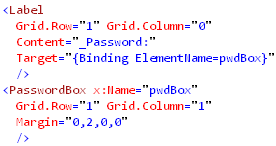
Notice how every piece of text in the UI has an access key indicator, except for the “Username” TextBlock. The “Password” Label and its target (a PasswordBox) were declared like this:
Label is much heavier than TextBlock
So far we have examined why Label can be considered better than TextBlock, but now its time to discuss the benefits of using a TextBlock instead. Label has a higher runtime overhead than TextBlock. Not only does Label inherit from two classes further down the inheritance hierarchy than TextBlock, but its visual tree is much more involved.
I snooped the visual tree of the demo app to see what was really going on when you create a Label with an access key defined. Below is a screenshot of Snoop displaying the visual trees of both the “Username” TextBlock and the “Password” Label (with an access key defined):

The “Username” TextBlock’s visual tree contains no child elements. The Label, however, is much more involved. It has a Border, which contains a ContentPresenter, which hosts an AccessText element, which finally uses a TextBlock to display the text. So it turns out that using a Label is really just an elaborate and customizable way of using a TextBlock.
Links
ContentPresenter.RecognizesAccessKey Property
How to: Create a Control That Has an Access Key and Text Wrapping
Download the demo
Download the demo project here: Label vs TextBlock (demo project) Be sure to change the file extension from .DOC to .ZIP and then decompress it.
Label & TextBlock的更多相关文章
- [转]在WPF中区别TextBlock和Label
TextBlock和Label都是用来显示少量数据的.好多文章对Label存在的描述都是它允许使用"快速获取"."快速获取"就是允许你用Alt加上其它的按键快速 ...
- WPF学习二:TextBlock和Label的区别
TextBlock和Label都是用来显示少量数据的.好多文章对Label存在的描述都是它允许使用"快速获取"."快速获取"就是允许你用Alt加上其它的按键快速 ...
- Win10 UWP 开发系列:使用SplitView实现汉堡菜单及页面内导航
在Win10之前,WP平台的App主要有枢轴和全景两种导航模式,我个人更喜欢Pivot即枢轴模式,可以左右切换,非常方便.全景视图因为对设计要求比较高,自己总是做不出好的效果.对于一般的新闻阅读类Ap ...
- 【WPF系列】-TextBox常用知识点
DataBinding中更新数据源的时机 TextBox .Text 属性的默认 UpdateSourceTrigger 值为 LostFocus.这意味着如果应用程序的 TextBox 包含数据 ...
- (WPF) 基本题
What is WPF? WPF (Windows Presentation foundation) is a graphical subsystem for displaying user inte ...
- Wix 安装部署教程(九) --用WPF做安装界面
经常安装PC端的应用,特别是重装系统之后,大致分为两类.一类像QQ,搜狗输入法这样的.分三步走的:第一个页面可以自定义安装路径和软件许可.第二个页面显示安装进度条,第三个页面推荐其他应用.先不管人家怎 ...
- WPF快速入门系列(3)——深入解析WPF事件机制
一.引言 WPF除了创建了一个新的依赖属性系统之外,还用更高级的路由事件功能替换了普通的.NET事件. 路由事件是具有更强传播能力的事件——它可以在元素树上向上冒泡和向下隧道传播,并且沿着传播路径被事 ...
- WPF自学笔记
WPF使用哪几种元素作为顶级元素: 1. Window元素 2. Page元素(与Window元素类似,用于可导航的应用程序) 3. Application元素(定义应用程序资源和启动设置) PS:在 ...
- WPF打印京东电子面单(可以异步)
参考:https://www.cnblogs.com/guogangj/archive/2013/02/27/2934733.html 模板:JDFlowDocument.xaml <FlowD ...
随机推荐
- C的结构体使用
C的结构体演示 #include <stdio.h> struct A //建立结构体A { char *name; int s1; struct A *next; }; void mai ...
- ecshop 优化_将商品详情页goods.php重命名为shangpin.php
有人说,将商品详情页的文件名 goods.php 改一个名字,对百度收录会有帮助,也许吧,这里不讨论是否有帮助,这里只讲解如何重命名. 例如:我们将 goods.php 改为 shangpin.php ...
- Hive技术文档
Hive是什么? Hive是蜂房的意思,为什么hadoop上的这层数据仓库叫Hive? 因为生物学上蜂房是一个结构相当精良的建筑,取名Hive足见则个数据仓库在数据存储上也是堪称精良的.Hive是Fa ...
- WebView增加一个水平Progress,位置、长相随意
实际效果可以参看微信的web页面进度条 本质就是通过addView及对WebView 页面进度进行监听 先看看这个自定义的DrawableId,我们参照系统默认实现的方法写一个自己的 <la ...
- nodejs学习--express篇
express篇:http://www.runoob.com/nodejs/nodejs-express-framework.html Express 提供了内置的中间件 express.static ...
- 基于CentOS与VmwareStation10搭建Oracle11G RAC 64集群环境:2.搭建环境-2.1创建虚拟机
2.1.创建虚拟机 2.1.1. 创建虚拟机节点1 2.1.2. 创建虚拟机节点2 操作如节点1. 基于CentOS与VmwareStation10搭建Oracle11G RAC 64集群环境所有链 ...
- 参考:iPhone OS 3.0中的字体列表
字体是我们在iPhone开发中经常需要用到的.但是iPhone里面到底内置了哪些字体呢?下面就是一个常用的列表. Family name: AppleGothic Font name: AppleGo ...
- 数组名的含义.xml
pre{ line-height:1; color:#1e1e1e; background-color:#f0f0f0; font-size:16px;}.sysFunc{color:#627cf6; ...
- STL六大组件之——适配器代表大会
适配器也是一种常用的设计模式: 将一个类的接口转换为另一个类的接口,使得原本因接口不兼容而不能合作的两个类可以一起运作.STL提供三种适配器:改变容器接口的容器适配器.改变迭代器接口的迭代器适配器以及 ...
- Matlab命令——目录操作(windows&Linux)
Matlab命令——目录操作(windows&Linux) 1. filesep用于返回当前平台的目录分隔符,Windows是反斜杠(\),Linux是斜杠(/).有时此命令结合ispc命令使 ...