
WPF中动画教程(DoubleAnimation的基本使用)
实现效果
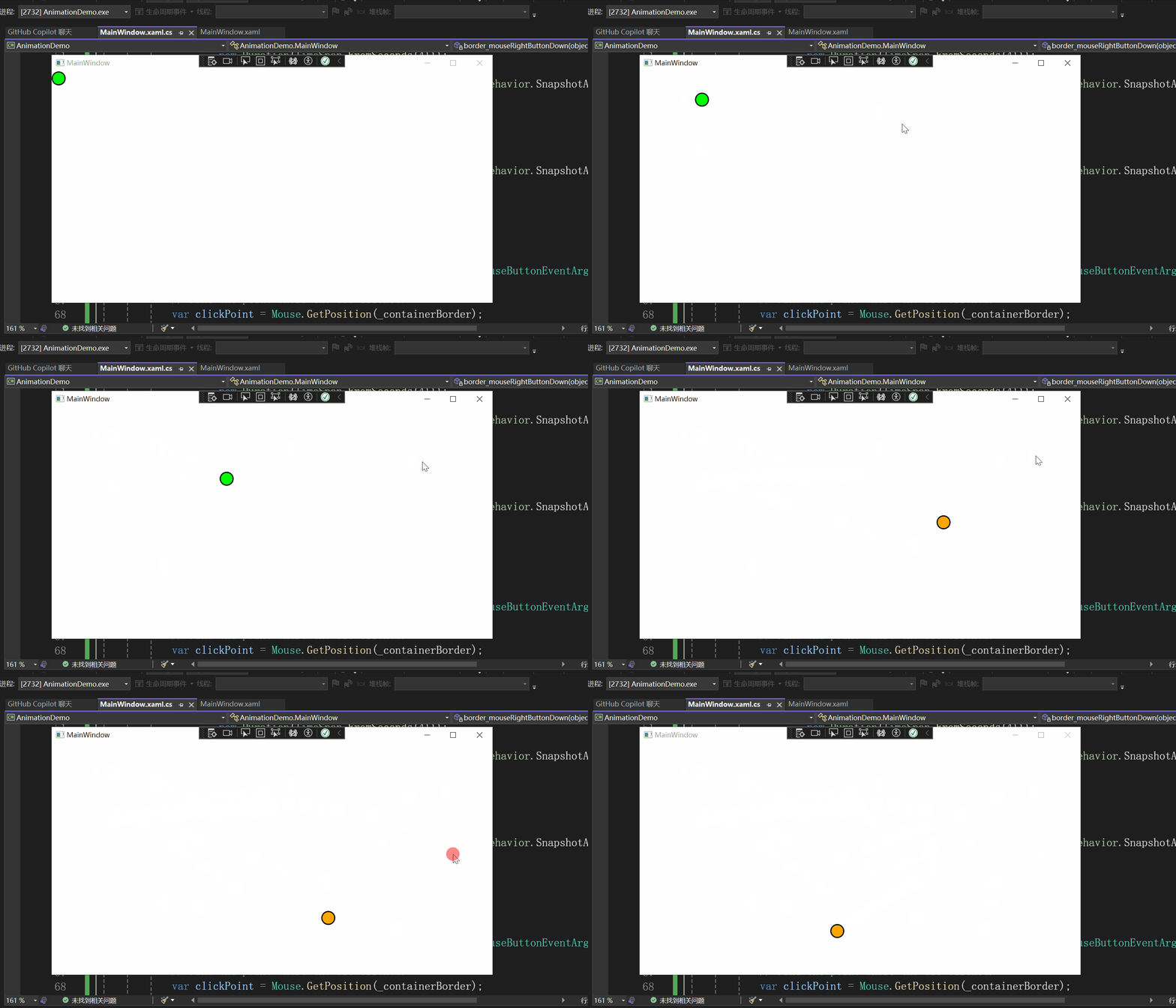
今天以一个交互式小球的例子跟大家分享一下wpf动画中DoubleAnimation的基本使用。该小球会移动到我们鼠标左键或右键点击的地方。
该示例的实现效果如下所示:
页面设计
xaml如下所示:
<Window x:Class="AnimationDemo.MainWindow"

        xmlns="http://schemas.microsoft.com/winfx/2006/xaml/presentation"

        xmlns:x="http://schemas.microsoft.com/winfx/2006/xaml"

        xmlns:d="http://schemas.microsoft.com/expression/blend/2008"

        xmlns:mc="http://schemas.openxmlformats.org/markup-compatibility/2006"

        xmlns:local="clr-namespace:AnimationDemo"

        mc:Ignorable="d"

        Title="MainWindow" Height="450" Width="800">

    <DockPanel>

        <Border x:Name="_containerBorder" Background="Transparent">

            <Ellipse x:Name="_interactiveEllipse"

         Fill="Lime"

         Stroke="Black"

         StrokeThickness="2.0"

         Width="25"

         Height="25"

         HorizontalAlignment="Left"

         VerticalAlignment="Top" />

        </Border>

    </DockPanel>

</Window>
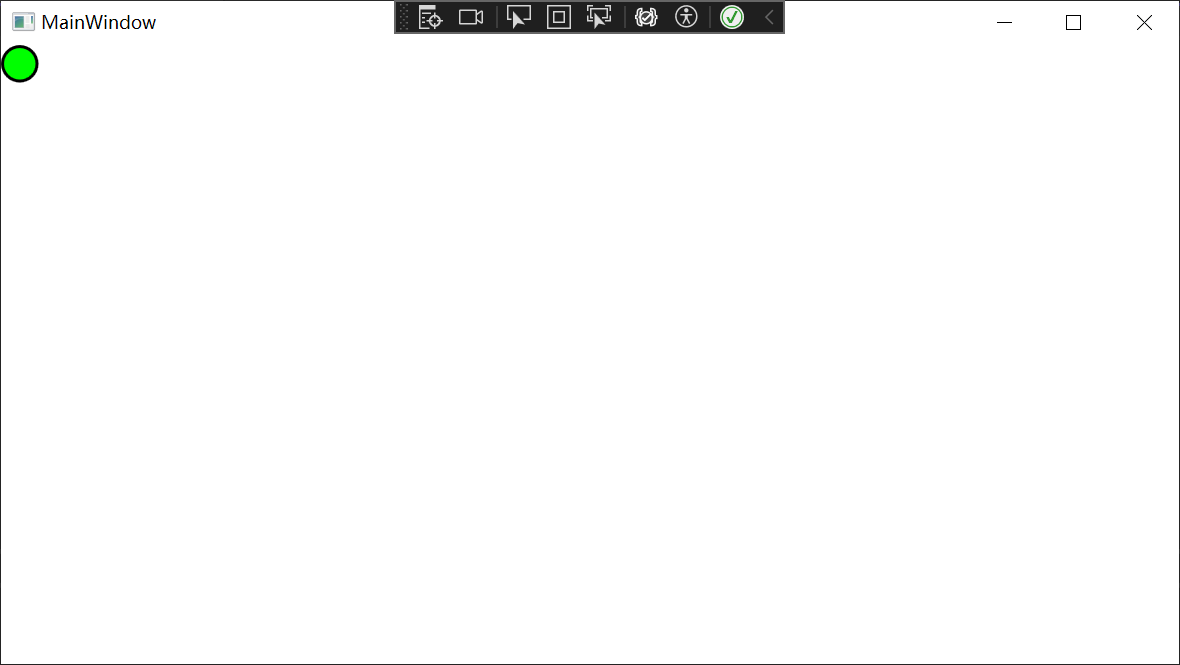
就是在DockPanel中包含一个Border,在Border中包含一个圆形。
页面设计的效果如下所示:
一些设置
相关设置的cs代码如下所示:
   public partial class MainWindow : Window

 {

     private readonly TranslateTransform _interactiveTranslateTransform;

     public MainWindow()

     {

         InitializeComponent();

         _interactiveTranslateTransform = new TranslateTransform();

         _interactiveEllipse.RenderTransform =

             _interactiveTranslateTransform;

         _containerBorder.MouseLeftButtonDown +=

            border_mouseLeftButtonDown;

         _containerBorder.MouseRightButtonDown +=

             border_mouseRightButtonDown;

     }
private readonly TranslateTransform _interactiveTranslateTransform;
首先声明了一个私有的只读的TranslateTransform类型的对象_interactiveTranslateTransform,然后在MainWindow的构造函数中赋值。
_interactiveTranslateTransform = new TranslateTransform();
TranslateTransform是什么?有什么作用呢?
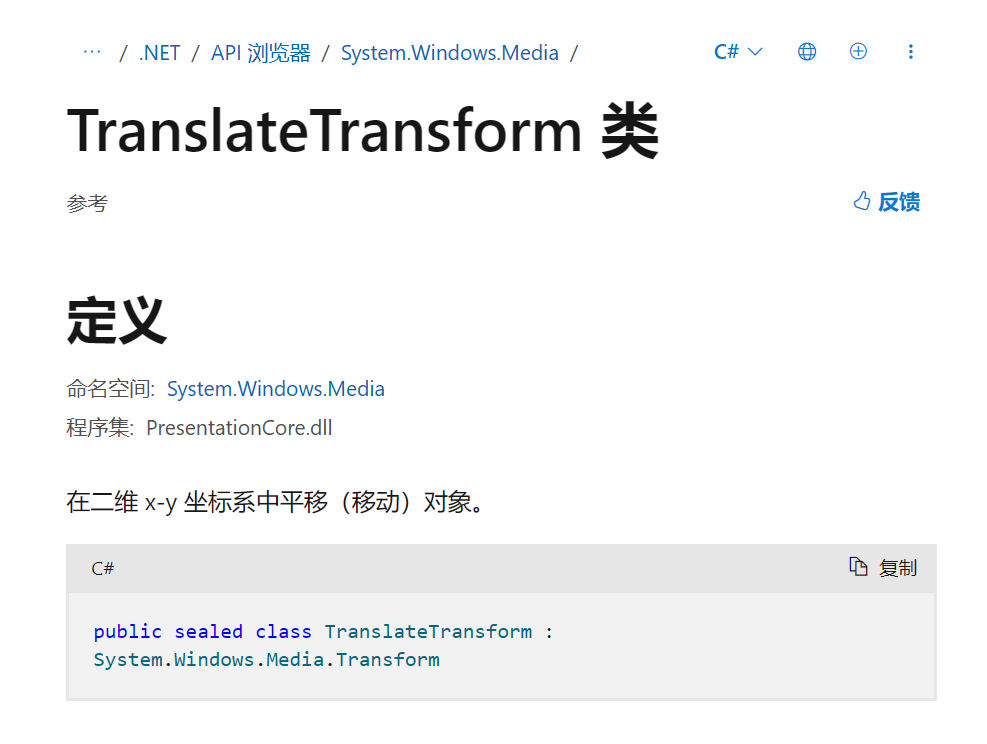
它的基本结构:
 //

 // 摘要:

 //     Translates (moves) an object in the 2-D x-y coordinate system.

 public sealed class TranslateTransform : Transform

 {

     public static readonly DependencyProperty XProperty;

     public static readonly DependencyProperty YProperty;

     public TranslateTransform();

     public TranslateTransform(double offsetX, double offsetY);

     public override Matrix Value { get; }

     public double X { get; set; }

     public double Y { get; set; }

     public TranslateTransform Clone();

     public TranslateTransform CloneCurrentValue();

     protected override Freezable CreateInstanceCore();

 }
TranslateTransform 是 WPF 中的一个类,它表示一个 2D 平移变换。这个类是 Transform 类的派生类,用于在 2D 平面上移动(平移)对象。
TranslateTransform 类有两个主要的属性:X 和 Y,它们分别表示在 X 轴和 Y 轴上的移动距离。例如,如果你设置 X 为 100 和 Y 为 200,那么应用这个变换的元素将会向右移动 100 像素,向下移动 200 像素。
 _interactiveEllipse.RenderTransform =

             _interactiveTranslateTransform;
将 _interactiveEllipse元素的RenderTransform属性设置为_interactiveTranslateTransform。
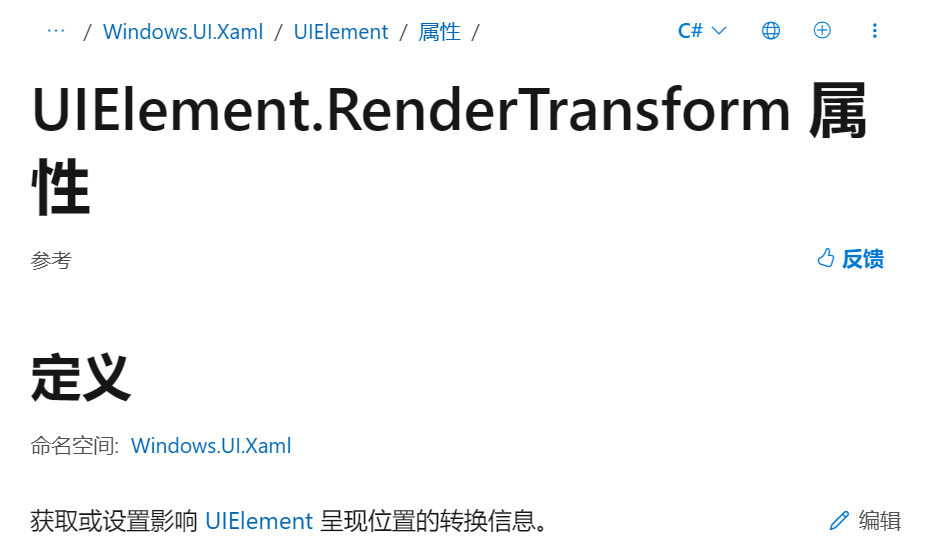
RenderTransform属性用于获取或设置影响 UIElement 呈现位置的转换信息。
 _containerBorder.MouseLeftButtonDown +=

    border_mouseLeftButtonDown;

 _containerBorder.MouseRightButtonDown +=

     border_mouseRightButtonDown;
这是在注册 _containerBorder的鼠标左键点击事件与鼠标右键点击事件。
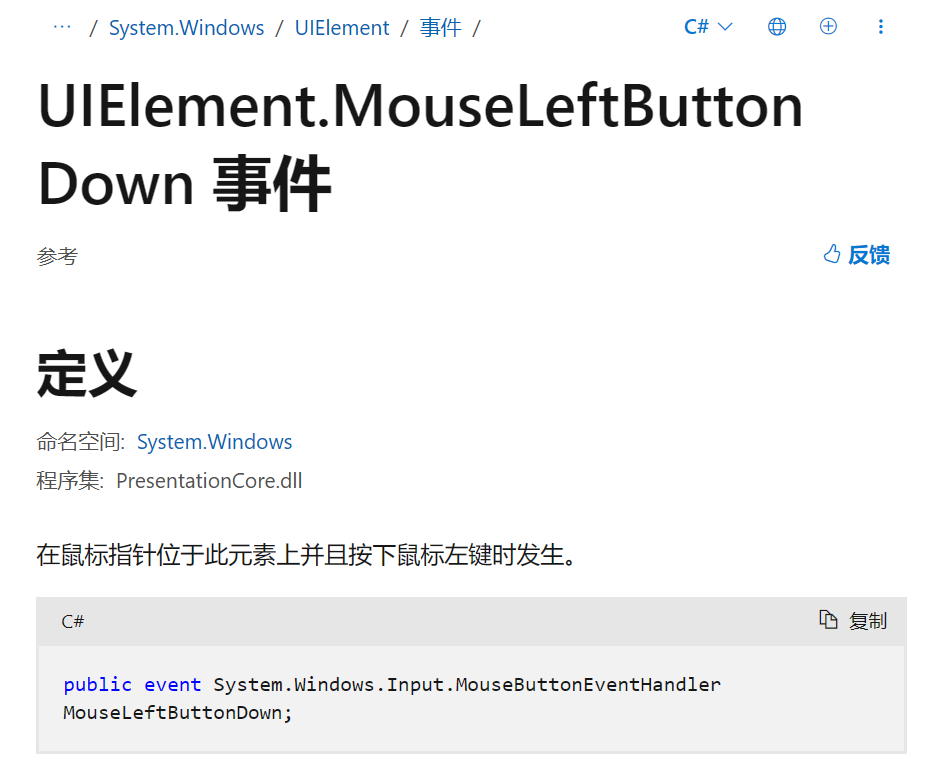
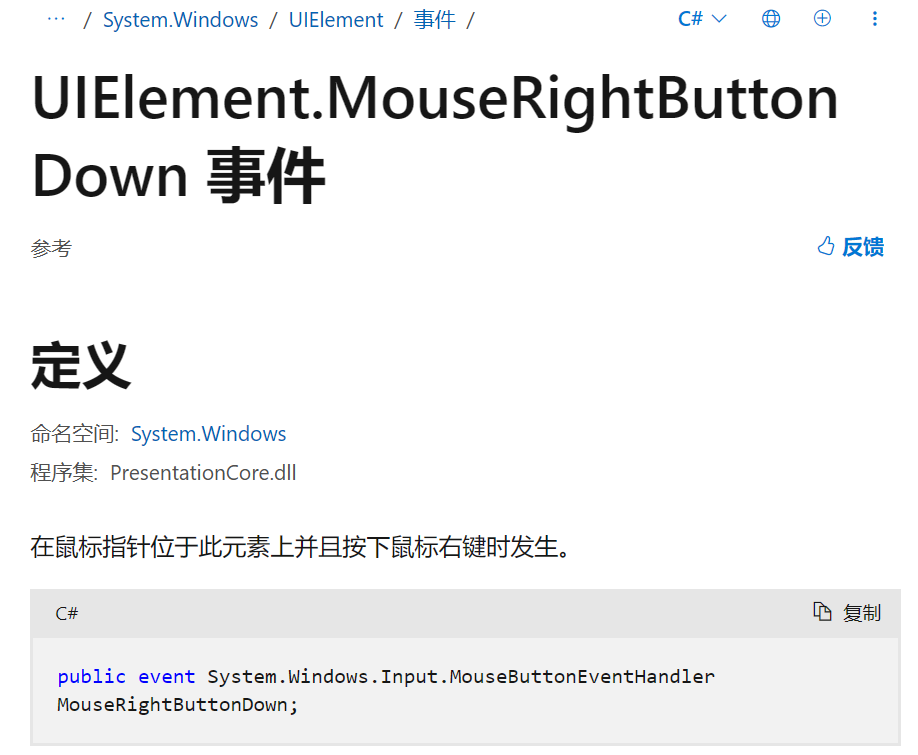
注意当Border这样写时,不会触发鼠标点击事件:
<Border x:Name="_containerBorder">
这是因为在 WPF 中,Border 控件的背景默认是透明的,这意味着它不会接收鼠标事件。当你设置了背景颜色后,Border 控件就会开始接收鼠标事件,因为它现在有了一个可见的背景。
如果你希望 Border 控件在没有背景颜色的情况下也能接收鼠标事件,你可以将背景设置为透明色。这样,虽然背景看起来是透明的,但它仍然会接收鼠标事件。
可以这样设置:
<Border x:Name="_containerBorder" Background="Transparent">
鼠标点击事件处理程序
以鼠标左键点击事件处理程序为例,进行说明:
  private void border_mouseLeftButtonDown(object sender, MouseButtonEventArgs e)

  {

      var clickPoint = Mouse.GetPosition(_containerBorder);

      // Set the target point so the center of the ellipse

      // ends up at the clicked point.

      var targetPoint = new Point

      {

          X = clickPoint.X - _interactiveEllipse.Width / 2,

          Y = clickPoint.Y - _interactiveEllipse.Height / 2

      };

      // Animate to the target point.

      var xAnimation =

          new DoubleAnimation(targetPoint.X,

              new Duration(TimeSpan.FromSeconds(4)));

      _interactiveTranslateTransform.BeginAnimation(

          TranslateTransform.XProperty, xAnimation, HandoffBehavior.SnapshotAndReplace);

      var yAnimation =

          new DoubleAnimation(targetPoint.Y,

              new Duration(TimeSpan.FromSeconds(4)));

      _interactiveTranslateTransform.BeginAnimation(

          TranslateTransform.YProperty, yAnimation, HandoffBehavior.SnapshotAndReplace);

      // Change the color of the ellipse.

      _interactiveEllipse.Fill = Brushes.Lime;

  }
重点是:
 // Animate to the target point.

      var xAnimation =

          new DoubleAnimation(targetPoint.X,

              new Duration(TimeSpan.FromSeconds(4)));

      _interactiveTranslateTransform.BeginAnimation(

          TranslateTransform.XProperty, xAnimation, HandoffBehavior.SnapshotAndReplace);

      var yAnimation =

          new DoubleAnimation(targetPoint.Y,

              new Duration(TimeSpan.FromSeconds(4)));

      _interactiveTranslateTransform.BeginAnimation(

          TranslateTransform.YProperty, yAnimation, HandoffBehavior.SnapshotAndReplace);
DoubleAnimation类的介绍:
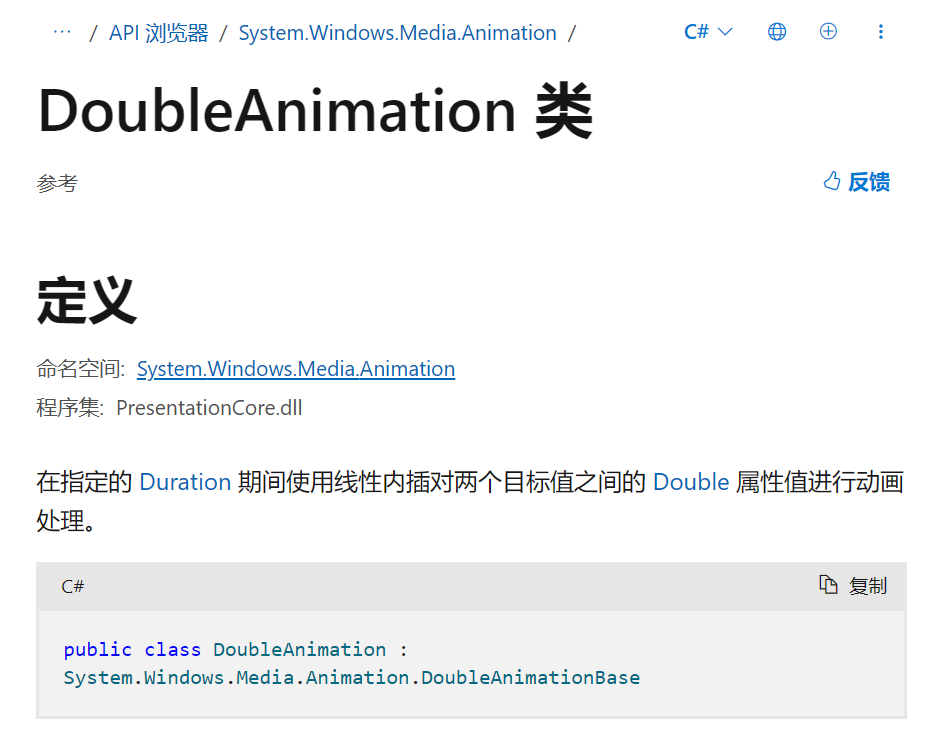
DoubleAnimation 是 WPF 中的一个类,它用于创建从一个 double 值到另一个 double 值的动画。这个类是 AnimationTimeline 类的派生类,它可以用于任何接受 double 类型的依赖属性。
DoubleAnimation 类有几个重要的属性:
• From:动画的起始值。
• To:动画的结束值。
• By:动画的增量值,用于从 From 值增加或减少。
• Duration:动画的持续时间。
• AutoReverse:一个布尔值,指示动画是否在到达 To 值后反向运行回 From 值。
• RepeatBehavior:定义动画的重复行为,例如,它可以设置为无限重复或重复特定的次数。
  var xAnimation =

          new DoubleAnimation(targetPoint.X,

              new Duration(TimeSpan.FromSeconds(4)));
我们使用的是这种形式的重载:

设置了一个要达到的double类型值与达到的时间,这里设置为了4秒。
 _interactiveTranslateTransform.BeginAnimation(

          TranslateTransform.XProperty, xAnimation, HandoffBehavior.SnapshotAndReplace);

• _interactiveTranslateTransform.BeginAnimation:这是 BeginAnimation 方法的调用,它开始一个动画,该动画会改变一个依赖属性的值。在这个例子中,改变的是 _interactiveTranslateTransform 对象的 X 属性。
• TranslateTransform.XProperty:这是 TranslateTransform 类的 X 依赖属性。这个属性表示在 X 轴上的移动距离。
• xAnimation:这是一个 DoubleAnimation 对象,它定义了动画的目标值和持续时间。在这个例子中,动画的目标值是鼠标点击的位置,持续时间是 4 秒。
• HandoffBehavior.SnapshotAndReplace:这是 HandoffBehavior 枚举的一个值,它定义了当新动画开始时,如何处理正在进行的动画。SnapshotAndReplace 表示新动画将替换旧动画,并从旧动画当前的值开始。
全部代码
xaml:
<Window x:Class="AnimationDemo.MainWindow"

        xmlns="http://schemas.microsoft.com/winfx/2006/xaml/presentation"

        xmlns:x="http://schemas.microsoft.com/winfx/2006/xaml"

        xmlns:d="http://schemas.microsoft.com/expression/blend/2008"

        xmlns:mc="http://schemas.openxmlformats.org/markup-compatibility/2006"

        xmlns:local="clr-namespace:AnimationDemo"

        mc:Ignorable="d"

        Title="MainWindow" Height="450" Width="800">

    <DockPanel>

        <Border x:Name="_containerBorder" Background="Transparent">

            <Ellipse x:Name="_interactiveEllipse"

         Fill="Lime"

         Stroke="Black"

         StrokeThickness="2.0"

         Width="25"

         Height="25"

         HorizontalAlignment="Left"

         VerticalAlignment="Top" />

        </Border>

    </DockPanel>

</Window>
cs:
using System.Text;

using System.Windows;

using System.Windows.Controls;

using System.Windows.Data;

using System.Windows.Documents;

using System.Windows.Input;

using System.Windows.Media;

using System.Windows.Media.Animation;

using System.Windows.Media.Imaging;

using System.Windows.Navigation;

using System.Windows.Shapes;

namespace AnimationDemo

{

    /// <summary>

    /// Interaction logic for MainWindow.xaml

    /// </summary>

    public partial class MainWindow : Window

    {

        private readonly TranslateTransform _interactiveTranslateTransform;

        public MainWindow()

        {

            InitializeComponent();

            _interactiveTranslateTransform = new TranslateTransform();

            _interactiveEllipse.RenderTransform =

                _interactiveTranslateTransform;

            _containerBorder.MouseLeftButtonDown +=

               border_mouseLeftButtonDown;

            _containerBorder.MouseRightButtonDown +=

                border_mouseRightButtonDown;

        }

        private void border_mouseLeftButtonDown(object sender, MouseButtonEventArgs e)

        {

            var clickPoint = Mouse.GetPosition(_containerBorder);

            // Set the target point so the center of the ellipse

            // ends up at the clicked point.

            var targetPoint = new Point

            {

                X = clickPoint.X - _interactiveEllipse.Width / 2,

                Y = clickPoint.Y - _interactiveEllipse.Height / 2

            };

            // Animate to the target point.

            var xAnimation =

                new DoubleAnimation(targetPoint.X,

                    new Duration(TimeSpan.FromSeconds(4)));

            _interactiveTranslateTransform.BeginAnimation(

                TranslateTransform.XProperty, xAnimation, HandoffBehavior.SnapshotAndReplace);

            var yAnimation =

                new DoubleAnimation(targetPoint.Y,

                    new Duration(TimeSpan.FromSeconds(4)));

            _interactiveTranslateTransform.BeginAnimation(

                TranslateTransform.YProperty, yAnimation, HandoffBehavior.SnapshotAndReplace);

            // Change the color of the ellipse.

            _interactiveEllipse.Fill = Brushes.Lime;

        }

        private void border_mouseRightButtonDown(object sender, MouseButtonEventArgs e)

        {

            // Find the point where the use clicked.

            var clickPoint = Mouse.GetPosition(_containerBorder);

            // Set the target point so the center of the ellipse

            // ends up at the clicked point.

            var targetPoint = new Point

            {

                X = clickPoint.X - _interactiveEllipse.Width / 2,

                Y = clickPoint.Y - _interactiveEllipse.Height / 2

            };

            // Animate to the target point.

            var xAnimation =

                new DoubleAnimation(targetPoint.X,

                    new Duration(TimeSpan.FromSeconds(4)));

            _interactiveTranslateTransform.BeginAnimation(

                TranslateTransform.XProperty, xAnimation, HandoffBehavior.Compose);

            var yAnimation =

                new DoubleAnimation(targetPoint.Y,

                    new Duration(TimeSpan.FromSeconds(4)));

            _interactiveTranslateTransform.BeginAnimation(

                TranslateTransform.YProperty, yAnimation, HandoffBehavior.Compose);

            // Change the color of the ellipse.

            _interactiveEllipse.Fill = Brushes.Orange;

        }

    }

}
实现效果:
参考
1、Microsoft Learn:培养开拓职业生涯新机遇的技能
WPF中动画教程(DoubleAnimation的基本使用)的更多相关文章
- WPF利用动画实现圆形进度条
原文:WPF利用动画实现圆形进度条 这是我的第一篇随笔,最近因为工作需要,开始学习WPF相关技术,自己想实现以下圆形进度条的效果,逛了园子发现基本都是很久以前的文章,实现方式一般都是GDI实现的,想到 ...
- WPF中的动画——(三)时间线(TimeLine)
WPF中的动画——(三)时间线(TimeLine) 时间线(TimeLine)表示时间段. 它提供的属性可以让控制该时间段的长度.开始时间.重复次数.该时间段内时间进度的快慢等等.在WPF中内置了如下 ...
- WPF异步载入图片,附带载入中动画
原文:WPF异步载入图片,附带载入中动画 WPF异步载入图片,附带载入中动画 最近,在做一个WPF项目.项目中有一个需求,就是以列表的方式显示出项目图片.这些图片有的存在于互联网上,有的存在于本地磁盘 ...
- WPF中的DoubleAnimation
原文:WPF中的DoubleAnimation WPF中的DoubleAnimation ...
- (转载)WPF中的动画——(一)基本概念
http://www.cnblogs.com/TianFang/p/4050845.html WPF的一个特点就是支持动画,我们可以非常容易的实现漂亮大方的界面.首先,我们来复习一下动画的基本概念.计 ...
- WPF中的动画
动画无疑是WPF中最吸引人的特色之一,其可以像Flash一样平滑地播放并与程序逻辑进行很好的交互.这里我们讨论一下故事板. 在WPF中我们采用Storyboard(故事板)的方式来编写动画,为了对St ...
- WPF中的动画——(一)基本概念
WPF的一个特点就是支持动画,我们可以非常容易的实现漂亮大方的界面.首先,我们来复习一下动画的基本概念.计算机中的动画一般是定格动画,也称之为逐帧动画,它通过每帧不同的图像连续播放,从而欺骗眼和脑产生 ...
- 【WPF学习笔记】[转]周银辉之WPF中的动画 && 晓风影天之wpf动画——new PropertyPath属性链
(一)WPF中的动画 动画无疑是WPF中最吸引人的特色之一,其可以像Flash一样平滑地播放并与程序逻辑进行很好的交互.这里我们讨论一下故事板. 在WPF中我们采用Storyboard(故事板)的方式 ...
- WPF中自动增加行(动画)的TextBox
原文:WPF中自动增加行(动画)的TextBox WPF中自动增加行(动画)的TextBox WPF中的Textbox控件是可以自动换行的,只要设置TextWrapping属性为"Wrap& ...
- WPF中的PathAnimation(路径动画)
原文:WPF中的PathAnimation(路径动画) WPF中的PathAnimation(路径动画) ...
随机推荐
- Spring源码之容器的功能拓展-ApplicationContext
目录 一.解析预备 刷新上下文环境 例如对系统属性或者环境变量进行校验和准备 二.初始化 BeanFactory 并进行 Xml 配置文件的读取 三.对BeanFactory 各种功能填充 四.激活以 ...
- Rtmp 开发学习
参考文章:视频传输协议详解(RTMP.RTSP.HLS) RTMP--Real Time Messaging Protocol(实时消息传输协议) RTMP 是由 Adobe 公司提出的,在互联网 T ...
- Go语言并发编程(1):对多进程、多线程、协程和并发、并行的理解
一.进程和线程 对操作系统进程和线程以及协程的了解,可以看看我前面的文章: 对进程.线程和协程的理解以及它们的区别:https://www.cnblogs.com/jiujuan/p/16193142 ...
- Elasticsearch-Mapping(映射)
Elasticsearch-Mapping(映射) Mapping是用来定义一个文档(document),以及它所包含的属性(field)是如何存储和 索引的. 哪些字符串属性应该被看做全文本属性(f ...
- 第137篇:重学ES6模块化
好家伙, 我原本以为学完模块化之后,就能非常顺利的完成我的项目分包, 然而并没有,这是非常重要的知识,而我没有学好 所以我决定重学一遍 本篇为<阮一峰 ECMAScript 6 (ES6 ...
- 【Azure 存储服务】关于中国区Azure Storage Account 存储账号服务误删除后的恢复问题
问题描述 在Azure上,如果需要恢复之前删除的存储账户(Storage Account), 有什么办法呢? 问题解答 Azure 现在推出了自主恢复已删除的存储账号的功能,具体步骤如下: 第一步: ...
- 【Azure 应用服务】Azure Function在执行Function的时候,如果失败了,是否可以重试呢?
问题描述 Azure Function在执行Function的时候,如果失败了,是否可以重试呢? 问题解答 Function app默认是不开启重试的,但是可以修改 host.json 文件来定义重试 ...
- RPA能否创造新业态?如何优化组织结构?如何助力疫情中的企业?
RPA能否创造新业态?如何优化组织结构?如何助力疫情中的企业? 从<爱,死亡和机器人>探讨强人工智能时代的RPA发展 文/王吉伟 本周四,王吉伟频道参加了私域流量社群的一个直播活动. 活动 ...
- 玩转Vue3之Composables
前言 Composables 称之为可组合项,熟悉 react 的同学喜欢称之为 hooks ,由于可组合项的存在,Vue3 中的组件之间共享状态比以往任何时候都更容易.这种新范例引入了一种更有组织性 ...
- Selenium IDE 自动化测试 bug 会在console里面出 DevTools failed to load SourceMap 很不好,用完记得关掉这个程序
Selenium IDE 自动化测试 bug 会在console里面出 DevTools failed to load SourceMap 很不好,用完记得关掉这个程序