
ToggleButton控件,Switch控件
(一)
1.效果图

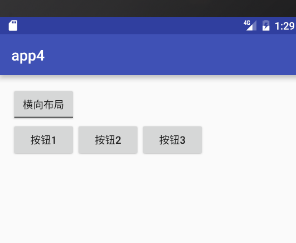
2. activity_main.xml
 <?xml version="1.0" encoding="utf-8"?>

 <LinearLayout xmlns:android="http://schemas.android.com/apk/res/android"

     xmlns:tools="http://schemas.android.com/tools"

     android:layout_width="match_parent"

     android:layout_height="match_parent"

     android:paddingBottom="@dimen/activity_vertical_margin"

     android:paddingLeft="@dimen/activity_horizontal_margin"

     android:paddingRight="@dimen/activity_horizontal_margin"

     android:paddingTop="@dimen/activity_vertical_margin"

     tools:context="com.example.app4.MainActivity"

     android:orientation="vertical">

     <ToggleButton

         android:id="@+id/tb_button"

         android:textOn="纵向布局"

         android:textOff="横向布局"

         android:checked="true"

         android:layout_width="wrap_content"

         android:layout_height="wrap_content" />

     <LinearLayout

         android:id="@+id/ll"

         android:orientation="vertical"

         android:layout_width="wrap_content"

         android:layout_height="wrap_content">

         <Button

             android:text="按钮1"

             android:layout_width="wrap_content"

             android:layout_height="wrap_content" />

         <Button

             android:text="按钮2"

             android:layout_width="wrap_content"

             android:layout_height="wrap_content" />

         <Button

             android:text="按钮3"

             android:layout_width="wrap_content"

             android:layout_height="wrap_content" />

     </LinearLayout>

 </LinearLayout>
3.MainActivity.java
 package com.example.app4;

 import android.support.v7.app.AppCompatActivity;

 import android.os.Bundle;

 import android.widget.CompoundButton;

 import android.widget.LinearLayout;

 import android.widget.ToggleButton;

 public class MainActivity extends AppCompatActivity {

     private ToggleButton toggleButton;

     private LinearLayout linearLayout;

     @Override

     protected void onCreate(Bundle savedInstanceState) {

         super.onCreate(savedInstanceState);

         setContentView(R.layout.activity_main);

         toggleButton = (ToggleButton) findViewById(R.id.tb_button);

         linearLayout = (LinearLayout) findViewById(R.id.ll);

         toggleButton.setOnCheckedChangeListener(new CompoundButton.OnCheckedChangeListener() {

             @Override

             public void onCheckedChanged(CompoundButton buttonView, boolean isChecked) {

                 if (isChecked){

                     //设置纵向布局

                     linearLayout.setOrientation(LinearLayout.VERTICAL);

                     toggleButton.setChecked(true);

                 }else {

                     //设置纵向布局

                     linearLayout.setOrientation(LinearLayout.HORIZONTAL);

                     toggleButton.setChecked(false);

                 }

             }

         });

     }

 }
(二)
1.效果图
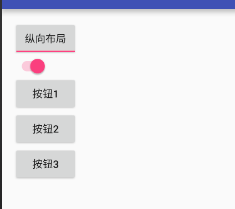
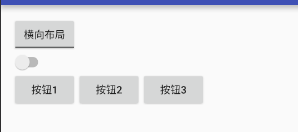
2.activity_main.xml
 <?xml version="1.0" encoding="utf-8"?>

 <LinearLayout xmlns:android="http://schemas.android.com/apk/res/android"

     xmlns:tools="http://schemas.android.com/tools"

     android:layout_width="match_parent"

     android:layout_height="match_parent"

     android:paddingBottom="@dimen/activity_vertical_margin"

     android:paddingLeft="@dimen/activity_horizontal_margin"

     android:paddingRight="@dimen/activity_horizontal_margin"

     android:paddingTop="@dimen/activity_vertical_margin"

     tools:context="com.example.app4.MainActivity"

     android:orientation="vertical">

     <ToggleButton

         android:id="@+id/tb_button"

         android:textOn="纵向布局"

         android:textOff="横向布局"

         android:checked="true"

         android:layout_width="wrap_content"

         android:layout_height="wrap_content" />

     <Switch

         android:id="@+id/sw"

         android:checked="true"

         android:layout_width="wrap_content"

         android:layout_height="wrap_content" />

     <LinearLayout

         android:id="@+id/ll"

         android:orientation="vertical"

         android:layout_width="wrap_content"

         android:layout_height="wrap_content">

         <Button

             android:text="按钮1"

             android:layout_width="wrap_content"

             android:layout_height="wrap_content" />

         <Button

             android:text="按钮2"

             android:layout_width="wrap_content"

             android:layout_height="wrap_content" />

         <Button

             android:text="按钮3"

             android:layout_width="wrap_content"

             android:layout_height="wrap_content" />

     </LinearLayout>

 </LinearLayout>
3.MainActivity.java
 package com.example.app4;

 import android.support.v7.app.AppCompatActivity;

 import android.os.Bundle;

 import android.widget.CompoundButton;

 import android.widget.LinearLayout;

 import android.widget.Switch;

 import android.widget.ToggleButton;

 public class MainActivity extends AppCompatActivity {

     private ToggleButton toggleButton;

     private LinearLayout linearLayout;

     private Switch aSwitch;

     @Override

     protected void onCreate(Bundle savedInstanceState) {

         super.onCreate(savedInstanceState);

         setContentView(R.layout.activity_main);

         toggleButton = (ToggleButton) findViewById(R.id.tb_button);

         linearLayout = (LinearLayout) findViewById(R.id.ll);

         aSwitch = (Switch) findViewById(R.id.sw);

         MyListener myListener = new MyListener();

         toggleButton.setOnCheckedChangeListener(myListener);

         aSwitch.setOnCheckedChangeListener(myListener);

         /*toggleButton.setOnCheckedChangeListener(new CompoundButton.OnCheckedChangeListener() {

             @Override

             public void onCheckedChanged(CompoundButton buttonView, boolean isChecked) {

                 if (isChecked){

                     //设置纵向布局

                     linearLayout.setOrientation(LinearLayout.VERTICAL);

                     toggleButton.setChecked(true);

                 }else {

                     //设置纵向布局

                     linearLayout.setOrientation(LinearLayout.HORIZONTAL);

                     toggleButton.setChecked(false);

                 }

             }

         });*/

     }

     class  MyListener implements CompoundButton.OnCheckedChangeListener{

         @Override

         public void onCheckedChanged(CompoundButton buttonView, boolean isChecked) {

             if (isChecked){

                 //设置纵向布局

                 linearLayout.setOrientation(LinearLayout.VERTICAL);

                 toggleButton.setChecked(true);

                 aSwitch.setChecked(true);

             }else {

                 //设置纵向布局

                 linearLayout.setOrientation(LinearLayout.HORIZONTAL);

                 toggleButton.setChecked(false);

                 aSwitch.setChecked(false);

             }

         }

     }

 }
ToggleButton控件,Switch控件的更多相关文章
- Switch控件详解
Switch控件详解 原生效果 5.x 4.x 布局 <Switch android:id="@+id/setting_switch" android:layout_widt ...
- 在tableviewcell里面嵌入switch控件以及如何获取switch控件数据
主要是通过cell.accessoryView来添加switch控件- (UITableViewCell *)tableView:(UITableView *)tableView cellForRow ...
- ToggleButton开关状态按钮控件
ToggleButton开关状态按钮控件 一.简介 1. 2.ToggleButton类结构 父类是CompoundButton,引包的时候注意下 二.ToggleButton开关状态按钮控件使用方法 ...
- Android Studio中Switch控件有关 textOn 和 textOff 用法
•属性 textOn:控件打开时显示的文字 textOff:控件关闭时显示的文字 showText:设置是否显示开关上的文字(API 21及以上) •用法 <?xml version=" ...
- 【原创】自己动手写控件----XSmartNote控件
一.前面的话 在上一篇博文自己动手写工具----XSmartNote [Beta 3.0]中,用到了若干个自定义控件,其中包含用于显示Note内容的简单的Label扩展控件,用于展示标签内容的labe ...
- WPF进阶技巧和实战03-控件(1-控件及内容控件)
所有控件都继承自System.Windows.Controls.Control类,这个类添加一些基本结构: 设置控件内容对齐方式 (HorizontalContentAlignment,Vertica ...
- winform用户控件、动态创建添加控件、timer控件、控件联动
用户控件: 相当于自定义的一个panel 里面可以放各种其他控件,并可以在后台一下调用整个此自定义控件. 使用方法:在项目上右键.添加.用户控件,之后用户控件的编辑与普通容器控件类似.如果要在后台往窗 ...
- paip.gui控件tabs控件加载内容的原理以及easyui最佳实现
paip.gui控件tabs控件加载内容的原理以及easyui最佳实现 //////////////tabs控件的加载 同form窗体一样,俩个方式 两个方式:一个是url,简单的文本可以使用这个,不 ...
- zw版【转发·台湾nvp系列Delphi例程】Delphi 使用 HALCON库件COM控件数据格式转换
zw版[转发·台湾nvp系列Delphi例程]Delphi 使用 HALCON库件COM控件数据格式转换 Delphi 使用 HALCON库件COM控件数据格式转换,与IHObjectX接口有关 va ...
随机推荐
- 动态性能视图v$session_longops
v$session_longops This view displays the status of various operations that run for longer than 6 sec ...
- java md5加密 不依赖base64包
/** * MD5 加密 */ private String getMD5Str(String str) { MessageDigest messageDigest = null; try { mes ...
- PHP 抽象类,接口,抽象方法,静态方法
1.Abstract class(抽象类) 抽象类是指在 class 前加了 abstract 关键字且存在抽象方法(在类方法 function 关键字前加了 abstract 关键字)的类. 抽象类 ...
- (转)Notepad++
包括notepad++的详细的安装过程,插件使用说明,技巧…… crifan http://www.crifan.com/files/doc/docbook/rec_soft_npp/release/ ...
- vue2.0基础知识,及webpack中vue的使用
## 基础指令 ## [v-cloak]{ Display:none; } <p v-cloak>xx{{msg}}xx</p> //解决闪烁问 ...
- 计算机网络中七层,五层,四层协议;IP 地址子网划分
七层协议: 7 应用层(http) 6 表示层(上层用户可以相互识别的数据:jpg) 5 会话层(不同主机不同线程间的通信) 4 运输层(tcp/ip:传输层提供端到端的透明数据服务)/差错控制和流量 ...
- 如何让 linux unzip 命令 不输出结果
unzip xx.zip > /dev/null 2>&1 unzip xx.zip > /dev/null前半部分是将标准输出重定向到空设备, 后面的2>&1 ...
- [bzoj3676][Apio2014]回文串——Manacher+后缀自动机+倍增
Brief Description 一个回文串的value定义为这个回文串的长度乘以出现次数.给定一个字符串,求\(value_{max}\). Algorithm Design 我们使用Manach ...
- TensorFlow_曲线拟合
# coding:utf-8 import tensorflow as tf import numpy as np import matplotlib.pyplot as plt import os ...
- python--celery
有些时候我们的一些任务比较耗时,比如我们写了一个网站,用户注册的时候需要发送邮件.但是发送邮件的过程比较耗时,用户必须要等到我们将邮件发送成功之后才会得到响应.那么有没有一种办法,当用户点击发送邮件的 ...