
2018-2019-20175334实验四《Android程序设计》实验报告
2018-2019-20175334实验四《Android程序设计》实验报告
一、实验内容及步骤
实验四 Android程序设计-1
Android Stuidio的安装测试: 参考《Java和Android开发学习指南(第二版)(EPUBIT,Java for Android 2nd)》第二十四章:
参考http://www.cnblogs.com/rocedu/p/6371315.html#SECANDROID,安装 Android Stuidio
完成Hello World, 要求修改res目录中的内容,Hello World后要显示自己的学号,自己学号前后一名同学的学号,提交代码运行截图和码云Git链接,截图没有学号要扣分
学习Android Stuidio调试应用程序
下载安装并配置
Android SDK进入
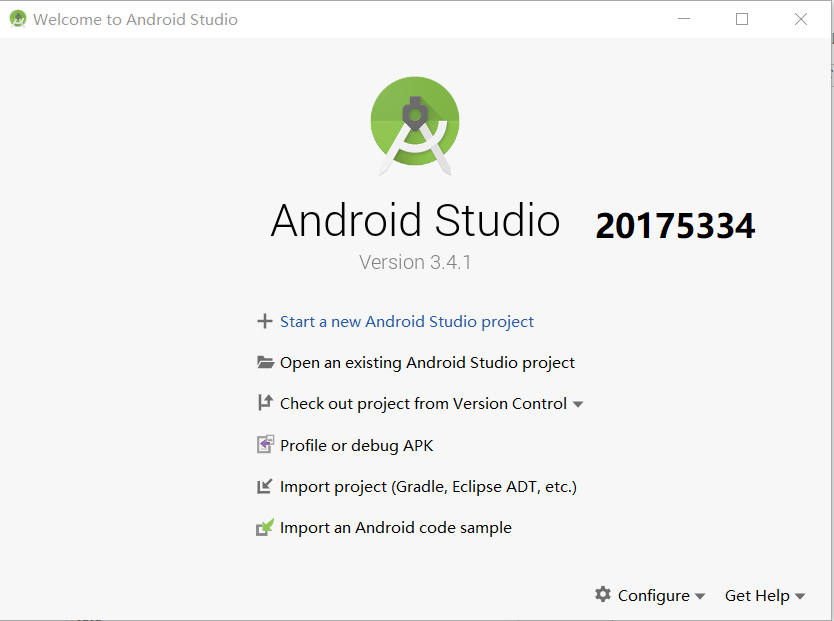
Android Studio的欢迎页
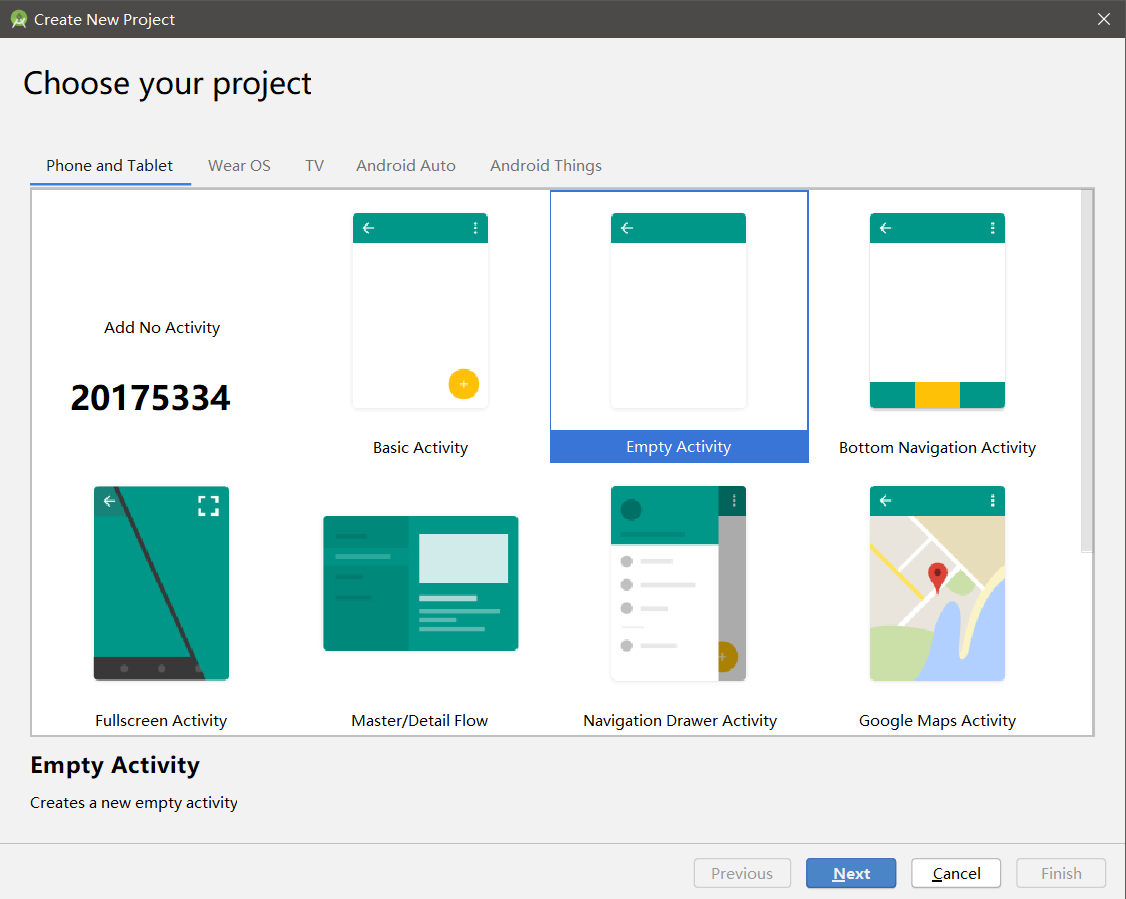
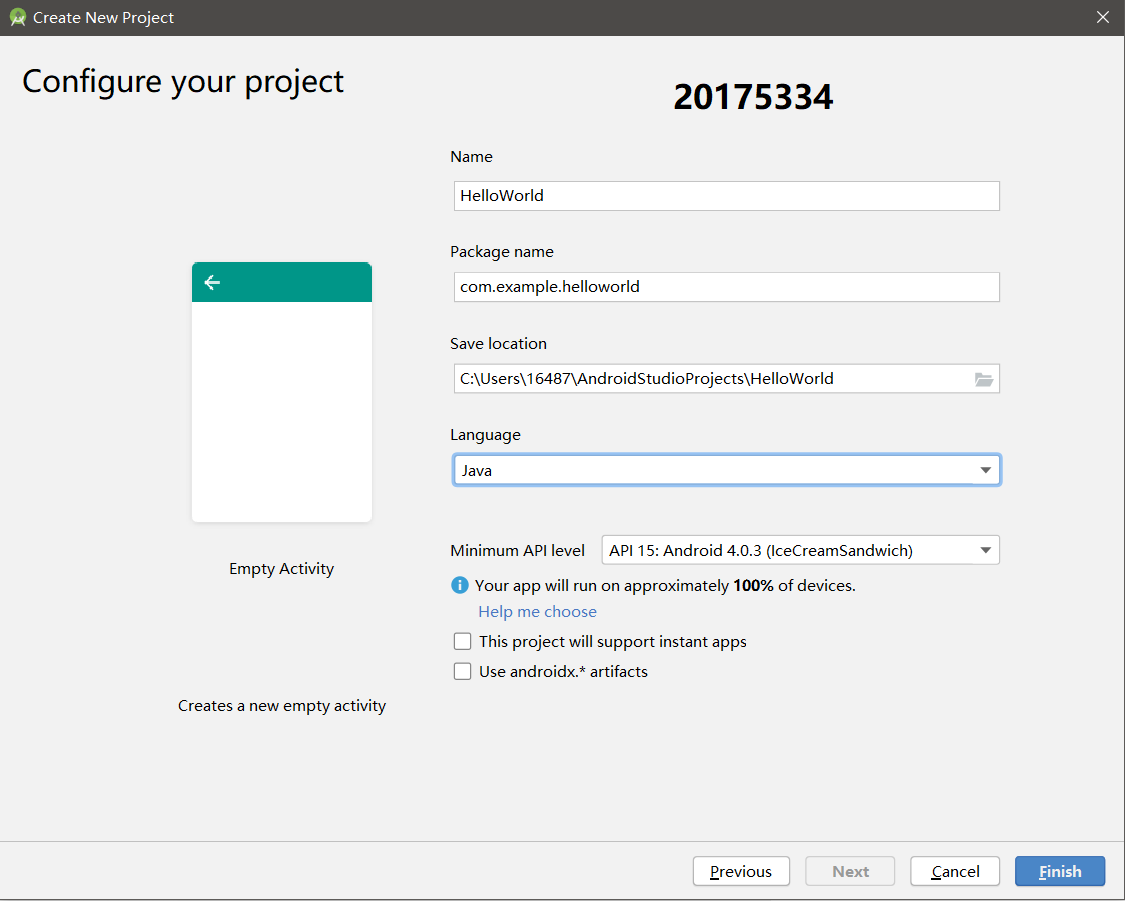
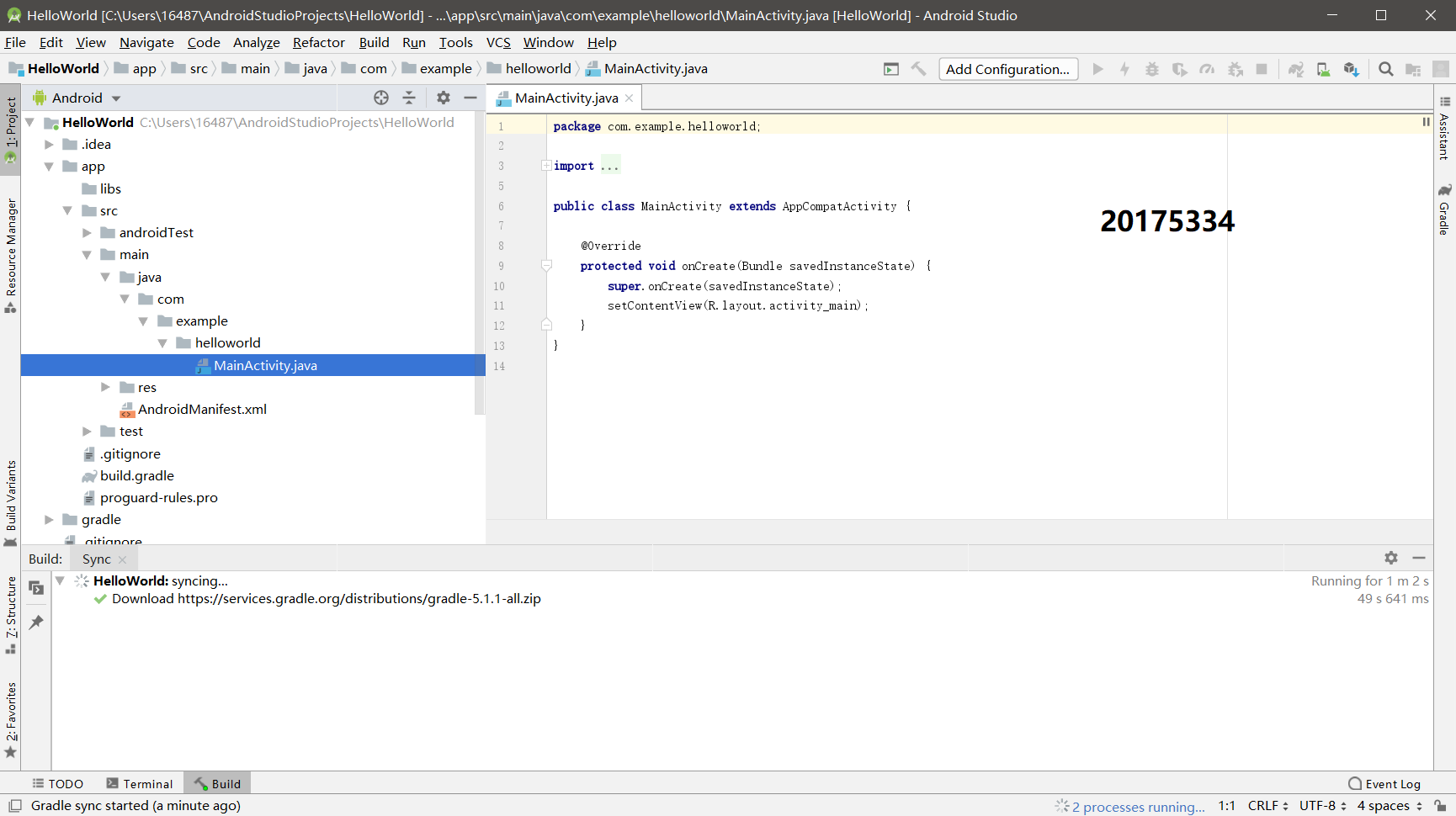
新建项目
配置和启动模拟器
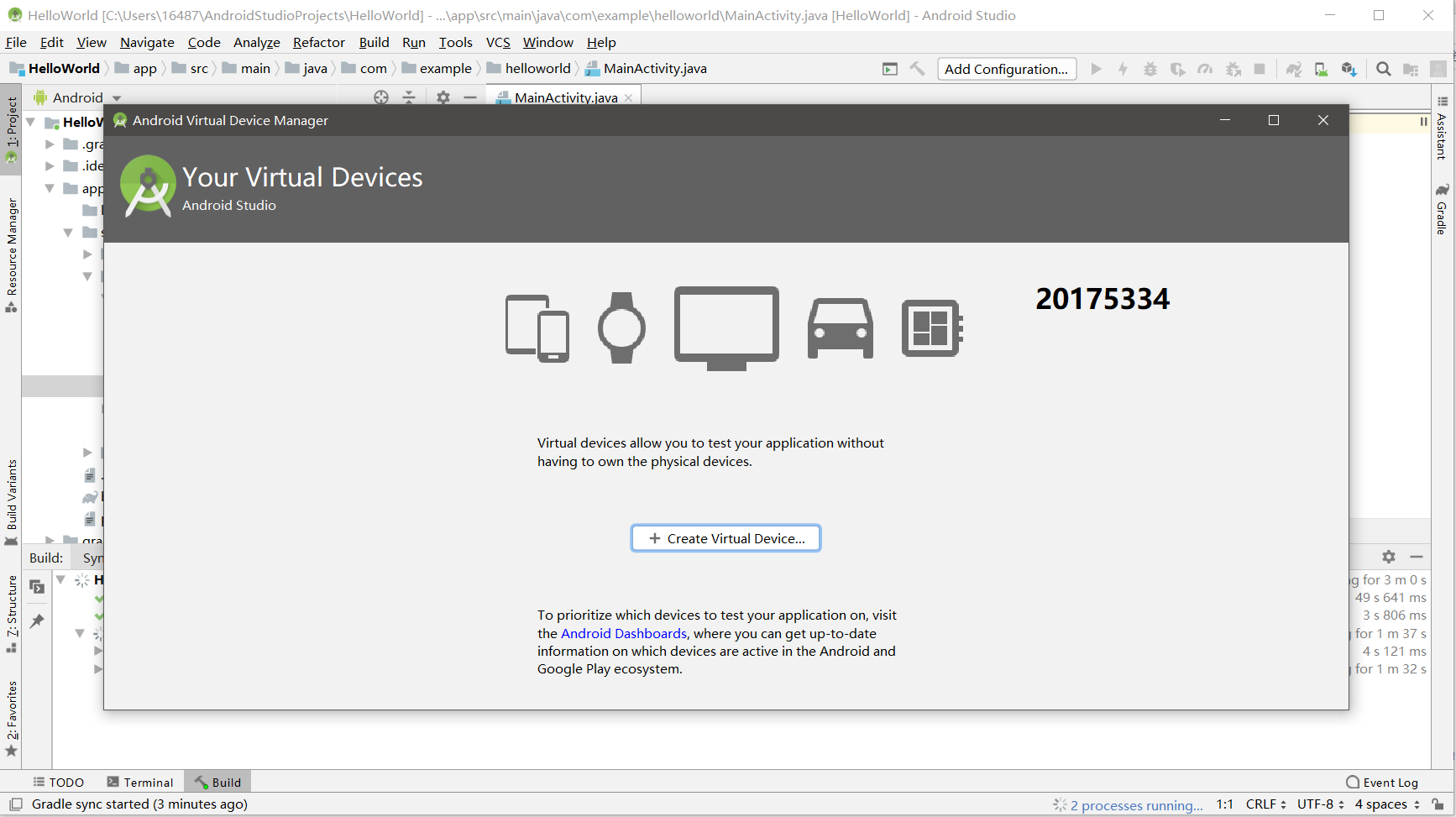

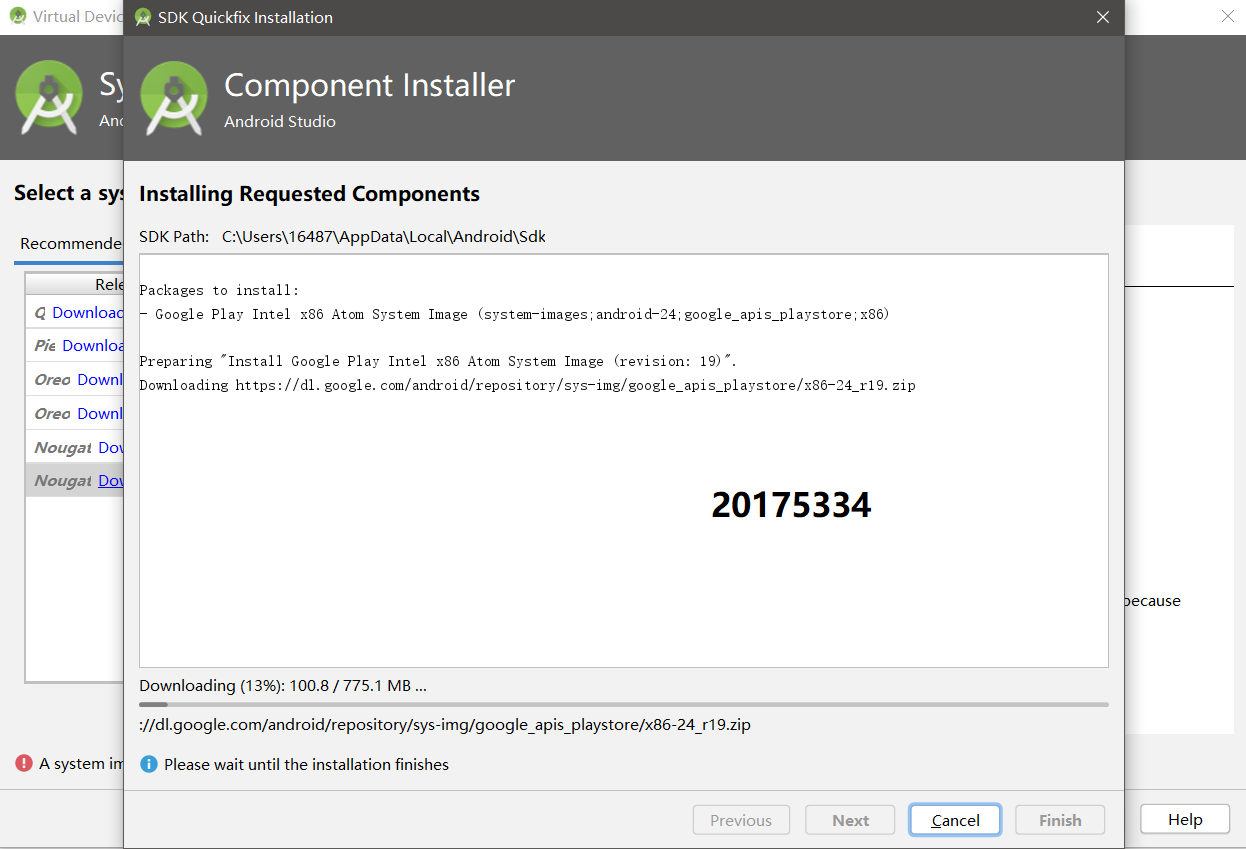
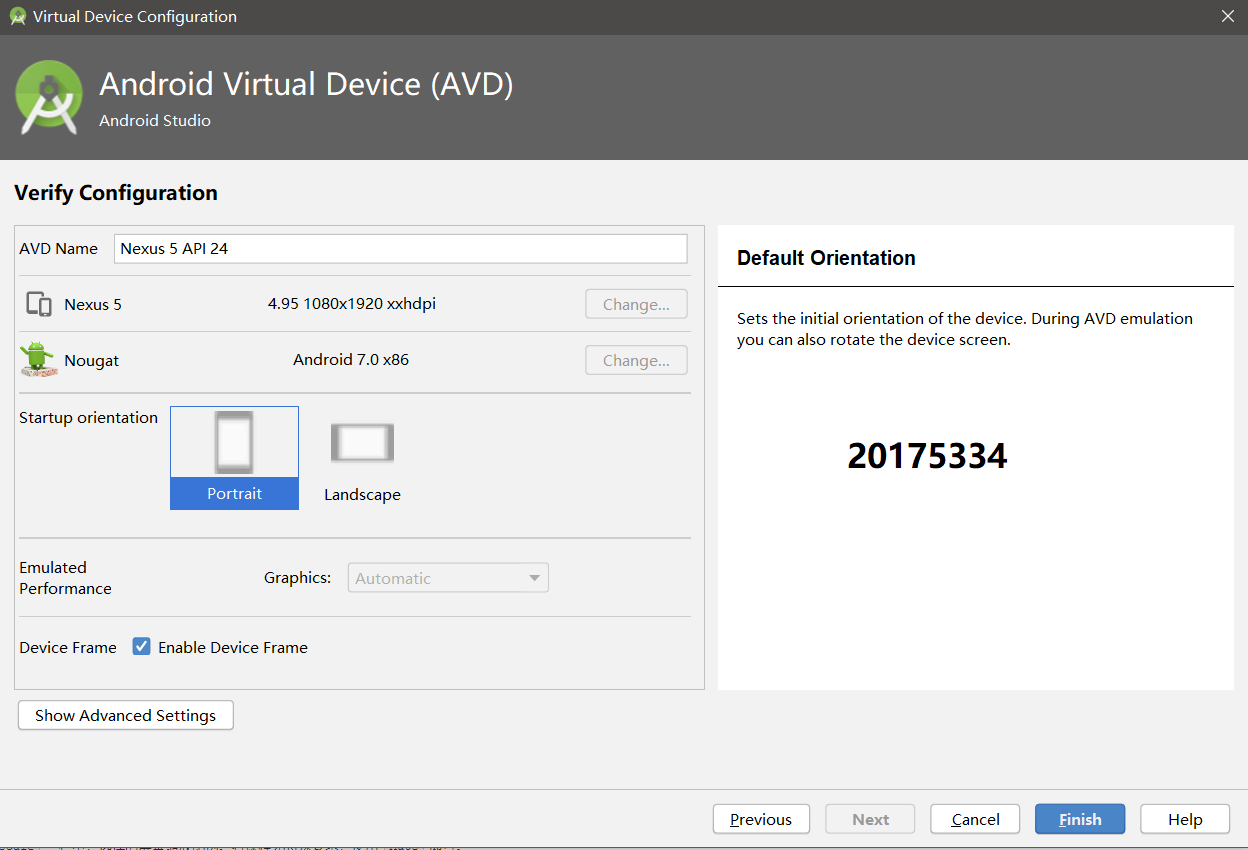

项目编译和运行


代码
activity_main.xml
<?xml version="1.0" encoding="utf-8"?>

<android.support.constraint.ConstraintLayout

    xmlns:android="http://schemas.android.com/apk/res/android"

    xmlns:app="http://schemas.android.com/apk/res-auto"

    xmlns:tools="http://schemas.android.com/tools"

    android:layout_width="match_parent"

    android:layout_height="match_parent"

    tools:context=".MainActivity">

    <TextView

        android:layout_width="wrap_content"

        android:layout_height="wrap_content"

        android:text="Hello World! 20175213 20175212 20175214"

        app:layout_constraintBottom_toBottomOf="parent"

        app:layout_constraintLeft_toLeftOf="parent"

        app:layout_constraintRight_toRightOf="parent"

        app:layout_constraintTop_toTopOf="parent" />

</android.support.constraint.ConstraintLayout>
实验四 Android程序设计-2
Activity测试: 参考《Java和Android开发学习指南(第二版)(EPUBIT,Java for Android 2nd)》第二十五章:
构建项目,运行教材相关代码
创建 ThirdActivity, 在ThirdActivity中显示自己的学号,修改代码让MainActivity启动ThirdActivity
提交代码运行截图和码云Git链接,截图要有学号水印,否则会扣分
新建项目
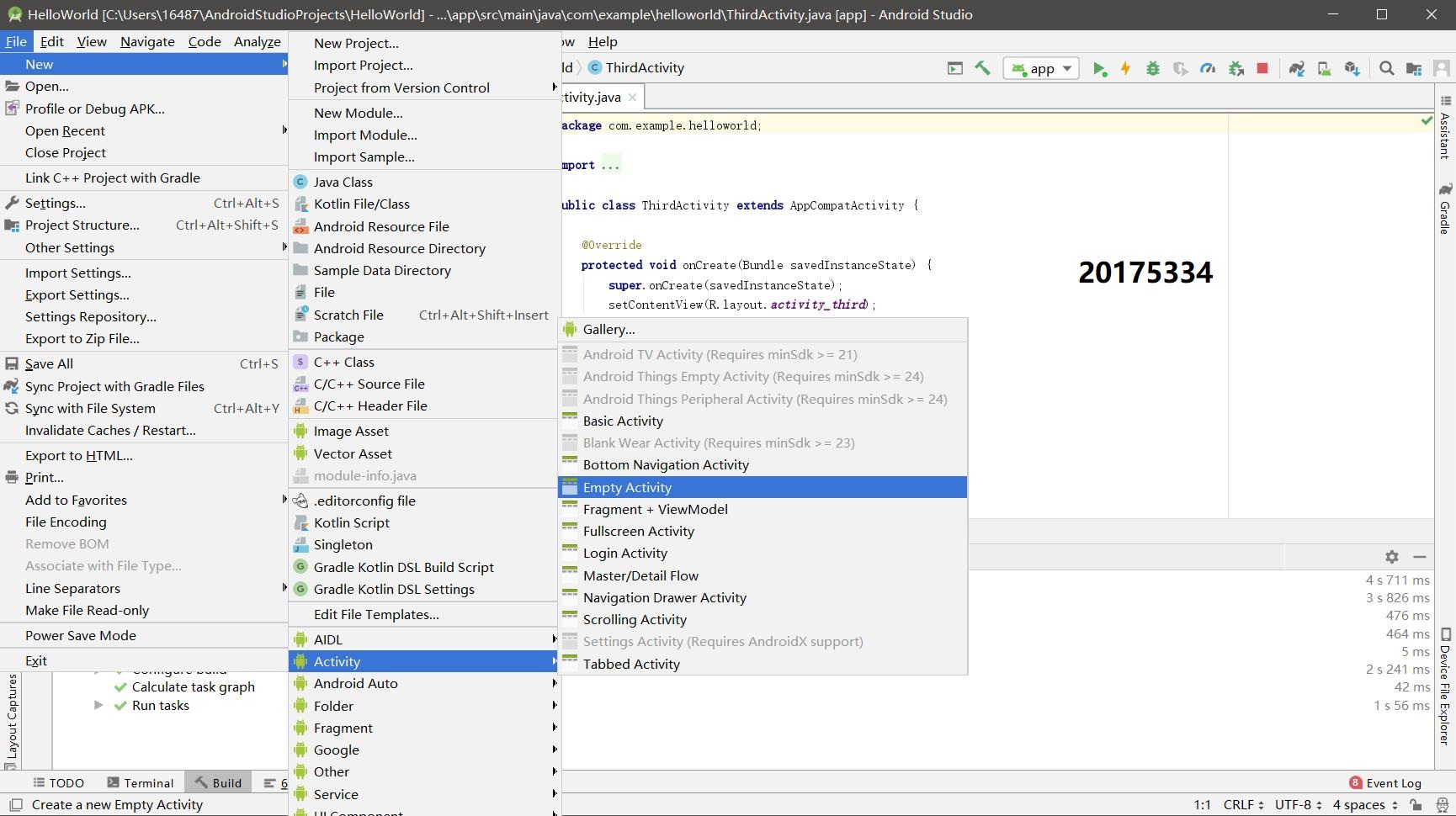
修改代码

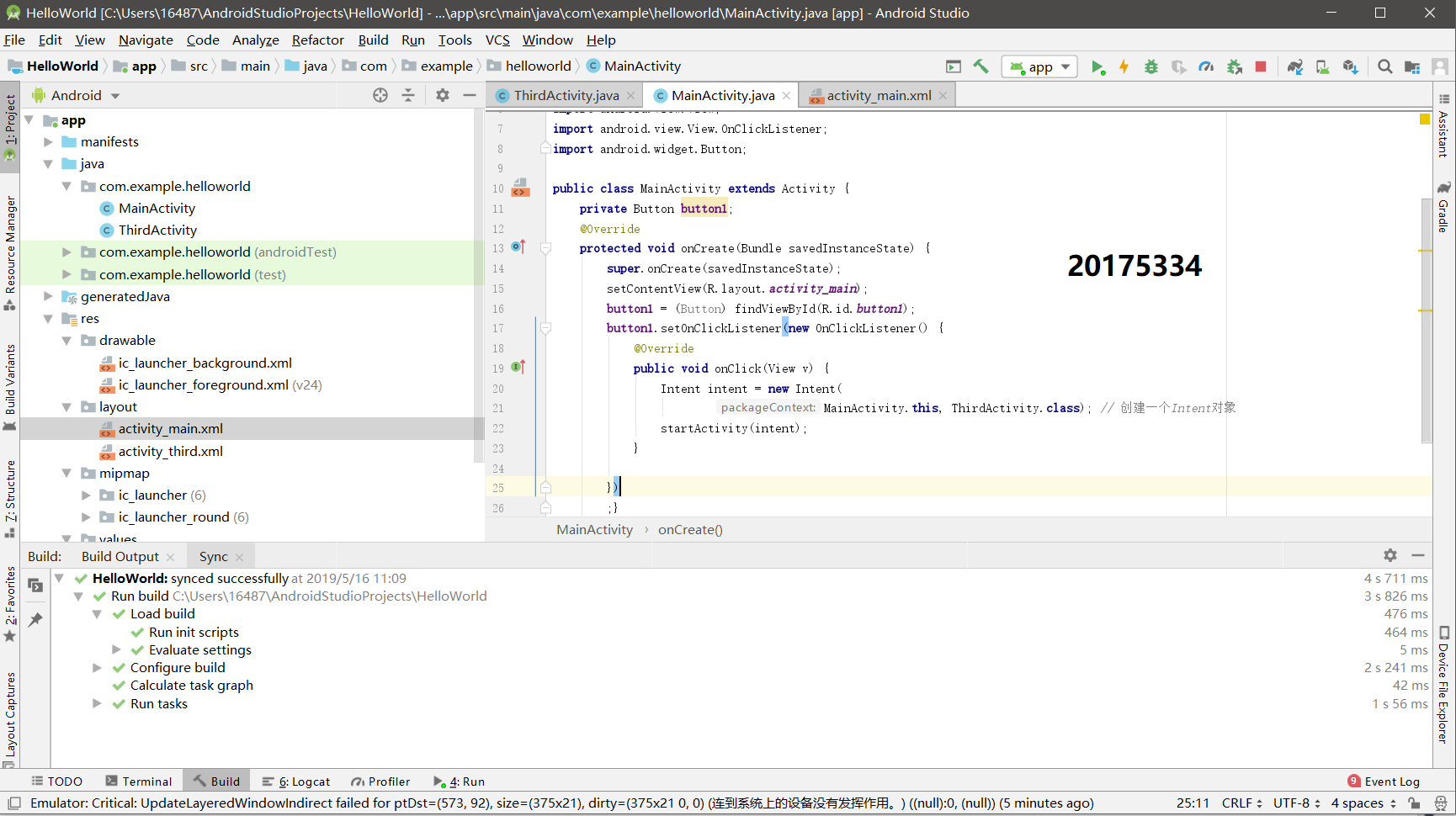

项目编译和运行
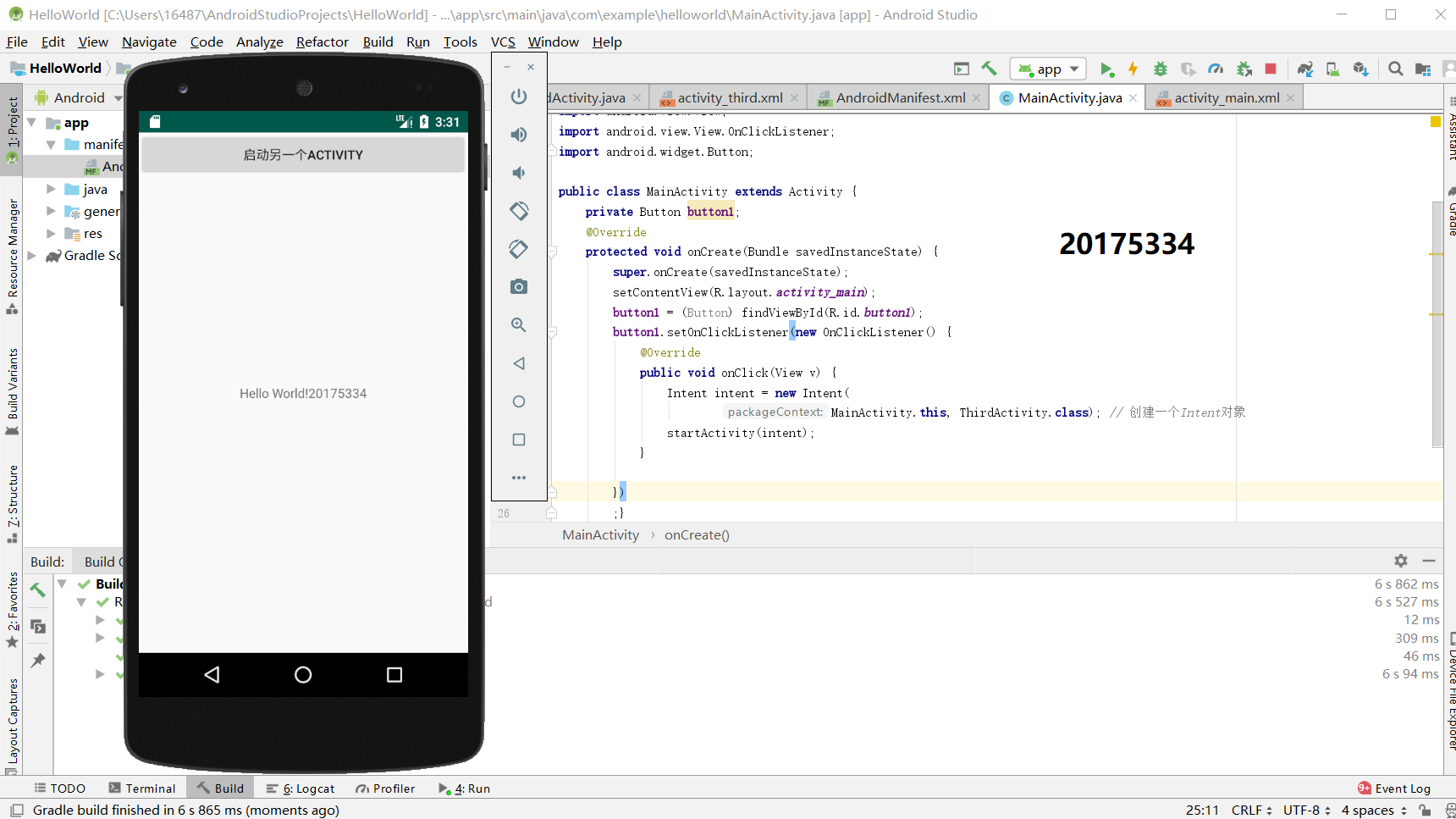

代码:
ThirdActivity.java
package com.example.helloworld;

import android.support.v7.app.AppCompatActivity;

import android.os.Bundle;

public class ThirdActivity extends AppCompatActivity {

    @Override

    protected void onCreate(Bundle savedInstanceState) {

        super.onCreate(savedInstanceState);

        setContentView(R.layout.activity_third);

    }

}
activity_third.xml
<?xml version="1.0" encoding="utf-8"?>

<android.support.constraint.ConstraintLayout

    xmlns:android="http://schemas.android.com/apk/res/android"

    xmlns:tools="http://schemas.android.com/tools"

    android:layout_width="match_parent"

    android:layout_height="match_parent"

    android:orientation="vertical">

    <TextView

        android:id="@+id/textView"

        android:layout_width="172dp"

        android:layout_height="139dp"

        android:text="20175334"

        tools:layout_editor_absoluteX="153dp"

        tools:layout_editor_absoluteY="311dp"

        tools:ignore="MissingConstraints" />

</android.support.constraint.ConstraintLayout>
AndroidMainifest.xml
<?xml version="1.0" encoding="utf-8"?>

<manifest xmlns:android="http://schemas.android.com/apk/res/android"

    xmlns:tools="http://schemas.android.com/tools"

    package="com.example.helloworld" >

    <application

        android:allowBackup="true"

        android:icon="@mipmap/ic_launcher"

        android:label="@string/app_name"

        android:theme="@style/AppTheme"

        tools:ignore="GoogleAppIndexingWarning">

        <activity

            android:name=".MainActivity"

            android:label="@string/app_name" >

            <intent-filter>

                <action android:name="android.intent.action.MAIN" />

                <category android:name="android.intent.category.LAUNCHER" />

            </intent-filter>

        </activity>

        <activity

            android:name=".ThirdActivity"

            android:label="Activity">

        </activity><!--在这里注册-->

    </application>

</manifest>
MainActivity.java
package com.example.helloworld;

import android.app.Activity;

import android.content.Intent;

import android.os.Bundle;

import android.view.View;

import android.view.View.OnClickListener;

import android.widget.Button;

public class MainActivity extends Activity {

    private Button button1;

    @Override

    protected void onCreate(Bundle savedInstanceState) {

        super.onCreate(savedInstanceState);

        setContentView(R.layout.activity_main);

        button1 = (Button) findViewById(R.id.button1);

        button1.setOnClickListener(new OnClickListener() {

            @Override

            public void onClick(View v) {

                Intent intent = new Intent(

                        MainActivity.this, ThirdActivity.class); // 创建一个Intent对象

                startActivity(intent);

            }

        })

        ;}

}
activity_main.xml
<?xml version="1.0" encoding="utf-8"?>

<android.support.constraint.ConstraintLayout

    xmlns:android="http://schemas.android.com/apk/res/android"

    xmlns:app="http://schemas.android.com/apk/res-auto"

    xmlns:tools="http://schemas.android.com/tools"

    android:layout_width="match_parent"

    android:layout_height="match_parent"

    tools:context=".MainActivity">

    <Button

        android:id="@+id/button1"

        android:layout_width="fill_parent"

        android:layout_height="wrap_content"

        android:text="启动另一个activity"

        tools:ignore="MissingConstraints" />

    <TextView

        android:layout_width="wrap_content"

        android:layout_height="wrap_content"

        android:text="Hello World!20175334"

        app:layout_constraintBottom_toBottomOf="parent"

        app:layout_constraintLeft_toLeftOf="parent"

        app:layout_constraintRight_toRightOf="parent"

        app:layout_constraintTop_toTopOf="parent" />

</android.support.constraint.ConstraintLayout>
实验四 Android程序设计-3
UI测试: 参考《Java和Android开发学习指南(第二版)(EPUBIT,Java for Android 2nd)》第二十六章:
构建项目,运行教材相关代码
修改代码让Toast消息中显示自己的学号信息
提交代码运行截图和码云Git链接,截图要有学号水印,否则会扣分
修改代码

项目编译和运行
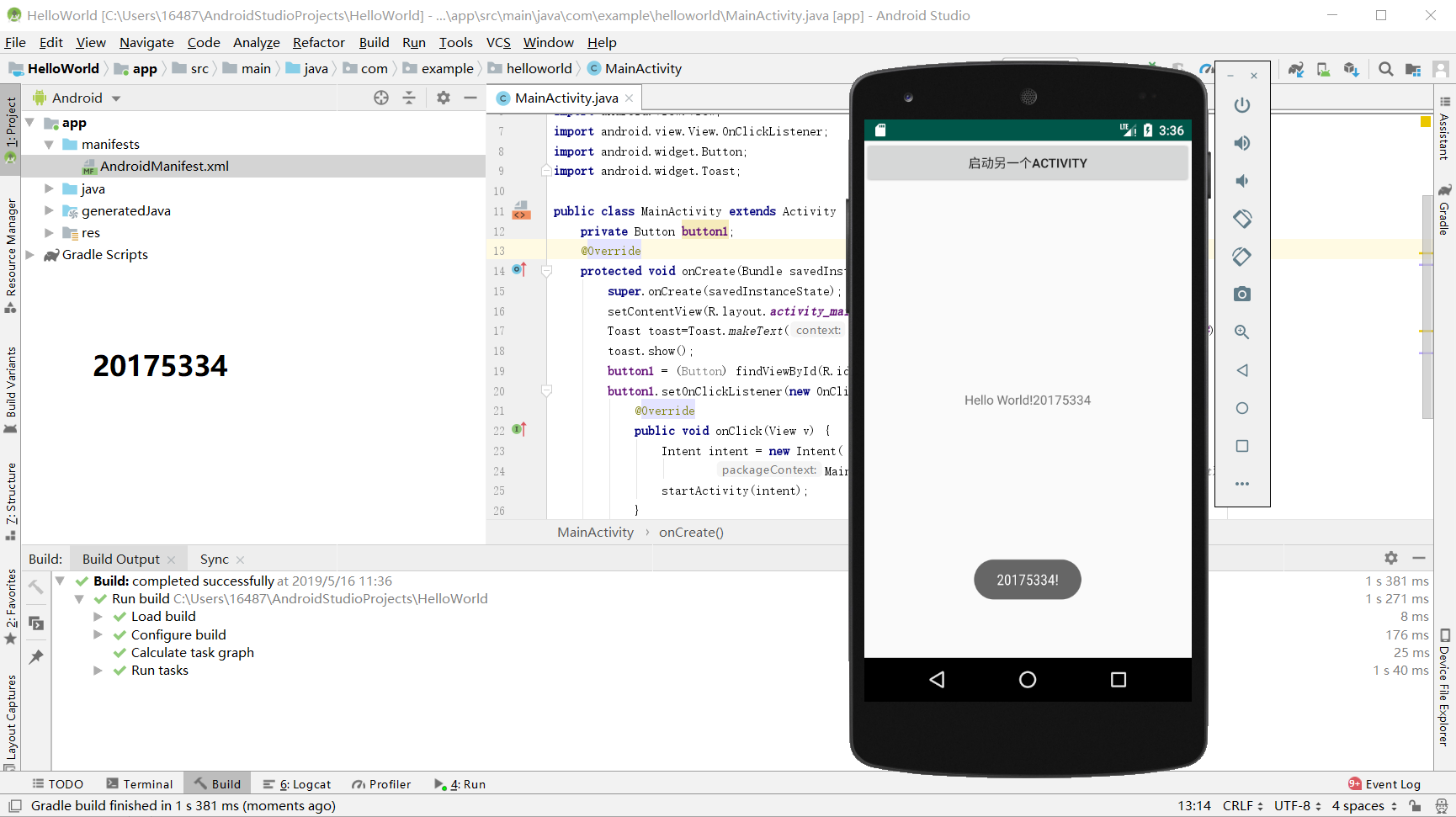
代码:
MainActivity.java
package com.example.helloworld;

import android.app.Activity;

import android.content.Intent;

import android.os.Bundle;

import android.view.View;

import android.view.View.OnClickListener;

import android.widget.Button;

import android.widget.Toast;

public class MainActivity extends Activity {

    private Button button1;

    @Override

    protected void onCreate(Bundle savedInstanceState) {

        super.onCreate(savedInstanceState);

        setContentView(R.layout.activity_main);

        Toast toast=Toast.makeText(MainActivity.this, "20175334!",Toast.LENGTH_LONG);

        toast.show();

        button1 = (Button) findViewById(R.id.button1);

        button1.setOnClickListener(new OnClickListener() {

            @Override

            public void onClick(View v) {

                Intent intent = new Intent(

                        MainActivity.this, ThirdActivity.class); // 创建一个Intent对象

                startActivity(intent);

            }

        })

        ;}

}
实验四 Android程序设计-4
布局测试: 参考《Java和Android开发学习指南(第二版)(EPUBIT,Java for Android 2nd)》第二十七章:
构建项目,运行教材相关代码
修改布局让P290页的界面与教材不同
提交代码运行截图和码云Git链接,截图要有学号水印,否则会扣分
修改代码

项目编译和运行

代码:
activity_main.xml
<RelativeLayout

    xmlns:android="http://schemas.android.com/apk/res/android"

    xmlns:tools="http://schemas.android.com/tools"

    android:layout_width="match_parent"

    android:layout_height="match_parent"

    android:paddingLeft="3dp"

    android:paddingRight="3dp">

    <Button

        android:id="@+id/cancelButton"

        android:layout_width="wrap_content"

        android:layout_height="wrap_content"

        android:text="201753344"

        android:layout_marginTop="60dp"

        android:layout_alignParentTop="true"

        android:layout_centerHorizontal="true" />

    <Button

        android:id="@+id/saveButton"

        android:layout_width="wrap_content"

        android:layout_height="wrap_content"

        android:text="罗昕锐"

        android:layout_below="@+id/cancelButton"

        android:layout_alignLeft="@+id/cancelButton"

        android:layout_alignStart="@+id/cancelButton"

        android:layout_marginTop="22dp" />

    <ImageView

        android:layout_width="140dp"

        android:layout_height="140dp"

        android:layout_marginTop="40dp"

        android:padding="4dp"

        android:src="@android:drawable/ic_btn_speak_now" />

    <LinearLayout

        android:id="@+id/filter_button_container"

        android:layout_width="match_parent"

        android:layout_height="wrap_content"

        android:layout_alignParentBottom="true"

        android:gravity="center|bottom"

        android:background="@android:color/white"

        android:orientation="horizontal" >

        <Button

            android:id="@+id/filterButton"

            android:layout_width="wrap_content"

            android:layout_height="fill_parent"

            android:text="Filter" />

        <Button

            android:id="@+id/shareButton"

            android:layout_width="wrap_content"

            android:layout_height="fill_parent"

            android:text="Share" />

        <Button

            android:id="@+id/deleteButton"

            android:layout_width="wrap_content"

            android:layout_height="fill_parent"

            android:text="Delete" />

    </LinearLayout>

</RelativeLayout>
实验四 Android程序设计-5
事件处理测试: 参考《Java和Android开发学习指南(第二版)(EPUBIT,Java for Android 2nd)》第二十八章:
构建项目,运行教材相关代码
提交代码运行截图和码云Git链接,截图要有学号水印,否则会扣分
-修改代码

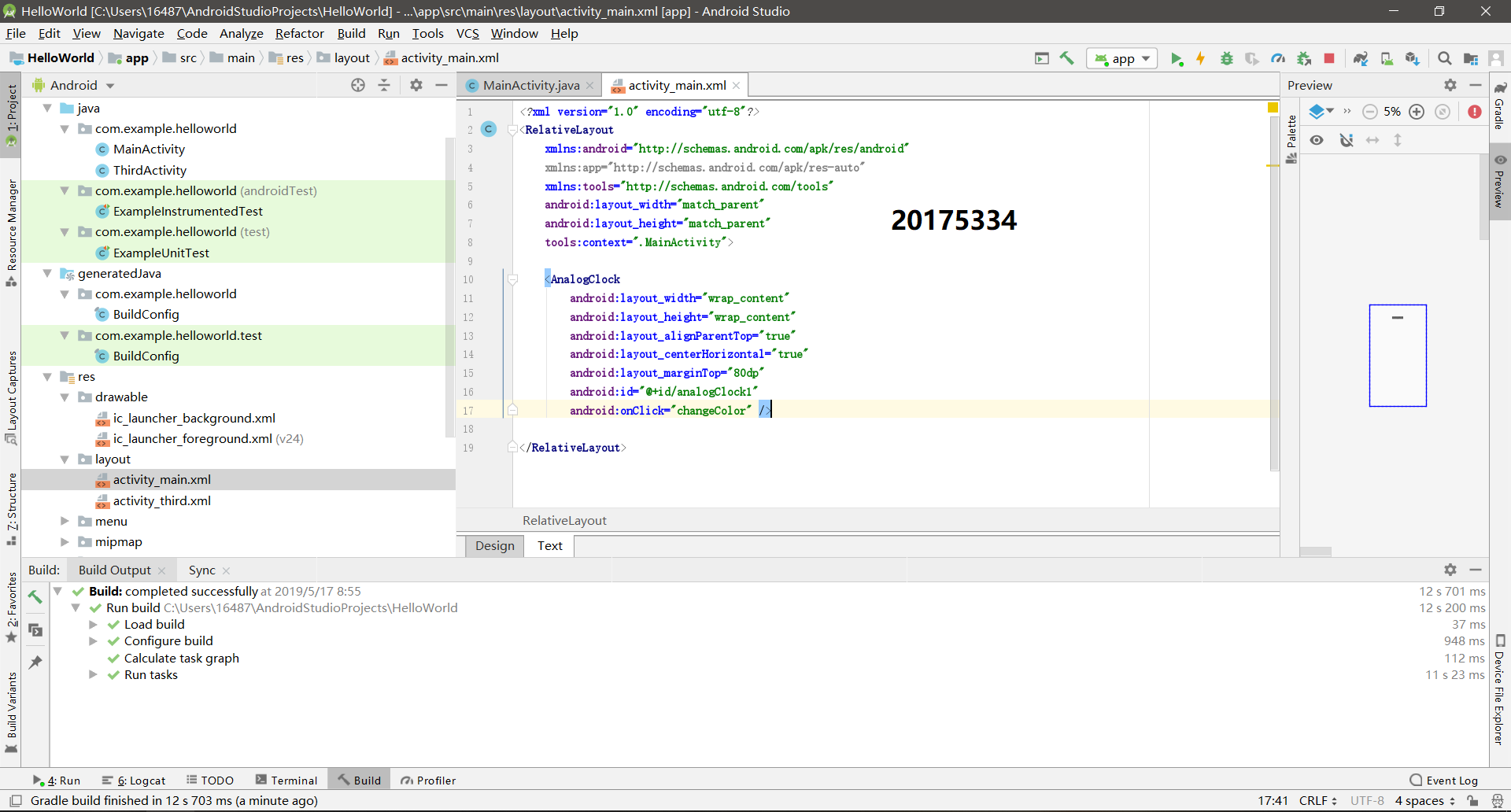
项目编译和运行
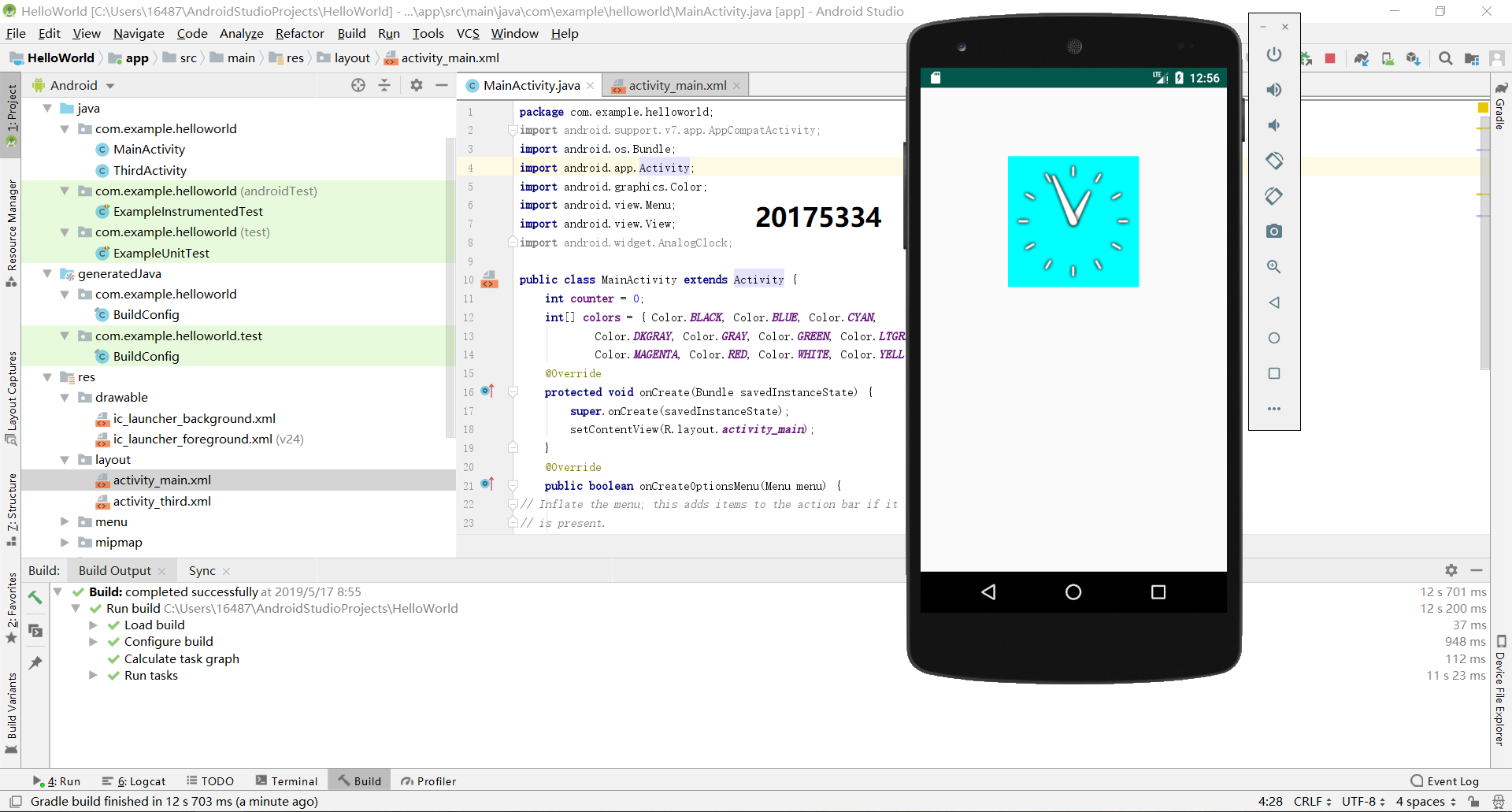
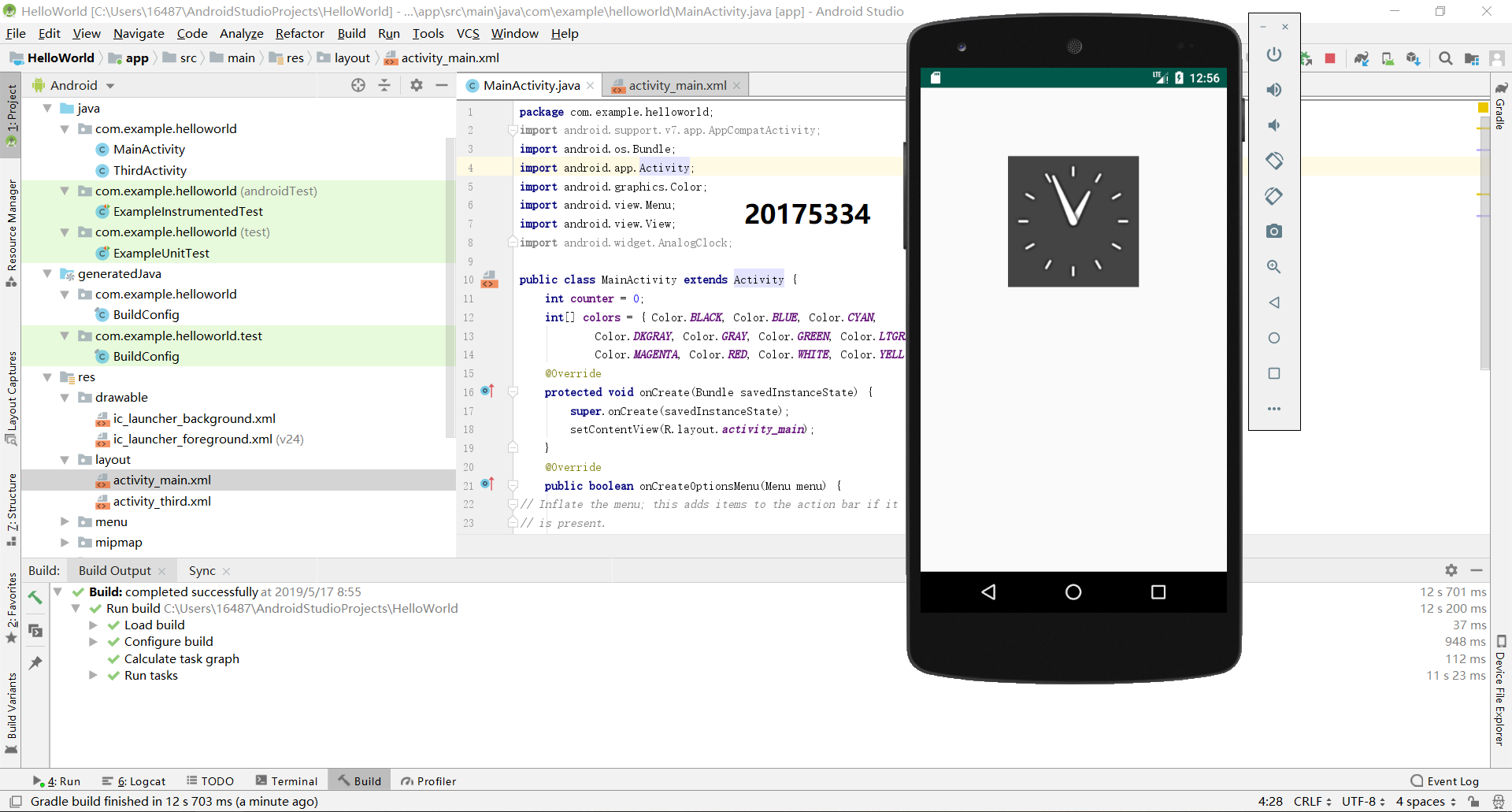
代码:
MainActivity.java
package com.example.helloworld;

import android.support.v7.app.AppCompatActivity;

import android.os.Bundle;

import android.app.Activity;

import android.graphics.Color;

import android.view.Menu;

import android.view.View;

import android.widget.AnalogClock;

public class MainActivity extends Activity {

    int counter = 0;

    int[] colors = { Color.BLACK, Color.BLUE, Color.CYAN,

            Color.DKGRAY, Color.GRAY, Color.GREEN, Color.LTGRAY,

            Color.MAGENTA, Color.RED, Color.WHITE, Color.YELLOW };

    @Override

    protected void onCreate(Bundle savedInstanceState) {

        super.onCreate(savedInstanceState);

        setContentView(R.layout.activity_main);

    }

    @Override

    public boolean onCreateOptionsMenu(Menu menu) {

// Inflate the menu; this adds items to the action bar if it

// is present.

        getMenuInflater().inflate(R.menu.menu_main, menu);

        return true;

    }

    public void changeColor(View view) {

        if (counter == colors.length) {

            counter = 0;

        }

        view.setBackgroundColor(colors[counter++]);

    }

}
activity_main.xml
<?xml version="1.0" encoding="utf-8"?>

<RelativeLayout

    xmlns:android="http://schemas.android.com/apk/res/android"

    xmlns:app="http://schemas.android.com/apk/res-auto"

    xmlns:tools="http://schemas.android.com/tools"

    android:layout_width="match_parent"

    android:layout_height="match_parent"

    tools:context=".MainActivity">

    <AnalogClock

        android:layout_width="wrap_content"

        android:layout_height="wrap_content"

        android:layout_alignParentTop="true"

        android:layout_centerHorizontal="true"

        android:layout_marginTop="80dp"

        android:id="@+id/analogClock1"

        android:onClick="changeColor" />

</RelativeLayout>
二、心得体会
- 第一次接触到 Android程序设计,学习后有很多收获
- 自学还是有些困难,在代码修改部分花费了较多时间
三、实验中遇到的问题以及解决办法
- 问题1:做第五个实验时,代码中
R.menu部分显示红色 - 问题1解决方案:在
res目录中创建menu目录并在其内创建menu_main.xml文件
四、代码托管
| 步骤 | 耗时 | 百分比 |
|---|---|---|
| 需求分析 | 30min | 17.7% |
| 设计 | 50min | 29.4% |
| 代码实现 | 40min | 23.5% |
| 测试 | 20min | 11.7% |
| 分析总结 | 30min | 17.7% |
2018-2019-20175334实验四《Android程序设计》实验报告的更多相关文章
- 20165230 《Java程序设计》实验四 Android程序设计实验报告
20165230 <Java程序设计>实验四 Android程序设计实验报告 一.实验报告封面 课程:Java程序设计 班级:1652班 姓名:田坤烨 学号:20165230 成绩: 指导 ...
- 实验四 Android程序设计 实验报告
实验四 Android程序设计 实验报告 目录 代码托管地址 Android程序设计-1 Android程序设计-2 Android程序设计-3 Android程序设计-4 Android程序设计-5 ...
- 20155326 实验四 Android程序设计实验报告
20155326 实验四 Android程序设计实验报告 实验内容 1.基于Android Studio开发简单的Android应用并部署测试; 2.了解Android.组件.布局管理器的使用: 3. ...
- 20162325金立清 实验四 Android程序设计 实验报告
实验四 Android程序设计 实验报告 代码托管地址 码云链接 实验内容 安装使用Android Stuidio Activity测试 UI测试 布局测试 事件处理测试 Android程序设计-1 ...
- 实验四 Android程序设计 实验报告 20162305李昱兴
实验四 Android程序设计 实验报告 20162305李昱兴 一.Android Studio的安装测试 1.有关该软件 Android Studio,是基于Itellij IDEA的一款流行的I ...
- 20172302《程序设计与数据结构》实验四Android程序设计实验报告
课程:<程序设计与数据结构> 班级: 1723 姓名: 侯泽洋 学号:20172302 实验教师:王志强老师 实验日期:2018年5月30日 必修/选修: 必修 1.实验内容 (1)And ...
- 20155328 实验四 Android程序设计 实验报告
20155328 实验四 Android程序设计 第24章 初识Android 提交点1:完成HelloWorld并显示自己的学号 安装Android Studio后,创建了属于自己的Project( ...
- 2016-2017-2 20155312 实验四Android程序设计实验报告
遇到的问题及解决过程 「问题1」Android Studio-R文件出错 解决:参考Android Studio-R文件错误的解决办法步骤如下: 第一步:检查xml文件,R文件错误通常是由于我们的xm ...
- 20165235实验四 Android程序设计
20165235实验四 Android程序设计 实验课程:JAVA编程设计 实验名称:Android开发 姓名:祁瑛 学号:20165235 实验时间:2018.05.16 指导老师:娄家鹏 Andr ...
- 实验四 Android程序设计
20155224 实验四 Android程序设计 实验报告 实验报告封面: 课程:Java程序设计 班级:1652班 姓名:王高源 学号:20165225 指导教师:娄嘉鹏 实验日期:2018年5月1 ...
随机推荐
- 【机器学习】使用CNN神经网络实现对图片分类识别及模型转换
仅做记录,后面慢慢整理 训练函数: from skimage import io, transform # skimage模块下的io transform(图像的形变与缩放)模块 import glo ...
- P4075 [SDOI2016]模式字符串
总结 P4075 [SDOI2016]模式字符串 题目描述 给出n个结点的树结构T,其中每一个结点上有一个字符,这里我们所说的字符只考虑大写字母A到Z,再给出长度为m的模式串s,其中每一位仍然是A到z ...
- PTA L2-029 | 特立独行的幸福 (打表+递归)
题目描述 对一个十进制数的各位数字做一次平方和,称作一次迭代.如果一个十进制数能通过若干次迭代得到 \(1\),就称该数为幸福数.\(1\) 是一个幸福数.此外,例如 \(19\) 经过一次迭代得到 ...
- 01、学习c++必知的几个网站
1.https://zh.cppreference.com/ 2.http://www.cplusplus.com/ 3.https://gcc.gnu.org/onlinedocs/libstdc+ ...
- ubuntu 部署Django项目+uwsgi+Nginx
1.部署框架 Nginx负责静态资源请求,并且把无法处理的请求转发至uwsgi处理 2.安装并配置Nginx 2.1安装 apt-get install nginx (如果安装失败请先升级apt-ge ...
- os常用讲解
os.mkdir()创建单个不存在的空目录,无法创建多个或者已经存在的含有文件的同名目录 os.makedirs() 能够递归创建多个目录,如果目录已经存在即使都是空的或者目录已经存在且含有文件,则引 ...
- 在阿里云IIS服务器上安装证书
在IIS服务器上安装证书 您可将下载的阿里云SSL证书安装到IIS服务器上,使您的IIS服务器支持HTTPS安全访问. 一.前提条件 申请证书时需要选择 系统自动创建CSR. 申请证书时如果选择手动创 ...
- nginx 简单理解和配置
1.概念 Nginx是一个高性能的HTTP和反向代理的web服务器,同时也提供了IMAP/POP3/SMTP服务,Nginx是由伊戈尔·塞索耶夫为俄罗斯访问量第二的Rambler.ru站点开发的,第一 ...
- Eclipse创建JSP、HTML、CSS文件默认字符集设置成UTF-8
问题:在使用eclipse的时候总是发现新创建的JSP文件.HTML文件等默认总是ISO-8859-1,每次都要修改成自己使用的utf-8的,很是麻烦,因此在网上查看了一下发现是可以修改字符集的默认值 ...
- wso2 linux上部署说明
1.启动wso2