
nginx页面不能正常访问排除方法
nginx页面不能访问
- nginx页面不能访问
- 检查服务端服务是否启动成功
- 在服务端使用wget和curl测试下返回的是否正常
- 浏览器wget或者curl等软件访问不了Ngixn页面
1. 检查服务端服务是否启动成功
[root@shizhan02 html]# ps -ef |grep nginx  #查看nginx服务是否启动

root       1609      1  0 16:46 ?        00:00:00 nginx: master process nginx

nginx      1610   1609  0 16:46 ?        00:00:00 nginx: worker process

root       1898   1593  0 18:09 pts/0    00:00:00 grep nginx
'
[root@shizhan02 html]# lsof -i :80  #检查80端口是否在监听状态

COMMAND  PID  USER   FD   TYPE DEVICE SIZE/OFF NODE NAME

nginx   1609  root    6u  IPv4  11948      0t0  TCP *:http (LISTEN)

nginx   1610 nginx    6u  IPv4  11948      0t0  TCP *:http (LISTEN)
[root@shizhan02 html]# netstat -lnt |grep 80

tcp        0      0 0.0.0.0:80                  0.0.0.0:*                   LISTEN
2.在服务端使用wget和curl测试下返回的是否正常
[root@shizhan02 html]# wget 127.0.0.1

--2017-11-20 18:16:58--  http://127.0.0.1/

Connecting to 127.0.0.1:80... connected.

HTTP request sent, awaiting response... 200 OK #返回值200表示链接正常

Length: 612 [text/html]

Saving to: “index.html.2”

100%[===============================================================>] 612         --.-K/s   in 0s

2017-11-20 18:16:58 (279 MB/s) - “index.html.2” saved [612/612]

[root@shizhan02 html]# curl 127.0.0.1 #返回页面的值表示正常。

<!DOCTYPE html>

<html>

<head>

<title>Welcome to nginx!</title>

<style>

    body {

        width: 35em;

        margin: 0 auto;

        font-family: Tahoma, Verdana, Arial, sans-serif;

    }

</style>

</head>

<body>

<h1>Welcome to nginx!</h1>

<p>If you see this page, the nginx web server is successfully installed and

working. Further configuration is required.</p>

<p>For online documentation and support please refer to

<a href="http://nginx.org/">nginx.org</a>.<br/>

Commercial support is available at

<a href="http://nginx.com/">nginx.com</a>.</p>

<p><em>Thank you for using nginx.</em></p>

</body>

</html>
以上是检测Nginx在服务端安装及浏览是否正常。
3.浏览器,wget或者curl等软件访问不了Ngixn页面。
1. 关闭SEliun
```
[root@shizhan02 html]# getenforce #查看iptables状态,是否为关闭,以下为关闭状
态,
Disabled
[root@shizhan02 html]# vim /etc/selinux/config #永久关闭iptalbes
SELINUX=disabled #需要将此行更改为disabled
SELINUXTYPE=targeted [root@shizhan02 html]# setenforce 0 #临时关闭iptables的方法,如果临时能够访问
了,那么久使用下面的方法添加80端口在iptables的配置文件上
setenforce: SELinux is disabled [root@shizhan02 html]# service iptables status #检查iptables
Table: filter
Chain INPUT (policy ACCEPT)
num target prot opt source destination Chain FORWARD (policy ACCEPT)
num target prot opt source destination Chain OUTPUT (policy ACCEPT)
num target prot opt source destination 问题不是出在nginx上,而是出在iptable上,在iptable上添加80端口 Linux代码 收藏代码
#vi /etc/sysconfig/iptables
//在倒数第二行加入80端口
-A RH-Firewall-1-INPUT -m state --state NEW -m tcp -p tcp --dport 80 -j
ACCEPT //重启iptables
#/etc/init.d/iptables restart
再通过ip访问 ok~ 没问题了
```
2. 通过本地客服端测试
第一步:在客服端ping服务端的ip,我这里的的服务端为192.168.1.202
```
[root@shizhan02 html]# ping 192.168.1.202
PING 192.168.1.202 (192.168.1.202) 56(84) bytes of data.
64 bytes from 192.168.1.202: icmp_seq=1 ttl=64 time=0.014 ms
64 bytes from 192.168.1.202: icmp_seq=2 ttl=64 time=0.024 ms
^C
--- 192.168.1.202 ping statistics ---
2 packets transmitted, 2 received, 0% packet loss, time 1814ms
rtt min/avg/max/mdev = 0.014/0.019/0.024/0.005 ms
#提示按ctrl+c结束
```
第二步:在客户端上telnet服务端ip,端口
```
[root@shizhan02 html]# telnet 192.168.1.202 #返回如下信息表示链接成功
Trying 192.168.1.202...
telnet: connect to address 192.168.1.202: Connection refused
``` 第三步:在客服端使用wget或者curl命令检测。
```
[root@shizhan02 html]# curl -i 192.168.1.202
HTTP/1.1 200 OK
Server: nginx/1.13.6
Date: Mon, 20 Nov 2017 10:42:31 GMT
Content-Type: text/html
Content-Length: 612
Last-Modified: Mon, 20 Nov 2017 08:08:26 GMT
Connection: keep-alive
ETag: "5a128d7a-264"
Accept-Ranges: bytes <!DOCTYPE html>
<html>
<head>
<title>Welcome to nginx!</title>
<style>
body {
width: 35em;
margin: 0 auto;
font-family: Tahoma, Verdana, Arial, sans-serif;
}
</style>
</head>
<body>
<h1>Welcome to nginx!</h1>
<p>If you see this page, the nginx web server is successfully
installed and
working. Further configuration is required.</p> <p>For online documentation and support please refer to
<a href="http://nginx.org/">nginx.org</a>.<br/>
Commercial support is available at
<a href="http://nginx.com/">nginx.com</a>.</p> <p><em>Thank you for using nginx.</em></p>
</body>
</html>
```
3. 在浏览器访问输入如下的内容,服务器ip. http://192.168.1.202/ 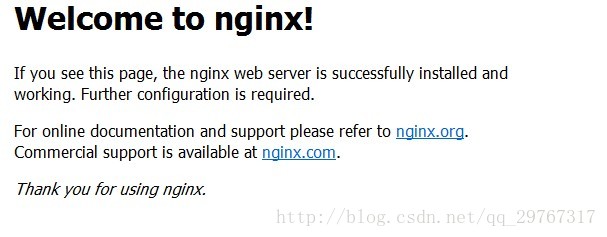
这里有一个小小的坑,希望大家注意一下,使用浏览器输入ip访问的时候,注意清空一下缓存,或者重新打开一下浏览器,有可能让你一直刷新不出页面。
nginx页面不能正常访问排除方法的更多相关文章
- 【转】Linux下nginx配置https协议访问的方法
一.配置nginx支持https协议访问,需要在编译安装nginx的时候添加相应的模块--with-http_ssl_module 查看nginx编译参数:/usr/local/nginx/sbin/ ...
- Linux下nginx配置https协议访问的方法
一.配置nginx支持https协议访问,需要在编译安装nginx的时候添加相应的模块--with-http_ssl_module 查看nginx编译参数:/usr/local/nginx/sbin/ ...
- WebForm.aspx 页面通过 AJAX 访问WebForm.aspx.cs类中的方法,获取数据
WebForm.aspx 页面通过 AJAX 访问WebForm.aspx.cs类中的方法,获取数据 WebForm1.aspx 页面 (原生AJAX请求,写法一) <%@ Page Langu ...
- WebForm.aspx 页面通过 AJAX 访问WebForm.aspx.cs类中的方法,获取数据(转)
WebForm.aspx 页面通过 AJAX 访问WebForm.aspx.cs类中的方法,获取数据 WebForm1.aspx 页面 (原生AJAX请求,写法一) <%@ Page Langu ...
- 本地主机访问不了nginx 页面,请求超时
虚拟机可以正常访问nginx页面,但是电脑浏览器访问不了,一番排差,防火墙的问题. /etc/init.d/iptables stop
- nginx 配置虚拟主机访问PHP文件 502错误的解决方法
最近配置Nginx 服务器虚拟主机 访问目录发现报502错误 百度了很多方法 都不管用 我擦 各种抓狂----- 原本Nginx配置如下: 网上找了很多方法: 查看日志 借助nginx的错误日志 ...
- HTML:减少页面加载时间的方法
1. 重复的HTTP请求数量应尽量减少 (1)减少调用其他页面.文件的数量. (2)在使用css格式时,常会采用background载入图形文件,而每个background的图像都会产生1次HTTP ...
- nginx只允许域名访问,禁止ip访问
背景:为什么要禁止ip访问页面呢?这样做是为了避免其他人把未备案的域名解析到自己的服务器IP,而导致服务器被断网,我们可以通过禁止使用ip访问的方法,防止此类事情的发生. 解决方法:这里介绍修改配置文 ...
- nginx只允许域名访问,禁止ip访问 禁止其他域名访问
背景:为什么要禁止ip访问页面呢?这样做是为了避免其他人把未备案的域名解析到自己的服务器IP,而导致服务器被断网,我们可以通过禁止使用ip访问的方法,防止此类事情的发生. 解决方法:这里介绍修改配置文 ...
随机推荐
- cmd 运行jar文件
将java工程打成jar包,但第三方jar包并没有包含在包中,当在命令行中运行jar包时,出现类找不到的异常, 在网上看到解决办法是将第三方jar包放到JDK的扩展类文件夹中(%JAVA_HOME%/ ...
- Spark2.0机器学习系列之6:GBDT(梯度提升决策树)、GBDT与随机森林差异、参数调试及Scikit代码分析
概念梳理 GBDT的别称 GBDT(Gradient Boost Decision Tree),梯度提升决策树. GBDT这个算法还有一些其他的名字,比如说MART(Multiple Addi ...
- php实现异步的程序调用
浏览器和服务器之间的通信是基于HTTP协议进行链接通讯的,它是一种请求和相应的协议.浏览器通过URL向服务器发送请求,服务器接收到请求并执行请求,然后服务器将执行完成的数据返回到客户端. 这就存在一个 ...
- POJ3254:Corn Fields(状压dp第一发)
题目:http://poj.org/problem?id=3254 直接上代码吧,刚开始做时主要的问题就是看不懂二进制,有个博客写的太好了,就直接把题解复制在下面了. #include <ios ...
- 常用的系统架构 web服务器之iis,apache,tomcat三者之间的比较
常用的系统架构是: Linux + Apache + PHP + MySQL Linux + Apache + Java (WebSphere) + Oracle Windows Server 200 ...
- Debian中安装使用sudo命令
Debian中安装使用sudo命令 sudo可以让非root用户具有管理员的权限,安装好的Debian后还不能使用sudo,需要使用root用户登陆后安装sudo命令.#apt-get insta ...
- PHP计算上一个月最后一天、当月最后一天、下一个月最后一天
上个月最后一天: $last_month_last_day = date('Y-m-t',strtotime('-1 month')); 当月最后一天: $first_day=date('Y-m-01 ...
- Jquery each循环用法小结
var str = res.ZhaoPian; var piclist = str.substring(0, str.length - 1).split(','); $.each(piclist, f ...
- React:快速上手(6)——掌握React Router
React:快速上手(6)——掌握React Router 引入Router 安装 npm install react-router-dom 基础组件 React Router中有三种类型的组件:路由 ...
- PHP Web木马扫描器
<?php header('content-type:text/html;charset=gbk'); set_time_limit(0);//防止超时 /** * * php目录扫描监控 ...