
Fab 悬浮按钮
声明,参考:https://ext.dcloud.net.cn/plugin?id=144
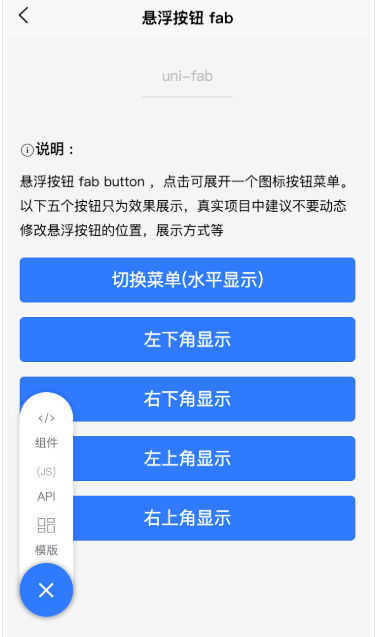
- 在 template 中使用
<template>

	<view>

		<uni-fab

			:pattern="pattern"

			:content="content"

			:horizontal="horizontal"

			:vertical="vertical"

			:direction="direction"

			@trigger="trigger"

		></uni-fab>

	</view>

</template>
- 在 javascript 中使用
<script>

	import uniFab from '@/components/uni-fab/uni-fab.vue';

	export default {

		data() {

			return {

				horizontal: 'left',

				vertical: 'top',

				direction: 'horizontal',

				pattern: {

					color: '#7A7E83',

					backgroundColor: '#fff',

					selectedColor: '#FF0000',

					buttonColor:"#007AFF",

				},

				content: [

					{

						iconPath: '/static/img/tabbar/guanzhu.png',

						selectedIconPath: '/static/img/tabbar/guanzhuactive.png',

						text: '组件',

						active: false

					},

					{

						iconPath: '/static/img/tabbar/home.png',

						selectedIconPath: '/static/img/tabbar/homeactive.png',

						text: 'API',

						active: false

					},

					{

						iconPath: '/static/img/tabbar/me.png',

						selectedIconPath: '/static/img/tabbar/meactive.png',

						text: '模版',

						active: false

					}

				]

			}

		},

		methods: {

			 trigger(e) {

				let other = this.content.map((d, i) => {

				   d.active = i== e.index

				})

				uni.showToast({

					title:'选择了'+this.content[e.index].text

				})

			}

		},

		components: {

			uniFab

		}

	}

</script>
- 最后附上uni-fab.vue
<template>

	<view>

		<view

			class="fab-box fab"

			:class="{

				leftBottom: leftBottom,

				rightBottom: rightBottom,

				leftTop: leftTop,

				rightTop: rightTop

			}"

		>

			<view

				class="fab-circle"

				:class="{

					left: horizontal === 'left' && direction === 'horizontal',

					top: vertical === 'top' && direction === 'vertical',

					bottom: vertical === 'bottom' && direction === 'vertical',

					right: horizontal === 'right' && direction === 'horizontal'

				}"

				:style="{ 'background-color': styles.buttonColor }"

				@click="open"

			>

				<text class="icon icon-jia" :class="{ active: showContent }"></text>

			</view>

			<view

				class="fab-content"

				:class="{

					left: horizontal === 'left',

					right: horizontal === 'right',

					flexDirection: direction === 'vertical',

					flexDirectionStart: flexDirectionStart,

					flexDirectionEnd: flexDirectionEnd

				}"

				:style="{ width: boxWidth, height: boxHeight, background: styles.backgroundColor }"

			>

				<view v-if="flexDirectionStart || horizontalLeft" class="fab-item first"></view>

				<view

					class="fab-item"

					v-for="(item, index) in content"

					:key="index"

					:class="{ active: showContent }"

					:style="{

						color: item.active ? styles.selectedColor : styles.color

					}"

					@click="taps(index, item)"

				>

					<image

						class="content-image"

						:src="item.active ? item.selectedIconPath : item.iconPath"

						mode=""

					></image>

					<text class="text">{{ item.text }}</text>

				</view>

				<view v-if="flexDirectionEnd || horizontalRight" class="fab-item first"></view>

			</view>

		</view>

	</view>

</template>

<script>

export default {

	props: {

		pattern: {

			type: Object,

			default: () => {

				return {};

			}

		},

		horizontal: {

			type: String,

			default: 'left'

		},

		vertical: {

			type: String,

			default: 'bottom'

		},

		direction: {

			type: String,

			default: 'horizontal'

		},

		content: {

			type: Array,

			default: () => {

				return [];

			}

		}

	},

	data() {

		return {

			fabShow: false,

			flug: true,

			showContent: false,

			styles: {

				color: '#3c3e49',

				selectedColor: '#007AFF',

				backgroundColor: '#fff',

				buttonColor: '#3c3e49'

			}

		};

	},

	created() {

		if (this.top === 0) {

			this.fabShow = true;

		}

		// 初始化样式

		this.styles = Object.assign({}, this.styles, this.pattern);

	},

	methods: {

		open() {

			this.showContent = !this.showContent;

		},

		/**

		 * 按钮点击事件

		 */

		taps(index, item) {

			this.$emit('trigger', {

				index,

				item

			});

			this.showContent = false;

		},

		/**

		 * 获取 位置信息

		 */

		getPosition(types, paramA, paramB) {

			if (types === 0) {

				return this.horizontal === paramA && this.vertical === paramB;

			} else if (types === 1) {

				return this.direction === paramA && this.vertical === paramB;

			} else if (types === 2) {

				return this.direction === paramA && this.horizontal === paramB;

			} else {

				return this.showContent && this.direction === paramA

					? this.contentWidth

					: this.contentWidthMin;

			}

		}

	},

	watch: {

		pattern(newValue, oldValue) {

			console.log(JSON.stringify(newValue));

			this.styles = Object.assign({}, this.styles, newValue);

		}

	},

	computed: {

		contentWidth(e) {

			return uni.upx2px((this.content.length + 1) * 110 + 20) + 'px';

		},

		contentWidthMin() {

			return uni.upx2px(110) + 'px';

		},

		// 动态计算宽度

		boxWidth() {

			return this.getPosition(3, 'horizontal');

		},

		// 动态计算高度

		boxHeight() {

			return this.getPosition(3, 'vertical');

		},

		// 计算左下位置

		leftBottom() {

			return this.getPosition(0, 'left', 'bottom');

		},

		// 计算右下位置

		rightBottom() {

			return this.getPosition(0, 'right', 'bottom');

		},

		// 计算左上位置

		leftTop() {

			return this.getPosition(0, 'left', 'top');

		},

		rightTop() {

			return this.getPosition(0, 'right', 'top');

		},

		flexDirectionStart() {

			return this.getPosition(1, 'vertical', 'top');

		},

		flexDirectionEnd() {

			return this.getPosition(1, 'vertical', 'bottom');

		},

		horizontalLeft() {

			return this.getPosition(2, 'horizontal', 'left');

		},

		horizontalRight() {

			return this.getPosition(2, 'horizontal', 'right');

		}

	}

};

</script>

<style scoped>

.fab-box {

	position: fixed;

	display: flex;

	justify-content: center;

	align-items: center;

	z-index: 2;

}

.fab-box.top {

	width: 60upx;

	height: 60upx;

	right: 30upx;

	bottom: 60upx;

	border: 1px #5989b9 solid;

	background: #6699cc;

	border-radius: 10upx;

	color: #fff;

	transition: all 0.3;

	opacity: 0;

}

.fab-box.active {

	opacity: 1;

}

.fab-box.fab {

	z-index: 10;

}

.fab-box.fab.leftBottom {

	left: 30upx;

	bottom: 60upx;

}

.fab-box.fab.leftTop {

	left: 30upx;

	top: 80upx;

	/* #ifdef H5 */

	top: calc(80upx + var(--window-top));

	/* #endif */

}

.fab-box.fab.rightBottom {

	right: 30upx;

	bottom: 60upx;

}

.fab-box.fab.rightTop {

	right: 30upx;

	top: 80upx;

	/* #ifdef H5 */

	top: calc(80upx + var(--window-top));

	/* #endif */

}

.fab-circle {

	display: flex;

	justify-content: center;

	align-items: center;

	position: absolute;

	width: 110upx;

	height: 110upx;

	background: #3c3e49;

	/* background: #5989b9; */

	border-radius: 50%;

	box-shadow: 0 0 5px 2px rgba(0, 0, 0, 0.2);

	z-index: 11;

}

.fab-circle.left {

	left: 0;

}

.fab-circle.right {

	right: 0;

}

.fab-circle.top {

	top: 0;

}

.fab-circle.bottom {

	bottom: 0;

}

.fab-circle .icon-jia {

	color: #ffffff;

	font-size: 50upx;

	transition: all 0.3s;

}

.fab-circle .icon-jia.active {

	transform: rotate(135deg);

}

.fab-content {

	background: #6699cc;

	box-sizing: border-box;

	display: flex;

	border-radius: 100upx;

	overflow: hidden;

	box-shadow: 0 0 5px 2px rgba(0, 0, 0, 0.1);

	transition: all 0.2s;

	width: 110upx;

}

.fab-content.left {

	justify-content: flex-start;

}

.fab-content.right {

	justify-content: flex-end;

}

.fab-content.flexDirection {

	flex-direction: column;

	justify-content: flex-end;

}

.fab-content.flexDirectionStart {

	flex-direction: column;

	justify-content: flex-start;

}

.fab-content.flexDirectionEnd {

	flex-direction: column;

	justify-content: flex-end;

}

.fab-content .fab-item {

	display: flex;

	flex-direction: column;

	justify-content: center;

	align-items: center;

	width: 110upx;

	height: 110upx;

	font-size: 24upx;

	color: #fff;

	opacity: 0;

	transition: opacity 0.2s;

}

.fab-content .fab-item.active {

	opacity: 1;

}

.fab-content .fab-item .content-image {

	width: 50upx;

	height: 50upx;

	margin-bottom: 5upx;

}

.fab-content .fab-item.first {

	width: 110upx;

}

@font-face {

	font-family: 'iconfont';

	src: url('https://at.alicdn.com/t/font_1028200_xhbo4rn58rp.ttf?t=1548214263520')

		format('truetype');

}

.icon {

	font-family: 'iconfont' !important;

	font-size: 16px;

	font-style: normal;

	-webkit-font-smoothing: antialiased;

	-moz-osx-font-smoothing: grayscale;

}

.icon-jia:before {

	content: '\e630';

}

.icon-arrow-up:before {

	content: '\e603';

}

</style>
Fab 悬浮按钮的更多相关文章
- FloatingActionButton FAB 悬浮按钮
FloatingActionButton简称FAB,这是一种比较美观的按钮: 1.使用前: FAB代表一个App或一个页面中最主要的操作,如果一个App的每个页面都有FAB,则通常表示该App最主要的 ...
- Android FloatingActionButton(FAB) 悬浮按钮
FloatingActionButton 悬浮按钮 ...
- Android 5.0新控件——FloatingActionButton(悬浮按钮)
Android 5.0新控件--FloatingActionButton(悬浮按钮) FloatingActionButton是5.0以后的新控件,一个悬浮按钮,之所以叫做悬浮按钮,主要是因为自带阴影 ...
- FloatingActionButtonDemo【悬浮按钮的使用,顺带snackBar的使用】
版权声明:本文为HaiyuKing原创文章,转载请注明出处! 前言 FloatingActionButton简称FAB. 一. 对于App或某个页面中是否要使用FloatingActionButton ...
- FloatingActionButton(悬浮按钮)使用学习<一>
FloatingActionButton简称FAB. 一. 对于App或某个页面中是否要使用FloatingActionButton必要性: FAB代表一个App或一个页面中最主要的操 ...
- android ——悬浮按钮及可交互提示
一.悬浮按钮 FloatingActionButton是Design Support中的一个控件,它会默认colorAccent作为按钮的颜色,还可以给按钮一个图标. 这是没有图标的,这是有图标的. ...
- android悬浮按钮(Floating action button)的两种实现方法
原文: http://www.jcodecraeer.com/a/anzhuokaifa/androidkaifa/2014/1028/1857.html 最近android中有很多新的设计规范被引入 ...
- 在TableView上添加悬浮按钮
如果直接在TableVIewController上贴Button的话会导致这个会随之滚动,下面解决在TableView上实现位置固定悬浮按钮的两种方法: 1.在view上贴tableView,然后将悬 ...
- Android用悬浮按钮实现翻页效果
今天给大家分享下自己用悬浮按钮点击实现翻页效果的例子. 首先,一个按钮要实现悬浮,就要用到系统顶级窗口相关的WindowManager,WindowManager.LayoutParams.那么在An ...
随机推荐
- LeetCode-016-最接近的三数之和
最接近的三数之和 题目描述:给定一个包括 n 个整数的数组 nums 和 一个目标值 target.找出 nums 中的三个整数,使得它们的和与 target 最接近.返回这三个数的和.假定每组输入只 ...
- swoole 聊天室
1:宝塔终端安装php 2:宝塔终端检测是否安装好 php-v 3:宝塔面板安装swoole扩展,终端检测 php -m 查看扩展 扩展已经安装完毕
- PHP动态修改配置文件
文件结构: index.php 主页 config 配置文件 doUpdate.php 修改功能页 index.php <html> <head> <title>修 ...
- 您的请求在Web服务器中没有找到对应的站点”这是什么原因?出现这个界面说明域名解析已经正确并生效,这是由于域名没有绑定好,
宝塔出现 您的请求在Web服务器中没有找到对应的站点"这是什么原因?出现这个界面说明域名解析已经正确并生效,这是由于域名没有绑定好 , 本人经过测试使用如下方法解决.允话空HTTP_REFE ...
- github打开之后下载缓慢或者下载不了问题的解决
我是一点击下载就会显示下载不了,然后按照网上的教程看的修改hosts文件.大家可以先用这个方法,如果还是不行就可以按照以下操作. 1.登录https://gitee.com/(没有账号的先注册).2. ...
- 分布式 PostgreSQL 集群(Citus)官方示例 - 时间序列数据
在时间序列工作负载中,应用程序(例如一些实时应用程序查询最近的信息,同时归档旧信息. https://docs.citusdata.com/en/v10.2/sharding/data_modelin ...
- ArcGIS进行视域分析及地形图制作
问题说明 开发商要在本区域建造观景亭,希望在观景亭上能看到优美的景色.根据提供的数据,完成以下要求. 一. 数据说明(见"题目3"文件夹) 1. DEM.tif:研究区域的数据高 ...
- Net中异步
同步和异步1.同步是指只启动一个线程2.异步是指同时启动多个线程3.同步方法会卡界面,异步方法不会卡界面 原因:异步方法启动了子线程执行任务,主线程得到释放4.同步方法会慢.异步方法会快 原因:异步启 ...
- web服务器-nginx虚拟主机
web服务器-nginx虚拟主机 一 虚拟主机介绍 就是把一台物理服务器划分成多个虚拟的服务器, 每一个虚拟主机都可以有独立的域名和独立的目录,同时发布俩个网站. 二. 基于IP的虚拟主机 应用场景: ...
- sql注入mysql注入
#跨库查询及应用思路 information_schema表特性,记录数据库名.表名.列名对应表 information_schema.schemata:存储所有数据库名 schema_name:数据 ...