
Linux系统批量化安装部署之Cobbler
说明:
Cobbler服务器系统:CentOS 5.10 64位
IP地址:192.168.21.128
需要安装部署的Linux系统:
eth0(第一块网卡,用于外网)IP地址段:192.168.21.160-192.168.21.200
eth1(第二块网卡,用于内网)IP地址段:10.0.0.160-10.0.0.200
子网掩码:255.255.255.0
网关:192.168.21.2
DNS:8.8.8.8 8.8.4.4
所有服务器均支持PXE网络启动
实现目的:通过配置Cobbler服务器,全自动批量安装部署Linux系统
具体操作:
第一部分:在Cobbler服务器上操作
一、关闭SELINUX
vi /etc/selinux/config
#SELINUX=enforcing #注释掉
#SELINUXTYPE=targeted #注释掉
SELINUX=disabled #增加
:wq! #保存退出
setenforce 0 #使配置立即生效
二、配置防火墙,开启TCP:80端口、TCP:25151端口、UDP:69端口
vi /etc/sysconfig/iptables #编辑
-A RH-Firewall-1-INPUT -m state --state NEW -m tcp -p tcp --dport 80 -j ACCEPT #http服务需要此端口
-A RH-Firewall-1-INPUT -m state --state NEW -m udp -p udp --dport 69 -j ACCEPT #tftp服务需要此端口
-A RH-Firewall-1-INPUT -m state --state NEW -m tcp -p tcp --dport 25151 -j ACCEPT #cobbler需要此端口
:wq! #保存退出
/etc/init.d/iptables restart #最后重启防火墙使配置生效
三、安装Cobbler
cd /usr/local/src
wget http://dl.fedoraproject.org/pub/epel/5/x86_64/epel-release-5-4.noarch.rpm #CentOS 5.x 64位
rpm -ivh epel-release-5-4.noarch.rpm
备注:
wget http://dl.fedoraproject.org/pub/epel/5/i386/epel-release-5-4.noarch.rpm #CentOS 5.x 32位
wget http://dl.fedoraproject.org/pub/epel/6/x86_64/epel-release-6-8.noarch.rpm #CentOS6.x 64位
wget http://dl.fedoraproject.org/pub/epel/6/i386/epel-release-6-8.noarch.rpm #CentOS6.x 32位
yum install cobbler tftp tftp-server xinetd dhcp httpd rsync #安装cobbler
yum install pykickstart debmirror python-ctypes cman #安装运行cobbler需要的软件包
四、配置Cobbler
1、设置http服务
vi /etc/httpd/conf.d/wsgi.conf
LoadModule wsgi_module modules/mod_wsgi.so #取消前面的注释
:wq! #保存退出
chkconfig httpd on #设置开机启动
service httpd start #启动
2、设置tftp服务开机启动
vi /etc/cobbler/tftpd.template #编辑
service tftp
{
disable = no #修改为no
socket_type = dgram
protocol = udp
wait = yes
user = root
server = /usr/sbin/in.tftpd
server_args = -B 1380 -v -s /tftpboot
per_source = 11
cps = 100 2
flags = IPv4
}
:wq! #保存退出
3、设置rsync服务开机启动
vi /etc/xinetd.d/rsync #编辑配置文件,设置开机启动rsync
service rsync
{
disable = no #修改为no
socket_type = stream
wait = no
user = root
server = /usr/bin/rsync
server_args = --daemon
log_on_failure += USERID
}
:wq! #保存退出
/etc/init.d/xinetd start #启动(CentOS中是以xinetd 来管理Rsync和tftp服务的)
4、配置cobbler相关参数
vi /etc/debmirror.conf #注释掉 @dists 和 @arches 两行
#@dists="sid";
#@arches="i386";
:wq! #保存退出
openssl passwd -1 -salt 'osyunwei' '123456' #生成默认模板下系统安装完成之后root账号登录密码
$1$osyunwei$sEV8iwXXuR4CqzLXyLnzm0 #记录下这行,下面会用到
vi /etc/cobbler/settings #编辑,修改
default_password_crypted: "$1$osyunwei$sEV8iwXXuR4CqzLXyLnzm0"
next_server: 192.168.21.128
server: 192.168.21.128
manage_dhcp: 1
default_kickstart: /var/lib/cobbler/kickstarts/default.ks
:wq! #保存退出
系统运维 www.osyunwei.com 温馨提醒:qihang01原创内容©版权所有,转载请注明出处及原文链接
5、配置dhcp服务器
vi /etc/cobbler/dhcp.template #编辑,修改
subnet 192.168.21.0 netmask 255.255.255.0 { #设置网段
option routers 192.168.21.2; #设置网关
option domain-name-servers 8.8.8.8,8.8.4.4; #设置dns服务器地址
option subnet-mask 255.255.255.0; #设置子网掩码
range dynamic-bootp 192.168.21.160 192.168.21.200; #设置dhcp服务器IP地址租用的范围
default-lease-time 21600; #默认租约时间
max-lease-time 43200; #最大租约时间
next-server $next_server;
class "pxeclients" {
match if substring (option vendor-class-identifier, 0, 9) = "PXEClient";
if option pxe-system-type = 00:02 {
filename "ia64/elilo.efi";
} else if option pxe-system-type = 00:06 {
filename "grub/grub-x86.efi";
} else if option pxe-system-type = 00:07 {
filename "grub/grub-x86_64.efi";
} else {
filename "pxelinux.0";
}
}
}
:wq! #保存退出
vi /etc/sysconfig/dhcpd #指定DHCP服务的网络接口
DHCPDARGS=eth0
:wq! #保存退出
dhcpd #测试dhcp服务器配置是否正确
chkconfig dhcpd on #设置开机启动
chkconfig cobblerd on #设置开机启动
cobbler get-loaders #安装cobbler相关工具包,否则检查cobbler配置会报错
service cobblerd start #启动cobbler
cobbler sync #同步配置文件到dhcp服务器
service dhcpd start #启动dhcp服务
6、设置cobbler相关服务启动脚本
vi /etc/rc.d/init.d/cobbler #编辑,添加以下代码
#!/bin/sh
# chkconfig: - 80 90
# description:cobbler
case $1 in
start)
/etc/init.d/httpd start
/etc/init.d/xinetd start
/etc/init.d/dhcpd start
/etc/init.d/cobblerd start
;;
stop)
/etc/init.d/httpd stop
/etc/init.d/xinetd stop
/etc/init.d/dhcpd stop
/etc/init.d/cobblerd stop
;;
restart)
/etc/init.d/httpd restart
/etc/init.d/xinetd restart
/etc/init.d/dhcpd restart
/etc/init.d/cobblerd restart
;;
status)
/etc/init.d/httpd status
/etc/init.d/xinetd status
/etc/init.d/dhcpd status
/etc/init.d/cobblerd status
;;
sync)
cobbler sync
;;
*)
echo "Input error,please in put 'start|stop|restart|status|sync'!";
exit 2>&1 >/dev/null &
;;
esac
:wq! #保存退出
chmod +x /etc/rc.d/init.d/cobbler #添加脚本执行权限
chkconfig cobbler on #添加开机启动
service cobbler restart #重启cobbler
cobbler check #检查cobbler配置,出现下面的提示,SELinux和防火墙前面已经设置过了,不用理会
系统运维 www.osyunwei.com 温馨提醒:qihang01原创内容©版权所有,转载请注明出处及原文链接
=====================================================================================
The following are potential configuration items that you may want to fix:
1 : SELinux is enabled. Please review the following wiki page for details on ensuring cobbler works correctly in your SELinux environment:
https://github.com/cobbler/cobbler/wiki/Selinux
2 : since iptables may be running, ensure 69, 80/443, and 25151 are unblocked
Restart cobblerd and then run 'cobbler sync' to apply changes
=====================================================================================
五、挂载系统安装镜像到http服务器站点目录
上传系统安装镜像文件CentOS-5.10-x86_64-bin-DVD-1of2.iso到/usr/local/src/目录
mkdir -p /var/www/html/os/CentOS-5.10-x86_64 #创建挂载目录
mount -t iso9660 -o loop /usr/local/src/CentOS-5.10-x86_64-bin-DVD-1of2.iso /var/www/html/os/CentOS-5.10-x86_64 #挂载系统镜像
vi /etc/fstab #添加以下代码。实现开机自动挂载
/usr/local/src/CentOS-5.10-x86_64-bin-DVD-1of2.iso /var/www/html/os/CentOS-5.10-x86_64 iso9660 defaults,ro,loop 0 0
:wq! #保存退出
备注:iso9660使用df -T 查看设备 卸载:umount /var/www/html/os/CentOS-5.10-x86_64
重复上面的操作,把自己需要安装的CentOS系统镜像文件都挂载到/var/www/html/os/目录下
例如:
CentOS-5.10-x86_64-bin-DVD-1of2.iso
CentOS-6.5-x86_64-bin-DVD1.iso
六、创建kickstarts自动安装脚本
cd /var/lib/cobbler/kickstarts #进入默认Kickstart模板目录
vi /var/lib/cobbler/kickstarts/CentOS-5.10-x86_64.ks #创建CentOS-5.10-x86_64安装脚本
# Kickstart file automatically generated by anaconda.
install
url --url=http://192.168.21.128/cobbler/ks_mirror/CentOS-5.10-x86_64-x86_64/
lang en_US.UTF-8
zerombr yes
key --skip
keyboard us
network --device eth0 --bootproto dhcp --onboot on
#network --device eth0 --bootproto static --ip 192.168.21.250 --netmask 255.255.255.0 --gateway 192.168.21.2 --nameserver 8.8.8.8 --hostname CentOS5.10
rootpw --iscrypted $1$QqobZZ1g$rYnrawi9kYlEeUuq1vcRS/
firewall --enabled --port=22:tcp
authconfig --enableshadow --enablemd5
selinux --disabled
timezone Asia/Shanghai
bootloader --location=mbr --driveorder=sda
# The following is the partition information you requested
# Note that any partitions you deleted are not expressed
# here so unless you clear all partitions first, this is
# not guaranteed to work
#clearpart --linux
clearpart --all --initlabel
part / --bytes-per-inode=4096 --fstype="ext3" --size=2048
part /boot --bytes-per-inode=4096 --fstype="ext3" --size=128
part swap --bytes-per-inode=4096 --fstype="swap" --size=500
part /data --bytes-per-inode=4096 --fstype="ext3" --grow --size=1
reboot
%packages
ntp
@base
@core
@dialup
@editors
@text-internet
keyutils
trousers
fipscheck
device-mapper-multipath
%post
#同步系统时间
ntpdate cn.pool.ntp.org
hwclock --systohc
echo -e "0 1 * * * root /usr/sbin/ntpdate cn.pool.ntp.org > /dev/null" >> /etc/crontab
service crond restart
#添加用户组
groupadd maintain
groupadd develop
mkdir -p /home/maintain
mkdir -p /home/develop
#添加用户
useradd -g maintain user01 -d /home/maintain/user01 -m
echo "123456"|passwd user01 --stdin
useradd -g maintain user02 -d /home/maintain/user02 -m
echo "123456"|passwd user02 --stdin
useradd -g maintain user03 -d /home/maintain/user03 -m
echo "123456"|passwd user03 --stdin
useradd -g maintain user04 -d /home/maintain/user04 -m
echo "123456"|passwd user04 --stdin
#禁止root用户直接登录系统
sed -i "s/#PermitRootLogin yes/PermitRootLogin no/g" '/etc/ssh/sshd_config'
service sshd restart
#禁止开机启动的服务
chkconfig acpid off
chkconfig atd off
chkconfig autofs off
chkconfig bluetooth off
chkconfig cpuspeed off
chkconfig firstboot off
chkconfig gpm off
chkconfig haldaemon off
chkconfig hidd off
chkconfig ip6tables off
chkconfig isdn off
chkconfig messagebus off
chkconfig nfslock off
chkconfig pcscd off
chkconfig portmap off
chkconfig rpcgssd off
chkconfig rpcidmapd off
chkconfig yum-updatesd off
chkconfig sendmail off
#允许开机启动的服务
chkconfig crond on
chkconfig kudzu on
chkconfig network on
chkconfig readahead_early on
chkconfig sshd on
chkconfig syslog on
#禁止使用Ctrl+Alt+Del快捷键重启服务器
sed -i "s/ca::ctrlaltdel:\/sbin\/shutdown -t3 -r now/#ca::ctrlaltdel:\/sbin\/shutdown -t3 -r now/g" '/etc/inittab'
telinit q
#优化系统内核
echo -e "ulimit -c unlimited" >> /etc/profile
echo -e "ulimit -s unlimited" >> /etc/profile
echo -e "ulimit -SHn 65535" >> /etc/profile
source /etc/profile
sed -i "s/net.ipv4.ip_forward = 0/net.ipv4.ip_forward = 1/g" '/etc/sysctl.conf'
echo -e "net.core.somaxconn = 262144" >> /etc/sysctl.conf
echo -e "net.core.netdev_max_backlog = 262144" >> /etc/sysctl.conf
echo -e "net.core.wmem_default = 8388608" >> /etc/sysctl.conf
echo -e "net.core.rmem_default = 8388608" >> /etc/sysctl.conf
echo -e "net.core.rmem_max = 16777216" >> /etc/sysctl.conf
echo -e "net.core.wmem_max = 16777216" >> /etc/sysctl.conf
echo -e "net.ipv4.netfilter.ip_conntrack_max = 131072" >> /etc/sysctl.conf
echo -e "net.ipv4.netfilter.ip_conntrack_tcp_timeout_established = 180" >> /etc/sysctl.conf
echo -e "net.ipv4.route.gc_timeout = 20" >> /etc/sysctl.conf
echo -e "net.ipv4.ip_conntrack_max = 819200" >> /etc/sysctl.conf
echo -e "net.ipv4.ip_local_port_range = 10024 65535" >> /etc/sysctl.conf
echo -e "net.ipv4.tcp_retries2 = 5" >> /etc/sysctl.conf
echo -e "net.ipv4.tcp_fin_timeout = 30" >> /etc/sysctl.conf
echo -e "net.ipv4.tcp_syn_retries = 1" >> /etc/sysctl.conf
echo -e "net.ipv4.tcp_synack_retries = 1" >> /etc/sysctl.conf
echo -e "net.ipv4.tcp_timestamps = 0" >> /etc/sysctl.conf
echo -e "net.ipv4.tcp_tw_recycle = 1" >> /etc/sysctl.conf
echo -e "net.ipv4.tcp_tw_len = 1" >> /etc/sysctl.conf
echo -e "net.ipv4.tcp_tw_reuse = 1" >> /etc/sysctl.conf
echo -e "net.ipv4.tcp_keepalive_time = 120" >> /etc/sysctl.conf
echo -e "net.ipv4.tcp_keepalive_probes = 3" >> /etc/sysctl.conf
echo -e "net.ipv4.tcp_keepalive_intvl = 15" >> /etc/sysctl.conf
echo -e "net.ipv4.tcp_max_tw_buckets = 36000" >> /etc/sysctl.conf
echo -e "net.ipv4.tcp_max_orphans = 3276800" >> /etc/sysctl.conf
echo -e "net.ipv4.tcp_max_syn_backlog = 262144" >> /etc/sysctl.conf
echo -e "net.ipv4.tcp_wmem = 8192 131072 16777216" >> /etc/sysctl.conf
echo -e "net.ipv4.tcp_rmem = 32768 131072 16777216" >> /etc/sysctl.conf
echo -e "net.ipv4.tcp_mem = 94500000 915000000 927000000" >> /etc/sysctl.conf
/sbin/sysctl -p
#执行外部脚本
cd /root
wget http://192.168.21.128/cobbler/ks_mirror/config/autoip.sh
sh /root/autoip.sh
:wq! #保存退出
vi /var/www/cobbler/ks_mirror/config/autoip.sh #创建脚本,自动设置Linux系统静态IP地址、DNS、网关、计算机名称
#!/bin/sh
ROUTE=$(route -n|grep "^0.0.0.0"|awk '{print $2}')
BROADCAST=$(/sbin/ifconfig eth0|grep -i bcast|awk '{print $3}'|awk -F":" '{print $2}')
HWADDR=$(/sbin/ifconfig eth0|grep -i HWaddr|awk '{print $5}')
IPADDR=$(/sbin/ifconfig eth0|grep "inet addr"|awk '{print $2}'|awk -F":" '{print $2}')
NETMASK=$(/sbin/ifconfig eth0|grep "inet addr"|awk '{print $4}'|awk -F":" '{print $2}')
cat >/etc/sysconfig/network-scripts/ifcfg-eth0<<EOF
DEVICE=eth0
BOOTPROTO=static
BROADCAST=$BROADCAST
HWADDR=$HWADDR
IPADDR=$IPADDR
NETMASK=$NETMASK
GATEWAY=$ROUTE
ONBOOT=yes
EOF
IPADDR1=$(echo $IPADDR|awk -F"." '{print $4}')
cat >/etc/sysconfig/network-scripts/ifcfg-eth1<<EOF
DEVICE=eth1
BOOTPROTO=static
BROADCAST=10.0.0.255
HWADDR=$(/sbin/ifconfig eth1|grep -i HWaddr|awk '{print $5}')
IPADDR=10.0.0.$IPADDR1
NETMASK=255.255.255.0
ONBOOT=yes
EOF
HOSTNAME=OsYunWei_HZ_$(echo $IPADDR|awk -F"." '{print $4}')
cat >/etc/sysconfig/network<<EOF
NETWORKING=yes
NETWORKING_IPV6=no
HOSTNAME=$HOSTNAME
GATEWAY=$ROUTE
EOF
echo "127.0.0.1 $HOSTNAME" >> /etc/hosts
hostname=$HOSTNAME
echo "nameserver 8.8.8.8" > /etc/resolv.conf
echo "nameserver 8.8.4.4" >> /etc/resolv.conf
:wq! #保存退出
七、导入系统镜像到cobbler
cobbler import --path=/var/www/html/os/CentOS-5.10-x86_64 --name=CentOS-5.10-x86_64 --arch=x86_64 #导入系统镜像文件,需要一段时间
cd /var/www/cobbler/ks_mirror #进入系统镜像导入目录
命令格式:cobbler import --path=镜像路径 -- name=安装引导名 --arch=32位或64位
重复上面的操作,把其他的系统镜像文件导入到cobbler
八、设置profile,按照操作系统版本分别关联系统镜像文件和kickstart自动安装文件
在第一次导入系统镜像时,cobbler会给安装镜像指定一个默认的kickstart自动安装文件
例如:CentOS-5.10-x86_64版本的kickstart自动安装文件为:/var/lib/cobbler/kickstarts/sample.ks
cobbler profile report --name CentOS-5.10-x86_64 #查看profile设置
cobbler distro report --name CentOS-5.10-x86_64 #查看安装镜像文件信息
cobbler profile remove --name=CentOS-5.10-x86_64 #移除profile
cobbler profile add --name=CentOS-5.10-x86_64 --distro=CentOS-5.10-x86_64 --kickstart=/var/lib/cobbler/kickstarts/CentOS-5.10-x86_64.ks #添加
cobbler profile edit --name=CentOS-5.10-x86_64 --distro=CentOS-5.10-x86_64 --kickstart=/var/lib/cobbler/kickstarts/CentOS-5.10-x86_64.ks #编辑
命令:cobbler profile add|edit|remove --name=安装引导名 --distro=系统镜像名 --kickstart=kickstart自动安装文件路径
--name:自定义的安装引导名,注意不能重复
--distro:系统安装镜像名,用cobbler distro list可以查看
--kickstart:与系统镜像文件相关联的kickstart自动安装文件
#查看Cobbler列表
cobbler list
cobbler report
cobbler profile report
cobbler distro list
#通过profile查找对应的kickstart自动安装文件文件
例如:
ksfile=$( cobbler profile report --name CentOS-5.10-x86_64|grep -E '^Kickstart' |head -n 1|cut -d ':' -f 2 );cat $ksfile;
重复上面的操作,把其他的系统镜像文件和kickstart自动安装文件关联起来
注意:
1、kickstart自动安装文件需要预先配置好
2、每次修改完配置文件,需要执行一次同步操作:cobbler sync 配置才能生效
3、kickstart自动安装文件可以用工具生成(需要用到图形界面操作)
yum install system-config-kickstart #安装
yum groupinstall "X Window System" #安装X Window图形界面
system-config-kickstart #运行kickstart配置
service cobbler sync #与cobbler sync作用相同
service cobbler restart #重启cobbler
第二部分:设置要安装的服务器从网络启动
开机之后,如下图所示,根据需要选择相应的系统版本进行安装,安装完成之后,系统会自动重启
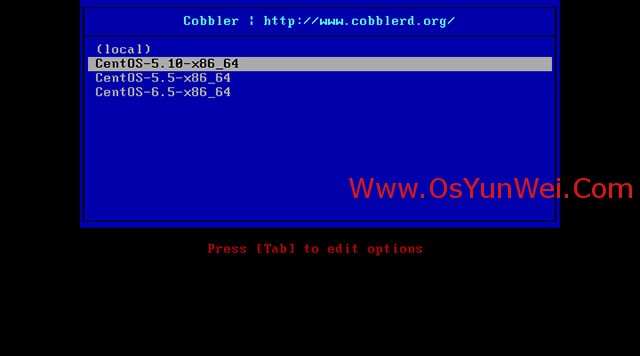
系统运维 www.osyunwei.com 温馨提醒:qihang01原创内容©版权所有,转载请注明出处及原文链接
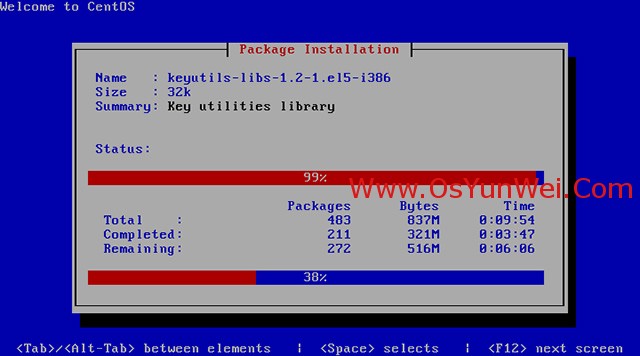
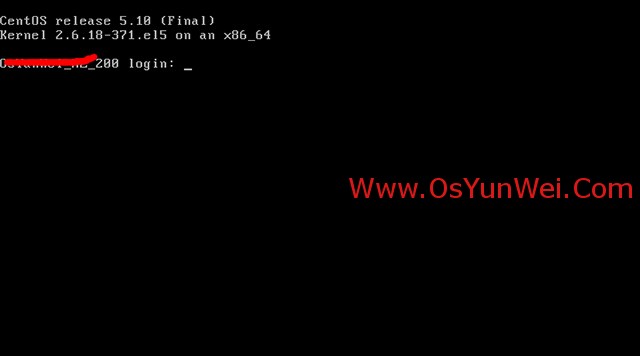
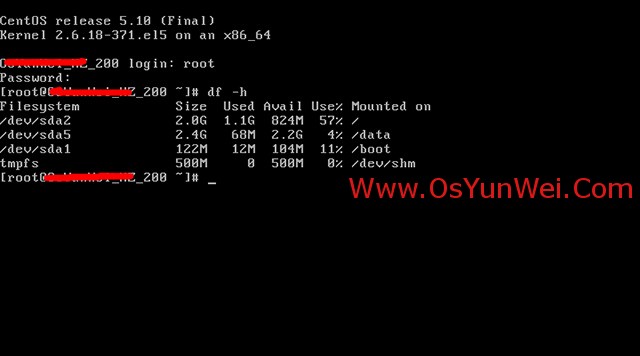
重新安装系统:
在需要重装系统的服务器上安装koan
wget http://dl.fedoraproject.org/pub/epel/5/x86_64/koan-2.4.0-1.el5.noarch.rpm #CentOS 5.X
rpm -ivh koan-2.4.0-1.el5.noarch.rpm #安装koan
http://dl.fedoraproject.org/pub/epel/6/x86_64/koan-2.4.0-1.el6.noarch.rpm #CentOS 6.X
yum install cobbler debmirror pykickstart python-ctypes cman #安装koan运行依赖包(需要设置epel源)
koan --list=profiles --server=192.168.21.128 #查看Cobbler服务器系统镜像列表
koan --replace-self --server=192.168.21.128 --profile=CentOS-5.10-x86_64 #选择要重装的系统
reboot #重新启动系统进行自动安装
扩展阅读:
Cobbler目录说明:
1、Cobbler配置文件目录:/etc/cobbler
/etc/cobbler/settings #cobbler主配置文件
/etc/cobbler/dhcp.template #DHCP服务的配置模板
/etc/cobbler/tftpd.template #tftp服务的配置模板
/etc/cobbler/rsync.template #rsync服务的配置模板
/etc/cobbler/iso #iso模板配置文件
/etc/cobbler/pxe #pxe模板文件
/etc/cobbler/power #电源的配置文件
/etc/cobbler/users.conf #Web服务授权配置文件
/etc/cobbler/users.digest #用于web访问的用户名密码配置文件
/etc/cobbler/dnsmasq.template #DNS服务的配置模板
/etc/cobbler/modules.conf #Cobbler模块配置文件
2、Cobbler数据目录:/var/lib/cobbler
/var/lib/cobbler/config #配置文件
/var/lib/cobbler/triggers #Cobbler命令
/var/lib/cobbler/kickstarts #默认存放kickstart文件
/var/lib/cobbler/loaders #存放的各种引导程序
3、系统安装镜像目录:/var/www/cobbler
/var/www/cobbler/ks_mirror #导入的系统镜像列表
/var/www/cobbler/images #导入的系统镜像启动文件
/var/www/cobbler/repo_mirror #yum源存储目录
4、日志目录:/var/log/cobbler
/var/log/cobbler/install.log #客户端系统安装日志
/var/log/cobbler/cobbler.log #cobbler日志
至此,Cobbler全自动批量安装部署Linux系统完成。
Linux系统批量化安装部署之Cobbler的更多相关文章
- 学习神器!本机安装虚拟机,并安装Linux系统,并部署整套web系统手册(包含自动部署应用脚本,JDK,tomcat,TortoiseSVN,Mysql,maven等软件)
1. 引言 编写目的 本文档的编写目的主要是在Linux系统上部署mis_v3员工管理系统,方便测试,并为以后开发人员进行项目部署提供参考 准备工作 软件部分 软件项 版本 备注 Mysql 5. ...
- Redis学习之一VMWare Pro虚拟机安装和Linux系统的安装
一.引言 设计模式写完了,相当于重新学了一遍,每次学习都会有不同的感受,对设计模式的理解又加深了,理解的更加透彻了.还差一篇关于设计模式的总结的文章了,写完这篇总结性的文章,设计模式的文章就暂时要告一 ...
- linux系统下安装jdk,mysql,tomcat 和redis 和jedis入门案例
Day47笔记Linux+redis入门 Day47 知识讲解:Jedis 1.Linux上jdk,mysql,tomcat安装(看着文档安装) 准备工作: 因为JDK,TOMCAT,MYSQL的 ...
- Redis进阶实践之一VMWare Pro虚拟机安装和Linux系统的安装(转载)(1)
Redis进阶实践之一VMWare Pro虚拟机安装和Linux系统的安装 一.引言 设计模式写完了,相当于重新学了一遍,每次学习都会有不同的感受,对设计模式的理解又加深了,理解的更加透彻了.还差一篇 ...
- Redis进阶实践之一VMWare Pro虚拟机安装和Linux系统的安装
一.引言 设计模式写完了,相当于重新学了一遍,每次学习都会有不同的感受,对设计模式的理解又加深了,理解的更加透彻了.还差一篇关于设计模式的总结的文章了,写完这篇总结性的文章,设计模式的文章就暂时要告一 ...
- Linux系统下安装Gitlab
Linux系统下安装Gitlab 一.简介 GitLab是利用 Ruby on Rails 一个开源的版本管理系统,实现一个自托管的Git项目仓库,可通过Web界面进行访问公开的或者私人项目.它拥有与 ...
- linux linux系统的安装及使用
linux linux系统的安装及使用 一.linux系统中安装vm-tools工具: 步骤: 1.在vmware workstation软件中:虚拟机-安装vmware-tools-状态栏会提示- ...
- 阿里云服务器linux系统上 安装node环境
今天将阿里云服务器重windows系统重置成了linux系统, 点击上面的实例名称,进入到 点击 更换系统盘 选择linux 的centos版本(操作前需要 停止实例) 弄好后,启动实例 下面 ...
- 【Docker】在Linux系统中安装Docker虚拟机、启动停止重启查看Docker命令
安装Docker 文章目录 安装Docker Docker虚拟机架构 在Linux系统中安装Docker虚拟机 管理Docker虚拟机 参考资料 Docker虚拟机架构 Docker创建的所有虚拟实例 ...
随机推荐
- js 中{},[]中括号,大括号
1. { } 大括号,表示定义一个对象,大部分情况下要有成对的属性和值,或是函数. 如: var LangShen = {"Name":"Langshen",& ...
- JS中检测数据类型的四种方法
1.typeof 用来检测数据类型的运算符->typeof value->返回值首先是一个字符串,其次里面包含了对应的数据类型,例如:"number"."st ...
- ECMAScript 6学习笔记(二):let和块级作用域
同步发布于:https://mingjiezhang.github.io/(转载请说明此出处). ES6中加入了let,也让JavaScript拥有了块级作用域. 没有块级作用域的JavaScript ...
- CSS 选择器汇总
CSS 选择器 CSS 元素选择器 CSS 选择器分组 CSS 类选择器详解 CSS ID 选择器详解 CSS 属性选择器详解 CSS 后代选择器 CSS 子元素选择器 CSS 相邻兄弟选择器 CSS ...
- C#实现图标批量下载
本文略微有些长,花了好几晚时间编辑修改,若在措辞排版上有问题,请谅解.本文共分为四篇,下面是主要内容,也是软件开发基本流程. 阶段 描述 需求分析 主要描述实现本程序的目的及对需求进行分析,即为什么要 ...
- Sharepoint学习笔记—习题系列--70-573习题解析 -(Q70-Q72)
Question 70You plan to create one provider Web Part and two consumer Web Parts.You need to ensure th ...
- JSP Model模式
用JSP开发的Web应用模型可以分为Model1和Model2 对于小型的Web应用,通常可以使用模型1来完成. 模型1可以分为两种方式: 一种是完全使用JSP页面来开发Web应用: 另一种是使用JS ...
- iOS开发基础框架
---恢复内容开始--- //appdelegate //// AppDelegate.m// iOS开发架构//// Copyright © 2016年 Chason. All rights ...
- IOS开发--待研究源码(持续添加更新)
1.丰富的CAEmitterLayer制作的粒子效果,比如烟花效果 (还未研究) 该项目本人未研究,待以后有时间或者有需求再研究 github源码下载地址:https://github.com/lic ...
- CentOS6.5下RPM方式安装mysql5.6.33
1.mysql下载 下载地址:https://dev.mysql.com/downloads/mysql/5.6.html下载以下安装包: MySQL-client-5.6.33-1.el6.x86_ ...