
Visual Studio Code——Angular2 Hello World 之 2.0
最近看到一篇用Visual Studio Code开发Angular2的文章,也是一篇入门教程,地址为:使用Visual Studio Code開發Angular 2專案。这里按部就班的做了一遍,感觉很方便,并且没有遇到楼主的一些问题,应该是安装环境有些不同。这里只为记录一下。再次感谢!
一、随便新建一个目录,这里为:F:\Visual Studio Code\angular2_1,并用Visual Studio Code
二、依次新建如下四个文件,参考https://angular.cn/docs/ts/latest/quickstart.html
package.json 用来标记出本项目所需的 npm 依赖包。
tsconfig.json 定义了 TypeScript 编译器如何从项目源文件生成 JavaScript 代码。
typings.json 为那些 TypeScript 编译器无法识别的库提供了别的定义文件。
systemjs.config.js 为模块加载器提供了该到哪里查找应用模块的信息,并注册了所有必备的依赖包。 它还包括文档中后面的例子需要用到的包。
 {

   "name": "angular-quickstart",

   "version": "1.0.0",

   "scripts": {

     "start": "tsc && concurrently \"tsc -w\" \"lite-server\" ",

     "lite": "lite-server",

     "postinstall": "typings install",

     "tsc": "tsc",

     "tsc:w": "tsc -w",

     "typings": "typings"

   },

   "license": "ISC",

   "dependencies": {

     "@angular/common": "~2.0.1",

     "@angular/compiler": "~2.0.1",

     "@angular/core": "~2.0.1",

     "@angular/forms": "~2.0.1",

     "@angular/http": "~2.0.1",

     "@angular/platform-browser": "~2.0.1",

     "@angular/platform-browser-dynamic": "~2.0.1",

     "@angular/router": "~3.0.1",

     "@angular/upgrade": "~2.0.1",

     "angular-in-memory-web-api": "~0.1.1",

     "bootstrap": "^3.3.7",

     "core-js": "^2.4.1",

     "reflect-metadata": "^0.1.8",

     "rxjs": "5.0.0-beta.12",

     "systemjs": "0.19.39",

     "zone.js": "^0.6.25"

   },

   "devDependencies": {

     "concurrently": "^3.0.0",

     "lite-server": "^2.2.2",

     "typescript": "^2.0.3",

     "typings":"^1.4.0"

   }

 }
package.json
 {

   "compilerOptions": {

     "target": "es5",

     "module": "commonjs",

     "moduleResolution": "node",

     "sourceMap": true,

     "emitDecoratorMetadata": true,

     "experimentalDecorators": true,

     "removeComments": false,

     "noImplicitAny": false

   }

 }
tsconfig.json
 {

   "globalDependencies": {

     "core-js": "registry:dt/core-js#0.0.0+20160725163759",

     "jasmine": "registry:dt/jasmine#2.2.0+20160621224255",

     "node": "registry:dt/node#6.0.0+20160909174046"

   }

 }
typings.json
 /**

  * System configuration for Angular samples

  * Adjust as necessary for your application needs.

  */

 (function (global) {

   System.config({

     paths: {

       // paths serve as alias

       'npm:': 'node_modules/'

     },

     // map tells the System loader where to look for things

     map: {

       // our app is within the app folder

       app: 'app',

       // angular bundles

       '@angular/core': 'npm:@angular/core/bundles/core.umd.js',

       '@angular/common': 'npm:@angular/common/bundles/common.umd.js',

       '@angular/compiler': 'npm:@angular/compiler/bundles/compiler.umd.js',

       '@angular/platform-browser': 'npm:@angular/platform-browser/bundles/platform-browser.umd.js',

       '@angular/platform-browser-dynamic': 'npm:@angular/platform-browser-dynamic/bundles/platform-browser-dynamic.umd.js',

       '@angular/http': 'npm:@angular/http/bundles/http.umd.js',

       '@angular/router': 'npm:@angular/router/bundles/router.umd.js',

       '@angular/forms': 'npm:@angular/forms/bundles/forms.umd.js',

       // other libraries

       'rxjs':                      'npm:rxjs',

       'angular-in-memory-web-api': 'npm:angular-in-memory-web-api',

     },

     // packages tells the System loader how to load when no filename and/or no extension

     packages: {

       app: {

         main: './main.js',

         defaultExtension: 'js'

       },

       rxjs: {

         defaultExtension: 'js'

       },

       'angular-in-memory-web-api': {

         main: './index.js',

         defaultExtension: 'js'

       }

     }

   });

 })(this);
systemjs.config.js
三、按着“shift”键,右键项目文件夹,选择“在此处打开命令窗口(W)”,键入DOS命令窗口,键入”npm install“,截图如下:

下载了好多文件,依赖的类库可真多,之后的文件夹目录如下:

四、在根目录下新建app文件夹,并依次创建下面三个文件app.module.ts、app.component.ts、main.ts;并在根目录下新建html页面——index.html
 import { NgModule }      from '@angular/core';

 import { BrowserModule } from '@angular/platform-browser';

 import { AppComponent }   from './app.component';

 @NgModule({

   imports:      [ BrowserModule ],

   declarations: [ AppComponent ],

   bootstrap:    [ AppComponent ]

 })

 export class AppModule { }
app.module.ts
 import { Component } from '@angular/core';

 @Component({

   selector: 'my-app',

   template: '<h1>My First Angular App</h1>'

 })

 export class AppComponent { }
app.component.ts
 import { platformBrowserDynamic } from '@angular/platform-browser-dynamic';

 import { AppModule } from './app.module';

 const platform = platformBrowserDynamic();

 platform.bootstrapModule(AppModule);
main.ts
 <html>

   <head>

     <title>Angular QuickStart</title>

     <meta charset="UTF-8">

     <meta name="viewport" content="width=device-width, initial-scale=1">

     <link rel="stylesheet" href="styles.css">

     <!-- 1. Load libraries -->

      <!-- Polyfill(s) for older browsers -->

     <script src="node_modules/core-js/client/shim.min.js"></script>

     <script src="node_modules/zone.js/dist/zone.js"></script>

     <script src="node_modules/reflect-metadata/Reflect.js"></script>

     <script src="node_modules/systemjs/dist/system.src.js"></script>

     <!-- 2. Configure SystemJS -->

     <script src="systemjs.config.js"></script>

     <script>

       System.import('app').catch(function(err){ console.error(err); });

     </script>

   </head>

   <!-- 3. Display the application -->

   <body>

     <my-app>Loading...</my-app>

   </body>

 </html>
index.html
五、按照如下截图,设定启动作业:


设置成功之后,在启动文件launch.json中做如上图修改:${workspaceRoot}/node_modules/lite-server/bin/lite-server
六、在菜单栏中,点击”查看“/”命令面板“或者快捷键”cltr+shift+p“,键入”configure“,选择”任务:配置任务运行程序“,之后选择”TypeScript-tsconfig.json 创建TypeScript项目“,如下图:


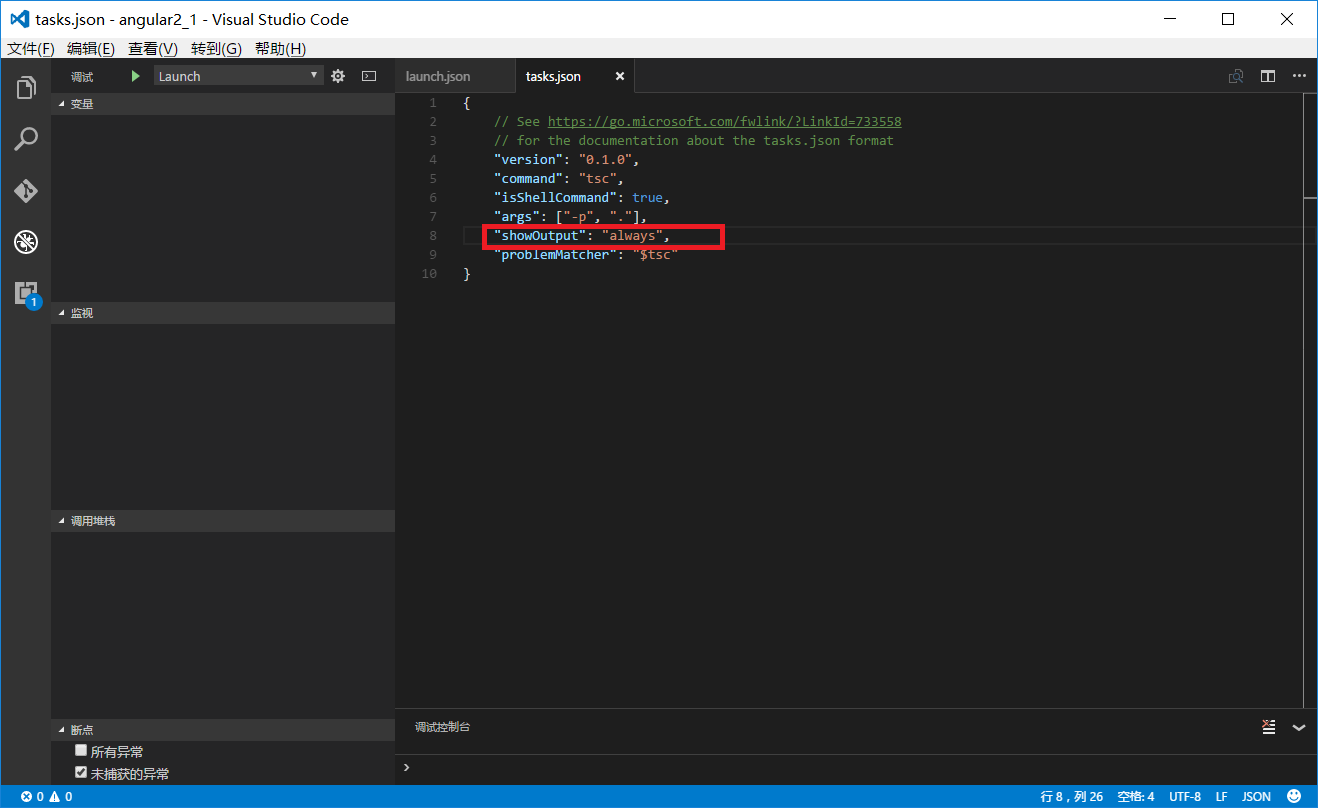
按照教程博客所说,要task.json做如上图修改,否则下面调试时如果出现错误没有任何提示。
七、以上已经完成了所有的工作,开始调试。按下”ctrl+shift+b“,执行编译,会将ts文件编译为js文件,如下图:

如果编译成功(如上图),就可以按”F5“了,如下图:
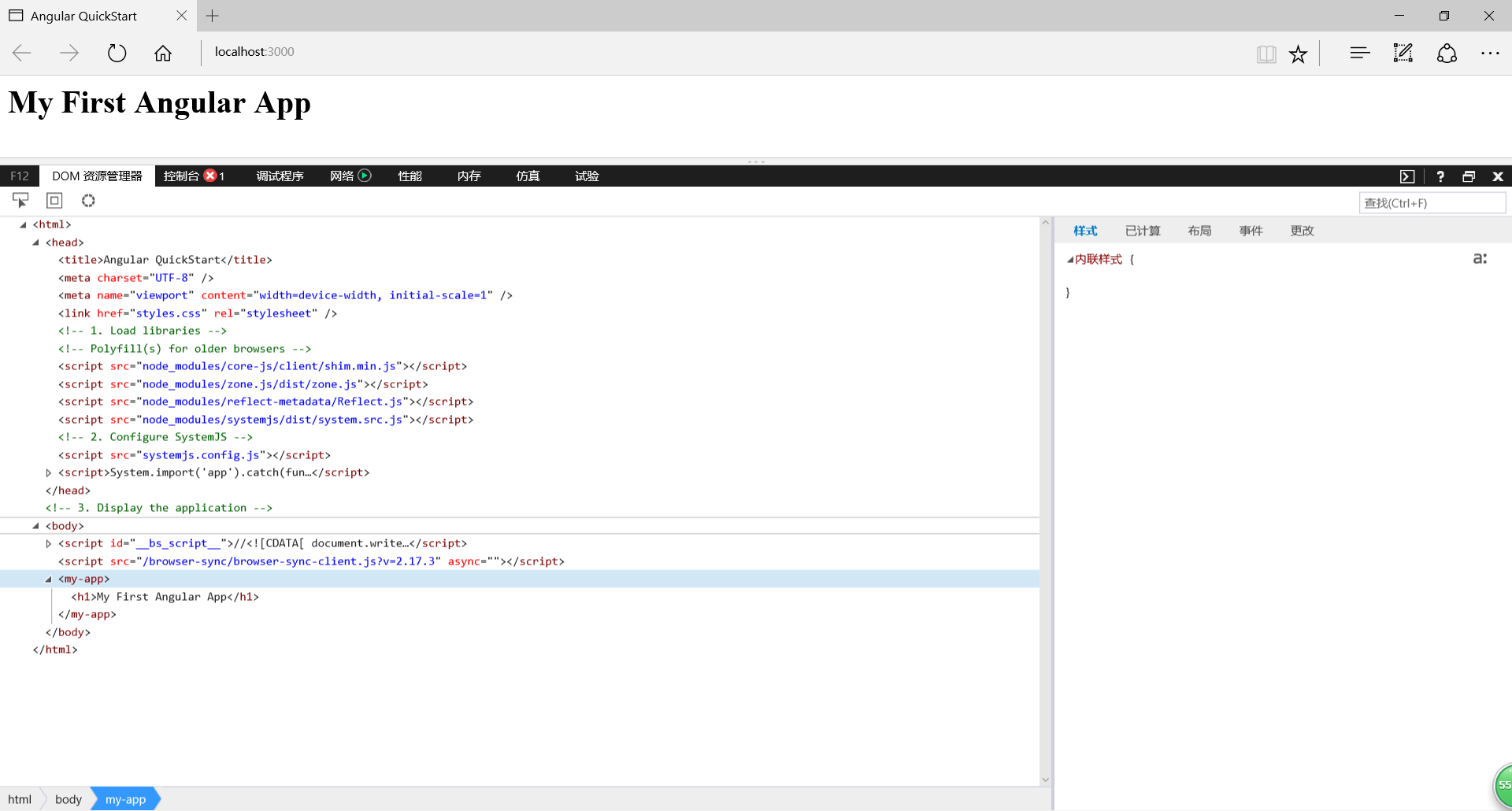
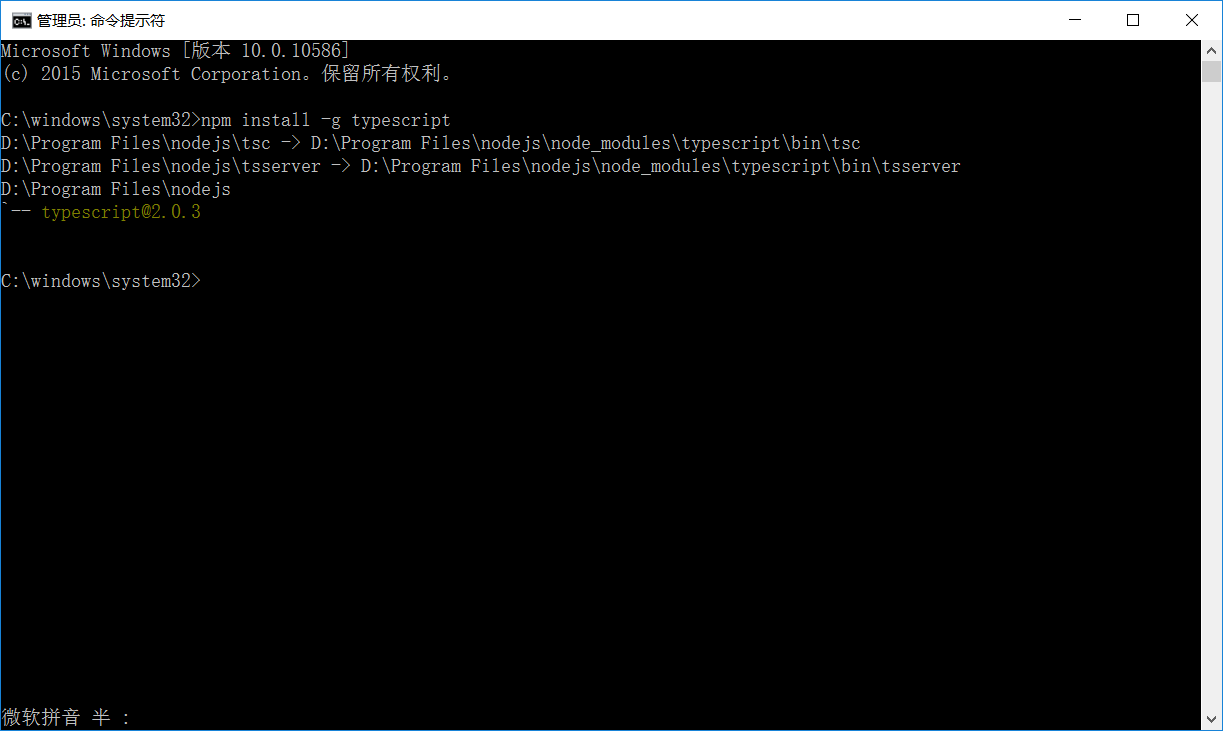
但是如果编译不成功,应该是没有安装tsc,使用命令”npm install -g typescript“安装一下,之后再编译就没问题了,如下图:
这里完全是按着上面的教程来的,有点不好意思,只作为练习记录,再次感谢!
Visual Studio Code——Angular2 Hello World 之 2.0的更多相关文章
- Visual Studio Code升级到0.5,提供对ES6的更好支持
(此文章同时发表在本人微信公众号"dotNET每日精华文章",欢迎右边二维码来关注.) 题记:题目即题记. 自从Visual Studio Code发布之后(最初是0.1),微软就 ...
- Visual Studio Code 配置指南
Visual Studio Code (简称 VS Code)是由微软研发的一款免费.开源的跨平台文本(代码)编辑器.在我看来它是「一款完美的编辑器」. 本文是有关 VS Code 的特性介绍与配置指 ...
- Visual Studio Code 代理设置
Visual Studio Code (简称 VS Code)是由微软研发的一款免费.开源的跨平台文本(代码)编辑器,在十多年的编程经历中,我使用过非常多的的代码编辑器(包括 IDE),例如 Fron ...
- 在Visual Studio Code中配置GO开发环境
一.GO语言安装 详情查看:GO语言下载.安装.配置 二.GoLang插件介绍 对于Visual Studio Code开发工具,有一款优秀的GoLang插件,它的主页为:https://github ...
- docker4dotnet #3 在macOS上使用Visual Studio Code和Docker开发asp.net core和mysql应用
.net猿遇到了小鲸鱼,觉得越来越兴奋.本来.net猿只是在透过家里那田子窗看外面的世界,但是看着海峡对岸的苹果园越来越茂盛,实在不想再去做一只宅猿了.于是,.net猿决定搭上小鲸鱼的渡轮到苹果园去看 ...
- Visual Studio Code v0.9.1 发布
微软的跨平台编辑器 Visual Studio Code v0.9.1 已经发布,官方博客上发布文章Visual Studio Code – October Update (0.9.1):http:/ ...
- 微软Visual Studio Code 0.8.0发布,新增多种主题
月30日,Build 开发者大会上,正式宣布了 Visual Studio Code 项目;并将其定义为:一个运行于 Mac OS X.Windows和 Linux 之上的,针对于编写现代 Web 和 ...
- Visual Studio Code,完美的编辑器
今日凌晨,微软的文本(代码)编辑器 Visual Studio Code(简称 VS Code),发布了首个正式版,距离首个 beta 版上线时间刚好一年. 在十多年的编程经历中,我使用过非常多的的代 ...
- 打造TypeScript的Visual Studio Code开发环境
打造TypeScript的Visual Studio Code开发环境 本文转自:https://zhuanlan.zhihu.com/p/21611724 作者: 2gua TypeScript是由 ...
随机推荐
- Java中的多态
1.多态:具有表现多种形态的能力的特征 父类: public abstract class Animal {public abstract void Say();} 子类: public class ...
- JavaScript中Math对象的方法介绍
1.比较最值方法 比较最值有两种方法,max() 和 min() 方法. 1.1 max() 方法,比较一组数值中的最大值,返回最大值. var maxnum = Math.max(12,6,43,5 ...
- Web安全相关(五):SQL注入(SQL Injection)
简介 SQL注入攻击指的是通过构建特殊的输入作为参数传入Web应用程序,而这些输入大都是SQL语法里的一些组合,通过执行SQL语句进而执行攻击者所要的操作,其主要原因是程序没有细致地过滤用户输入的数据 ...
- 【算法】(查找你附近的人) GeoHash核心原理解析及代码实现
本文地址 原文地址 分享提纲: 0. 引子 1. 感性认识GeoHash 2. GeoHash算法的步骤 3. GeoHash Base32编码长度与精度 4. GeoHash算法 5. 使用注意点( ...
- 玩转ajax
1.什么是ajax? Ajax 是 Asynchronous JavaScript and XML(以及 DHTML 等)的缩写. 2.ajax需要什么基础? HTML 用于建立 Web 表单并确定应 ...
- 如何理解javaSript中函数的参数是按值传递
本文是我基于红宝书<Javascript高级程序设计>中的第四章,4.1.3传递参数小节P70,进一步理解javaSript中函数的参数,当传递的参数是对象时的传递方式. (结合资料的个人 ...
- Hibernate 系列 学习笔记 目录 (持续更新...)
前言: 最近也在学习Hibernate,遇到的问题差不多都解决了,顺便把学习过程遇到的问题和查找的资料文档都整理了一下分享出来,也算是能帮助更多的朋友们了. 最开始使用的是经典的MyEclipse,后 ...
- 【译】Meteor 新手教程:在排行榜上添加新特性
原文:http://danneu.com/posts/6-meteor-tutorial-for-fellow-noobs-adding-features-to-the-leaderboard-dem ...
- 【腾讯Bugly干货分享】H5 视频直播那些事
本文来自于腾讯bugly开发者社区,非经作者同意,请勿转载,原文地址:http://dev.qq.com/topic/57a42ee6503dfcb22007ede8 Dev Club 是一个交流移动 ...
- 监督学习 VS 无监督学习
监督学习 就是人们常说的分类,通过已有的训练样本(即已知数据以及其对应的输出)去训练得到一个最优模型(这个模型属于某个函数的集合,最优则表示在某个评价准则下是最佳的),再利用这个模型将所有的输入映射为 ...