
iphone dev 入门实例4:CoreData入门
The iPhone Core Data Example Application
The application developed in this chapter will take the form of the same contact database application used in previous chapters, the objective being to allow the user to enter name, address and phone number information into a database and then search for specific contacts based on the contact’s name.
Creating a Core Data based iPhone Application
As is often the case, we can rely on Xcode to do much of the preparatory work for us when developing an iPhone application that will use Core Data. Currently, however, only the Master-Detail Application, Utility Application and Empty Application project templates offer the option to automatically include support for Core Data.
To create the example application project, launch Xcode and select the option to create a new project. In the new project window, select the Empty Application option. In the next screen make sure that the Devices menu is set to iPhone and that the check boxes next to Use Core Data and Use Automatic Reference Counting are selected. In the Product Name and Class Prefix fields enter CoreData and click Next to select a location to store the project files. Xcode will create the new project and display the main project window. In addition to the usual files that are present when creating a new project, this time an additional file named CoreData.xcdatamodeld is also created. This is the file where the entity descriptions for our data model are going to be stored.
Creating the Entity Description
The entity description defines the model for our data, much in the way a schema defines the model of a database table. To create the entity for the Core Data application, select the CoreData.xcdatamodeld file to load the entity editor:
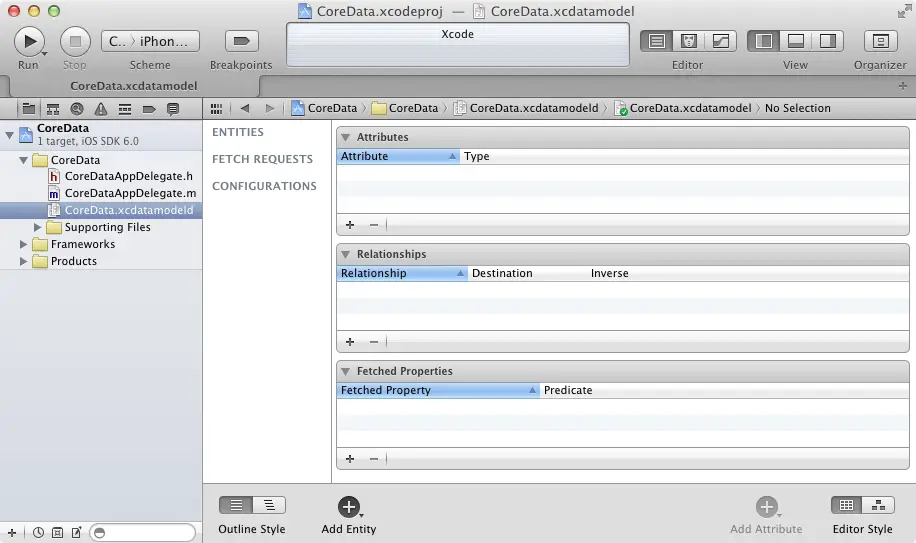
Figure 42-1
To create a new entity, click on the Add Entity button located in the bottom panel. In the text field that appears beneath the Entities heading name the entity Contacts. With the entity created, the next step is to add some attributes that represent the data that is to be stored. To do so, click on the Add Attribute button. In the Attribute pane, name the attribute name and set the Type to String. Repeat these steps to add two other String attributes named address and phone respectively:
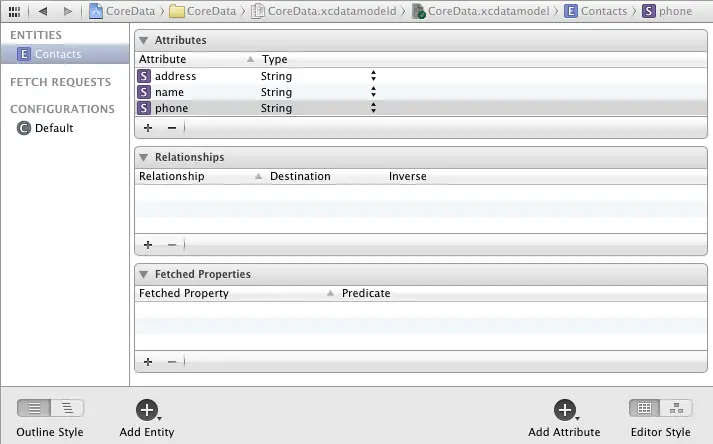
Figure 42-2
The entity is now defined and it is time to start writing code.
Adding a View Controller
In order to automatically add Core Data support to our application we had to choose the Empty Application project template option when we started Xcode. As such, we now need to create our own view controller.
Within the Xcode project navigator panel, Ctrl-click on the CoreData folder entry. From the popup menu, select New File.... In the new file panel, select the iOS Cocoa Touch Class category followed by the Objective-C class icon and click Next. On the following options screen, make sure the Subclass of menu is set to UIViewController and name the class CoreDataViewController. Select the With XIB for user interface check box and make sure the Targeted for iPad option is off. Click Next and on the final panel click on Create.
Now that we have added the view controller class to the application we need to modify our app delegate to make this the root view controller. In the Xcode project navigator, select the CoreDataAppDelegate.h file and modify it to add a reference to our new view controller:
#import <UIKit/UIKit.h>

#import "CoreDataViewController.h"

@class CoreDataViewController;

@interface CoreDataAppDelegate : UIResponder <UIApplicationDelegate>

@property (strong, nonatomic) CoreDataViewController *viewController;

@property (strong, nonatomic) UIWindow *window;

@property (readonly, strong, nonatomic) NSManagedObjectContext *managedObjectContext;

@property (readonly, strong, nonatomic) NSManagedObjectModel *managedObjectModel;

@property (readonly, strong, nonatomic) NSPersistentStoreCoordinator *persistentStoreCoordinator;

- (void)saveContext;

- (NSURL *)applicationDocumentsDirectory;

@end
With an instance of the view controller declared in the interface file we now need to modify the didFinishLaunchingWithOptions method located in the CoreDataAppDelegate.m implementation file to initialize and allocate the CoreDataViewController instance and assign it as the application’s root view controller so that it is visible to the user on application launch:
- (BOOL)application:(UIApplication *)application didFinishLaunchingWithOptions:(NSDictionary *)launchOptions

{

    self.window = [[UIWindow alloc] initWithFrame:[[UIScreen mainScreen] bounds]];

    // Override point for customization after application launch.

    _viewController = [[CoreDataViewController alloc]

      initWithNibName:@"CoreDataViewController" bundle:nil];

    self.window.backgroundColor = [UIColor whiteColor];

    [self.window setRootViewController:_viewController];

    [self.window makeKeyAndVisible];

    return YES;

}

.

.

.

@end
Designing the User Interface
With the application delegate configured, now is a good time to design the user interface and establish the outlet and action connections. Select the CoreDataViewController.xib file to begin the design work. The user interface and corresponding connections used in this tutorial are the same as those in previous data persistence chapters. The completed view should, once again, appear as outlined in Figure 42-3:
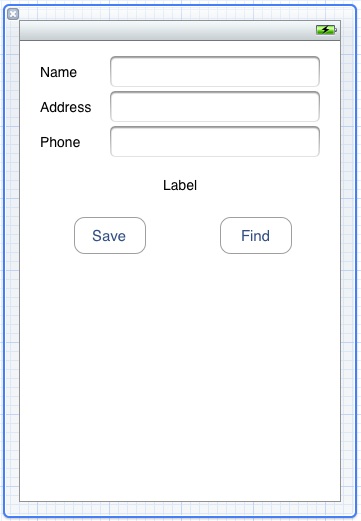
Figure 42-3
Before proceeding, stretch the status label (located above the two buttons) so that it covers most of the width of the view. Finally, edit the label and remove the word “Label” so that it is blank.
Select the top most text field object in the view canvas, display the Assistant Editor panel and verify that the editor is displaying the contents of the DatabaseViewController.h file. Ctrl-click on the text field object again and drag to a position just below the @interface line in the Assistant Editor. Release the line and in the resulting connection dialog establish an outlet connection named name.
Repeat the above steps to establish outlet connections for the remaining text fields and the label object to properties named address and phone respectively and status.
Ctrl-click on the Save button object and drag the line to the area immediately beneath the newly created outlet in the Assistant Editor panel. Release the line and, within the resulting connection dialog, establish an Action method on the Touch Up Inside event configured to call a method named saveData. Repeat this step to create an action connection from the Find button to a method named findContact.
With the connections established, select the CoreDataViewController.h file and verify the settings are correct before modifying the file to import the CoreDataAppDelegate.h file which will be required by code added to the view controller later in the chapter:
#import <UIKit/UIKit.h>

#import "coreDataAppDelegate.h"

@interface CoreDataViewController : UIViewController

@property (strong, nonatomic) IBOutlet UITextField *name;

@property (strong, nonatomic) IBOutlet UITextField *address;

@property (strong, nonatomic) IBOutlet UITextField *phone;

@property (strong, nonatomic) IBOutlet UILabel *status;

- (IBAction)saveData:(id)sender;

- (IBAction)findContact:(id)sender;

@end
Saving Data to the Persistent Store using Core Data
When the user touches the Save button the saveData method is called. It is within this method, therefore, that we must implement the code to obtain the managed object context and create and store managed objects containing the data entered by the user. Select the CoreDataViewController.m file, scroll down to the template saveData method and implement the code as follows:
- (IBAction)saveData:(id)sender {

    CoreDataAppDelegate *appDelegate =

    [[UIApplication sharedApplication] delegate];

   NSManagedObjectContext *context =

    [appDelegate managedObjectContext];

   NSManagedObject *newContact;

   newContact = [NSEntityDescription

       insertNewObjectForEntityForName:@"Contacts"

       inManagedObjectContext:context];

   [newContact setValue: _name.text forKey:@"name"];

   [newContact setValue: _address.text forKey:@"address"];

   [newContact setValue: _phone.text forKey:@"phone"];

   _name.text = @"";

   _address.text = @"";

   _phone.text = @"";

   NSError *error;

   [context save:&error];

   _status.text = @"Contact saved";

}
The above code identifies the application delegate instance and uses that object to identify the managed object context. This context is then used to create a new managed object using the Contacts entity description. The setValue method of the managed object is then called to set the name, address and phone attribute values of the managed object (which in turn are read from the text field user interface components). Finally, the context is instructed to save the changes to the persistent store with a call to the context’s save method.
Retrieving Data from the Persistent Store using Core Data
In order to allow the user to search for a contact it is now necessary to implement the findContact action method. As with the save method, this method will need to identify the application delegate and managed object context. It will then need to obtain the entity description for the Contacts entity and then create a predicate to ensure that only objects with the name specified by the user are retrieved from the store. Matching objects are placed in an array from which the attributes for the first match are retrieved using the valueForKey method and displayed to the user. A full count of the matches is displayed in the status field.
The code to perform these tasks is as follows:
- (IBAction)findContact:(id)sender {

    CoreDataAppDelegate *appDelegate =

       [[UIApplication sharedApplication] delegate];

    NSManagedObjectContext *context =

       [appDelegate managedObjectContext];

    NSEntityDescription *entityDesc =

       [NSEntityDescription entityForName:@"Contacts"

       inManagedObjectContext:context];

    NSFetchRequest *request = [[NSFetchRequest alloc] init];

    [request setEntity:entityDesc];

    NSPredicate *pred =

       [NSPredicate predicateWithFormat:@"(name = %@)",

        _name.text];

    [request setPredicate:pred];

    NSManagedObject *matches = nil;

    NSError *error;

    NSArray *objects = [context executeFetchRequest:request

        error:&error];

    if ([objects count] == 0) {

       _status.text = @"No matches";

    } else {

       matches = objects[0];

       _address.text = [matches valueForKey:@"address"];

       _phone.text = [matches valueForKey:@"phone"];

       _status.text = [NSString stringWithFormat:

           @"%d matches found", [objects count]];

    }

}
Building and Running the Example Application
The final step is to build and run the application. Click on the Run button located in the toolbar of the main Xcode project window. If errors are reported check the syntax of the code you have written, using the error message provided by Xcode as guidance. Once the application compiles it will launch and load into the iOS Simulator. Enter some test contacts (some with the same name). Having entered some test data, enter the name of the contact for which you created duplicate records and click the Find button. As shown in Figure 42-4, the address and phone number of the first matching record should appear together with an indication in the status field of the total number of matching objects that were retrieved:
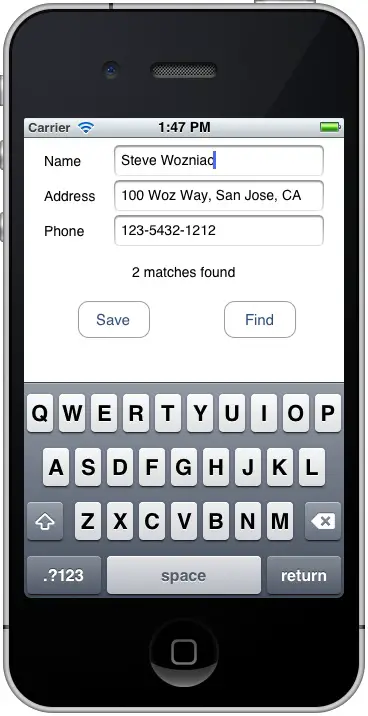
Figure 42-4
Summary
The Core Data framework provides an abstract, object oriented interface to database storage within iOS applications. As demonstrated in the example application created in this chapter, Core Data does not require any knowledge of the underlying database system and, combined with the visual entity creation features of Xcode, allows database storage to be implemented with relative ease.
iphone dev 入门实例4:CoreData入门的更多相关文章
- iphone Dev 开发实例10:How To Add a Slide-out Sidebar Menu in Your Apps
Creating the Xcode Project With a basic idea about what we’ll build, let’s move on. You can create t ...
- iphone Dev 开发实例9:Create Grid Layout Using UICollectionView in iOS 6
In this tutorial, we will build a simple app to display a collection of recipe photos in grid layout ...
- iphone Dev 开发实例8: Parsing an RSS Feed Using NSXMLParser
From : http://useyourloaf.com/blog/2010/10/16/parsing-an-rss-feed-using-nsxmlparser.html Structure o ...
- Vue.js2.0从入门到放弃---入门实例
最近,vue.js越来越火.在这样的大浪潮下,我也开始进入vue的学习行列中,在网上也搜了很多教程,按着教程来做,也总会出现这样那样的问题(坑啊,由于网上那些教程都是Vue.js 1.x版本的,现在用 ...
- 转-Vue.js2.0从入门到放弃---入门实例(一)
http://blog.csdn.net/u013182762/article/details/53021374 标签: Vue.jsVue.js 2.0Vue.js入门实例Vue.js 2.0教程 ...
- docker入门实例(转载)
1.Docker 是什么?Docker 是一个开源的应用容器引擎,让开发者可以打包他们的应用以及依赖包到一个可移植的镜像中,然后发布到任何流行的 Linux 或 Windows 机器上( 摘自百度 ) ...
- React 入门实例教程(转载)
本人转载自: React 入门实例教程
- struts入门实例
入门实例 1 .下载struts-2.3.16.3-all .不摆了.看哈就会下载了. 2 . 解压 后 找到 apps 文件夹. 3. 打开后将 struts2-blank.war ...
- wxPython中文教程入门实例
这篇文章主要为大家分享下python编程中有关wxPython的中文教程,分享一些wxPython入门实例,有需要的朋友参考下 wxPython中文教程入门实例 wx.Window 是一个基类 ...
随机推荐
- MATLAB格式化输出控制 分类: 数学 2015-07-31 23:01 3人阅读 评论(0) 收藏
MATLAB格式化输出控制 format 默认格式 format short 5字长定点数 format long 15字长定点数 format short e 5字长浮点数 format long ...
- Codeforces Round #145 (Div. 2, ACM-ICPC Rules)
A. Lefthanders and Righthanders \(i\)与\(i+\frac n2\)匹配,根据左右手调整位置. B. Reading 排序,取前\(k\)个. C. Weather ...
- android中常见对话框之一AlertDialog
在Android应用中,有多种对话框:Dialog.AlertDialog.ProgressDialog.时间.日期等对话框. (1)Dialog类,是一切对话框的基类,需要注意的是,Dialog类虽 ...
- Android——ListView相关作业(修改版)
给GridView提供点击按钮添加新数据,单击项目修改,长按删除功能 activity_practise7的layout文件: <?xml version="1.0" enc ...
- CentOS搭建LNMP环境
安装开发工具包: yum groupinstall -y "Development Tools*" 50多个,安装了好久…… 下载Nginx: http://nginx.org/e ...
- hdu5443(2015长春赛区网络赛1007)暴力
题意:给了一个数列,有多个询问,每个询问求某个区间内的最大值 数列长度 1000,询问个数 1000,静态,并不需要RMQ这些,直接暴力 n2 查找每个询问区间取最大值就行了. #include< ...
- kuangbin_ShortPath A (POJ 2387)
最短路模板题 但是其实很费时间 因为要看明白dij floyd 以及 dij优化 spfa优化 交了三次 大概是理解了 不过涉及到priority_queue的重载运算符问题 以后要在C++里面好好看 ...
- 《Linux与Qt程序设计》知识框架
本文主要是通过一本书来大致了解Qt开发的框架,不对具体内容做详细分析. 1.首先弄清楚概念:定义->以自己的话理解是什么-> 实现的是什么功能->用在哪些地方 2.前面认识到的知识点 ...
- (转)A Beginner's Guide To Understanding Convolutional Neural Networks Part 2
Adit Deshpande CS Undergrad at UCLA ('19) Blog About A Beginner's Guide To Understanding Convolution ...
- CentOS 6 下RPM方式安装MySQL5.6
CentOS 6 下RPM方式安装MySQL5.6 1. 下载Linux对应的RPM包,如:CentOS6.7_64对应的RPM包,如下:[root@mysql ~]# ll总用量 113808-rw ...