
WPF 样式(定义样式、引用样式、样式作用域、Trigger触发器)
1、定义 资源字典
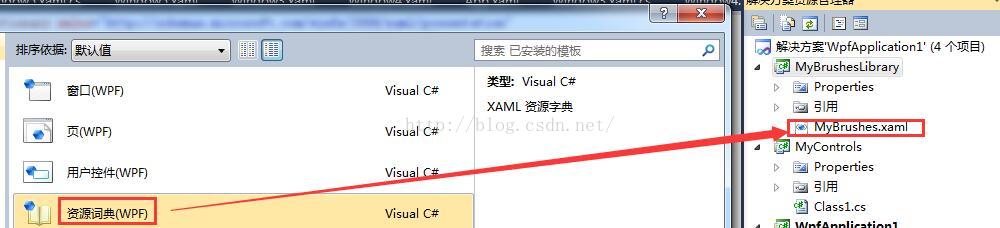
- <ResourceDictionary xmlns="http://schemas.microsoft.com/winfx/2006/xaml/presentation"
- xmlns:x="http://schemas.microsoft.com/winfx/2006/xaml">
- <RadialGradientBrush x:Key="mybrush">
- <GradientStop Color="#FF0000" Offset="0"/>
- <GradientStop Color="#00ff00" Offset="1"/>
- <GradientStop Color="#0000ff" Offset="0.6669"/>
- </RadialGradientBrush>
- </ResourceDictionary>
2、引用 资源字典
- <!--定义应用程序对象-->
- <Application x:Class="WpfApplication1.App"
- xmlns="http://schemas.microsoft.com/winfx/2006/xaml/presentation"
- xmlns:x="http://schemas.microsoft.com/winfx/2006/xaml"
- StartupUri="Window5.xaml" Exit="AppExit">
- <!--StartupUri 启动时,显示那个xaml-->
- <x:Code>
- <![CDATA[
- private void AppExit(object sender,ExitEventArgs e)
- {
- MessageBox.Show("App has Exit!");
- }
- ]]>
- </x:Code>
- <Application.Resources>
- <ResourceDictionary>
- <ResourceDictionary.MergedDictionaries>
- <!--外部库名称;Component/编译的二进制资源名称-->
- <ResourceDictionary Source="/MyBrushesLibrary;Component/MyBrushes.xaml"/>
- <ResourceDictionary Source="......"/>
- </ResourceDictionary.MergedDictionaries>
- </ResourceDictionary>
- </Application.Resources>
- </Application>
3、应用
- <Window x:Class="WpfApplication1.Window5"
- xmlns="http://schemas.microsoft.com/winfx/2006/xaml/presentation"
- xmlns:x="http://schemas.microsoft.com/winfx/2006/xaml"
- Title="Window5" Height="300" Width="300">
- <StackPanel Orientation="Vertical">
- <Button Width="204" Height="73" Content="OK" x:Name="BtnOK" Background="{DynamicResource myBrush}" Click="BtnOK_Click"></Button>
- <Button Width="204" Height="73" Content="Cancel" x:Name="BtnName2" Background="{StaticResource myBrush}"/>
- </StackPanel>
- </Window>
推荐阅读:http://blog.csdn.net/pan_junbiao/article/details/50987932
一、样式
1、定义样式
- <Window.Resources>
- <!--定义按钮公共样式-->
- <!--x:Key 引用这个样式,TargetType作用目标类型-->
- <Style x:Key="gButton" TargetType="{x:Type Button}">
- <!--Setter设置目标属性-->
- <Setter Property="Cursor" Value="Hand"/>
- <Setter Property="Width" Value="150"/>
- <Setter Property="Height" Value="80"/>
- </Style>
- </Window.Resources>
2、引用样式
- <Grid>
- <Button Content="红色">
- <Button.Style>
- <!--BasedOn属性:通过设置BasedOn属性,可以继承某个样式-->
- <Style TargetType="{x:Type Button}" BasedOn="{StaticResource gButton}">
- <Setter Property="Background" Value="Red"/>
- <Setter Property="FontSize" Value="24"/>
- <Setter Property="Foreground" Value="Red"/>
- <Setter Property="Margin" Value="20"/>
- </Style>
- </Button.Style>
- </Button>
- </Grid>
二、样式作用域
1、全局样式
把样式写在App.xaml中即可
- <Application x:Class="WpfApplication1.App"
- xmlns="http://schemas.microsoft.com/winfx/2006/xaml/presentation"
- xmlns:x="http://schemas.microsoft.com/winfx/2006/xaml"
- StartupUri="MainWindow.xaml">
- <!--全局应用程序资源-->
- <Application.Resources>
- <!--定义全局样式-->
- </Application.Resources>
- </Application>
2、局部样式
- <!--窗口资源-->
- <Window.Resources>
- <!--定义局部样式-->
- </Window.Resources>
3、内部样式
- <Button Content="红色" Width="150" Height="80">
- <Button.Style>
- <!--定义内部-->
- <Style TargetType="{x:Type Button}" BasedOn="{StaticResource gBut}">
- <!--背景色-->
- <Setter Property="Background" Value="Red"/>
- <!--字号-->
- <Setter Property="FontSize" Value="24"/>
- </Style>
- </Button.Style>
- </Button>
以上的样式引用时的方法是一样的,都是使用Resources,内部样式的使用仅限于改控件本身,因为它没有被放到资源字典之中,xxx.Resources是支持向下继承的,并可以应用它在资源中的定义样式,例如:
- <Grid>
- <!--定义Grid控件的资源-->
- <Grid.Resources>
- <!--定义按钮样式1-->
- <Style x:Key="grid_button" TargetType="{x:Type Button}">
- <Setter Property="Width" Value="260"/>
- <Setter Property="Height" Value="160"/>
- <Setter Property="FontSize" Value="26"/>
- <Setter Property="Content" Value="应用父级样式"/>
- </Style>
- </Grid.Resources>
- <!--应用父级样式的按钮-->
- <Button Style="{StaticResource grid_button}"></Button>
- </Grid>
运行结果所示,XAML代码中的按钮除了Style="{StaticResource grid_button}"之外并没有声明任何属性,按钮的尺寸和内容都是通过应用父级Grid资源样式来呈现的,所以只要父级的对象定义了资源,父级以下的元素均可以访问它的资源字典。
三、Style中的Trigger
Trigger,触发器,即当某些条件满足时会触发一个行为(比如某些值的变化或动画的发生等)。触发器比较像事件。事件一般是由用户操作触发的,而触发器除了有事件触发型的EventTrigger外还有数据变化触发型的Trigger/DataTrigger及多条件触发型MultiTrigger/MultiDataTrigger等。
1、基础Trigger
Trigger类是最基本的触发器。类似于Setter,Trigger也有Property和Value这两个属性,Property是Trigger关注的属性名称,Value是触发条件。Trigger类还有一个Setters属性,此属性值是一组Setter,一旦触发条件被满足,这组Setter的“属性—值”就会被应用,触发条件不再满足后,各属性值会被还原。
下面这个例子中包含一个针对CheckBox的Style,当CheckBox的IsChecked属性为true的时候前景色和字体会改变。XAML代码如下:
- <Window.Resources>
- <Style TargetType="CheckBox">
- <Style.Triggers>
- <Trigger Property="IsChecked" Value="True">
- <Setter Property="FontSize" Value="20"/>
- <Setter Property="Foreground" Value="Orange"/>
- </Trigger>
- </Style.Triggers>
- </Style>
- </Window.Resources>
- <StackPanel>
- <CheckBox Content="111" Margin="5"/>
- <CheckBox Content="222" Margin="5"/>
- <CheckBox Content="333" Margin="5"/>
- </StackPanel>
2、MultiTrigger
MultiTrigger比Trigger多了一个Conditions属性,需要同时成立的条件就储存在这个集合中。
让我们稍微改动一下上面的例子,要求同时满足CheckBox被选中且Content为“333”时才会被触发。
XAML代码如下:
- <Window.Resources>
- <Style TargetType="CheckBox">
- <Style.Triggers>
- <MultiTrigger>
- <MultiTrigger.Conditions>
- <Condition Property="IsChecked" Value="true"/>
- <Condition Property="Content" Value="333"/>
- </MultiTrigger.Conditions>
- <MultiTrigger.Setters>
- <Setter Property="FontSize" Value="20"/>
- <Setter Property="Foreground" Value="Orange"/>
- </MultiTrigger.Setters>
- </MultiTrigger>
- </Style.Triggers>
- </Style>
- </Window.Resources>
- <StackPanel>
- <CheckBox Content="111" Margin="5"/>
- <CheckBox Content="222" Margin="5"/>
- <CheckBox Content="333" Margin="5"/>
- </StackPanel>
3、数据触发的DataTrigger
程序中经常会遇到基于数据执行某些判断情况,遇到这种情况时我们可以考虑使用DataTrigger。
DataTrigger对象的Binding属性会把数据源不断送过来,一旦送了的值与Value属性一致,DataTrigger即被触发。
下面例子中,当TextBox的Text长度小于7个字符时其Border会保持红色。
XAML代码如下:
- <Window x:Class="WpfApplication2.MainWindow"
- xmlns="http://schemas.microsoft.com/winfx/2006/xaml/presentation"
- xmlns:x="http://schemas.microsoft.com/winfx/2006/xaml"
- xmlns:local="clr-namespace:WpfApplication2"
- Title="MainWindow" Height="350" Width="525">
- <Window.Resources>
- <local:L2BConverter x:Key="cvtr"/>
- <Style TargetType="TextBox">
- <Style.Triggers>
- <DataTrigger Binding="{Binding RelativeSource={x:Static RelativeSource.Self},
- Path=Text.Length,
- Converter={StaticResource cvtr}}" Value="false">
- <Setter Property="BorderBrush" Value="Red"/>
- <Setter Property="BorderThickness" Value="1"/>
- </DataTrigger>
- </Style.Triggers>
- </Style>
- </Window.Resources>
- <StackPanel>
- <TextBox Margin="5"/>
- <TextBox Margin="5,0"/>
- <TextBox Margin="5"/>
- </StackPanel>
- </Window>
- public class L2BConverter:IValueConverter
- {
- public object Convert(object value, Type targetType, object parameter, System.Globalization.CultureInfo culture)
- {
- int textLength = (int)value;
- return textLength > 6 ? true : false;
- }
- public object ConvertBack(object value, Type targetType, object parameter, System.Globalization.CultureInfo culture)
- {
- throw new NotImplementedException();
- }
- }
4、多条件触发的MultiDataTrigger
有时候我们会遇到要求多个数据条件同时满足时才能触发变化的需求,此时可以考虑使用MultiDataTrigger。
比如有这样一个需求:用户界面使用ListBox显示了一列Student数据,当Student对象同时满足ID为2、Name为Tom的时候,条目就高亮显示,
XAML代码如下:
- using System;
- using System.Collections.Generic;
- using System.Linq;
- using System.Text;
- using System.Windows;
- using System.Windows.Controls;
- using System.Windows.Data;
- using System.Windows.Documents;
- using System.Windows.Input;
- using System.Windows.Media;
- using System.Windows.Media.Imaging;
- using System.Windows.Navigation;
- using System.Windows.Shapes;
- namespace WpfApplication2
- {
- /// <summary>
- /// MainWindow.xaml 的交互逻辑
- /// </summary>
- public partial class MainWindow : Window
- {
- public MainWindow()
- {
- InitializeComponent();
- List<Student> stuList = new List<Student>(){
- new Student(){ID="1",Name="Peter",Age=25},
- new Student(){ID="2",Name="Tom",Age=27},
- new Student(){ID="3",Name="Ben",Age=20}
- };
- this.listBoxStudent.ItemsSource = stuList;
- }
- }
- /// <summary>
- /// 学生类
- /// </summary>
- public class Student
- {
- public string ID { get; set; }
- public string Name { get; set; }
- public int Age { get; set; }
- }
- }
- <Window x:Class="WpfApplication2.MainWindow"
- xmlns="http://schemas.microsoft.com/winfx/2006/xaml/presentation"
- xmlns:x="http://schemas.microsoft.com/winfx/2006/xaml"
- Title="MainWindow" Height="350" Width="525">
- <Window.Resources>
- <Style TargetType="ListBoxItem">
- <!--使用Style设置DataTemplate-->
- <Setter Property="ContentTemplate">
- <Setter.Value>
- <DataTemplate>
- <StackPanel Orientation="Horizontal">
- <TextBlock Text="{Binding ID}" Width="60"/>
- <TextBlock Text="{Binding Name}" Width="120"/>
- <TextBlock Text="{Binding Age}" Width="60"/>
- </StackPanel>
- </DataTemplate>
- </Setter.Value>
- </Setter>
- <!--MultiDataTrigger-->
- <Style.Triggers>
- <MultiDataTrigger>
- <MultiDataTrigger.Conditions>
- <Condition Binding="{Binding Path=ID}" Value="2"/>
- <Condition Binding="{Binding Path=Name}" Value="Tom"/>
- </MultiDataTrigger.Conditions>
- <MultiDataTrigger.Setters>
- <Setter Property="Background" Value="Orange"/>
- </MultiDataTrigger.Setters>
- </MultiDataTrigger>
- </Style.Triggers>
- </Style>
- </Window.Resources>
- <StackPanel>
- <ListBox x:Name="listBoxStudent" Margin="5"/>
- </StackPanel>
- </Window>
效果:

5、由事件触发的EventTrigger
EventTrigger是触发器中最特殊的一个。首先,它不是由属性值或数据的变化来触发而是由事件来触发;其次,被触发后它并非应用一组Setter,而是执行一段动画。
因此,UI层的动画效果往往与EventTrigger相关联。
在下面这个例子中创建了一个针对Button的Style,这个Style包含两个EventTrigger,一个由MouseEnter事件触发,另一个由MouseLeave事件触发。
鼠标进入按钮时变大,离开时恢复原样。
XAML代码如下:
- <Window.Resources>
- <Style TargetType="Button">
- <Style.Triggers>
- <!--鼠标进入-->
- <EventTrigger RoutedEvent="MouseEnter">
- <BeginStoryboard>
- <Storyboard>
- <DoubleAnimation To="150" Duration="0:0:0.2" Storyboard.TargetProperty="Width"/>
- <DoubleAnimation To="150" Duration="0:0:0.2" Storyboard.TargetProperty="Height"/>
- </Storyboard>
- </BeginStoryboard>
- </EventTrigger>
- <!--鼠标离开-->
- <EventTrigger RoutedEvent="MouseLeave">
- <BeginStoryboard>
- <Storyboard>
- <DoubleAnimation Duration="0:0:0.2" Storyboard.TargetProperty="Width"/>
- <DoubleAnimation Duration="0:0:0.2" Storyboard.TargetProperty="Height"/>
- </Storyboard>
- </BeginStoryboard>
- </EventTrigger>
- </Style.Triggers>
- </Style>
- </Window.Resources>
- <Canvas>
- <Button Width="40" Height="40" Content="OK"/>
- </Canvas>
WPF 样式(定义样式、引用样式、样式作用域、Trigger触发器)的更多相关文章
- WPF 动态添加控件以及样式字典的引用(Style introduction)
原文:WPF 动态添加控件以及样式字典的引用(Style introduction) 我们想要达到的结果是,绑定多个Checkbox然后我们还可以获取它是否被选中,其实很简单,我们只要找到那几个关键的 ...
- WPF自定义控件与样式(3)-TextBox & RichTextBox & PasswordBox样式、水印、Label标签、功能扩展
一.前言.预览 申明:WPF自定义控件与样式是一个系列文章,前后是有些关联的,但大多是按照由简到繁的顺序逐步发布的等,若有不明白的地方可以参考本系列前面的文章,文末附有部分文章链接. 本文主要是对文本 ...
- WPF自定义控件与样式(4)-CheckBox/RadioButton自定义样式
一.前言 申明:WPF自定义控件与样式是一个系列文章,前后是有些关联的,但大多是按照由简到繁的顺序逐步发布的等,若有不明白的地方可以参考本系列前面的文章,文末附有部分文章链接. 本文主要内容: Che ...
- 【转】WPF自定义控件与样式(4)-CheckBox/RadioButton自定义样式
一.前言 申明:WPF自定义控件与样式是一个系列文章,前后是有些关联的,但大多是按照由简到繁的顺序逐步发布的等 本文主要内容: CheckBox复选框的自定义样式,有两种不同的风格实现: RadioB ...
- 【转】WPF自定义控件与样式(3)-TextBox & RichTextBox & PasswordBox样式、水印、Label标签、功能扩展
一.前言.预览 申明:WPF自定义控件与样式是一个系列文章,前后是有些关联的,但大多是按照由简到繁的顺序逐步发布的等. 本文主要是对文本输入控件进行样式开发,及相关扩展功能开发,主要内容包括: 基本文 ...
- MUI框架-03-自定义MUI控件样式
MUI框架-03-自定义MUI控件样式 开发请查阅:官方文档:http://dev.dcloud.net.cn/mui/ui/ 如何自定义MUI控件样式 mui 以 iOS 7的 UI 为基础,补充了 ...
- WPF——如何为项目设置全局样式。
在项目中,需要为所有的Button.TextBox设置一个默认的全局样式,一个个的为多个控件设置相同的样式显然是不明智的.在WPF中可以通过资源设置全局样式,主要有俩种方法: 1.第一种就是先写好按钮 ...
- 【WPF】DataGrid多表头的样式设计
需求 在使用WPF开发时,使用DataGrid列表显示数据时,有些字段可以进行分组显示,用于更好的表达它们之间存在的某种关系,因此就考虑到要对DataGrid的表头进行扩展,可以显示多行表头,让这些有 ...
- 如何引用CSS样式表
如何使用样式 当浏览器读到一个样式表,它就会按照这个样式表来对文档进行格式化.有以下三种方式来插入样式表: 1.外部样式表 当样式需要被应用到很多页面的时候,外部样式表将是理想的选择.使用外部样式 ...
随机推荐
- 定时任务Crontab
0.基本概念 & 实现原理 定时任务基本概念: 调度器:负责管理Quartz应用运行时环境,用于调度定时任务. 定时任务:按照某种时间规则,被调度的任务. a.从有无状态来说,有以下两种: ...
- elementUI 时间格式化(一般方法)
1.html: ... <el-table-column prop="updateTime" label="更新时间" width="160&q ...
- Vue2+VueRouter2+webpack 构建项目实战(一):准备工作
环境准备 首先,要开始工作之前,还是需要把环境搭建好.需要的环境是nodejs+npm,当然现在安装node都自带了npm. 在终端下面输入命令node -v会有版本号出来.就说明安装成功了.输入np ...
- 贝塞尔曲线与CSS3动画、SVG和canvas的应用
简介 贝塞尔曲线是可以做出很多复杂的效果来的,比如弹跳球的复杂动画效果,首先加速下降,停止,然后弹起时逐渐减速的效果. 使用贝塞尔曲线常用的两个网址如下: 缓动函数:http://www.xuanfe ...
- 2018-08-03 中文代码示例之Python-如何遍历字典
此系列之后将参考一些最常用功能的在线教程/示例程序, 进行示例代码的中文化改进. 欢迎推荐有代表性和实用性的教程, 篇幅小更佳. 谢谢. 参考Python - How to loop a dictio ...
- html之多行文本textarea 及下拉框select(12)
1.多行文本 多行文本使用textarea标签,默认值需要写在中间,和input标签不同,name属性用于后台获取数据(request.POST.get(meno)) <body> < ...
- 浅谈servlet与jsp的关系
servlet是用java语言编写的,是一个java类.主要功能是用来接受.处理客户端的请求,并把处理结果返回到客户端显示.Jsp是servlet发展后期的产物.在没有jsp之前,servlet利用输 ...
- OkHttp的封装和使用详解
Github地址 compile 'cn.yuan.yu:library:1.0.2' 第一步:初始化我们的工具类 public class MyApplication extends Applica ...
- <1>Linux日志查找方法
Linux日志查找方法 适用于测试,开发,运维人员,用来查找Linux服务器问题的一般方法,比较实用,如果有更好的办法可以一块讨论,欢迎大神们来指导哈!!! 进入正题 第一步.通过Xshell登录服务 ...
- Android智能指针SP WP使用方法介绍
Android手机操作系统既然是开源的操作系统.那么在具体的文件夹中就会存放着各种相关功能的开源代码.我们在使用的时候可以根据这些源代码进行相应的修改就能轻松的完成我们所需的功能.在这里大家就一起来看 ...