
简单的Socket通信(简单的在线聊天)---winform
注:本博客适合刚开始学习winform程序的初学者,大牛请绕道(跪求大牛指导文中不足)
.....10w字废话自动省略,直接开始正题.
首先从最基本的建立winform开始(本项目用的Vs2017)
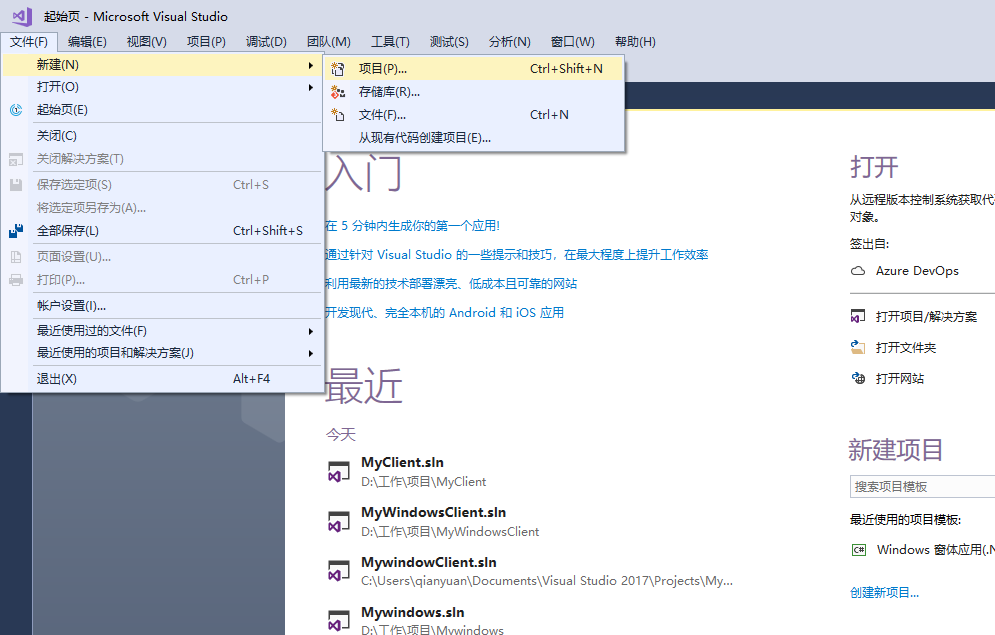
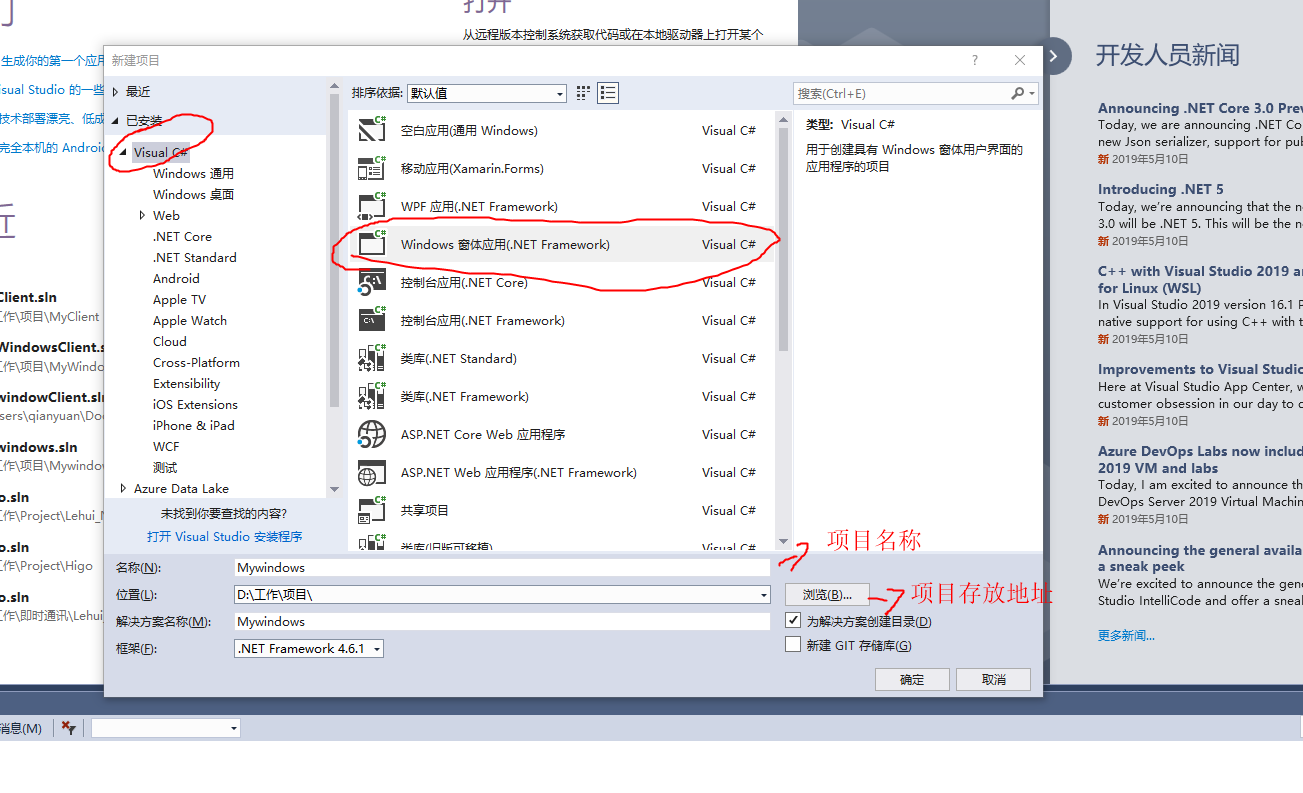
新建->项目->选中C#->选择Windows窗体应用->确定
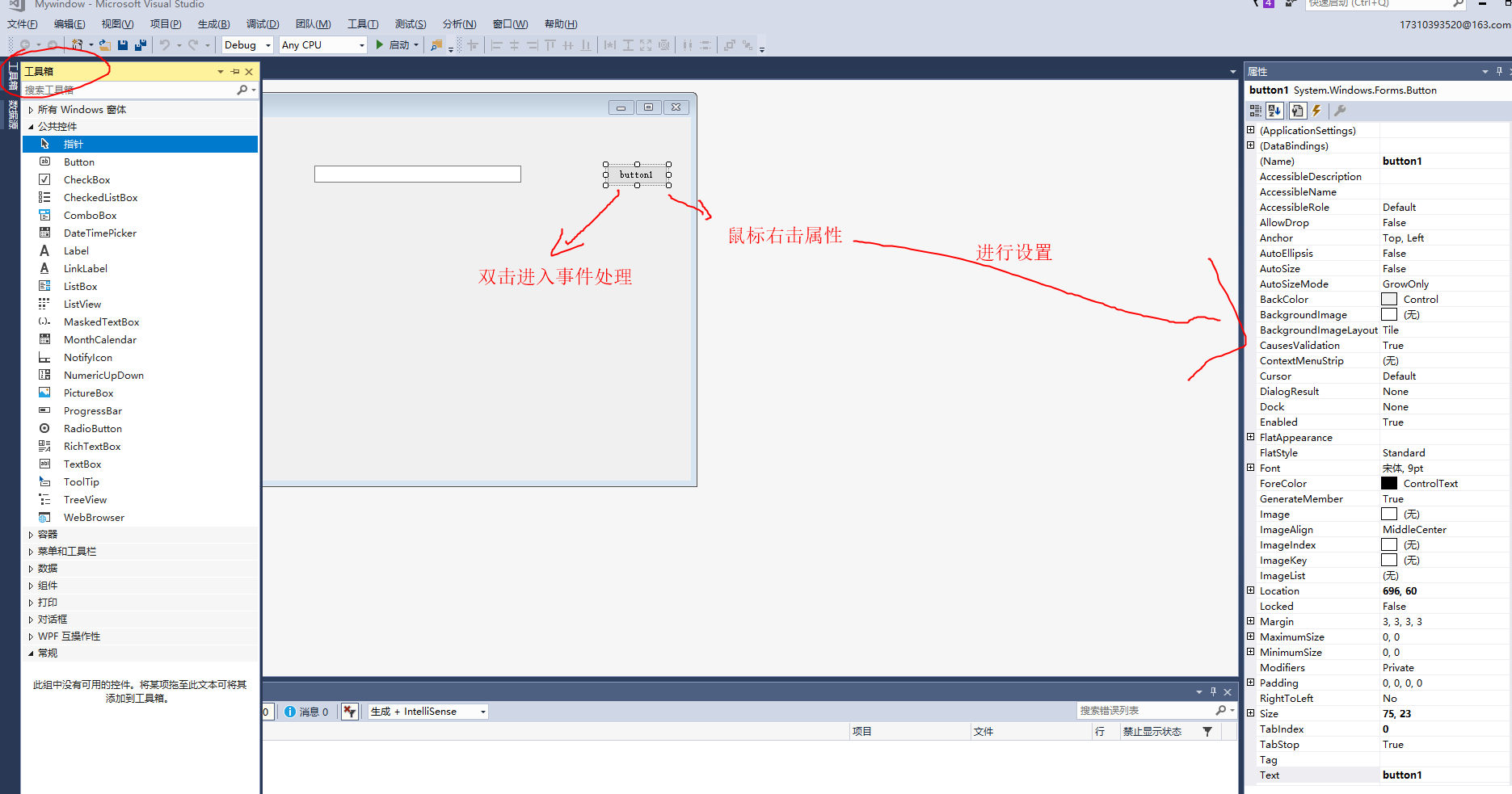
创建完成后可以点击工具栏进行拖拽控件 ,双击控件进入事件的逻辑处理,右击鼠标选择属性进行配置
各属性的作用可参考微软文档 https://docs.microsoft.com/zh-cn/dotnet/api/system.windows.forms.control.accessiblename?view=netframework-4.8
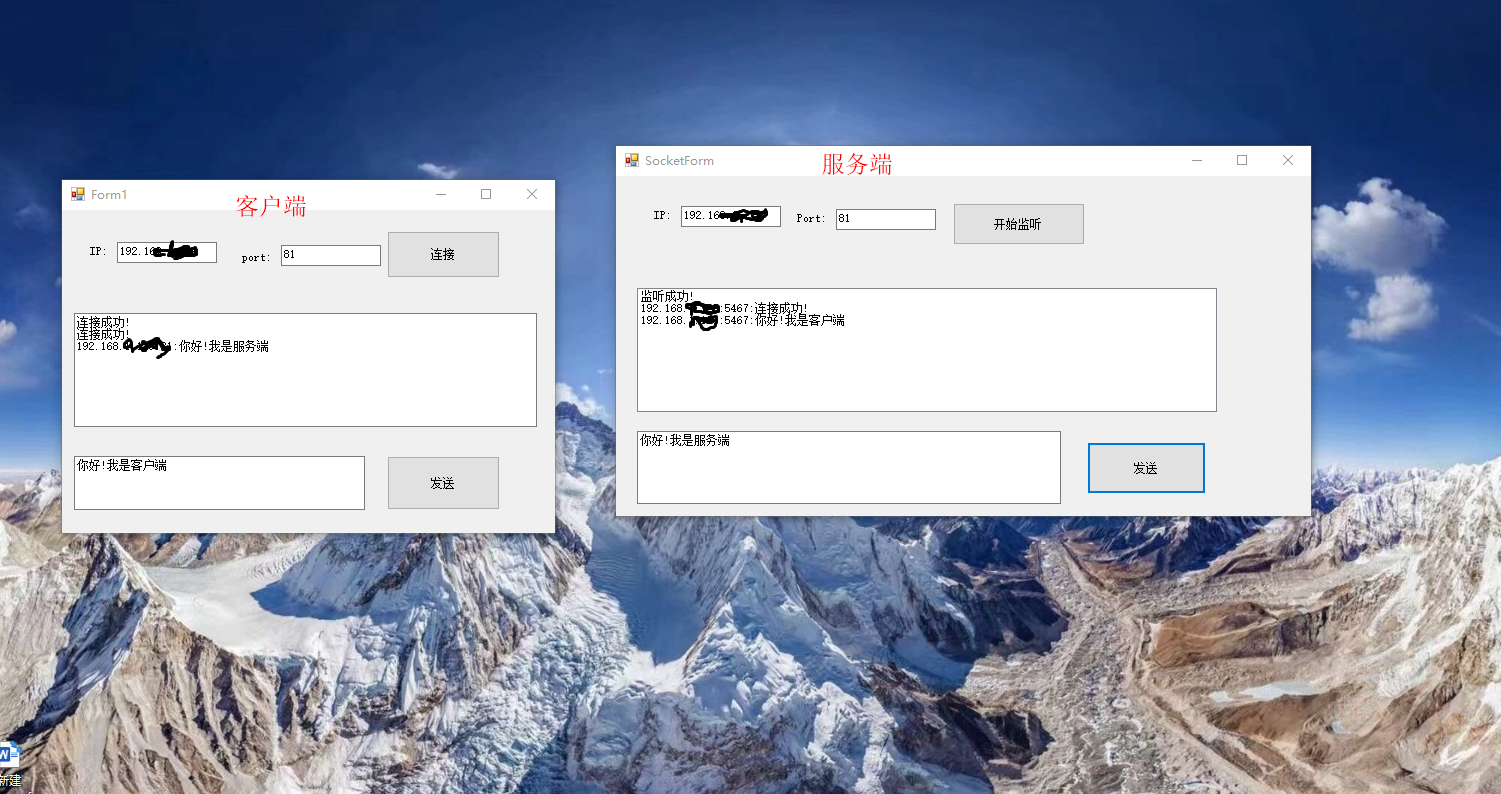
首先展示一下效果图
注:
博主在一台电脑上创建了两个项目,打开两个VisualStudio(一个运行服务端,一个运行客户端),
由于socked端口占用问题,
服务端和客户端运行起来后,
客户端IP输入自己电脑的IP->端口port随便输入->点击连接,提示连接成功。例:IP:192.168.1.23 port:80
服务端IP输入自己电脑IP->端口port随便输入--->点击开始监听,提示监听成功。例:IP:192.168.1.23 port:81
客户端IP输入自己电脑IP->端口port输入服务端端口号->点击连接,提示连接成功可以开始发送消息:例:IP:192.168.1.23 port:81
(从上到下按顺序执行)
以上操作是因为服务端、客户端在同一台电脑上,造成端口占用, 如果服务端和客户端分开的话客户端可以直接输入服务端ip和端口连接监听。
接下来贴代码:
服务端
↓↓↓↓↓
↓↓↓
↓↓
↓
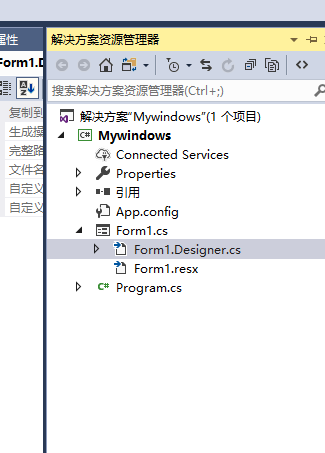
Designer.cs文件代码 (小白不会设置控件属性的话,可以跳过拖拽控件,直接复制以下代码)
↓↓↓↓↓↓↓
↓↓↓↓
↓↓
↓
namespace Mywindows

{

    partial class Form1

    {

        /// <summary>

        /// 必需的设计器变量。

        /// </summary>

        private System.ComponentModel.IContainer components = null;

        /// <summary>

        /// 清理所有正在使用的资源。

        /// </summary>

        /// <param name="disposing">如果应释放托管资源,为 true;否则为 false。</param>

        protected override void Dispose(bool disposing)

        {

            if (disposing && (components != null))

            {

                components.Dispose();

            }

            base.Dispose(disposing);

        }

        #region Windows 窗体设计器生成的代码

        /// <summary>

        /// 设计器支持所需的方法 - 不要修改

        /// 使用代码编辑器修改此方法的内容。

        /// </summary>

        private void InitializeComponent()

        {

            this.panel1 = new System.Windows.Forms.Panel();

            this.tb_ip = new System.Windows.Forms.TextBox();

            this.lb_Ip = new System.Windows.Forms.Label();

            this.lb_port = new System.Windows.Forms.Label();

            this.tb_port = new System.Windows.Forms.TextBox();

            this.bt_connnect = new System.Windows.Forms.Button();

            this.listBox1 = new System.Windows.Forms.ListBox();

            this.txt_msg = new System.Windows.Forms.TextBox();

            this.bt_send = new System.Windows.Forms.Button();

            this.panel1.SuspendLayout();

            this.SuspendLayout();

            //

            // panel1

            //

            this.panel1.Controls.Add(this.bt_connnect);

            this.panel1.Controls.Add(this.lb_port);

            this.panel1.Controls.Add(this.tb_port);

            this.panel1.Controls.Add(this.lb_Ip);

            this.panel1.Controls.Add(this.tb_ip);

            this.panel1.Location = new System.Drawing.Point(, );

            this.panel1.Name = "panel1";

            this.panel1.Size = new System.Drawing.Size(, );

            this.panel1.TabIndex = ;

            //

            // tb_ip

            //

            this.tb_ip.Location = new System.Drawing.Point(, );

            this.tb_ip.Name = "tb_ip";

            this.tb_ip.Size = new System.Drawing.Size(, );

            this.tb_ip.TabIndex = ;

            this.tb_ip.Text = "127.0.0.1";

            //

            // lb_Ip

            //

            this.lb_Ip.AutoSize = true;

            this.lb_Ip.Location = new System.Drawing.Point(, );

            this.lb_Ip.Name = "lb_Ip";

            this.lb_Ip.Size = new System.Drawing.Size(, );

            this.lb_Ip.TabIndex = ;

            this.lb_Ip.Text = "IP:";

            //

            // lb_port

            //

            this.lb_port.AutoSize = true;

            this.lb_port.Location = new System.Drawing.Point(, );

            this.lb_port.Name = "lb_port";

            this.lb_port.Size = new System.Drawing.Size(, );

            this.lb_port.TabIndex = ;

            this.lb_port.Text = "Port:";

            //

            // tb_port

            //

            this.tb_port.Location = new System.Drawing.Point(, );

            this.tb_port.Name = "tb_port";

            this.tb_port.Size = new System.Drawing.Size(, );

            this.tb_port.TabIndex = ;

            this.tb_port.Text = "";

            //

            // bt_connnect

            //

            this.bt_connnect.Location = new System.Drawing.Point(, );

            this.bt_connnect.Name = "bt_connnect";

            this.bt_connnect.Size = new System.Drawing.Size(, );

            this.bt_connnect.TabIndex = ;

            this.bt_connnect.Text = "开始监听";

            this.bt_connnect.UseVisualStyleBackColor = true;

            this.bt_connnect.Click += new System.EventHandler(this.bt_connnect_Click);

            //

            // listBox1

            //

            this.listBox1.FormattingEnabled = true;

            this.listBox1.ItemHeight = ;

            this.listBox1.Location = new System.Drawing.Point(, );

            this.listBox1.Name = "listBox1";

            this.listBox1.Size = new System.Drawing.Size(, );

            this.listBox1.TabIndex = ;

            //

            // txt_msg

            //

            this.txt_msg.Location = new System.Drawing.Point(, );

            this.txt_msg.Multiline = true;

            this.txt_msg.Name = "txt_msg";

            this.txt_msg.Size = new System.Drawing.Size(, );

            this.txt_msg.TabIndex = ;

            //

            // bt_send

            //

            this.bt_send.Location = new System.Drawing.Point(, );

            this.bt_send.Name = "bt_send";

            this.bt_send.Size = new System.Drawing.Size(, );

            this.bt_send.TabIndex = ;

            this.bt_send.Text = "发送";

            this.bt_send.UseVisualStyleBackColor = true;

            this.bt_send.Click += new System.EventHandler(this.bt_send_Click);

            //

            // Form1

            //

            this.AutoScaleDimensions = new System.Drawing.SizeF(6F, 12F);

            this.AutoScaleMode = System.Windows.Forms.AutoScaleMode.Font;

            this.ClientSize = new System.Drawing.Size(, );

            this.Controls.Add(this.bt_send);

            this.Controls.Add(this.txt_msg);

            this.Controls.Add(this.listBox1);

            this.Controls.Add(this.panel1);

            this.Name = "Form1";

            this.Text = "SocketForm";

            this.Load += new System.EventHandler(this.Form1_Load);

            this.panel1.ResumeLayout(false);

            this.panel1.PerformLayout();

            this.ResumeLayout(false);

            this.PerformLayout();

        }

        #endregion

        private System.Windows.Forms.Panel panel1;

         private System.Windows.Forms.Button bt_connnect;

         private System.Windows.Forms.Label lb_port;

         private System.Windows.Forms.TextBox tb_port;

         private System.Windows.Forms.Label lb_Ip;

         private System.Windows.Forms.TextBox tb_ip;

         private System.Windows.Forms.ListBox listBox1;

         private System.Windows.Forms.TextBox txt_msg;

         private System.Windows.Forms.Button bt_send;

    }

}
控件事件逻辑处理 (小白可以随便选中一个控件双击进去, 直接将下面的代码覆盖到项目中)
↓↓↓↓↓↓↓
↓↓↓↓
↓↓
↓
using System;

using System.Collections.Generic;

using System.ComponentModel;

using System.Data;

using System.Drawing;

using System.Linq;

using System.Net;

using System.Net.Sockets;

using System.Text;

using System.Threading;

using System.Threading.Tasks;

using System.Windows.Forms;

namespace Mywindows

{

    partial class Form1 : Form

    {

        public Form1()

         {

             InitializeComponent();

         }

         private void bt_connnect_Click(object sender, EventArgs e)

         {

             try

             {

                 //点击开始监听时 在服务端创建一个负责监听IP和端口号的Socket

                 Socket socketWatch = new Socket(AddressFamily.InterNetwork, SocketType.Stream, ProtocolType.Tcp);

                 IPAddress ip = IPAddress.Any;

                 //创建对象端口

                 IPEndPoint point = new IPEndPoint(ip, Convert.ToInt32(tb_port.Text));

                 socketWatch.Bind(point);//绑定端口号

                 ShowMsg("监听成功!");

                 socketWatch.Listen();//设置监听

                 //创建监听线程

                 Thread thread = new Thread(Listen);

                 thread.IsBackground = true;

                 thread.Start(socketWatch);

             }

             catch { }

         }

         /// <summary>

         /// 等待客户端的连接 并且创建与之通信的Socket

         /// </summary>

         Socket socketSend;

         void Listen(object o)

         {

             try

             {

                 Socket socketWatch = o as Socket;

                 while (true)

                 {

                     socketSend = socketWatch.Accept();//等待接收客户端连接

                     ShowMsg(socketSend.RemoteEndPoint.ToString() + ":" + "连接成功!");

                     //开启一个新线程,执行接收消息方法

                     Thread r_thread = new Thread(Received);

                     r_thread.IsBackground = true;

                     r_thread.Start(socketSend);

                 }

             }

             catch { }

         }

         /// <summary>

         /// 服务器端不停的接收客户端发来的消息

         /// </summary>

         /// <param name="o"></param>

         void Received(object o)

         {

             try

             {

                 Socket socketSend = o as Socket;

                 while (true)

                 {

                     //客户端连接服务器成功后,服务器接收客户端发送的消息

                     byte[] buffer = new byte[ *  * ];

                     //实际接收到的有效字节数

                     int len = socketSend.Receive(buffer);

                     if (len == )

                     {

                         break;

                     }

                     string str = Encoding.UTF8.GetString(buffer, , len);

                     ShowMsg(socketSend.RemoteEndPoint + ":" + str);

                 }

             }

             catch { }

         }

         /// <summary>

         /// 服务器向客户端发送消息

         /// </summary>

         /// <param name="str"></param>

         void Send(string str)

{

                 byte[] buffer = Encoding.UTF8.GetBytes(str);

                 socketSend.Send(buffer);

             }

         void ShowMsg(string msg)

         {

             listBox1.Items.Add(msg + "\r\n");

         }

         private void Form1_Load(object sender, EventArgs e)

         {

             Control.CheckForIllegalCrossThreadCalls = false;

         }

         private void bt_send_Click(object sender, EventArgs e)

         {

             Send(txt_msg.Text.Trim());

         }

    }

}
客户端
↓↓↓↓↓↓
↓↓↓
↓↓
↓
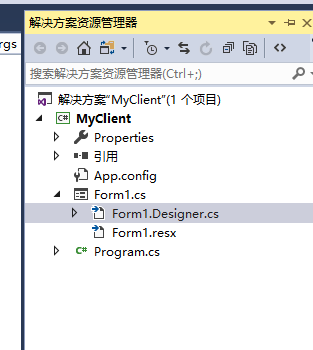
namespace MyClient

{

    partial class Form1

    {

        /// <summary>

        /// 必需的设计器变量。

        /// </summary>

        private System.ComponentModel.IContainer components = null;

        /// <summary>

        /// 清理所有正在使用的资源。

        /// </summary>

        /// <param name="disposing">如果应释放托管资源,为 true;否则为 false。</param>

        protected override void Dispose(bool disposing)

        {

            if (disposing && (components != null))

            {

                components.Dispose();

            }

            base.Dispose(disposing);

        }

        #region Windows 窗体设计器生成的代码

        /// <summary>

        /// 设计器支持所需的方法 - 不要修改

        /// 使用代码编辑器修改此方法的内容。

        /// </summary>

        private void InitializeComponent()

        {

            this.panel1 = new System.Windows.Forms.Panel();

            this.lb_ip = new System.Windows.Forms.Label();

            this.txt_ip = new System.Windows.Forms.TextBox();

            this.txt_port = new System.Windows.Forms.TextBox();

            this.lb_port = new System.Windows.Forms.Label();

            this.bt_connect = new System.Windows.Forms.Button();

            this.textBox1 = new System.Windows.Forms.TextBox();

            this.txt_msg = new System.Windows.Forms.TextBox();

            this.bt_send = new System.Windows.Forms.Button();

            this.panel1.SuspendLayout();

            this.SuspendLayout();

            //

            // panel1

            //

            this.panel1.Controls.Add(this.bt_connect);

            this.panel1.Controls.Add(this.txt_port);

            this.panel1.Controls.Add(this.lb_port);

            this.panel1.Controls.Add(this.txt_ip);

            this.panel1.Controls.Add(this.lb_ip);

            this.panel1.Location = new System.Drawing.Point(, );

            this.panel1.Name = "panel1";

            this.panel1.Size = new System.Drawing.Size(, );

            this.panel1.TabIndex = ;

            //

            // lb_ip

            //

            this.lb_ip.AutoSize = true;

            this.lb_ip.Location = new System.Drawing.Point(, );

            this.lb_ip.Name = "lb_ip";

            this.lb_ip.Size = new System.Drawing.Size(, );

            this.lb_ip.TabIndex = ;

            this.lb_ip.Text = "IP:";

            //

            // txt_ip

            //

            this.txt_ip.Location = new System.Drawing.Point(, );

            this.txt_ip.Name = "txt_ip";

            this.txt_ip.Size = new System.Drawing.Size(, );

            this.txt_ip.TabIndex = ;

            this.txt_ip.Text = "127.0.0.1";

            //

            // txt_port

            //

            this.txt_port.Location = new System.Drawing.Point(, );

            this.txt_port.Name = "txt_port";

            this.txt_port.Size = new System.Drawing.Size(, );

            this.txt_port.TabIndex = ;

            this.txt_port.Text = "";

            //

            // lb_port

            //

            this.lb_port.AutoSize = true;

            this.lb_port.Location = new System.Drawing.Point(, );

            this.lb_port.Name = "lb_port";

            this.lb_port.Size = new System.Drawing.Size(, );

            this.lb_port.TabIndex = ;

            this.lb_port.Text = "port:";

            //

            // bt_connect

            //

            this.bt_connect.Location = new System.Drawing.Point(, );

            this.bt_connect.Name = "bt_connect";

            this.bt_connect.Size = new System.Drawing.Size(, );

            this.bt_connect.TabIndex = ;

            this.bt_connect.Text = "连接";

            this.bt_connect.UseVisualStyleBackColor = true;

            this.bt_connect.Click += new System.EventHandler(this.bt_connect_Click);

            //

            // textBox1

            //

            this.textBox1.Location = new System.Drawing.Point(, );

            this.textBox1.Multiline = true;

            this.textBox1.Name = "textBox1";

            this.textBox1.Size = new System.Drawing.Size(, );

            this.textBox1.TabIndex = ;

            //

            // txt_msg

            //

            this.txt_msg.Location = new System.Drawing.Point(, );

            this.txt_msg.Multiline = true;

            this.txt_msg.Name = "txt_msg";

            this.txt_msg.Size = new System.Drawing.Size(, );

            this.txt_msg.TabIndex = ;

            //

            // bt_send

            //

            this.bt_send.Location = new System.Drawing.Point(, );

            this.bt_send.Name = "bt_send";

            this.bt_send.Size = new System.Drawing.Size(, );

            this.bt_send.TabIndex = ;

            this.bt_send.Text = "发送";

            this.bt_send.UseVisualStyleBackColor = true;

            this.bt_send.Click += new System.EventHandler(this.bt_send_Click);

            //

            // Form1

            //

            this.AutoScaleDimensions = new System.Drawing.SizeF(6F, 12F);

            this.AutoScaleMode = System.Windows.Forms.AutoScaleMode.Font;

            this.ClientSize = new System.Drawing.Size(, );

            this.Controls.Add(this.bt_send);

            this.Controls.Add(this.txt_msg);

            this.Controls.Add(this.textBox1);

            this.Controls.Add(this.panel1);

            this.Name = "Form1";

            this.Text = "Form1";

            this.Load += new System.EventHandler(this.Form1_Load);

            this.panel1.ResumeLayout(false);

            this.panel1.PerformLayout();

            this.ResumeLayout(false);

            this.PerformLayout();

        }

        #endregion

        private System.Windows.Forms.Panel panel1;

        private System.Windows.Forms.Label lb_ip;

        private System.Windows.Forms.Button bt_connect;

        private System.Windows.Forms.TextBox txt_port;

        private System.Windows.Forms.Label lb_port;

        private System.Windows.Forms.TextBox txt_ip;

        private System.Windows.Forms.TextBox textBox1;

        private System.Windows.Forms.TextBox txt_msg;

        private System.Windows.Forms.Button bt_send;

    }

}
双击控件进入(.cs文件)
↓↓↓↓↓↓↓
↓↓↓↓
↓
using System;

using System.Collections.Generic;

using System.ComponentModel;

using System.Data;

using System.Drawing;

using System.Linq;

using System.Net;

using System.Net.Sockets;

using System.Text;

using System.Threading;

using System.Windows.Forms;

namespace MyClient

{

    public partial class Form1 : Form

    {

        public Form1()

        {

            InitializeComponent();

        }

               Socket socketSend;

         private void bt_connect_Click(object sender, EventArgs e)

         {

             try

             {

                 //创建客户端Socket,获得远程ip和端口号

                 socketSend = new Socket(AddressFamily.InterNetwork, SocketType.Stream, ProtocolType.Tcp);

                 IPAddress ip = IPAddress.Parse(txt_ip.Text);

                 IPEndPoint point = new IPEndPoint(ip, Convert.ToInt32(txt_port.Text));

                 socketSend.Connect(point);

                 ShowMsg("连接成功!");

                 //开启新的线程,不停的接收服务器发来的消息

                 Thread c_thread = new Thread(Received);

                 c_thread.IsBackground = true;

                 c_thread.Start();

             }

             catch (Exception){

                 ShowMsg("IP或者端口号错误...");

             }

         }

         void ShowMsg(string str)

         {

             textBox1.AppendText(str + "\r\n");

         }

         /// <summary>

         /// 接收服务端返回的消息

         /// </summary>

         void Received()

         {

             while (true)

             {

                 try

                 {

                     byte[] buffer = new byte[ *  * ];

                     //实际接收到的有效字节数

                     int len = socketSend.Receive(buffer);

                     if (len == )

                     {

                         break;

                     }

                     string str = Encoding.UTF8.GetString(buffer, , len);

                     ShowMsg(socketSend.RemoteEndPoint + ":" + str);

                 }

                 catch { }

             }

         }

         /// <summary>

         /// 向服务器发送消息

         /// </summary>

         /// <param name="sender"></param>

         /// <param name="e"></param>

         private void bt_send_Click(object sender, EventArgs e)

         {

             try

             {

                 string msg = txt_msg.Text.Trim();

                 byte[] buffer = new byte[ *  * ];

                 buffer = Encoding.UTF8.GetBytes(msg);

                 socketSend.Send(buffer);

             }

             catch { }

         }

         private void Form1_Load(object sender, EventArgs e)

         {

             Control.CheckForIllegalCrossThreadCalls = false;

         }

    }

}
项目地址
链接:https://pan.baidu.com/s/19UJ7T3LC5Y7TatOnaJXLkQ
提取码:g811
简单的Socket通信(简单的在线聊天)---winform的更多相关文章
- php简单实现socket通信
socket通信的原理在这里就不说了,它的用途还是比较广泛的,我们可以使用socket来做一个API接口出来,也可以使用socket来实现两个程序之间的通信,我们来研究一下在php里面如何实现sock ...
- Linux下简单的socket通信实例
Linux下简单的socket通信实例 If you spend too much time thinking about a thing, you’ll never get it done. —Br ...
- Android简单实现Socket通信,client连接server后,server向client发送文字数据
案例实现的是简单的Socket通信,当client(Androidclient)连接到指定server以后,server向client发送一句话文字信息(你能够拓展其他的了) 先看一下服务端程序的实现 ...
- socket通信简单介绍
“一切皆Socket!” 话虽些许夸张,可是事实也是,如今的网络编程差点儿都是用的socket. ——有感于实际编程和开源项目研究. 我们深谙信息交流的价值,那网络中进程之间怎样通信,如我们每天打开浏 ...
- 简单的Socket通信
Socket简介 Socket又称"套接字",应用程序通常通过"套接字"向网络发出请求或者应答网络请求. 服务端步骤: • socket:创建服务器socket ...
- Day 6-2简单的socket通信
什么是socket? Socket是应用层与TCP/IP协议族通信的中间软件抽象层,它是一组接口.在设计模式中,Socket其实就是一个门面模式,它把复杂的TCP/IP协议族隐藏在Socket接口后面 ...
- Java的Socket通信简单实例
服务端 package testlxd; import java.io.BufferedReader; import java.io.IOException; import java.io.Input ...
- Java实现简单的socket通信
今天学习了一下java如何实现socket通信,感觉难点反而是在io上,因为java对socket封装已经很完善了. 今天代码花了整个晚上调试,主要原因是io的flush问题和命令行下如何运行具有pa ...
- Socket通信 简单实现私聊、群聊(dos命令下)
很久以前的一个Demo,这里服务器只做转发功能,根据ID地址和端口号来标识身份,群聊和私聊只是简单实现, 服务器代码如下: import java.util.*; import java.io.*; ...
随机推荐
- MySQL高可用架构:mysql+keepalived实现
系统环境及架构 #主机名 系统版本 mysql版本 ip地址 mysqlMaster <a href="https://www.linuxprobe.com/" title= ...
- DotNetCore 3.0 助力 WPF本地化
概览 随着我们的应用程序越来越受欢迎,我们的下一步将要开发多语言功能.方便越来越多的国家使用我们中国的应用程序, 基于 WPF 本地化,我们很多时候使用的是系统资源文件,可是动态切换本地化,就比较麻烦 ...
- 2018年蓝桥杯b组国赛真题
1.标题:换零钞x星球的钞票的面额只有:100元,5元,2元,1元,共4种.小明去x星旅游,他手里只有2张100元的x星币,太不方便,恰好路过x星银行就去换零钱.小明有点强迫症,他坚持要求200元换出 ...
- springboot 整合shiro
参考: https://blog.csdn.net/fuweilian1/article/details/80309192(推荐) https://blog.csdn.net ...
- 更新!ArcMap和ArcGIS Pro加载百度影像地图
上一篇文章写了ArcMap和ArcGIS Pro中加载百度地图 的方法 一次没有把百度影像加载的功能开发出来,趁这几天有空整理了下 加载方法按照上次那篇文章操作. 百度影像wmts加载地址:http: ...
- Codeforces 1004E
题意略. 思路: 这k个点应该放在这棵树的直径上,并且能连成一条路径.如果k比树的直径上的点要多,那么我们就不用把这k个点都用上, 只需要把这棵树直径上所有的点都覆盖上就行了.如果k比树的直径上的点要 ...
- 利用peerjs轻松玩转webrtc
随着5G技术的推广,可以预见在不久的将来网速将得到极大提升,实时音视频互动这类对网络传输质量要求较高的应用将是最直接的受益者.而且伴随着webrtc技术的成熟,该领域可能将成为下一个技术热点,但是传统 ...
- 剑指Offer(二十五):复杂链表的复制
剑指Offer(二十五):复杂链表的复制 搜索微信公众号:'AI-ming3526'或者'计算机视觉这件小事' 获取更多算法.机器学习干货 csdn:https://blog.csdn.net/bai ...
- 你知道JavaScript这六种错误类型吗?
前言 今日话题,了解JavaScript的错误处理机制. 一.ReferenceError 引用一个不存在的变量时发生的错误.将一个值分配给无法分配的对象,比如对函数的运行结果或者函数赋值. 举栗子 ...
- 【JVM从小白学成大佬】6.创建对象及对象的访问定位
<JVM从小白学成大佬>系列推出到现在,收到了很多小伙伴的好评,也收到了一些小伙伴的建议,在此表示感谢. 有几个小伙伴提出了希望出一篇介绍对象的创建及访问,猿人谷向来是没有原则的,小伙们要 ...