
[转]WPF中Binding的技巧
在WPF应用的开发过程中Binding是一个非常重要的部分。
在实际开发过程中Binding的不同种写法达到的效果相同但事实是存在很大区别的。
这里将实际中碰到过的问题做下汇总记录和理解。
1. source = {binding} 和source = {binding RelativeSource={RelativeSource self},Path=DataContext}效果相同
理解:{binding} 不设定明确的绑定的source,这样binding就去从本控件类为开始根据可视树的层次结构自下而上查找不为空的Datacontext属性的值。
{binding RelativeSource={RelativeSource self},Path=DataContext}中RelativeSource self的含义为绑定的source为控件自身,这样binding 就绑定了自身控件的Datacontext。
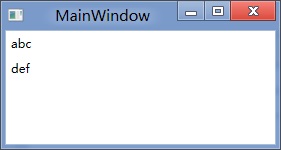
效果:
<StackPanel DataContext="abc">
<Label Content="{Binding}"></Label>
<Label Content="{Binding RelativeSource={RelativeSource Self},Path=DataContext}"></Label>
</StackPanel>

<StackPanel DataContext="abc">
<Label Content="{Binding}"></Label>
<Label DataContext="def" Content="{Binding RelativeSource={RelativeSource Self},Path=DataContext}"></Label>
</StackPanel>
2.在Template的Trigger中改变Template中某个样式控件的属性
<Style TargetType="{x:Type Button}">
<Setter Property="Template">
<Setter.Value>
<ControlTemplate TargetType="{x:Type Button}">
<Border>
<Label x:Name="PART_Label" Content="{TemplateBinding ContentA}" />
</Border>
<ControlTemplate.Triggers>
<Trigger Property="IsChecked" Value="True">
注: <Setter TargetName="PART_Label" Property="Content" Value="{Binding Path=ContentB, RelativeSource={RelativeSource TemplatedParent}}" />
</Trigger>
</ControlTemplate.Triggers>
</ControlTemplate>
</Setter.Value>
</Setter>
</Style>
当然把注:的这句改成<Setter TargetName="PART_Label" Property="Content" Value="{Binding Path=ContentB, RelativeSource={RelativeSource AncestorType={x:TypeButton}}}">效果一样。
先写到这,下篇继续关注Binding中ElementName,RelativeSource,Source的相同点和区别。
转载时,请注明本文来源:www.cnblogs.com/tmywu
接上篇,
我们来看一看Elementname,Source,RelativeSource 三种绑定的方式
1.ElementName顾名思义就是根据Ui元素的Name来进行绑定:
例子:
<Window x:Name="MainWindow">
<Grid>
<Button Background=”{Binding ElementName=MainWindow, Path=Background}”/>
</Grid>
</Window>
效果等同于
<Window>
<Grid>
<Button Background=”{Binding RelativeSource={RelativeSource Mode=FindAncestor, AncestorType={x:Type Window},Path=Background}”/>
</Grid>
</Window>
区别:
ElementName属性用于引用一个UI对象的名称,其的作用域在同一XAML文件内,不能引用另一XAML文件的某个Ui元素名。
2.Source属性用于指定对象绑定路径的引用。 其特点是:Source属性通常用于绑定设置的对象时,是已知的。
<Window x:Name="MainWindow">
<Grid>
<Button Background=”{Binding Source={StaticResource ButtonStyle}}”/>
</Grid>
</Window>
3.RelativeSource
在不确定绑定的Source时,但知道与绑定对象两者相对关系时就需要使用RelativeSource,这也是RelativeSource 与ElementName和Source的最大区别。
RelativeSource 的三种典型用法:
/1.UI元素的一个属性绑定在自身的另一个属性上
<Label Background = {Binding Path=Forgroud, RelativeSource={RelativeSource Self}} />
/2.UI元素的一个属性绑定在某个父元素的属性上
<Grid>
<Label Background = {Binding Path=Background, RelativeSource={RelativeSource AncestorType={x:Type Grid}}}/>
</Grid>
/3.Template中的元素的属性绑定在Template使用者元素的属性上
{Binding Path=PathToProperty, RelativeSource={RelativeSource TemplatedParent}}
例子:
<Style TargetType="{x:Type local:NumericUpDown}">
<Setter Property="HorizontalAlignment" Value="Center"/>
<Setter Property="VerticalAlignment" Value="Center"/>
<Setter Property="Template">
<Setter.Value>
<ControlTemplate TargetType="{x:Type local:NumericUpDown}">
<Grid Margin="3">
<Grid.RowDefinitions>
<RowDefinition/>
<RowDefinition/>
</Grid.RowDefinitions>
<Grid.ColumnDefinitions>
<ColumnDefinition/>
<ColumnDefinition/>
</Grid.ColumnDefinitions>
<Border BorderThickness="1" BorderBrush="Gray"
Margin="2" Grid.RowSpan="2"
VerticalAlignment="Center" HorizontalAlignment="Stretch"><TextBlock Text="{Binding RelativeSource={RelativeSource TemplatedParent}, Path=Value}"
Width="60" TextAlignment="Right" Padding="5"/>
</Border>
</Grid>
</ControlTemplate>
</Setter.Value>
</Setter>
</Style>
利用TemplateBinding 绑定模板与原对象之间的属性
{TemplateBinding Path=PathToProperty}
例子:
<ControlTemplate TargetType="{x:Type Button}" x:Key="buttonTemp">
<Border BorderThickness="3" Background="{TemplateBinding Foreground}">
<TextBlock Foreground="{TemplateBinding Background}"/>
</Border>
</ControlTemplate>
转载时,请注明本文来源:www.cnblogs.com/tmywu
[转]WPF中Binding的技巧的更多相关文章
- 【转】WPF中Binding的技巧(一)
WPF中Binding的技巧(一) 在WPF应用的开发过程中Binding是一个非常重要的部分. 在实际开发过程中Binding的不同种写法达到的效果相同但事实是存在很大区别的. 这里将实际中碰到 ...
- WPF中Binding使用StringFormat格式化字符串方法
原文:WPF中Binding使用StringFormat格式化字符串方法 货币格式 <TextBlock Text="{Binding Price, StringFormat={}{0 ...
- 整理:WPF中Binding的几种写法
原文:整理:WPF中Binding的几种写法 目的:整理WPF中Bind的写法 <!--绑定到DataContext--> <Button Content="{Bindin ...
- WPF之Binding深入探讨
原文:http://blog.csdn.net/fwj380891124/article/details/8107646 1,Data Binding在WPF中的地位 程序的本质是数据+算法.数据会在 ...
- WPF的Binding功能解析
1,Data Binding在WPF中的地位 程序的本质是数据+算法.数据会在存储.逻辑和界面三层之间流通,所以站在数据的角度上来看,这三层都很重要.但算法在3层中的分布是不均匀的,对于一个3层结构的 ...
- WPF之Binding的使用
引出: 在WPF中Binding可以比作数据的桥梁,桥梁的两端分别是Binding的源(Source)和目标(Target).一般情况下,Binding源是逻辑层对象,Binding目标是UI层的控件 ...
- WPF之Binding深入探讨--Darren
1,Data Binding在WPF中的地位 程序的本质是数据+算法.数据会在存储.逻辑和界面三层之间流通,所以站在数据的角度上来看,这三层都很重要.但算法在3层中的分布是不均匀的,对于一个3层结构的 ...
- 深入浅出WPF之Binding的使用(一)
在WPF中Binding可以比作数据的桥梁,桥梁的两端分别是Binding的源(Source)和目标(Target).一般情况下,Binding源是逻辑层对象,Binding目标是UI层的控件对象:这 ...
- WPF之Binding【转】
WPF之Binding[转] 看到WPF如此之炫,也想用用,可是一点也不会呀. 从需求谈起吧: 首先可能要做一个很炫的界面.见MaterialDesignInXAMLToolKit. 那,最主要的呢, ...
随机推荐
- keep, preserve, noprune
忘了紧急补充
- 5020: [THUWC 2017]在美妙的数学王国中畅游
传送门 当年听llj讲的时候觉得这简直是个不可做的神题. 现在看来并不是很神,可能是我已经被剧透了的缘故... 一开始以为是函数套函数,懵蔽了好久,结果只是求和 被剧透了泰勒展开就比较水了..只要你不 ...
- 样本方差的抽样分布 χ2(n) 卡方分布_样本方差 卡方分布
样本方差的抽样分布 χ2(n) 卡方分布_样本方差 卡方分布 样本方差的抽样分布 χ2(n) 卡方分布 t分布.卡方分布.f分布均要求总体服从正态分布. 若n个相互独立的随机变量ξ1,ξ2,-,ξn ...
- ASP.NET MVC Controller激活系统详解1
一.引言 好久没有写博客了,前一段时间学习了Controller激活的一篇很好的博文(链接),在此做个学习总结. 二.Controller 2.1 IController Controller类型直接 ...
- day 81 Vue学习二之vue结合项目简单使用、this指向问题
Vue学习二之vue结合项目简单使用.this指向问题 本节目录 一 阶段性项目流程梳理 二 vue切换图片 三 vue中使用ajax 四 vue实现音乐播放器 五 vue的计算属性和监听器 六 ...
- PAT甲级——A1123 Is It a Complete AVL Tree【30】
An AVL tree is a self-balancing binary search tree. In an AVL tree, the heights of the two child sub ...
- pickle,shelve,json,configparser 的模块使用
主要内容1. 什么是序列化2. pickle3. shelve4. json5. configparser模块 一. 什么是序列化在我们存储数据或者网络传输数据的时候. 需要对我们的对象进行处理. 把 ...
- 主页面与iframe页面之间的javascript函数的调用
1:在主页面里调用iframe页里面的javascript函数 <script type="text/javascript"> var childWindow = $( ...
- 【期望DP】[UVA1498] Activation
显然是概率DP 我们用dp[i][j]表示队伍中有i个人,lyk的小迷妹现在排在j这个位置时的概率大小 不难列出下列转移方程: (显然已经排到前面k个位置的时候是要加上爆炸也就是p4的概率的) $$f ...
- 在js中使用Razor
@foreach (var tem in Model) { <text> time.push("@tem.CreateTime.ToString("G")&q ...