
利用WPF建立自己的3d gis软件(非axhost方式)(七)实现简单的粒子效果
原文:利用WPF建立自己的3d gis软件(非axhost方式)(七)实现简单的粒子效果
先下载SDK:https://pan.baidu.com/s/1M9kBS6ouUwLfrt0zV0bPew密码:1te1
地图数据包(sqlserver2008R2版本,也可以不下载): https://pan.baidu.com/s/1PjcNamad7OVpCrsVJ7dwFQ 密码:uw9r
下载 核心SDK升级包:https://pan.baidu.com/s/1Q3dlM-Va-RmlEYbnmi8Xuw 并覆盖到SDK目录中。里面有也每一篇的例子代码
完整的视频演示:http://v.youku.com/v_show/id_XMTU4MTI5NTE4NA==.html
下载完成以后,解压出来,将30-1.exe 拖动到 把授权拖到我上面install.bat上完成授权安装。。。
设置system.ini 如下内容
Server=122.112.229.220
user=GisTest
Password=chinamtouch.com
该数据库中只提供 成都市火车南站附近的数据请注意,104.0648,30.61658
利用三方工具,如幻影粒子: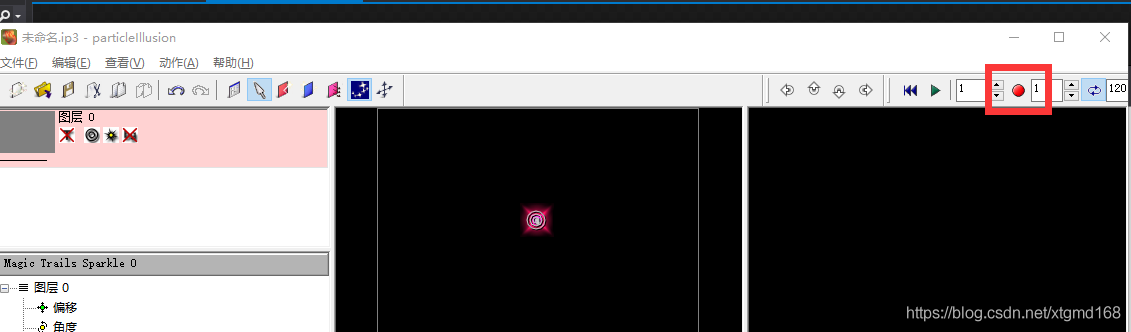
或者flash一类的工具生成如下的PNG序列:
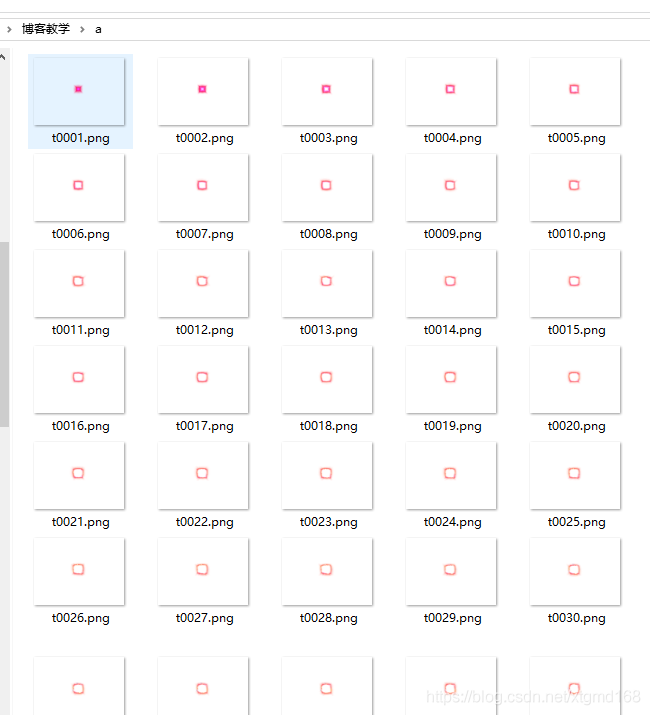
然后下面利 用https://blog.csdn.net/xtgmd168/article/details/85264680 中所介绍的方法。将它变成一个简单的粒子显示元素:
新建一个UserControl完成序列PNG的动态显示:
AmiImage.xaml
<UserControl x:Class="Teach3DGIS.AmiImage"

             xmlns="http://schemas.microsoft.com/winfx/2006/xaml/presentation"

             xmlns:x="http://schemas.microsoft.com/winfx/2006/xaml"

             xmlns:mc="http://schemas.openxmlformats.org/markup-compatibility/2006"

             xmlns:d="http://schemas.microsoft.com/expression/blend/2008"

             xmlns:local="clr-namespace:Teach3DGIS"

             mc:Ignorable="d"

             Height="450" Width="800">

</UserControl>
AmiImage.cs
using System;

using System.Collections.Generic;

using System.Linq;

using System.Text;

using System.Threading.Tasks;

using System.Windows;

using System.Windows.Controls;

using System.Windows.Data;

using System.Windows.Documents;

using System.Windows.Input;

using System.Windows.Media;

using System.Windows.Media.Imaging;

using System.Windows.Navigation;

using System.Windows.Shapes;

using System.IO;

namespace Teach3DGIS

{

    /// <summary>

    /// AmiImage.xaml 的交互逻辑

    /// </summary>

    public partial class AmiImage : UserControl

    {

        public AmiImage()

        {

            InitializeComponent();

        }

        private List<string> FileList = new List<string>();

        private System.Windows.Threading.DispatcherTimer ATimer;

        private int index = 0;

        public AmiImage(string Path)

        {

            InitializeComponent();

            DirectoryInfo v1 = new DirectoryInfo(Path);

            foreach(FileInfo V2 in v1.GetFiles("*.png"))

            {

                FileList.Add(V2.FullName);

            }

            ATimer = new System.Windows.Threading.DispatcherTimer();

            ATimer.Tick += ATimer_Tick;

            ATimer.Interval = new TimeSpan(0, 0, 0, 0,5);

            ATimer.Start();

        }

        private void ATimer_Tick(object sender, EventArgs e)

        {

            this.Background = new ImageBrush(new BitmapImage(new Uri(FileList[index])));

            index++;

            if (index == FileList.Count - 1)

                index = 0;

        }

    }

}
主程序中代码如下:
 private void Button_Click_9(object sender, RoutedEventArgs e)

        {

            gis3d.GetJWEvent += Gis3d_GetJWEvent1;

            gis3d.State = GisLib.WindowsMT.GisState.获取经纬度;

        }

        private void Gis3d_GetJWEvent1(System.Windows.Media.Media3D.Point3D value)

        {

            gis3d.GetJWEvent -= Gis3d_GetJWEvent;

            gis3d.State = GisLib.WindowsMT.GisState.漫游;

            AmiImage y1 = new AmiImage(AppDomain.CurrentDomain.BaseDirectory + "a");

            NewGisBiao.M3D.UserGisUI3dObject2 JuLiSechBiao = new NewGisBiao.M3D.UserGisUI3dObject2(); //新建一个承载UI对象的东东

            JuLiSechBiao.PareantEarth = (NewGisBiao.Base.GISInterfaseForBiao)IniRead.IniReadWrite.MPareant;//设置它的GIS球对象

            JuLiSechBiao.Manage = IniRead.IniReadWrite.BiaoManage;//设置它的标号管理器

            JuLiSechBiao.MaxZoom = 9;//最大显示层,当小于9层的时候不显示

            JuLiSechBiao.MUIValue = y1;//UI对象

            JuLiSechBiao.DHi = 0.01;//相对于地形的高度

            JuLiSechBiao.ZScal = 0.6;//相对缩放

            JuLiSechBiao.Scal.ScaleX = 1; //固定东东

            JuLiSechBiao.Scal.ScaleY = 1;

            JuLiSechBiao.Scal.ScaleZ = 1;

            JuLiSechBiao.AutoScal = true;//是否自动缩放,不管在哪一层都是一样大

            JuLiSechBiao.AutoAngle = true;//是否自动角度,使终对着摄像机

            JuLiSechBiao.CenterType = JunBiao.CenteType.左下角;//中心点类型

            IniRead.IniReadWrite.BiaoManage.AddJunBiao(JuLiSechBiao);//增加到军标管理对象中。也可以不加

            JuLiSechBiao.MWidth = 250;//三维面片的大小

            JuLiSechBiao.MHeight = 150;

            JuLiSechBiao.MRX = 90;

            if (IniRead.IniReadWrite.MPareant is MTGIS3D) //手动刷新一下自动角度。。。bug

            {

                ((MTGIS3D)IniRead.IniReadWrite.MPareant).TextAxisAngleX.Angle += 0.001;

                ((MTGIS3D)IniRead.IniReadWrite.MPareant).TextAxisAngleX.Angle -= 0.001;

            }

            JuLiSechBiao.Center = new Point(value.X, value.Y);//设置中心点

            JuLiSechBiao.ISShow = true;//显示

        }
效果如下:
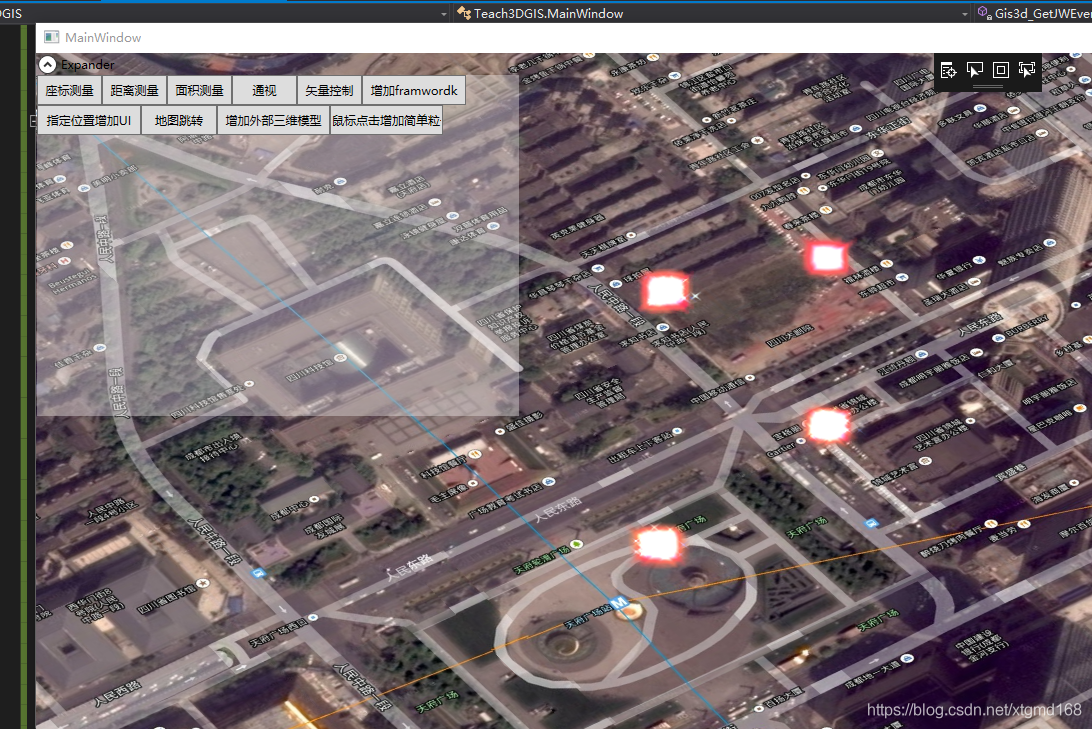
当然有一些效果是平贴在地上的,如光圈效果等:如下: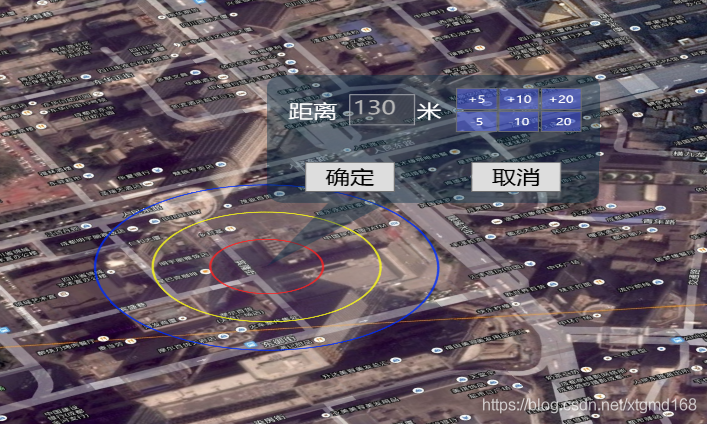
这里很明显就是用了两个对象,两个UI。其中一个UI的autoangle为false再通过调整 MRX MRY 设置一个死的角度就成上面这样了。效果还不错吧。WPF可以让我们尽情的发挥UI的优势。
http://www.chinamtouch.com QQ:40140203
利用WPF建立自己的3d gis软件(非axhost方式)(七)实现简单的粒子效果的更多相关文章
- 利用WPF建立自己的3d gis软件(非axhost方式)(十二)SDK中的导航系统
原文:利用WPF建立自己的3d gis软件(非axhost方式)(十二)SDK中的导航系统 先下载SDK:https://pan.baidu.com/s/1M9kBS6ouUwLfrt0zV0bPew ...
- 利用WPF建立自己的3d gis软件(非axhost方式)(十三)万能的用户层接口,(强大的WPF)
原文:利用WPF建立自己的3d gis软件(非axhost方式)(十三)万能的用户层接口,(强大的WPF) 先下载SDK:https://pan.baidu.com/s/1M9kBS6ouUwLfrt ...
- 利用WPF建立自己的3d gis软件(非axhost方式)(十一)SDK中的动画系统
原文:利用WPF建立自己的3d gis软件(非axhost方式)(十一)SDK中的动画系统 先下载SDK:https://pan.baidu.com/s/1M9kBS6ouUwLfrt0zV0bPew ...
- 利用WPF建立自己的3d gis软件(非axhost方式)(十)SDK中一些自带的展示面板应用
原文:利用WPF建立自己的3d gis软件(非axhost方式)(十)SDK中一些自带的展示面板应用 先下载SDK:https://pan.baidu.com/s/1M9kBS6ouUwLfrt0zV ...
- 利用WPF建立自己的3d gis软件(非axhost方式)(八)拖动一个UI到地球上
原文:利用WPF建立自己的3d gis软件(非axhost方式)(八)拖动一个UI到地球上 先下载SDK:https://pan.baidu.com/s/1M9kBS6ouUwLfrt0zV0bPew ...
- 利用WPF建立自己的3d gis软件(非axhost方式)(九)SDK自带部分面板的调用
原文:利用WPF建立自己的3d gis软件(非axhost方式)(九)SDK自带部分面板的调用 先下载SDK:https://pan.baidu.com/s/1M9kBS6ouUwLfrt0zV0bP ...
- 利用WPF建立自己的3d gis软件(非axhost方式)(六)跳转,增加外部三维模型
原文:利用WPF建立自己的3d gis软件(非axhost方式)(六)跳转,增加外部三维模型 先下载SDK:https://pan.baidu.com/s/1M9kBS6ouUwLfrt0zV0bPe ...
- 利用WPF建立自己的3d gis软件(非axhost方式)(五)在鼠标点击的位置增加UI
原文:利用WPF建立自己的3d gis软件(非axhost方式)(五)在鼠标点击的位置增加UI 先下载SDK:https://pan.baidu.com/s/1M9kBS6ouUwLfrt0zV0bP ...
- 利用WPF建立自己的3d gis软件(非axhost方式)(四)在地图上添加FrameworkElement
原文:利用WPF建立自己的3d gis软件(非axhost方式)(四)在地图上添加FrameworkElement 先下载SDK:https://pan.baidu.com/s/1M9kBS6ouUw ...
随机推荐
- jqgrid 实现行编辑,表单编辑的列联动
这个问题的场景相信大家都遇到过,比方有A,B,C三列,B,C列均为下拉框.可是C列的值是由B列的值来决定的.即C列中的值是动态变化的,变化的根据就是B列中你选择的值. 本文给出的是一个有用,简易快捷的 ...
- Web--CSS控制页面(link与import方式差别)
先了解: [1] "Table"和"DIV"这两个网页元素诞生的目的不同,首先Table诞生的目的是为了存储数据,而DIV诞生的目的就是 ...
- 关于Android中设置闹钟的相对完善的解决方案
前些时候,有人在我「非著名程序员」微信公众号的后台问我有没有设置闹钟的demo,我当时说承诺为大家写一个,一直没空,直到最近又有人跟我要,我决定抽时间写一个吧.确实设置闹钟是一个比较麻烦的东西.我在这 ...
- usart和uart 的区别
摘自:https://blog.csdn.net/meic51/article/details/7714847 什么是同步和异步 转自https://blog.csdn.net/seashine_ya ...
- ios_webView
iOS开发中WebView的使用 在AppDelegate.m文件里 view sourceprint" class="item about" style="c ...
- js中json数据简单处理(JSON.parse()和js中嵌套html)
js中json数据简单处理(JSON.parse()和js中嵌套html) 一.总结 1.html中嵌套js:<script>js代码</script> 2.js中嵌套html ...
- php实现合并两个排序的链表(很多情况下新建数组装东西比连东西逻辑快很多)($cur=$cur->next;的理解)
php实现合并两个排序的链表(很多情况下新建数组装东西比连东西逻辑快很多)($cur=$cur->next;的理解) 一.总结 $cur=$cur->next;这句话需要好好理解 指$cu ...
- php.ini 修改上传文件的限制
打开php.ini,首先找到file_uploads = on ;是否允许通过HTTP上传文件的开关.默认为ON即是开upload_tmp_dir ;文件上传至服务器上存储临时文件的地方,如果没指定就 ...
- 【32.70%】【poj 2492】A Bug's Life
Time Limit: 10000MS Memory Limit: 65536K Total Submissions: 34687 Accepted: 11344 Description Backgr ...
- ORACLE PL/SQL 中序列(sequence)的简易使用方法介绍
如果我是C罗 原文 ORACLE PL/SQL 中序列(sequence)的简易使用方法介绍 sequence在ORACLE中应用十分广泛,就是序列号的意思,会自动增加指定变数,如逐次增加1或者2或者 ...