
WPF Style和Template
WPF中的Style类似于Web应用程序中的CSS,它是控件的一个属性,属于资源的一种。
ControlTemplate和DataTemplate区别:
ControlTemplate用于改变控件原来的形状(一般定义在Style中,给控件穿上一层新的外壳,改变这个控件的外观),而DataTemplate不改变控件原来的形状(给某个控件加上数据,相当于给控件显示它想显示的内容(可能会有多种控件组合))。
通常把Style定义在Resources中,使用方式如下:
<Windows.Resources>

  <Style  x:Key="btnstyle"  TargetType="Button">

     <Setter Property="Width" Value="80"/>

     <Setter Property="Height" Value="50"/>

     <Setter Property="Foreground" Value="Pink"/>

     <Setter Property="FontSize" Value="20"/>

     <Style.Triggers>

        <Trigger Property="IsMouseOver" Value="true">

           <Setter Property="Background" Value="pink"/>

        </Trigger>

        <MultiTrigger>

          <MultiTrigger.Conditions>

             <Condition Property="IsMouseOver" Value="false"/>

             <Condition Property="FontSize" Value="20"/>

          </MultiTrigger.Conditions>

          <MultiTrigger.Setters>

             <Setter Property="Background" Value="Gold"/>

          </MultiTrigger.Setters>

        </MultiTrigger>

     </Style.Triggers>

  </Style>

<Window.Resources>
<Button x:Name="button1" Style="{StaticResource btnstyle}" Content="button1" >
button1.style=(style)Resources["btnstyle"];
如果只需对控件进行小幅度修饰(调整大小、位置、字体、颜色等)就用style;如果需要改变控件的外观和行为就用controlTemplate(形状、事件触发如鼠标停留效果等)。在实际项目中,经常把Template定义在Style中,通过Style 中的Property来设置控件的Template属性。
WPF中的所有COntrol控件都有Template属性。下面以代码的形式,展现WPF中常用的Template。
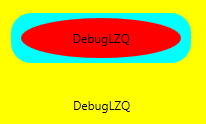
<Window x:Class="WPFXAMLTest.WindowControlTemplate"

        xmlns="http://schemas.microsoft.com/winfx/2006/xaml/presentation"

        xmlns:x="http://schemas.microsoft.com/winfx/2006/xaml"

        Title="WindowControlTemplate" Height="" Width="">

    <Grid Background="Yellow">

        <Button Width="" Height="" Background="Cyan">

            <Button.Template>

                <ControlTemplate TargetType="Button">

                    <Grid>

                        <Rectangle Width="" Height="" Fill="{TemplateBinding Background}" RadiusX="" RadiusY=""/>

                        <ContentPresenter Content="{TemplateBinding Content}" VerticalAlignment="Center" HorizontalAlignment="Center" RecognizesAccessKey="True"/>

                    </Grid>

                </ControlTemplate>

            </Button.Template>

                <Button.Content>

                <Grid>

                    <Ellipse Fill="Red" Width="" Height=""/>

                    <TextBlock Text="DebugLZQ" VerticalAlignment="Center" HorizontalAlignment="Center"/>

                </Grid>

            </Button.Content>

        </Button>

        <Button  HorizontalAlignment="Left" Margin="105,190,0,0" VerticalAlignment="Top" Width="">

           <Button.Template>

               <ControlTemplate >

                    <TextBlock Text="DebugLZQ" VerticalAlignment="Center" HorizontalAlignment="Center"/>

                </ControlTemplate>

           </Button.Template>

        </Button>

    </Grid>

</Window>
<Style  x:Key="btnstyle" TargetType="Button">

            <Setter Property="Width" Value="80"/>

            <Setter Property="Height" Value="50"/>

            <Setter Property="Foreground" Value="Pink"/>

            <Setter Property="FontSize" Value="20"/>

            <Setter Property="Template"><!--所有Control控件都有Style和Template属性,前者用来控制控件的原有属性;后者用来定义控件的内部结构,对控件外观和形状进行改变 -->

                <Setter.Value>

                    <ControlTemplate TargetType="Button"><!--ControlTemplate 描述控件的行为和样式-->

                        <Grid Width="80" Height="50">

                            <Image Source="Images/1.png" Stretch="Fill" />

                            <!---->

                            <ContentPresenter HorizontalAlignment="Center"  VerticalAlignment="Center" />

                        </Grid>

                        <ControlTemplate.Triggers>

                            <Trigger Property="IsMouseOver" Value="true">

                                <Setter Property="Effect">

                                    <Setter.Value>

                                        <DropShadowEffect ShadowDepth="4"/>

                                    </Setter.Value>

                                </Setter>

                            </Trigger>

                        </ControlTemplate.Triggers>

                    </ControlTemplate>

                </Setter.Value>

            </Setter>

        </Style>
<Button x:Name="button1" Style="{StaticResource btnstyle}" Content="button1" Click="Button_Click" Margin="30,23,393,238"/>
<Style x:Key="btnstyle2" TargetType="Button">

            <Setter Property="Width" Value="80"/>

            <Setter Property="Height" Value="50"/>

            <Setter Property="ContentTemplate"><!--2.ContentTemplate不改变控件行为的基础上,只对控件内容进行更改 -->

                <Setter.Value>

                    <DataTemplate><!--返回值是 DataTemplate-->

                         <Grid>

                             <Image Source="Images/1.png" Stretch="Fill" />

                              <TextBlock  Text="{TemplateBinding Content}" FontSize="20" HorizontalAlignment="Center" VerticalAlignment="Center" Foreground="Pink" />

                         </Grid>

                    </DataTemplate>

                </Setter.Value>

            </Setter>

        </Style>
<Button x:Name="button2" Style="{StaticResource btnstyle2}" Content="button2" Margin="30,117,392,144" />
<Style x:Key="lstboxstyle" TargetType="ListBox">

            <Setter Property="ItemTemplate">

                <Setter.Value>

                    <DataTemplate>

                        <StackPanel>

                            <Image Source="{Binding ImgPath}" Width="70" Height="70" Margin="0"/>

                            <TextBlock Text="{Binding ImgTxt}" HorizontalAlignment="Center" Margin="5"/>

                        </StackPanel>

                    </DataTemplate>

                </Setter.Value>

            </Setter>

        </Style>
<ListBox Style="{StaticResource lstboxstyle }" Height="214" HorizontalAlignment="Left" Margin="226,12,0,0" Name="listBox1" VerticalAlignment="Top" Width="153" />
//Binding ListBox

            ArrayList list = new ArrayList();

            list.Add(new { ImgPath="Images/1.png",ImgTxt="DebugLZQ1"});

            list.Add(new { ImgPath = "Images/1.png", ImgTxt = "DebugLZQ2" });

            list.Add(new { ImgPath = "Images/1.png", ImgTxt = "DebugLZQ3" });

            listBox1.ItemsSource = listBox2.ItemsSource = list;

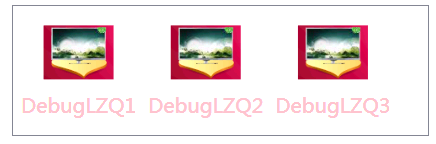
<Style x:Key="lstboxstyle2" TargetType="ListBox">

            <Setter Property="ItemsPanel">

                <Setter.Value>

                    <ItemsPanelTemplate><!-- ItemsPanelTemplate指定控件子项的布局样式,Combox,TreeView,DataGrid,TabelControl也都均有此属性-->

                        <StackPanel Orientation="Horizontal" />

                    </ItemsPanelTemplate>

                </Setter.Value>

            </Setter>

            <Setter Property="ItemTemplate"><!-- ItemTemplate定义子项的外观-->

                <Setter.Value>

                    <DataTemplate><!-- 返回值DataTemplate-->

                        <StackPanel>

                            <Image Source="{Binding ImgPath}" Width="70" Height="70" Margin="0"/>

                            <TextBlock Text="{Binding ImgTxt}" HorizontalAlignment="Center" Margin="5" Foreground="Pink"/><!--可以这里改-->

                        </StackPanel>

                    </DataTemplate>

                </Setter.Value>

            </Setter>

            <Setter Property="ItemContainerStyle"><!--也能在这里改,也能直接在TextBlock里改-->

                <Setter.Value>

                    <Style TargetType="ListBoxItem">

                        <Setter Property="FontSize" Value="20"/>

                    </Style>

                </Setter.Value>

            </Setter>

        </Style>
<ListBox Style="{StaticResource lstboxstyle2 }" Height="131" HorizontalAlignment="Left" Margin="42,256,0,0" Name="listBox2" VerticalAlignment="Top" Width="417" />
WPF Style和Template的更多相关文章
- WPF DataGrid Custommization using Style and Template
WPF DataGrid Custommization using Style and Template 代码下载:http://download.csdn.net/detail/wujicai/81 ...
- Bootstrap WPF Style(二)--Glyphicons 字体图标
介绍 关于Glyphicons字体图标,首先给出友情链接 Glyphicons 这个项目是在Bootstrap WPF Style项目基础上做的,详见http://www.cnblogs.com/ts ...
- WPF QuickStart系列之样式和模板(Style and Template)
在WPF桌面程序中,当我们想构建一个统一的UI表现时(在不同操作系统下,显示效果一致),此时我们就需要使用到WPF中的样式和模板技术.简单来说,如果我们需要简单的给一个Button设置宽,高,Marg ...
- WPF Style设置和模板化Template
WPF样式设置和模板化是一套功能(样式,模板,触发器和演示图版),可以为产品设置统一外观.类似于html的css,可以快速的设置一系列属性值到控件. 案例:ButtonStyle 这里创建了一个目标类 ...
- wpf中在style的template寻找ControlTemplate和DataTemplate的控件
一.WPF中的两棵树 WPF中每个控件的Template都是由ControlTemplate构成,ControlTemplate包含了构成该控件的各种子控件,这些子控件就构成了VisualTree:而 ...
- Bootstrap WPF Style,Bootstrap风格的WPF样式
简介 GitHub地址:https://github.com/ptddqr/bootstrap-wpf-style 此样式基于bootstrap-3.3.0,样式文件里的源码行数都是指的这个版本.CS ...
- wpf 的各个template
--转载 在使用TabControl.ListView.Menu.TreeView的时候被各种Template搞得头昏眼花,决心把这个问题搞清楚,究竟什么时候该用什么Template?这是个麻烦的问题 ...
- C#工具:Bootstrap WPF Style,Bootstrap风格的WPF样式
简介 GitHub地址:https://github.com/ptddqr/bootstrap-wpf-style 此样式基于bootstrap-3.3.0,样式文件里的源码行数都是指的这个版本.CS ...
- WPF Style
<Application x:Class="WzlyTool.App" xmlns="http://schemas.microsoft.com/winfx/20 ...
随机推荐
- Linux应用程序中使用math库报undefined reference to `sin'等
出现该问题是因为在Linux中,sin,sqrt等函数是在libm.so库文件中,并非在math.h中. 解决办法:在Ubuntu的gcc编译环境下,直接使用lm参数即可,例如gcc -o Gen G ...
- hdu1089 Ignatius's puzzle
题目 其实这道题不是很难,但是我刚开始拿到这道题的时候不知道怎么做, 因为这个式子我就不知道是干什么的: 65|f(x) 百度解释(若a/b=x...0 称a能被b整除,b能整除a,即b|a,读作& ...
- 洛谷P2633 Count on a tree(主席树上树)
题目描述 给定一棵N个节点的树,每个点有一个权值,对于M个询问(u,v,k),你需要回答u xor lastans和v这两个节点间第K小的点权.其中lastans是上一个询问的答案,初始为0,即第一个 ...
- SyntaxError: Non-ASCII character '\xe5' in file test.py on line 1, but no encoding declared; see http://www.python.org/peps/pep-0263.html for details
python的默认编码文件是用的ASCII码,而你的python文件中使用了中文等非英语字符. 在Python源文件的最开始一行,加入一句: # coding=UTF-8
- [ACM_数据结构] Color the ball [线段树水题][数组开大]
Description N个气球排成一排,从左到右依次编号为1,2,3....N.每次给定2个整数a b(a <= b),lele便为骑上他的“小飞鸽"牌电动车从气球a开始到气球b依次 ...
- MySqlException: The user specified as a definer ('root'@'%') does not exist解决方法
之前因为MySql安全问题,将root@%改为允许特定ip段进行远程连接,结果有一个接口报The user specified as a definer ('root'@'%') does not e ...
- 一个简单的QQ隐藏图生成算法
隐藏图不是什么新鲜的东西,具体表现在大部分社交软件中,预览图看到的是一张图,而点开后看到的又是另一张图.虽然很早就看到过这类图片,但是一直没有仔细研究过它的原理,今天思考了一下,发现挺有趣的,所以自己 ...
- 【cocos2d-x 仙凡奇缘-网游研发(1) 登录&注册】
转载请注明出处:http://www.cnblogs.com/zisou/p/xianfan01.html 公司的项目总算告一段落了,年前憋到年后,总算要上线了,所以我也有了时间来搞我自己的游戏项目了 ...
- day52 进程与守护进程
http://www.cnblogs.com/Eva-J/articles/8253549.html 博客参考. 多进程聊天 守护进程. 多进程 1.Unix/Linux:fork()调用实现多进程. ...
- 如何在Qt资源文件中包含和释放exe等各种类型文件?
操作系统:Windows 10 X64 企业版 Qt: 5.8.0 QtCreater: 4.2.1 刚刚开始学习Qt,不断遇到困难和挑战,前几天在各个QQ群里询问如何在Qt的资源文件中包含和释放ex ...