
Android课程---单选框与复选框的实现
<?xml version="1.0" encoding="utf-8"?>

<manifest xmlns:android="http://schemas.android.com/apk/res/android"

    package="com.hanqi.test5">

    <application

        android:allowBackup="true"

        android:icon="@mipmap/ic_launcher"

        android:label="@string/app_name"

        android:supportsRtl="true"

        android:theme="@style/AppTheme">

        <activity android:name=".UIActivity1">

            <intent-filter>

                <action android:name="android.intent.action.MAIN" />

                <category android:name="android.intent.category.LAUNCHER" />

            </intent-filter>

        </activity>

        <activity android:name=".LongClickActivityActivity">

            <intent-filter>

                <action android:name="android.intent.action.MAIN" />

                <category android:name="android.intent.category.LAUNCHER" />

            </intent-filter>

        </activity>

        <activity android:name=".CalculatorActivity">

            <intent-filter>

                <action android:name="android.intent.action.MAIN" />

                <category android:name="android.intent.category.LAUNCHER" />

            </intent-filter>

        </activity>

        <activity android:name=".MainActivity">

            <intent-filter>

                <action android:name="android.intent.action.MAIN" />

                <category android:name="android.intent.category.LAUNCHER" />

            </intent-filter>

        </activity>

        <activity android:name=".Activity1" />

    </application>

</manifest>
package com.hanqi.test5;

import android.os.Bundle;

import android.support.annotation.IdRes;

import android.support.v7.app.AppCompatActivity;

import android.widget.CheckBox;

import android.widget.CompoundButton;

import android.widget.RadioButton;

import android.widget.RadioGroup;

import android.widget.Toast;

public class UIActivity1 extends AppCompatActivity {

    @Override

    protected void onCreate(Bundle savedInstanceState) {

        super.onCreate(savedInstanceState);

        setContentView(R.layout.activity_ui1);

        //单选框

        RadioGroup radioGroup = (RadioGroup)findViewById(R.id.rg);

        radioGroup.setOnCheckedChangeListener(new RadioGroup.OnCheckedChangeListener() {

            public void onCheckedChanged(RadioGroup group, @IdRes int checkedId) {

                if (checkedId == R.id.rb3) //rb3设定为正确答案

                {

                    Toast.makeText(UIActivity1.this, "选对了", Toast.LENGTH_LONG).show();

                }

                RadioButton rb = (RadioButton) findViewById(checkedId);

                Toast.makeText(UIActivity1.this, rb.getText(), Toast.LENGTH_LONG).show();

            }

        });

        //复选框

        CheckBox cb_st = (CheckBox)findViewById(R.id.cb_st);

        cb_st.setOnCheckedChangeListener(new CBOnCheckedChangListenter() {

            @Override

            public void onCheckedChanged(CompoundButton buttonView, boolean isChecked) {

            }

        });

        cb_st.setOnCheckedChangeListener(new CBOnCheckedChangListenter());

        CheckBox cb_jc = (CheckBox)findViewById(R.id.cb_jc);

        cb_jc.setOnCheckedChangeListener(new CBOnCheckedChangListenter());

        CheckBox cb_xt = (CheckBox)findViewById(R.id.cb_xt);

        cb_xt.setOnCheckedChangeListener(new CBOnCheckedChangListenter());

        CheckBox cb_xhx = (CheckBox)findViewById(R.id.cb_xhx);

        cb_xhx.setOnCheckedChangeListener(new CBOnCheckedChangListenter());

    }

    private class CBOnCheckedChangListenter implements CompoundButton.OnCheckedChangeListener

    {

    @Override

    public void onCheckedChanged(CompoundButton buttonView, boolean isChecked) {

        CheckBox cb = (CheckBox)buttonView;

        if (isChecked) {

            Toast.makeText(UIActivity1.this, "选中了" + cb.getText(), Toast.LENGTH_LONG).show();

        }

        else

        {

            Toast.makeText(UIActivity1.this, "取消了" + cb.getText(), Toast.LENGTH_LONG).show();

        }

    }

    }

}
<?xml version="1.0" encoding="utf-8"?>

<LinearLayout xmlns:android="http://schemas.android.com/apk/res/android"

    xmlns:tools="http://schemas.android.com/tools"

    android:layout_width="match_parent"

    android:layout_height="match_parent"

    android:padding="10dp"

    android:orientation="vertical"

    tools:context="com.hanqi.test5.UIActivity1">

    <TextView

        android:layout_width="wrap_content"

        android:layout_height="wrap_content"

        android:text="请选择Android的开发语言是什么?"/>

    <RadioGroup

        android:layout_width="match_parent"

        android:layout_height="wrap_content"

        android:orientation="horizontal"

        android:id="@+id/rg">

        <RadioButton

            android:layout_width="wrap_content"

            android:layout_height="wrap_content"

            android:text="C++"

            android:id="@+id/rb1"

            android:layout_marginRight="30dp"

            android:checked="true"/>

        <RadioButton

            android:layout_width="wrap_content"

            android:layout_height="wrap_content"

            android:text="C"

            android:id="@+id/rb2"

            android:layout_marginRight="30dp"/>

        <RadioButton

            android:layout_width="wrap_content"

            android:layout_height="wrap_content"

            android:text="JAVA"

            android:id="@+id/rb3"

            android:layout_marginRight="30dp"/>

        <RadioButton

            android:layout_width="wrap_content"

            android:layout_height="wrap_content"

            android:text="C#"

            android:id="@+id/rb4" />

    </RadioGroup>

    <TextView

        android:layout_width="wrap_content"

        android:layout_height="wrap_content"

        android:text="请选择字体效果"/>

    <CheckBox

        android:layout_width="wrap_content"

        android:layout_height="wrap_content"

        android:text="宋体"

        android:id="@+id/cb_st"

        android:checked="true"/>

    <CheckBox

        android:layout_width="wrap_content"

        android:layout_height="wrap_content"

        android:text="加粗"

        android:id="@+id/cb_jc" />

    <CheckBox

        android:layout_width="wrap_content"

        android:layout_height="wrap_content"

        android:text="斜体"

        android:id="@+id/cb_xt" />

    <CheckBox

        android:layout_width="wrap_content"

        android:layout_height="wrap_content"

        android:text="下划线"

        android:id="@+id/cb_xhx" />

</LinearLayout>
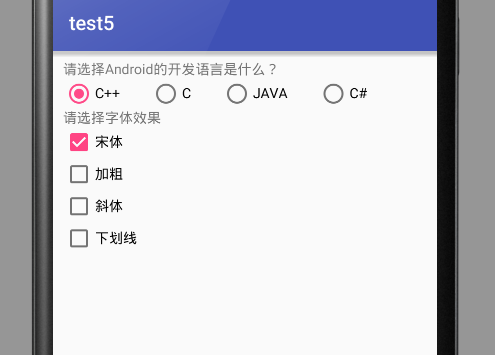
在虚拟机6.0版本实现时,自带动画效果很好,可以用于做调查或者考试
效果图:
Android课程---单选框与复选框的实现的更多相关文章
- Selenium3自动化测试【28】单选框、复选框、下拉选择框
Html页面中的单选按钮.复选框.下拉框均可通过WebDriver实现操做.本节结合案例一起来看看WebDriver如何操做这些控件. 同步视频知识与系列知识内容,可关注:[公众号]:柒哥测试:[WX ...
- CSS学习笔记三:自定义单选框,复选框,开关
一点一点学习CCS,这次学习了如何自定义单选框,复选框以及开关. 一.单选框 1.先写好body里面的样式,先写几个框 <body> <div class="radio-1 ...
- 自动化测试-15.selenium单选框与复选框状态判断
本篇主要介绍单选框和复选框的操作 一.认识单选框和复选框 1.先认清楚单选框和复选框长什么样 2.各位小伙伴看清楚哦,上面的单选框是圆的:下图复选框是方的,这个是业界的标准,要是开发小伙伴把图标弄错了 ...
- 2.12 单选框和复选框(radiobox、checkbox)
2.12 单选框和复选框(radiobox.checkbox) 本篇主要介绍单选框和复选框的操作一.认识单选框和复选框 1.先认清楚单选框和复选框长什么样 2.各位小伙伴看清楚哦,上面的单选框是 ...
- Selenium2学习(十五)-- 单选框和复选框(radiobox、checkbox)
本篇主要介绍单选框和复选框的操作 一.认识单选框和复选框 1.先认清楚单选框和复选框长什么样 2.各位小伙伴看清楚哦,上面的单选框是圆的:下图复选框是方的,这个是业界的标准,要是开发小伙伴把图标弄错了 ...
- 微信小程序-修改单选框和复选框大小的方法
方法有两种: 一:采用css的zoom属性 zoom缩放会将元素保持在左上角,并且会有毛边,可能会稍稍改变元素原来的形状. 二:采用css3的transform:scale属性 zoom缩放会将元素保 ...
- HTML--使用单选框、复选框,让用户选择
在使用表单设计调查表时,为了减少用户的操作,使用选择框是一个好主意,html中有两种选择框,即单选框和复选框,两者的区别是单选框中的选项用户只能选择一项,而复选框中用户可以任意选择多项,甚至全选.请看 ...
- Selenium3+python自动化 单选框和复选框
一.认识单选框和复选框 1.先认清楚单选框和复选框长什么样 2.各位小伙伴看清楚哦,上面的单选框是圆的:下图复选框是方的,这个是业界的标准,要是开发小伙伴把图标弄错了,可以先抽他了. 二.radio和 ...
- jQuery获取单选框(复选框)选中的状态
jQuery 获取单选框(复选框)选中的状态 <input type="checkbox" name="" id="choose"/& ...
- vue.js实现单选框、复选框和下拉框
Vue.js可以很方便的实现数据双向绑定,所以在处理表单,人机交互方面具有很大的优势.下边以单选框.复选框和下拉框为例介绍他们在HTML和Vue.js中的具体实现方式. 一.单选框 在传统的HTM ...
随机推荐
- js小例子(标签页)
运用js写的一个小例子,实现点击不同的标签出现不同的内容: <!DOCTYPE html> <html> <head> <meta chaset=" ...
- linux ubuntu的root密码
安装完Ubuntu后忽然意识到没有设置root密码,不知道密码自然就无法进入根用户下.到网上搜了一下,原来是这麽回事.Ubuntu的默认root密码是随机的,即每次开机都有一个新的root密码.我们可 ...
- BZOJ3414 : Poi2013 Inspector
二分答案,没有出现过的时刻没有用,可以进行离散化. 首先如果某个时刻出现多个人数,那么肯定矛盾. 然后按时间依次考虑,维护: $t$:剩余可选人数. $s$:现在必定有的人数. $cl$:往左延伸的人 ...
- 如何查看项目svn路径
1.选择项目根目录---->鼠标右键---->属性---->版本控制(Subversion) 如图:
- [linux]ubuntu 下安装RMySQL包
http://downloads.mysql.com/docs/connector-odbc-en.pdf http://blog.csdn.net/ixidof/article/details/59 ...
- 2016年AR行业十大热点事件汇总
2016年即将接近尾声,增强现实在今年完成了里程碑式的跃进.无论是从新玩法的开发还是从大众接受度,以及行业巨头的青睐,无不证明这AR的无线潜力,故而,2016年算是AR的崛起之年. 纵观全年AR新闻事 ...
- POJ 2407 (欧拉函数)
题目链接: http://poj.org/problem?id=2407 题目大意:求小于n且与n互质的正整数个数. 解题思路: 欧拉函数=小于n且与n互质的正整数个数. 公式=n*(1-1/P1)* ...
- 自动备份mysql
创建备份文件存放的目录 mkdir /usr/local/dbbak 脚本:vi /usr/local/mysqlback.sh # /bin/bash DB_NAME="dsideal_d ...
- Ubuntu Gnome 14.04.2 lts 折腾笔记
unity感觉不爽,于是来折腾gnome3 = = 首先去官网下载ubuntu gnome 14.04.2 lts的包(种子:http://cdimage.ubuntu.com/ubuntu-gnom ...
- 【hdu1394】Minimum Inversion Number
Problem Description The inversion number of a given number sequence a1, a2, ..., an is the number of ...