
Fragment的创建与通信
由于这里涉及到接口回调的问题,所以先来看一看什么是接口回调:
这就好比老板和员工的微妙关系,老板需要员工去工作,员工挣钱了以后还要告诉老板自己挣了多少钱,然后由老板来处理这些钱。
首先创建一个接口:
package com.fitsoft;

public interface CallBack {

	void collectMoney(String name, int money);

}
由于员工挣完钱了以后,钱由老板来处理,因此接口也是由老板来实现
创建老板类:
package com.fitsoft;

/**

 * @author Joker

 * @since 2019/9/20 0020 18:49

 */

public class Boss implements CallBack {

    void makeMoney(){

        String name = "小三";

        System.out.println(name+"快去工作!");

        Staff staff = new Staff(name, this);

        staff.doWork();

    }

    public void collectMoney(String name, int money) {

        System.out.println(name+"帮我挣了"+money+"元");

    }

}
这里有两个方法,一个是叫员工去赚钱,在makeMoney()方法中创建一个员工,让员工去doWork(),另一个是员工赚完钱以后回调给老板,由老板来打印输出(花钱)。
看一看员工类:
package com.fitsoft;

/**

 * @author Joker

 * @since 2019/9/20 0020 18:35

 */

class Staff {

    private String myName;

    private CallBack callBack;

    Staff(String name, CallBack callBack){

        this.myName = name;

        this.callBack = callBack;

    }

    void doWork(){

        System.out.println(myName + " make money ing...");

        callBack.collectMoney(myName, 500);

    }

}
在构造函数中初始化名字和接口,在doWork()方法中(由老板来调用的方法),输出我正在赚钱,赚完钱之后,执行老板的collectMoney()方法,告诉老板:这钱是我给你的,你可以收了,然后老板就执行了:
public void collectMoney(String name, int money) {

    System.out.println(name+"帮我挣了"+money+"元");

}
总的流程大致是这样,接下来创建测试类:
package com.fitsoft;

/**

 * @author Joker

 * @since 2019/9/20 0020 18:47

 */

public class Test {

    @org.junit.Test

    public void test(){

        new Boss().makeMoney();

    }

}
直接调用老板类中的赚钱方法(赚钱是不可能赚钱的,这辈子都不可能去赚钱的,只有让员工去赚钱这样子才能维持生活...)。
看一看输出:
小三快去工作!

小三 make money ing...

小三帮我挣了500元
以上大致是接口回调的内容,接下来才是主题:Fragment
首先创建布局activity_main.xml:
<?xml version="1.0" encoding="utf-8"?>

<android.support.constraint.ConstraintLayout

    xmlns:android="http://schemas.android.com/apk/res/android"

    xmlns:app="http://schemas.android.com/apk/res-auto"

    xmlns:tools="http://schemas.android.com/tools"

    android:layout_width="match_parent"

    android:layout_height="match_parent"

    tools:context="com.fitsoft.MainActivity">

    <Button

        android:id="@+id/fragment_add"

        android:layout_width="wrap_content"

        android:layout_height="wrap_content"

        android:layout_marginStart="8dp"

        android:layout_marginLeft="8dp"

        android:layout_marginTop="24dp"

        android:layout_marginEnd="8dp"

        android:layout_marginRight="8dp"

        android:layout_marginBottom="8dp"

        android:text="add"

        app:layout_constraintBottom_toBottomOf="parent"

        app:layout_constraintEnd_toEndOf="parent"

        app:layout_constraintHorizontal_bias="0.498"

        app:layout_constraintStart_toStartOf="parent"

        app:layout_constraintTop_toTopOf="parent"

        app:layout_constraintVertical_bias="0.0" />

    <Button

        android:id="@+id/fragment_remove"

        android:layout_width="wrap_content"

        android:layout_height="wrap_content"

        android:layout_marginStart="8dp"

        android:layout_marginLeft="8dp"

        android:layout_marginTop="32dp"

        android:layout_marginEnd="8dp"

        android:layout_marginRight="8dp"

        android:text="remove"

        app:layout_constraintEnd_toEndOf="parent"

        app:layout_constraintHorizontal_bias="0.498"

        app:layout_constraintStart_toStartOf="parent"

        app:layout_constraintTop_toBottomOf="@+id/fragment_add" />

    <Button

        android:id="@+id/fragment_modify"

        android:layout_width="wrap_content"

        android:layout_height="wrap_content"

        android:layout_marginStart="8dp"

        android:layout_marginLeft="8dp"

        android:layout_marginTop="32dp"

        android:layout_marginEnd="8dp"

        android:layout_marginRight="8dp"

        android:text="modify"

        app:layout_constraintEnd_toEndOf="parent"

        app:layout_constraintHorizontal_bias="0.498"

        app:layout_constraintStart_toStartOf="parent"

        app:layout_constraintTop_toBottomOf="@+id/fragment_remove" />

    <LinearLayout

        android:id="@+id/main_fragment"

        android:layout_width="match_parent"

        android:layout_height="200dp"

        android:layout_marginStart="8dp"

        android:layout_marginLeft="8dp"

        android:layout_marginTop="8dp"

        android:layout_marginEnd="8dp"

        android:layout_marginRight="8dp"

        android:layout_marginBottom="8dp"

        android:orientation="vertical"

        app:layout_constraintBottom_toBottomOf="parent"

        app:layout_constraintEnd_toEndOf="parent"

        app:layout_constraintHorizontal_bias="1.0"

        app:layout_constraintStart_toStartOf="parent"

        app:layout_constraintTop_toTopOf="parent"

        app:layout_constraintVertical_bias="0.666" />

    <TextView

        android:id="@+id/tv_in_activity"

        android:layout_width="wrap_content"

        android:layout_height="wrap_content"

        android:layout_marginStart="8dp"

        android:layout_marginLeft="8dp"

        android:layout_marginTop="8dp"

        app:layout_constraintBottom_toBottomOf="parent"

        app:layout_constraintEnd_toEndOf="parent"

        app:layout_constraintStart_toStartOf="parent"

        app:layout_constraintTop_toBottomOf="@+id/main_fragment" />

</android.support.constraint.ConstraintLayout>
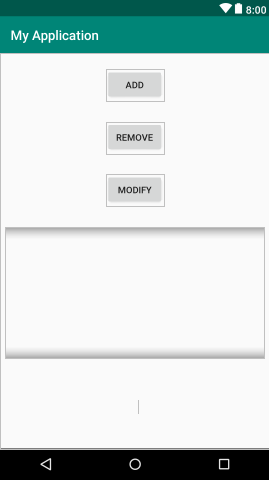
界面大致是这样子的:
然后创建Fragment中的布局fragment_main.xml:
<?xml version="1.0" encoding="utf-8"?>

<android.support.constraint.ConstraintLayout

    xmlns:android="http://schemas.android.com/apk/res/android"

    xmlns:app="http://schemas.android.com/apk/res-auto"

    android:background="#4CAF50"

    android:layout_width="match_parent"

    android:layout_height="match_parent">

    <TextView

        android:id="@+id/tv_in_fragment"

        android:layout_width="wrap_content"

        android:layout_height="wrap_content"

        android:layout_marginStart="8dp"

        android:layout_marginLeft="8dp"

        android:layout_marginTop="8dp"

        android:layout_marginEnd="8dp"

        android:layout_marginRight="8dp"

        android:layout_marginBottom="8dp"

        android:text="这是Fragment界面"

        android:textColor="#fff"

        app:layout_constraintBottom_toBottomOf="parent"

        app:layout_constraintEnd_toEndOf="parent"

        app:layout_constraintHorizontal_bias="0.498"

        app:layout_constraintStart_toStartOf="parent"

        app:layout_constraintTop_toTopOf="parent"

        app:layout_constraintVertical_bias="0.415" />

    <Button

        android:id="@+id/btn_in_fragment"

        android:layout_width="wrap_content"

        android:layout_height="wrap_content"

        android:layout_marginStart="8dp"

        android:layout_marginLeft="8dp"

        android:layout_marginTop="8dp"

        android:layout_marginEnd="8dp"

        android:layout_marginRight="8dp"

        android:layout_marginBottom="8dp"

        android:text="modify"

        app:layout_constraintBottom_toBottomOf="parent"

        app:layout_constraintEnd_toEndOf="parent"

        app:layout_constraintHorizontal_bias="0.498"

        app:layout_constraintStart_toStartOf="parent"

        app:layout_constraintTop_toBottomOf="@+id/tv_in_fragment"

        app:layout_constraintVertical_bias="0.064" />

</android.support.constraint.ConstraintLayout>
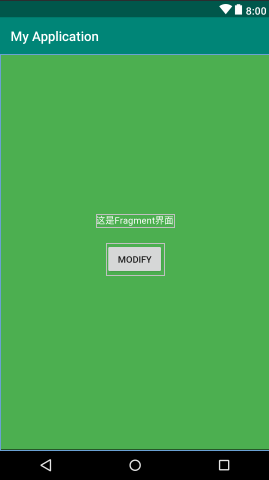
界面是这样的:
首先我们创建Activity的管理类MainActivity:
package com.fitsoft;

import android.os.Bundle;

import android.support.v4.app.FragmentActivity;

import android.support.v4.app.FragmentManager;

import android.support.v4.app.FragmentTransaction;

import android.view.View;

import android.widget.Button;

import android.widget.TextView;

public class MainActivity extends FragmentActivity {

    Button add;

    Button remove;

    Button modify;

    TextView textView;

    MainFragment mainFragment;

    @Override

    protected void onCreate(Bundle savedInstanceState) {

        super.onCreate(savedInstanceState);

        setContentView(R.layout.activity_main);

        textView = findViewById(R.id.tv_in_activity);

        mainFragment = new MainFragment();

        mainFragment.setOnBtnClickListener(new MainFragment.OnBtnClickListener() {

            @Override

            public void onBtnClick() {

                textView.setText("===这里的值已经被修改了===");

            }

        });

        add = findViewById(R.id.fragment_add);

        add.setOnClickListener(new View.OnClickListener() {

            @Override

            public void onClick(View v) {

                FragmentManager fm = getSupportFragmentManager();

                //获得fragment的事务

                FragmentTransaction ft = fm.beginTransaction();

                ft.add(R.id.main_fragment, mainFragment);

                ft.commit();

            }

        });

        remove = findViewById(R.id.fragment_remove);

        remove.setOnClickListener(new View.OnClickListener() {

            @Override

            public void onClick(View v) {

                FragmentManager fm = getSupportFragmentManager();

                //获得fragment的事务

                FragmentTransaction ft = fm.beginTransaction();

                ft.remove(mainFragment);

                ft.commit();

            }

        });

        modify = findViewById(R.id.fragment_modify);

        modify.setOnClickListener(new View.OnClickListener() {

            @Override

            public void onClick(View v) {

                mainFragment.modify();

            }

        });

    }

}
然后创建Fragment的管理类MainFragment:
package com.fitsoft;

import android.os.Bundle;

import android.support.annotation.NonNull;

import android.support.annotation.Nullable;

import android.support.v4.app.Fragment;  //兼容性好

import android.view.LayoutInflater;

import android.view.View;

import android.view.ViewGroup;

import android.widget.Button;

import android.widget.TextView;

/**

 * @author Joker

 * @since 2019/9/19 0019 20:48

 */

public class MainFragment extends Fragment {

    Button button;

    View view;

    TextView textView;

    private OnBtnClickListener onBtnClickListener;

    public void setOnBtnClickListener(OnBtnClickListener onBtnClickListener){

        this.onBtnClickListener = onBtnClickListener;

    }

    @Nullable

    @Override

    public View onCreateView(@NonNull LayoutInflater inflater, @Nullable ViewGroup container, @Nullable Bundle savedInstanceState) {

        view = inflater.inflate(R.layout.fragment_main, container, false);

        textView = view.findViewById(R.id.tv_in_fragment);

        button = view.findViewById(R.id.btn_in_fragment);

        button.setOnClickListener(new View.OnClickListener() {

            @Override

            public void onClick(View v) {

                if(onBtnClickListener != null)

                    onBtnClickListener.onBtnClick();

            }

        });

        return view;

    }

    public void modify(){

        textView.setText("===修改之后的值===");

    }

    public interface OnBtnClickListener {

        void onBtnClick();

    }

}
为了兼容性更好这里我用v4包下的Fragment,启动app之后出现如下界面:
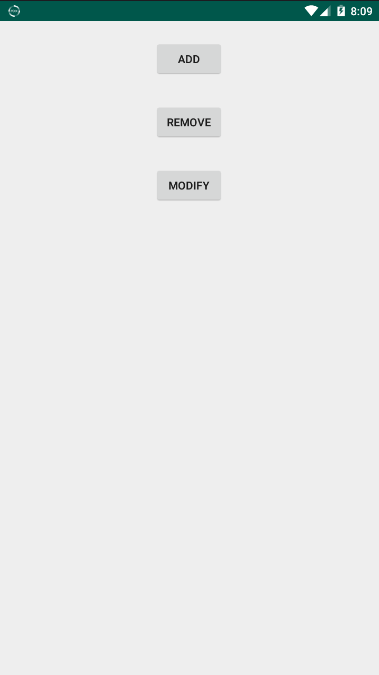
这些就是运行之后我们Activity上面的布局,当我们点击ADD按钮之后,触发事件:
add.setOnClickListener(new View.OnClickListener() {

    @Override

    public void onClick(View v) {

        FragmentManager fm = getSupportFragmentManager();

        //获得fragment的事务

        FragmentTransaction ft = fm.beginTransaction();

        ft.add(R.id.main_fragment, mainFragment);

        ft.commit();

    }

});
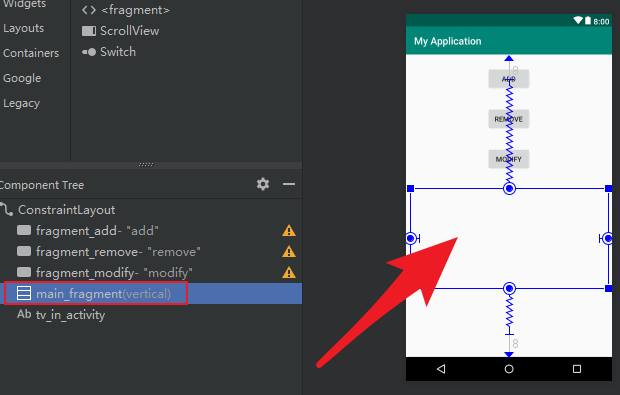
在这里将我们的Fragment添加在LinearLayout布局中,就是这个:
点击之后看到Fragment已经生成了:
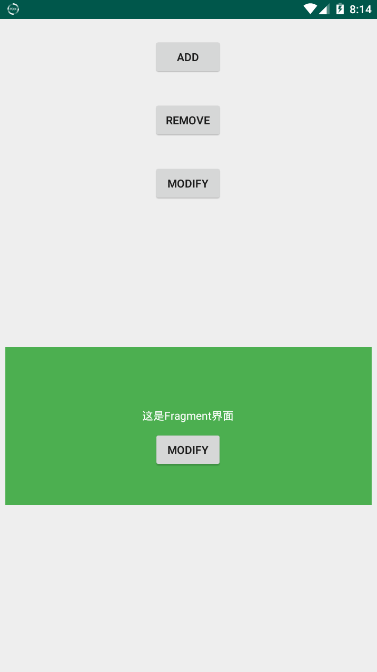
然后我们点击Activity中的MODIFY按钮,在Activity中修改Fragment中的文本值:
modify = findViewById(R.id.fragment_modify);

modify.setOnClickListener(new View.OnClickListener() {

    @Override

    public void onClick(View v) {

        mainFragment.modify();

    }

});
在MainFragment中是这么写的:
public void modify(){

    textView.setText("===修改之后的值===");

}
将Fragment中的TextView的值进行了修改,修改之后:
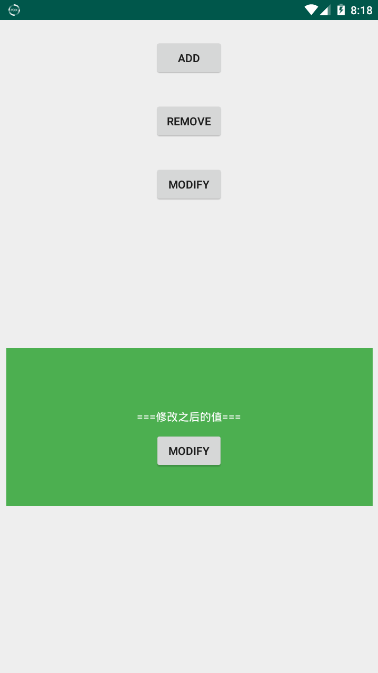
上面我们在Activity中修改Fragment,那么如何在Fragment中调用Activity中的方法呢,当然方法有很多,这里我们使用回调函数的方式进行通信:
在MainFragment中定义接口:
public interface OnBtnClickListener {

    void onBtnClick();

}
然后在MainFragment中定义方法,将接口提供给调用者:
public void setOnBtnClickListener(OnBtnClickListener onBtnClickListener){

    this.onBtnClickListener = onBtnClickListener;

}
这里MainActivity中使用匿名内部类的方式实现了接口的方法:
mainFragment = new MainFragment();

mainFragment.setOnBtnClickListener(new MainFragment.OnBtnClickListener() {

    @Override

    public void onBtnClick() {

        textView.setText("===这里的值已经被修改了===");

    }

});
为什么要set呢?这是为了让两个类中的接口保持一致,原来的MainFragment中的onBtnClickListener是null,而在MainActiviy中却已经写好了方法,就等着你去调用
然后Fragment按钮的点击事件中就调用了接口中的onBtnClick()方法,这跟普通的调用方法还有点不一样,它更像是调用实体类中的方法,只不过没有实例化:
button = view.findViewById(R.id.btn_in_fragment);

button.setOnClickListener(new View.OnClickListener() {

    @Override

    public void onClick(View v) {

        if(onBtnClickListener != null)

            onBtnClickListener.onBtnClick();

    }

});
这里还需要注意,据我分析(如果没有错的话):
onBtnClickListener.onBtnClick();
这行代码算不上调用,更像是执行,因为此时的onBtnClickListener已经不为null了,它只是执行了里面的onBtnClick()方法,
@Override

public void onBtnClick() {

    textView.setText("===这里的值已经被修改了===");

}
而真正要被执行的方法应该是已经早早的在set方法中被传递了过来。
然后看看回调之后的效果:
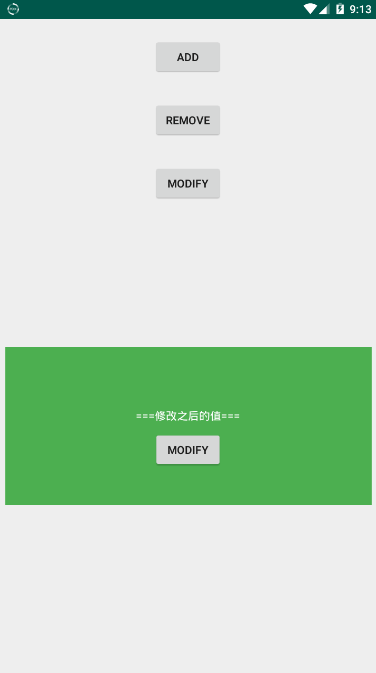
最后还有一个移除Fragment的按钮:
remove = findViewById(R.id.fragment_remove);

remove.setOnClickListener(new View.OnClickListener() {

    @Override

    public void onClick(View v) {

        FragmentManager fm = getSupportFragmentManager();

        //获得fragment的事务

        FragmentTransaction ft = fm.beginTransaction();

        ft.remove(mainFragment);

        ft.commit();

    }

});
整个过程大致是这样:

然后会有小伙伴发问了,这里和开头举的例子的回调方法不一样啊。。。
好,那我改成一致的...
MainActivity:
package com.fitsoft;

import android.os.Bundle;

import android.support.v4.app.FragmentActivity;

import android.support.v4.app.FragmentManager;

import android.support.v4.app.FragmentTransaction;

import android.view.View;

import android.widget.Button;

import android.widget.TextView;

public class MainActivity extends FragmentActivity implements OnBtnClickListener{

    Button add;

    Button remove;

    Button modify;

    TextView textView;

    MainFragment mainFragment;

    @Override

    protected void onCreate(Bundle savedInstanceState) {

        super.onCreate(savedInstanceState);

        setContentView(R.layout.activity_main);

        textView = findViewById(R.id.tv_in_activity);

        mainFragment = new MainFragment();

        mainFragment.setOnBtnClickListener(this);

        add = findViewById(R.id.fragment_add);

        add.setOnClickListener(new View.OnClickListener() {

            @Override

            public void onClick(View v) {

                FragmentManager fm = getSupportFragmentManager();

                //获得fragment的事务

                FragmentTransaction ft = fm.beginTransaction();

                ft.add(R.id.main_fragment, mainFragment);

                ft.commit();

            }

        });

        remove = findViewById(R.id.fragment_remove);

        remove.setOnClickListener(new View.OnClickListener() {

            @Override

            public void onClick(View v) {

                FragmentManager fm = getSupportFragmentManager();

                //获得fragment的事务

                FragmentTransaction ft = fm.beginTransaction();

                ft.remove(mainFragment);

                ft.commit();

            }

        });

        modify = findViewById(R.id.fragment_modify);

        modify.setOnClickListener(new View.OnClickListener() {

            @Override

            public void onClick(View v) {

                mainFragment.modify();

            }

        });

    }

    @Override

    public void onBtnClick() {

        textView.setText("===这里的值已经被修改了===");

    }

}
其实理解应该不难,毕竟点击事件的触发不也是这样的嘛...
modify.setOnClickListener(new View.OnClickListener() {

    @Override

    public void onClick(View v) {

        mainFragment.modify();

    }

});
也可以使类实现View.OnClickListener接口....
Fragment的创建与通信的更多相关文章
- fragment 数据传递,通信
Fragment之间的通信 在本节中,你会学到 1.定义接口 2.实现接口 3.将消息传递给fragment 为了重用Fragment UI 组件,在设计中你应该通过定义每一个fragemnt自己 ...
- Fragment基础----创建
1,Fragment的目的及应用场景 fragment 是3.0后引入的类,其字面翻译为“碎片”. 目的是将activity划分成许多单元再进行组合,可以根据不同分辨率屏幕,在不同状态下,灵活创建优化 ...
- android studio 2.2.2下fragment的创建和跳转
一,首先,Fragment是android应用中十分重要的一个功能,十分轻量化,也类似于activity一样,是一个个布局,可以相互跳转和传递参数.但是,它运行起来十分流畅,而且易于管理,下面是在学习 ...
- android开发(2):多页面的实现 | Fragment的创建与使用
APP中出现多个页面再常见不过了.使用activity与fragment都能实现多页面,这里使用fragment来实现.延续“知音”这个APP的开发,之前已经创建了底部导航条与mainactivity ...
- C# Socket系列二 简单的创建 socket 通信
看了系列一 我们开启了对socket tcp的监听状态,那么这一章我们来讲解怎么创建socket的通信代码 我新建一个类 TSocketBase public abstract class TSock ...
- Android(Fragment和Activity之间通信)
Fragment的使用可以让我们的应用更灵活的适配各种型号的安卓设备,但是对于Fragment和Activity之间的通信,很多朋友应该比较陌生,下面我们就通过一个实例来看一看如何实现. 一.Acti ...
- android中fragment与activity之间通信原理以及例子
参考文章 http://blog.csdn.net/guozh/article/details/25327685#comments Activity和fragment通信方式一般有3种方法 1.在fr ...
- Android笔记之Fragment中创建ViewModel的正确方式
之前一直都是这么写的 pageViewModel = ViewModelProviders.of(this).get(PageViewModel.class); //参数this是当前fragment ...
- Fragment的创建以及与activity的参数传递
点击下面不同的TextView变化不同的Fragment avtivity与Fragment之间传递消息不能使用构造器传递,用bunder传递 首先写一个含有FrameLayout(这个布局最佳),里 ...
随机推荐
- 浅谈python中文件和文件夹的相关操作
文件操作 文件的打开与关闭 打开文件 使用open(文件名,访问方式)函数,可以打开一个已存在的文件,或者创建一个新的文件. 示例如下: f = open('test.txt') # 访问方式可以省略 ...
- neural_transfer风格迁移
ContentLoss 首先是要定义一个内容差异损失函数,这里直接调用functional.mse_loss(input,self.target)就可以计算出其内容差异损失. 注意这里一般是定义一个网 ...
- Mac 隐藏、显示文件;移动开发者常用路径
Mac Finder 标题显示文件完整路径 // mac Finder 标题栏显示文件夹完整路径, 把YES改为NO则是不显示 defaults write com.apple.finder _FXS ...
- 第一章 .NET基础-1.1.学前入门
一.1.1. 概念:.NET和C# l .NET/DOTNET:一般指.Net Framework框架.一种平台,一种技术.它提供了一个稳定的运行环境:来保障我们.Net平台正常的运转. l C#(C ...
- 设计模式(C#)——08组合模式
推荐阅读: 我的CSDN 我的博客园 QQ群:704621321 游戏通常包含许多视图.主视图中显示角色.有一个子视图,显示玩家的积分.有一个子视图,显示游戏中剩下的时间. ...
- JDBC主要API学习总结
JDBC主要API学习 一.JDBC主要API简介 JDBC API 是一系列的接口,它使得应用程序能够进行数据库联接,执行SQL语句,并且得到返回结果. 二.Driver 接口 Java.sql.D ...
- 整数 布尔值 字符串 for循环
整型和布尔值的转换 整型---数字(int) 用于比较和运算 32位范围 -2** 31到2 **32-1 64位范围-2** 63到2** 63-1 十进制转二进制计算方法: 15的二进制为 15% ...
- Leetcode之深度优先搜索&回溯专题-679. 24 点游戏(24 Game)
Leetcode之深度优先搜索&回溯专题-679. 24 点游戏(24 Game) 深度优先搜索的解题详细介绍,点击 你有 4 张写有 1 到 9 数字的牌.你需要判断是否能通过 *,/,+, ...
- netty源码解解析(4.0)-20 ChannelHandler: 自己实现一个自定义协议的服务器和客户端
本章不会直接分析Netty源码,而是通过使用Netty的能力实现一个自定义协议的服务器和客户端.通过这样的实践,可以更深刻地理解Netty的相关代码,同时可以了解,在设计实现自定义协议的过程中需要解决 ...
- ZOJ4027 Sequence Swapping DP
link:http://acm.zju.edu.cn/onlinejudge/showProblem.do?problemCode=4027 题意: 有一个括号序列,每个括号对应一个值,现在可以使得相 ...