
MkDocs
Overview
MkDocs is a fast, simple and downright gorgeous static site generator that's geared towards building project documentation. Documentation source files are written in Markdown, and configured with a single YAML configuration file.
Host anywhere
MkDocs builds completely static HTML sites that you can host on GitHub pages, Amazon S3, or anywhere else you choose.
Great themes available
There's a stack of good looking themes available for MkDocs. Choose between the built in themes: mkdocs and readthedocs, select one of the 3rd party themes in the MkDocs wiki, or build your own.
Preview your site as you work
The built-in dev-server allows you to preview your documentation as you're writing it. It will even auto-reload and refresh your browser whenever you save your changes.
Easy to customize
Get your project documentation looking just the way you want it by customizing the theme.
Installation
Install with a Package Manager
If you have and use a package manager (such as apt-get, dnf, homebrew, yum, etc.) to install packages on your system, then you may want to search for a "MkDocs" package and, if a recent version is available, install it with your package manager (check your system's documentation for details). That's it, you're done! Skip down to Getting Started.
If your package manager does not have a recent "MkDocs" package, you can still use your package manager to install "Python" and "pip". Then you can use pip to install MkDocs.
Manual Installation
In order to manually install MkDocs you'll need Python installed on your system, as well as the Python package manager, pip. You can check if you have these already installed from the command line:
$ python --version

Python 2.7.2

$ pip --version

pip 1.5.2
MkDocs supports Python versions 2.6, 2.7, 3.3, 3.4, 3.5 and pypy.
Installing Python
Install Python by downloading an installer appropriate for your system from python.org and running it.
Note
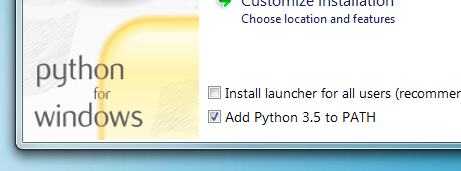
If you are installing Python on Windows, be sure to check the box to have Python added to your PATH if the installer offers such an option (it's normally off by default).
Installing pip
If you're using a recent version of Python, the Python package manager, pip, is most likely installed by default. However, you may need to upgrade pip to the lasted version:
pip install --upgrade pip
If you need to install pip for the first time, download get-pip.py. Then run the following command to install it:
python get-pip.py
Installing MkDocs
Install the mkdocs package using pip:
pip install mkdocs
You should now have the mkdocs command installed on your system. Run mkdocs --version to check that everything worked okay.
$ mkdocs --version

mkdocs, version 0.15.3
Note
If you are using Windows, some of the above commands may not work out-of-the-box.
A quick solution may be to preface every Python command with python -m like this:
python -m pip install mkdocs

python -m mkdocs
For a more permanent solution, you may need to edit your PATH environment variable to include the Scripts directory of your Python installation. Recent versions of Python include a script to do this for you. Navigate to your Python installation directory (for example C:\Python34\), open the Tools, then Scripts folder, and run the win_add2path.py file by double clicking on it. Alternatively, you can download the script and run it (python win_add2path.py).
Getting Started
Getting started is super easy.
mkdocs new my-project

cd my-project
Take a moment to review the initial project that has been created for you.
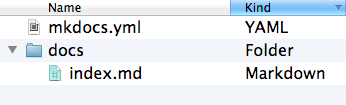
There's a single configuration file named mkdocs.yml, and a folder named docs that will contain your documentation source files. Right now the docs folder just contains a single documentation page, named index.md.
MkDocs comes with a built-in dev-server that lets you preview your documentation as you work on it. Make sure you're in the same directory as the mkdocs.yml configuration file, and then start the server by running the mkdocs serve command:
$ mkdocs serve

INFO    -  Building documentation...

INFO    -  Cleaning site directory

[I 160402 15:50:43 server:271] Serving on http://127.0.0.1:8000

[I 160402 15:50:43 handlers:58] Start watching changes

[I 160402 15:50:43 handlers:60] Start detecting changes
Open up http://127.0.0.1:8000/ in your browser, and you'll see the default home page being displayed:
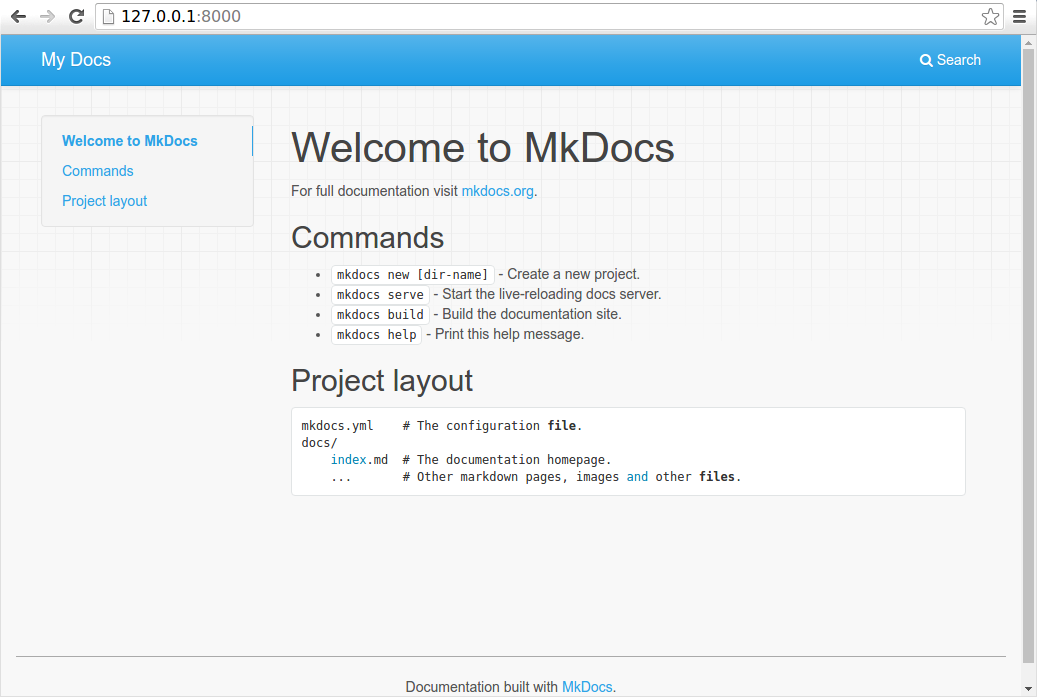
The dev-server also supports auto-reloading, and will rebuild your documentation whenever anything in the configuration file, documentation directory, or theme directory changes.
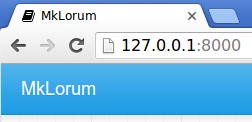
Open the docs/index.md document in your text editor of choice, change the initial heading to MkLorum, and save your changes. Your browser will auto-reload and you should see your updated documentation immediately.
Now try editing the configuration file: mkdocs.yml. Change the site_name setting to MkLorum and save the file.
site_name: MkLorum
Your browser should immediately reload, and you'll see your new site name take effect.
Adding pages
Now add a second page to your documentation:
curl 'https://jaspervdj.be/lorem-markdownum/markdown.txt' > docs/about.md
As our documentation site will include some navigation headers, you may want to edit the configuration file and add some information about the order, title, and nesting of each page in the navigation header by adding a pages setting:
site_name: MkLorum

pages:

    - Home: index.md

    - About: about.md
Save your changes and you'll now see a navigation bar with Home and About items on the left as well as Search, Previous, and Next items on the right.
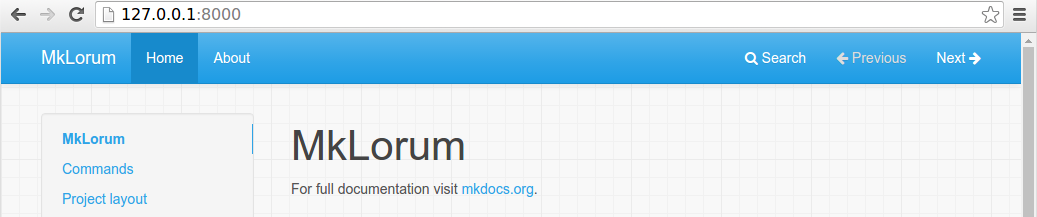
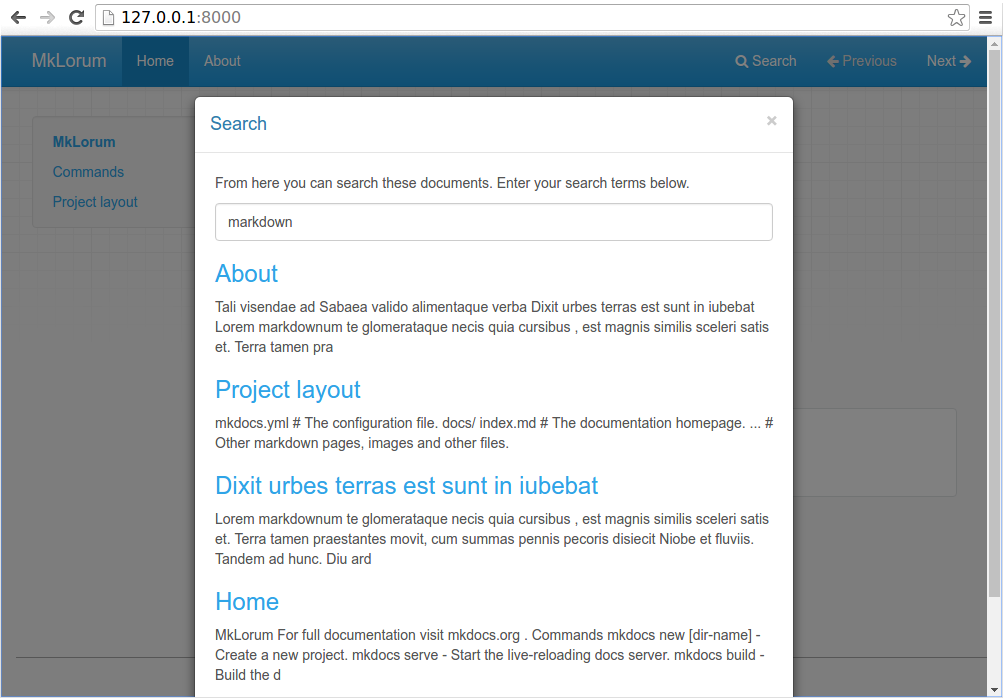
Try the menu items and navigate back and forth between pages. Then click on Search. A search dialog will appear, allowing you to search for any text on any page. Notice that the search results include every occurrence of the search term on the site and links directly to the section of the page in which the search term appears. You get of all that with no effort or configuration on your part!
Theming our documentation
Now change the configuration file to alter how the documentation is displayed by changing the theme. Edit the mkdocs.yml file and add a theme setting:
site_name: MkLorum

pages:

    - Home: index.md

    - About: about.md

theme: readthedocs
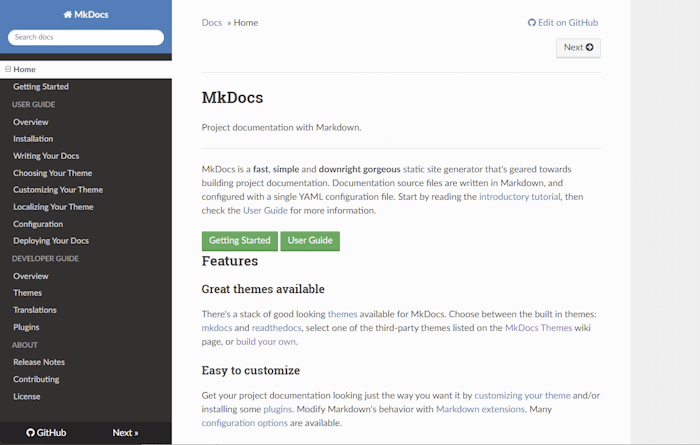
Save your changes, and you'll see the ReadTheDocs theme being used.
Changing the Favicon Icon
By default, MkDocs uses the MkDocs favicon icon. To use a different icon, create an img subdirectory in your docs_dir and copy your custom favicon.ico file to that directory. MkDocs will automaticaly detect and use that file as your favicon icon.
Building the site
That's looking good. You're ready to deploy the first pass of your MkLorum documentation. First build the documentation:
mkdocs build
This will create a new directory, named site. Take a look inside the directory:
$ ls site

about  fonts  index.html  license  search.html

css    img    js          mkdocs   sitemap.xml
Notice that your source documentation has been output as two HTML files named index.html and about/index.html. You also have various other media that's been copied into the site directory as part of the documentation theme. You even have a sitemap.xml file and mkdocs/search_index.json.
If you're using source code control such as git you probably don't want to check your documentation builds into the repository. Add a line containing site/ to your .gitignore file.
echo "site/" >> .gitignore
If you're using another source code control tool you'll want to check it's documentation on how to ignore specific directories.
After some time, files may be removed from the documentation but they will still reside in the site directory. To remove those stale files, just run mkdocs with the --clean switch.
mkdocs build --clean
Other Commands and Options
There are various other commands and options available. For a complete list of commands, use the --help flag:
mkdocs --help
To view a list of options available on a given command, use the --help flag with that command. For example, to get a list of all options available for the build command run the following:
mkdocs build --help
Deploying
The documentation site that you just built only uses static files so you'll be able to host it from pretty much anywhere. GitHub project pages and Amazon S3 may be good hosting options, depending upon your needs. Upload the contents of the entire sitedirectory to wherever you're hosting your website from and you're done. For specific instructions on a number of common hosts, see the Deploying your Docs page.
Getting help
To get help with MkDocs, please use the discussion group, GitHub issues or the MkDocs IRC channel #mkdocs on freenode.
MkDocs的更多相关文章
- MKDOCS在线文档编辑器
http://www.mkdocs.org/ api接口文档编写 ,效果非常不错
- 使用Mkdocs构建你的项目文档
使用Mkdocs构建你的项目文档 环境搭建 安装必需软件 作者是在windows下安装的,如果是linux或mac用户,官网有更详细的安装说明. windows 10 x64 当然还有广大的windo ...
- MkDocs项目文档生成器
简介 安装 我的配置 Chocolatey 简介 - Windows的包管理器 官方网址 安装 注意事项 Python 简介 安装 Pip 简介-Python的包管理器 升级 MkDocs的安装 使用 ...
- 文档发布工具mkdocs
mkdocs是Python的一个对 Markdown 友好的文档生成器.,小巧精美. MkDocs is a fast, simple and downright gorgeous static si ...
- 为什么不使用github的wiki而是使用mkdocs做文档管理?
为什么不使用github的wiki而是使用mkdocs做文档管理? 目前 KSFramework 是使用mkdocs来做在线文档 而非使用github的wiki,这是为什么呢? 在windows下搭建 ...
- mkdocs 生成帮助文档
简介 MkDocs 可以同时编译多个markdown文件,形成书籍一样的文件.有多种主题供你选择,很适合项目使用. MkDocs 是快速,简单和华丽的静态网站生成器,可以构建项目文档.文档源文件在 M ...
- windows上使用mkdocs搭建静态博客
windows上使用mkdocs搭建静态博客 之前尝试过用HEXO搭建静态博客,最近发现有个叫mkdocs的开源项目也是搭建静态博客的好选择,而且它支持markdown格式,下面简要介绍一下mkdoc ...
- [tools]python的mkdocs模块分分钟将md搞成一个网站
docusaurus: facebook出的一个文档生成器,用起来感觉没那么友善 hugo: 这个很棒 python的mkdocs模块: 用起来最简单 python的这个模块可以分分钟将一坨md假设成 ...
- Mkdocs 搭建
1. 利用pip安装mkdocs sudo pip install mkdocs 2.如果报pip不存在 或是 报权限错误,要不是pip没有安装,就是python里某个库没有关联上,这时候需要重新安装 ...
随机推荐
- spark-streming 中调用spark-sql时过程遇到的问题
在spark-streming 中调用spark-sql时过程遇到的问题 使用版本:spark-2.1.0 JDK1.8 1. spark-sql中对limit 的查询结果使用sum() 聚合操作不生 ...
- WPF绑定BitMapImage
先说下图片文件存在服务器.wpf常用绑定图片地址没办法用.忽然想到,convert能否转字节数据?实验了下可以. 图片绑定字节数组. convert代码 public class PictureCon ...
- Android Library 使用规则
1. 一个项目必须声明为 is library.使用该 library 的项目导入该 library. 2. library 的 manifect 中 activity 的声明需明确包名以避免找不到. ...
- Sublime写作
下载 Sublime Text 快捷键(MAC环境) sublime text 批量删除空白行 Sublime text3!行首,行尾,批量编辑!
- LOJ#6544. 杀苍蝇(计算几何)
题面 传送门 题解 枚举一个定点,把剩下的所有点按照极角排序就行了 //minamoto #include<bits/stdc++.h> #define R register #defin ...
- 使用memcache或redis限制某个用户或者某ip用户一段时间内最大投票次数
实现每个用户在某网站10分钟内最多投票5次 function isFrequently($key){ $t = 60*10; $n = 5; $mem = new Memcache(); $mem-& ...
- powerdesign设计、实现简单的数据库模型
1,新建CDM,打开powerdesign,选择Categories----Infoomation------Conceptual Data.开始画图,如果此时如表示关系的图标是灰色的.Tools-- ...
- Bootstrap Table使用方法详解
http://www.jb51.net/article/89573.htm bootstrap-table使用总结 bootstrap-table是在bootstrap-table的基础上写出来的,专 ...
- Gym-101873D-Pants On Fire(闭包)
原题链接:2017-2018 ACM-ICPC German Collegiate Programming Contest (GCPC 2017) Pants On Fire Donald and M ...
- FTP在docker容器中上传失败解决,改为被动模式
package com.mayocase.takeout.utils; import org.apache.commons.net.ftp.FTPClient; import org.apache.c ...