
2018-2019-2-20175332-实验四《Android程序设计》实验报告
一、Android Stuidio的安装测试
- 题目要求:
- 参考http://www.cnblogs.com/rocedu/p/6371315.html#SECANDROID,安装 Android Stuidio
- 完成Hello World, 要求修改res目录中的内容,Hello World后要显示自己的学号,自己学号前后一名同学的学号,提交代码运行截图和码云Git链接,截图没有学号要扣分
- 学习Android Stuidio调试应用程序
- 实验结果:
安装完毕
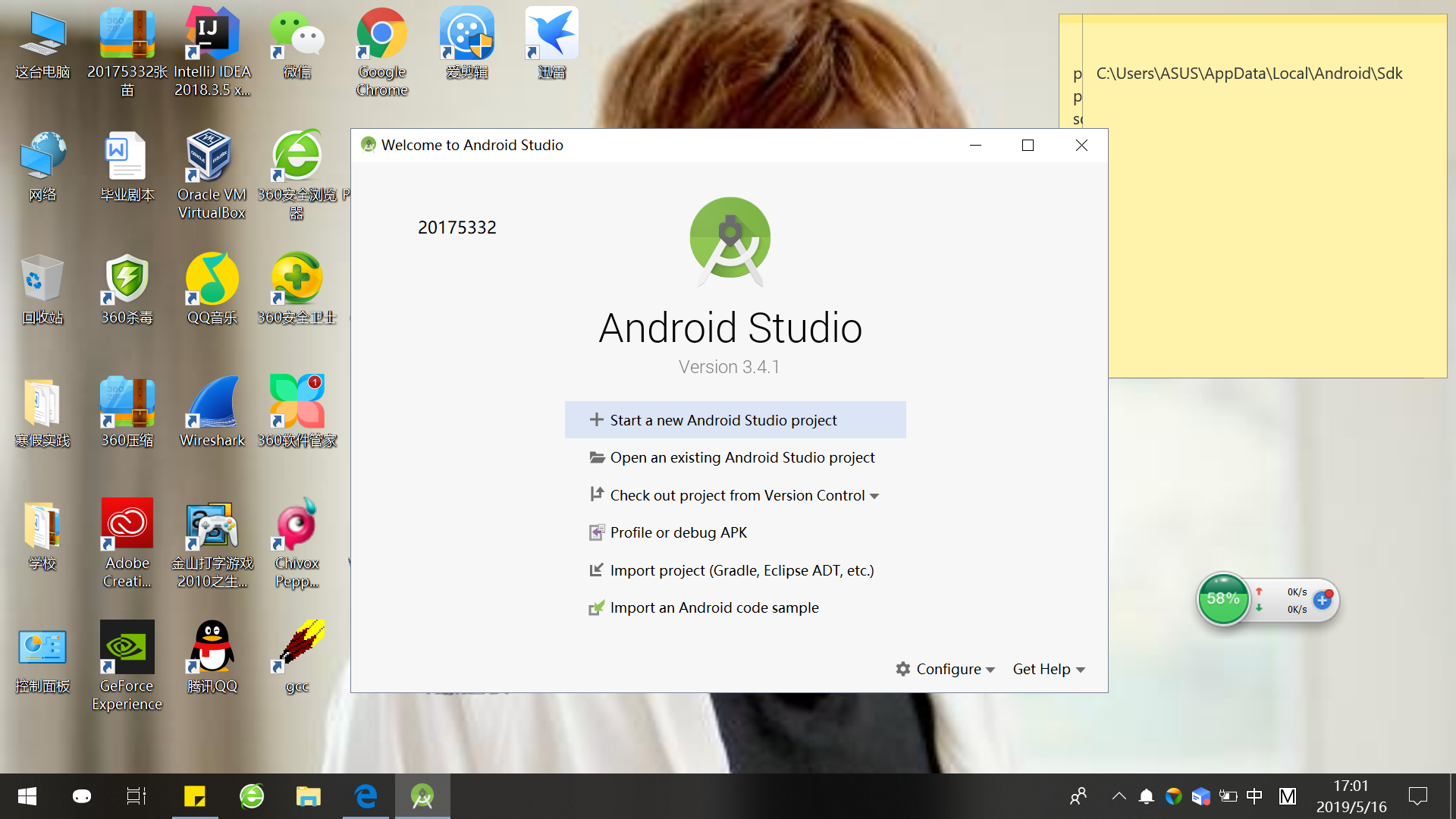
创建项目并更改代码
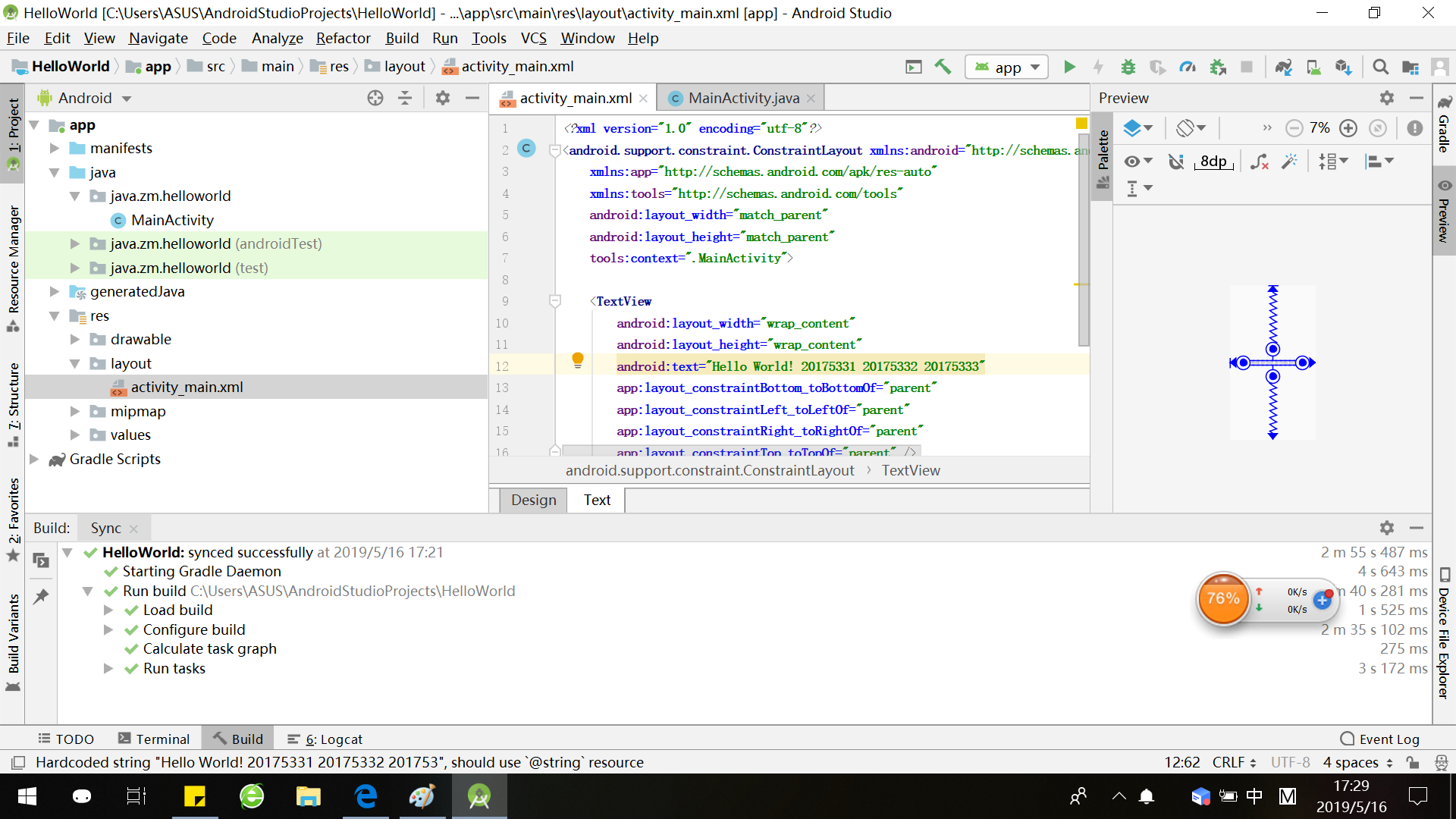
运行结果
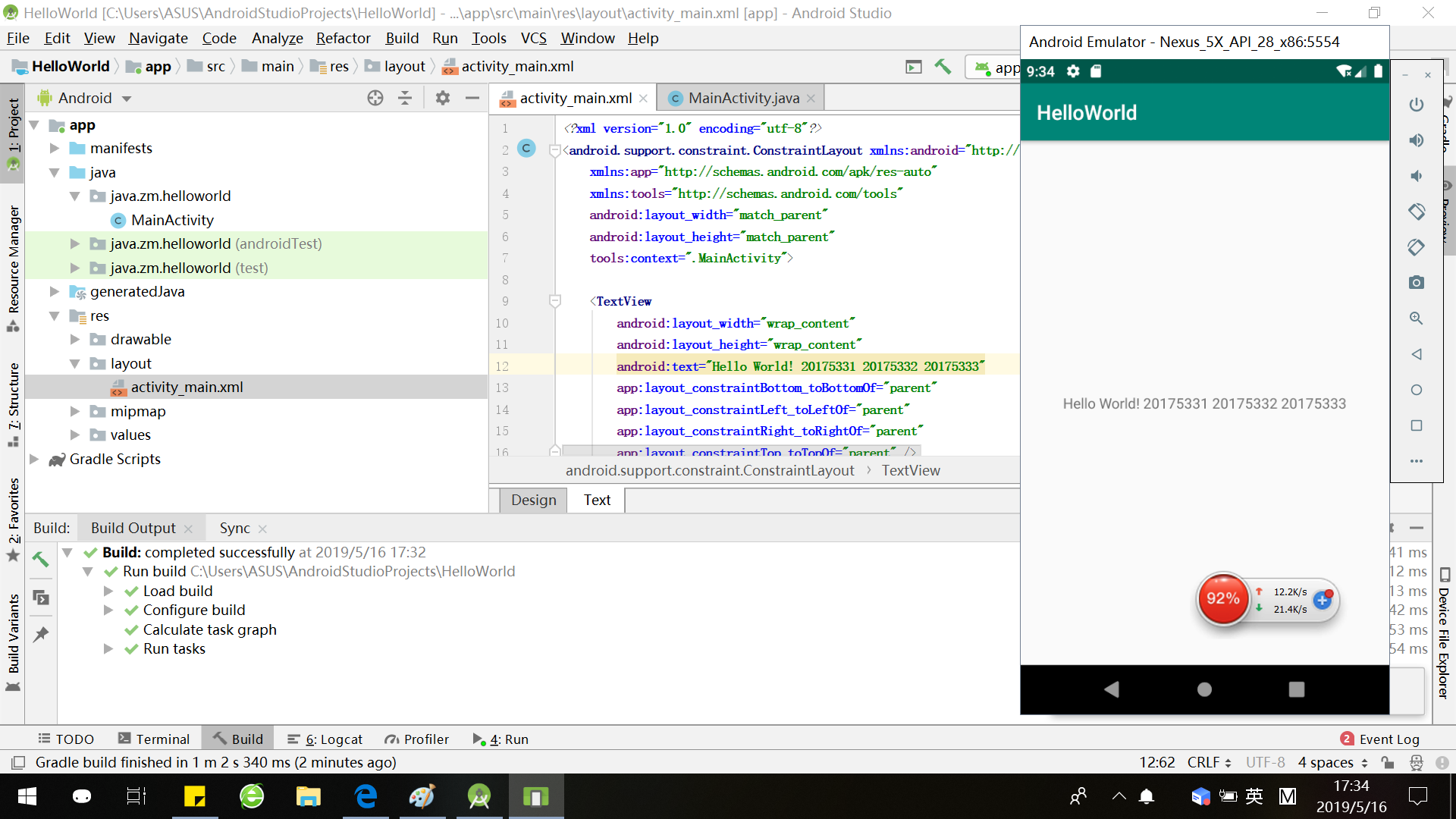
实验代码
<?xml version="1.0" encoding="utf-8"?>

<android.support.constraint.ConstraintLayout xmlns:android="http://schemas.android.com/apk/res/android"

    xmlns:app="http://schemas.android.com/apk/res-auto"

    xmlns:tools="http://schemas.android.com/tools"

    android:layout_width="match_parent"

    android:layout_height="match_parent"

    tools:context=".MainActivity">

    <TextView

        android:layout_width="wrap_content"

        android:layout_height="wrap_content"

        android:text="Hello World! 20175331 20175332 20175333"

        app:layout_constraintBottom_toBottomOf="parent"

        app:layout_constraintLeft_toLeftOf="parent"

        app:layout_constraintRight_toRightOf="parent"

        app:layout_constraintTop_toTopOf="parent" />

</android.support.constraint.ConstraintLayout>
二、Activity测试
实验要求:
构建项目,运行教材相关代码
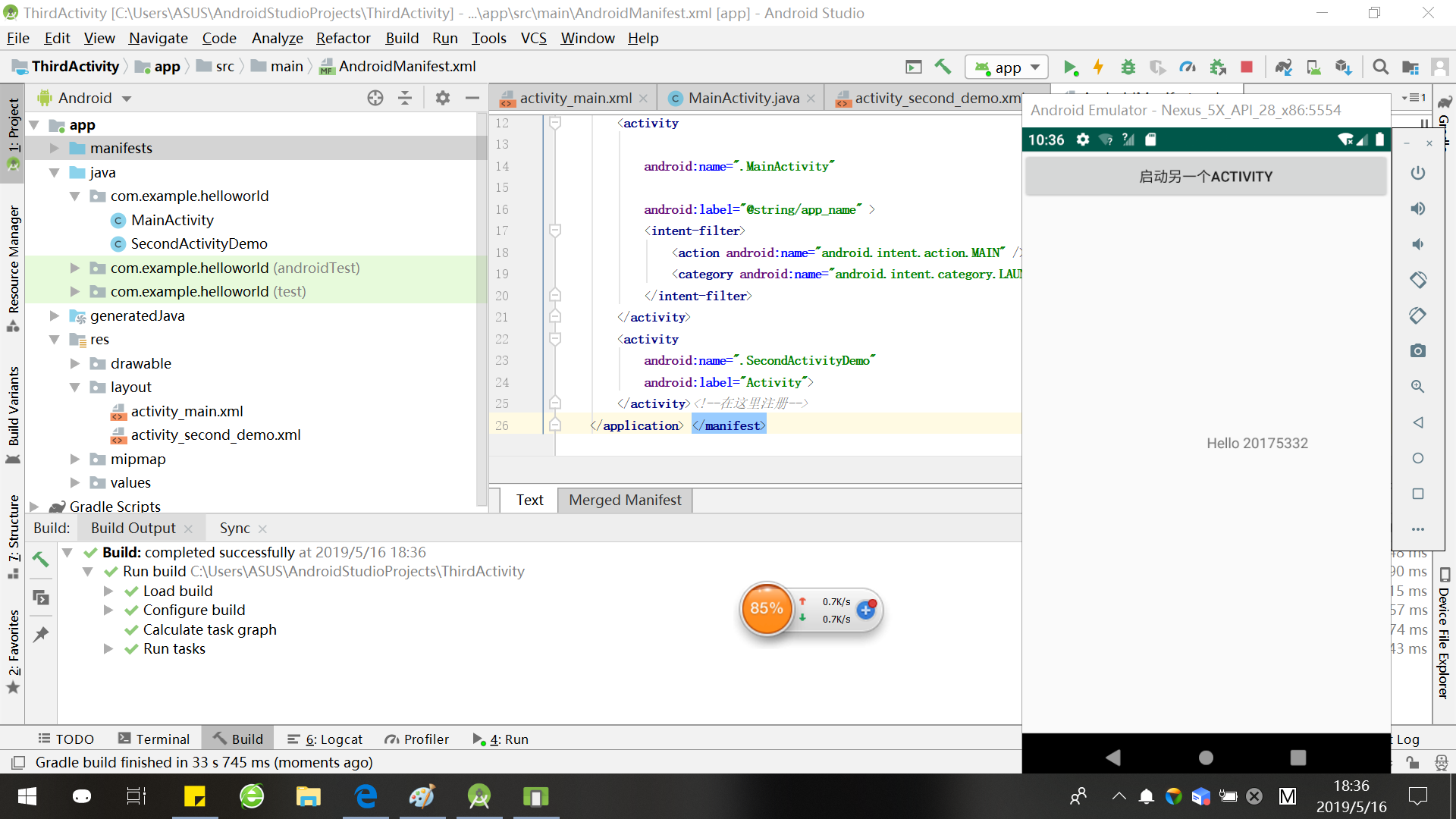
创建 ThirdActivity, 在ThirdActivity中显示自己的学号,修改代码让MainActivity启动ThirdActivity
提交代码运行截图和码云Git链接,截图要有学号水印,否则会扣分
实验结果:
1、更改activity_main.xml
代码:<android.support.constraint.ConstraintLayout
xmlns:android="http://schemas.android.com/apk/res/android"
xmlns:app="http://schemas.android.com/apk/res-auto"
xmlns:tools="http://schemas.android.com/tools"
android:layout_width="match_parent"
android:layout_height="match_parent"
tools:context=".MainActivity"><Button
android:id="@+id/button1"
android:layout_width="fill_parent"
android:layout_height="wrap_content"
android:text="启动另一个activity"
tools:ignore="MissingConstraints" />
<TextView
android:layout_width="wrap_content"
android:layout_height="wrap_content"
android:layout_marginEnd="80dp"
android:layout_marginRight="80dp"
android:text="Hello 20175332"
app:layout_constraintBottom_toBottomOf="parent"
app:layout_constraintEnd_toEndOf="parent"
app:layout_constraintLeft_toLeftOf="parent"
app:layout_constraintRight_toRightOf="parent"
app:layout_constraintTop_toTopOf="parent"
tools:text="Hello World!20175332" />
</android.support.constraint.ConstraintLayout>
2、更改MainActivity.java
代码:
package com.example.helloworld;

import android.app.Activity;

import android.content.Intent;

import android.os.Bundle;

import android.view.View;

import android.view.View.OnClickListener;

import android.widget.Button;

public class MainActivity extends Activity {

    private Button button1;

    @Override

    protected void onCreate(Bundle savedInstanceState) {

        super.onCreate(savedInstanceState);

        setContentView(R.layout.activity_main);

        button1 = (Button) findViewById(R.id.button1);

        button1.setOnClickListener(new OnClickListener() {

            @Override

            public void onClick(View v) {

                Intent intent = new Intent(

                        MainActivity.this, SecondActivityDemo.class); // 创建一个Intent对象

                startActivity(intent);

            }

        })

        ;}

}
3、新建SecondActivityDemo
SecondActivityDemo.java代码:
package com.example.helloworld;

import android.support.v7.app.AppCompatActivity;

import android.os.Bundle;

public class SecondActivityDemo extends AppCompatActivity {

    @Override

    protected void onCreate(Bundle savedInstanceState) {

        super.onCreate(savedInstanceState);

        setContentView(R.layout.activity_second_demo);

    }

}
activity_second_Demo代码:
 <?xml version="1.0" encoding="utf-8"?>

<android.support.constraint.ConstraintLayout xmlns:android="http://schemas.android.com/apk/res/android"

    xmlns:tools="http://schemas.android.com/tools"

    android:layout_width="match_parent"

    android:layout_height="match_parent"

    android:orientation="vertical">

    <TextView

        android:id="@+id/textView"

        android:layout_width="172dp"

        android:layout_height="139dp"

        android:text="20175332"

        tools:layout_editor_absoluteX="153dp"

        tools:layout_editor_absoluteY="311dp"

        tools:ignore="MissingConstraints" />

</android.support.constraint.ConstraintLayout>
4、更改AndroidMainfest.xml
代码:
xmlns:android="http://schemas.android.com/apk/res/android"
xmlns:tools="http://schemas.android.com/tools"
package="com.example.helloworld" ><activity android:name=".MainActivity" android:label="@string/app_name" >
<intent-filter>
<action android:name="android.intent.action.MAIN" />
<category android:name="android.intent.category.LAUNCHER" />
</intent-filter>
</activity>
<activity
android:name=".SecondActivityDemo"
android:label="Activity">
</activity><!--在这里注册-->
</application> </manifest>
5、运行
三、UI测试
实验要求:
构建项目,运行教材相关代码
修改代码让Toast消息中显示自己的学号信息
提交代码运行截图和码云Git链接,截图要有学号水印,否则会扣分
实验结果:
1、更改MainActivity.java
代码:package com.example.helloworld; import android.app.Activity;
import android.content.Intent;
import android.os.Bundle;
import android.view.View;
import android.view.View.OnClickListener;
import android.widget.Button;
import android.widget.Toast; public class MainActivity extends Activity {
private Button button1;
@Override
protected void onCreate(Bundle savedInstanceState) {
super.onCreate(savedInstanceState);
setContentView(R.layout.activity_main);
Toast.makeText(MainActivity.this, "20175332!", Toast.LENGTH_SHORT).show();
button1 = (Button) findViewById(R.id.button1);
button1.setOnClickListener(new OnClickListener() {
@Override
public void onClick(View v) {
Intent intent = new Intent(
MainActivity.this, SecondActivityDemo.class); // 创建一个Intent对象
startActivity(intent);
} })
;}
}
2、运行

四、布局测试
实验要求:
- 构建项目,运行教材相关代码
- 修改布局让P290页的界面与教材不同
- 提交代码运行截图和码云Git链接,截图要有学号水印,否则会扣分
实验结果:
1、更改activity_main.xml
代码:<android.support.constraint.ConstraintLayout
xmlns:android="http://schemas.android.com/apk/res/android"
xmlns:app="http://schemas.android.com/apk/res-auto"
xmlns:tools="http://schemas.android.com/tools"
android:layout_width="match_parent"
android:layout_height="match_parent"
tools:context=".MainActivity"><Button
android:id="@+id/button1"
android:layout_width="fill_parent"
android:layout_height="wrap_content"
android:text="启动另一个activity"
tools:ignore="MissingConstraints" />
<TextView
android:layout_width="wrap_content"
android:layout_height="wrap_content"
android:layout_marginEnd="80dp"
android:layout_marginRight="80dp"
android:text="Hello 20175332"
app:layout_constraintBottom_toBottomOf="parent"
app:layout_constraintEnd_toEndOf="parent"
app:layout_constraintLeft_toLeftOf="parent"
app:layout_constraintRight_toRightOf="parent"
app:layout_constraintTop_toTopOf="parent"
tools:text="Hello World!20175332" />
<RelativeLayout
xmlns:android="http://schemas.android.com/apk/res/android"
xmlns:tools="http://schemas.android.com/tools"
android:layout_width="match_parent"
android:layout_height="match_parent"
android:paddingLeft="2dp"
android:paddingRight="2dp">
<Button
android:id="@+id/cancelButton"
android:layout_width="wrap_content"
android:layout_height="wrap_content"
android:text="20175332"
android:layout_marginTop="70dp"
android:layout_alignParentTop="true"
android:layout_centerHorizontal="true" />
<Button
android:id="@+id/saveButton"
android:layout_width="wrap_content"
android:layout_height="wrap_content"
android:text="张苗"
android:layout_below="@+id/cancelButton"
android:layout_alignLeft="@+id/cancelButton"
android:layout_alignStart="@+id/cancelButton"
android:layout_marginTop="23dp" />
<ImageView
android:layout_width="150dp"
android:layout_height="150dp"
android:layout_marginTop="45dp"
android:padding="4dp"
android:src="@android:drawable/presence_audio_away"
android:id="@+id/imageView"
android:layout_below="@+id/saveButton"
android:background="@android:color/white"
android:layout_centerHorizontal="true" />
<LinearLayout
android:id="@+id/filter_button_container"
android:layout_width="match_parent"
android:layout_height="wrap_content"
android:layout_alignParentBottom="true"
android:gravity="center|bottom"
android:background="@android:color/holo_green_dark"
android:orientation="horizontal" >
<Button
android:id="@+id/filterButton"
android:layout_width="wrap_content"
android:layout_height="fill_parent"
android:text="分享" />
<Button
android:id="@+id/shareButton"
android:layout_width="wrap_content"
android:layout_height="fill_parent"
android:text="打开" />
<Button
android:id="@+id/deleteButton"
android:layout_width="wrap_content"
android:layout_height="fill_parent"
android:text="删除" />
</LinearLayout>
</RelativeLayout> </android.support.constraint.ConstraintLayout>
2、运行

五、事件处理测试
- 实验要求:
- 构建项目,运行教材相关代码
- 提交代码运行截图和码云Git链接,截图要有学号水印,否则会扣分
- 实验结果:
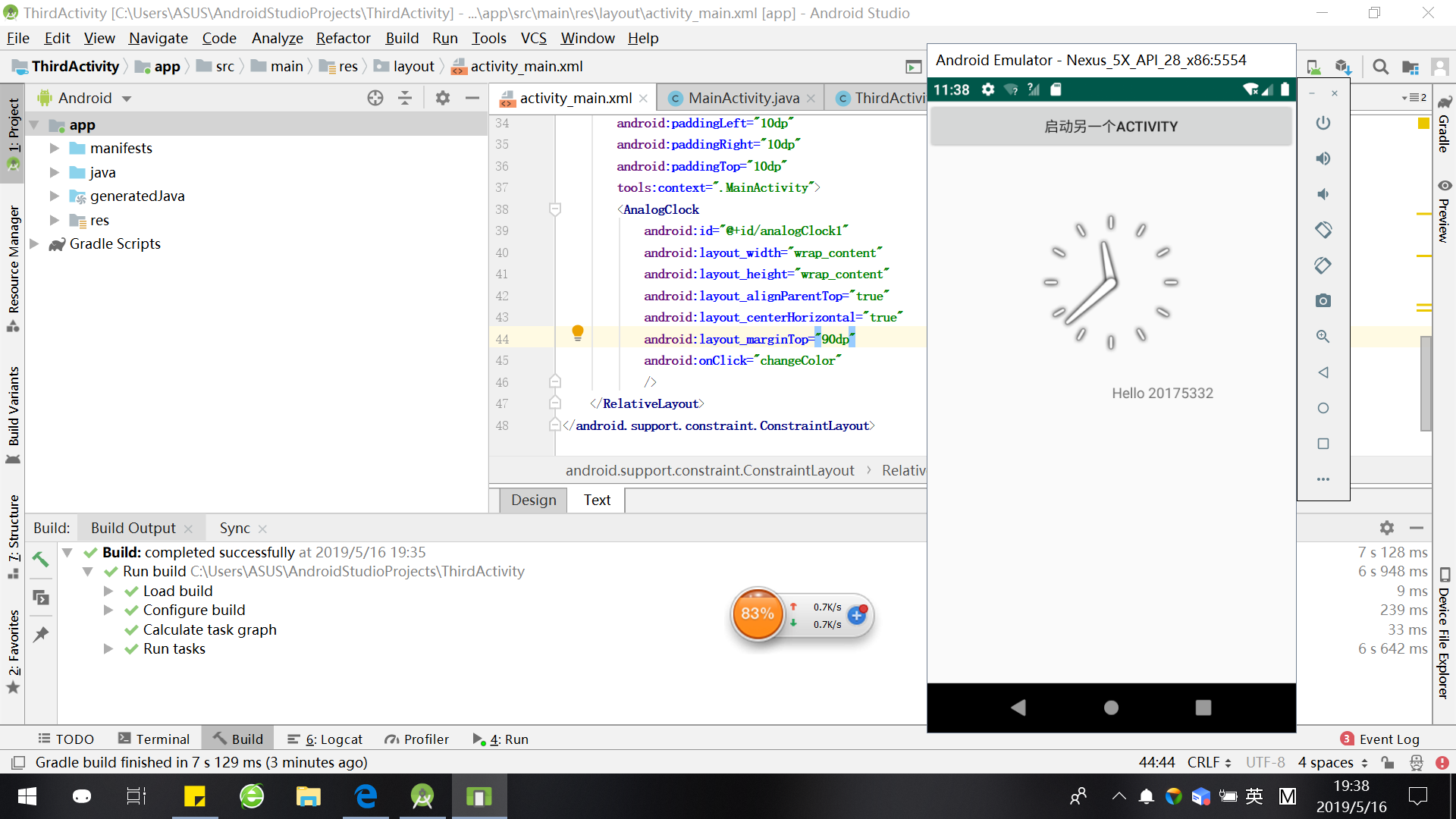
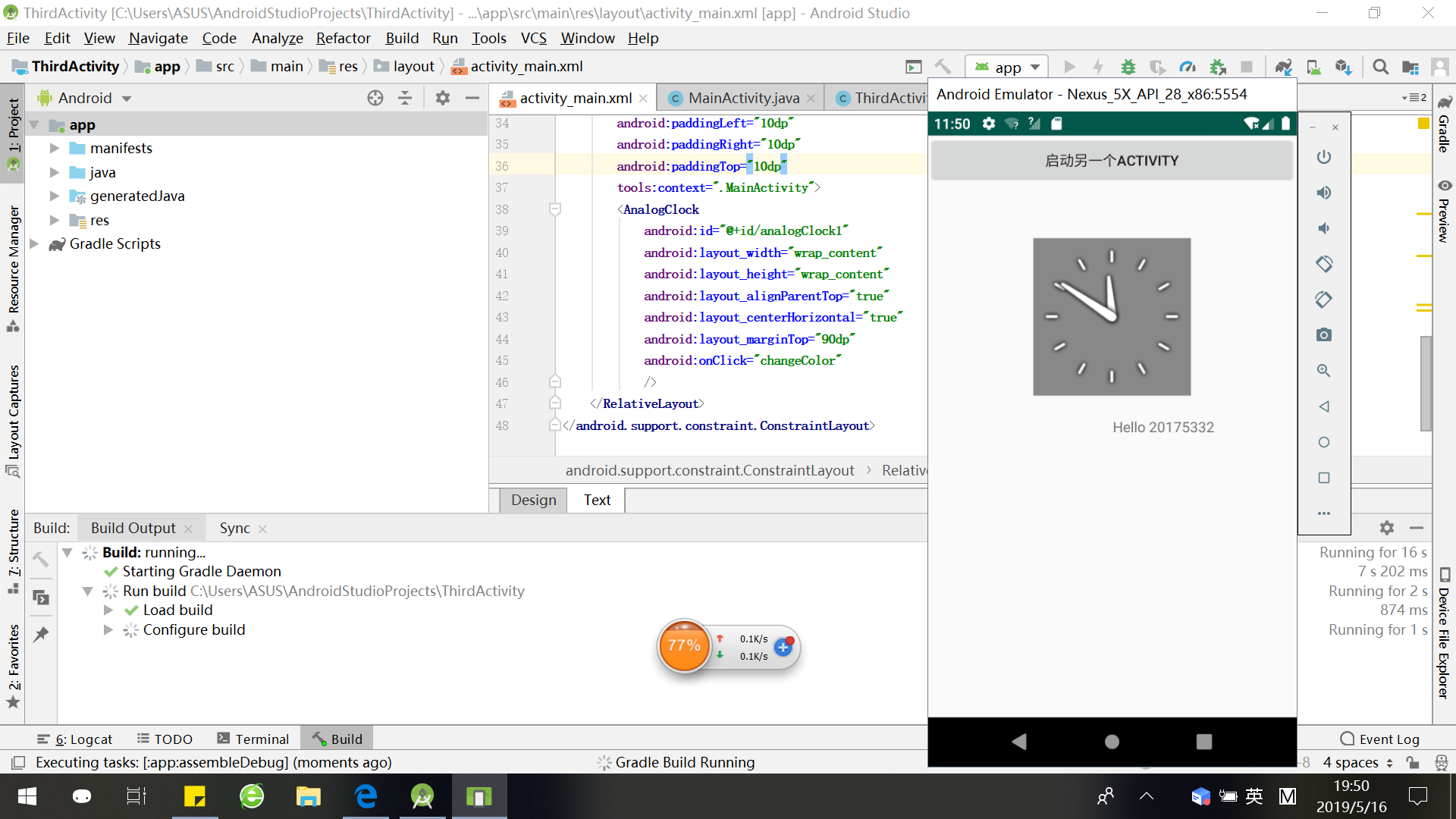
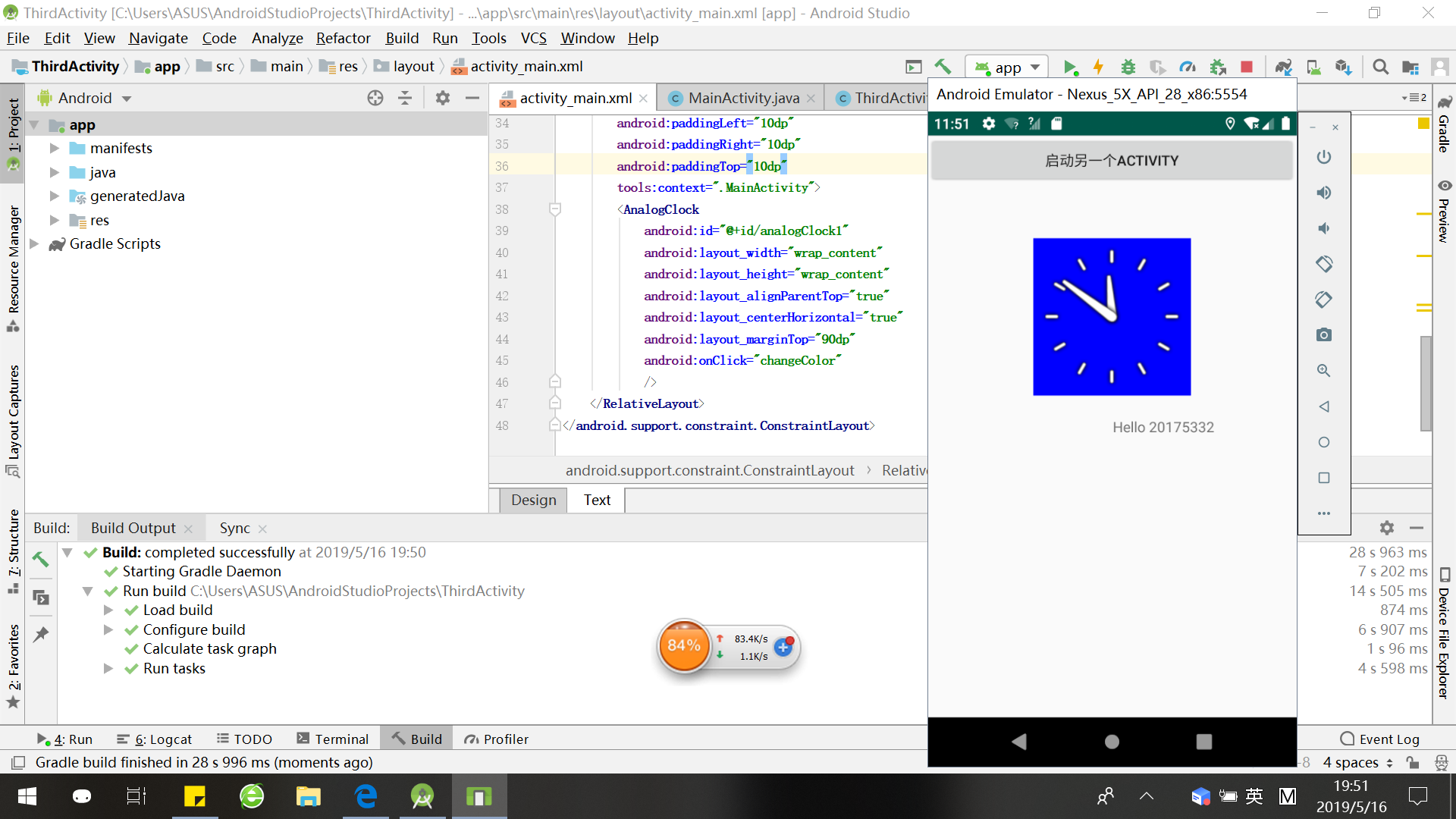
(在点击屏幕后,时钟背景颜色发生改变)
1、更改MainActivity.java
代码:
package com.example.helloworld;

import android.support.v7.app.AppCompatActivity;

import android.os.Bundle;

import android.app.Activity;

import android.graphics.Color;

import android.os.Bundle;

import android.view.Menu;

import android.view.View;

import android.widget.AnalogClock;

import android.app.Activity;

import android.graphics.Color;

import android.os.Bundle;

import android.view.Menu;

import android.view.View;

import android.widget.AnalogClock;

import com.example.helloworld.R;

public class MainActivity extends Activity {

    int counter = 0;

    int[] colors = { Color.BLACK, Color.BLUE, Color.CYAN,

            Color.DKGRAY, Color.GRAY, Color.GREEN, Color.LTGRAY,

            Color.MAGENTA, Color.RED, Color.WHITE, Color.YELLOW };

    @Override

    protected void onCreate(Bundle savedInstanceState) {

        super.onCreate(savedInstanceState);

        setContentView(R.layout.activity_main);

    }

    @Override

    public boolean onCreateOptionsMenu(Menu menu) {

// Inflate the menu; this adds items to the action bar if it

// is present.

        getMenuInflater().inflate(R.menu.menu_main, menu);

        return true;

    }

    public void changeColor(View view) {

        if (counter == colors.length) {

            counter = 0;

        }

        view.setBackgroundColor(colors[counter++]);

    }

}
2、更改activity_main
 <?xml version="1.0" encoding="utf-8"?>

<android.support.constraint.ConstraintLayout

    xmlns:android="http://schemas.android.com/apk/res/android"

    xmlns:app="http://schemas.android.com/apk/res-auto"

    xmlns:tools="http://schemas.android.com/tools"

    android:layout_width="match_parent"

    android:layout_height="match_parent"

    tools:context=".MainActivity">

    <Button

        android:id="@+id/button1"

        android:layout_width="fill_parent"

        android:layout_height="wrap_content"

        android:text="启动另一个activity"

        tools:ignore="MissingConstraints" />

    <TextView

        android:layout_width="wrap_content"

        android:layout_height="wrap_content"

        android:layout_marginEnd="80dp"

        android:layout_marginRight="80dp"

        android:text="Hello 20175332"

        app:layout_constraintBottom_toBottomOf="parent"

        app:layout_constraintEnd_toEndOf="parent"

        app:layout_constraintLeft_toLeftOf="parent"

        app:layout_constraintRight_toRightOf="parent"

        app:layout_constraintTop_toTopOf="parent"

        tools:text="Hello World!20175332" />

    <RelativeLayout

        xmlns:android="http://schemas.android.com/apk/res/android"

        xmlns:tools="http://schemas.android.com/tools"

        android:layout_width="match_parent"

        android:layout_height="match_parent"

        android:paddingBottom="10dp"

        android:paddingLeft="10dp"

        android:paddingRight="10dp"

        android:paddingTop="10dp"

        tools:context=".MainActivity">

        <AnalogClock

            android:id="@+id/analogClock1"

            android:layout_width="wrap_content"

            android:layout_height="wrap_content"

            android:layout_alignParentTop="true"

            android:layout_centerHorizontal="true"

            android:layout_marginTop="90dp"

            android:onClick="changeColor"

            />

    </RelativeLayout>

</android.support.constraint.ConstraintLayout>
3、运行
码云
https://gitee.com/zhangmiaomiao5332/java-besti-175332-zm.git
实验感想
本次实验是关于Android开发的,在进行实验过程中我对Java这个语言又有了进一步的认识。
2018-2019-2-20175332-实验四《Android程序设计》实验报告的更多相关文章
- 20165230 《Java程序设计》实验四 Android程序设计实验报告
20165230 <Java程序设计>实验四 Android程序设计实验报告 一.实验报告封面 课程:Java程序设计 班级:1652班 姓名:田坤烨 学号:20165230 成绩: 指导 ...
- 实验四 Android程序设计 实验报告
实验四 Android程序设计 实验报告 目录 代码托管地址 Android程序设计-1 Android程序设计-2 Android程序设计-3 Android程序设计-4 Android程序设计-5 ...
- 20155326 实验四 Android程序设计实验报告
20155326 实验四 Android程序设计实验报告 实验内容 1.基于Android Studio开发简单的Android应用并部署测试; 2.了解Android.组件.布局管理器的使用: 3. ...
- 20162325金立清 实验四 Android程序设计 实验报告
实验四 Android程序设计 实验报告 代码托管地址 码云链接 实验内容 安装使用Android Stuidio Activity测试 UI测试 布局测试 事件处理测试 Android程序设计-1 ...
- 实验四 Android程序设计 实验报告 20162305李昱兴
实验四 Android程序设计 实验报告 20162305李昱兴 一.Android Studio的安装测试 1.有关该软件 Android Studio,是基于Itellij IDEA的一款流行的I ...
- 20172302《程序设计与数据结构》实验四Android程序设计实验报告
课程:<程序设计与数据结构> 班级: 1723 姓名: 侯泽洋 学号:20172302 实验教师:王志强老师 实验日期:2018年5月30日 必修/选修: 必修 1.实验内容 (1)And ...
- 20155328 实验四 Android程序设计 实验报告
20155328 实验四 Android程序设计 第24章 初识Android 提交点1:完成HelloWorld并显示自己的学号 安装Android Studio后,创建了属于自己的Project( ...
- 2016-2017-2 20155312 实验四Android程序设计实验报告
遇到的问题及解决过程 「问题1」Android Studio-R文件出错 解决:参考Android Studio-R文件错误的解决办法步骤如下: 第一步:检查xml文件,R文件错误通常是由于我们的xm ...
- 20165235实验四 Android程序设计
20165235实验四 Android程序设计 实验课程:JAVA编程设计 实验名称:Android开发 姓名:祁瑛 学号:20165235 实验时间:2018.05.16 指导老师:娄家鹏 Andr ...
- 实验四 Android程序设计
20155224 实验四 Android程序设计 实验报告 实验报告封面: 课程:Java程序设计 班级:1652班 姓名:王高源 学号:20165225 指导教师:娄嘉鹏 实验日期:2018年5月1 ...
随机推荐
- (JS)应为","
在写cshtml的时候,vs提示:(JS)应为"," 功能无法实现,一般是因为 标点切成全角了,但是我是应为把‘’打成了“” 以下错误示范: $("ol").a ...
- yolo+keras+tensorflow出错:No module named 'leaky_relu'+
结论:keras2.1.5+tensorflow1.6.0即可. 首先出现的是:No module named 'leaky_relu',此时把keras改成2.1.5照样出错,改成keras2.1. ...
- vue.js+web storm安装及第一个vue.js
小白还是自己写一遍吧 1.下载node.js https://nodejs.org/en/download/ 2.安装淘宝镜像(类似于阿里云的maven中央仓库镜像) 安装时间有点长 安装命令:npm ...
- IEnumerable_vs_IEnumerator
using System; using System.Collections; using System.Collections.Generic; using System.Linq; using S ...
- Oracle一条数据多表连插
insert all into T_TRAIN_MARSHALLING <trim prefix="(GKEY," suffix=")" suffixOv ...
- 6_5.springboot2.x数据整合springData JPA
1.配置文件 pom.xml <dependencies> <dependency> <groupId>org.springframework.boot</g ...
- 关于切片/截取(slice)和random模块的使用(实例:猜单词小游戏)
切片和random的使用在源码中都有注释(可以直接下载):https://github.com/NoobZeng/GuessWords 1. README.MD 基于Python的猜单词游戏 猜单词小 ...
- printk函数速率限制
如果你不小心, 你会发现自己用 printk 产生了上千条消息, 压倒了控制台并且, 可能地, 使系统日志文件溢出. 当使用一个慢速控制台设备(例如, 一个串口), 过量的消息速率也 能拖慢系统或者只 ...
- this指针/常函数、常对象
this指针引入 类中对象的成员变量和成员函数是分开存储的,sizeof(空class) = 1,另外示例中涉及到字节对齐的问题,double本身的字节为8,int为4,由于字节对齐,int也为8,所 ...
- python相关软件安装流程图解————————pycharm安装——————pycharm-professional-2018.3.1
https://www.jetbrains.com/pycharm/download/#section=windows http://www.cnblogs.com/ceshi2016/p/91129 ...