
How to enable remote connections to SQL Server
 <img src="https://miro.medium.com/max/1400/1*18lrHvJ8YtADJDT7hxIThA.jpeg" class="ge n o gd ab" width="700" height="553"/>
Problem in hand
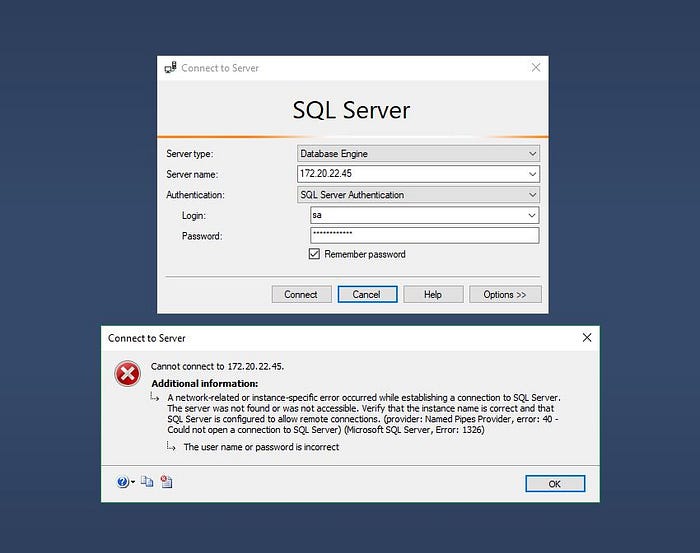
So you have a VM or a remote server, that you have installed SQL Server, but you also want to connect to SQL Server using SQL Server Management Studio on your local system, but gives you this error.
This is because you haven’t configured it to allows inbound connections from firewall or from SQL Server itself, could be both.
Prerequisites
- Remote server/VM must have SQL Server Management Studio and SQL Server Configuration Manager Installed.
- Remote SQL Server must have a user that have read and write privileges (Here I’m using sa user)
All set, let’s start
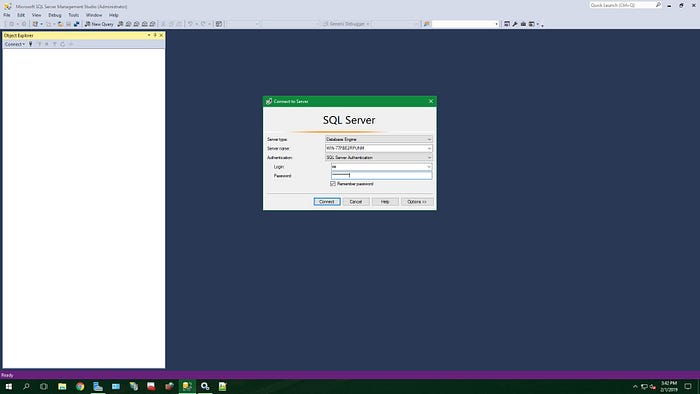
Connect to the server/VM using Remote Desktop Connection and open up SQL Server Management Stdio on remote server, then connect to the SQL Server instance.
 <img src="https://miro.medium.com/max/1400/1*ruDlsPJeSGTDk7pDBaM7Hw.jpeg" class="ge n o gd ab" width="700" height="394"/>
Connect to SQL Server instance from remote server.
 <img src="https://miro.medium.com/max/892/1*0v10_MB-4tlE3sgO28RfCA.jpeg" class="ge n o gd ab" width="446" height="501"/>
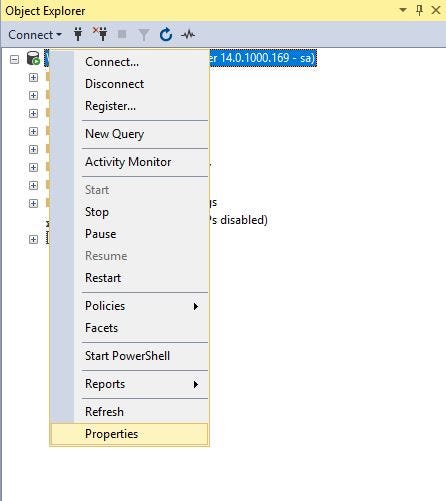
Go to server properties.
Now right click on the server and go to Properties.
 <img src="https://miro.medium.com/max/1378/1*yUx2BK492C1HnanRCyemPQ.jpeg" class="ge n o gd ab" width="689" height="625"/>
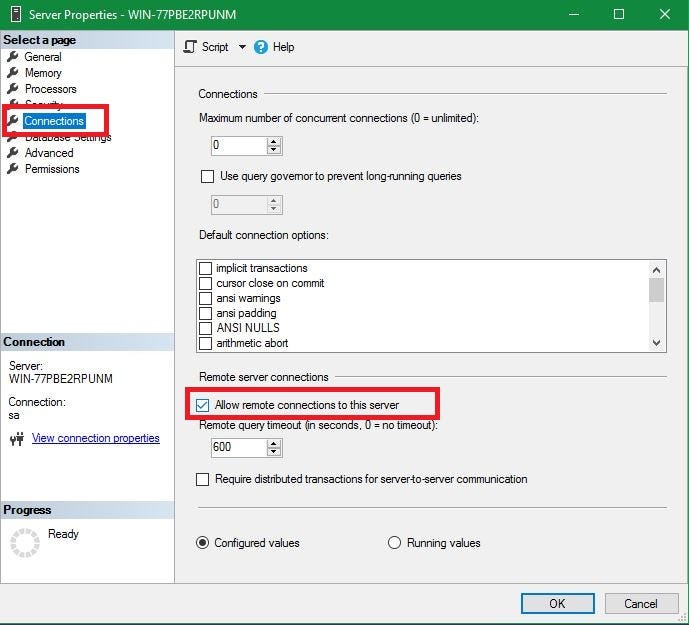
On the Connections page under Remote server connections, make sure that the Allow remote connections to this server is checked.
 <img src="https://miro.medium.com/max/1270/1*TW0Of_vNs-tVyAZxQwhc1Q.jpeg" class="ge n o gd ab" width="635" height="635"/>
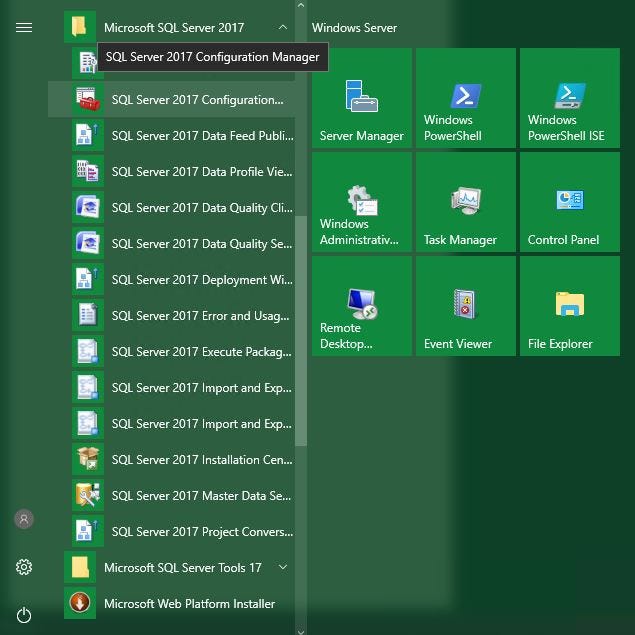
Now open SQL Server Configuration Manager.
 <img src="https://miro.medium.com/max/1164/1*bZCvhiRUMqj99ZenptRITA.jpeg" class="ge n o gd ab" width="582" height="268"/>
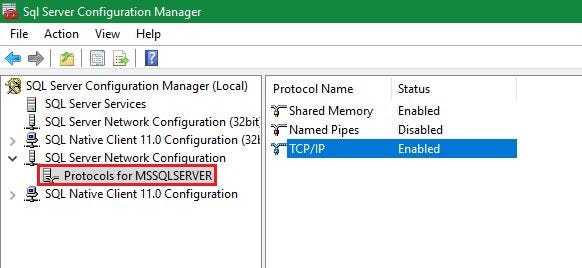
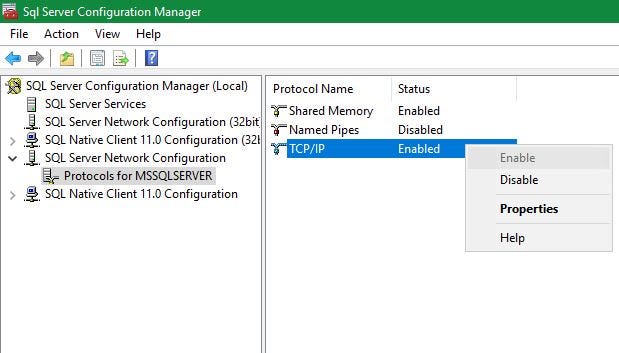
Visit Protocols for <instance name>, in my case Protocols for MSSQLSERVER under SQL Server Network Configuration node, go to TCP/IP and make sure the ‘Status’ is set to Enabled. If not, right click and select Enable.
 <img src="https://miro.medium.com/max/1238/1*9LrrYcU6ufwT1J5pgj-L-Q.jpeg" class="ge n o gd ab" width="619" height="353"/>
 <img src="https://miro.medium.com/max/1174/1*e4MOVOGwNWMMp6I8dqAlCA.jpeg" class="ge n o gd ab" width="587" height="362"/>
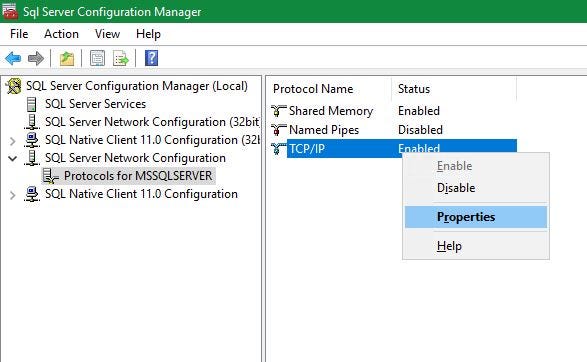
After that, again right click and select Properties of TCP/IP protocol.
 <img src="https://miro.medium.com/max/824/1*JvIellVWjttA5hHa2V9uVw.jpeg" class="ge n o gd ab" width="412" height="473"/>
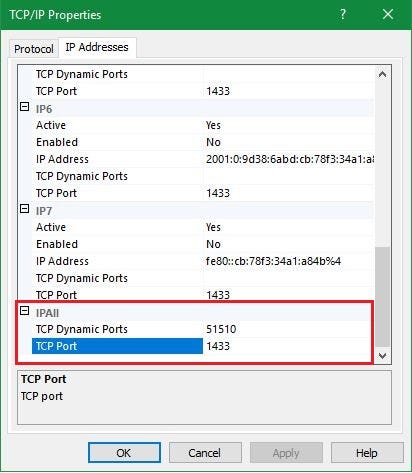
Goto IP Addresses tab and go down until you see IPALL section. Make sure the TCP Port is set to 1433. If not set it to 1433.
 <img src="https://miro.medium.com/max/964/1*fvu90GTkPhnAOxuVUiSbBg.jpeg" class="ge n o gd ab" width="482" height="164"/>
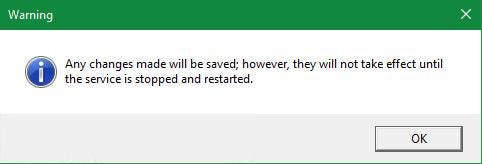
This warning will appear, so we need to restart the server. we can do it by using SQL Server Configuration manager.
 <img src="https://miro.medium.com/max/1400/1*RCkiN4lzvBTTiYixjDVF9A.jpeg" class="ge n o gd ab" width="700" height="315"/>
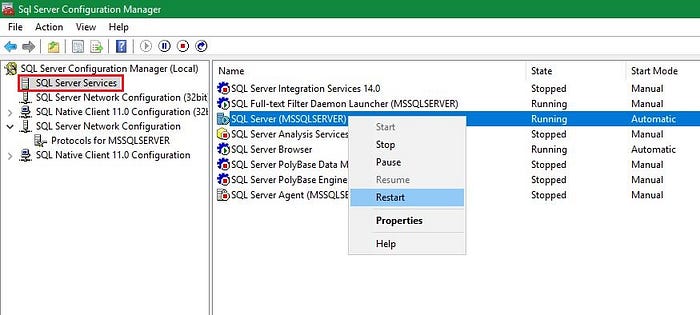
Locate SQL Server under SQL Server Services, right click and select Restart.
Now lets configure the firewall.
 <img src="https://miro.medium.com/max/786/1*Eu26_9BcTkA851nvnT1ULw.jpeg" class="ge n o gd ab" width="393" height="640"/>
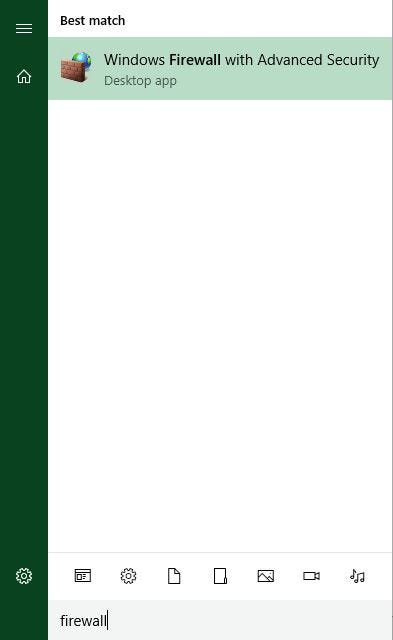
Open up Windows Firewall.
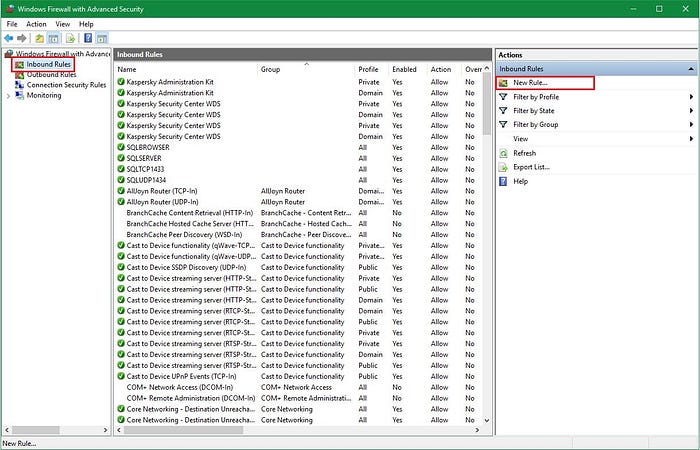 <img src="https://miro.medium.com/max/1400/1*OoGUQcvnAN6UNoM5QR9MqA.jpeg" class="ge n o gd ab" width="700" height="450"/>
Go to Inbound Rules and select New Rule.
Add the following rule. Follow images if unclear.
Rule Type: Port
Protocol and Ports: TCP, 1433
Action: Allow the connection
Profile: Domain, Private, Public
Name: SQLTCP1433
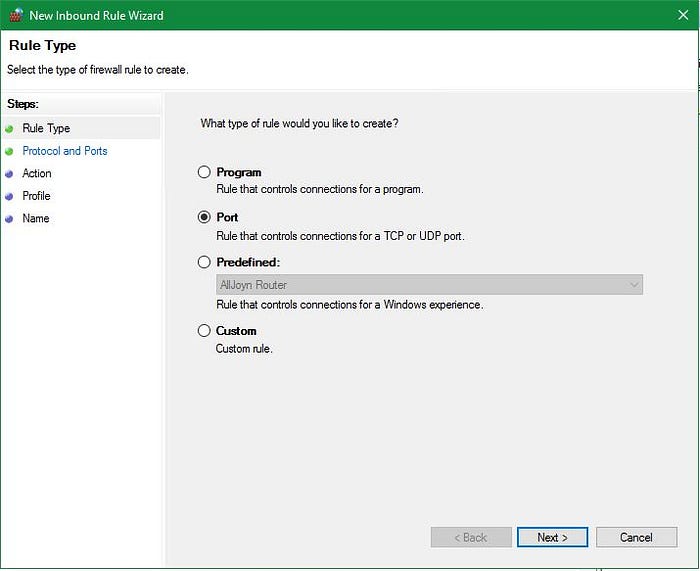
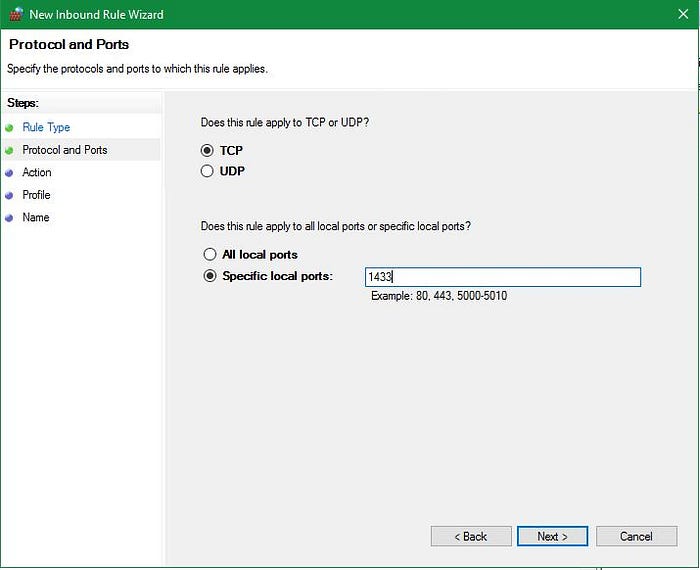
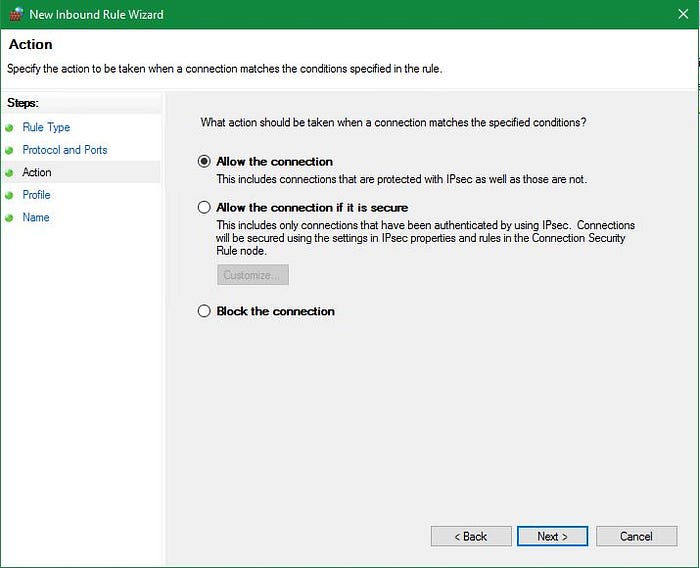
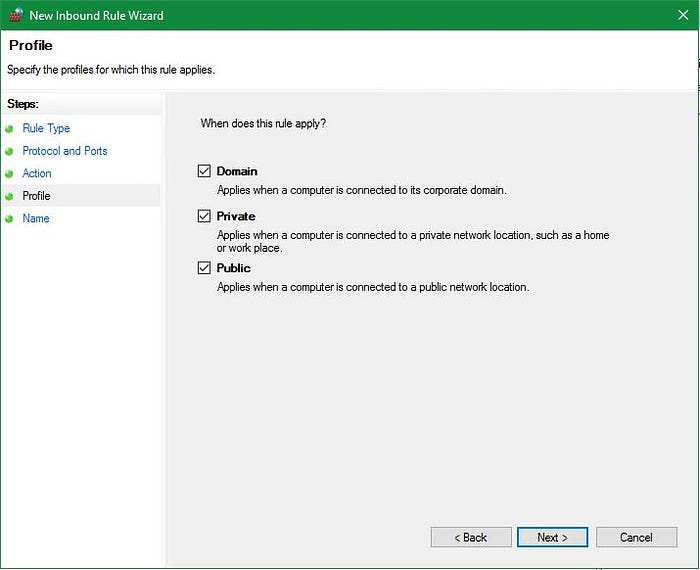
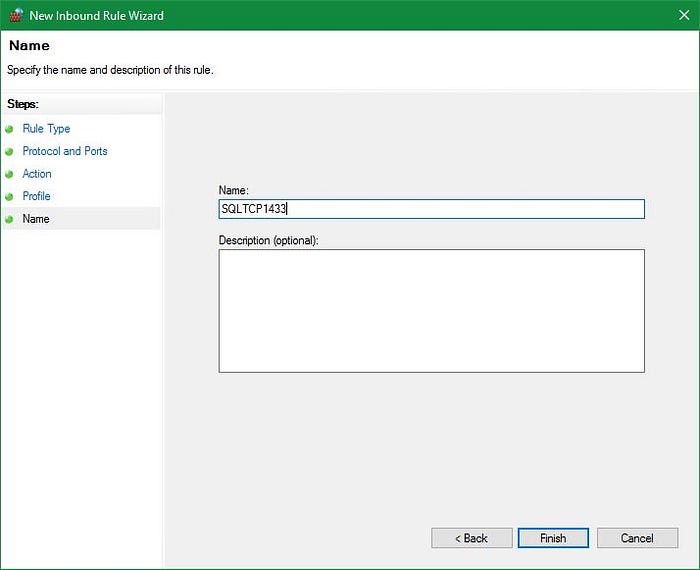 <img src="https://miro.medium.com/max/1400/1*SC7gG6jqyQov8v-EBNQ_MA.jpeg" class="ge n o gd ab" width="700" height="570"/>
Click finish. We need to add another rule for UDP connections as well.
Rule Type: Port
Protocol and Ports: UDP, 1434
Action: Allow the connection
Profile: Domain, Private, Public
Name: SQLUDP1434
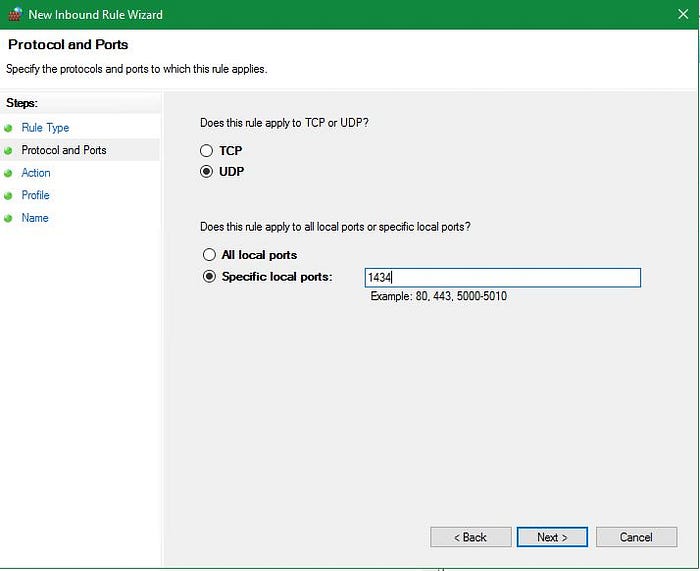 <img src="https://miro.medium.com/max/1400/1*wIqqXIQR3x-5M-qrWaNQVg.jpeg" class="ge n o gd ab" width="700" height="571"/>
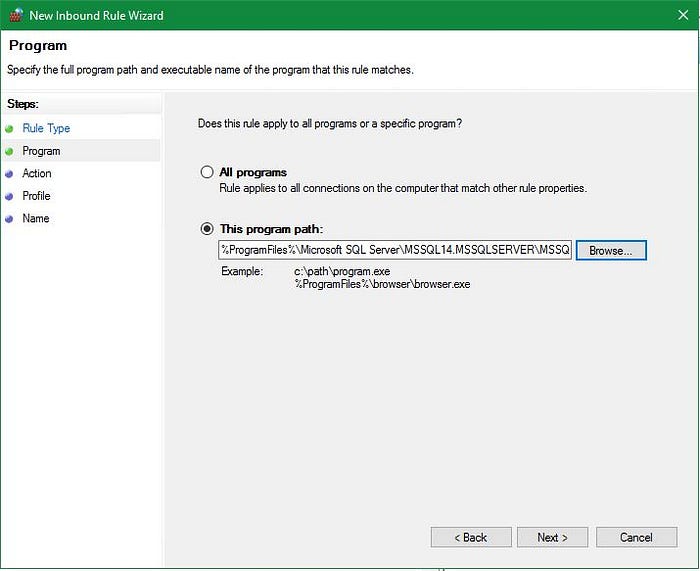
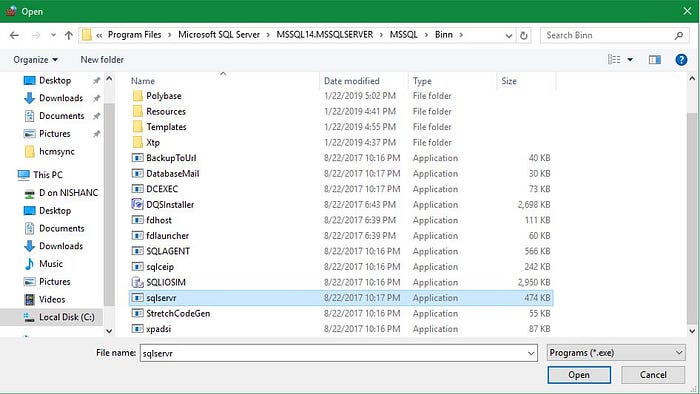
Let’ make SQL Server and SQL Server Browser accessible through firewall.
Rule Type: Program
Program: C:\Program Files\Microsoft SQL Server\<Server version>.<Instance name>\MSSQL\Binn\sqlservr.exe
e.g. C:\Program Files\Microsoft SQL Server\MSSQL14.MSSQLSERVER\MSSQL\Binn
Action: Allow the connection
Profile: Domain, Private, Public
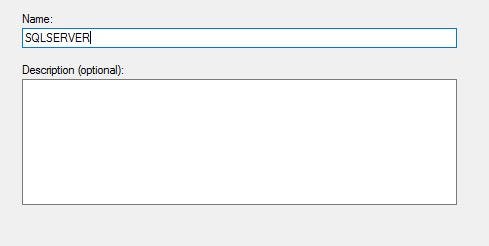
Name: SQLSERVER
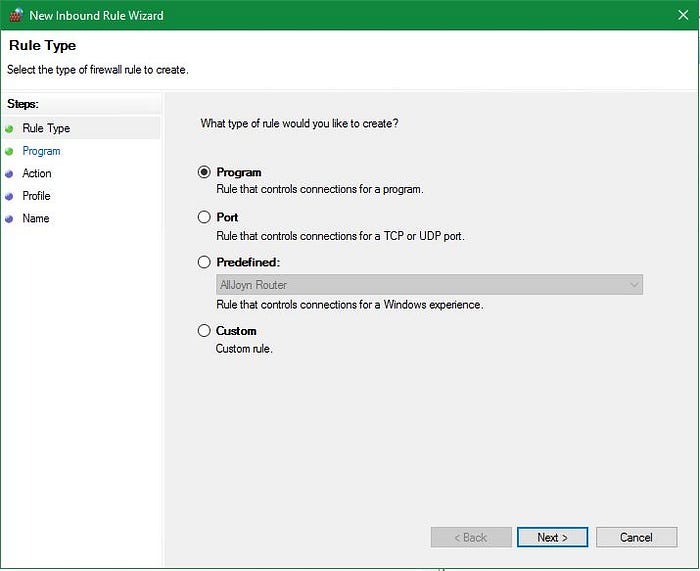
 <img src="https://miro.medium.com/max/978/1*EzYoTre_NC6_GgWgTtl4fg.jpeg" class="ge n o gd ab" width="489" height="246"/>
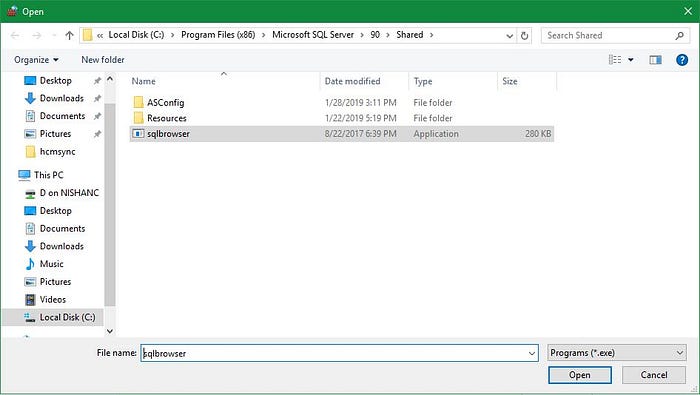
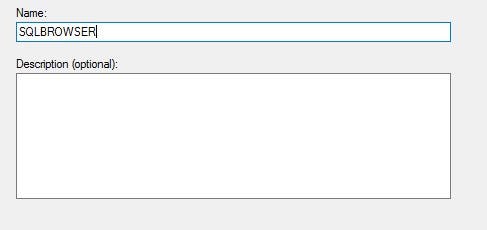
One more rule for the SQL Server Browser.
Rule Type: Program
Program: C:\Program Files (x86)\Microsoft SQL Server\90\Shared\sqlbrowser.exe
Action: Allow the connection
Profile: Domain, Private, Public
Name: SQLBROWSER
 <img src="https://miro.medium.com/max/974/1*W8CGEp_f0wdMSQrBtTXI_A.jpeg" class="ge n o gd ab" width="487" height="230"/>
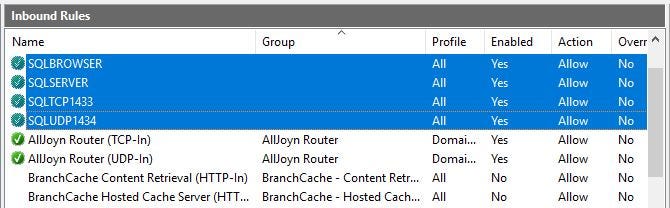
Now all four rules are setup.
 <img src="https://miro.medium.com/max/1340/1*Nv3-cfcE7UE7q43dYI0-cA.jpeg" class="ge n o gd ab" width="670" height="208"/>
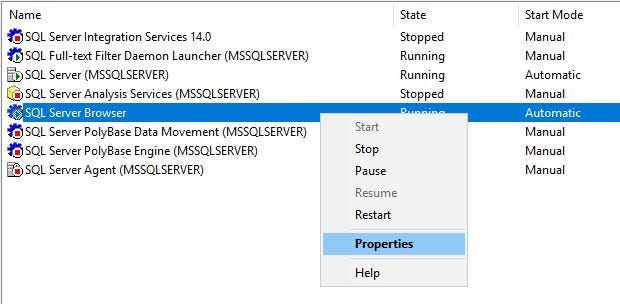
Make sure the SQL Server Browser and SQL Server is set to start automatically. Go back to SQL Server Configuration Manager and right click on SQL Server Browser under SQL Server Services, click Properties.
 <img src="https://miro.medium.com/max/1240/1*XWolZOGQEAyFiYHtTDRIEg.jpeg" class="ge n o gd ab" width="620" height="304"/>
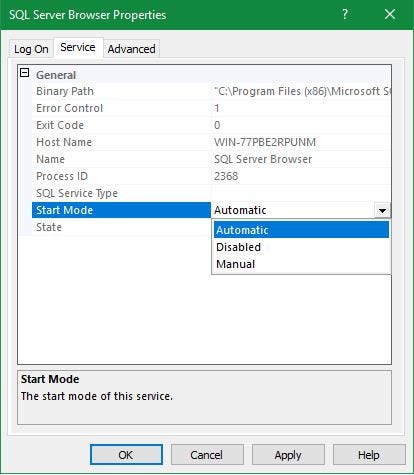
Under Service tab, select Automatic for Start mode.
 <img src="https://miro.medium.com/max/828/1*s037cncXvmNMpMvMzyojYQ.jpeg" class="ge n o gd ab" width="414" height="475"/>
Click Apply. Now let’s make sure that we keep the service failures to minimum.
- Click the Windows key + R to open the Run window.
- Type services.msc in the Open: box.
- Click OK.
 <img src="https://miro.medium.com/max/1400/1*bvILU6p0juJa7-ZcXng-6g.jpeg" class="ge n o gd ab" width="700" height="325"/>
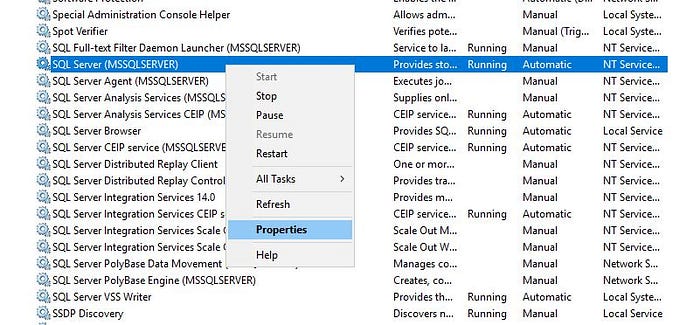
Find the SQL Server service, right click and select Properties.
 <img src="https://miro.medium.com/max/810/1*xWzgRZcBiQ93qoXNqAc3ig.jpeg" class="ge n o gd ab" width="405" height="467"/>
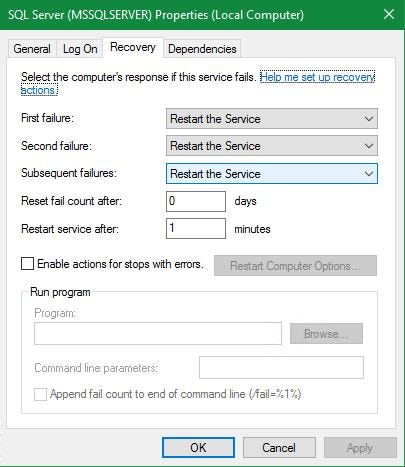
On the Recovery tab select Restart the Service for First failure, Second failure, Subsequent failures.
…and Done!.
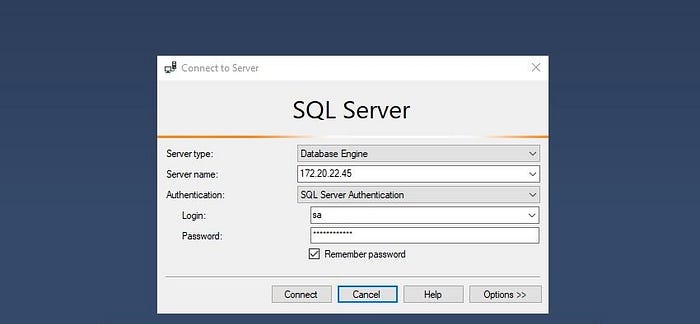
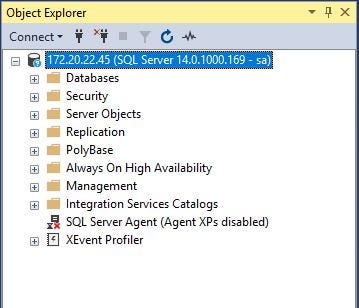
Try again to connect.
 <img src="https://miro.medium.com/max/718/1*L2xBPov_1qKCQTm5OFFwKg.jpeg" class="ge n o gd ab" width="359" height="308"/>
Awesome! You did it. :)
How to enable remote connections to SQL Server的更多相关文章
- SQL: enable sa Account in SQL Server
Link: http://sudeeptaganguly.wordpress.com/2010/04/20/how-to-enable-sa-account-in-sql-server/ 引用: Wh ...
- Enable a SQL Server Trace Flag Globally on Linux
https://www.mssqltips.com/sql-server-tip-category/226/sql-server-on-linux// Microsoft has recently r ...
- System.Data.SqlClient.SqlException: 在与 SQL Server 建立连接时出现与网络相关的或特定于实例的错误。未找到或无法访问服务器。请验证实例名称是否正确并且 SQL Server 已配置为允许远程连接。 (provider: SQL Network Interfaces, error: 26 - 定位指定的服务器/实例时出错)
A network-related or instance-specific error occurred while establishing a connection to SQL Server. ...
- 【SQL Server 问题记录】A network-related or instance-specific error occurred while establishing a connection to SQL Server. The server was not found or was not accessible.
本文涉及的相关问题,如果你的问题或需求有与下面所述相似之处,请阅读本文 A network-related or instance-specific error occurred while esta ...
- Microsoft SQL Server Trace Flags
Complete list of Microsoft SQL Server trace flags (585 trace flags) REMEMBER: Be extremely careful w ...
- Microsoft SQL Server Version List [sqlserver 7.0-------sql server 2016]
http://sqlserverbuilds.blogspot.jp/ What version of SQL Server do I have? This unofficial build ch ...
- Microsoft SQL Server Version List(SQL Server 版本)
原帖地址 What version of SQL Server do I have? This unofficial build chart lists all of the known Servic ...
- [MS SQL Server]SQL Server如何开启远程访问
在日常工作中,经常需要连接到远程的MS SQL Server数据库中.当然也经常会出现下面的连接错误. 解决方法: 1. 设置数据库允许远程连接,数据库实例名-->右键--->属性---C ...
- 解决SQL Server管理器无法连接远程数据库Error: 1326错误
解决SQL Server管理器无法连接远程数据库Error: 1326错误 我们在在使用SQL Server时都会遇到使用SQL Server Management Studio无法连接远程数据库实例 ...
随机推荐
- PL/SQL中直接写SQL语句和用EXECUTE IMMEDIATE方法的区别
PL/SQL中直接写SQL语句和用EXECUTE IMMEDIATE方法的区别 在PL/SQL中在执行SQL语句时可以直接写SQL或者可以把一个SQL语句拼成一个字符串,如下: select * fr ...
- 外网访问内网的FTP服务器
转自 外网访问内网的FTP服务器 首先感谢作者给出的总结,原文是介绍Serv-U的,我针对FileZilla Server进行了稍微修改,仅看操作可直接跳到分割线后第3部分. 1. 背景简介最近研究如 ...
- Flume-Exec Source 监控单个本地文件
实时监控,并上传到 HDFS 中. 一.Flume 要想将数据输出到 HDFS,须持有 Hadoop 相关 jar 包 若 Hadoop 环境和 Flume 在同一节点,那么只要配置 Hadoop 环 ...
- 数据分析 - Excel 函数, 技巧, 分析工具
数据分析工具使用场景 函数 分类 文本清洗函数 FIND - 查找 find 函数查询指定位置的某字符的的位置 快捷键 : 选中后双击右下角的 + 可以快速生成当前一列结果 FIND("查询 ...
- Linux批量处理常用方式
批量处理思路在工作中使用的频率比较高,比如批量清理进程.批量删除文件.批量机器执行脚本等. 一.批量清理带java字样的进程 方式1:使用shell while语法. ${line}; done sh ...
- 转载:深入理解Spring MVC 思想
原文作者:赵磊 原文地址:http://elf8848.iteye.com/blog/875830 目录 一.前言二.spring mvc 核心类与接口三.spring mvc 核心流程图 四.sp ...
- Swift小知识点总结
1>判断输入字符串位数: if phoneTextField.text?.lengthOfBytes(using: .utf8) != 11 { self.showHint(hint: &quo ...
- Java内部类(5):应用例
例1-闭包(Closure) 闭包是一个可调用的对象(通过Callback),它记录了一些信息,这些信息来自于创建它的作用域 interface Incrementable { void increm ...
- AES加密解密 加密解密使用
using System; using System.Collections.Generic; using System.IO; using System.Linq; using System.Sec ...
- vue中如何使用event对象
原文地址 一.event 对象 (一)事件的 event 对象 你说你是搞前端的,那么你肯定就知道事件,知道事件,你就肯定知道 event 对象吧?各种的库.框架多少都有针对 event 对象的处理. ...