
[转]Unity: make your lists functional with ReorderableList
原文地址:http://va.lent.in/unity-make-your-lists-functional-with-reorderablelist/
This article is reproduced, the original address:
http://va.lent.in/unity-make-your-lists-functional-with-reorderablelist/
In Unity 4.5 we got a nice (undocumented) built-in tool to visualize lists in IDE. It's called ReorderableList, it's located in UnityEditorInternalnamespace and looks like this:
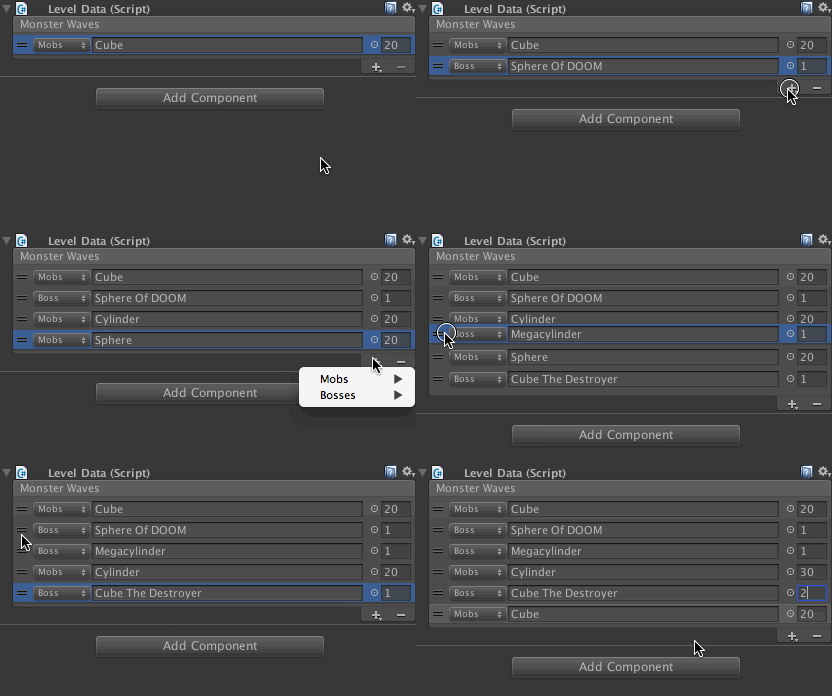
Let's see how to code this beautiful interface in Unity IDE usingReorderableList.
Note: Though UnityEditorInternal namespace is public, it seems to be intended for Unity Team internal use (hence the name), it is not documented and might change in future versions of Unity. If you notice an API change please post it in comments section below.
Sources: Project sources are on GitHub.
Setting up the project
Let's pretend that we are making a Tower Defense-like game and need a decent interface for our game-designer to set up waves of monsters for a particular level.
First, create a new Unity project.
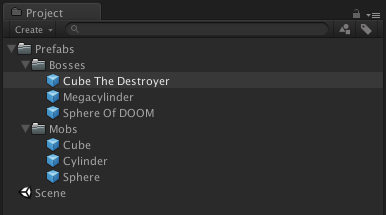
We will need some test assets: mobs and bosses. We'll be placing them in Prefabs/Mobs and Prefabs/Bosses folders. Create several prefabs and put them in these folders. Right now these can be just default cubes and spheres. Give them descriptive names. This is what I came up with:
Storing data
Create Scripts folder where we will store our C# scripts. Create two scripts in this folder: LevelData.cs and MobWave.cs.
Add this code to MobWave.cs. This is our value object for storing data for a wave of monsters.
using UnityEngine;

using System;

[Serializable]

public struct MobWave {

    public enum WaveType {

        Mobs,

        Boss

    }

    public WaveType Type;

    public GameObject Prefab;

    public int Count;

}
As you see, every wave can be either a wave of Mobs or one or more Bosses. Every wave has a link to a prefab to clone and a number of copies.
Note: Unity can serialize custom structs since version 4.5.
Add this code to LevelData.cs. This is just a container for our MobWave objects.
using UnityEngine;

using System.Collections.Generic;

public class LevelData : MonoBehaviour {

    public List<MobWave> Waves = new List<MobWave>();

}
Add a GameObject to your scene and call it Data. Add LevelData component to this game object and set it up as shown in the GIF animation below.
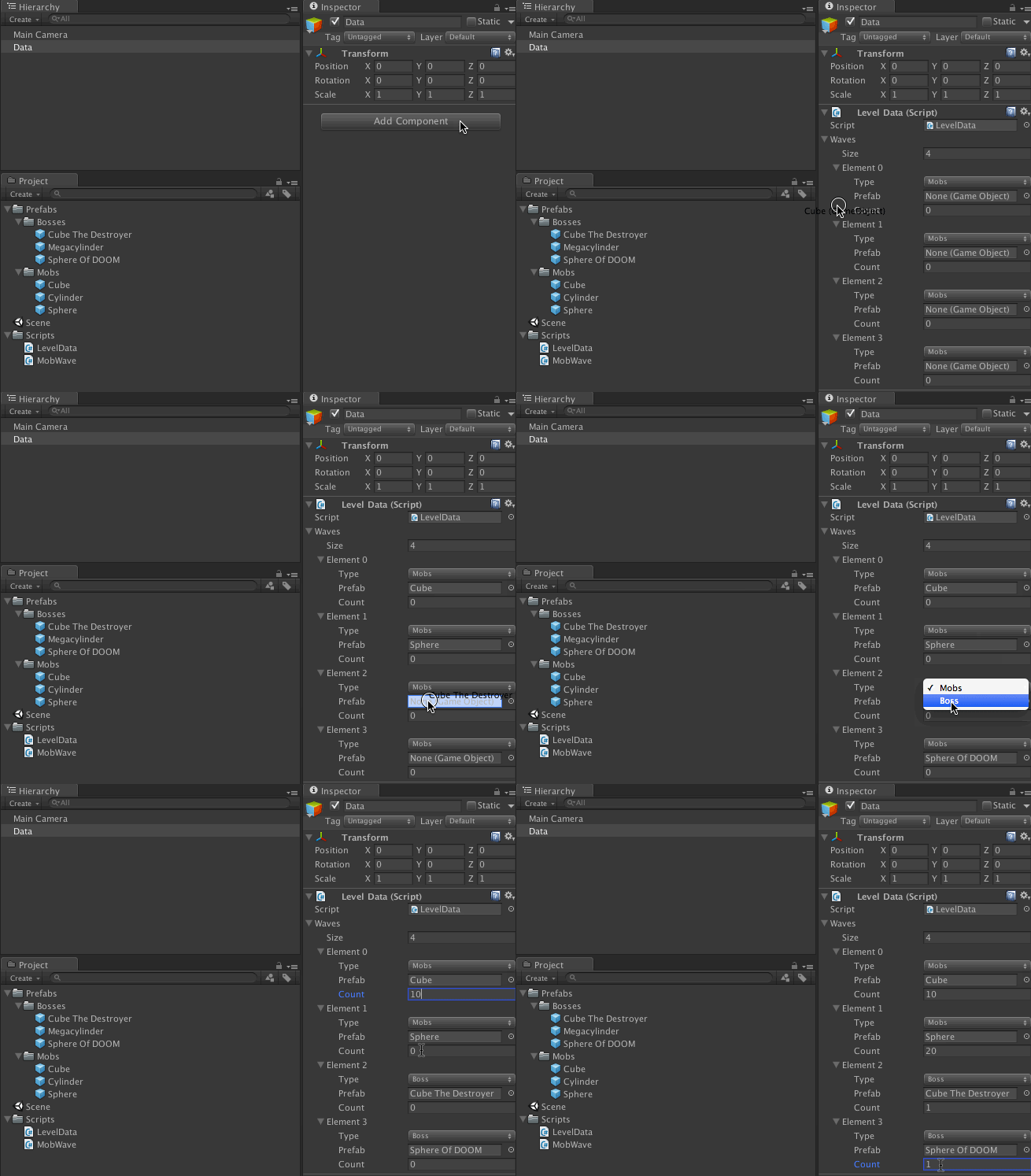
This is basically how lists in Unity IDE look by default. Of course they are not bad, but they become a major pain very quickly when you have many items in a list and want to move them around and add some in the middle.
Building a custom inspector
For every Component in Unity IDE you can create a custom inspector which will change how the component is shown in Inspector tab. Right now we will do this for our LevelData.cs script to change Unity's default list rendering to more functional ReorderableList.
Create Editor folder and a new script inside. Call it LevelDataEditor.cs.
Note: All custom inspectors must be in Editor folder and inherit from
Editorclass.
Add this code to the new script:
using UnityEngine;

using UnityEditor;

using UnityEditorInternal;

[CustomEditor(typeof(LevelData))]

public class LevelDataEditor : Editor {

    private ReorderableList list;

    private void OnEnable() {

        list = new ReorderableList(serializedObject,

                serializedObject.FindProperty("Waves"),

                true, true, true, true);

    }

    public override void OnInspectorGUI() {

        serializedObject.Update();

        list.DoLayoutList();

        serializedObject.ApplyModifiedProperties();

    }

}
All custom inspector classes have the same important parts:
- A custom inspector must inherit from
Editorclass, - To tell Unity that this is an inspector for
LevelDatacomponent we must add[CustomEditor(typeof(LevelData))]attribute, private void OnEnable()method is used for initialization,public override void OnInspectorGUI()method is called when inspector is redrawn.
In our case in OnEnable we are creating an instance of ReorderableList to draw our Waves property. Don't forget to import UnityEditorInternal namespace:
using UnityEditorInternal;
ReorderableList works with standard C# lists as well as withSerializedProperties. It has two constructors and their more general variants:
public ReorderableList(IList elements, Type elementType),public ReorderableList(SerializedObject serializedObject, SerializedProperty elements).
In this example we are using SerializedProperty because this is the recommended way of working with properties in custom inspectors. This makes the code smaller and works nicely with Unity and Undo system.
public ReorderableList(

    SerializedObject serializedObject,

    SerializedProperty elements,

    bool draggable,

    bool displayHeader,

    bool displayAddButton,

    bool displayRemoveButton);
As you see just by using right parameters we can restrict adding, removing and reordering of items in our list.
Later in the code we just call list.DoLayoutList() to draw the interface.
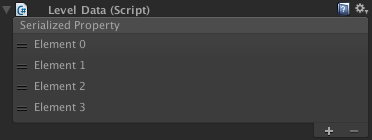
Right now you are probably saying: "Wait, this looks even worse!". But wait a minute, our data structure is complex so Unity doesn't know how to draw it properly. Let's fix this.
Drawing list items
ReorderableList exposes several delegates we can use to customize our lists. The first one is drawElementCallback. It's called when a list item is drawn.
Add this code in OnEnable after the list is created:
list.drawElementCallback =

    (Rect rect, int index, bool isActive, bool isFocused) => {

    var element = list.serializedProperty.GetArrayElementAtIndex(index);

    rect.y += ;

    EditorGUI.PropertyField(

        new Rect(rect.x, rect.y, , EditorGUIUtility.singleLineHeight),

        element.FindPropertyRelative("Type"), GUIContent.none);

    EditorGUI.PropertyField(

        new Rect(rect.x + , rect.y, rect.width -  - , EditorGUIUtility.singleLineHeight),

        element.FindPropertyRelative("Prefab"), GUIContent.none);

    EditorGUI.PropertyField(

        new Rect(rect.x + rect.width - , rect.y, , EditorGUIUtility.singleLineHeight),

        element.FindPropertyRelative("Count"), GUIContent.none);

};
Return to Unity. Now all the list items are pretty and functional. Try adding new ones and dragging them around. This is much better, right?
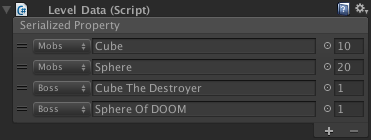
If you are not familiar with the syntax and APIs in the code you just pasted, this is a standard C# lambda-expression with Editor GUI methods.
Note: I't important to have a semicolon at the end of a lambda };
Here we are getting the list item being drawn:
var element = list.serializedProperty.GetArrayElementAtIndex(index);
We are using FindPropertyRelative method to find properties of the wave:
element.FindPropertyRelative("Type")
And after that we are drawing 3 properties in one line: Type, Prefab and Count:
EditorGUI.PropertyField(

    new Rect(rect.x, rect.y, , EditorGUIUtility.singleLineHeight),

    element.FindPropertyRelative("Type"), GUIContent.none);
Note that list header says "Serialized Property". Let's change it to something more informative. To do this we need to use drawHeaderCallback.
Paste this code in OnEnable method:
list.drawHeaderCallback = (Rect rect) => {

    EditorGUI.LabelField(rect, "Monster Waves");

};
Now it feels right.
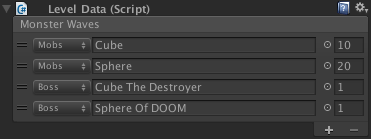
At this stage the list is fully functional but I want to show you how we can extend it even further. Let's see what other callbacks ReorderableList has to offer.
Callbacks
Here are all the callbacks exposed by an instance of ReorderableList:
- drawElementCallback
- drawHeaderCallback
- onReorderCallback
- onSelectCallback
- onAddCallback
- onAddDropdownCallback
- onRemoveCallback
- onCanRemoveCallback
- onChangedCallback
drawElementCallback
Signature: (Rect rect, int index, bool isActive, bool isFocused)
Here you can specify exactly how your list elements must be drawn. Because if you don't this code is used to draw list elements:
EditorGUI.LabelField(rect,

    EditorGUIUtility.TempContent((element == null) ? listItem.ToString() : element.displayName));
drawHeaderCallback
Signature: (Rect rect)
Is used to draw list header.
onReorderCallback
Signature: (ReorderableList list)
Called when an element is moved in the list.
onSelectCallback
Signature: (ReorderableList list)
Called when an element is selected in the list.
onAddCallback
Signature: (ReorderableList list)
Called when the + button is pressed. If this callback is assigned it must create an item itself, in this case default logic is disabled.
onAddDropdownCallback
Signature: (Rect buttonRect, ReorderableList list)
Called when the + button is pressed. If this callback is assigned + button changes to Add more button and onAddCallback is ignored. As with onAddCallback you must create a new list element yourself.
onRemoveCallback
Signature: (ReorderableList list)
Called to remove selected element from the list. If this callback is defined default logic is disabled.
onCanRemoveCallback
Signature: bool (ReorderableList list)
Called when — button is drawn to determine if it should be active or disabled.
onChangedCallback
Signature: (ReorderableList list)
Called when the list is changed, i.e. an item added, removed or rearranged. If data within an item is changed this callback is not called.
Adding selection helper
You can add Debug.Log() to all these callbacks to see when they are called. But now let's make something useful with some of them.
The first one will be onSelectCallback. We'll make that when you select an element the corresponding mob prefab is highlighted in Project panel.
Add this code to OnEnable method:
list.onSelectCallback = (ReorderableList l) => {

    var prefab = l.serializedProperty.GetArrayElementAtIndex(l.index).FindPropertyRelative("Prefab").objectReferenceValue as GameObject;

    if (prefab)

        EditorGUIUtility.PingObject(prefab.gameObject);

};
The code is pretty simple. We are looking for Prefab property of selected wave and if it's defined we are calling EditorGUIUtility.PingObject method to highlight it in Project panel.
Checking how many waves have left
Let's say that we want to have at least one wave in our list at all times. In other words we want to disable — button if there's only one element in the list. We can do this using onCanRemoveCallback.
Add this code to OnEnable method:
list.onCanRemoveCallback = (ReorderableList l) => {

    return l.count > ;

};
Now try deleting all elements from the list. You will see that if there's only one element the — button is disabled.
Adding a warning
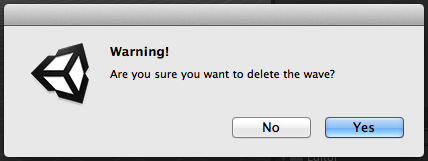
We don't really want to accidentally delete an item in our list. Using onRemoveCallback we can display a warning and make a user press Yes button if he really wants to delete an element.
list.onRemoveCallback = (ReorderableList l) => {

    if (EditorUtility.DisplayDialog("Warning!",

        "Are you sure you want to delete the wave?", "Yes", "No")) {

        ReorderableList.defaultBehaviours.DoRemoveButton(l);

    }

};
Note how we used ReorderableList.defaultBehaviours.DoRemoveButton method here. ReorderableList.defaultBehaviours contains all default implementations for various functions which sometimes can be handy if you don't want to reinvent the wheel.
Initializing a newly created element
What if we wanted to add a preconfigured element when a user presses +button instead of copying the last one in the list? We can intercept the logic of adding elements using onAddCallback.
Add the following code to OnEnable method:
list.onAddCallback = (ReorderableList l) => {

    var index = l.serializedProperty.arraySize;

    l.serializedProperty.arraySize++;

    l.index = index;

    var element = l.serializedProperty.GetArrayElementAtIndex(index);

    element.FindPropertyRelative("Type").enumValueIndex = ;

    element.FindPropertyRelative("Count").intValue = ;

    element.FindPropertyRelative("Prefab").objectReferenceValue =

            AssetDatabase.LoadAssetAtPath("Assets/Prefabs/Mobs/Cube.prefab",

            typeof(GameObject)) as GameObject;

};
Here we are adding an empty wave to the end of the list and with the help of element.FindPropertyRelative method we are setting its properties to predefined values. In case of Prefab property we are looking for the specific prefab at pathAssets/Prefabs/Mobs/Cube.prefab. Make sure that you created the folder structure accordingly.
Now return to Unity and try adding new elements to the list. You will see that new elements are always added as Cubes with Count equal to 20.
Adding drop-down menu
The last example will be the most interesting. We will make a dynamic drop-down menu activated by + button using onAddDropdownCallback.
In Prefabs folder we have 3 mobs and 3 bosses, so it would be natural to be able to add a specific one from a menu instead of manually dragging prefabs in the list.
Let's first add a new data type which we will later use in our menu system. Add this code at the end of the file before the last }.
private struct WaveCreationParams {

    public MobWave.WaveType Type;

    public string Path;

}
Next, define a callback which will be called by built-in Unity menu system. Right now it's empty but we'll fix this later. Add the following code after OnInspectorGUI method.
private void clickHandler(object target) {}
And now is the time to define our onAddDropdownCallback. Add this code in OnEnable method:
list.onAddDropdownCallback = (Rect buttonRect, ReorderableList l) => {

    var menu = new GenericMenu();

    var guids = AssetDatabase.FindAssets("", new[]{"Assets/Prefabs/Mobs"});

    foreach (var guid in guids) {

        var path = AssetDatabase.GUIDToAssetPath(guid);

        menu.AddItem(new GUIContent("Mobs/" + Path.GetFileNameWithoutExtension(path)),

        false, clickHandler,

        new WaveCreationParams() {Type = MobWave.WaveType.Mobs, Path = path});

    }

    guids = AssetDatabase.FindAssets("", new[]{"Assets/Prefabs/Bosses"});

    foreach (var guid in guids) {

        var path = AssetDatabase.GUIDToAssetPath(guid);

        menu.AddItem(new GUIContent("Bosses/" + Path.GetFileNameWithoutExtension(path)),

        false, clickHandler,

        new WaveCreationParams() {Type = MobWave.WaveType.Boss, Path = path});

    }

    menu.ShowAsContext();

};
Here we are building dynamic drop-down menu from the files in Mobs andBosses folders, assigning instances of WaveCreationParams to them to be able to find out what menu element was clicked later in clickHandler.
If you set up your folder structure right and didn't forget to add using System.IO; in the beginning of the file, you can now return to Unity and try pressing +button (which is now Plus More) to see how it works.
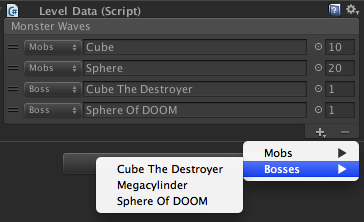
Now all what's left is to add actual wave creation logic to clickHandler:
private void clickHandler(object target) {

    var data = (WaveCreationParams)target;

    var index = list.serializedProperty.arraySize;

    list.serializedProperty.arraySize++;

    list.index = index;

    var element = list.serializedProperty.GetArrayElementAtIndex(index);

    element.FindPropertyRelative("Type").enumValueIndex = (int)data.Type;

    element.FindPropertyRelative("Count").intValue =

        data.Type == MobWave.WaveType.Boss ?  : ;

    element.FindPropertyRelative("Prefab").objectReferenceValue =

        AssetDatabase.LoadAssetAtPath(data.Path, typeof(GameObject)) as GameObject;

    serializedObject.ApplyModifiedProperties();

}
When a menu item is clicked this method is called with the value object we specified earlier. This value object containing in data variable is used to set up properties of the newly created wave. To assing the right Prefab to the wave we are using AssetDatabase.LoadAssetAtPath(data.Path, typeof(GameObject))method with the path we found in onAddDropdownCallback.
In conclusion
Of the all available callbacks we haven't touched only onChangedCallback and onReorderCallback because they are not really interesting. But you must know that they exist.
If you've been working with Unity for a long time you should know how hard it is to make a proper interface for a collection of things in Unity IDE. Especially when this wasn't in your time budget from the beginning. I've been using another implementation of ReorderableList by rotorz for a while. But now when we have an implementation from Unity Team there's no excuse not to use it.
If you want to find out how this list is implemented you can use ILSpy to decompile UnityEditor.dll which is (thankfully) not obfuscated or otherwise protected.
May the pretty lists be with you!
P.S. Alexei in comments proposed a solution to list item height problem which is described here: https://feedback.unity3d.com/suggestions/custom-element-size-in-reorderable-list
Code: http://pastebin.com/WhfRgcdC 
[转]Unity: make your lists functional with ReorderableList的更多相关文章
- Unity中实现List类型的自定义GUI(ReorderableList)
感谢韩同学提供的资源 Unity本身提供了float,int,vector3..等类型字段的gui接口,而对于集合类型一般要自己硬写. 官方提供了一个List的自定义GUI,但使用起来非常复杂 Uni ...
- Unity Glossary
https://docs.unity3d.com/2018.4/Documentation/Manual/Glossary.html 2D terms 2D Physics terms AI term ...
- Unity 最佳实践
转帖:http://www.glenstevens.ca/unity3d-best-practices/ 另外可以参考:http://devmag.org.za/2012/07/12/50-tips- ...
- Functional Programming without Lambda - Part 1 Functional Composition
Functions in Java Prior to the introduction of Lambda Expressions feature in version 8, Java had lon ...
- Unity文档阅读 第二章 依赖注入
Introduction 介绍Chapter 1 outlines how you can address some of the most common requirements in enterp ...
- Unity文档阅读 第一章 入门
Before you learn about dependency injection and Unity, you need to understand why you should use the ...
- Intro to Airplane Physics in Unity 3D – 2017 and 2018
Info:DescriptionHave you ever wanted to build your own Airplane Physics using the Rigidbody componen ...
- Unity编辑器扩展-Custom List, displaying data your way
本文转自http://catlikecoding.com/unity/tutorials/editor/custom-list/ Custom List, displaying data your w ...
- Unity 2018 By Example 2nd Edition
Unity is the most exciting and popular engine used for developing games. With its 2018 release, Unit ...
随机推荐
- springday05-go1
新建web工程spring-netcross1.导入spring文件夹里的七个jar包,另外还要导入jdbc-lib的四个jar包,ojdbc.jar,commoms-pool,commons-dbc ...
- Session的工作机制详解和安全性问题(PHP实例讲解)
我们先简单的了解一些http的知识,从而理解该协议的无状态特性.然后,学习一些关于cookie的基本操作.最后,我会一步步阐述如何使用一些简单,高效的方法来提高你的php应用程序的安全性以及稳定行. ...
- ansible自动化运维工具的安装与使用
运行环境 centOS6.6 ansible ansible的功能还是比较多的,博主只用它在集群上进行批量部署软件和维护的功能,其他不多做研究,有需要的话这篇文章会慢慢补充. ansible特点 轻量 ...
- 夺命雷公狗---DEDECMS----3快速入门之隐藏
如果我们在工作的时候遇到上操蛋的老板,本来公司是做医疗器械的,但是老板突然老了句我们不做医疗了,我们该做电影网,那么我们可以先将原本的栏目进行修改成隐藏栏目, 主要是预防变态老板突然来句“电影网更不好 ...
- fault coverage enhancement
在pseudo-random test中,由于random pattern resistant的特性,fault coverage不是sufficient的, 所以会有一些办法来进行coverage的 ...
- 静态关键字static
//静态关键字的使用static //类里面的普通成员是属于对象的,不是属于类的(调用的时候是用对象调用) //什么叫做静态的:类静态成员是属于类的,不是属于每个对象的 //定义静态成员用static ...
- 记在centos中连接无线网络的一次过程
1. 首先, 你的系统要能驱动无限网卡, 要是人品好的话, 系统已经自带了你的网卡的驱动程序. 不然就要先搞定无线网卡的驱动再说. 不然后面的步骤也就没必要了. 2. 看一下你的无线网卡叫什么: iw ...
- Eclipse启动认定SDK地址,出现Error executing aapt
我把安卓的SDK安装在D盘,但是新建项目之后,提示的错误是 就是认定在F盘了,可是那个时候我只是在F盘启动了第一次,之后就拷贝到了D盘的, 是不是第一次启动就会注册了什么的呢? 解决方案: 更改你的e ...
- 【python cookbook】【字符串与文本】3.利用shell通配符做字符串匹配
问题:当工作在Linux shell下时,使用常见的通配符模式(即,*.py.Dat[0-9]*.csv等)来对文本做匹配 解决方案:fnmatch模块提供的两个函数fnmatch().fnmatch ...
- pybot/robot命令参数说明
Robot Framework -- A generic test automation framework Version: 3.0 (Python 3.4.0 on win32) Usage: r ...