
2017-2018-2 20165330 实验四《Android程序设计》实验报告
下载与安装Android Studio
- 下载地址:Download Android Studio
- 安装教程参考Android开发简易教程
实验内容
任务一
- 参考《Java和Android开发学习指南(第二版)(EPUBIT,Java for Android 2nd)》第二十四章,完成Hello World, 要求修改res目录中的内容,Hello World后要显示自己的学号,自己学号前后一名同学的学号
- 实验过程
- 找到
app下的res目录,点击layout中的activity_main.xml,修改其中的android:text="Hello World!"
- 找到
- 源代码
<?xml version="1.0" encoding="utf-8"?>

<android.support.constraint.ConstraintLayout xmlns:android="http://schemas.android.com/apk/res/android"

    xmlns:app="http://schemas.android.com/apk/res-auto"

    xmlns:tools="http://schemas.android.com/tools"

    android:layout_width="match_parent"

    android:layout_height="match_parent"

    tools:context=".MainActivity">

    <TextView

        android:layout_width="wrap_content"

        android:layout_height="wrap_content"

        android:text="Hello World!20165329 20165330 20165331"

        app:layout_constraintBottom_toBottomOf="parent"

        app:layout_constraintLeft_toLeftOf="parent"

        app:layout_constraintRight_toRightOf="parent"

        app:layout_constraintTop_toTopOf="parent" />

</android.support.constraint.ConstraintLayout>
- 运行结果截图
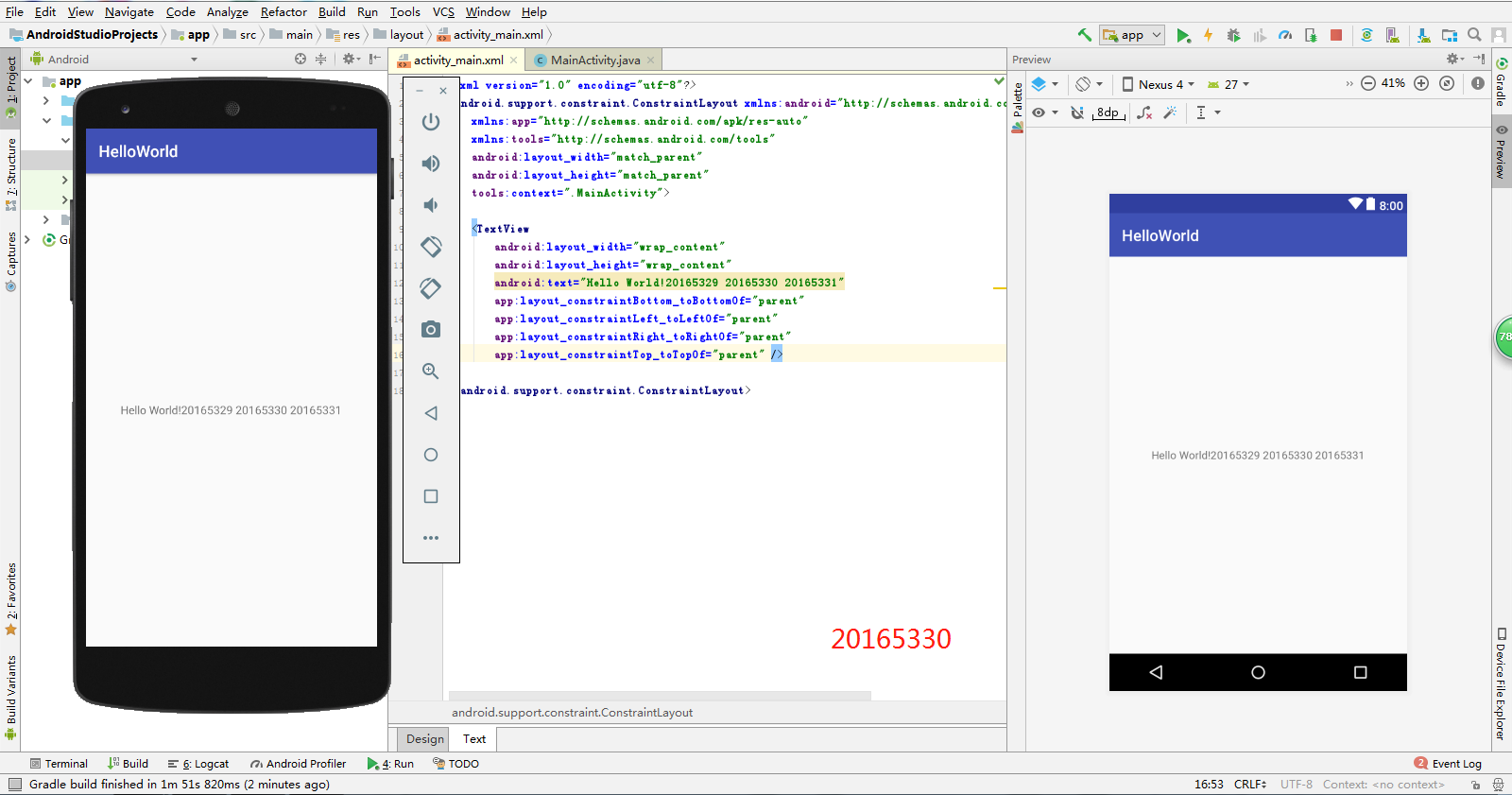
任务二
- 参考《Java和Android开发学习指南(第二版)(EPUBIT,Java for Android 2nd)》第二十五章:
- 构建项目,运行教材相关代码
- 创建ThirdActivity,在ThirdActivity中显示自己的学号,修改代码让MainActivity启动ThirdActivity
- 实验过程
- 创建
ThirdActivity - 修改
MainActivity中的代码 - 在
main中新建thirdactivity_main.xml并修改android:text="Hello World!"内容
- 创建
- MainActivity.java
package zyx.is.besti.edu.cn.helloworld;

import android.support.v7.app.AppCompatActivity;

import android.os.Bundle;

import android.content.Intent;

public class MainActivity extends AppCompatActivity {

    @Override

    protected void onCreate(Bundle savedInstanceState) {

        super.onCreate(savedInstanceState);

        setContentView(R.layout.activity_main);

        Intent intent = new Intent(this,ThirdActivity.class);

        startActivity(intent);

    }

}
- thirdactivity_main.xml
<?xml version="1.0" encoding="utf-8"?>

<android.support.constraint.ConstraintLayout xmlns:android="http://schemas.android.com/apk/res/android"

    xmlns:app="http://schemas.android.com/apk/res-auto"

    xmlns:tools="http://schemas.android.com/tools"

    android:layout_width="match_parent"

    android:layout_height="match_parent"

    tools:context=".ThirdActivity">

    <TextView

        android:layout_width="wrap_content"

        android:layout_height="wrap_content"

        android:text="20165330张羽昕" />

</android.support.constraint.ConstraintLayout>
- 运行结果截图
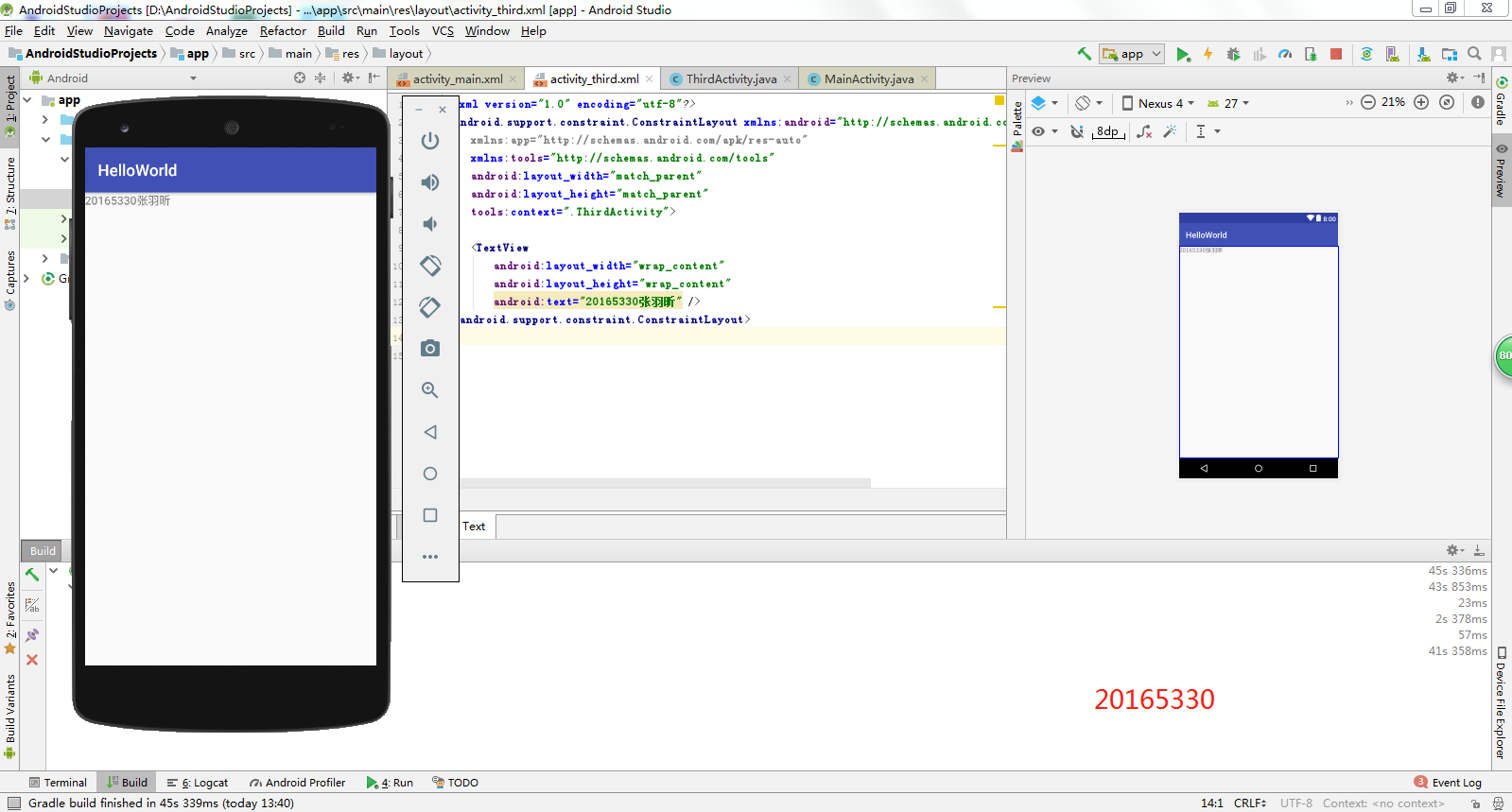
任务三
- UI测试:参考《Java和Android开发学习指南(第二版)(EPUBIT,Java for Android 2nd)》第二十六章:
- 构建项目,运行教材相关代码
- 修改代码让Toast消息中显示自己的学号信息
- MainActivity.java
package zyx.is.besti.edu.cn.helloworld;

import android.support.v7.app.AppCompatActivity;

import android.os.Bundle;

import android.widget.Toast;

public class MainActivity extends AppCompatActivity {

    @Override

    protected void onCreate(Bundle savedInstanceState) {

        super.onCreate(savedInstanceState);

        setContentView(R.layout.activity_main);

        Toast toast=Toast.makeText(MainActivity.this, "20165330张羽昕",Toast.LENGTH_LONG);

        toast.show();

    }

}
- 运行结果截图
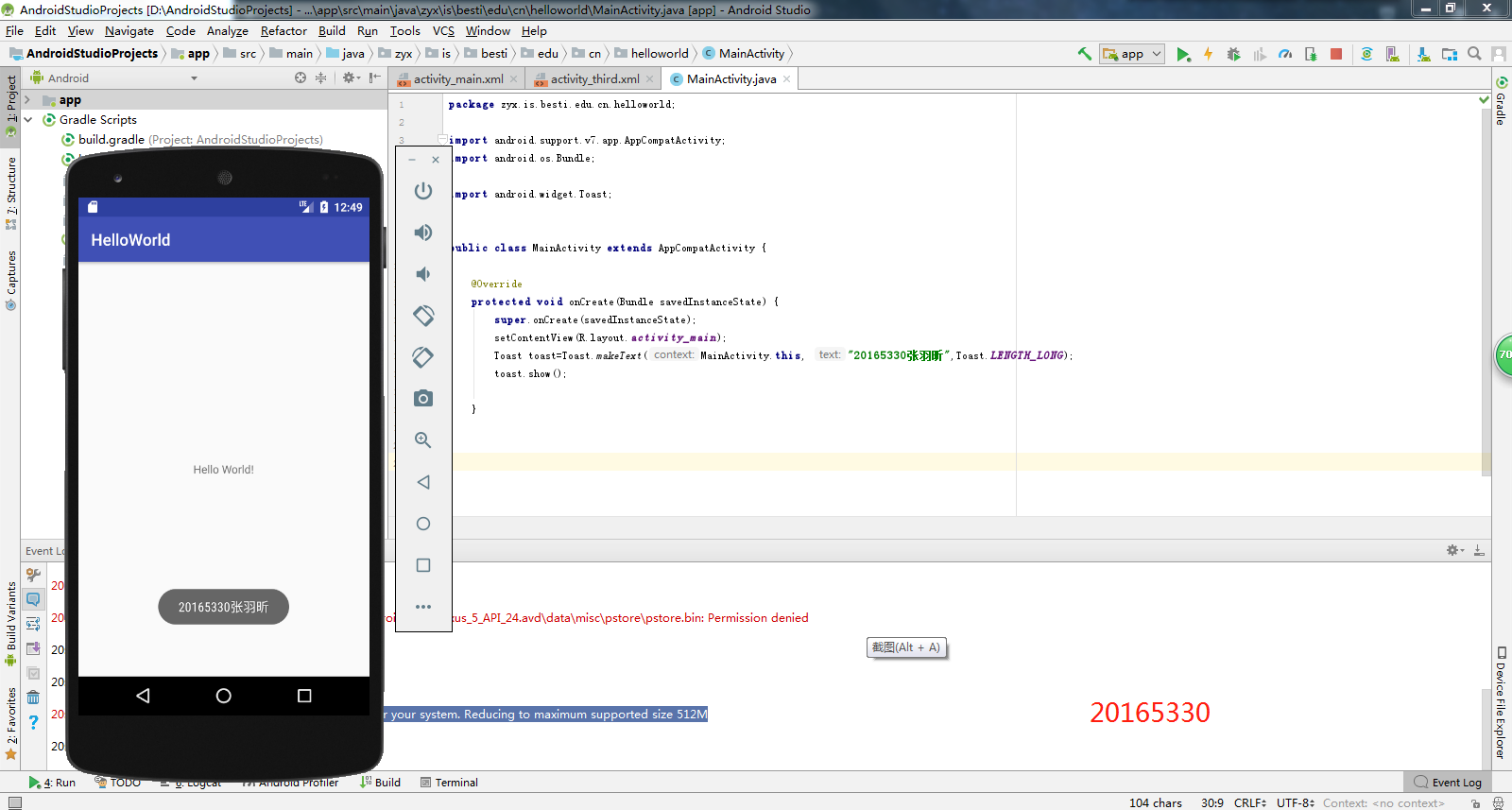
任务四
- 布局测试: 参考《Java和Android开发学习指南(第二版)(EPUBIT,Java for Android 2nd)》第二十七章:
- 构建项目,运行教材相关代码
- 修改布局让P290页的界面与教材不同
- activity_main.xml
<RelativeLayout

    xmlns:android="http://schemas.android.com/apk/res/android"

    xmlns:app="http://schemas.android.com/apk/res-auto"

    xmlns:tools="http://schemas.android.com/tools"

    android:layout_width="match_parent"

    android:layout_height="match_parent"

    android:paddingLeft="2dp"

    android:paddingRight="2dp">

<Button

    android:id="@+id/cancelButton"

    android:layout_width="wrap_content"

    android:layout_height="wrap_content"

    android:text="20165330"

    android:layout_marginTop="70dp"

    android:layout_alignParentTop="true"

    android:layout_centerHorizontal="true" />

<Button

android:id="@+id/saveButton"

android:layout_width="wrap_content"

android:layout_height="wrap_content"

android:text="张羽昕"

android:layout_below="@+id/cancelButton"

android:layout_alignLeft="@+id/cancelButton"

android:layout_alignStart="@+id/cancelButton"

android:layout_marginTop="23dp" />

<ImageView

android:layout_width="150dp"

android:layout_height="150dp"

android:layout_marginTop="45dp"

android:padding="4dp"

android:src="@android:drawable/ic_dialog_email"

android:id="@+id/imageView"

android:layout_below="@+id/saveButton"

android:layout_centerHorizontal="true" />

<LinearLayout

android:id="@+id/filter_button_container"

android:layout_width="match_parent"

android:layout_height="wrap_content"

android:layout_alignParentBottom="true"

android:gravity="center|bottom"

android:background="@android:color/white"

android:orientation="horizontal" >

<Button

    android:id="@+id/filterButton"

    android:layout_width="wrap_content"

    android:layout_height="fill_parent"

    android:text="Filter" />

<Button

    android:id="@+id/shareButton"

    android:layout_width="wrap_content"

    android:layout_height="fill_parent"

    android:text="Share" />

<Button

    android:id="@+id/deleteButton"

    android:layout_width="wrap_content"

    android:layout_height="fill_parent"

    android:text="Delete" />

</LinearLayout>

     <ImageButton

        android:id="@+id/imageButton"

        android:layout_width="wrap_content"

        android:layout_height="wrap_content"

        android:layout_alignParentBottom="true"

        android:layout_centerHorizontal="true"

        android:layout_marginBottom="160dp"

        app:srcCompat="@mipmap/ic_launcher" />

</RelativeLayout>
- 运行结果截图
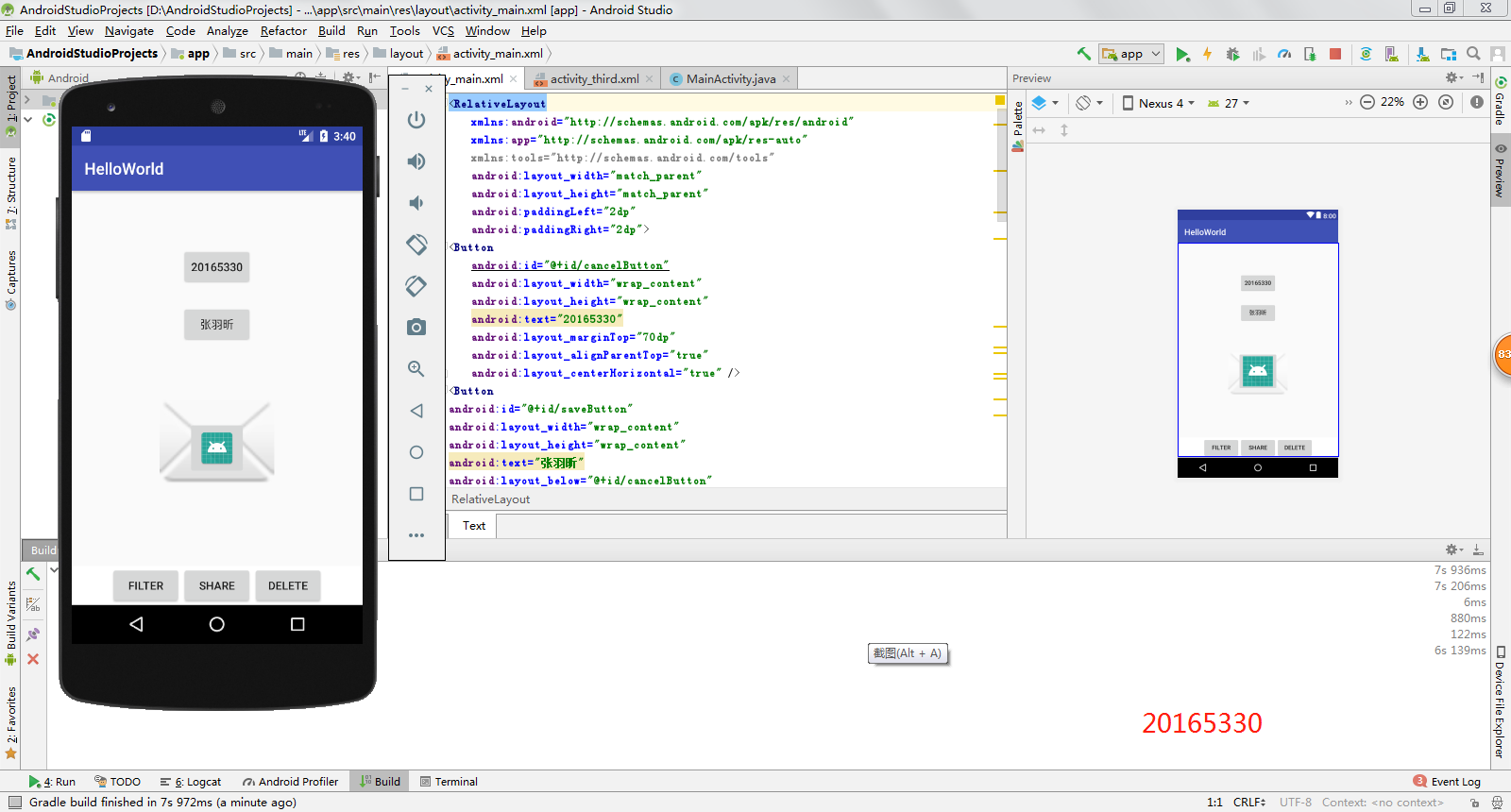
任务五
- 事件处理测试: 参考《Java和Android开发学习指南(第二版)(EPUBIT,Java for Android 2nd)》第二十八章:
- 构建项目,运行教材相关代码
- MainActivity.java
package zyx.is.besti.edu.cn.helloworld;

import android.app.Activity;

import android.graphics.Color;

import android.os.Bundle;

import android.view.Menu;

import android.view.View;

public class MainActivity extends Activity {

    int counter = 0;

    int[] colors = { Color.BLACK, Color.BLUE, Color.CYAN,

            Color.DKGRAY, Color.GRAY, Color.GREEN, Color.LTGRAY,

            Color.MAGENTA, Color.RED, Color.WHITE, Color.YELLOW };

    @Override

    protected void onCreate(Bundle savedInstanceState) {

        super.onCreate(savedInstanceState);

        setContentView(R.layout.activity_main);

    }

    @Override

    public boolean onCreateOptionsMenu(Menu menu) {

// Inflate the menu; this adds items to the action bar if it

// is present.

        getMenuInflater().inflate(R.menu.menu_main, menu);

        return true;

    }

    public void changeColor(View view) {

        if (counter == colors.length) {

            counter = 0;

        }

        view.setBackgroundColor(colors[counter++]);

    }

}
- activity_main.xml
<RelativeLayout xmlns:android="http://schemas.android.com/apk/res/android"

    xmlns:tools="http://schemas.android.com/tools"

    android:layout_width="match_parent"

    android:layout_height="match_parent"

    android:paddingBottom="20dp"

    android:paddingLeft="20dp"

    android:paddingRight="20dp"

    tools:context=".MainActivity">

    <AnalogClock

        android:id="@+id/analogClock1"

        android:layout_width="wrap_content"

        android:layout_height="wrap_content"

        android:layout_alignParentTop="true"

        android:layout_centerHorizontal="true"

        android:layout_marginTop="90dp"

        android:onClick="changeColor" />

</RelativeLayout>
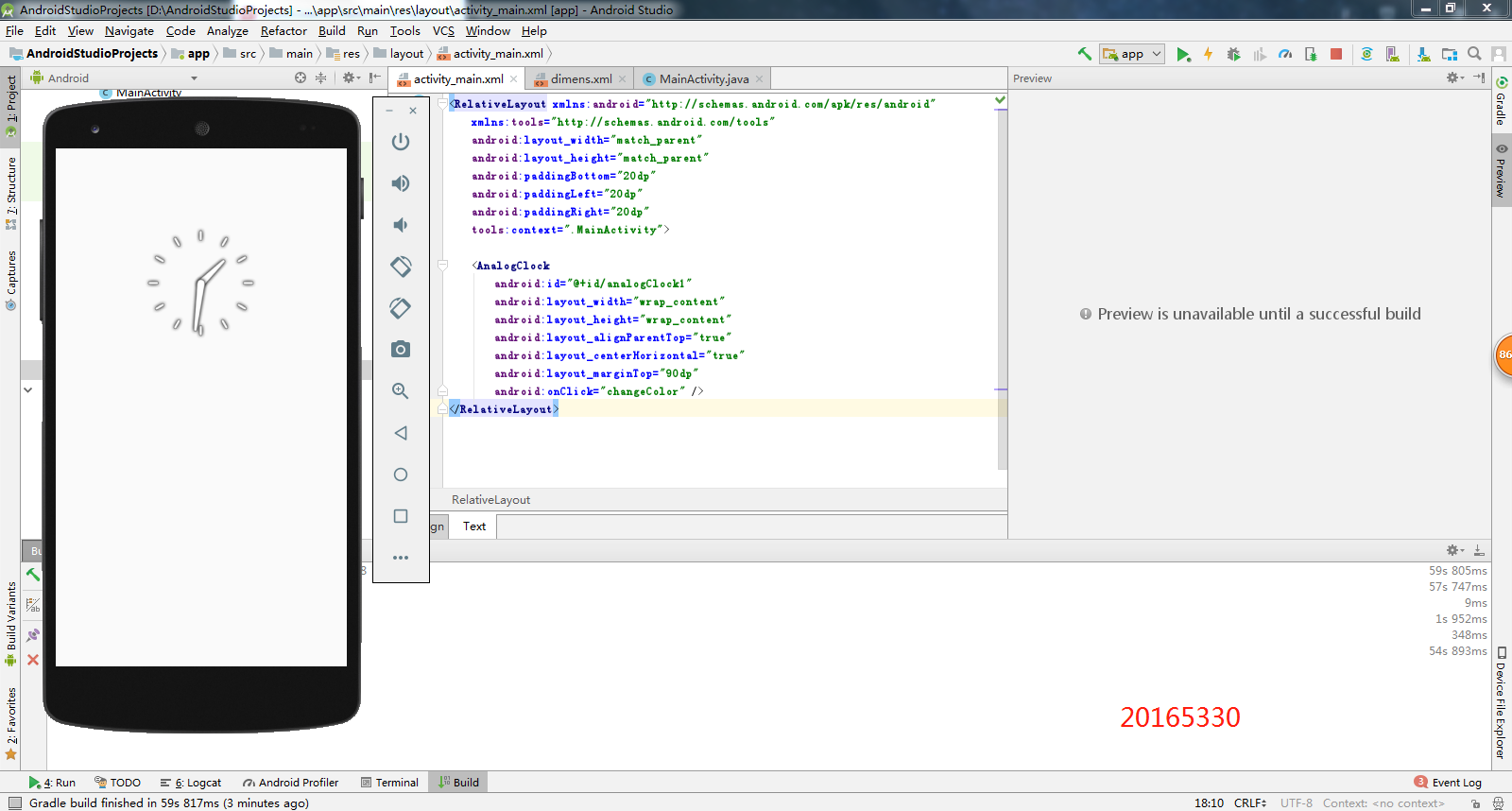
- 运行结果截图
遇到的问题及解决方法
- 在运行Android Studio时,发现创建的java程序有红J标识,非C标识
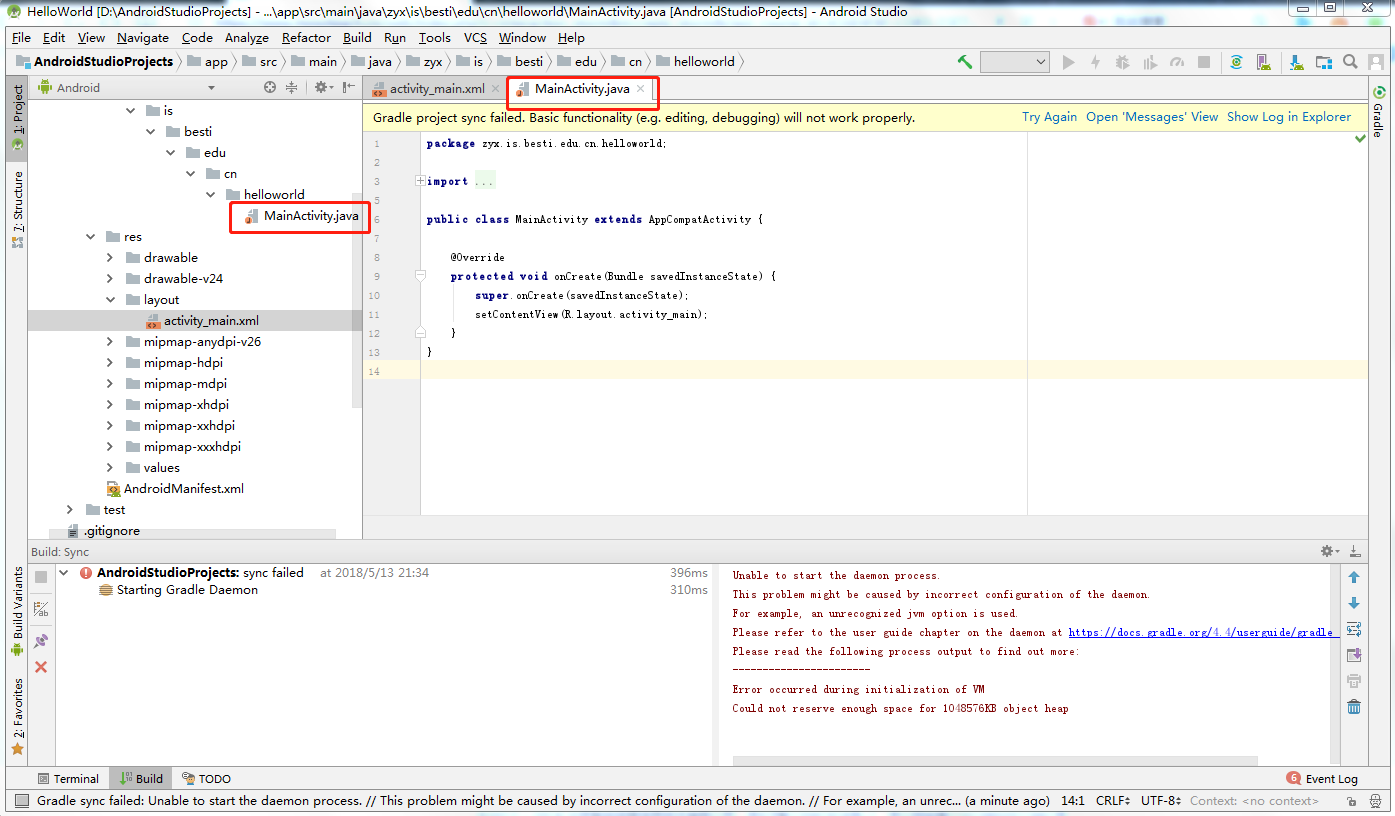
解决办法:在网上找了很多办法,参考Android Studio解决未识别Java文件(出现红J)问题,在修改后并重启电脑再打开,发现成功解决
- Toast的makeText()方法报错
解决办法:参考android Toast大全(五种情形)建立属于你自己的Toast,最终解决方法是在主函数里利用事件处理器,设置了一个按钮来调用这个提示。
2017-2018-2 20165330 实验四《Android程序设计》实验报告的更多相关文章
- 20165230 《Java程序设计》实验四 Android程序设计实验报告
20165230 <Java程序设计>实验四 Android程序设计实验报告 一.实验报告封面 课程:Java程序设计 班级:1652班 姓名:田坤烨 学号:20165230 成绩: 指导 ...
- 实验四 Android程序设计 实验报告
实验四 Android程序设计 实验报告 目录 代码托管地址 Android程序设计-1 Android程序设计-2 Android程序设计-3 Android程序设计-4 Android程序设计-5 ...
- 20155326 实验四 Android程序设计实验报告
20155326 实验四 Android程序设计实验报告 实验内容 1.基于Android Studio开发简单的Android应用并部署测试; 2.了解Android.组件.布局管理器的使用: 3. ...
- 20162325金立清 实验四 Android程序设计 实验报告
实验四 Android程序设计 实验报告 代码托管地址 码云链接 实验内容 安装使用Android Stuidio Activity测试 UI测试 布局测试 事件处理测试 Android程序设计-1 ...
- 实验四 Android程序设计 实验报告 20162305李昱兴
实验四 Android程序设计 实验报告 20162305李昱兴 一.Android Studio的安装测试 1.有关该软件 Android Studio,是基于Itellij IDEA的一款流行的I ...
- 20172302《程序设计与数据结构》实验四Android程序设计实验报告
课程:<程序设计与数据结构> 班级: 1723 姓名: 侯泽洋 学号:20172302 实验教师:王志强老师 实验日期:2018年5月30日 必修/选修: 必修 1.实验内容 (1)And ...
- 20155328 实验四 Android程序设计 实验报告
20155328 实验四 Android程序设计 第24章 初识Android 提交点1:完成HelloWorld并显示自己的学号 安装Android Studio后,创建了属于自己的Project( ...
- 2016-2017-2 20155312 实验四Android程序设计实验报告
遇到的问题及解决过程 「问题1」Android Studio-R文件出错 解决:参考Android Studio-R文件错误的解决办法步骤如下: 第一步:检查xml文件,R文件错误通常是由于我们的xm ...
- 20165235实验四 Android程序设计
20165235实验四 Android程序设计 实验课程:JAVA编程设计 实验名称:Android开发 姓名:祁瑛 学号:20165235 实验时间:2018.05.16 指导老师:娄家鹏 Andr ...
- 实验四 Android程序设计
20155224 实验四 Android程序设计 实验报告 实验报告封面: 课程:Java程序设计 班级:1652班 姓名:王高源 学号:20165225 指导教师:娄嘉鹏 实验日期:2018年5月1 ...
随机推荐
- atitit.为什么笔记本跟个手机不能组装而pc可以
atitit.为什么笔记本跟个手机不能组装而pc可以 1. 标准程度差 1 2. 为什么标准程度差 1 3. 第一个答案是「能」.第二个答案是「麻烦」. 2 4. 为什么手机不能自定义组装 3 1. ...
- [svc]visio绘制模具
visio2016狮子XL自定义运维模具下载: https://github.com/lannyMa/scripts/blob/master/%E7%BE%8E%E5%8C%96%E5%AE%9A%E ...
- CYQ学习主要摘要4
http://www.cnblogs.com/cyq1162/archive/2010/11/03/1867642.html Xml的处理 http://www.cnblogs.com/cyq1162 ...
- Memcached安装以及PHP的调用
Memcached安装以及PHP的调用 [南京·10月17日]OSC源创会开始报名:Swift.大型移动项目构架分享 » 一:安装libevent 由于memcached安装时,需要使用libeven ...
- storyboard三种sugue 和 跳转场景的三种方式 以及控制器之间的传值
Storyboard引入了2个概念:1. scene:一个场景,由一个viewController和相关的xib表示. 2. segue:在这是用于连接scenes,其有多种类型,iphone包括:P ...
- iOS开发总结-Xcode常见错误
iOS开发总结-Xcode常见错误 "file/file.h"filenotfound 如果遇到这种类型的问题报错,可以分为三部来解决,由简到复杂一步一步来,直到解决问题位置. 1 ...
- Missing separate debuginfos, use: debuginfo-install
环境:CentOS6.2 64位 操作:使用gdb调试C++查询MySQL数据库的程序 原因: 解决办法: 1. 修改文件/etc/yum.repos.d/CentOS-Debuginfo.repo ...
- private继承的作用
这里有个demo,里面的Stack<T*> : private Stack<void *>,作者对此的解释如下 The partial specialization for o ...
- 使用【单独】的一个<script>进行js文件的引用
刚才用jQuery的时候,总是发现js代码不被执行...后来发现我的代码是这么写的: <script type="text/javascript" src="htt ...
- 禁止sethc.exe运行 防止3389的sethc后门
废话:在土司看到的一篇文章,发私信给那个哥们儿说让不让转载,结果还没回复我就在百度看到相同的文章.他自己也是转载的.这哥们儿ID迟早被ban 文章转载自:http://www.jb51.net/hac ...