
2017-2018-2 20165330 实验四《Android程序设计》实验报告
下载与安装Android Studio
- 下载地址:Download Android Studio
- 安装教程参考Android开发简易教程
实验内容
任务一
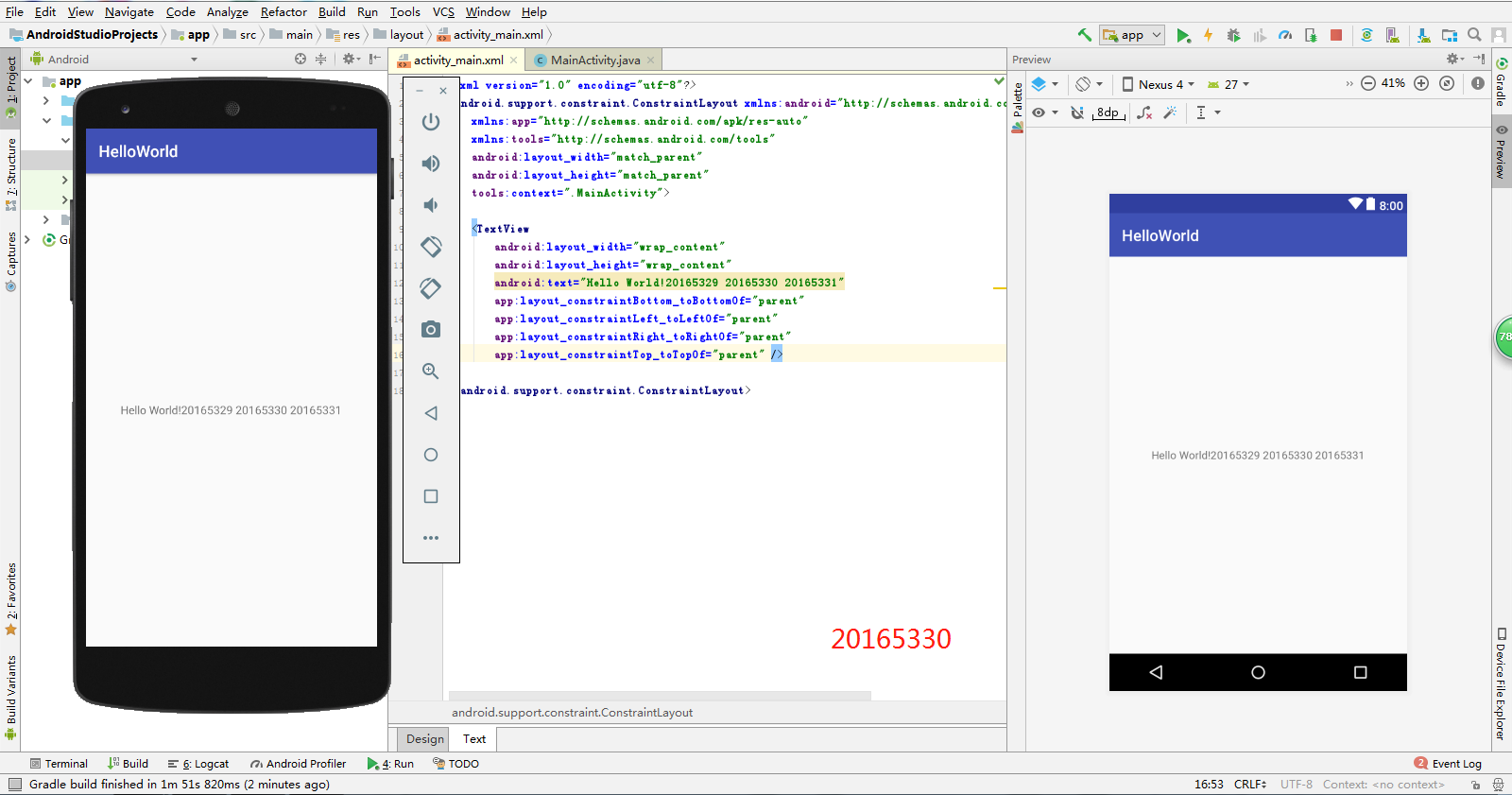
- 参考《Java和Android开发学习指南(第二版)(EPUBIT,Java for Android 2nd)》第二十四章,完成Hello World, 要求修改res目录中的内容,Hello World后要显示自己的学号,自己学号前后一名同学的学号
- 实验过程
- 找到
app下的res目录,点击layout中的activity_main.xml,修改其中的android:text="Hello World!"
- 找到
- 源代码
<?xml version="1.0" encoding="utf-8"?>

<android.support.constraint.ConstraintLayout xmlns:android="http://schemas.android.com/apk/res/android"

    xmlns:app="http://schemas.android.com/apk/res-auto"

    xmlns:tools="http://schemas.android.com/tools"

    android:layout_width="match_parent"

    android:layout_height="match_parent"

    tools:context=".MainActivity">

    <TextView

        android:layout_width="wrap_content"

        android:layout_height="wrap_content"

        android:text="Hello World!20165329 20165330 20165331"

        app:layout_constraintBottom_toBottomOf="parent"

        app:layout_constraintLeft_toLeftOf="parent"

        app:layout_constraintRight_toRightOf="parent"

        app:layout_constraintTop_toTopOf="parent" />

</android.support.constraint.ConstraintLayout>
- 运行结果截图
任务二
- 参考《Java和Android开发学习指南(第二版)(EPUBIT,Java for Android 2nd)》第二十五章:
- 构建项目,运行教材相关代码
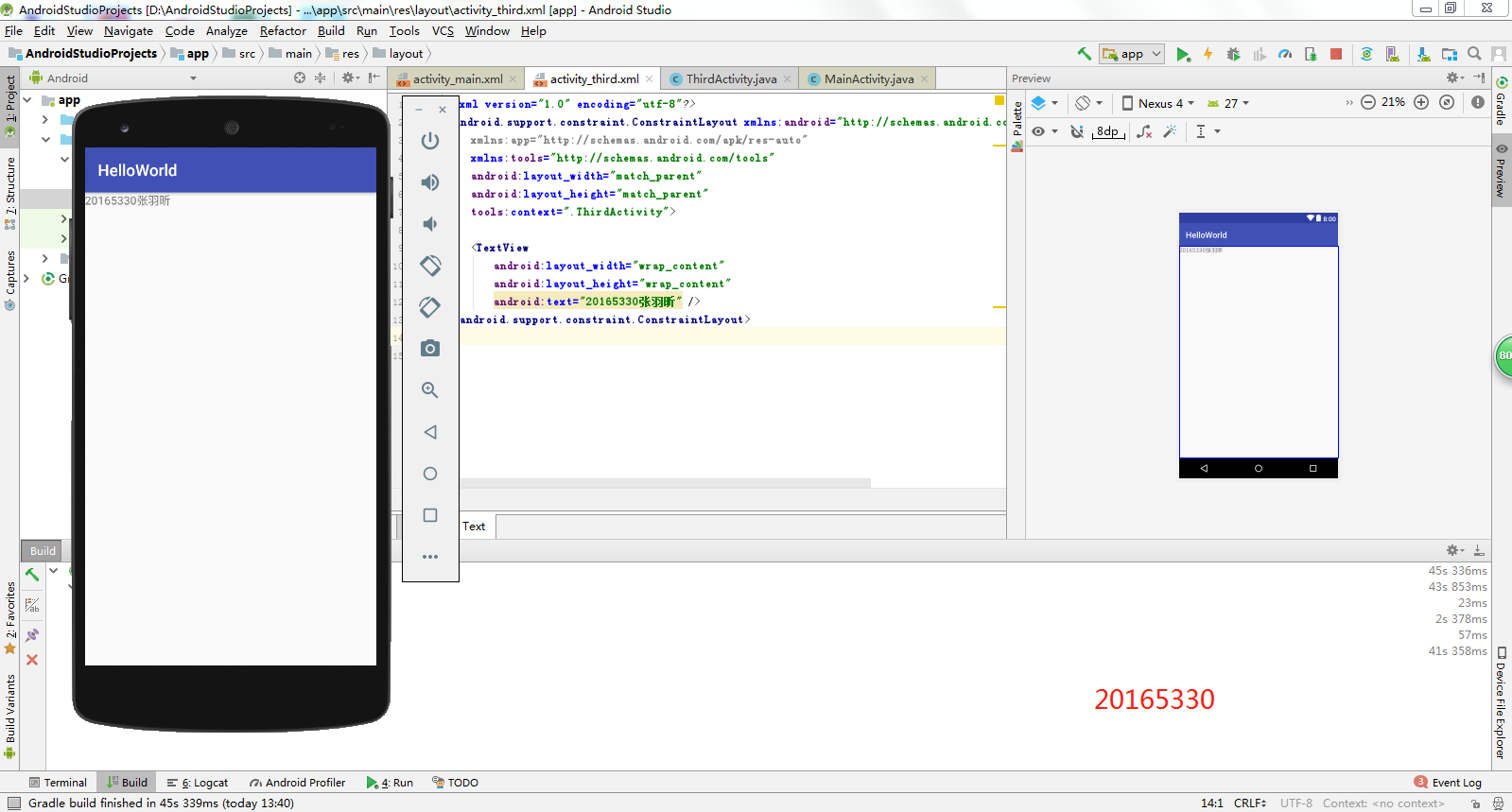
- 创建ThirdActivity,在ThirdActivity中显示自己的学号,修改代码让MainActivity启动ThirdActivity
- 实验过程
- 创建
ThirdActivity - 修改
MainActivity中的代码 - 在
main中新建thirdactivity_main.xml并修改android:text="Hello World!"内容
- 创建
- MainActivity.java
package zyx.is.besti.edu.cn.helloworld;

import android.support.v7.app.AppCompatActivity;

import android.os.Bundle;

import android.content.Intent;

public class MainActivity extends AppCompatActivity {

    @Override

    protected void onCreate(Bundle savedInstanceState) {

        super.onCreate(savedInstanceState);

        setContentView(R.layout.activity_main);

        Intent intent = new Intent(this,ThirdActivity.class);

        startActivity(intent);

    }

}
- thirdactivity_main.xml
<?xml version="1.0" encoding="utf-8"?>

<android.support.constraint.ConstraintLayout xmlns:android="http://schemas.android.com/apk/res/android"

    xmlns:app="http://schemas.android.com/apk/res-auto"

    xmlns:tools="http://schemas.android.com/tools"

    android:layout_width="match_parent"

    android:layout_height="match_parent"

    tools:context=".ThirdActivity">

    <TextView

        android:layout_width="wrap_content"

        android:layout_height="wrap_content"

        android:text="20165330张羽昕" />

</android.support.constraint.ConstraintLayout>
- 运行结果截图
任务三
- UI测试:参考《Java和Android开发学习指南(第二版)(EPUBIT,Java for Android 2nd)》第二十六章:
- 构建项目,运行教材相关代码
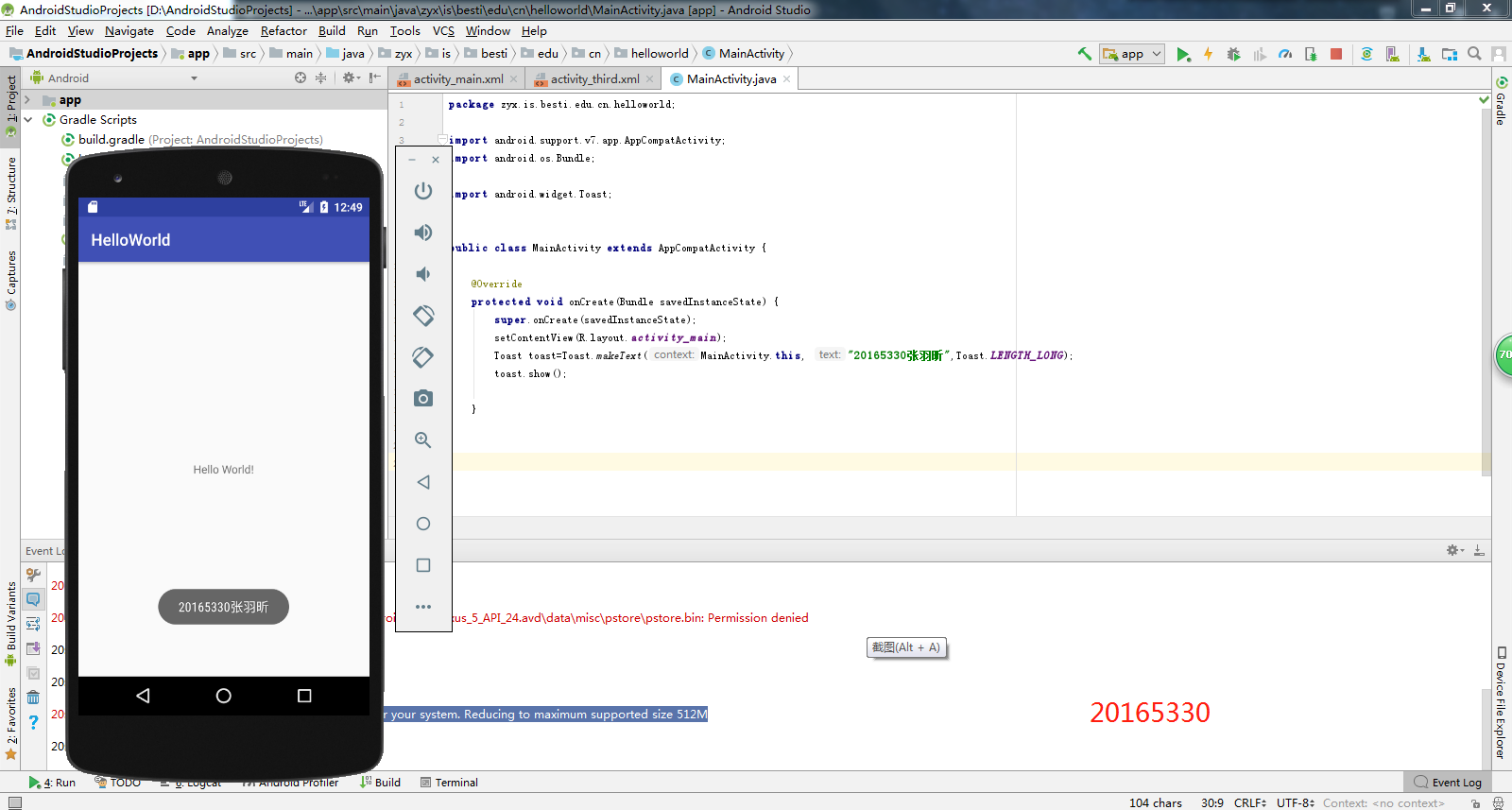
- 修改代码让Toast消息中显示自己的学号信息
- MainActivity.java
package zyx.is.besti.edu.cn.helloworld;

import android.support.v7.app.AppCompatActivity;

import android.os.Bundle;

import android.widget.Toast;

public class MainActivity extends AppCompatActivity {

    @Override

    protected void onCreate(Bundle savedInstanceState) {

        super.onCreate(savedInstanceState);

        setContentView(R.layout.activity_main);

        Toast toast=Toast.makeText(MainActivity.this, "20165330张羽昕",Toast.LENGTH_LONG);

        toast.show();

    }

}
- 运行结果截图
任务四
- 布局测试: 参考《Java和Android开发学习指南(第二版)(EPUBIT,Java for Android 2nd)》第二十七章:
- 构建项目,运行教材相关代码
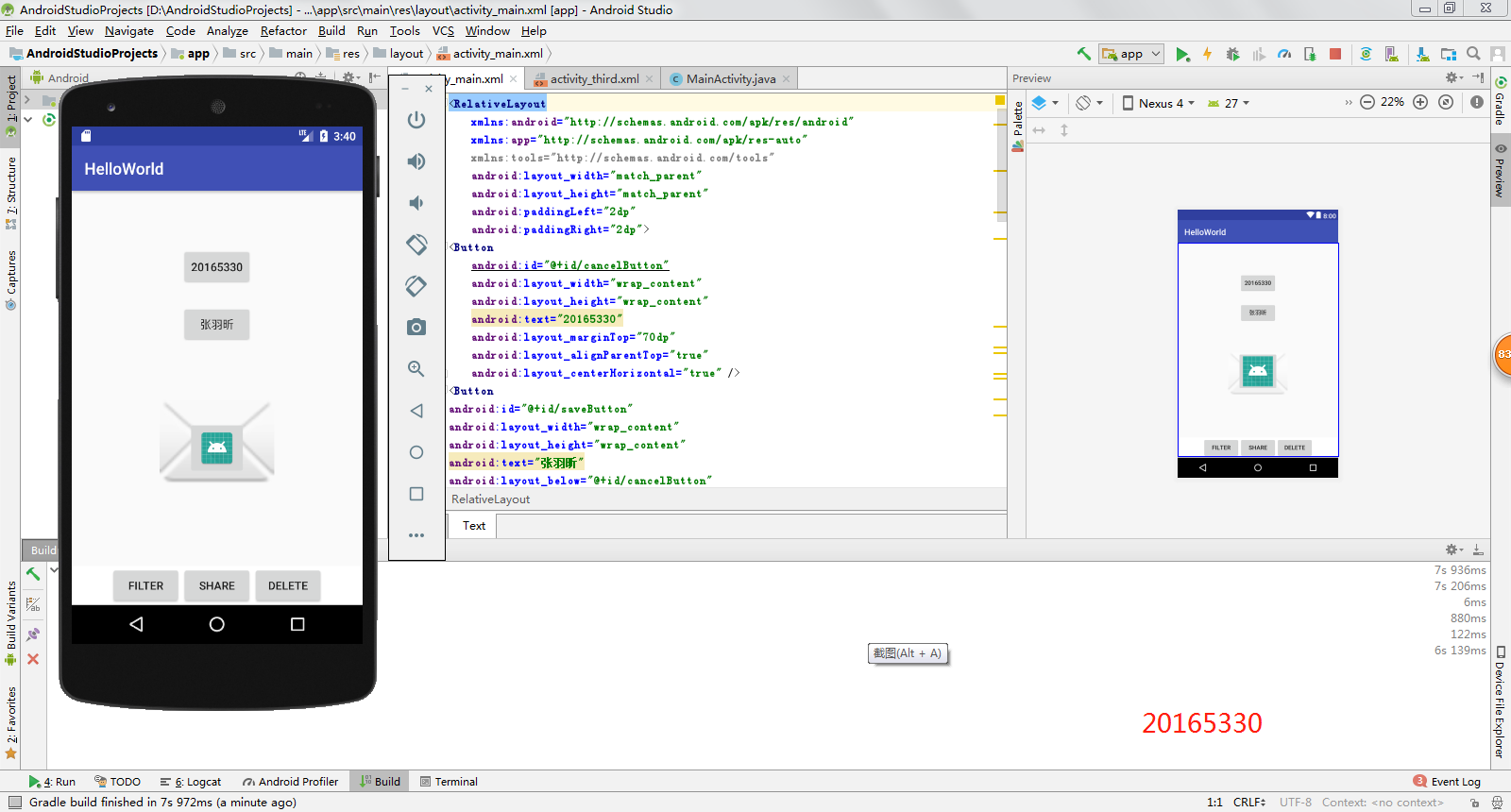
- 修改布局让P290页的界面与教材不同
- activity_main.xml
<RelativeLayout

    xmlns:android="http://schemas.android.com/apk/res/android"

    xmlns:app="http://schemas.android.com/apk/res-auto"

    xmlns:tools="http://schemas.android.com/tools"

    android:layout_width="match_parent"

    android:layout_height="match_parent"

    android:paddingLeft="2dp"

    android:paddingRight="2dp">

<Button

    android:id="@+id/cancelButton"

    android:layout_width="wrap_content"

    android:layout_height="wrap_content"

    android:text="20165330"

    android:layout_marginTop="70dp"

    android:layout_alignParentTop="true"

    android:layout_centerHorizontal="true" />

<Button

android:id="@+id/saveButton"

android:layout_width="wrap_content"

android:layout_height="wrap_content"

android:text="张羽昕"

android:layout_below="@+id/cancelButton"

android:layout_alignLeft="@+id/cancelButton"

android:layout_alignStart="@+id/cancelButton"

android:layout_marginTop="23dp" />

<ImageView

android:layout_width="150dp"

android:layout_height="150dp"

android:layout_marginTop="45dp"

android:padding="4dp"

android:src="@android:drawable/ic_dialog_email"

android:id="@+id/imageView"

android:layout_below="@+id/saveButton"

android:layout_centerHorizontal="true" />

<LinearLayout

android:id="@+id/filter_button_container"

android:layout_width="match_parent"

android:layout_height="wrap_content"

android:layout_alignParentBottom="true"

android:gravity="center|bottom"

android:background="@android:color/white"

android:orientation="horizontal" >

<Button

    android:id="@+id/filterButton"

    android:layout_width="wrap_content"

    android:layout_height="fill_parent"

    android:text="Filter" />

<Button

    android:id="@+id/shareButton"

    android:layout_width="wrap_content"

    android:layout_height="fill_parent"

    android:text="Share" />

<Button

    android:id="@+id/deleteButton"

    android:layout_width="wrap_content"

    android:layout_height="fill_parent"

    android:text="Delete" />

</LinearLayout>

     <ImageButton

        android:id="@+id/imageButton"

        android:layout_width="wrap_content"

        android:layout_height="wrap_content"

        android:layout_alignParentBottom="true"

        android:layout_centerHorizontal="true"

        android:layout_marginBottom="160dp"

        app:srcCompat="@mipmap/ic_launcher" />

</RelativeLayout>
- 运行结果截图
任务五
- 事件处理测试: 参考《Java和Android开发学习指南(第二版)(EPUBIT,Java for Android 2nd)》第二十八章:
- 构建项目,运行教材相关代码
- MainActivity.java
package zyx.is.besti.edu.cn.helloworld;

import android.app.Activity;

import android.graphics.Color;

import android.os.Bundle;

import android.view.Menu;

import android.view.View;

public class MainActivity extends Activity {

    int counter = 0;

    int[] colors = { Color.BLACK, Color.BLUE, Color.CYAN,

            Color.DKGRAY, Color.GRAY, Color.GREEN, Color.LTGRAY,

            Color.MAGENTA, Color.RED, Color.WHITE, Color.YELLOW };

    @Override

    protected void onCreate(Bundle savedInstanceState) {

        super.onCreate(savedInstanceState);

        setContentView(R.layout.activity_main);

    }

    @Override

    public boolean onCreateOptionsMenu(Menu menu) {

// Inflate the menu; this adds items to the action bar if it

// is present.

        getMenuInflater().inflate(R.menu.menu_main, menu);

        return true;

    }

    public void changeColor(View view) {

        if (counter == colors.length) {

            counter = 0;

        }

        view.setBackgroundColor(colors[counter++]);

    }

}
- activity_main.xml
<RelativeLayout xmlns:android="http://schemas.android.com/apk/res/android"

    xmlns:tools="http://schemas.android.com/tools"

    android:layout_width="match_parent"

    android:layout_height="match_parent"

    android:paddingBottom="20dp"

    android:paddingLeft="20dp"

    android:paddingRight="20dp"

    tools:context=".MainActivity">

    <AnalogClock

        android:id="@+id/analogClock1"

        android:layout_width="wrap_content"

        android:layout_height="wrap_content"

        android:layout_alignParentTop="true"

        android:layout_centerHorizontal="true"

        android:layout_marginTop="90dp"

        android:onClick="changeColor" />

</RelativeLayout>
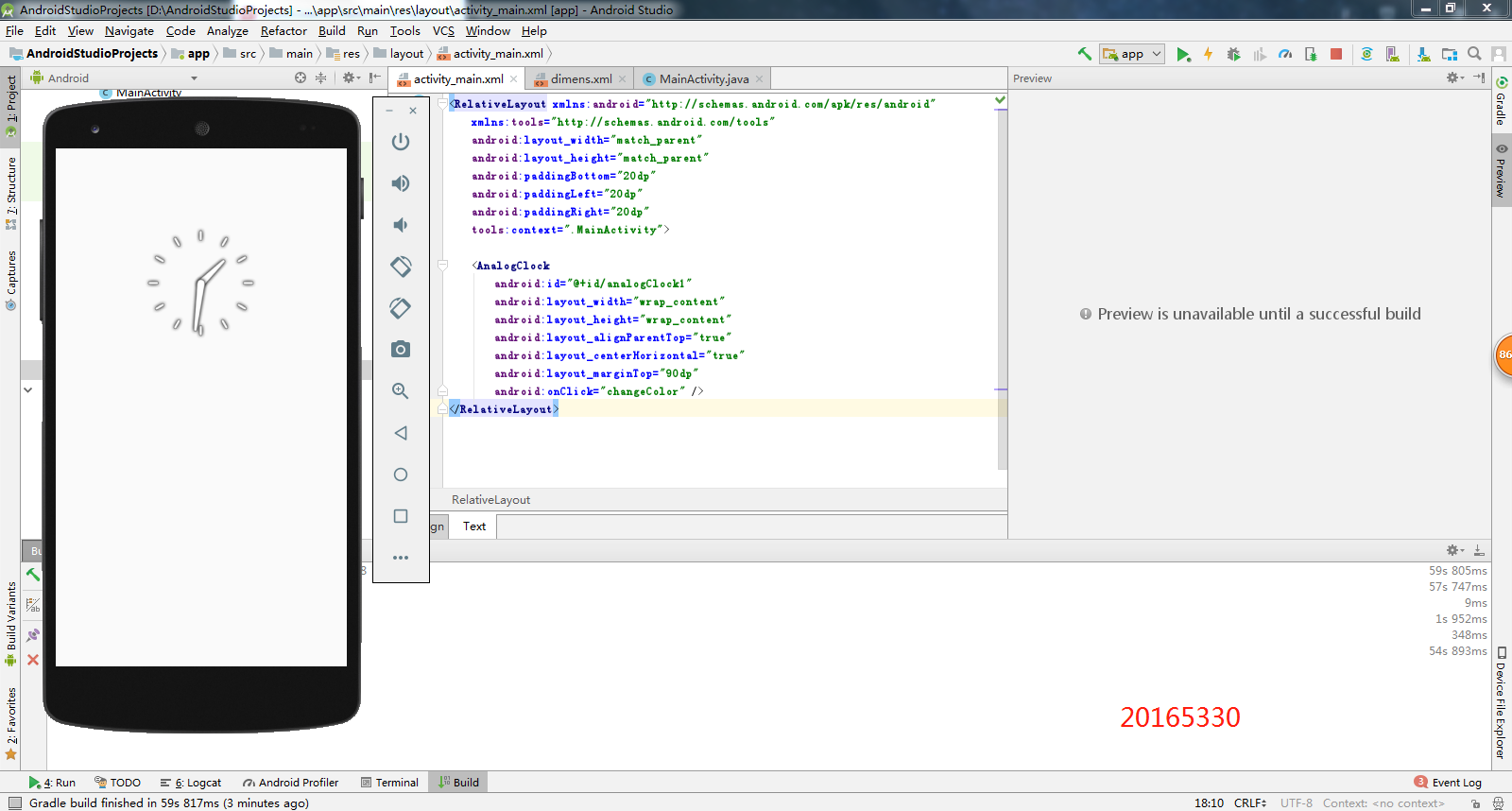
- 运行结果截图
遇到的问题及解决方法
- 在运行Android Studio时,发现创建的java程序有红J标识,非C标识
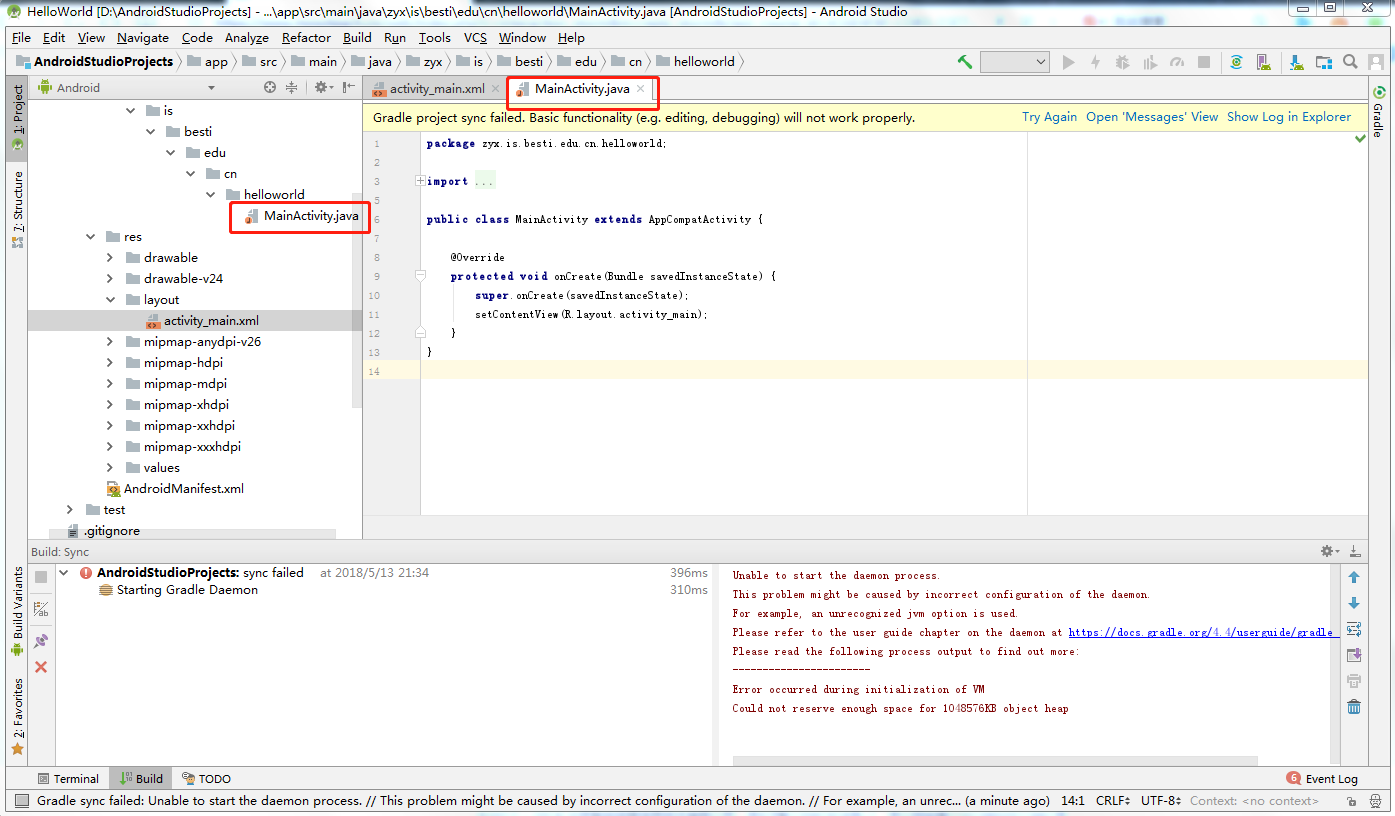
解决办法:在网上找了很多办法,参考Android Studio解决未识别Java文件(出现红J)问题,在修改后并重启电脑再打开,发现成功解决
- Toast的makeText()方法报错
解决办法:参考android Toast大全(五种情形)建立属于你自己的Toast,最终解决方法是在主函数里利用事件处理器,设置了一个按钮来调用这个提示。
2017-2018-2 20165330 实验四《Android程序设计》实验报告的更多相关文章
- 20165230 《Java程序设计》实验四 Android程序设计实验报告
20165230 <Java程序设计>实验四 Android程序设计实验报告 一.实验报告封面 课程:Java程序设计 班级:1652班 姓名:田坤烨 学号:20165230 成绩: 指导 ...
- 实验四 Android程序设计 实验报告
实验四 Android程序设计 实验报告 目录 代码托管地址 Android程序设计-1 Android程序设计-2 Android程序设计-3 Android程序设计-4 Android程序设计-5 ...
- 20155326 实验四 Android程序设计实验报告
20155326 实验四 Android程序设计实验报告 实验内容 1.基于Android Studio开发简单的Android应用并部署测试; 2.了解Android.组件.布局管理器的使用: 3. ...
- 20162325金立清 实验四 Android程序设计 实验报告
实验四 Android程序设计 实验报告 代码托管地址 码云链接 实验内容 安装使用Android Stuidio Activity测试 UI测试 布局测试 事件处理测试 Android程序设计-1 ...
- 实验四 Android程序设计 实验报告 20162305李昱兴
实验四 Android程序设计 实验报告 20162305李昱兴 一.Android Studio的安装测试 1.有关该软件 Android Studio,是基于Itellij IDEA的一款流行的I ...
- 20172302《程序设计与数据结构》实验四Android程序设计实验报告
课程:<程序设计与数据结构> 班级: 1723 姓名: 侯泽洋 学号:20172302 实验教师:王志强老师 实验日期:2018年5月30日 必修/选修: 必修 1.实验内容 (1)And ...
- 20155328 实验四 Android程序设计 实验报告
20155328 实验四 Android程序设计 第24章 初识Android 提交点1:完成HelloWorld并显示自己的学号 安装Android Studio后,创建了属于自己的Project( ...
- 2016-2017-2 20155312 实验四Android程序设计实验报告
遇到的问题及解决过程 「问题1」Android Studio-R文件出错 解决:参考Android Studio-R文件错误的解决办法步骤如下: 第一步:检查xml文件,R文件错误通常是由于我们的xm ...
- 20165235实验四 Android程序设计
20165235实验四 Android程序设计 实验课程:JAVA编程设计 实验名称:Android开发 姓名:祁瑛 学号:20165235 实验时间:2018.05.16 指导老师:娄家鹏 Andr ...
- 实验四 Android程序设计
20155224 实验四 Android程序设计 实验报告 实验报告封面: 课程:Java程序设计 班级:1652班 姓名:王高源 学号:20165225 指导教师:娄嘉鹏 实验日期:2018年5月1 ...
随机推荐
- UITableView__cell 距tableview顶端有间距
UITableView__cell 距tableview顶端有间距 如何去掉这个间距呢?解决方法如下: //top 为cell距顶端的间距 (一般为负值) self.formTable.con ...
- iptables安装失败后-------------firewalld回归
yum install firewalld systemctl stop iptables; systemctl mask iptables; systemctl unmask firewalld s ...
- Parallelism , Partitioner
转:spark通过合理设置spark.default.parallelism参数提高执行效率 spark中有partition的概念(和slice是同一个概念,在spark1.2中官网已经做出了说明) ...
- jquery获取的html元素和document获取的元素的区别
最近通过ocx做了一个视频插件,然后将插件放到html中(想知道的可以看一下) 因为我要操作这个插件,要播放,停止等,所以我需要获取这个元素,不出意外的,我就用jquery来获取,然后根本无法执行,然 ...
- 树莓派安装centos 7系统
1,格式化 https://www.sdcard.org/downloads/formatter_4/eula_windows/ 2,烧录,Win32DiskImager https://source ...
- Oracle触发器修改数据时同步执行插入该条数据
原创:lixx ---从UNWIREDATA 表中查询数据,如果该表中地磁状态发生改变(CARDSTATE)执行插入到MAINTABLE 表中---根据唯一值ERID判断,如果ERID值存在,修改该条 ...
- android sdk屏幕截图工具
调用android sdk中的工具,在开发板上截图. 使用usb线连接android设备,打开adb调试. 进入目录 sdk/tools/ 运行 traceview.bat 运行 uiautomato ...
- Unity3D项目之 Survival Shooter 记录
1.导入资源 2.把预设文件的环境拖到场景中, 3.位置归0 4.保存场景 5.删除默认灯光,把预设灯光拖到场景中,位置归0 6.新建一个 Quad 7.旋转90度,设置缩放100,100,1 重命名 ...
- hdu 1233 还是畅通project
本题链接:点击打开链接 本题大意: 有n个村庄,n*(n-1)/2条路,输入每条路所连接是哪两个村庄及长度,求使全部村庄均连通(并不是都两两连通) 所铺公路的最短路程. 解题思路: 使用并查集基础及K ...
- [转]Shell脚本中获取SELECT结果值的方法
http://blog.itpub.net/13885898/viewspace-1670297/ 有时候我们可能会需要在Shell脚本中执行SELECT语句,并将结果赋值给一个变量,对于这样的情形, ...