
WPF DataBinding之我见
原创,转载请注明出处:WPF DataBinding之我见
一、DataBinding介绍
数据绑定是在应用程序 UI 与业务逻辑之间建立连接的过程。 如果绑定具有正确设置并且数据提供正确通知,则当数据更改其值时,绑定到数据的元素会自动反映更改。 数据绑定可能还意味着如果元素中数据的外部表现形式发生更改,则基础数据可以自动更新以反映更改。 例如,如果用户编辑 TextBox 元素中的值,则基础数据值会自动更新以反映该更改。下图表示Binding模型:
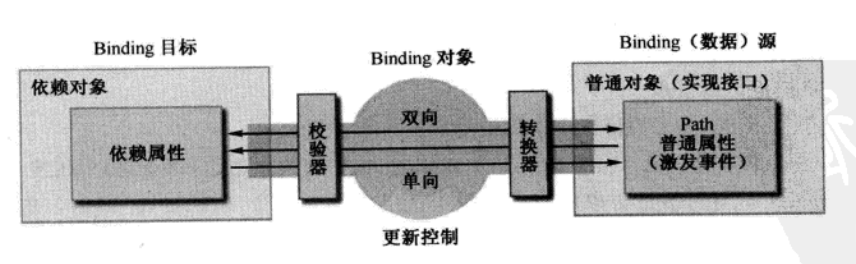
其中,Binding目标必须是依赖对象,XAMAL控件都继承自DependencyObject,若想自定义的类的对象也能成为Binding目标,则该类必须继承自DependencyObject。依赖对象类里面有个依赖属性注册类,调用该注册类就能声明一个依赖属性,之后再定义类似于CLR公共属性的操作(get与set需要调用特定函数,具体实现参考后面示例 )。
Binding数据源则无限制,可以是CLR属性或者XAMAL控件,也可以是自定义依赖对象的依赖属性或者是继承自INotifyPropertyChanged的类对象属性。普通CLR属性不具备当自身发生改变时自动通知目标数据的功能,而依赖属性以及继承自INotifyPropertyChanged的类对象属性就具备此功能。
目标与数据源的联系是通过Binding对象实现的。Binding是一个特殊类,能够设置绑定的数据流方向(OneWay、TwoWay、OneWayToSource)、数据转换器(当数据源与目标数据类型不匹配时,包括双向转换)、校验器、数据更新方式等。
下面就通过三种数据绑定方式来进一步了解DataBinding。
二、控件间的DataBinding
XAMAL控件都是继承自DependencyObject,故控件间的依赖属性可以互相绑定,即可当做源也可作为目标,三种数据流方向都可设定,另外还可设定数据更新方式。不同控件一般会有不同的默认数据流方向,TwoWay方式下两个方向的数据更新方式会不大一样,一般从源到目标是PropertyChanged,从目标到源则是LostFocus。使用示例如下:
XAMAL文件:
<Window x :Class="DataBinding_controls.MainWindow"

        xmlns="http://schemas.microsoft.com/winfx/2006/xaml/presentation"

        xmlns:x ="http://schemas.microsoft.com/winfx/2006/xaml"

        Title="MainWindow" Height ="350" Width="525">

    <Grid >

        <Grid.ColumnDefinitions>

            <ColumnDefinition Width ="2*" />

            <ColumnDefinition Width ="4*" />

        </Grid.ColumnDefinitions>

        <Grid.RowDefinitions>

            <RowDefinition Height ="*" />

            <RowDefinition Height ="*" />

            <RowDefinition Height ="*" />

        </Grid.RowDefinitions>

        <TextBlock Grid.RowSpan ="3" TextWrapping="Wrap"> 数据绑定方式演示, <LineBreak /> 其中数据的更新方式UpdateSourceTrigger默认为LostFocus, 另外还有Explicit以及PropertyChanged <LineBreak /> 第三个示例就使用了PropertyChanged </TextBlock>

        <StackPanel Grid.Row ="0" Grid.Column = "1" Orientation="Horizontal">

            <TextBlock> OneWay:==============  </TextBlock >

            <StackPanel>

                <TextBlock FontSize ="12" Foreground="Red"> Source</TextBlock >

                <TextBox x :Name="txb1"> Hello1</TextBox >

            </StackPanel>

            <StackPanel>

                <TextBlock FontSize ="12" Foreground="Red"> --》Target</TextBlock >

                <TextBox Text ="{Binding Path =Text,ElementName=txb1, Mode=OneWay}"/>

            </StackPanel>

        </StackPanel>

        <StackPanel Grid.Row ="1" Grid.Column = "1" Orientation="Horizontal">

            <TextBlock> TwoWay(TextBlock Default):==</TextBlock >

            <StackPanel>

                <TextBlock FontSize ="12" Foreground="Red"> Source</TextBlock >

                <TextBox x :Name="txb2"> Hello2</TextBox >

            </StackPanel>

            <StackPanel>

                <TextBlock FontSize ="12" Foreground="Red"> 《==》Target</TextBlock >

                <TextBox Text ="{Binding Path =Text,ElementName=txb2, Mode=TwoWay}"/>

            </StackPanel>

        </StackPanel>

        <StackPanel Grid.Row ="2" Grid.Column = "1" Orientation="Horizontal">

            <TextBlock> OneWayToSource:======== </TextBlock >

            <StackPanel>

                <TextBlock FontSize ="12" Foreground="Red"> Source   </TextBlock >

                <TextBox x :Name="txb3"> Hello3</TextBox >

            </StackPanel>

            <StackPanel>

                <TextBlock FontSize ="12" Foreground="Red"> 《--Target</TextBlock >

                <!--以下绑定在cs代码中实现-->

                <TextBox x :Name ="xxj"/>

            </StackPanel>

        </StackPanel>

    </Grid >

</Window>
后台CS文件:
using System ;

using System .Collections. Generic;

using System .Linq;

using System .Text;

using System .Threading. Tasks;

using System .Windows;

using System .Windows. Controls;

using System .Windows. Data;

using System .Windows. Documents;

using System .Windows. Input;

using System .Windows. Media;

using System .Windows. Media.Imaging ;

using System .Windows. Navigation;

using System .Windows. Shapes;

namespace DataBinding_controls

{

    /// <summary>

    /// MainWindow.xaml 的交互逻辑

    /// </summary>

    public partial class MainWindow : Window

    {

        public MainWindow ()

        {

            InitializeComponent();

            //Binding binding = new Binding();

            ////设置源对象

            //binding.Source = txb3;

            ////设置源属性

            //binding.Path = new PropertyPath("Text");

            //binding.Mode = BindingMode.OneWayToSource;

            //binding.UpdateSourceTrigger = UpdateSourceTrigger.PropertyChanged;

            ////添加到目标属性

            //xxj.SetBinding(TextBox.TextProperty, binding);

            //以上操作等价于以下两句

            Binding binding = new Binding( "Text") { Source = txb3, Mode = BindingMode.OneWayToSource , UpdateSourceTrigger = UpdateSourceTrigger. PropertyChanged};

            xxj. SetBinding(TextBox .TextProperty, binding); //等价于BindingOperations.SetBinding(xxj, TextBox.TextProperty, binding);

        }

    }

}
三、自定义数据源实现INotifyPropertyChanged
INotifyPropertyChanged是一个系统的接口类,里面只是定义了一个事件,该事件用于当属性值发生改变时通知Binding目标。普通类的CLR属性并不具备自动通知功能,依赖对象的依赖属性则是自动包含了此功能。若想自定义类的属性能够实现自动通知更改但又不想让该类变为依赖类,则可让该类继承INotifyPropertyChanged接口,这样就能保证普通CLR属性具备自动通知更改的能力。使用示例如下:
XAMAL文件:
<Window x :Class="Databinding_INotifyPropertyChanged.MainWindow"

        xmlns="http://schemas.microsoft.com/winfx/2006/xaml/presentation"

        xmlns:x ="http://schemas.microsoft.com/winfx/2006/xaml"

        Title="MainWindow" Height ="350" Width="525">

    <StackPanel Margin="20">

        <TextBlock Width ="40" Height="20" HorizontalAlignment="Left">Name: </TextBlock>

        <TextBox Width ="100" HorizontalAlignment="Left" Text="{Binding Name, Mode =OneWay}"/>

        <TextBlock Width ="40" Height="20" HorizontalAlignment="Left">Age: </TextBlock>

        <TextBox Width ="100" HorizontalAlignment="Left" Text="{Binding Age, Mode =TwoWay}"/>

        <Button Content ="随机替换年龄" Width="100" HorizontalAlignment ="Left" Click="Button_Click"/>

    </StackPanel >

</Window>
后台CS文件:
using System ;

using System .Collections. Generic;

using System .Linq;

using System .Text;

using System .Threading. Tasks;

using System .Windows;

using System .Windows. Controls;

using System .Windows. Data;

using System .Windows. Documents;

using System .Windows. Input;

using System .Windows. Media;

using System .Windows. Media.Imaging ;

using System .Windows. Navigation;

using System .Windows. Shapes;

using System .ComponentModel;

namespace Databinding_INotifyPropertyChanged

{

    /// <summary>

    /// MainWindow.xaml 的交互逻辑

    /// </summary>

    public partial class MainWindow : Window

    {

        public Student stu = new Student( "xiao ming", 12);

        public MainWindow ()

        {

            InitializeComponent();

            this.DataContext = this.stu;

            stu.PropertyChanged += sourceDataChanged;

        }

        void sourceDataChanged (object sender, PropertyChangedEventArgs e)

        {

            MessageBox.Show (e.PropertyName. ToString() + "改变" );

        }

        private void Button_Click( object sender , RoutedEventArgs e)

        {

            Random test = new Random();

            stu.Age = Convert. ToInt32(test .NextDouble() * 100);

        }

    }

    public class Student : INotifyPropertyChanged

    {

        public Student (string _name, int _age)

        {

            this.name = _name;

            this.age = _age;

        }

        private string name;

        public string Name

        {

            get

            {

                return this .name;

            }

            set

            {

                if (this .name != value)

                {

                    this.name = value;

                    OnProperyChanged("Name" );

                }

            }

        }

        private int age;

        public int Age

        {

            get

            {

                return this .age;

            }

            set

            {

                if (this .age != value)

                {

                    this.age = value;

                    OnProperyChanged("Age" );

                }

            }

        }

        //系统自动添加往PropertyChanged添加委托,参考http://www.xxbar.net/thread-706561-1-1.html

        public event PropertyChangedEventHandler PropertyChanged;

        public void OnProperyChanged( string propertyName )

        {

            if (PropertyChanged != null)

            {

                PropertyChanged(this , new PropertyChangedEventArgs( propertyName));

            }

        }

    }

}
四、自定义DependencyObject
依赖对象里面包含依赖属性,依赖属性一方面可以节省对象占用空间,另一方面可以通过数据绑定从其他对象的属性中实时获取数值,具体来龙去脉参考WPF基础入门(4)-什么是依赖属性
普通CLR属性可以通过作为数据源并设定数据流方式为TwoWay获取客户端某个控件的值,示例如下:
XAMAL文件:
<Window x :Class="DataBinding_DependencyObject.MainWindow"

        xmlns="http://schemas.microsoft.com/winfx/2006/xaml/presentation"

        xmlns:x ="http://schemas.microsoft.com/winfx/2006/xaml"

        Title="MainWindow" Height ="150" Width="200">

    <Grid Margin="20">

        <Grid.RowDefinitions>

            <RowDefinition Height ="25"/>

            <RowDefinition Height ="*"/>

        </Grid.RowDefinitions>

        <Grid.ColumnDefinitions>

            <ColumnDefinition Width ="20"/>

            <ColumnDefinition Width ="*"/>

        </Grid.ColumnDefinitions>

        <TextBlock Grid.Row ="0" Grid.Column="0"> B:</TextBlock >

        <TextBox Name ="txbB" Width="120" Grid.Row="1" Grid.Column ="1" Text="jjj"/>

        <Button Grid.Row ="1" Grid.ColumnSpan="2" Click="Button_Click">点击查看内部对象值 </Button>

    </Grid >

</Window>
后台CS文件:
using System .Text;

using System .Threading. Tasks;

using System .Windows;

using System .Windows. Controls;

using System .Windows. Data;

using System .Windows. Documents;

using System .Windows. Input;

using System .Windows. Media;

using System .Windows. Media.Imaging ;

using System .Windows. Navigation;

using System .Windows. Shapes;

namespace DataBinding_DependencyObject

{

    /// <summary>

    /// MainWindow.xaml 的交互逻辑

    /// </summary>

    public partial class MainWindow : Window

    {

        public school longZhong;

        public MainWindow ()

        {

            InitializeComponent();

            DataContext = this ;

            longZhong = new school();

            Binding binding = new Binding( "Name") { Source = longZhong, Mode = BindingMode .TwoWay };

            BindingOperations.SetBinding (txbB, TextBox. TextProperty, binding );

        }

        private void Button_Click( object sender , RoutedEventArgs e)

        {

            if (longZhong != null)

            {

                MessageBox.Show (longZhong. Name);

            }

        }

    }

    public class school

    {

        private string name;

        public string Name

        {

            get { return name; }

            set { name = value; }

        }

    }

}
继承了INotifyPropertyChanged接口的类属性在此基础上还能提供更改通知。但这种数据获取方式毕竟有所限制,最起码你必须设定为TwoWay。此限制的根本原因在于普通CLR属性以及继承了INotifyPropertyChanged接口的类属性不能作为Binding目标(setBinding接口的Binding目标必须是DependencyObject类型)。为了打破限制,用户可以自定义依赖类(只需继承DependencyObject),这样其对象的依赖属性就能和普通控件属性一样随意设置各种绑定方式,并且同样具备自动通知更改的能力。使用示例如下:
XAMAL文件:
<Window x :Class="DataBinding_DependencyObject.MainWindow"

        xmlns="http://schemas.microsoft.com/winfx/2006/xaml/presentation"

        xmlns:x ="http://schemas.microsoft.com/winfx/2006/xaml"

        Title="MainWindow" Height ="150" Width="200">

    <Grid Margin="20">

        <Grid.RowDefinitions>

            <RowDefinition Height ="25"/>

            <RowDefinition Height ="25"/>

            <RowDefinition Height ="*"/>

        </Grid.RowDefinitions>

        <Grid.ColumnDefinitions>

            <ColumnDefinition Width ="20"/>

            <ColumnDefinition Width ="*"/>

        </Grid.ColumnDefinitions>

        <TextBlock> A:</TextBlock >

        <TextBox Name ="txbA" Width="120" Grid.Column="1" Text =" uu"/>

        <TextBlock Grid.Row ="1" Grid.Column="0"> B:</TextBlock >

        <TextBox Name ="txbB" Width="120" Grid.Row="1" Grid.Column ="1" Text="jjj"/>

        <Button Grid.Row ="2" Grid.ColumnSpan="2" Click="Button_Click">点击查看内部对象值 </Button>

    </Grid >

</Window>
后台CS文件:
using System ;

using System .Collections. Generic;

using System .Linq;

using System .Text;

using System .Threading. Tasks;

using System .Windows;

using System .Windows. Controls;

using System .Windows. Data;

using System .Windows. Documents;

using System .Windows. Input;

using System .Windows. Media;

using System .Windows. Media.Imaging ;

using System .Windows. Navigation;

using System .Windows. Shapes;

namespace DataBinding_DependencyObject

{

    /// <summary>

    /// MainWindow.xaml 的交互逻辑

    /// </summary>

    public partial class MainWindow : Window

    {

        public school longZhong;

        public MainWindow ()

        {

            InitializeComponent();

            DataContext = this ;

            longZhong = new school();

            Binding binding = new Binding( "Text") { Source = txbA, Mode = BindingMode.TwoWay };

            BindingOperations.SetBinding (longZhong, school.NameProperty , binding);

            Binding binding1 = new Binding( "Name") { Source = longZhong, Mode = BindingMode .TwoWay };

            BindingOperations.SetBinding (txbB, TextBox. TextProperty, binding1 );

        }

        private void Button_Click( object sender , RoutedEventArgs e)

        {

            //school hh = new school();

            //hh.Name = txbA.Text;

            if (longZhong != null)

            {

                MessageBox.Show (longZhong. Name);

            }

        }

    }

    public class school : DependencyObject

    {

        public string Name

        {

            get { return (string) GetValue(NameProperty ); }

            set { SetValue (NameProperty, value); }

        }

        // Using a DependencyProperty as the backing store for Name.  This enables animation, styling, binding, etc...

        public static readonly DependencyProperty NameProperty =

            DependencyProperty.Register ("Name", typeof(string ), typeof( school));

    }

}
WPF DataBinding之我见的更多相关文章
- WPF QuickStart系列之数据绑定(Data Binding)
这篇博客将展示WPF DataBinding的内容. 首先看一下WPF Data Binding的概览, Binding Source可以是任意的CLR对象,或者XML文件等,Binding Targ ...
- .NET: WPF DependencyProperty
DependencyProperty and DependencyObject is the core of WPF data binding. We can use this two class t ...
- Data Binding in WPF
http://msdn.microsoft.com/en-us/magazine/cc163299.aspx#S1 Data Binding in WPF John Papa Code downl ...
- WPF 的 ElementName 在 ContextMenu 中无法绑定成功?试试使用 x:Reference!
在 Binding 中使用 ElementName 司空见惯,没见它出过什么事儿.不过当你预见 ContextMenu,或者类似 Grid.Row / Grid.Column 这样的属性中设置的时候, ...
- OpenDiscussion_DataDrivenDesign
本文源于公司内部技术交流,如有不当之处,还请指正. Content: 1. What is Data-driven design? 2. WPF revolution. 3. More about O ...
- practical system design with mef & mef[ trans from arup.codeplex.com/]
Practical System Design using MEF MVVM RX MOQ Unit Tests in WPF Posted on May 21, 2015 by Arup Baner ...
- Debug Databinding Issues in WPF
DataBinding is one of the most powerful features in WPF. But because it resolves the bindings at run ...
- [WPF系列]-DataBinding(数据绑定) 自定义Binding
自定义Binding A base class for custom WPF binding markup extensions BindingDecoratorBase Code: public c ...
- [WPF系列]-DataBinding 绑定计算表达式
Width="{Binding RelativeSource={RelativeSource Self}, Path=ActualWidth, Converter={Stat ...
随机推荐
- BZOJ1271: [BeiJingWc2008]秦腾与教学评估
题目:http://www.lydsy.com/JudgeOnline/problem.php?id=1271 题解: 这种题真是太神了! 只需要考虑被覆盖的次数的奇偶性,并且保证满足题意的点至多只有 ...
- SolrCloud应用简介
1.windows下启动实例工程 官网下载solr后解压到本地硬盘,在sol/bin目录下打开命令行窗口,然后测试以下命令: solr -e cloud 启动例子中的solrcould,进入交互界面, ...
- Ajax的简单小例子
1.首先下载ajax.dll,一个百度一下都有下载的!自行查找. 2.把ajax.dll导入到工程.右键工程-->添加引用--->浏览,找到下载好的ajax.dll文件,点击确定,这时候在 ...
- SWMM[Storm Water Management Model]模型代码编译调试环境设置
1. 下载计算引擎源代码后解压, 目前最新版本5-0-022. 其中包含源文件和工程文件,选择vc2005_con.在源代码目录下创建VC2005_CON目录拷贝VC2005-CON.VCPROJ 放 ...
- debian添加sudo
debian安装好默认没有sudo,都要su到root,感觉很容易手抖打错命令. 于是通过 apt-get install sudo安装sudo 然后就是添加有权限的用户到 /etc/sudoers ...
- hdu 2546 典型01背包
分析:每种菜仅仅可以购买一次,但是低于5元不可消费,求剩余金额的最小值问题..其实也就是最接近5元(>=5)时, 购买还没有买过的蔡中最大值问题,当然还有一些临界情况 1.当余额充足时,可以随意 ...
- 介绍两个Eclipse插件: Implementors & Call Hierarchy
介绍两个Eclipse插件: Implementors & Call Hierarchy 本文介绍两个在Eclipse调试与跟踪过程中的两个实用插件 他们都可以在 http://eclipse ...
- 对C++进行优化了的android-ndk-r6-crystax-2
https://www.crystax.net/en/android/ndk/6?id=6 Here is customized distribution of Android NDK r6 whic ...
- FIREDAC TFDCONNECTION连接MYSQL数据库
FIREDAC TFDCONNECTION连接MYSQL数据库 procedure TfrmDB.ConnectDB;begin FDMoniFlatFileClientLink1.FileName ...
- jump_ur.php通知模板
<title>出错啦~~~</title> <script language="javascript" type="text/javascr ...