
#Git 详细中文安装教程
Step 1 Information
信息
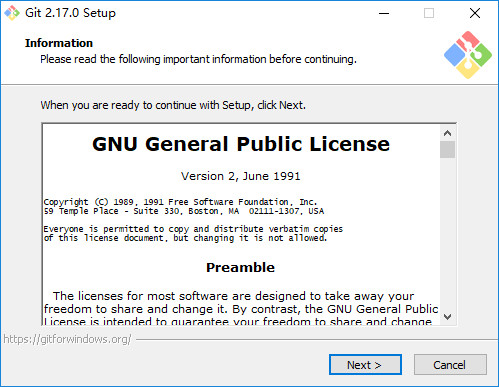
Please read the following important information before continuing
继续之前,请阅读以下重要信息
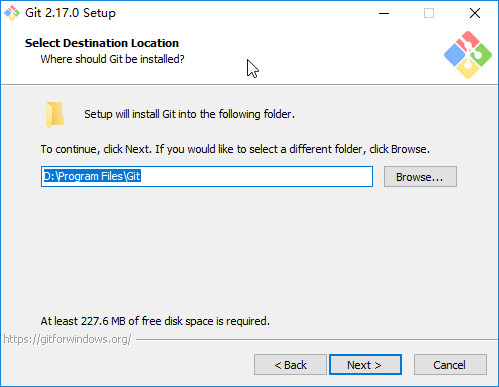
Step 2 Select Destination Location
选择安装位置
Step 3 Select Components
选择组件
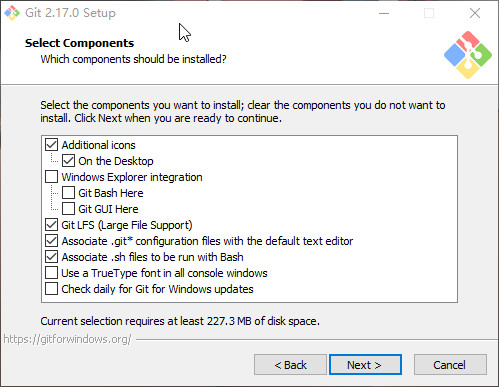
Additional icons 附加图标
On the Desktop 在桌面上
Windows Explorer integration Windows资源管理器集成鼠标右键菜单
Git Bash Here
Git GUI Here
Git LFS (Large File Support)
大文件支持
Associate .git* configuration files with the default text editor
将 .git 配置文件与默认文本编辑器相关联
Associate .sh files to be run with Bash
将.sh文件关联到Bash运行
Use a TrueType font in all console windows
在所有控制台窗口中使用TrueType字体
Check daily for Git for Windows updates
每天检查Git是否有Windows更新
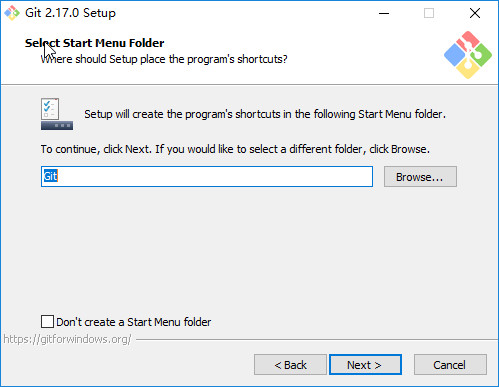
Step 4 Select Strat Menu Folder
创建开始菜单目录
Step 5 Choosing the default editor used by Git
选择Git使用的默认编辑器
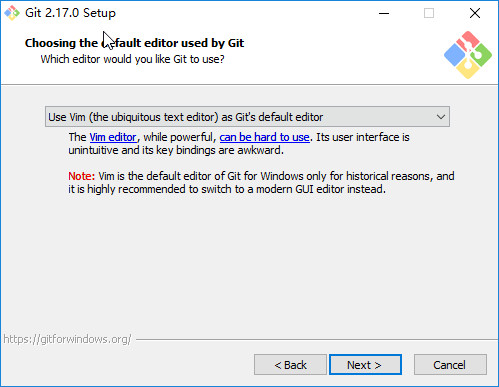
Use the Nano editor by default
默认使用 Nano 编辑器
Use Vim (The ubiquitous text editor) as Git's default editor
使用 Vim 作为 Git 的默认编辑器
Use Notepad++ as Git's default editor
使用 Notepad++ 作为 Git 的默认编辑器
Use Visual Studio Code as Git's default editor
使用 Visual Studio Code 作为 Git 的默认编辑器
Step 6 Adjusting your PATH environment
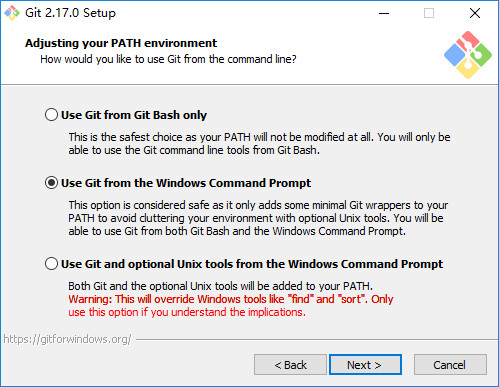
配置PATH环境
Use Git from Git Bash only
This is the safest choice as your PATH will not be modified at all.You will only be able to use the Git command line tools form Git Bash.
这是最安全的选择,因为您的PATH根本不会被修改。您只能使用 Git Bash 的 Git 命令行工具。
Use Git from the Windows Command Prompt
This option is considered safe as it only adds some minimal Git wrappers to your PATH to avoid cluttering your environment with optional Unix tools . You will be able to use Git from both Git Bash and the Windows Command Prompt.
这个选项被认为是安全的,因为它只向PATH添加一些最小的 Git包,以避免使用可选的Unix工具混淆环境。 您将能够从 Git Bash 和 Windows 命令提示符中使用 Git。
Use Git and optional Unix tools from the Windows Command Prompt
从Windows命令提示符使用Git和可选的Unix工具
Both Git and the optional Unix tools will be added to you PATH
Git和可选的Unix工具都将添加到您计算机的 PATH 中
Warning:This will override Windows tools like "find and sort".Only use this option if you understand the implications.
警告:这将覆盖Windows工具,如 “ find 和 sort ”。只有在了解其含义后才使用此选项。
Step 7 Choosing HTTPS transport backend
选择HTTPS传输后端

Use the OpenSSL library
使用 OpenSSL 库
Server certificates will be validated using the ca-bundle.crt file.
服务器证书将使用ca-bundle.crt文件进行验证。
Use the native Windows Secure Channel library
使用本地 Windows 安全通道库
Server certificates will be validated using Windows Certificate Stores.This option also allows you to use your company's internal Root CA certificates distributed e.g. via Active Directory Domain Services.
服务器证书将使用Windows证书存储验证。此选项还允许您使用公司的内部根CA证书,例如, 通过Active Directory Domain Services 。
Step 8 Configuring the line ending conversions
配置行结束转换
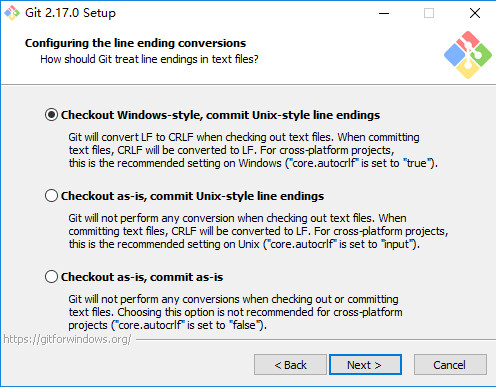
Checkout Windows-style,commit Unix-style line endings
Git will convert LF to CRLF when checking out text files.When committing text files,CRLF will be converted to LF .For cross-pltform projects,this is the recommended setting on Windows ("core.autocrlf" is set to "true")
在检出文本文件时,Git会将LF转换为CRLF。当提交文本文件时,CRLF将转换为LF。 对于跨平台项目,这是Windows上推荐的设置(“core.autocrlf”设置为“true”)
Checkout as-is , commit Unix-style line endings
Git will not perform any conversion when checking out text files. When committing text files, CRLF will be converted to LF. For cross-platform projects,this is the recommended setting on Unix ("core.autocrlf" is set to "input")
在检出文本文件时,Git不会执行任何转换。 提交文本文件时,CRLF将转换为LF。 对于跨平台项目,这是Unix上的推荐设置 (“core.autocrlf”设置为“input”)
Checkout as-is,commit as-is
Git will not perform any conversions when checking out or committing text files.Choosing this option is not recommended for cross-platform projects ("core.autocrlf"is set to "false")
在检出或提交文本文件时,Git不会执行任何转换。对于跨平台项目,不推荐使用此选项(“core.autocrlf”设置为“false”)
Step 9 Configuring the terminal emulator to use with Git Bash
配置终端模拟器以与 Git Bash 一起使用
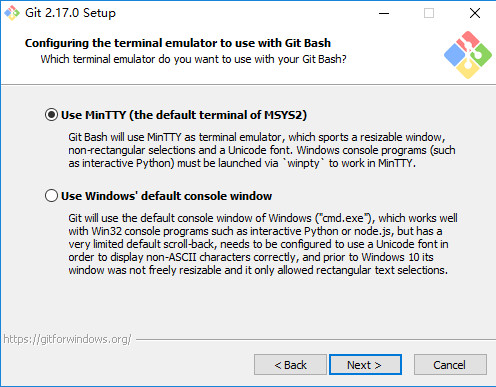
Use MinTTY (the default terminal of MSYS2)
Git Bash will use MinTTY as terminal emulator,which sports a resizable window,non-rectangular selections and a Unicode font. Windows console programs (such as interactive Python) must be launched via 'winpty' to work in MinTTY.
Git Bash将使用MinTTY作为终端模拟器,该模拟器具有可调整大小的窗口,非矩形选区和Unicode字体。 Windows控制台程序(如交互式Python)必须通过'winpty'启动才能在MinTTY中运行。
Use Windows' default console window
Git will use the default console window of Windows ("cmd.exe"),which works well with Win32 console programs such as interactive Python or node.js , but has a very limited default scroll-back,needs to be configured to use aUnicode font in order to display non-ASCII characters correctly,and prior to Windows 10 its windows was not freely resizable and it only allowed rectangular text selections.
Git将使用Windows的默认控制台窗口(“cmd.exe”),该窗口可以与Win32控制台程序(如交互式Python或node.js)一起使用,但默认的回滚非常有限,需要配置为使用unicode 字体以正确显示非ASCII字符,并且在Windows 10之前,其窗口不能自由调整大小,并且只允许矩形文本选择。
Step 10 Configuring extra options
配置额外的选项
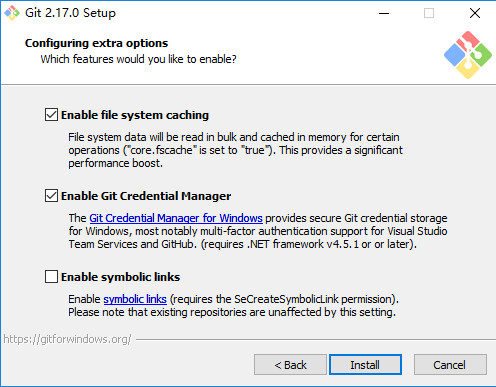
Enable file system caching
启用文件系统缓存
File system data will be read in bulk and cached in memory for certain operations ("core.fscache" is set to "true"). This provides a significant performance boost.
文件系统数据将被批量读取并缓存在内存中用于某些操作(“core.fscache”设置为“true”)。 这提供了显着的性能提升。
Enable Git Credential Manager
启用Git凭证管理器
The Git Credential Manager for Windows provides secure Git credential storage for Windows,most notably multi-factor authentication support for Visual Studio Team Services and GitHub. (requires .NET framework v4.5.1 or or later).
Windows的Git凭证管理器为Windows提供安全的Git凭证存储,最显着的是对Visual Studio Team Services和GitHub的多因素身份验证支持。 (需要.NET Framework v4.5.1或更高版本)。
Enable symbolic links
启用符号链接
Enable symbolic links (requires the SeCreateSymbolicLink permission).Please note that existing repositories are unaffected by this setting.
启用符号链接(需要SeCreateSymbolicLink权限)。请注意,现有存储库不受此设置的影响。
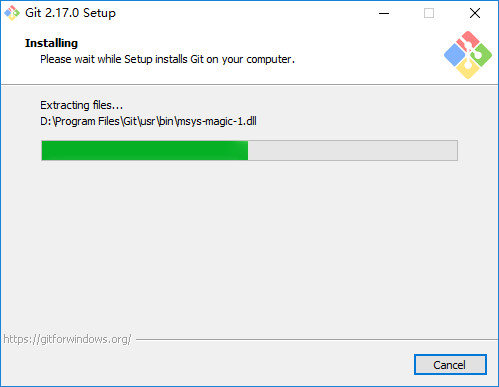
Step 11 Installing
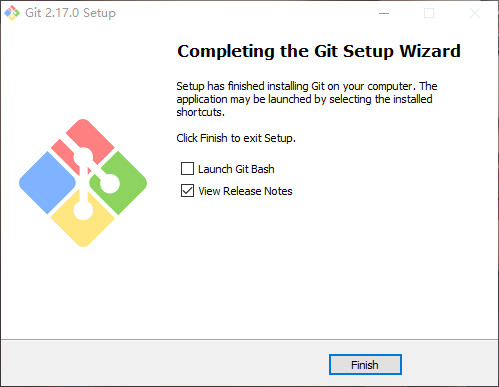
Step 12 Completing the Git Setup Wizard
#Git 详细中文安装教程的更多相关文章
- Git、TortoiseGit中文安装教程,如何注册Gitee账号进行代码提交,上传代码后主页贡献度没显示绿点(详解)
今天给大家分享的是 Git 软件和 TortoiseGit 图形化软件的详细安装教程以及如何在 gitee 上进行代码提交. 首先我也是个刚接触 gitee 的一个小白用户,这些都是自己一边学一边记录 ...
- NO.A.0002——Git简史及安装教程/创建本地仓库/提交项目到本地仓库/误删还原
一.Git简史及同类产品对比: 1.git简史: 同生活中的许多伟大事件一样,Git 诞生于一个极富纷争大举创新的年代.Linux 内核开源项目有着为数众广的参与者.绝大多数的 Linu ...
- Windows+Git+TortoiseGit+COPSSH 安装教程及问题收集
准备工作: 1. git-1.8.1.2-preview20130201.exe 下载地址: https://code.google.com/p/msysgit/downloads/list 2. C ...
- Mysql学习总结(2)——Mysql超详细Window安装教程
目录 一.安装包准备 二.开始安装 三.验证安装 四.客户端工具 一.安装包准备 1.下载MySql5.6 http://www.mysql.com/ 下载如下教程,这时要选MySql On Wind ...
- git Windows终端安装教程
1.下载网址:https://gitforwindows.org/ 2.双击压缩包出现: 3.点击下一步后,选择安装路径: 根据自己的需求选择路径 4.选择安装的组件,建议全选 [每一条解析:] Ad ...
- 初学者对Git的使用安装教程,以及对unknown key type -rsa的解决办法
第一次使用Git,诚惶诚恐. Git在每个电脑上第一次使用必须要配置环境,才能通过SSH秘钥的方式安全稳定的拉取代码! 此文适合对Git一无所知的小白观看,大神勿扰.下面我将讲解一个傻瓜式的Git安装 ...
- ROS 不能再详细的安装教程
版权声明:本文为博主原创文章,转载请标明出处: http://www.cnblogs.com/liu-fa/p/5779206.html 关于ROS(Robot OS 机器人操作系统),估计看这个博文 ...
- MySQL基础知识(一)-超详细MySQL安装教程
简介 原计划,今天这篇想要给小伙伴们讲解一下python操作mysql数据库,但是由于近期换了一台新的电脑,所以一看mysql数据库都没安装,所有才有了这篇文章.尽管网上不乏此类型的文章,但是刚好自己 ...
- Git for Windows安装教程
1.国内直接从官网(http://git-scm.com/download/win)下载比较困难,速度极慢,需要翻墙. 这里提供一个国内的下载站,方便网友下载(https://npm.taobao.o ...
随机推荐
- [Java] 理解JVM之一:工作机制及基本结构
一.基本结构 类加载器:在 JVM 启动时或在类运行时需要将类的字节码信息加载到 JVM 内存区域中. 执行引擎:负责执行字节码信息中包含的字节码指令,相当于实际机器上的 CPU. 内存区域:也被称为 ...
- c# dev GridControl多选当前行显示样式问题
由于Dev GridControl在支持多选的时候,如果如果焦点行单独加了样式,Appearance-->FocusedRow & HideSelectionRow 这个时候,鼠标焦 ...
- mysql的force index
MSQL中使用order by 有个坑,会默认走order by 后面的索引.而不走where条件里应该走的索引.大家在使用时要绕过此坑. 如下语句因为order by 走了settle_id这个主键 ...
- linux 自定义yum仓库、repo文件 yum命令
目录 自定义yum仓库:createrepo 自定义repo文件 使用yum命令安装httpd软件包 卸载httpd软件包:yum –y remove 软件名 清除yum缓存:yum clean al ...
- HDU1505 City Game 悬线法
题意: 给出一个像这样的矩阵 R F F F F F F F F F F F R R R F F F F F F F F F F F F F F F 求F组成的最大子矩阵(面积最大) 有多组数 ...
- static_cast、dynamic_cast、reinterpret_cast、和const_c
;double dval = 3.14159; ival + dval;//ival被提升为double类型 2)一种类型表达式赋值给另一种类型的对象:目标类型是被赋值对象的类型 int *pi = ...
- Java NIO之拥抱Path和Files
Java面试通关手册(Java学习指南)github地址(欢迎star和pull):https://github.com/Snailclimb/Java_Guide 历史回顾: Java NIO 概览 ...
- docker制作镜像步骤
一.查看宿主机下是否有符合需求的docker镜像 操作命令如下: [root@server4 ~]# docker images REPOSITORY TAG IMAGE ID CREATED SIZ ...
- 【技巧总结】Penetration Test Engineer[3]-Web-Security(SQL注入、XXS、代码注入、命令执行、变量覆盖、XSS)
3.Web安全基础 3.1.HTTP协议 1)TCP/IP协议-HTTP 应用层:HTTP.FTP.TELNET.DNS.POP3 传输层:TCP.UDP 网络层:IP.ICMP.ARP 2)常用方法 ...
- 聊天室(上篇)GatewayWorker 基础
前言 本文的目的是基于 GatewayWorker 官方手册,梳理一次 GatewayWorker,并在实践中与 MVC 框架整合的思路(附最终的项目源码).如果你已经理解了整合这一块儿的知识,那么就 ...