
TensorFlow图像处理函数
参考书
《TensorFlow:实战Google深度学习框架》(第2版)
图像编码处理+图像大小调整+图像翻转+图像色彩调整+处理标注框
#!/usr/bin/env python

# -*- coding: UTF-8 -*-

# coding=utf-8

"""

@author: Li Tian

@contact: 694317828@qq.com

@software: pycharm

@file: figure_deal_test1.py

@time: 2019/1/21 10:06

@desc: 用TensorFlow对jpeg格式图像进行编码/解码

"""

# matplotlib.pyplot是一个python的画图工具。在这一节中使用这个工具来可视化经过TensorFlow处理的图像。

import matplotlib.pyplot as plt

import tensorflow as tf

# 读取图像的原始数据。

image_raw_data = tf.gfile.FastGFile('F:/Python3Space/figuredata_deal/krystal.jpg', 'rb').read()

with tf.Session() as sess:

    # 对图像进行jpeg的格式解码从而得到图相对应的三维矩阵。TensorFlow还提供了tf.image.decode_png函数对png格式的图像进行解码。

    # 解码之后的结果为一个张量,在使用它的取值之前需要明确调用运行的过程。

    img_data = tf.image.decode_jpeg(image_raw_data)

    imag_data = tf.image.convert_image_dtype(img_data, dtype=tf.float32)

    # 调整图像调整大小

    # 0:双线性插值法

    resized_0 = tf.image.resize_images(imag_data, [300, 300], method=0)

    # 1:最近邻居法

    resized_1 = tf.image.resize_images(imag_data, [300, 300], method=1)

    # 2:双三次插值法

    resized_2 = tf.image.resize_images(imag_data, [300, 300], method=2)

    # 3:面积插值法

    resized_3 = tf.image.resize_images(imag_data, [300, 300], method=3)

    # 对图像进行裁剪和填充

    croped = tf.image.resize_image_with_crop_or_pad(imag_data, 1000, 1000)

    padded = tf.image.resize_image_with_crop_or_pad(imag_data, 3000, 3000)

    # 用过比例调整图像大小

    central_cropped = tf.image.central_crop(imag_data, 0.5)

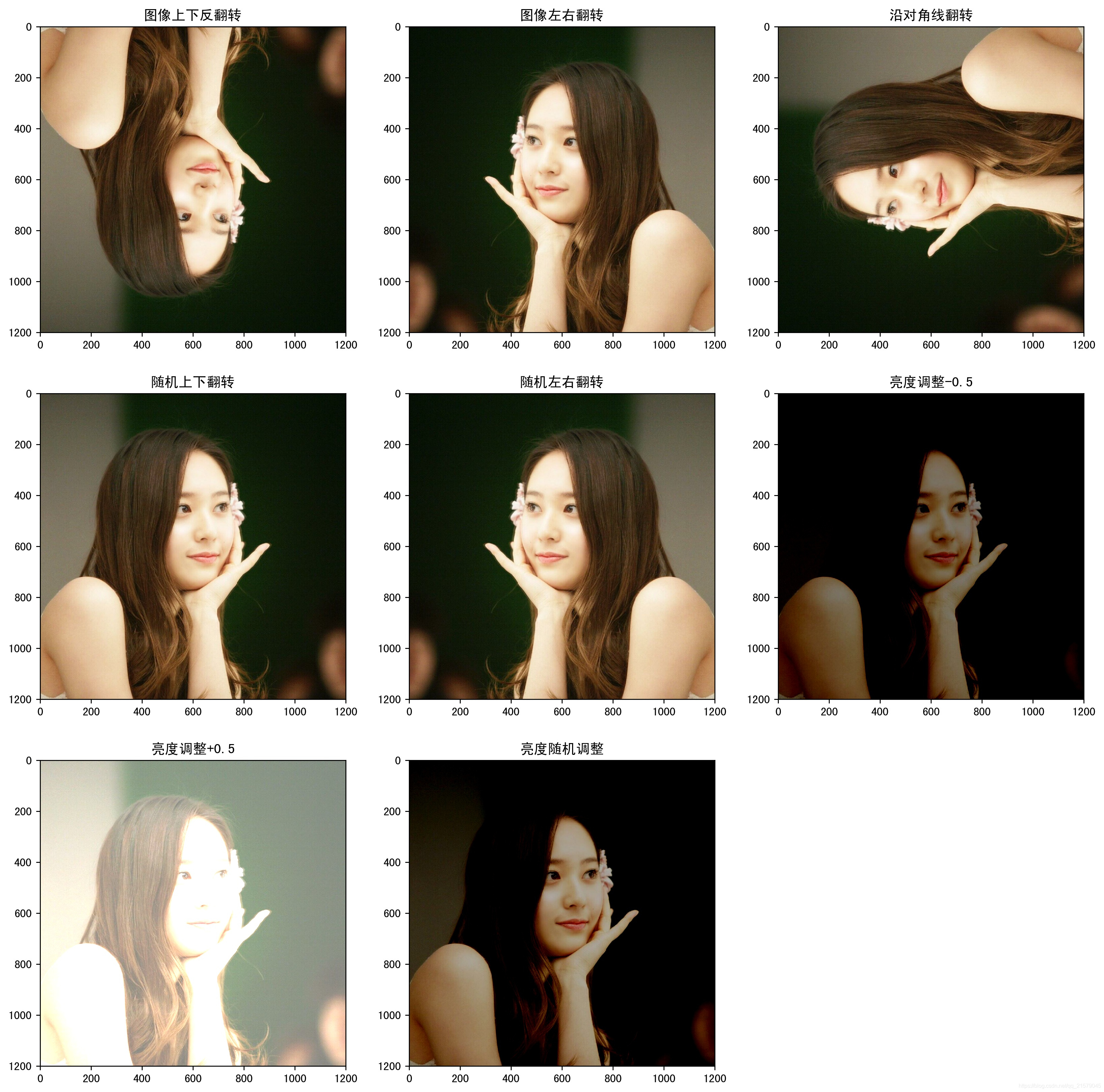
    # 将图像上下翻转

    flipped_0 = tf.image.flip_up_down(imag_data)

    # 将图像左右翻转

    flipped_1 = tf.image.flip_left_right(imag_data)

    # 将图像沿对角线翻转

    transposed = tf.image.transpose_image(imag_data)

    # 随机图像翻转

    flipped_2 = tf.image.random_flip_up_down(imag_data)

    flipped_3 = tf.image.random_flip_left_right(imag_data)

    # 图像亮度调整

    adjusted = tf.image.adjust_brightness(imag_data, -0.5)

    # 色彩调整的API可能导致像素的实数值超出0.0-1.0的范围,因此在输出最终图像前需要将其值截断在0.0-1.0范围区内,否则

    # 不仅图像无法正常可视化,以此为输入的神经网络的训练质量也可能收到影响。

    adjusted_0 = tf.clip_by_value(adjusted, 0.0, 1.0)

    # 将图像的亮度+0.5

    adjusted = tf.image.adjust_brightness(imag_data, 0.5)

    adjusted_1 = tf.clip_by_value(adjusted, 0.0, 1.0)

    # 在[-max_delta, max_delta)的范围随机调整图像的亮度。

    adjusted_2 = tf.image.random_brightness(imag_data, max_delta=0.5)

    # 改变图像的对比度

    adjusted_3 = tf.image.adjust_contrast(imag_data, 0.5)

    adjusted_4 = tf.image.adjust_contrast(imag_data, 5)

    adjusted_5 = tf.image.random_contrast(imag_data, 0.1, 10)

    # 调整图像色相

    adjusted_6 = tf.image.adjust_hue(imag_data, 0.1)

    adjusted_7 = tf.image.adjust_hue(imag_data, 0.6)

    adjusted_8 = tf.image.random_hue(imag_data, 0.3)

    # 调整图像饱和度

    adjusted_9 = tf.image.adjust_saturation(imag_data, -5)

    adjusted_10 = tf.image.adjust_saturation(imag_data, 5)

    adjusted_11 = tf.image.random_saturation(imag_data, 0, 5)

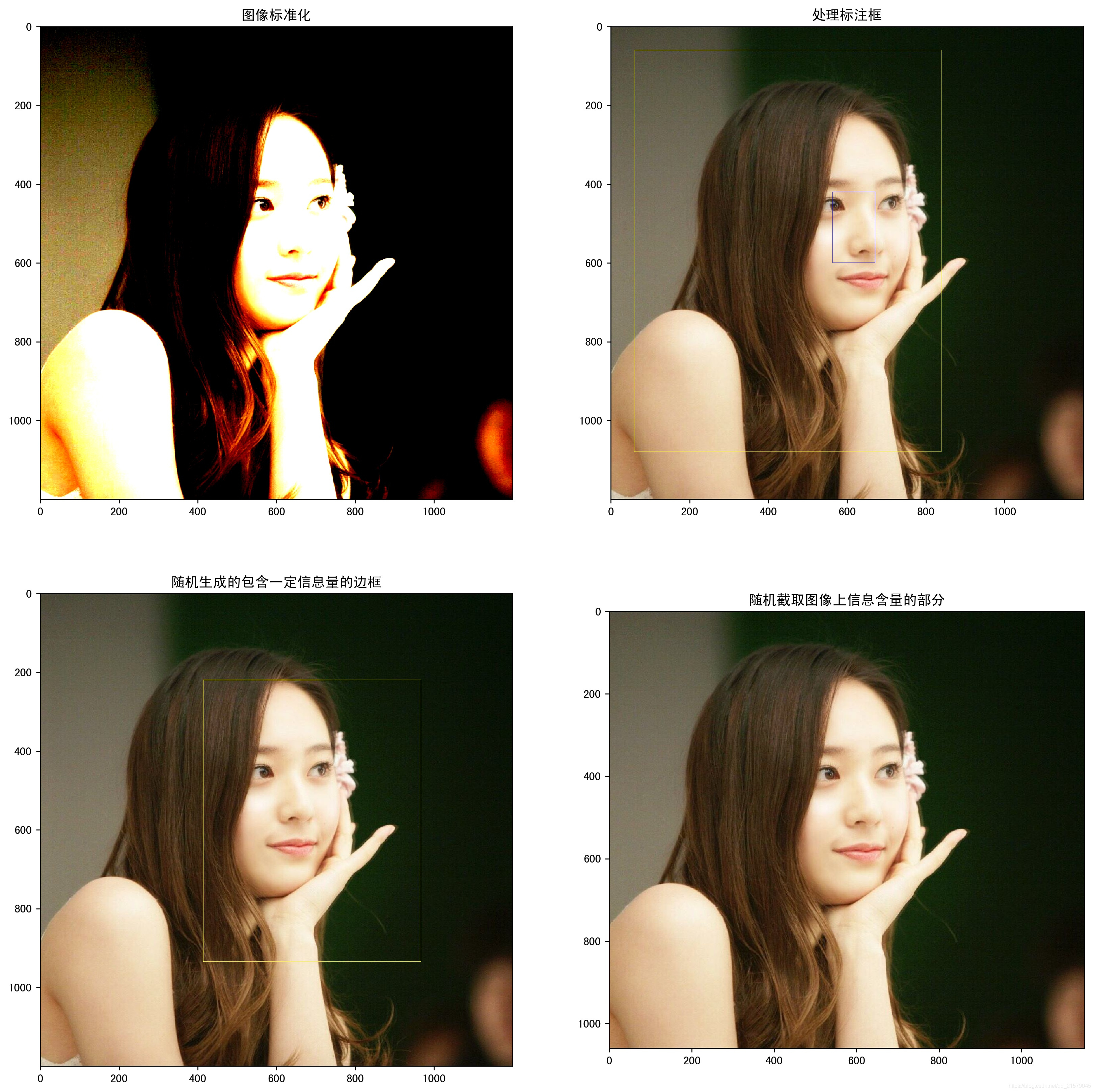
    # 图像标准化:将图像上的亮度均值变为0,方差变为1,。

    adjusted_12 = tf.image.per_image_standardization(imag_data)

    # 处理标注框

    # 将图像缩小一些,这样可视化能让标准框更加清楚。

    # img_data_deal = tf.image.resize_images(imag_data, [180, 267], method=1)

    # 图像的输入是一个batch的数据,也就是多张图像组成四维矩阵,所以需要将解码之后的图像矩阵加一维

    batched_1 = tf.expand_dims(tf.image.convert_image_dtype(img_data, tf.float32), 0)

    boxes = tf.constant([[[0.05, 0.05, 0.9, 0.7], [0.35, 0.47, 0.5, 0.56]]])

    result = tf.image.draw_bounding_boxes(batched_1, boxes)

    # 随机截取图像上有信息含量的部分

    # 可以通过提供标注框的方式来告诉随机截取图像的算法哪些部分是“有信息量”的

    begin, size, bbox_for_draw = tf.image.sample_distorted_bounding_box(tf.shape(img_data), bounding_boxes=boxes, min_object_covered=0.4)

    # 通过标注框可视化随机截取得到的图像

    batched_2 = tf.expand_dims(tf.image.convert_image_dtype(img_data, tf.float32), 0)

    image_with_box = tf.image.draw_bounding_boxes(batched_2, bbox_for_draw)

    # 截取随机出来的图像。

    distorted_image = tf.slice(img_data, begin, size)

    plt.rcParams['font.sans-serif'] = ['SimHei']  # 步骤一(替换sans-serif字体)

    plt.rcParams['axes.unicode_minus'] = False  # 步骤二(解决坐标轴负数的负号显示问题)

    # '''

    fig1 = plt.figure(1, (16, 16), dpi=100)

    ax = plt.subplot(331)

    ax.set_title('原图')

    plt.imshow(imag_data.eval())

    ax = plt.subplot(332)

    ax.set_title('双线性插值法')

    plt.imshow(resized_0.eval())

    ax = plt.subplot(333)

    ax.set_title('最近邻居法')

    plt.imshow(resized_1.eval())

    ax = plt.subplot(334)

    ax.set_title('双三次插值法')

    plt.imshow(resized_2.eval())

    ax = plt.subplot(335)

    ax.set_title('面积插值法')

    plt.imshow(resized_3.eval())

    ax = plt.subplot(336)

    ax.set_title('对图像进行裁剪')

    plt.imshow(croped.eval())

    ax = plt.subplot(337)

    ax.set_title('对图像进行填充')

    plt.imshow(padded.eval())

    ax = plt.subplot(338)

    ax.set_title('比例调整图像大小')

    plt.imshow(central_cropped.eval())

    fig2 = plt.figure(2, (16, 16), dpi=250)

    ax = plt.subplot(331)

    ax.set_title('图像上下反翻转')

    plt.imshow(flipped_0.eval())

    ax = plt.subplot(332)

    ax.set_title('图像左右翻转')

    plt.imshow(flipped_1.eval())

    ax = plt.subplot(333)

    ax.set_title('沿对角线翻转')

    plt.imshow(transposed.eval())

    ax = plt.subplot(334)

    ax.set_title('随机上下翻转')

    plt.imshow(flipped_2.eval())

    ax = plt.subplot(335)

    ax.set_title('随机左右翻转')

    plt.imshow(flipped_3.eval())

    ax = plt.subplot(336)

    ax.set_title('亮度调整-0.5')

    plt.imshow(adjusted_0.eval())

    ax = plt.subplot(337)

    ax.set_title('亮度调整+0.5')

    plt.imshow(adjusted_1.eval())

    ax = plt.subplot(338)

    ax.set_title('亮度随机调整')

    plt.imshow(adjusted_2.eval())

    fig3 = plt.figure(3, (16, 16), dpi=250)

    ax = plt.subplot(331)

    ax.set_title('对比度调整+0.5')

    plt.imshow(adjusted_3.eval())

    ax = plt.subplot(332)

    ax.set_title('对比度调整+5')

    plt.imshow(adjusted_4.eval())

    ax = plt.subplot(333)

    ax.set_title('对比度随机调整')

    plt.imshow(adjusted_5.eval())

    ax = plt.subplot(334)

    ax.set_title('色相调整+0.1')

    plt.imshow(adjusted_6.eval())

    ax = plt.subplot(335)

    ax.set_title('色相调整+0.6')

    plt.imshow(adjusted_7.eval())

    ax = plt.subplot(336)

    ax.set_title('色相随机调整')

    plt.imshow(adjusted_8.eval())

    ax = plt.subplot(337)

    ax.set_title('饱和度调整-5')

    plt.imshow(adjusted_9.eval())

    ax = plt.subplot(338)

    ax.set_title('饱和度调整+5')

    plt.imshow(adjusted_10.eval())

    ax = plt.subplot(339)

    ax.set_title('饱和度随机调整')

    plt.imshow(adjusted_11.eval())

    # '''

    fig4 = plt.figure(4, (16, 16), dpi=250)

    ax = plt.subplot(221)

    ax.set_title('图像标准化')

    plt.imshow(adjusted_12.eval())

    ax = plt.subplot(222)

    ax.set_title('处理标注框')

    plt.imshow(result[0].eval())

    ax = plt.subplot(223)

    ax.set_title('随机生成的包含一定信息量的边框')

    plt.imshow(image_with_box[0].eval())

    ax = plt.subplot(224)

    ax.set_title('随机截取图像上信息含量的部分')

    plt.imshow(distorted_image.eval())

    # 使用pyplot工具可视化得到的图像。

    # plt.show()

    # '''

    fig1.savefig('F:/Python3Space/figuredata_deal/figure1.jpg', bbox_inches='tight')

    fig2.savefig('F:/Python3Space/figuredata_deal/figure2.jpg', bbox_inches='tight')

    fig3.savefig('F:/Python3Space/figuredata_deal/figure3.jpg', bbox_inches='tight')

    # '''

    fig4.savefig('F:/Python3Space/figuredata_deal/figure4.jpg', bbox_inches='tight')

    # 将表示一张图像的三维矩阵重新按照jpeg格式编码并存入文件中,打开这张图像,可以得到和原始图像一样的图像。

    # encoded_image = tf.image.encode_jpeg(imag_data)

    # with tf.gfile.GFile('C:/Users/Administrator/Desktop/Python3Space/figuredata_deal/output.jpg', 'wb') as f:

    #     f.write(encoded_image.eval())
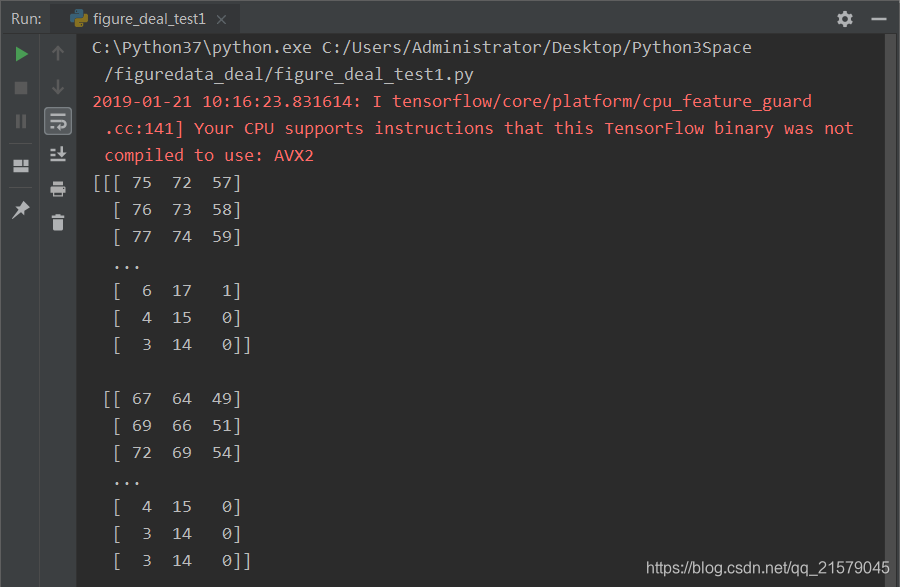
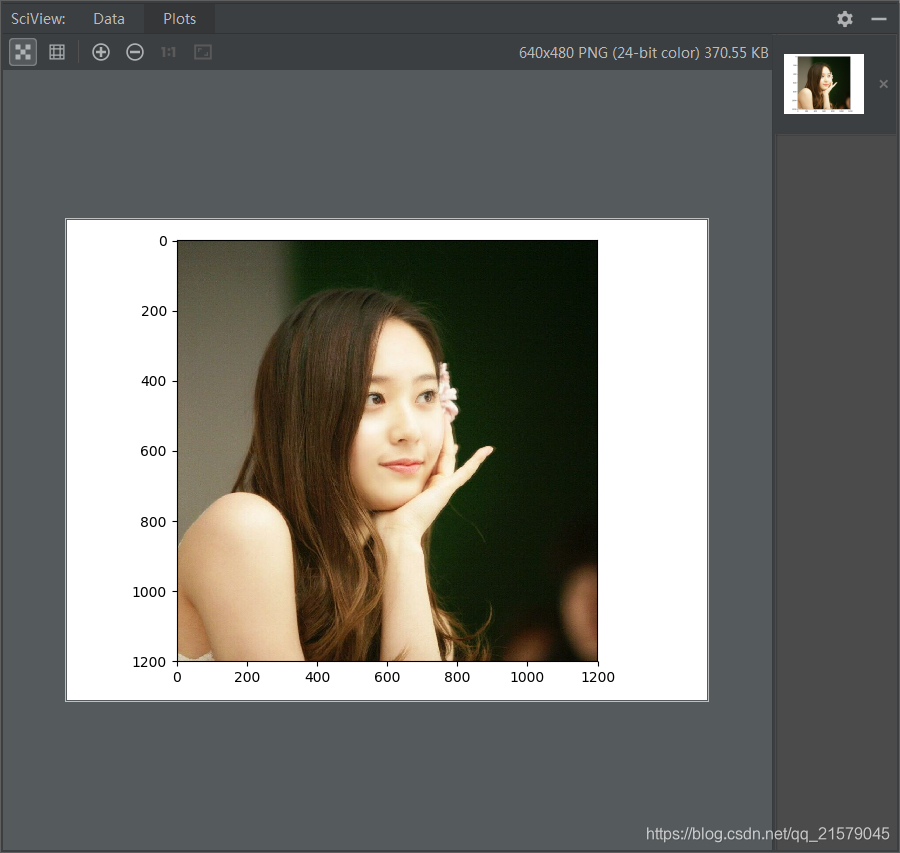
运行结果:



TensorFlow图像处理函数的更多相关文章
- tensorflow图像处理函数(1)
1.tensorflow中对jpeg格式图像的编码/解码函数: import matplotlib.pyplot as plt import tensorflow as tf image_raw_da ...
- 吴裕雄 python 神经网络——TensorFlow 图像处理函数
import numpy as np import tensorflow as tf import matplotlib.pyplot as plt image_raw_data = tf.gfile ...
- 吴裕雄--天生自然 pythonTensorFlow图形数据处理:TensorFlow图像处理函数
import numpy as np import tensorflow as tf import matplotlib.pyplot as plt #读取图片 image_raw_data = tf ...
- Tensorflow图像处理
Tensorflow图像处理主要包括:调整尺寸,图像翻转,调整色彩,处理标注框. 代码如下: #coding=utf-8 import matplotlib.pyplot as plt import ...
- Matlab图像处理函数:regionprops
本篇文章为转载,仅为方便学术讨论所用,不用于商业用途.由于时间较久,原作者以及原始链接暂时无法找到,如有侵权以及其他任何事宜欢迎跟我联系,如有侵扰,在此提前表示歉意.----------------- ...
- tf.nn.embedding_lookup TensorFlow embedding_lookup 函数最简单实例
tf.nn.embedding_lookup TensorFlow embedding_lookup 函数最简单实例 #!/usr/bin/env python # -*- coding: utf-8 ...
- 深度学习TensorFlow常用函数
tensorflow常用函数 TensorFlow 将图形定义转换成分布式执行的操作, 以充分利用可用的计算资源(如 CPU 或 GPU.一般你不需要显式指定使用 CPU 还是 GPU, Tensor ...
- php GD 和图像处理函数, 用 STHUPO.TTF 字体向图像写入文本
php GD 和图像处理函数, 用 STHUPO.TTF 字体向图像写入文本 注意: 01) imagettftext() 这个函数不能使用相对路径, 要想使用相对路径要先使用 puten ...
- php GD 和图像处理函数, 制作一张图片
php GD 和图像处理函数, 制作一张图片 // GD 和图像处理函数 // https://www.php.net/manual/zh/ref.image.php // https://www.p ...
随机推荐
- 【网络协议】IP协议、ARP协议、RARP协议
IP数据报 IP是TCP/IP协议族中最核心的协议,全部的TCP.UDP.ICMP.IGMP数据都以IP数据报的格式传输.IP仅提供尽力而为的传输服务.假设发生某种错误.IP会丢失该数据.然后发送IC ...
- linux安装jdk tomcat nginx 以及常用命令
linux: 操作系统,应用服务器上 常用命令: cd 切换命令 cd / cd ~ cd ../../ cd xx ll 展示所有的文件 ll -h 友好的展示 mkdir 创建目录 mkdir 目 ...
- SLG, 菱形格子的算法.(递归版
class GeoPoint{ public: int x; int y; public: bool operator == (const GeoPoint& p){ return p.x = ...
- python 1: 解决linux系统下python中的matplotlib模块内的pyplot输出图片不能显示中文的问题
问题: 我在ubuntu14.04下用python中的matplotlib模块内的pyplot输出图片不能显示中文,怎么解决呢? 解决: 1.指定默认编码为UTF-8: 在python代码开头加入如下 ...
- HTTP协议六种请求方法,get,head,put,delete,post有什么区别
标准Http协议支持六种请求方法,即: 1.GET 2.POST 3.PUT 4.Delete 5.HEAD 6.Options 但其实我们大部分情况下只用到了GET和POST.如果想设计一个符合RE ...
- 微信小程序template使用
当您的项目需要多次使用同一个布局和样式的时候,您就可以考虑使用template(模板)来减少冗余代码. 使用方式: 1.新建一个template文件夹来存放您的通用模板: 2.在文件夹里面新建一个wx ...
- iOS 声明属性关键字的总结
atomic: 原子操作(原子性是指事务的一个完整操作,操作成功就提交,反之就回滚. 原子操作就是指具有原子性的操作)在objective-c 属性设置里面 默认的就是atomic ,意思就是 set ...
- Mysql常见函数
一.单行函数 1.字符函数 concat拼接 substr截取子串 upper转换成大写 lower转换成小写 trim去前后指定的空格和字符 ltrim去左边空格 rtrim去右边空格 replac ...
- Tomcat启动报:invalid LOC header (bad signature)的问题
原因:这种一般是因为项目依赖的某个jar包损坏引起的, 解决办法: 1.右键项目,选择maven,更新(update maven project) 2.通过右击项目名 -> Run as -& ...
- HDU1560 DNA sequence —— IDA*算法
题目链接:http://acm.hdu.edu.cn/showproblem.php?pid=1560 DNA sequence Time Limit: 15000/5000 MS (Java/Oth ...