
[WPF系列]-基础系列 TabControl应用
引言
Tabcontrol控件也是我们在项目中经常用到的一个控件,用它将相关的信息组织在一起分类显示。
简介


============================================
自定义TabitemPanel

WpfScrollableTabControl.zip
============================================
自动选择第一个TabItem
Auto-Select First Item Using XAML for Selector-Derived Controls (ListBox, ListView, TabControl, etc)
<Style x:Key="SelectorAutoSelectStyle"

       TargetType="{x:Type Selector}">

    <Style.Triggers>

        <MultiTrigger>

            <MultiTrigger.Conditions>

                <Condition Property="SelectedItem"

                           Value="{x:Null}" />

                <Condition Property="HasItems"

                           Value="True" />

            </MultiTrigger.Conditions>

            <Setter Property="SelectedIndex"

                    Value="0" />

        </MultiTrigger>

    </Style.Triggers>

</Style>

<Style BasedOn="{StaticResource SelectorAutoSelectStyle}"

       TargetType="{x:Type ListBox}" />

<Style BasedOn="{StaticResource SelectorAutoSelectStyle}"

       TargetType="{x:Type ListView}" />

<Style BasedOn="{StaticResource SelectorAutoSelectStyle}"

       TargetType="{x:Type TabControl}" />
In WPF, SelectionChanged does not mean that the selection changed
Windows Presentation Foundation's Routed Events can lead to unexpected or at least nonintuitive behavior when using TabControls that contain ListViews and/or ComboBoxes. A routed event generally bubbles from the control that raised it, up the whole element tree until the root. On its way up it invokes handlers on multiple listeners. This makes a lot of sense in theButtonBase.Click Event: if a button is clicked, then its containing element is also clicked.
By design, the Selector.SelectionChanged Event is such a routed event. TabItem, ListBox, and ComboBox all inherit from Selector, so if you put them in a hierarchy they will register on each other's events. A ComboBox that appears via a template in a ListBox will raise the SelectionChanged event of that ListBox - even if the user didn't select a new ListBoxItem. If you put that ListBox in a TabControl, then the SelectionChanged on that TabControl will also be fired - even if the user didn't select a new TabItem.
绑定List<T>对象,自动生成TabItems
<controls:TabControlEx   Grid.Row="11" Grid.Column="1"

                       x:Name="CalculationListBox"

                   ItemsSource="{Binding CalculationViewModels}">

            <controls:TabControlEx.ItemContainerStyle>

                <Style TargetType="TabItem">

                    <Setter Property="Background" Value="{Binding CalculationType,Converter={StaticResource CalculateTypesToColorConverter}}" />

                    <Setter Property="HeaderTemplate">

                        <Setter.Value>

                            <DataTemplate>

                                <TextBlock Text="{Binding CurrentCalculation.Name}" HorizontalAlignment="Left" />

                            </DataTemplate>

                        </Setter.Value>

                    </Setter>

                </Style>

            </controls:TabControlEx.ItemContainerStyle>

        </controls:TabControlEx>
避免TabItem不被选中时销毁,重新实现TabControl控件
解决方案一:
WPF TabControl: Turning Off Tab Virtualization
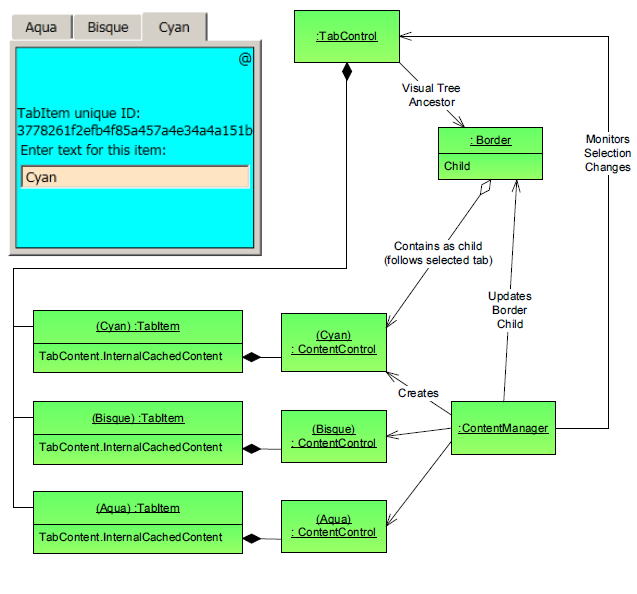
解决方案二:
WPF's forgetful TabControl
It reference the article: Persist the Visual Tree when switching tabs in the WPF TabControl
but there is a bug,to solve the problem:
Although the demo provided in the article works, I did have to tweak the code to get it to work with my project. I found that my TabControl was being loaded, then unloaded, then loaded again when my application started. This was causing the TabLoaded event handler in PersistTabItemsSourceHandler to fire twice. The second time it fired, AttachCollectionChangedEvent() was throwing a NullReferenceException because Tab had been set to null in PersistTabItemsSourceHandler.Dispose() when the TabControl was unloaded.
To fix this I first moved the calls to AttachCollectionChangedEvent() and LoadItemsSource() from the TabLoaded event handler to the constructor. Thus, AttachCollectionChangedEvent() was only called once, as soon as Tab had been set.
This got rid of the NullReferenceException, however now adding a new view model did not add a new item to the TabControl. This was because the TabControl was still being unloaded, during which the CollectionChanged event was being detached. The only way I could find to solve this was to remove the call to PersistTabItemsSourceHandler.Dispose() in PersistTabBehaviour.RemoveFromItemSourceHandlers().
解决方案三:
using System;

using System.Collections.Specialized;

using System.Windows;

using System.Windows.Controls;

using System.Windows.Controls.Primitives;

namespace SharedUtilities.Controls

{

    /// <summary>

    /// The standard WPF TabControl is quite bad in the fact that it only

    /// even contains the current TabItem in the VisualTree, so if you

    /// have complex views it takes a while to re-create the view each tab

    /// selection change.Which makes the standard TabControl very sticky to

    /// work with. This class along with its associated ControlTemplate

    /// allow all TabItems to remain in the VisualTree without it being Sticky.

    /// It does this by keeping all TabItem content in the VisualTree but

    /// hides all inactive TabItem content, and only keeps the active TabItem

    /// content shown.

    /// </summary>

    [TemplatePart(Name = "PART_ItemsHolder", Type = typeof (Panel))]

    public class TabControlEx : TabControl

    {

        #region Data

        private Panel itemsHolder = null;

        #endregion

        #region Ctor

        public TabControlEx()

            : base()

        {

            // this is necessary so that we get the initial databound selected item

            this.ItemContainerGenerator.StatusChanged += ItemContainerGenerator_StatusChanged;

            this.Loaded += TabControlEx_Loaded;

        }

        #endregion

        #region Public/Protected Methods

        /// <summary>

        /// get the ItemsHolder and generate any children

        /// </summary>

        public override void OnApplyTemplate()

        {

            base.OnApplyTemplate();

            itemsHolder = GetTemplateChild("PART_ItemsHolder") as Panel;

            UpdateSelectedItem();

        }

        /// <summary>

        /// when the items change we remove any generated panel children and add any new ones as necessary

        /// </summary>

        /// <param name="e"></param>

        protected override void OnItemsChanged(NotifyCollectionChangedEventArgs e)

        {

            base.OnItemsChanged(e);

            if (itemsHolder == null)

            {

                return;

            }

            switch (e.Action)

            {

                case NotifyCollectionChangedAction.Reset:

                    itemsHolder.Children.Clear();

                    break;

                case NotifyCollectionChangedAction.Add:

                case NotifyCollectionChangedAction.Remove:

                    if (e.OldItems != null)

                    {

                        foreach (var item in e.OldItems)

                        {

                            ContentPresenter cp = FindChildContentPresenter(item);

                            if (cp != null)

                            {

                                itemsHolder.Children.Remove(cp);

                            }

                        }

                    }

                    // don't do anything with new items because we don't want to

                    // create visuals that aren't being shown

                    UpdateSelectedItem();

                    break;

                case NotifyCollectionChangedAction.Replace:

                    throw new NotImplementedException("Replace not implemented yet");

            }

        }

        /// <summary>

        /// update the visible child in the ItemsHolder

        /// </summary>

        /// <param name="e"></param>

        protected override void OnSelectionChanged(SelectionChangedEventArgs e)

        {

            base.OnSelectionChanged(e);

            UpdateSelectedItem();

        }

        /// <summary>

        /// copied from TabControl; wish it were protected in that class instead of private

        /// </summary>

        /// <returns></returns>

        protected TabItem GetSelectedTabItem()

        {

            object selectedItem = base.SelectedItem;

            if (selectedItem == null)

            {

                return null;

            }

            TabItem item = selectedItem as TabItem;

            if (item == null)

            {

                item = base.ItemContainerGenerator.ContainerFromIndex(base.SelectedIndex) as TabItem;

            }

            return item;

        }

        #endregion

        #region Private Methods

        /// <summary>

        /// in some scenarios we need to update when loaded in case the

        /// ApplyTemplate happens before the databind.

        /// </summary>

        /// <param name="sender"></param>

        /// <param name="e"></param>

        private void TabControlEx_Loaded(object sender, RoutedEventArgs e)

        {

            UpdateSelectedItem();

        }

        /// <summary>

        /// if containers are done, generate the selected item

        /// </summary>

        /// <param name="sender"></param>

        /// <param name="e"></param>

        private void ItemContainerGenerator_StatusChanged(object sender, EventArgs e)

        {

            if (this.ItemContainerGenerator.Status == GeneratorStatus.ContainersGenerated)

            {

                this.ItemContainerGenerator.StatusChanged -= ItemContainerGenerator_StatusChanged;

                UpdateSelectedItem();

            }

        }

        /// <summary>

        /// generate a ContentPresenter for the selected item

        /// </summary>

        private void UpdateSelectedItem()

        {

            if (itemsHolder == null)

            {

                return;

            }

            // generate a ContentPresenter if necessary

            TabItem item = GetSelectedTabItem();

            if (item != null)

            {

                CreateChildContentPresenter(item);

            }

            // show the right child

            foreach (ContentPresenter child in itemsHolder.Children)

            {

                child.Visibility = ((child.Tag as TabItem).IsSelected) ? Visibility.Visible : Visibility.Collapsed;

            }

        }

        /// <summary>

        /// create the child ContentPresenter for the given item (could be data or a TabItem)

        /// </summary>

        /// <param name="item"></param>

        /// <returns></returns>

        private ContentPresenter CreateChildContentPresenter(object item)

        {

            if (item == null)

            {

                return null;

            }

            ContentPresenter cp = FindChildContentPresenter(item);

            if (cp != null)

            {

                return cp;

            }

            // the actual child to be added.  cp.Tag is a reference to the TabItem

            cp = new ContentPresenter();

            cp.Content = (item is TabItem) ? (item as TabItem).Content : item;

            cp.ContentTemplate = this.SelectedContentTemplate;

            cp.ContentTemplateSelector = this.SelectedContentTemplateSelector;

            cp.ContentStringFormat = this.SelectedContentStringFormat;

            cp.Visibility = Visibility.Collapsed;

            cp.Tag = (item is TabItem) ? item : (this.ItemContainerGenerator.ContainerFromItem(item));

            itemsHolder.Children.Add(cp);

            return cp;

        }

        /// <summary>

        /// Find the CP for the given object.  data could be a TabItem or a piece of data

        /// </summary>

        /// <param name="data"></param>

        /// <returns></returns>

        private ContentPresenter FindChildContentPresenter(object data)

        {

            if (data is TabItem)

            {

                data = (data as TabItem).Content;

            }

            if (data == null)

            {

                return null;

            }

            if (itemsHolder == null)

            {

                return null;

            }

            foreach (ContentPresenter cp in itemsHolder.Children)

            {

                if (cp.Content == data)

                {

                    return cp;

                }

            }

            return null;

        }

        #endregion

    }

}
Style自定义
自定义ContentTemplate
<Style TargetType="{x:Type controls:TabControlEx}">

        <Setter Property="Template">

            <Setter.Value>

                <ControlTemplate TargetType="{x:Type controls:TabControlEx}">

                    <Grid>

                        <Grid.RowDefinitions>

                            <RowDefinition x:Name="row0" Height="Auto" />

                            <RowDefinition x:Name="row1" Height="4" />

                            <RowDefinition x:Name="row2" Height="*" />

                        </Grid.RowDefinitions>

                        <TabPanel x:Name="tabpanel"

            Background="Transparent"

            Margin="0"

            Grid.Row="0"

            IsItemsHost="True" />

                        <Grid x:Name="divider"

                Grid.Row="1" Background="Black"

                HorizontalAlignment="Stretch" />

                        <ScrollViewer Grid.Row="2"

                                      HorizontalScrollBarVisibility="Auto"

                                      VerticalScrollBarVisibility="Auto">

                            <Grid x:Name="PART_ItemsHolder" />

                        </ScrollViewer>

                    </Grid>

                    <!-- no content presenter -->

                    <ControlTemplate.Triggers>

                        <Trigger Property="TabStripPlacement" Value="Top">

                            <Setter TargetName="tabpanel" Property="Grid.Row" Value="0" />

                            <Setter TargetName="divider" Property="Grid.Row" Value="1" />

                            <Setter TargetName="PART_ItemsHolder" Property="Grid.Row" Value="2" />

                            <Setter TargetName="row0" Property="Height" Value="Auto" />

                            <Setter TargetName="row1" Property="Height" Value="4" />

                            <Setter TargetName="row2" Property="Height" Value="*" />

                        </Trigger>

                        <Trigger Property="TabStripPlacement" Value="Bottom">

                            <Setter TargetName="tabpanel" Property="Grid.Row" Value="2" />

                            <Setter TargetName="divider" Property="Grid.Row" Value="1" />

                            <Setter TargetName="PART_ItemsHolder" Property="Grid.Row" Value="0" />

                            <Setter TargetName="row0" Property="Height" Value="*" />

                            <Setter TargetName="row1" Property="Height" Value="4" />

                            <Setter TargetName="row2" Property="Height" Value="Auto" />

                        </Trigger>

                    </ControlTemplate.Triggers>

                </ControlTemplate>

            </Setter.Value>

        </Setter>

    </Style>
<!--The Style for TabItems (strips).-->

    <Style TargetType="{x:Type TabControl}">

        <Setter Property="Template">

            <Setter.Value>

                <ControlTemplate TargetType="TabControl">

                    <Grid>

                        <Grid.RowDefinitions>

                            <RowDefinition Height="Auto" />

                            <RowDefinition />

                        </Grid.RowDefinitions>

                        <TabPanel x:Name="HeaderPanel"

                          Panel.ZIndex ="1"

                          KeyboardNavigation.TabIndex="1"

                          IsItemsHost="true"

                          Margin="0 3 0 2" />

                        <Border BorderThickness="1" Grid.Row="1" BorderBrush="Black">

                            <ScrollViewer HorizontalScrollBarVisibility="Auto"

                                      VerticalScrollBarVisibility="Auto">

                                <ContentPresenter x:Name="PART_SelectedContentHost"

                                      SnapsToDevicePixels="{TemplateBinding SnapsToDevicePixels}"

                                      Margin="{TemplateBinding Padding}"

                                      ContentSource="SelectedContent" />

                            </ScrollViewer>

                        </Border>

                    </Grid>

                </ControlTemplate>

            </Setter.Value>

        </Setter>

    </Style>
为所有TabItem设定统一的默认风格。
How to set the default style for tabitem in a tabcontrol's style
<TabControl ItemContainerStyle="{StaticResource MyTabItem}"/>
参考:
want to make scrollable tabs for a tabcontrol
How to change appearance of TabItems in a scrolling WPF TabControl?
WPF: TabControl Series - Part 1: Colors and Sizes
[WPF系列]-基础系列 TabControl应用的更多相关文章
- [WPF系列]-基础系列 Property Trigger, DataTrigger & EventTrigger
So far, we worked with styles by setting a static value for a specific property. However, using trig ...
- WPF入门教程系列一——基础
一. 前言 最近在学习WPF,学习WPF首先上的是微软的MSDN,然后再搜索了一下网络有关WPF的学习资料.为了温故而知新把学习过程记录下来,以备后查.这篇主要讲WPF的开发基础,介绍了如何使用V ...
- WPF入门教程系列二——Application介绍
一.Application介绍 WPF和WinForm 很相似, WPF与WinForm一样有一个 Application对象来进行一些全局的行为和操作,并且每个 Domain (应用程序域)中仅且只 ...
- WPF入门教程系列(二) 深入剖析WPF Binding的使用方法
WPF入门教程系列(二) 深入剖析WPF Binding的使用方法 同一个对象(特指System.Windows.DependencyObject的子类)的同一种属性(特指DependencyProp ...
- WPF入门教程系列(一) 创建你的第一个WPF项目
WPF入门教程系列(一) 创建你的第一个WPF项目 WPF基础知识 快速学习绝不是从零学起的,良好的基础是快速入手的关键,下面先为大家摞列以下自己总结的学习WPF的几点基础知识: 1) C#基础语法知 ...
- WPF入门教程系列一
WPF入门教程 一. 前言 公司项目基于WPF开发,最近项目上线有点空闲时间写一篇基于wpf的基础教材,WPF也是近期才接触,学习WPF也是在网上查资料与微软的MSDN进行学习,写本博客的目为了温 ...
- .Net5 WPF快速入门系列教程
一.概要 在工作中大家会遇到需要学习新的技术或者临时被抽调到新的项目当中进行开发.通常这样的情况比较紧急没有那么多的时间去看书学习.所以这里向wpf技术栈的开发者分享一套wpf教程,基于.net5框架 ...
- iOS系列 基础篇 03 探究应用生命周期
iOS系列 基础篇 03 探究应用生命周期 目录: 1. 非运行状态 - 应用启动场景 2. 点击Home键 - 应用退出场景 3. 挂起重新运行场景 4. 内存清除 - 应用终止场景 5. 结尾 本 ...
- iOS系列 基础篇 04 探究视图生命周期
iOS系列 基础篇 04 探究视图生命周期 视图是应用的一个重要的组成部份,功能的实现与其息息相关,而视图控制器控制着视图,其重要性在整个应用中不言而喻. 以视图的四种状态为基础,我们来系统了解一下视 ...
随机推荐
- WebApi设置SessionState为Required
public override void Init() { //在注册管道事件中 require session state //只能在引发“HttpApplication.AcquireReques ...
- 使用SignalR实现即时通讯功能
教程简介 SignalR的好处是可以让多个客户端之间进行互动,比如这篇教程就展示了当你在页面上拖动矩形方块的同时,其它打开这个页面的用户也将会看到你拖动的轨迹以及最终的结果,当然他们也可以通过拖动该方 ...
- SQL 循环语句 while 介绍 实例
declare @i int begin insert into test (userid) values(@i) end --------------- while 条件 begin 执行操作 en ...
- html节点属性操作
<!DOCTYPE html PUBLIC "-//W3C//DTD XHTML 1.0 Transitional//EN" "http://www.w3.org/ ...
- 企业管理咨询Interview Checklist
企业管理咨询Interview Checklist 一. 企业战略 1. 您对公司所处行业的看法如何? 2. 请您介绍一下公司的发展历程,主要业务开展状况及核心竞争力.关键成功因素有哪些? 3. 在您 ...
- 利用伪类:before&&:after实现图标库图标
一.实现如下效果 二.代码实现思路 图案一源码 <!DOCTYPE html> <html> <head> <meta charset="utf-8 ...
- CSS常用背景图片定位方法
CSS背景图片定位其实对于每一位学习前端的同学来说,都已经非常熟悉了.网上铺天盖地的最常见的一种方案就是在父元素中relative,然后子元素absolute.这种方案当然好,不过带来的一个缺点就是会 ...
- sharepoint报HRESULT:0x80131904的错误的原因和解决方法
在新建文件库的时候出现的.下上传文件和更改权限,都是在报这个HRESULT:0x80131904的错误,基本所有操作都报同一个错误,如下图: 错误原因 这个问题其实就是:sharepoint配置文件( ...
- 免费薪资总额管控系统-JXHR2016
•工资总额是指按照国家统计局规定的统计口径或企业规定,在一定时期内支付给各类用工的劳动报酬总额 •工资总额,即基本工资,包括岗位工资.各项津补贴 •JXHR2016以薪酬管控为核心,结合人力资源规划. ...
- Android的Message Pool是什么——源码角度分析
原文地址: http://blog.csdn.net/xplee0576/article/details/46875555 Android中,我们在线程之间通信传递通常采用Android的消息机制,而 ...